
Ever stumbled upon a brilliant Instagram Reel or a video you just had to keep? We’ve all been there. Instagram is a goldmine of creative, funny, and useful content, but figuring out how to save it directly to your device can feel a bit clunky.
Luckily, there are a few solid workarounds. You can generally save a video from Instagram to your gallery using three main methods: third-party downloader apps, online web-based tools, or your phone’s trusty built-in screen recorder. Each method has its pros and cons, and the best one for you depends on your device and how often you save videos.
Your Quick Guide to Saving Instagram Videos
The best method for you really boils down to what device you’re using (iPhone or Android), whether you prefer a dedicated app or a quick website visit, and what kind of video you’re trying to save. For example, screen recording is a fantastic, universal fix for grabbing live videos, while downloader apps often give you a much cleaner, higher-quality file for Reels.
To make it even simpler, here’s a quick visual guide to help you pick the right path based on your device.
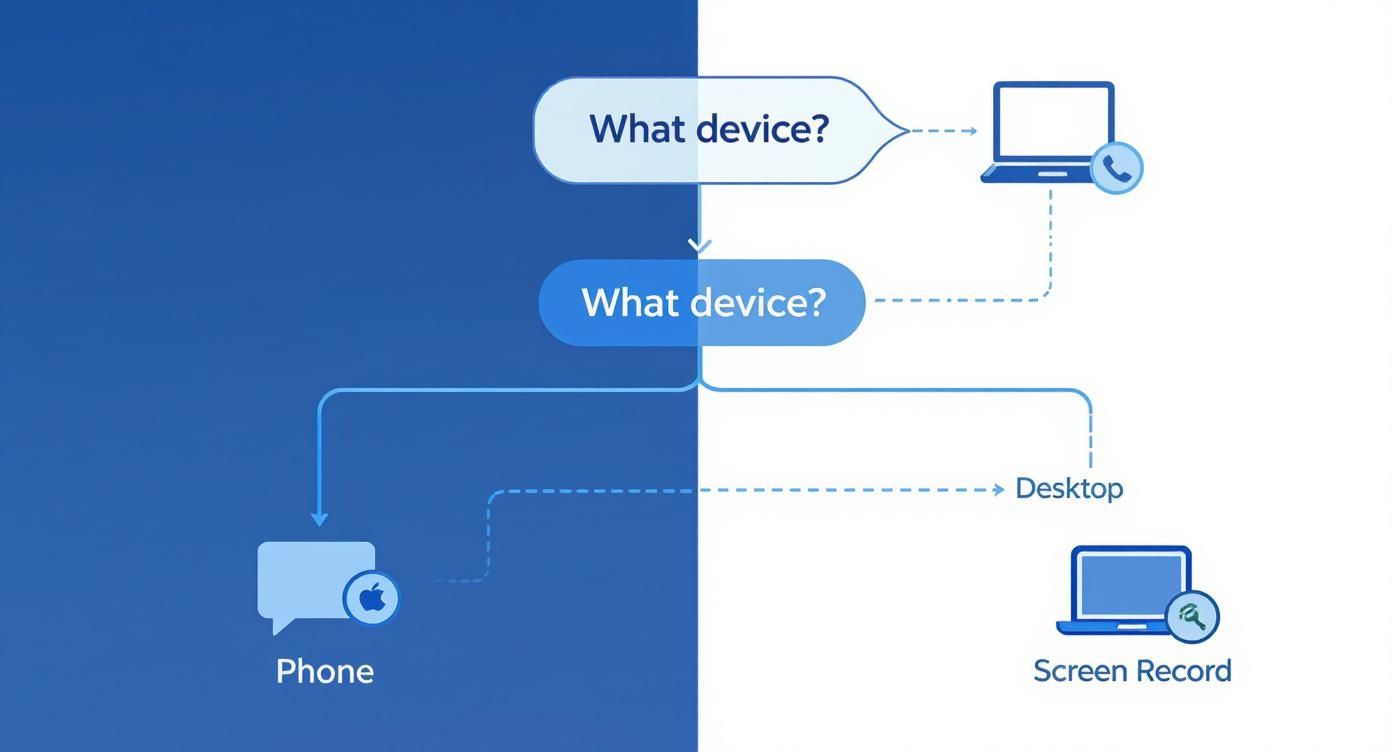
As you can see, your device is the starting point. From there, it’s a simple choice between grabbing a dedicated app if you save videos often, or just using the built-in screen recorder for a quick, one-off save.
Comparing Methods to Save Instagram Videos
To help you decide at a glance, this table breaks down the most popular ways to save Instagram videos. It’s a side-by-side look to help you choose the best option based on your device and what you need.
| Method | Best For | Pros | Cons |
|---|---|---|---|
| Third-Party Apps | Frequent savers on mobile (iOS & Android) | – High-quality downloads – Easy to use – Batch downloading |
– Can have ads – May require a subscription for premium features |
| Online Web Tools | Desktop users and quick, one-off mobile saves | – No installation needed – Works on any device |
– Pop-up ads can be annoying – Some sites are unreliable |
| Screen Recording | Saving Live videos, Stories, and protected content | – Built into most devices – Works for any video content |
– Lower video/audio quality – Captures on-screen notifications |
| Instagram “Save” | Saving videos to watch later within the app | – Quick and easy – Organised into collections |
– Doesn’t save to your device – Requires an internet connection to view |
Ultimately, third-party tools offer the best quality, but screen recording is the most versatile and foolproof method available right on your phone.
Why Is Saving Videos So Popular?
Saving content isn’t just about hoarding memes. For many, it’s a practical necessity, especially in regions where managing mobile data is a priority. In Nigeria, for instance, which has over 10.86 million Instagram users—many of whom are in the tech-savvy 25-34 age group—saving videos for offline viewing is a smart way to enjoy content without burning through data.
At its heart, the reason we save videos is simple: we want to build a personal library of inspiring or funny content, repurpose clips for our own creative projects, or just have them ready to watch later without needing an internet connection.
Once you have the video saved, you might want to give it a little polish. For that, you’ll need the right tools. Our guide on the best AI video generators is a great place to start looking for an app to help you trim clips or add your own flair. For more innovative tools and ideas around short-form video, the shortgenius website is another excellent resource to explore.
Using Third-Party Apps for Easy Downloads
When you need to save an Instagram video to your gallery in the best possible quality, third-party apps are your best bet. These tools are built for one job: grabbing Reels, Stories, and feed videos and saving them straight to your device. Since Instagram doesn’t offer a native download feature for others’ content, a whole ecosystem of apps has popped up to fill the gap.
This is a big deal in active social media markets. In Nigeria, for example, there are over 10.6 million Instagram users, and that massive audience has created a huge demand for apps that can save content for offline viewing. You can get a clearer picture of Instagram user trends from this detailed 2025 report.
Step-by-Step: How to Use a Downloader App
Let’s walk through the process with a practical example using a popular Android app. The steps are nearly identical for most downloader apps on both Android and iOS.
- Choose a Safe App: Go to the Google Play Store or Apple App Store and search for “video downloader for Instagram.” Look for apps with high ratings and millions of downloads. A key safety check: a legitimate app will never ask for your Instagram password.
- Find and Copy the Video Link: Open your Instagram app and find the video you want to save. Tap the three-dots icon (•••) on the post and select “Link” or “Copy Link.” The URL is now on your clipboard.
- Paste the Link in the App: Open the downloader app you installed. Most will automatically detect the link on your clipboard. If not, manually paste the link into the input field.
- Download the Video: Tap the “Download” button. The app will process the link and save the video directly to your phone’s gallery, often in a dedicated folder named after the app.
Here’s what a trustworthy app page on the Google Play Store typically looks like. Notice the high rating and the huge number of downloads.
When an app has millions of downloads and a solid average rating, it’s a good sign that it works well and is trusted by the community.
Saving Videos with Online Downloaders
Don’t want to clutter your phone with another app? Web-based downloaders are a fantastic, no-fuss alternative. These online tools run straight from your browser, which means they work on any device—your computer, tablet, or phone. Best of all, there’s nothing to install. The process is quick, direct, and gets the job done in seconds.
Step-by-Step: How to Use an Online Downloader
Let’s walk through the process using a popular online tool, iGram, to see how it’s done. You’ll find that most of these sites follow the exact same steps.
- Copy the Video Link: Open Instagram, find the Reel or video post you want to save, and tap the three-dots icon (•••). From the menu that pops up, hit “Copy Link”. That URL is now ready on your clipboard.
- Go to the Downloader Website: Open your web browser and navigate to a site like iGram. You’ll be greeted by a large input box on the homepage.

- Paste and Download: Paste your link into that field and click the “Download” button.
- Save the File: After a moment, the site will process the link and present you with a download option for the video, typically in MP4 format. Click that final download button, and the video will save straight to your device’s gallery or downloads folder. It’s that easy.
A quick heads-up: watch out for sneaky pop-ups or ads that look like download buttons. The good sites make the real one obvious, but it never hurts to be cautious. Stick to the main download links and ignore anything that seems out of place.
Now that you have the video saved, what’s next? If you’re looking to repurpose clips for your own projects, our guide on how to create video content is packed with tips to get you started.
Screen Recording: The Fail-Safe Method
Sometimes, third-party apps and websites won’t work, especially for content like Instagram Stories, videos from private accounts, or live streams. In these cases, screen recording is your best friend. It’s a feature built directly into almost every modern smartphone, so you don’t need to download anything extra. Because you’re literally just recording what you see on your screen, it neatly sidesteps any platform restrictions.
Step-by-Step: How to Screen Record an Instagram Video
The process is simple on both iPhone and Android. For iPhone users, it’s easiest if you add the screen recording button to your Control Center first.
- Prepare to Record: Before you start, turn on “Do Not Disturb” mode on your phone. This prevents notifications from popping up and ruining your recording.
- Start Recording: Swipe to open your control panel and tap the screen record icon. After a short 3-second countdown, your phone will start recording everything on the screen.
- Play the Video: Switch to the Instagram app, find the video you want to save, and play it in full-screen. This ensures a clean recording without the on-screen UI elements.
- Stop and Save: Once the video finishes, tap the red timer (on iPhone) or swipe down again to stop the recording. The captured video will be automatically saved to your photo gallery.
- Trim the Clip: Open the saved video in your phone’s photo editor. Use the trim tool to cut off the beginning and end, leaving you with a clean, perfect clip.
If you need more detail, our complete guide on how to turn on screen recording on an iPhone breaks down the setup process.
Understanding the Rules: Copyright and Privacy
Before you start saving every video you see, it’s crucial to understand the ethical and legal side of things. It’s easy to download a video, but that doesn’t automatically give you the right to do whatever you want with it. Remember, Instagram’s terms are built on a simple foundation: the person who created the content owns it.
Saving a video to your phone for your own offline viewing? That’s generally okay. It’s the equivalent of saving a post to your personal collection to watch again later.
The problem starts when you re-upload that video as your own. Taking someone else’s work and posting it without their direct permission is where you cross the line into copyright infringement.
Re-uploading content you didn’t create, without credit and consent, can lead to copyright infringement claims and account penalties from Instagram. Always respect the creator’s ownership.
Public vs. Private Accounts
The distinction between public and private accounts is a big deal here. The methods in this guide are designed for public accounts, where the creator has chosen to share their content openly.
Trying to download a video from a private account is a different story altogether. It’s a serious breach of that person’s privacy. They’ve intentionally limited their audience, and bypassing that is a major misstep. We take user data seriously, as outlined in our privacy policy, and you should extend that same respect to other creators.
Getting familiar with the principles of intellectual property protection is a smart move. At its heart, it’s about treating other people’s creative work with the same respect you’d expect for your own. A good rule of thumb: save for your own inspiration and enjoyment. If you ever think about sharing it, do the right thing and ask the creator for permission first.
Actionable Takeaways
- For High Quality, Use an App: If you want the best video quality, use a dedicated third-party downloader app from your official app store. Always check reviews and avoid apps that ask for your password.
- For Quick Saves, Use a Website: For one-off downloads on any device (desktop or mobile), an online tool like iGram is the fastest method. No installation is needed.
- For Anything Else, Screen Record: When you can’t download a video (like a Story or a Live stream), screen recording is your universal solution. Just remember to turn on “Do Not Disturb” first.
- Always Respect Privacy: Never attempt to download content from private accounts. Respect the user’s privacy settings.
- Save for Personal Use Only: To stay on the right side of copyright, only save videos for your personal, offline viewing. If you want to re-share, always get permission from the original creator first.
Tools & Further Reading
- 12 Best AI Chat App Options for Nigerians in 2025
- Top 12 Free AI Platforms for Students in 2025
- A Practical Guide to AI Adoption in Nigeria for Businesses
- The Future is Here: AI Chatbots You Need to Know About
- 12 Proven Ways to Make Money in Nigeria (2025 Guide)
- How to Upgrade Your Prepaid Meter Online: A Step-by-Step Guide
- How to Grow Onions from Onions: A Nigerian Gardener’s Guide
- 10 Timeless Gown Styles for Women: An Actionable Guide for 2025
- How to Make a Simple Cake at Home: A Step-by-Step Beginner’s Guide
- How to Draw a Dragon: A Beginner’s Step-by-Step Guide
- AI for Creative Problem Solving: Your Guide to Unlocking Innovation
- How to Write a Literature Review: A Step-by-Step Guide for Researchers
- How to Create an Anonymous Link on WhatsApp: A Step-by-Step Guide
- How to Draw Snail: Easy Step-by-Step Guide
- Top 12 AI Chatting App Solutions to Use in 2025
- Online Downloader: iGram (A reliable web-based tool for downloading Reels and videos).
- Content Creation Ideas: How to Create Video Content (Our guide on making your own engaging videos).
- Legal Context: What is Intellectual Property Protection? (A primer on the basics of copyright).
- Short-Form Video Innovation: shortgenius website (Explore tools and strategies for short videos).
- 12 Top Money Making Apps That Actually Pay in 2025
- WAEC Past Questions and Answers: Your Ultimate Study Guide
- How to Migrate to Beta Talk Easily | Step-by-Step Guide
- How to Make Money with AI: Proven Strategies to Earn Today
- Your Practical Guide to Building a Social Media Content Calendar
- How to Find a Nursing Job Vacancy in Abuja
- Your Practical Guide to Building an AI Chatbot App
- Land Top Human Resources Jobs in Abuja
- The Role of Artificial Intelligence in Enhancing Content Delivery in Business Education: A 21st-Century Approach
- Top 10 AI Prompts Every Nigerian Entrepreneur Should Know
- AI Drives Cost Reduction Across Organizations
- Nigeria’s National Artificial Intelligence Policy (NAIP): A Framework for Ethical Innovation and Inclusive Growth
- How to Launch an AI Startup in 2025: A Founder’s Roadmap
- Artificial Intelligence In Nigeria
- Generative AI in Nigeria: Free Tools & Creative Solutions for Businesses | RichlyAI
- Premium ChatGPT Prompts for IT Professionals
- Understanding the Science Behind AI: A Nigerian Perspective
- Understanding the Science Behind AI: A Nigerian Perspective -Part2
- Here are 10 diverse ChatGPT prompts tailored for digital marketers to use in their everyday work
- RichlyAI is Generating AI
- What Generative AI is NOT
- Unlocking Creativity with RichlyAI: Nigeria’s Generative AI Revolution
Ready to create amazing content of your own? RichlyAI offers a powerful suite of AI tools to help you generate text, images, and more, streamlining your creative process. Start exploring what you can build by visiting RichlyAI Hub.

Allavsoft also works great to save videos from instagram, youtube, facebook, etc