
Tagging someone on X (formerly Twitter) is a direct way to get their attention in a post. It’s done by typing the ‘@’ symbol followed immediately by their username (e.g., @X). As you type, a dropdown list appears, letting you select the correct account. This action sends them a notification, pulling them directly into the conversation.
Why Tagging on X Is a Game Changer
Tagging isn’t just a notification—it’s a strategic tool for starting conversations and expanding your content’s reach. Think of it as tapping someone on the shoulder in a crowded room. When you mention an account, you directly invite them to engage, making it more likely they’ll reply or reshare, which in turn exposes your tweet to their followers.
This small action can have a huge impact on your tweet’s performance. The data speaks for itself.
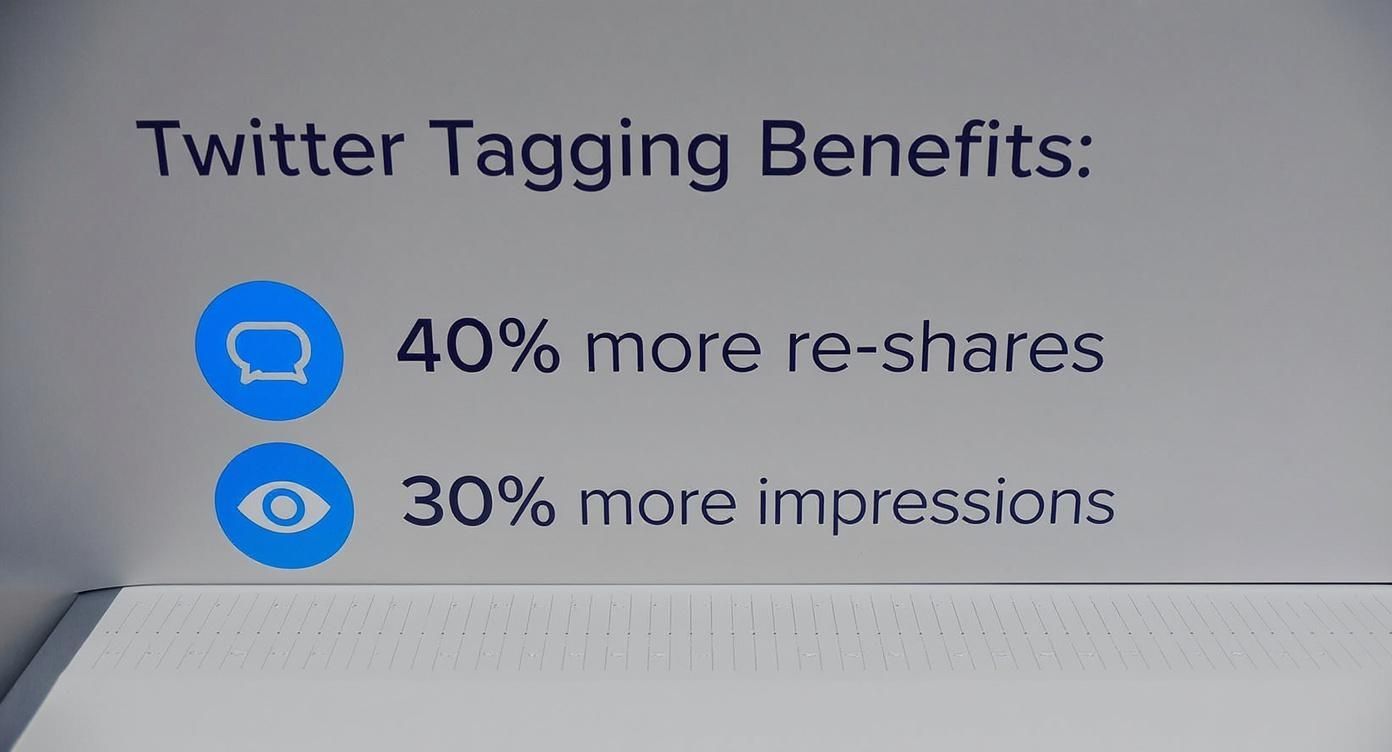
Alt text: Infographic showing that tagging on X leads to 40% more reshares and 30% more impressions.
Simply including a tag is a proven way to boost the organic reach of your content.
Boost Your Visibility and Engagement
Tweets with tagged accounts can get 40% more reshares and earn up to 30% more impressions than those without. This shows how tagging can fuel content virality.
Here’s what effective tagging helps you do:
- Builds Community: Tagging collaborators, happy customers, or industry peers creates a genuine sense of community.
- Increases Reach: When a tagged account interacts with your tweet, your content is introduced to their entire audience.
- Drives Conversation: It’s the most direct method for asking a question or getting a response from a specific person or brand.
To measure the impact of your tagging strategy, it’s essential to track your performance. You can get a better handle on your metrics by using some of the best social media analytics tools available.
How to Tag in a Tweet or Reply
Mentioning someone in a tweet is the most common way to tag them. It’s the perfect method for giving a shout-out, asking a public question, or pulling another user into an ongoing conversation.
Here’s how to do it step-by-step:
- Open the Tweet Composer: Click the “Post” button to start a new tweet.
- Type the ‘@’ Symbol: In the text box, type the
@symbol. - Start Typing the Username: Immediately after the
@, begin typing the username of the person you want to tag. A dropdown menu of matching users will appear. - Select the User: Click on the correct user from the list. Their username will turn into a clickable blue link. This confirms the tag and ensures they receive a notification.

Alt text: A visual example of typing a username with the ‘@’ symbol in the Twitter (X) compose box, showing the dropdown menu of suggested users.
Practical Example
Let’s say you just read a great article on digital marketing and want to credit the author. You could write:
“Just finished reading a brilliant piece on the future of SEO. The insights from @DigitalStrategistNG are a must-read for anyone in the field!”
In this example, @DigitalStrategistNG receives a notification. This makes them more likely to reply or share your tweet with their followers, boosting your visibility.
Important Tip: If you start your tweet with @username, X treats it as a reply, meaning it won’t appear on the main timeline of all your followers. To ensure your tweet is seen by everyone, place the tag in the middle or at the end of the sentence, like in the example above. For those serious about their X strategy, tools like Tweeteasy can help you optimise your Twitter content schedule and maintain consistent engagement.
Actionable Takeaways
- Always use the ‘@’ symbol directly before the username with no spaces.
- Select the user from the pop-up list to activate the tag and trigger a notification.
- Place the tag within your sentence (not at the very beginning) to make sure all your followers see the tweet.
- Double-check the username for typos to avoid tagging the wrong account.
Using Photo Tags to Save Characters
Ever run out of space trying to fit multiple @handles into a tweet? A smart workaround is to tag people directly in a photo. This is especially useful when you need to credit several people, like at a conference or team event.
When you upload a picture, you’ll see a “Tag people” option. This lets you tag up to 10 accounts without using any of your 280 characters.
Here’s the process:
- Compose a Tweet and Upload a Photo: Click the media icon to attach an image to your tweet.
- Click ‘Tag people’: Once the image is uploaded, this option will appear on the image thumbnail.
- Tag the Accounts: Click on the photo and start typing the usernames of the people you want to tag. Select each one from the dropdown list. You can tag up to 10 people.
- Click ‘Done’ and finish writing your tweet.

Alt text: A screenshot showing the ‘Tag people’ option on a photo uploaded to Twitter (X), illustrating where to click to start tagging.
Real-World Example
Imagine an event organizer in Lagos wants to post a group photo of their keynote speakers. Instead of cramming every speaker’s handle into the tweet text, they can tag each person in the image. This frees up the tweet to summarize the event’s success and share a link for the next one. Everyone tagged gets a notification that they were mentioned in a photo, which stands out more than a standard mention.
To make your visuals more dynamic, you can add text overlays before uploading. Our guide on using a photo text editor offers some great tips.
Why This Works So Well
- Maximise Your Message: Use your full character count for a compelling message, not a list of usernames.
- Tag Up to 10 People: Perfect for giving credit to an entire team or group.
- Generate Stronger Notifications: A “tagged in a photo” notification often feels more personal and is more likely to be noticed.
- Keep It Clean: Your tweet looks polished and easy to read.
Smart Tagging Etiquette and Best Practices
Knowing how to tag is only half the battle; knowing when and why is what separates pros from spammers. The golden rule is relevance. Only tag accounts that are genuinely connected to your post.
Tagging an author when you share their article is a great move. Tagging 10 random celebrities hoping for a retweet is spam and can get your account flagged. Think of tagging as starting a conversation, not just shouting for attention.

Alt text: A graphic icon showing a person’s profile with a checkmark, symbolizing correct tagging etiquette.
When to Tag and When to Hold Back
One of the biggest mistakes is over-tagging. Stuffing a tweet with unrelated usernames looks desperate and buries your message.
A great strategy for businesses is to tag customers when sharing their positive reviews or user-generated content. This provides powerful social proof and makes customers feel valued.
Pro Tip: Always ask for permission before tagging a customer in a post featuring their content. This simple step shows respect for their privacy and builds trust.
For a deeper dive into respectful online interactions, these social media etiquette tips for professional online communication are essential reading.
Putting It Into Practice
Here are a few actionable habits to build today:
- Check for Relevance: Before posting, ask: “Does this tag add value for my audience and the person I’m tagging?” If it’s not a clear “yes,” skip it.
- Give Credit Where It’s Due: Make it a habit to tag photographers, artists, or original creators when you share their work.
- Tag with Context: Don’t just drop a username. Frame it. For example, “Loving these insights from @Username on this topic!” is far more engaging than a standalone tag.
Sorting Out Common Tagging Hiccups
Sometimes, tagging doesn’t work as expected. If your mentions aren’t showing up, it’s usually due to a few common issues with simple fixes. Most often, the problem is a typo in the username. Double-check the spelling, including any underscores or numbers. Another possibility is that the user has protected their tweets or blocked your account, in which case you cannot tag them.
Why Isn’t My Tag Turning Blue?
If you type an @mention and the username remains black text instead of becoming a clickable blue link, the tag is inactive. This means the person you’re trying to reach will not get a notification.
The fix is to always select the user’s account from the dropdown list that appears as you type. That click is what confirms the tag and links it to their profile. This small detail is crucial for driving engagement. You can dive deeper into how tagging shapes online conversations with these digital media insights.
The blue link is your confirmation. If a username stays black after you’ve posted, the tag has failed. Your best bet is to reply to your own tweet or use a quote tweet to add the mention correctly.
Finally, regarding limits: you can tag up to 10 people in a single photo without affecting your character count. For mentions in the text of a tweet, there’s no set limit on the number of accounts you can tag, other than the overall 280-character limit of the tweet itself.
Actionable Takeaways & Further Resources
Ready to implement what you’ve learned? Here are your next steps.
- Actionable Takeaways
- Practice Photo Tagging: Next time you post a group photo, use the photo tag feature instead of mentioning users in the text to keep your tweet clean.
- Give Credit Actively: Find a piece of content you admire (an article, art, a video) and share it on X, making sure to tag the original creator with context.
- Review Your Settings: Check your own photo tagging permissions under “Privacy and safety” to control who can tag you.
- Start a Conversation: Tag an industry leader or brand with a genuine question related to their expertise to initiate a valuable discussion.
- Tools/Resources
- Tweeteasy: A tool to help you optimise your Twitter content schedule and manage engagement.
- RichlyAI’s Social Media Tools: Explore a suite of tools for content creation and management.
- Further Reading
At RichlyAI, we provide powerful tools to automate your content creation and social media management. Create a free account and streamline your workflow today.
