
Artificial intelligence isn’t a futuristic concept — it’s already embedded in how you type messages, scroll social media, manage emails, listen to music, and even unlock your phone. In fact, while over 90% of people use AI-powered features daily, most don’t realize they’re interacting with AI at all.
From filtering spam and auto-suggesting replies to curating playlists and optimizing search results, AI quietly powers the convenience we now take for granted. These systems run in the background, making decisions in milliseconds — often without a visible “AI” label attached.
This article pulls back the curtain on everyday AI — the intelligent features quietly embedded in the apps and services you already rely on. We break down seven practical examples, showing exactly where these tools live, how they work, and how you can actively use them to improve productivity, creativity, and decision-making.
Instead of treating AI as background noise, you’ll learn how to turn these familiar tools into intentional advantages in your daily digital life.
1. Microsoft 365 Copilot
Microsoft 365 Copilot transforms the familiar Office suite into a powerful AI partner, embedding intelligent assistance directly into the apps millions use for work and personal projects every day. It stands out by moving beyond a separate chatbot window and integrating its capabilities directly into the ribbon and sidebars of Word, Excel, PowerPoint, Outlook, and Teams. This native integration makes it a prime example of everyday AI that works where you already are, eliminating the need to switch contexts to get things done.
What makes Copilot so effective is its deep connection to your data within the Microsoft Graph. This allows it to understand your work context, referencing your documents, emails, calendar, and meetings to provide highly relevant and personalized assistance.
How to Use Copilot: Step-by-Step Example
Imagine you just finished a long project meeting and need to update stakeholders. Here’s how you use Copilot in Teams and Outlook:
- Summarize the Meeting: During or after your Teams call, open the Copilot pane. Type the prompt: “Summarize the key decisions and action items from this meeting.” Copilot will generate a concise, bulleted list.
- Identify Your Tasks: Ask a follow-up question directly in the pane: “What were the action items assigned to me?”
- Draft an Update Email: Copy the summary. Switch to Outlook and start a new email. Click the “Draft with Copilot” button.
- Give Your Prompt: Paste the summary and add the instruction: “Write a formal project update email to stakeholders based on the following meeting summary. The tone should be confident and professional.”
- Refine and Send: Copilot generates the email. Review it, make any minor edits, and send it. You’ve gone from a one-hour meeting to a professional summary email in under five minutes.
How to Get Copilot
Access to Microsoft 365 Copilot depends on your subscription type. For individuals, it’s available as an add-on to Microsoft 365 Personal or Family plans for a monthly fee. For businesses, Copilot for Microsoft 365 can be added to most Business and Enterprise plans. Organizations gain commercial data protection, ensuring your company’s data isn’t used to train the public AI models.
Actionable Takeaways
- Prep for Meetings Faster: Use Copilot in Teams to summarize past meetings or chat threads before your next call.
- Master Your Inbox: In Outlook, use the “Summarize by Copilot” feature to understand long email chains quickly.
- Create Presentations from Documents: In PowerPoint, use the prompt “Create a presentation from /ProjectBrief.docx” to instantly generate a slide deck.
- Analyze Data with Plain English: In Excel, select your data and ask Copilot, “Show the top 5 product categories by revenue in a bar chart.”
Tools & Resources
- Official Website: Microsoft 365 Copilot
- Further Reading: Learn about the underlying tech in Microsoft’s “The art of the prompt” guide.
- Further Reading: AI Hype vs. Reality: Why the Backlash Is Growing—and What Actually Delivers Value
2. Google AI (Gemini) / Google AI Pro
Google AI, powered by its Gemini family of models, represents one of the most widespread examples of everyday AI, seamlessly integrated into the ecosystem billions of people already use. With its consumer-facing Google One AI Premium plan and Gemini for Workspace for businesses, Google places its powerful AI tools directly within Gmail, Docs, Search, and more. This ubiquity makes it an incredibly accessible yet often unnoticed AI partner.

What makes Google’s approach so powerful is its deep integration with your personal and professional data graph. When you use Gemini in Gmail, it understands the context of your email threads; in Docs, it can reference information from your Drive. This contextual awareness makes its assistance highly relevant, transforming familiar applications into dynamic, intelligent workspaces.
How to Use Gemini: Step-by-Step Example
You’re planning a team offsite event. Here’s how to use Gemini within Google Workspace to streamline the process:
- Brainstorm in Docs: Open a new Google Doc. Click the “Help me write” button and enter the prompt: “Brainstorm ideas for a 2-day team offsite in Austin, Texas for a team of 10 software engineers. Focus on team-building activities and professional development sessions.”
- Create an Itinerary in Sheets: Open a new Google Sheet. Click “Help me organize.” Use the prompt: “Create a detailed itinerary for a 2-day team offsite based on the ideas from the ‘Austin Offsite Plan’ Google Doc. Include columns for Date, Time, Activity, Location, and Owner.”
- Draft an Announcement in Gmail: Open Gmail. Click “Help me write.” Prompt: “Write a fun and informative email announcing the team offsite. Use the details from the itinerary in my Google Sheet named ‘Offsite Itinerary’.”
- Generate Slides for the Event: Open Google Slides. Use the “Create presentation from file” feature and point it to your initial planning Doc to instantly generate a presentation deck.
Everyday Example
If you send emails on your phone, this AI feature works automatically by:
• Analyzing message context
• Predicting intent
• Suggesting responses or actions in real time
How to Get Gemini
Access to Gemini’s advanced features varies between consumer and business plans. For individuals, the Google One AI Premium plan bundles access to Gemini Advanced, integration into Workspace apps, and 2TB of cloud storage. For organizations, Gemini for Workspace is an add-on for most Google Workspace plans, providing enterprise-grade data protection and administrative controls.
Actionable Takeaways
- Turn Notes into Action: Use Gemini in Docs to turn brainstorming sessions into structured outlines or project plans.
- Organize Data Instantly: In Sheets, use the “Help me organize” feature to create templates for project trackers, budgets, or contact lists from a simple description.
- Manage Your Inbox: In Gmail, use the “Summarize this thread” feature to get the key points from long email conversations without reading every message.
- Improve Video Calls: In Google Meet, enable Studio lighting and sound to automatically improve your audio-visual quality.
Tools & Resources
- Consumer Plan: Google One AI Premium
- Further Reading: Explore what’s possible in the official Google AI blog.
- Prompts for Customer Services
3. Grammarly
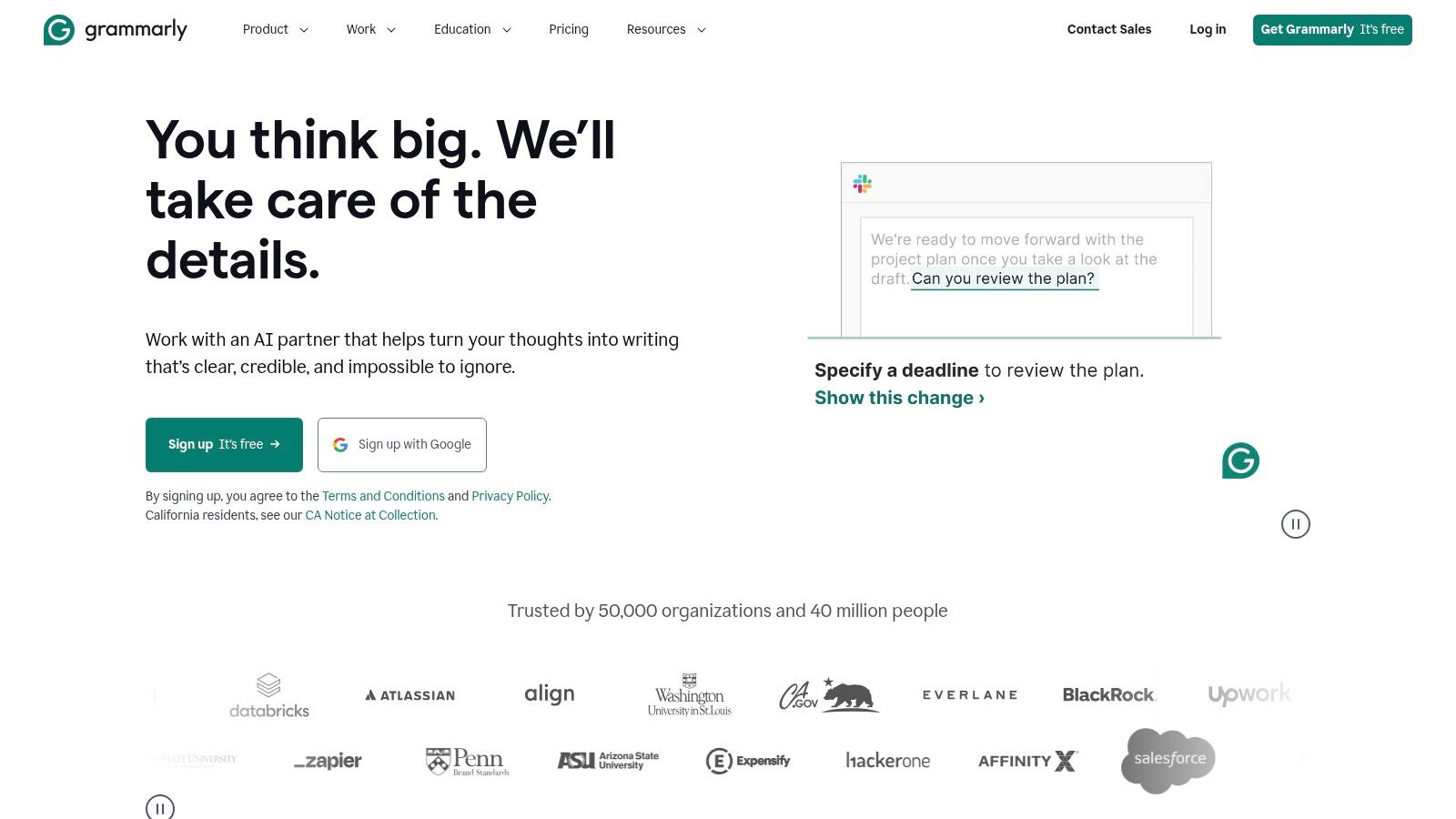
Grammarly has evolved from a simple spell-checker into a comprehensive AI writing partner, seamlessly embedding itself into nearly every digital space where we type. It operates across browsers, desktop applications, and mobile keyboards, making it a powerful and nearly invisible example of everyday AI that improves our communication without requiring us to switch contexts. By meeting users where they already are, Grammarly helps millions write more clearly, concisely, and effectively.
What makes Grammarly so effective is its ubiquitous nature and its growing suite of generative AI tools. It’s not just about correcting mistakes; it’s about actively assisting in the writing process, from brainstorming ideas to refining the final tone.
How to Use Grammarly: Step-by-Step Example
You need to send a delicate email to a client about a delayed project. You want to be clear and professional, but not sound defensive.
- Draft Your Message: Write a rough first draft in Gmail. Don’t worry about perfection. Example: “Hi John, the project is delayed. We had some problems. The new deadline is next Friday.”
- Correct the Basics: Let Grammarly’s standard suggestions fix any spelling or grammar errors.
- Refine the Tone: Click the Grammarly icon. You’ll see a “Tone” suggestion (e.g., “Sounds Worried”).
- Use Generative AI: Highlight your draft. Click the Grammarly AI icon and select the “Rewrite for…” prompt. Choose “Make it more professional and confident.”
- Review and Insert: Grammarly will suggest a new version: “Hi John, I’m writing to provide an update on the project timeline. We’ve encountered some unexpected challenges, and to ensure we deliver the quality you expect, we’ve adjusted the delivery date to next Friday. We appreciate your understanding.” Click to insert the improved text.
How to Get Grammarly
Grammarly is accessible to everyone through a freemium model. The free version provides essential grammar, spelling, and punctuation checks. For more advanced features, you’ll need to subscribe to a premium plan. If you are exploring options, there are several powerful free AI writing assistants available that can complement your toolkit. Business and Enterprise tiers add features like style guides and brand tone management.
Actionable Takeaways
- Set Your Tone Goals: Before writing, click the Grammarly icon and set your desired tone (e.g., Confident, Friendly) to get tailored suggestions.
- Use Quick Rewrites: Highlight any sentence and use the generative AI prompt to shorten it, expand on it, or rephrase it for clarity.
- Install Everywhere: Get the browser extension, desktop app, and mobile keyboard to ensure consistent writing quality across all your devices and apps.
- Check for Plagiarism: Before publishing important documents, use the built-in plagiarism checker (Premium feature) to ensure originality.
Tools & Resources
- Official Website: Grammarly
- Further Reading: Check out the Grammarly blog for tips on business communication and writing effectively.
4. Zapier
Zapier is the connective tissue of the modern internet, a powerful automation platform that links thousands of web applications together. While known for its no-code workflow builder, it has deeply integrated artificial intelligence to make creating these connections more intuitive and powerful. This positions Zapier as a quintessential example of everyday AI, a hidden tool that works in the background to automate the repetitive tasks that consume valuable time.
What makes Zapier’s AI so effective is its focus on lowering the barrier to entry for complex automation. Instead of needing to understand APIs and data mapping, users can now describe what they want to achieve in plain English. The AI then translates that request into a multi-step, multi-app workflow, making sophisticated automation accessible to everyone.
How to Use Zapier: Step-by-Step Example
You want to automatically qualify and respond to new leads from a form on your website.
- Define the Trigger: In Zapier, select your form app (e.g., Typeform, Google Forms) as the trigger. The trigger event is “New Form Submission.”
- Add an AI Action: For the first action step, choose “OpenAI” or “Zapier AI.”
- Write the AI Prompt: Instruct the AI to analyze the form data. Prompt: “Based on the following form submission, determine if this is a qualified lead. A qualified lead mentions a budget over $5,000 and has a company size of more than 10 people. Respond with only ‘Yes’ or ‘No’.”
- Add a Filter: Add a “Filter by Zapier” step. Set it to only continue if the output from the AI step contains “Yes.”
- Set the Final Actions:
- If the lead is qualified, add them as a new contact in your CRM (e.g., Salesforce, HubSpot).
- Then, send a notification to your
#sales-leadschannel in Slack.
This “Zap” now runs automatically, saving your sales team from manually vetting every single submission.
How to Get Zapier
Zapier operates on a freemium model. You can start building basic, two-step Zaps on the free plan. As your needs grow, you can upgrade to paid plans (Starter, Professional, Team) that offer more tasks per month, multi-step Zaps, and access to premium app integrations. To explore a comprehensive list of similar platforms, check out these other top-tier AI workflow automation tools.
Actionable Takeaways
- Automate Your Inbox: Create a Zap that saves attachments from specific emails to a Dropbox or Google Drive folder.
- Sync Your Contacts: Build a workflow that automatically creates a Google Contact whenever a new row is added to a specific spreadsheet.
- Draft Social Posts from RSS: Set up a Zap that triggers on a new item in an RSS feed, uses AI to draft a summary tweet, and saves it as a draft in Buffer or Hootsuite.
- Triage Support Tickets: Use AI to analyze the sentiment of incoming support emails and automatically tag them as “Urgent” or “Low Priority” in your helpdesk software.
Tools & Resources
- Official Website: Zapier
- Further Reading: Zapier’s blog has thousands of examples and tutorials for automating specific business tasks.
5. IFTTT
IFTTT, short for “If This, Then That,” is a foundational platform that brings the power of automation and everyday AI to the masses. It acts as a digital bridge, connecting hundreds of apps, services, and smart devices that don’t normally talk to each other. By creating simple conditional statements called “Applets,” you can automate tasks across your digital life, from managing your smart home to organizing your social media presence.
What makes IFTTT a standout example of hidden AI is its simplicity and focus on real-world triggers. It operates on a straightforward principle: a specific trigger in one service initiates a corresponding action in another. The Pro+ tier elevates this by integrating dedicated AI services, allowing you to generate content summaries or create images.
How to Use IFTTT: Step-by-Step Example
You want to create a smarter “Welcome Home” routine for your smart home.
- Choose the Trigger Service: In the IFTTT app or website, click “Create.” For the “If This” part, select the “Location” service.
- Define the Trigger: Choose the trigger “You enter an area.” On the map, draw a geofence around your home address.
- Choose the Action Service: For the “Then That” part, select your smart light service (e.g., Philips Hue, LIFX).
- Define the First Action: Choose the action “Turn on lights.” Select your living room and hallway lights.
- Add Another Action (Pro/Pro+): Click the “+” button to add another action. Select your smart speaker service (e.g., Sonos, Amazon Alexa).
- Define the Second Action: Choose the action “Play favorite playlist.” Select your “Chill Lo-fi Beats” playlist on Spotify.
- Save and Activate: Name your Applet “Welcome Home Routine” and activate it. Now, whenever you arrive home, your lights will turn on and your favorite music will start playing automatically.
How to Get IFTTT
Getting started with IFTTT is straightforward. The platform operates on a freemium model. The Free plan allows you to create two Applets. For more power, the Pro plan offers 20 Applets and faster execution speeds. The Pro+ plan unlocks the full suite of AI tools, multi-action Applets, and advanced developer features.
Actionable Takeaways
- Never Forget an Umbrella: Create an Applet that sends you a phone notification every morning if the weather forecast calls for rain.
- Log Your Fitness: Connect Strava or Fitbit to a Google Sheet to automatically log every workout you complete.
- Archive Your Social Posts: Set up an Applet to automatically save every photo you post on Instagram to a specific Dropbox or Google Photos album.
- Control Your Smart Home: Link your voice assistant (Alexa/Google Assistant) to IFTTT to create custom voice commands for complex actions that aren’t natively supported.
Tools & Resources
- Official Website: IFTTT
- Further Reading: Explore the IFTTT Discover page to find thousands of pre-built Applets created by the community.
6. Amazon Alexa+
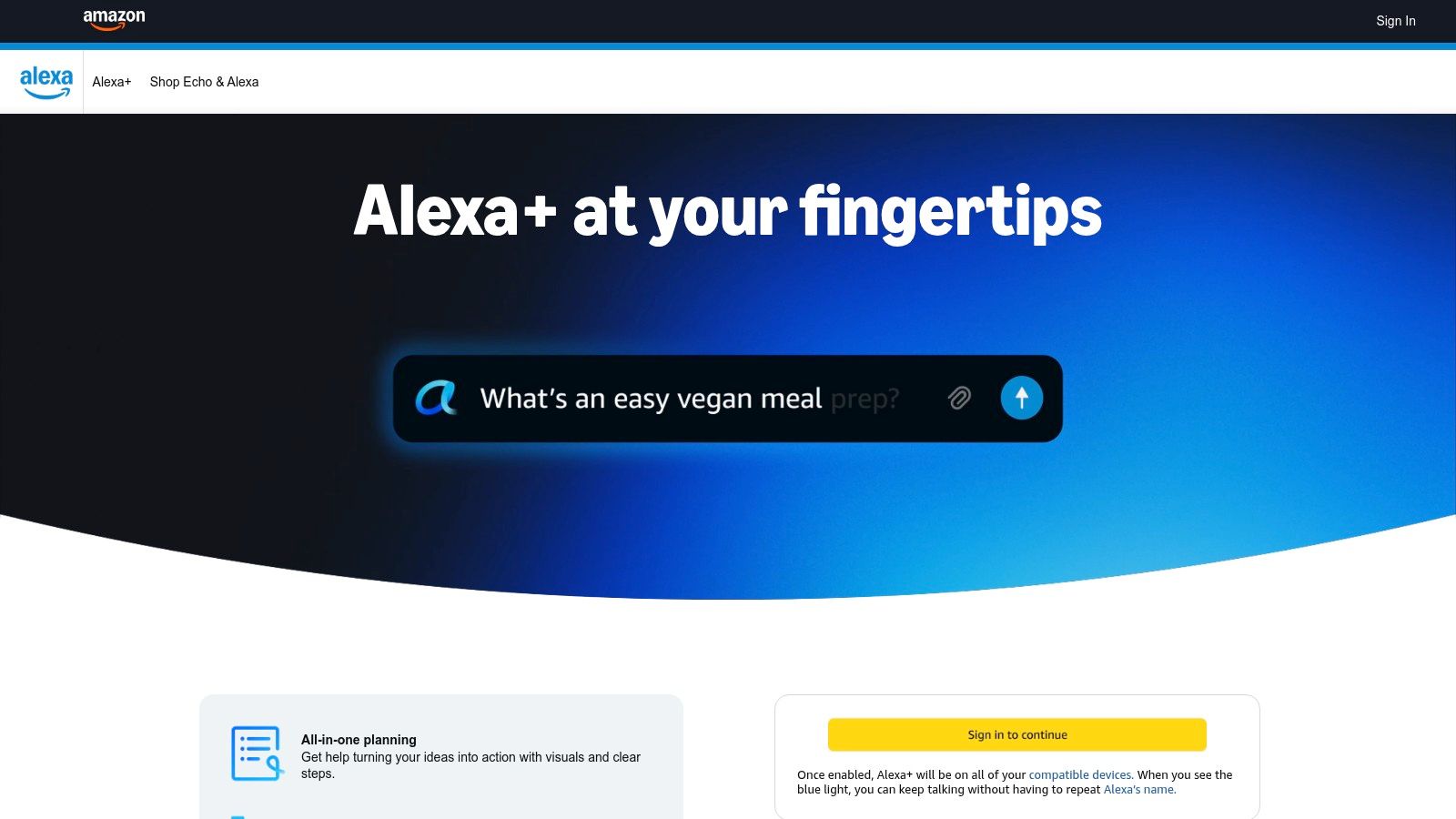
Amazon Alexa+ elevates the ubiquitous voice assistant from a simple command-taker into a generative AI companion for your home. It’s integrated into Echo and Fire devices and the Alexa app, making it a cornerstone of everyday AI for household management. What sets the “plus” version apart is its ability to handle natural, multi-turn conversations, remember context, and proactively plan and execute tasks, moving beyond one-off requests into genuine assistance.
This next-generation Alexa is deeply woven into the fabric of the smart home, managing everything from shopping lists and reminders to complex routines. Its strength lies in its hands-free, ambient nature; it’s always available, making AI accessible without needing to pick up a device.
How to Use Alexa+: Step-by-Step Example
You want to plan a family movie night without juggling multiple apps and reminders.
- Start the Conversation: Say, “Alexa, let’s plan a family movie night for this Saturday.”
- Give Instructions Naturally: Alexa will ask for details. You can respond conversationally: “We’ll watch ‘The Incredibles.’ Can you remind me to buy popcorn and drinks on Friday afternoon? Also, on Saturday at 7 PM, I want you to start the ‘Movie Time’ routine.”
- Define the Routine (if it doesn’t exist): If you don’t have a “Movie Time” routine, Alexa might ask what that involves. You can say, “It should dim the living room lights to 20%, turn on the TV, and set the soundbar to cinema mode.”
- Confirm the Plan: Alexa will summarize the plan: “Okay, I’ve added a reminder for Friday to buy snacks. On Saturday at 7 PM, I will dim the lights, turn on the TV, and set the soundbar. Is that correct?”
- Finalize: Just say “Yes.” Alexa has now created multiple reminders and a smart home routine from a single, natural conversation.
How to Get Alexa+
The enhanced, generative AI-powered Alexa experience is being rolled out, primarily in the U.S. initially, and is often tied to Amazon Prime subscriptions or available on newer Echo devices. Availability is still expanding, and some advanced features may be in preview. Access is typically automatic through software updates to your existing Echo devices and the Alexa app.
Actionable Takeaways
- Create Routines with Your Voice: Instead of using the app, just say, “Alexa, create a ‘Good Morning’ routine that tells me the weather, reads my calendar, and then plays the news.”
- Chain Commands Together: Try a single command like, “Alexa, turn off the lights and play rain sounds for 30 minutes.”
- Plan Your Day: Ask, “Alexa, what’s on my calendar today and what’s the traffic like to my first meeting?”
- Manage Shopping Lists Collaboratively: Tell Alexa to add items to your shopping list from the kitchen, and your partner can see the updated list on their Alexa app at the store.
Tools & Resources
- Official Hub: alexa.amazon.com
- Further Reading: Amazon’s “Things to Try” page for Alexa is a great source for discovering new commands and features.
7. RichlyAI
While most everyday AI tools operate quietly in the background, some platforms are designed to help users take conscious control of AI rather than interact with it passively. RichlyAI fits into this category — acting as a centralized workspace where everyday AI capabilities are made visible, accessible, and actionable.
While many everyday AI tools operate invisibly within popular apps, RichlyAI represents a more intentional approach — a centralized workspace designed for users who want to actively apply AI across content creation, research, and automation.
For those new to the AI landscape, RichlyAI acts as both a creation engine and a discovery portal. It effectively demystifies the process of using generative AI, offering a robust suite of tools that would otherwise require multiple subscriptions and a fragmented workflow. This unified approach reduces friction for users who want practical AI results without managing multiple tools, subscriptions, or learning curves.

Why RichlyAI is a Standout Choice
RichlyAI differentiates itself by combining production-ready AI tools with a broad discovery ecosystem. This combination solves two major challenges: the “tool sprawl” of managing multiple AI services and the difficulty of finding the right new tools as they emerge.
The platform’s RichlyAI Hub is a unified dashboard where users can generate high-quality text, images, video, audio, and even code from simple prompts. Its real-time editing and regeneration capabilities create a fluid, iterative creative process. Furthermore, its specialized features for business users, like custom chatbot training and social media automation, provide immediate, practical value by streamlining marketing and customer engagement workflows.
How to Use RichlyAI: Step-by-Step Example
Let’s say you’re a marketer tasked with creating a social media campaign for a new eco-friendly coffee brand. Here’s how you could use RichlyAI to get it done in minutes:
- Generate a Blog Post: Go to the text generation tool. Use the prompt: “Write a 500-word blog post about the benefits of sustainable, shade-grown coffee, focusing on environmental impact and flavor.”
- Create an Image: Navigate to the image generator. Use the prompt: “A vibrant, photorealistic image of a steaming coffee cup on a rustic wooden table, with lush green coffee plants in the background, morning sunlight.”
- Script a Short Video: Switch to the video script tool. Prompt: “Create a 30-second video script for an Instagram Reel about our new eco-friendly coffee. The tone should be upbeat and inspiring.”
- Schedule the Posts: Use the Social Media Automation feature to schedule your new blog post link, image, and video script (adapted as a caption) to go live on LinkedIn and Instagram next week.
This entire multi-format campaign can be executed without leaving the platform.
Access and Pricing
RichlyAI offers a free entry plan that includes unlimited text generation, allowing individuals, students, and creators to experiment with AI-powered writing without upfront cost.
While the free tier is robust, advanced features like team collaboration, extensive social media automation, and enterprise-grade chatbot capabilities are part of paid plans. Prospective buyers for these higher tiers may need to contact the sales team directly for detailed pricing, as this information is not extensively detailed on the public-facing site.
Actionable Takeaways
- Centralize Your Workflow: Use RichlyAI as a single hub to generate text, images, and video scripts to maintain campaign consistency.
- Automate Social Media: Schedule a week’s worth of content in one session to save time and maintain an active online presence.
- Discover New Tools: Use the AI Tools Hub to find specialized solutions (e.g., “AI voiceover generator”) for specific project needs.
- Build a Custom Bot: Train a chatbot on your company’s FAQ page to provide instant customer support on your website.
Tools & Resources
- Platform Link: RichlyAI
- Getting Started Guide: Read their official guide on how to use AI tools for more practical tips.
Everyday AI Hidden Tools — Top 7 Comparison
While platforms like RichlyAI offer a centralized AI workspace, some of the most impactful everyday AI tools are already embedded directly into the software millions of people use at work.
| Tool | Implementation Complexity 🔄 | Resource Requirements ⚡ | Expected Outcomes 📊⭐ | Ideal Use Cases 💡 | Key Advantages ⭐ |
|---|---|---|---|---|---|
| RichlyAI | Medium — web UI, simple for creators; enterprise features add setup | Moderate — free tier; paid for teams/enterprise, dev integrations | High — fast multimodal content & automation; productivity boost | Content creation, social automation, custom chatbots, tool discovery | All-in-one multimodal platform + 11k-tool discovery hub |
| Microsoft 365 Copilot | Low for individuals; Medium–High for org deployment & admin policies | High — Microsoft 365 subscription; Copilot Studio credits for agents | High — improved productivity inside familiar apps; secure enterprise usage | Document authoring, Excel analysis, meetings, org-wide adoption | Native Office integration, strong security/compliance |
| Google AI (Gemini) / AI Pro | Low for consumers; Medium for Workspace admin integration | Moderate — consumer plan or Workspace add‑on, storage included | High — enhanced search/docs/sheets workflows and AI features | Gmail/Docs/Sheets assistance, Search AI Mode, NotebookLM workflows | Ubiquitous Google integration and rapid model updates |
| Grammarly | Very low — install extension/apps, minimal setup | Low — free tier; premium for advanced features | Medium — clearer, faster, more consistent writing | Email drafting, editing, tone/polish across platforms | Appears where you type; strong cross-device support |
| Zapier | Low for simple zaps; Medium–High for complex workflows | Moderate — free tier limits; paid for high task volumes | High — automates cross‑app processes and reduces manual work | Business automations, app integrations, scaling repetitive tasks | Large integration ecosystem + no-code AI-assisted builders |
| IFTTT | Very low — plug‑and‑play Applets; Pro+ adds complexity | Low — inexpensive entry; Pro+ for advanced logic | Medium — reliable personal automations and smart‑home routines | Smart‑home routines, personal set-and-forget automations | Easy start with extensive community Applets and affordability |
| Amazon Alexa+ | Low for consumer use; Medium for advanced routines & multi-device sync | Moderate — Echo devices or app; Prime benefits in some regions | High (home) — hands‑free planning, reminders, smart‑home control | Voice-driven household routines, shopping, reminders | Deep smart‑home ecosystem, natural multi‑turn voice interactions |
From Hidden Helper to Active Partner
The journey through this article reveals a profound but often unnoticed truth: artificial intelligence is not a far-off future concept but a present-day reality woven into the fabric of our digital lives. From the predictive text that finishes our sentences to the smart replies that streamline our email, everyday AI — hidden tools you use daily — has become an invisible yet indispensable assistant. A recent survey highlighted this perfectly, finding that while nine out of ten Americans use AI on their phones, only 38% are aware of it. This gap between usage and awareness is the opportunity we’ve explored.
By uncovering the AI engines working behind the scenes in tools like Microsoft 365 Copilot, Google’s Gemini, and even your Amazon Alexa, you shift from being a passive beneficiary to an active collaborator. The key takeaway is that awareness transforms these hidden helpers into powerful, intentional partners. You are no longer just using an app; you are directing an intelligent system to achieve your goals more efficiently.
Recognizing the AI in Grammarly helps you do more than fix typos; it helps you refine your tone and communicate with precision. Understanding the automation logic of Zapier or IFTTT allows you to build custom workflows that save hours of manual effort. This transition from passive acceptance to active direction is where you unlock the true potential of the tools you already possess.
Your Actionable Next Steps: Moving from Awareness to Mastery
The true value of this knowledge lies in its application. To turn these insights into tangible results, you need a clear plan of action. Instead of trying to master everything at once, focus on making small, deliberate changes to how you interact with your existing technology.
Here are your immediate next steps to harness the power of everyday AI:
- Conduct a Personal AI Audit: Choose one category from this article (e.g., email, productivity, or workplace tools) and spend 30 minutes actively looking for its AI features. Open Gmail and intentionally use Smart Compose for your next five emails. In Google Photos, try searching for “sunsets from last summer” to see its image recognition in action.
- Build Your First Automation: Select a simple, repetitive task you do every week. Use IFTTT or Zapier to automate it. For example, create a rule that automatically saves attachments from specific email senders to a designated Google Drive folder. This single action will demonstrate the immense power of hands-off productivity.
- Challenge Your AI Assistant: Go beyond asking Alexa or Google Assistant for the weather. Ask it to create a multi-step routine, like a “focus mode” that plays ambient music, sets a timer, and silences notifications on your phone with a single command.
- Explore a Dedicated AI Discovery Platform: Once you are comfortable with the tools you have, expand your horizons. Platforms like RichlyAI’s AI Tools Hub are curated directories that can help you find specialized AI solutions for any challenge, from marketing and content creation to software development.
The Future is a Partnership
The era of invisible AI is ending. As these systems become more capable, our role evolves from simple users to sophisticated directors of intelligent tools. The most successful individuals and businesses will be those who not only adopt AI but actively learn to guide, customize, and orchestrate it to meet their specific needs. By intentionally engaging with the everyday AI — hidden tools you use daily — you are not just improving your productivity; you are developing a critical skill for the future. You are learning to collaborate with technology on a whole new level, turning routine digital experiences into remarkable achievements.
Final Thoughts: AI Is Already Working for You
Everyday AI isn’t about futuristic robots or complex dashboards — it’s about the invisible systems already shaping how you communicate, discover information, and make decisions. Once you recognize these tools, you gain the ability to use them intentionally rather than passively.
Whether it’s letting AI manage distractions, accelerate routine tasks, or support creative work, the real advantage comes from awareness. The more you understand how AI operates in the background, the better positioned you are to stay productive, informed, and in control in an AI-driven world.
Ready to move beyond the built-in basics and discover a purpose-built AI partner for content creation? RichlyAI offers a powerful suite of tools designed to help you research, write, and optimize content ten times faster. Explore how our advanced AI can transform your workflow and elevate your creative output at RichlyAI.

This post is so interesting! I love learning about hidden AI tools. Speaking of AI, have you heard about crevin ai It’s amazing how fast it can create and edit images, making things so efficient.