
The academic journey for Nigerian students is more demanding than ever, requiring not just hard work but also smart work. Juggling assignments, research projects, and exam preparation can be overwhelming. Fortunately, a powerful ally has emerged: Artificial Intelligence. The right free AI platform for students can revolutionise how you learn, write, and create, acting as a personal tutor, a research assistant, and a creative partner all in one. However, with countless tools available, finding the truly valuable ones without a price tag can be a difficult task.
This guide cuts through the noise. We have meticulously researched and tested the best free AI platforms specifically beneficial for students in Nigeria. We move beyond generic descriptions to provide practical, actionable insights. For each platform, you will find a clear breakdown of its core features, specific use cases for your coursework, and an honest assessment of its pros and cons. We’ll show you how to brainstorm complex essay topics with ChatGPT, analyse data for your final year project using Google Colab, and even generate stunning presentations with Canva’s AI tools, all without spending a kobo.
Each entry includes direct links to get you started immediately, alongside screenshots to guide you through the interface. Whether you are studying engineering at UNILAG, arts at UNN, or business at ABU Zaria, this resource is designed to help you find the perfect AI tool to enhance your productivity, deepen your understanding of complex subjects, and ultimately achieve academic excellence. Let’s explore the platforms that will help you supercharge your studies.
1. RichlyAI
RichlyAI Hub emerges as a standout, all-in-one free AI platform for students, particularly within Nigeria. It provides a comprehensive suite of tools that go far beyond simple text generation, consolidating text, image, code, and even social media automation into a single, cohesive ecosystem. This integration makes it an exceptionally powerful asset for managing diverse academic and personal projects without needing multiple subscriptions.
What truly sets RichlyAI apart is its incredibly generous free plan, which offers unlimited text generation forever. This is a game-changer for students who frequently need to draft essays, reports, and other documents without worrying about hitting a usage cap. The platform is designed with a clean, intuitive interface that simplifies complex AI functionalities, making it accessible even for those new to AI tools.
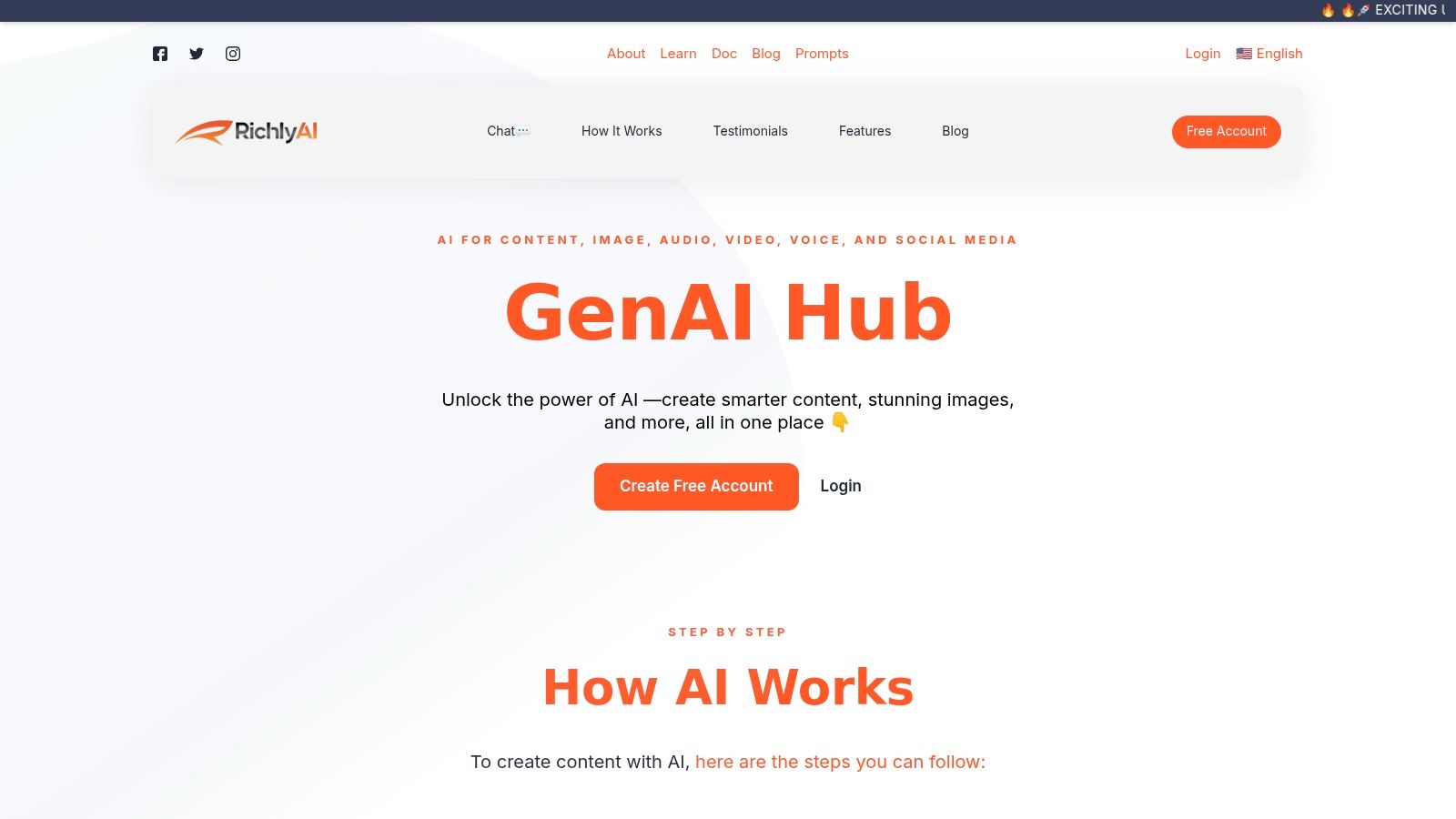
Alt text: A screenshot of the RichlyAI dashboard, showing various AI tools for content creation and social media automation.
Key Features for Students
- Content & Academic Writing: Generate high-quality essays, research summaries, and lab reports. The AI can help overcome writer’s block by providing outlines, drafting paragraphs, or refining existing text for clarity and coherence.
- AI Chat & Voice: Move beyond text with a real-time voice chat feature for more natural, conversational brainstorming sessions or practicing presentations.
- Code Generation: Computer science and engineering students can accelerate their projects by generating code snippets, debugging existing code, and understanding complex algorithms in various programming languages.
- Social Media Automation: For students managing campus club accounts or personal branding, the platform can schedule posts across X (formerly Twitter), LinkedIn, and Instagram, optimising engagement.
Practical Example: Drafting a Research Paper Outline
A student writing a research paper on renewable energy in Nigeria can use RichlyAI to streamline the initial stages. Here’s how:
- Log in and Navigate: Open the RichlyAI dashboard and select the ‘AI Chat’ tool.
- Enter Your Prompt: Type a clear, direct command. For instance: “Generate a detailed five-section outline for a research paper on the challenges and opportunities of solar energy adoption in Nigeria. Include specific sub-points for the introduction, literature review, methodology, findings, and conclusion.”
- Refine the Output: The AI will produce a structured outline. Now, ask for more detail on a specific section. For example: “Expand on the ‘policy and regulation challenges’ point with three distinct sub-topics suitable for a university-level paper.”
- Draft a Section: Copy the refined outline. Go to the ‘Essay Writer’ tool, paste the outline as your guide, and instruct the AI to “Write a 300-word introduction based on this outline,” instantly creating your first draft.
Actionable Takeaways
- Use the AI Chat to brainstorm and outline your assignments before you start writing.
- Leverage the ‘Unlimited Text Generation’ on the free plan to draft multiple versions of your essays.
- Practice your presentation delivery by having a conversation with the AI Voice feature.
- Explore more specific applications in the detailed breakdown of AI use cases for Nigerian students on the RichlyAI blog.
Pros and Cons
| Pros | Cons |
|---|---|
| Unlimited free text generation provides unmatched value for students. | A short learning curve may be required to master the full range of features. |
| All-in-one platform reduces the need for multiple separate tools. | Some highly advanced features are reserved for paid plans. |
| Intuitive interface makes powerful AI tools accessible to beginners. | |
| Localised relevance, being a premier Nigerian-founded AI platform. |
Website: https://richlyai.com OR https://richlyai.com/chat (no signup required)
2. OpenAI – ChatGPT (free tier)
OpenAI’s ChatGPT is an essential free AI platform for students seeking a versatile academic partner. Its free tier provides access to a powerful model, making it a go-to for everything from explaining complex theories in simple terms to drafting essays and summarising lengthy research papers. The clean, chat-based interface is intuitive on web, desktop, and mobile apps, making it highly accessible.
What sets it apart for students is its strong reasoning capability across a wide range of subjects, from STEM to the humanities. Upcoming features like “Study Mode” aim to transform it from a simple answer-provider to a Socratic learning tool that guides you through problems. This makes it invaluable for developing a deeper conceptual understanding rather than just getting quick answers. You can learn more in this detailed guide to using ChatGPT.
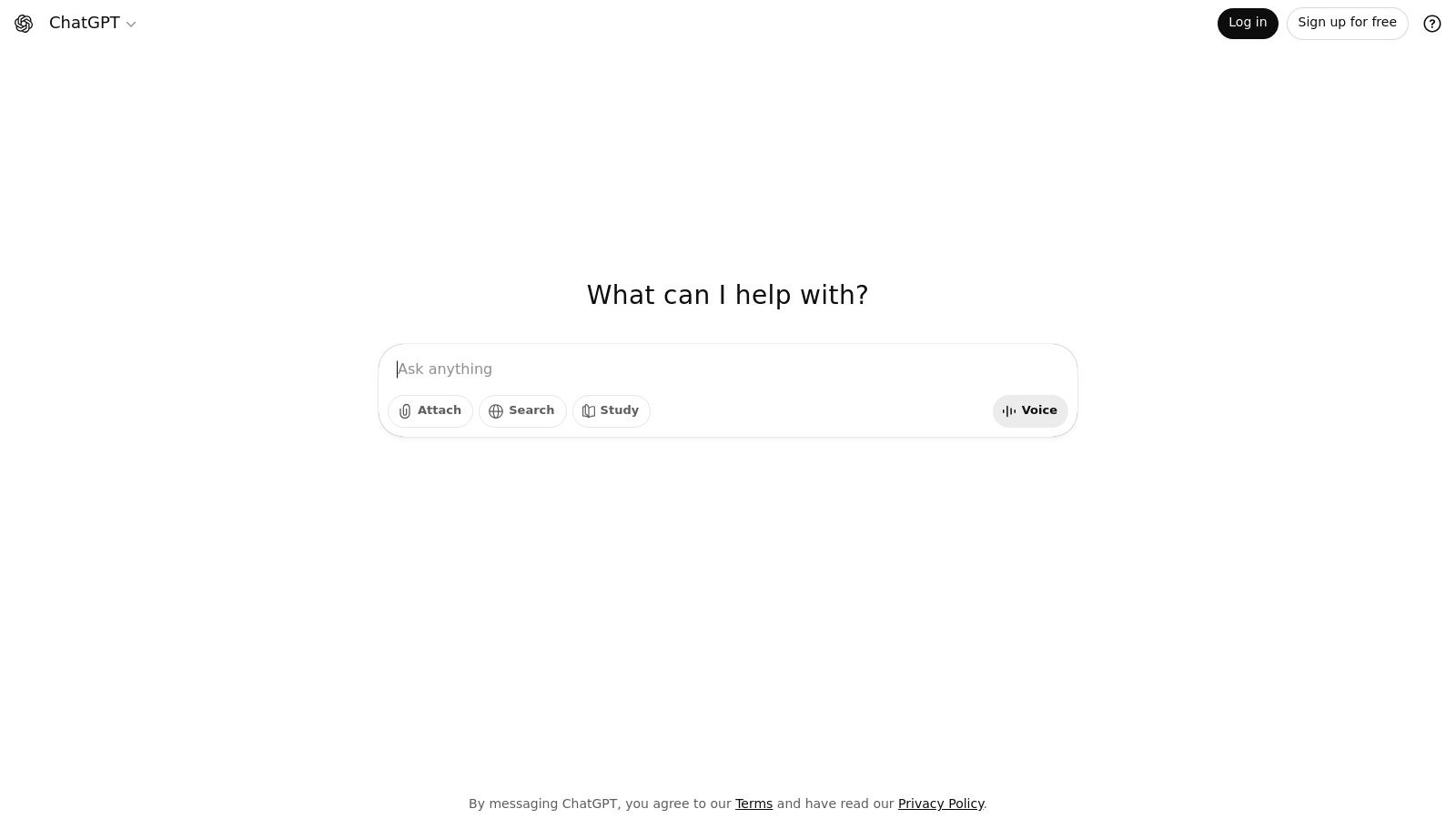
Alt text: A screenshot of the ChatGPT interface showing a conversation about quantum computing.
Key Features and Use Cases for Students
- Essay Drafting & Brainstorming: Generate outlines, thesis statements, or initial drafts for your assignments.
- Concept Explanation: Ask for simplified explanations of difficult topics like quantum mechanics or economic principles.
- Coding Assistance: Debug code, write scripts for data analysis, or learn programming syntax.
- Language Practice: Use it for translation, grammar correction, or to practise conversational skills in a new language.
Practical Example: Explaining a Complex Concept
If you’re struggling with a concept like “mitochondrial DNA” for a biology class, here’s how to use ChatGPT:
- Start Broad: Ask, “Explain mitochondrial DNA in simple terms.”
- Ask for an Analogy: To deepen understanding, follow up with, “Can you provide an analogy to help me remember this concept?”
- Request Specific Details: Get more technical by asking, “How is mitochondrial DNA different from nuclear DNA? List the key differences in a table.”
- Test Your Knowledge: Finally, prompt, “Ask me three questions about mitochondrial DNA to test my understanding.”
Actionable Takeaways
- Upload a PDF of your lecture notes and ask ChatGPT to create a study guide or a set of flashcards.
- Paste your essay draft and ask for feedback on clarity, grammar, and argument strength.
- Use the voice feature on the mobile app to talk through ideas for a project while you walk.
- Make your interactions even more efficient by learning to enhance ChatGPT with speech-to-text.
Pros:
- Excellent reasoning and explanation quality.
- Constantly updated with new features like voice interaction.
Cons:
- The free tier has usage limits.
- Some advanced features (e.g., creating custom GPTs) are for paid users only.
Get started at: https://openai.com/chatgpt
3. Microsoft Copilot (free)
Microsoft Copilot stands out as a powerful free AI platform for students who need quick, reliable research assistance. Functioning as an AI-powered search companion, it excels at synthesising information from across the web, providing answers that are grounded with citations. This makes it an invaluable tool for initial research phases, fact-checking, and understanding complex topics with verifiable sources. Its deep integration into Windows, the Edge browser, and dedicated mobile apps ensures it is always just a click away.
What makes Copilot particularly useful for academic work is its ability to ground its responses in current web data, reducing the risk of generating outdated information. Unlike some models that rely solely on their training data, Copilot actively searches the internet to inform its answers. For students, this means you can ask about recent events, emerging theories, or cutting-edge research and receive relevant, sourced information, making it a reliable starting point for any project.
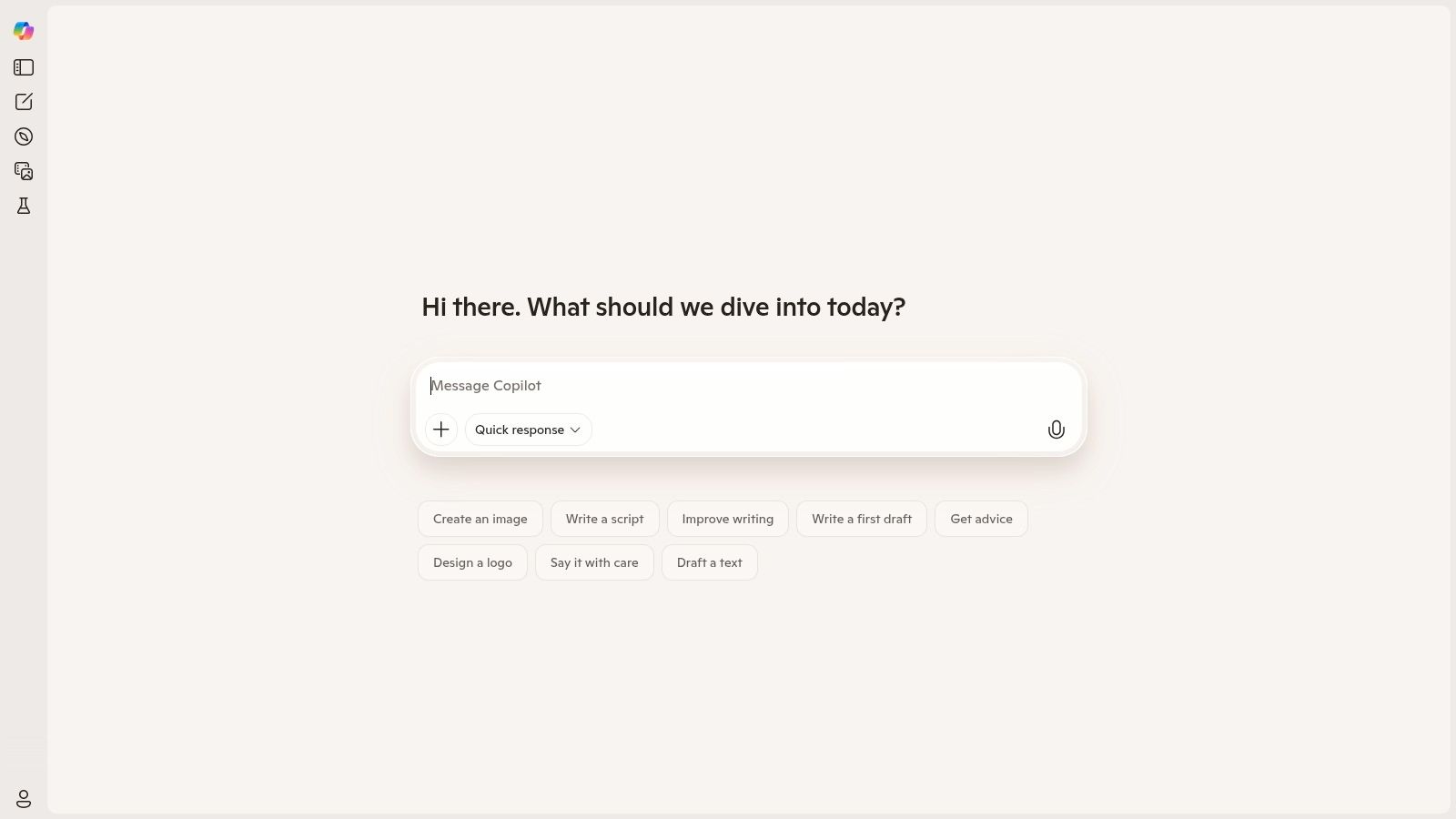
Alt text: A screenshot of the Microsoft Copilot interface answering a question about the benefits of renewable energy, with citations.
Key Features and Use Cases for Students
- Sourced Research: Ask complex questions and get summarised answers with links to the original sources for citation and further reading.
- Web Page & Document Summarisation: Use the Edge sidebar integration to instantly summarise long articles or uploaded PDF documents.
- Image Generation: Create custom images for presentations and projects using DALL-E 3 integration, free of charge.
- Multi-Modal Input: Interact using text, your voice, or even images to get the information you need in the most convenient way.
Practical Example: Kicking Off a Research Paper
You need to find sources for a history paper on the Aba Women’s Riot of 1929.
- Open Copilot: Access it via the website or the Edge browser sidebar.
- Ask a Research Question: Prompt, “What were the primary causes of the Aba Women’s Riot of 1929? Provide a summary with academic sources.”
- Review the Answer and Sources: Copilot will give you a synthesised answer and list its sources with clickable links. This instantly gives you a starting list for your bibliography.
- Summarise a Source: Open one of the linked articles in Edge. Use the Copilot sidebar to ask, “Summarise the key arguments of this article in three bullet points.”
Actionable Takeaways
- Use the “Precise” conversation style for fact-based research to get more citations.
- Generate a unique cover image for your next presentation using the built-in image generator.
- When browsing a long academic journal online, use the Edge sidebar to ask Copilot for a quick summary.
Pros:
- Excellent for quick research with answers grounded in web sources.
- Completely free with a simple Microsoft account sign-in.
Cons:
- The most advanced integrations require a paid Microsoft 365 subscription.
- Feature availability and updates can vary depending on your region.
Get started at: https://copilot.microsoft.com
4. Google Gemini (free web/app)
Google Gemini is a powerful and accessible free AI platform for students, acting as a direct competitor to other major AI assistants. Its free tier offers robust capabilities for research, problem-solving, and content creation, all grounded in Google’s vast search index for up-to-date answers. The interface is clean and straightforward on both the web and mobile apps, with easy access via any Google account, making it especially convenient for Nigerian students already in the Google ecosystem.
What makes Gemini stand out for academic work is its seamless integration with real-time information and its multi-modal input capabilities on the free tier. Students can upload images, documents, and even audio files to ask questions or request summaries, making it a flexible tool for various study needs. Its direct connection to Google Search often provides more current and well-cited information than other standalone models, which is crucial for academic research.
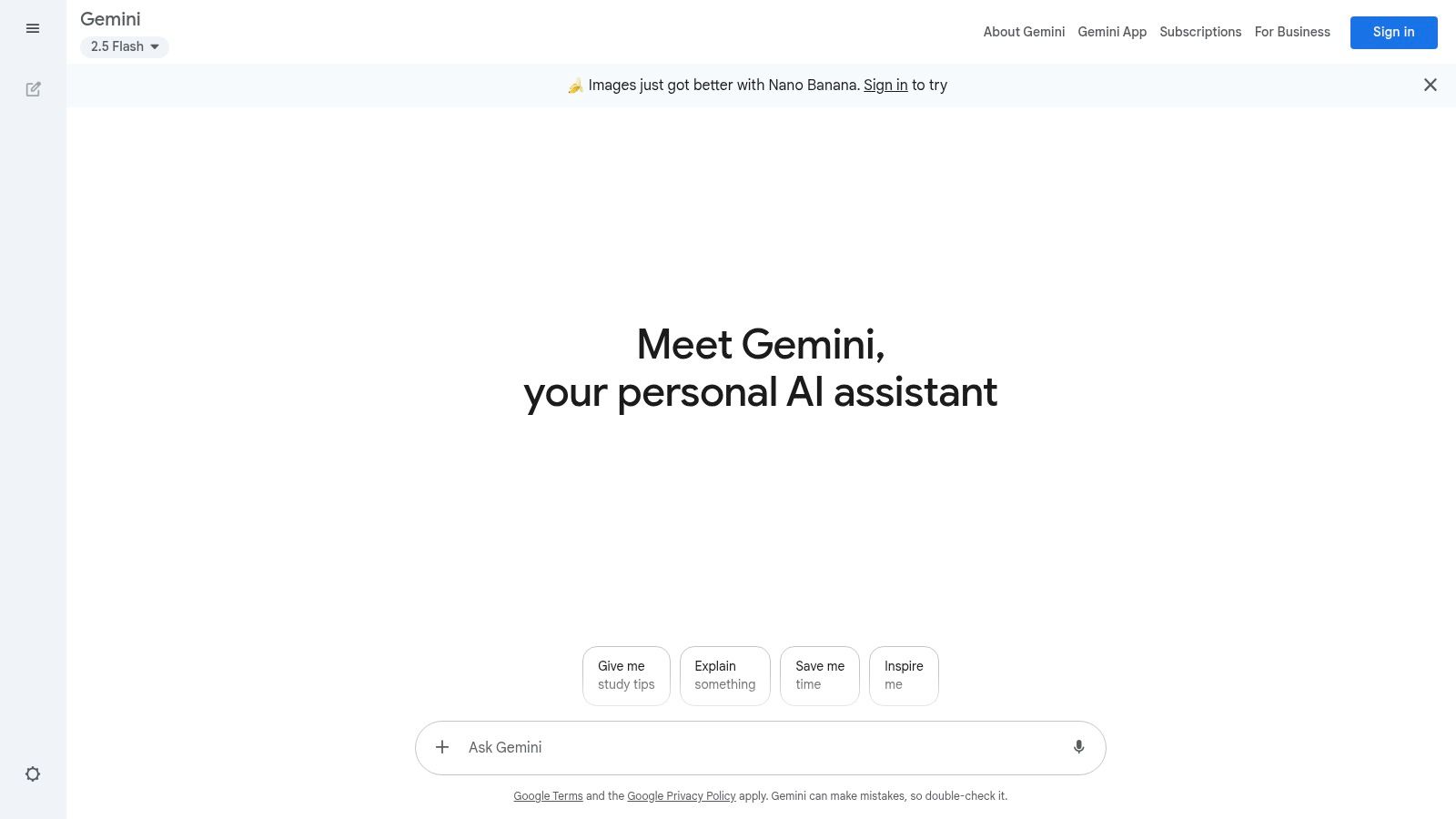
Alt text: A screenshot of the Google Gemini interface showing a conversation about historical events.
Key Features and Use Cases for Students
- Research & Summarisation: Ask complex questions and get answers grounded in recent search results, or upload a research paper for a quick summary.
- Problem Solving: Upload a picture of a difficult maths or physics problem to get a step-by-step solution.
- Coding Help: Generate code snippets, debug errors, or get explanations for complex algorithms in various programming languages.
- Creative Brainstorming: Generate ideas for projects, create outlines for presentations, or draft emails to professors.
Practical Example: Summarising a PDF Lecture Note
Here’s a step-by-step guide to quickly digest a lengthy lecture note PDF:
- Open Gemini: Go to the Gemini website and sign in with your Google account.
- Upload the File: Click the paperclip icon (or the ‘+’ icon to connect to Google Drive) and select the PDF of your lecture notes from your device or Drive.
- Provide a Clear Instruction: In the prompt box, type: “Summarise the key concepts from this document into five main bullet points. Then, explain the most important theory in simple terms, using an analogy if possible.”
- Review the Output: Gemini will process the document and provide a concise, easy-to-understand summary, saving you significant reading time.
Actionable Takeaways
- Take a picture of a complex diagram from your textbook and ask Gemini to explain it.
- Use the “Export to Google Docs” feature to quickly move generated text into your assignment document.
- If you missed a lecture, ask Gemini for a summary of the topic to catch up quickly.
Pros:
- Excellent for research with answers grounded in real-time search data.
- Smooth Google account sign-in and a user-friendly interface.
- Frequently updated with new features and improved capabilities.
Cons:
- Advanced features like deep integration with Google Workspace (Docs, Sheets) require a paid plan.
- Model access and specific features can sometimes vary by region.
Get started at: https://gemini.google.com
5. GitHub Student Developer Pack (includes free Copilot for students)
For students in computer science, data analytics, or any tech-related field, the GitHub Student Developer Pack is an unparalleled free AI platform for students. While not a single platform, it is a curated bundle of powerful developer tools, with the centrepiece being free access to GitHub Copilot Pro. This AI pair programmer integrates directly into your code editor, offering intelligent code completions, function generation, and even bug fixes, drastically speeding up development and learning.
The pack goes beyond Copilot, providing access to dozens of partner offers, including cloud credits, domain names, and learning resources. What makes it stand out is its focus on providing professional-grade tools, giving students hands-on experience with the same software used in the industry. The value is immense, turning your student status into a key that unlocks a treasure trove of development resources. You can discover more about the offerings in this guide to the GitHub Student Developer Pack.
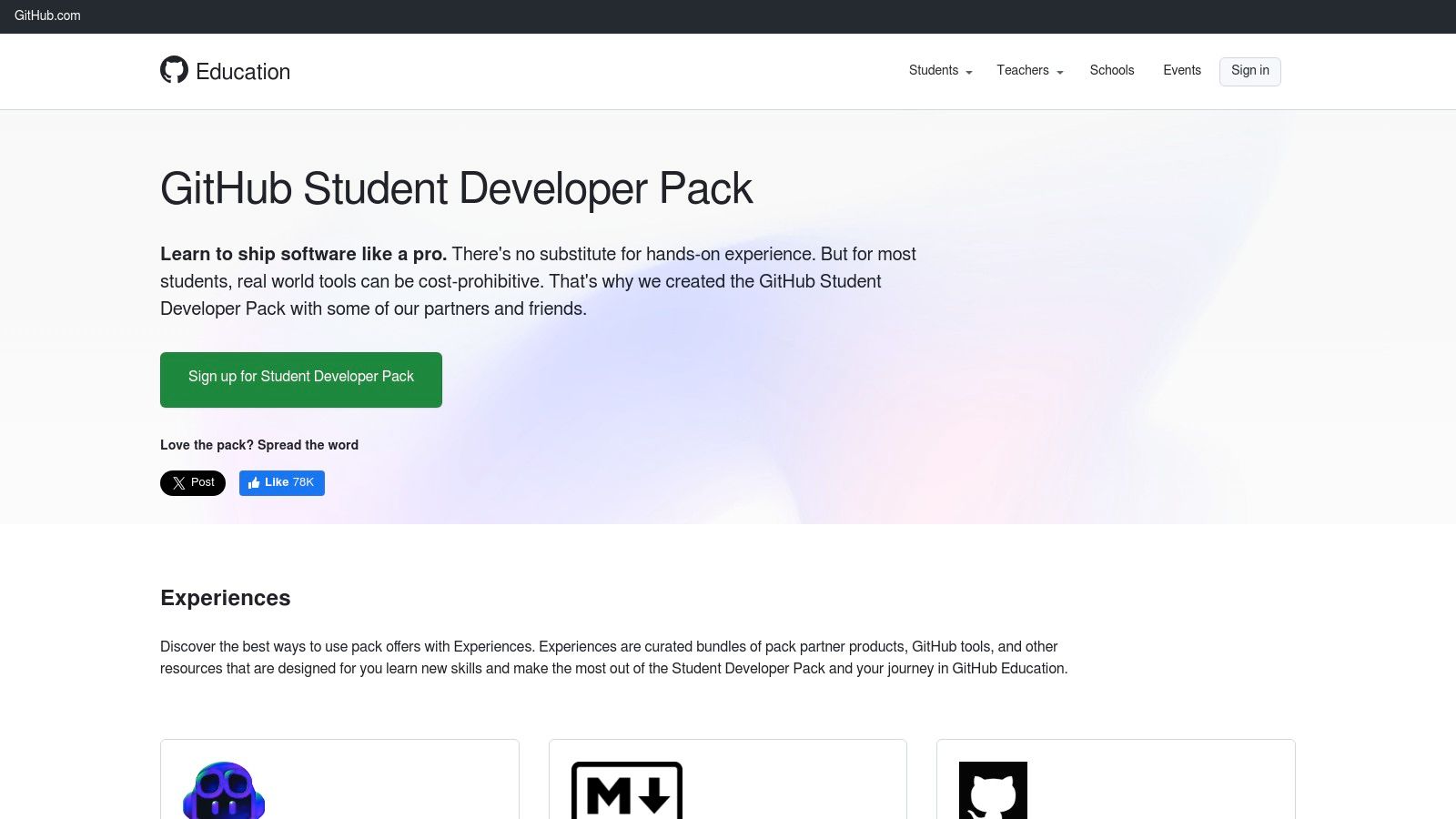
Alt text: A screenshot of the GitHub Student Developer Pack homepage showing various partner logos and the call to action for students.
Key Features and Use Cases for Students
- AI-Powered Coding: Use GitHub Copilot to write code faster, understand complex algorithms, and learn new programming languages through real-time suggestions.
- Project Development: Leverage partner offers like cloud hosting from Microsoft Azure or DigitalOcean to deploy your web applications or data models.
- Skill Enhancement: Access free subscriptions to educational platforms like DataCamp or Frontend Masters to supplement your university curriculum.
- Building a Portfolio: Use the tools provided to build and host sophisticated projects, creating a strong portfolio for future job applications.
Practical Example: Using Copilot for a Coding Assignment
Imagine you have an assignment to write a Python script that fetches weather data from an API.
- Get Access: Sign up for the GitHub Student Developer Pack and activate your free GitHub Copilot subscription.
- Install the Extension: Install the Copilot extension in your code editor (e.g., VS Code).
- Write a Comment: In your Python file, write a clear comment describing what you want to do:
# function to get weather data from OpenWeatherMap API for a given city. - Let Copilot Work: Press Enter. Copilot will automatically suggest the complete Python function, including API calls, error handling, and JSON parsing.
- Refine and Learn: Review the suggested code to understand how it works. You can then ask Copilot to add more features, like
# convert temperature from Kelvin to Celsius.
Actionable Takeaways
- Sign up and get verified for the pack at the beginning of the semester to maximise its value.
- Use GitHub Copilot Chat to ask coding questions directly in your editor (e.g., “Explain what this block of code does”).
- Redeem the Canva Pro offer within the pack to create professional diagrams and presentations for your tech projects.
Pros:
- Incredible value with access to premium, developer-grade tools at no cost.
- Centralised hub for essential student development resources.
Cons:
- The student verification process can sometimes take a while to complete.
- Some partner offers may have regional restrictions or vary over time.
Get started at: https://education.github.com/pack
6. Google Colab (free tier)
Google Colab is a powerful and free AI platform for students delving into data science, machine learning, or any subject requiring Python programming. It provides a browser-based, interactive notebook environment that runs entirely in the cloud, eliminating the need for complex local setup. The free tier offers access to GPUs and TPUs, which are essential for training AI models but often costly to access otherwise.
What makes Colab indispensable for students is its seamless integration with the Google ecosystem, particularly Google Drive. This allows you to save, share, and collaborate on coding projects just like a Google Doc. Its user-friendly interface lowers the barrier to entry for coding, making it a perfect sandbox for experimenting with libraries like TensorFlow, PyTorch, and Pandas for your coursework.
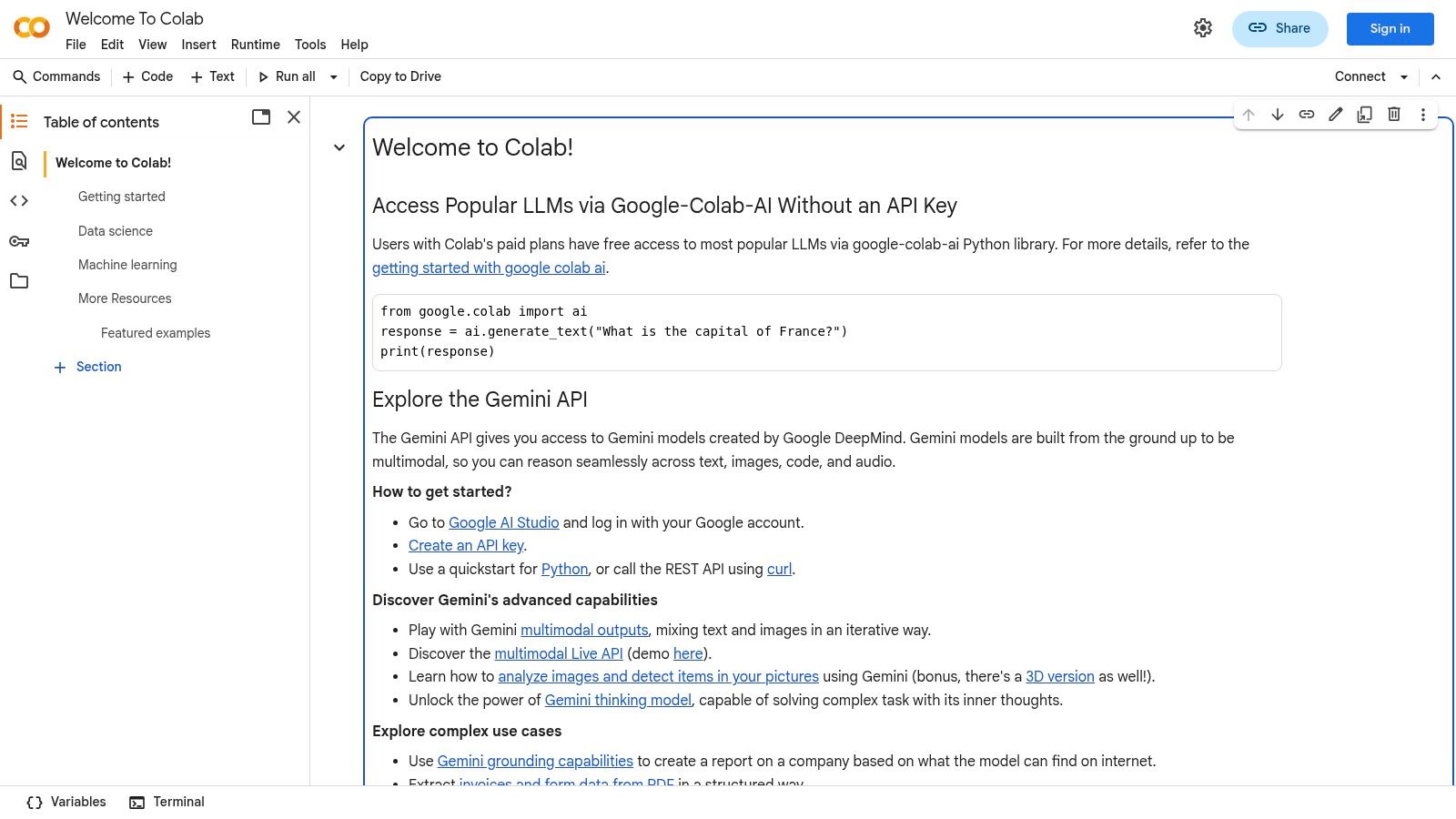
Alt text: An interface of Google Colab showing Python code in a notebook with cells for text and code execution.
Key Features and Use Cases for Students
- Data Analysis Projects: Use popular libraries like Pandas and Matplotlib to analyse datasets for statistics or social science courses.
- Machine Learning Coursework: Build and train neural networks for computer vision or natural language processing assignments without needing a powerful personal computer.
- Collaborative Coding: Share your notebook with project partners for group assignments, allowing real-time collaboration.
- Interactive Learning: Run code snippets from online tutorials or textbooks directly in a notebook to see how they work firsthand.
Practical Example: Analysing a Dataset for a Project
A sociology student needs to analyse a CSV file of survey data for their final project.
- Upload Data: Upload the CSV file to your Google Drive.
- Open Colab: Create a new Colab notebook.
- Mount Drive: In the first code cell, run the code to connect your Google Drive:
from google.colab import drive; drive.mount('/content/drive'). Authorise access when prompted. - Load and Analyse Data: In the next cell, use the Pandas library to load your data:
import pandas as pd; df = pd.read_csv('/content/drive/My Drive/your_data.csv'). - Generate Insights: You can now use simple commands like
df.describe()to get statistical summaries ordf['column_name'].value_counts().plot(kind='bar')to create a visual chart, all within the notebook.
Actionable Takeaways
- Enable GPU/TPU: Before starting a machine learning task, go to the ‘Runtime’ menu, select ‘Change runtime type’, and switch the hardware accelerator to GPU for free to drastically speed up model training.
- Use AI Coding Assistance: Take advantage of the built-in AI that provides code completions and suggestions to help you write code faster and with fewer errors.
- Share for Collaboration: Use the ‘Share’ button (just like in Google Docs) to invite your project partners to view or edit your notebook in real-time.
Pros:
- No local setup required, accessible from any browser.
- Free access to powerful hardware (GPUs/TPUs) for learning.
- Excellent for collaboration and sharing academic work.
Cons:
- Free tier sessions have time limits and can disconnect.
- Computational resources are not guaranteed and can be limited.
- Heavier workloads may require upgrading to a paid plan.
Get started at: https://colab.research.google.com
7. Kaggle (free notebooks, datasets, courses)
Kaggle is an indispensable free AI platform for students focused on data science and machine learning. It offers a unique hands-on environment where you can move from theory to practice using its free, browser-based notebooks, which come with valuable CPU and GPU access. This makes it a perfect hub for running complex models without needing powerful personal hardware.
What truly sets Kaggle apart is its combination of real-world datasets, active competitions, and a supportive community. Instead of just learning concepts from a textbook, students can download a dataset from a real company, analyse it in a notebook, and even compete for prizes. The platform’s free micro-courses are bite-sized and practical, covering everything from Python to deep learning, helping you build job-ready skills one step at a time.
Key Features and Use Cases for Students
- Portfolio Building: Complete a project using a real-world dataset (e.g., analysing customer churn) to showcase practical skills to future employers.
- Skill Development: Take short, targeted micro-courses on topics like “Intro to Machine Learning” or “Data Visualisation” to fill knowledge gaps.
- Practical Coding: Use the free cloud-based notebooks to write and run Python or R code for data analysis and model training.
- Competitive Learning: Participate in competitions to solve real problems and see how your skills stack up against others in the community.
Practical Example: Building Your First Data Science Project
- Find a Dataset: Go to the ‘Datasets’ tab and search for a topic that interests you, like “Nigerian Inflation Data” or “Global CO2 Emissions.”
- Start a Notebook: Once you find a dataset, click the “New Notebook” button. Kaggle will create a new coding environment with the data already loaded.
- Explore the Data: The notebook will often have starter code. Use simple commands like
df.head()to see the first few rows ordf.info()to understand the data types. - Follow a Tutorial: Find a public notebook created by another user for the same dataset. Follow their steps to learn common analysis techniques and see how they create visualisations.
Actionable Takeaways
- Complete at least one Kaggle micro-course a month to steadily build your skills.
- Fork an existing popular notebook and try to improve upon its analysis or model accuracy.
- Even if you don’t compete to win, enter a competition and submit a basic model just to learn the workflow.
Pros:
- Access to thousands of real-world datasets for portfolio projects.
- Free compute resources (CPU/GPU) are excellent for students on a budget.
- Strong community for support, collaboration, and peer learning.
Cons:
- GPU access is limited and may require phone verification.
- The platform can be overwhelming for absolute beginners due to its vast scope.
Get started at: https://www.kaggle.com
8. Perplexity AI (free plan)
Perplexity AI positions itself as a conversational search engine, making it a powerful free AI platform for students who prioritise accuracy and verifiable sources in their research. Its free tier provides a robust research experience, delivering concise, well-cited answers to complex queries. The interface is clean and focuses on presenting information with direct links to the sources it used, which is a game-changer for academic integrity.
What makes it stand out for students is its citation-first approach. Instead of just giving an answer, Perplexity shows you where the information came from, allowing you to verify facts and build a bibliography with ease. Its “Focus” feature allows you to narrow searches to specific domains like “Academic” or “WolframAlpha” for more precise results. If you are new to AI tools, you can learn how to start using AI without any experience and apply those principles here.
Key Features and Use Cases for Students
- Fact-Finding & Research: Ask specific questions for your coursework and get answers with numbered citations linked directly to web sources.
- Literature Review: Quickly find academic papers or articles on a topic and get a summarised overview.
- Source Verification: Check the validity of information by easily accessing the original source links provided with each answer.
- Topic Exploration: Use the “Related” questions feature to discover new angles and deepen your understanding of a subject.
Practical Example: Finding Academic Sources
- Set Your Focus: On the Perplexity search bar, click on ‘Focus’ and select ‘Academic’. This tells the AI to prioritise academic journals and papers in its search.
- Ask a Specific Question: Type in your research query, for example: “What is the impact of microplastics on marine life according to recent studies?”
- Analyse the Results: Perplexity will provide a summary synthesised from multiple academic sources. Each sentence or claim will have a numbered citation.
- Build Your Bibliography: Click on the citation numbers to go directly to the source papers. This allows you to read the original research and correctly cite it in your work.
Actionable Takeaways
- Always use the ‘Focus’ feature to narrow your search to Academic, WolframAlpha (for computational questions), or YouTube for the best results.
- After getting an answer, click on the “Related” questions to explore sub-topics you hadn’t considered.
- Use the “Follow-up” question feature to dig deeper into a specific part of the initial answer.
Pros:
- Excellent for research due to its citation-first answers.
- The free plan is generous and sufficient for most daily student needs.
Cons:
- Access to more advanced models (like Claude 3 and GPT-4) is reserved for the paid plan.
- The free tier can have rate limits during peak usage times.
Get started at: https://www.perplexity.ai
9. Hugging Face (free community tier)
Hugging Face stands as a crucial free AI platform for students, especially those in computer science, data science, or any field involving machine learning. It’s less of a single tool and more of a collaborative hub- a “GitHub for AI”- where you can find, test, and even host thousands of open-source models, datasets, and interactive demos called Spaces. This makes it an unparalleled resource for hands-on learning and project development.
What makes it unique for students is its direct access to the engine room of modern AI. Instead of just using a polished final product, you can explore the underlying models, understand their architecture, and see how they are built and trained. This “do-it-yourself” approach is invaluable for anyone who wants to move beyond being a consumer of AI to becoming a creator of AI solutions.
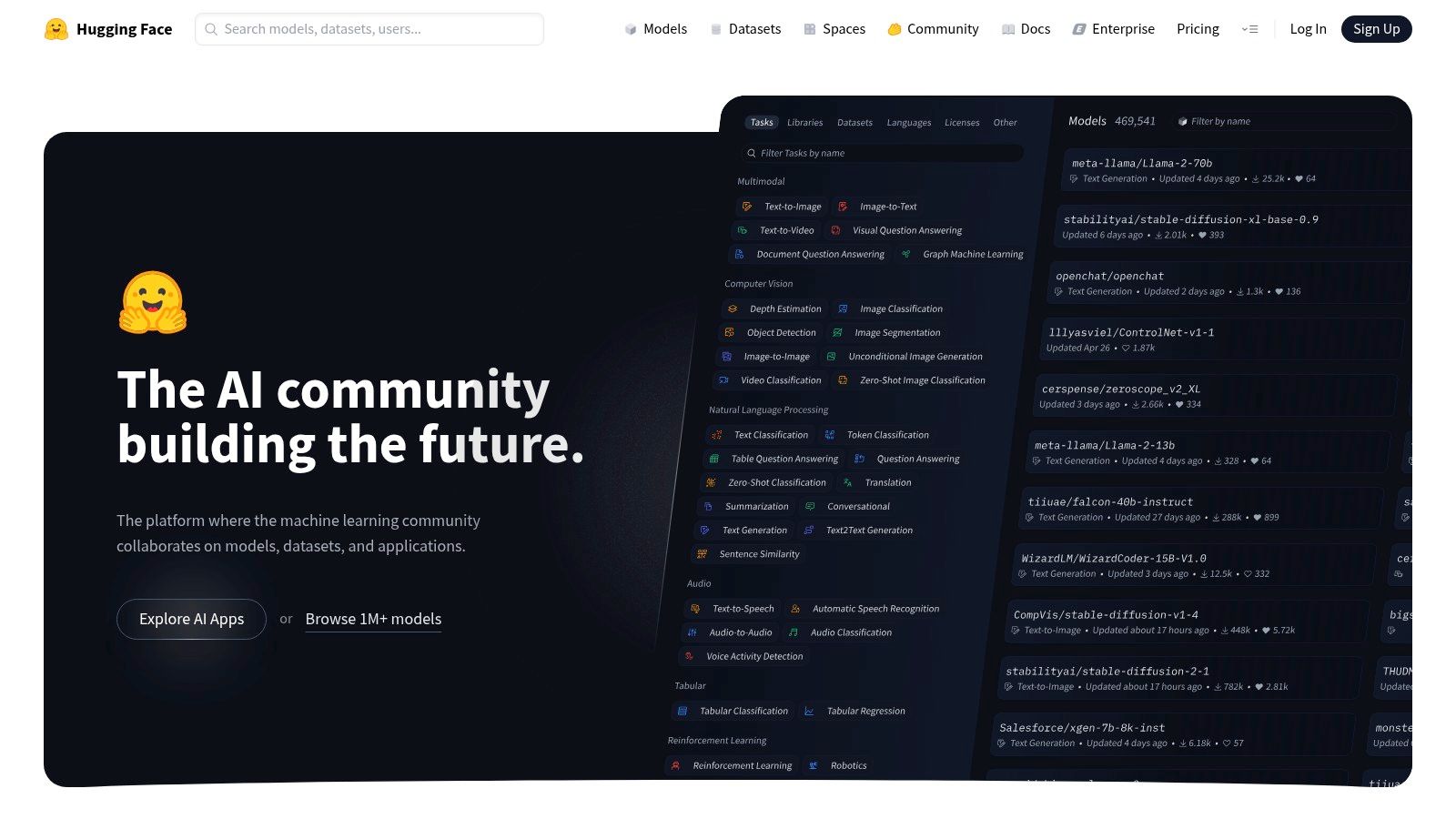
Alt text: A screenshot of the Hugging Face website, showing a variety of AI models and datasets available for exploration.
Key Features and Use Cases for Students
- Explore State-of-the-Art Models: Find and test cutting-edge models for tasks like text generation, image creation, or audio processing for your research projects.
- Host Project Demos: Use “Spaces” to build a free, public-facing portfolio piece that demonstrates your machine learning skills to potential employers.
- Access Diverse Datasets: Find thousands of public datasets for training your own custom models for course assignments or final-year projects.
- Learn Modern ML Workflows: Gain practical experience with the tools and libraries (like Transformers and Diffusers) that professionals use in the industry.
Practical Example: Testing a Text-to-Image Model
- Navigate to Models: Go to the Hugging Face website and click on the ‘Models’ tab.
- Filter by Task: On the left-hand side, filter the models by task. Select ‘Text-to-Image’.
- Choose a Model: Select a popular model like ‘Stable Diffusion’.
- Test in the Browser: On the model’s page, you will find an interactive widget. Type a prompt like “An astronaut riding a horse on Mars, photorealistic” and click “Compute.”
- See the Result: The model will generate and display an image based on your prompt, giving you a direct, hands-on feel for how generative AI works without writing any code.
Actionable Takeaways
- Find a model that performs a task related to your field (e.g., sentiment analysis for a business student) and experiment with its interactive demo.
- Create a Hugging Face profile and “like” models and datasets that interest you to build a curated resource list.
- Try building a simple “Space” using a template to host a Gradio or Streamlit app for your final year project.
Pros:
- Incredible ecosystem with a vast library of state-of-the-art models.
- Excellent for building a portfolio and gaining practical ML experience.
Cons:
- Requires a more technical, DIY approach compared to guided tools.
- Free inference and Spaces hosting have rate limits and resource caps.
Get started at: https://huggingface.co
10. Canva for Education (free for K-12 schools/teachers and their students)
Canva for Education transforms the popular design tool into a powerful and safe free AI platform for students in K-12. While standard Canva has AI features, the Education edition provides these tools completely free for eligible students and teachers, integrating them directly into a classroom-friendly environment. It empowers students to create visually stunning presentations, reports, videos, and posters while using AI ethically and creatively. The platform is designed for collaboration, making group projects seamless.
What makes it exceptional for the K-12 level is its focus on safety and educational relevance. Features like Magic Write are designed to be classroom-appropriate, helping students brainstorm ideas or summarise text without simply doing the work for them. The integration with Learning Management Systems (LMS) like Google Classroom streamlines assignment submission and feedback, making it a comprehensive tool for modern digital learning. You can explore more options in this list of free AI tools for content creation.
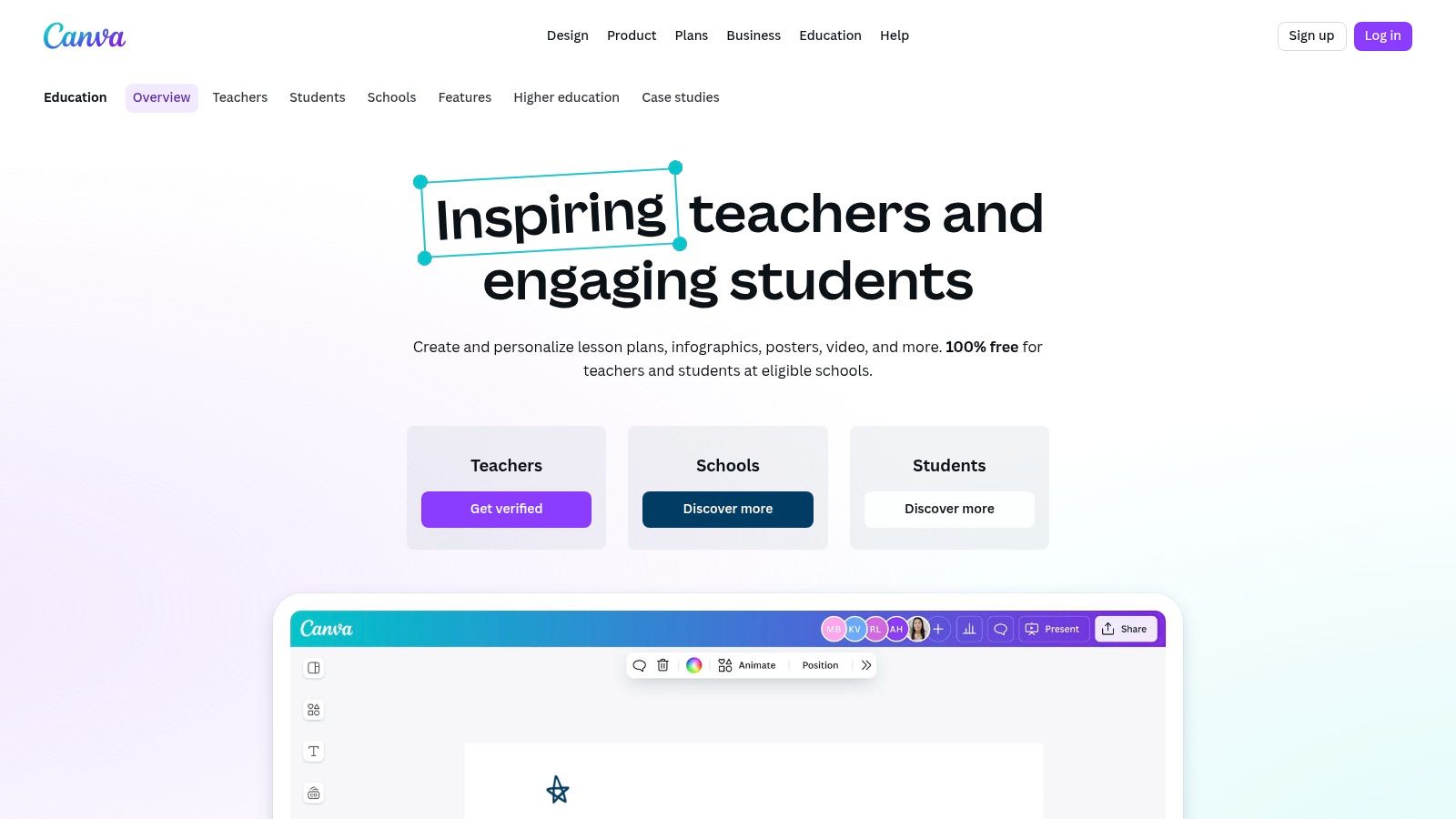
Alt text: A screenshot of the Canva for Education interface, showing a student working on a colourful presentation about the solar system.
Key Features and Use Cases for Students
- Project Presentations: Use Magic Design to instantly generate polished slide decks for history or science projects.
- Creative Writing Assistance: Leverage Magic Write to overcome writer’s block, generate ideas for a story, or summarise research findings.
- Interactive Learning: Teachers can create AI-powered quizzes and interactive worksheets to make learning more engaging.
- Digital Portfolios: Design professional-looking digital portfolios to showcase coursework, art, and achievements.
Practical Example: Creating a Presentation in Minutes
- Start a Presentation: Open Canva and choose the ‘Presentation’ document type.
- Activate Magic Design: On the design panel, click on ‘Magic Design’.
- Enter Your Prompt: Type a simple description of your presentation topic, for instance, “A 5-slide presentation on the life cycle of a butterfly for a 5th-grade science class.”
- Select a Style: Canva’s AI will generate several complete presentation templates with text, images, and layouts. Browse the options and select the one that best fits your needs.
- Customise: Click on the generated slides to edit the text, swap images, or change colours to finalise your project.
Actionable Takeaways
- Use ‘Magic Write’ to summarise a long paragraph from your research into a concise bullet point for your slide.
- Explore the vast template library to find pre-made designs for book reports, science posters, and video projects.
- Collaborate with your group members in real-time on a single presentation design to ensure consistency.
Pros:
- 100% free for eligible K-12 students and educators with no hidden paywalls.
- Excellent for developing design and digital literacy skills.
- Promotes easy collaboration and provides robust classroom management controls for teachers.
Cons:
- Requires verification of K-12 educational status to access the free plan.
- More advanced AI features are still being rolled out and may be less powerful than dedicated AI writers.
Get started at: https://www.canva.com/education/
11. Adobe Express for Education (free for K-12 schools and districts)
Adobe Express for Education is a fantastic free AI platform for students in K-12, transforming the way they create visual projects. It offers a powerful suite of creative tools, including classroom-safe generative AI features for image and text effect creation, all within a secure, ad-free environment. This makes it an ideal choice for everything from designing stunning presentations and infographics to editing videos for school assignments.
What truly sets it apart for younger students is its focus on safety and educational alignment. Adobe has built-in education-specific privacy controls and safe image searching, ensuring that AI-generated content is appropriate for the classroom. Teachers can easily manage their classes, assign projects using curriculum-aligned templates, and empower students to develop digital literacy skills without the risks associated with open-ended AI tools.
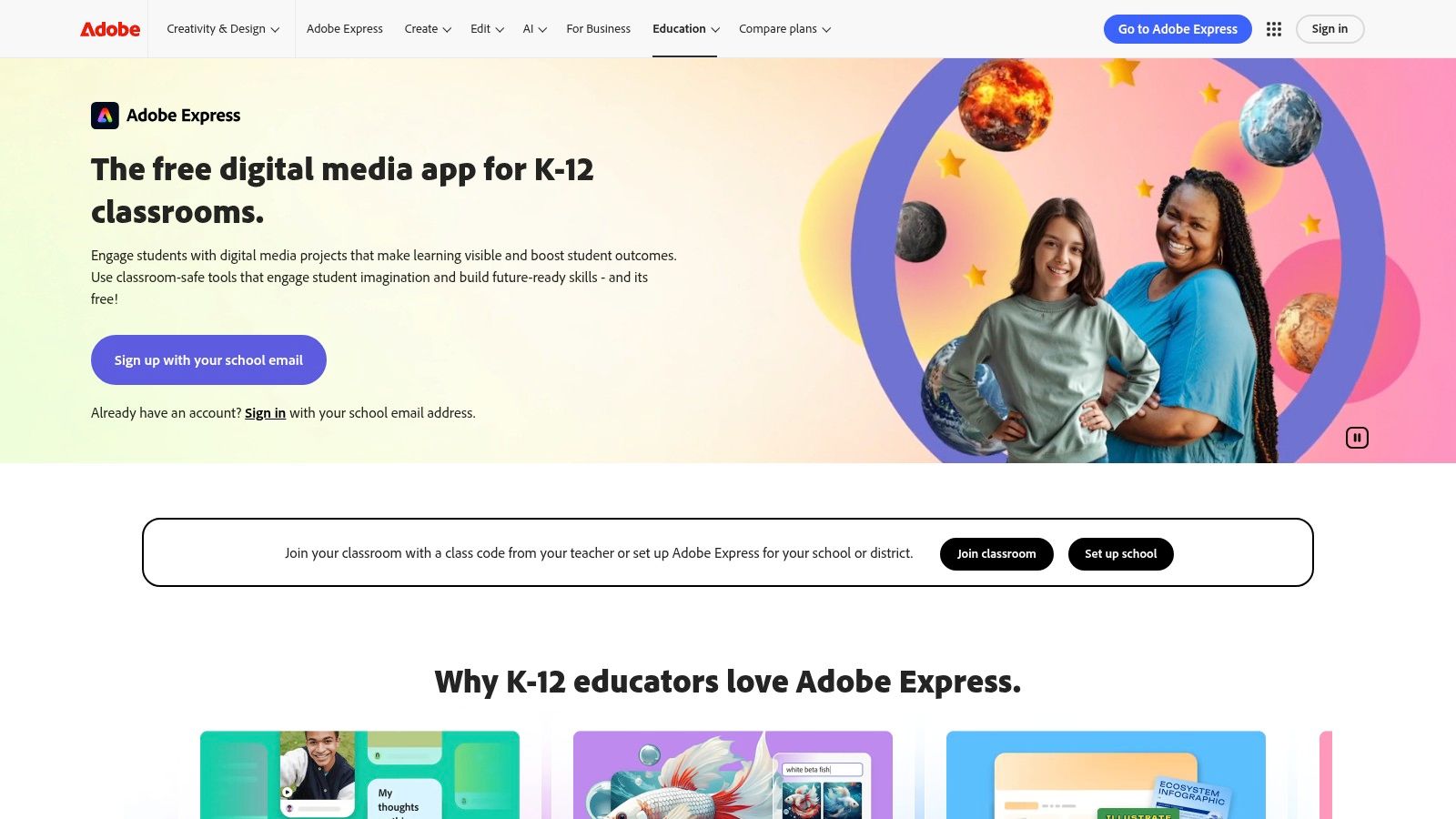
Alt text: A screenshot of the Adobe Express interface showing a user creating a colourful graphic for a school project.
Key Features and Use Cases for Students
- Visual Presentations: Create engaging slideshows, posters, and web pages with professional templates and AI-powered design suggestions.
- Digital Storytelling: Produce short videos, animations, and graphics to bring history reports or literature projects to life.
- Generative AI Creation: Use features like “Text to Image” and “Text Effects” to generate unique visuals for projects safely.
- Collaborative Projects: Work with classmates in real-time on shared designs for group assignments.
Practical Example: Designing a Poster with AI Images
- Choose a Template: In Adobe Express, search for “science fair poster” and select a template.
- Generate a Custom Image: Click on ‘Media’ and select the ‘Text to Image’ feature.
- Enter Your Prompt: Type a description of the image you need, like “A detailed diagram of a plant cell, cartoon style.” The AI will generate several options.
- Add and Edit: Choose the best image and add it to your poster. Use the ‘Text Effects’ feature to create a title with a unique style, like “moss texture.”
- Finalise Your Design: Adjust the text, colours, and layout to complete your professional-looking poster.
Actionable Takeaways
- Use the ‘Animate from audio’ feature to create a short animated video where a character speaks your recorded voice.
- Quickly remove the background from a photo to place it cleanly in your presentation.
- Explore the curriculum-aligned templates for subjects like history and literature to get a head start on assignments.
Pros:
- Completely free with premium features for K-12 schools and students.
- Strong focus on classroom safety and privacy.
- Works seamlessly on web browsers, Chromebooks, and mobile devices.
Cons:
- Requires the school or district to sign up and verify for access.
- University students often need to use commercial plans unless their institution has a specific licence.
Get started at: https://www.adobe.com/education/express/
12. Microsoft Azure for Students (free $100 credit; no credit card)
Microsoft Azure for Students is a premier free AI platform for students who want to move beyond basic tools and gain hands-on experience in a professional cloud environment. It provides eligible higher-education students with a generous $100 credit, which is renewable annually without requiring a credit card to sign up. This access allows you to experiment with enterprise-grade AI and machine learning services, deploy web applications, and manage databases, all within a real-world cloud platform used by top companies.
What makes this offer exceptional for students is its focus on practical, career-ready skills. Instead of just using a pre-built AI, you can build, train, and deploy your own models using Azure Machine Learning Studio. The platform also includes comprehensive learning paths and tutorials through its Education Hub, guiding you from foundational cloud concepts to advanced AI development. This makes it an invaluable resource for computer science, engineering, and data science students looking to build a strong portfolio.
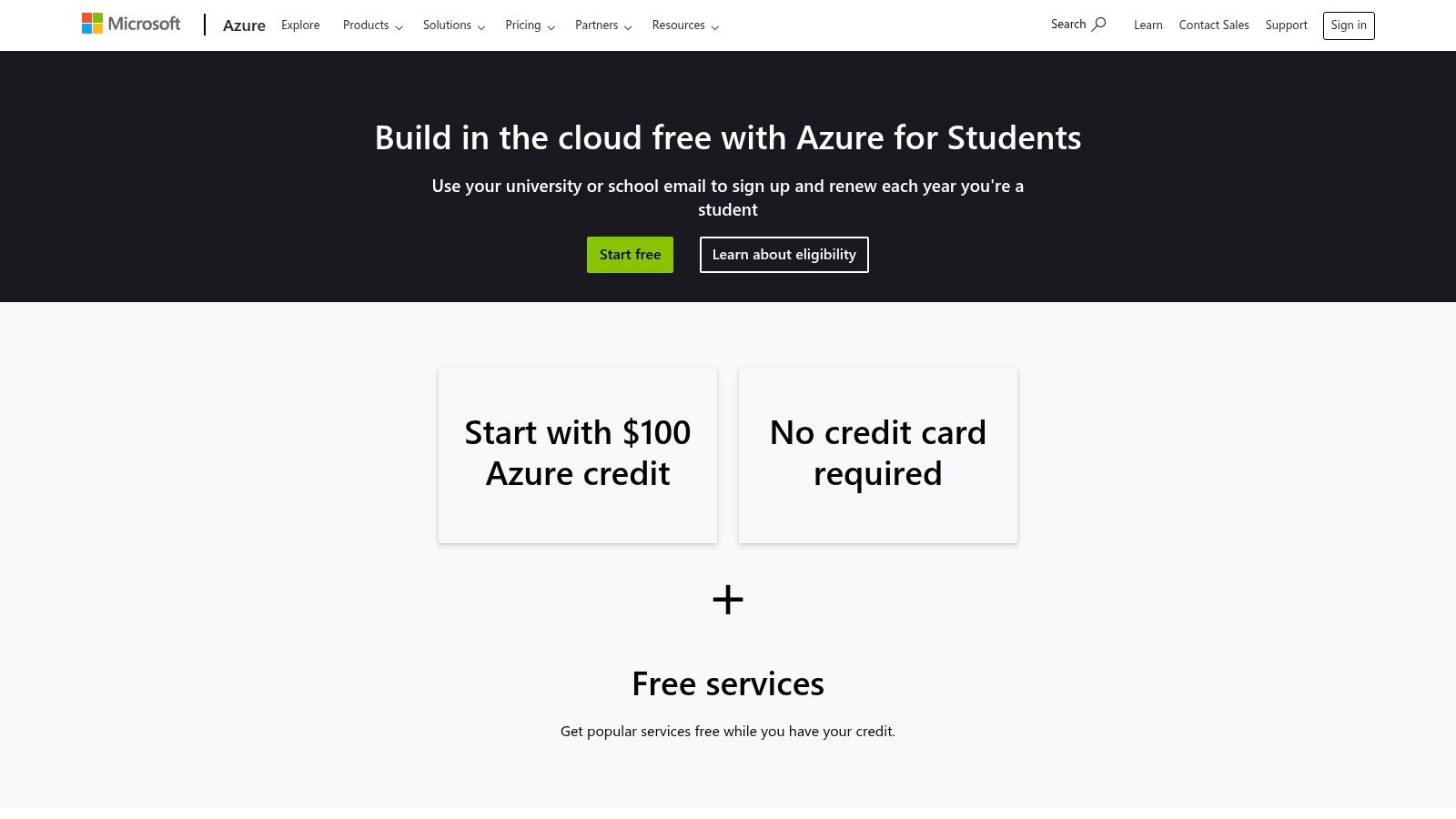
Alt text: A screenshot of the Microsoft Azure for Students landing page showing the sign-up offer and benefits.
Key Features and Use Cases for Students
- Custom Model Training: Use the $100 credit to train custom machine learning models for final year projects or research.
- AI Service Integration: Build applications that leverage powerful pre-built APIs like Azure AI Vision for image analysis or Azure AI Speech for transcription.
- Cloud Computing Skills: Host a website, run a virtual machine, or manage a database to learn fundamental cloud engineering skills.
- Data Science Projects: Utilise Azure Machine Learning Studio to run complex data analyses and build predictive models for your coursework.
Practical Example: Building an Image Recognition App
- Sign Up: Create your Azure for Students account to get the $100 credit.
- Create a Vision Resource: In the Azure portal, search for “Azure AI Vision” and create a new resource. This gives you access to the pre-trained API.
- Get Your Keys: Copy your API key and endpoint URL from the resource page.
- Use a Simple Script: In a Python script (or even Google Colab), use the provided sample code to make an API call. You can pass the URL of an image and the API will return a JSON object describing what it sees in the image (e.g., “a person walking a dog in a park”).
- Integrate: You can now integrate this functionality into a simple web app for a class project, all funded by your free credits.
Actionable Takeaways
- Start by exploring the “AI Fundamentals” learning path in the Education Hub to understand the basics.
- Use the credit to deploy a simple Python web app using Azure App Service to learn about cloud deployment.
- Experiment with a pre-built API, like the Text Analytics service, to add sentiment analysis to a project without needing to build a model from scratch.
Pros:
- Provides experience in a real, industry-standard cloud environment.
- The renewal process is straightforward for eligible students.
- Offers access to a very broad range of professional tools.
Cons:
- You must be 18+ and enrolled in an accredited degree-granting institution.
- Services are paused once the credit is exhausted unless you upgrade to a paid account.
Get started at: https://azure.microsoft.com/free/students
Free AI Platforms for Students: Key Features Comparison
| Platform | Core Features / Capabilities | User Experience & Quality ★ | Value Proposition 💰 | Target Audience 👥 | Unique Selling Points ✨ | Price Points 💰 |
|---|---|---|---|---|---|---|
| 🏆 RichlyAI | Text, images, audio, video, code, chatbots, social media | Intuitive UI, real-time voice chat ★★★★☆ | Free unlimited text generation, enterprise AI at low cost | Marketers, developers, students, solopreneurs | All-in-one AI platform, social media automation, chatbot training | Free plan + paid upgrades |
| OpenAI – ChatGPT (free tier) | GPT-5 access, web search grounding, voice & image support | Strong reasoning, frequent updates ★★★★☆ | High-quality general AI assistant | General users, students, coders | Study Mode, cross-platform support | Free tier with usage limits |
| Microsoft Copilot (free) | Writing, summarizing, image gen, grounded web search | Smooth integration, quick research ★★★☆☆ | Free access, Microsoft ecosystem | Microsoft users, researchers | Deep Windows/browser integration | Free basic; Pro features paid |
| Google Gemini (free web/app) | Q&A, code help, file/audio uploads | Reliable, frequent updates ★★★☆☆ | Free tier with Google account ease | Researchers, Google users | Google ecosystem apps integration | Free with some paid tiers |
| GitHub Student Developer Pack | Free Copilot Pro, cloud/learning tools | High-value dev tools ★★★★☆ | Free developer tools bundle for students | Verified students (CS/data) | Student verification unlocks premium dev tools | Free for verified students |
| Google Colab (free tier) | Python notebooks, AI code assist, Google Drive integration | Easy browser access, sufficient for projects ★★★☆☆ | Free compute for learning projects | Students, ML practitioners | No setup, browser-based notebooks | Free with usage limits |
| Kaggle (free notebooks, datasets, courses) | Notebooks with GPU/TPU, datasets, competitions | Strong community, portfolio focus ★★★★☆ | Free real-world data and compute | Data science learners, competitors | Competitions and community resources | Free |
| Perplexity AI (free plan) | Research assistant, citations, limited uploads | Good citation-first answers ★★★☆☆ | Generous free research plan | Students, researchers | Comet AI research browser | Free with rate limits |
| Hugging Face (free community tier) | Open models, datasets, demo apps | Massive model library ★★★☆☆ | Free access, pay-as-you-go scaling | ML learners, researchers | Open ecosystem with Spaces hosting | Free basic, paid upgrades |
| Canva for Education (free for K-12) | AI creativity tools, LMS integration, templates | Easy collaboration ★★★★☆ | 100% free for qualified K-12 users | K-12 teachers & students | Classroom-safe AI tools | Free for eligible users |
| Adobe Express for Education (free K-12) | Creative AI tools, privacy controls, templates | Safe, versatile for classrooms ★★★☆☆ | Premium features free for schools | K-12 educators and students | Education-focused privacy & curriculum | Free for verified schools |
| Microsoft Azure for Students ($100 credit) | Cloud AI services, ML tools, $100 credit | Real-scale cloud learning ★★★★☆ | Generous credit for AI learning | Higher-ed students 18+ | Renewable credits, no credit card needed | $100 credit per year free |
Choosing Your AI Study Partner and Getting Started Today
We have navigated the dynamic landscape of artificial intelligence, exploring a comprehensive suite of free AI platforms for students. From versatile conversational tools like ChatGPT and Google Gemini to specialised coding environments such as Google Colab and Kaggle, the opportunities to enhance your learning journey are more accessible than ever. The key takeaway is clear: AI is no longer a futuristic concept but a present-day academic assistant, ready to help you research, write, code, and create more effectively.
The platforms we’ve covered, including Microsoft Copilot, Perplexity AI, and the developer-centric resources within the GitHub Student Developer Pack, demonstrate the breadth of support available. You can draft essays, debug complex code, analyse vast datasets, or even design stunning presentations without spending a kobo. The power of these tools lies not just in their individual features but in how you strategically combine them to build a personalised, efficient workflow.
Selecting the Right AI Tool for Your Needs
Choosing the perfect free AI platform for students can feel overwhelming, but a structured approach simplifies the process. Your choice should align directly with your immediate academic goals and long-term learning objectives.
To make an informed decision, consider these factors:
- Primary Task: What is your main goal? For quick research and summarisation, Perplexity AI excels with its cited sources. For creative writing and brainstorming, ChatGPT or Google Gemini offer unparalleled flexibility. For data science projects, Kaggle or Google Colab are the undisputed champions.
- Technical Skill Level: Are you a beginner or an experienced programmer? Platforms like Google Colab are relatively user-friendly for starting with Python notebooks, while the resources on Hugging Face cater to those with a deeper interest in machine learning models.
- Integration with Existing Workflow: How will the tool fit into your current study habits? If you heavily use Microsoft Office, Microsoft Copilot offers seamless integration. Similarly, creative students will find Canva and Adobe Express easy to incorporate into their design projects.
- Specific Niche Requirements: Your field of study might demand specialised tools. For instance, if you participate in extracurricular activities like Model United Nations, you might want to discover specialized AI tools for MUN delegates that are tailored for research and speech writing in that specific context.
Your Actionable Next Steps
The most crucial step is to move from reading to doing. Theoretical knowledge about these platforms is useful, but practical application is where the real learning begins.
Here is a simple plan to get started today:
- Identify One Core Need: Think about your most pressing academic task this week. Is it a research paper, a coding assignment, or a group presentation?
- Select Two Platforms to Test: Based on that need, choose two relevant tools from our list. For example, for a research paper, you might test both Perplexity AI for sourcing and ChatGPT for outlining.
- Run a Small, Controlled Experiment: Give yourself a 30-minute time-boxed session with each tool. Use the same prompt or task for both to compare their outputs, ease of use, and overall utility.
- Reflect and Integrate: After your test, decide which tool felt more intuitive and delivered better results for your specific task. Start integrating that one into your regular study routine.
- The Role of Artificial Intelligence in Enhancing Content Delivery in Business Education: A 21st-Century Approach
- Top 12 Free AI Platforms for Students in 2025
- How to Draw Snail: Easy Step-by-Step Guide
- Top 12 AI Chatting App Solutions to Use in 2025
- WAEC Past Questions and Answers: Your Ultimate Study Guide
- How to Make Money with AI: Proven Strategies to Earn Today
- How to Find a Nursing Job Vacancy in Abuja
- Your Practical Guide to Building an AI Chatbot App
- Land Top Human Resources Jobs in Abuja
- How to Migrate to Beta Talk Easily | Step-by-Step Guide
- Your Practical Guide to Building a Social Media Content Calendar
- AI Drives Cost Reduction Across Organizations
- Nigeria’s National Artificial Intelligence Policy (NAIP): A Framework for Ethical Innovation and Inclusive Growth
- How to Launch an AI Startup in 2025: A Founder’s Roadmap
- Artificial Intelligence In Nigeria
- Generative AI in Nigeria: Free Tools & Creative Solutions for Businesses | RichlyAI
- Premium ChatGPT Prompts for IT Professionals
- Unveiling Richly Artificial Intelligence (Richly AI): Your Perfect Content and Image Generator!
- Discover the Innovative Platform: richlyai.com – Revolutionizing Content and Image Generation!
- Unlocking Creativity with RichlyAI: Nigeria’s Generative AI Revolution
By embracing these powerful, free resources, you are not just completing assignments; you are building a future-proof skill set. The ability to effectively leverage AI is becoming a critical competency in every field. Start small, stay curious, and let these intelligent platforms become your ultimate academic partners in achieving your educational goals.
Ready to take your academic writing and research to the next level with a tool designed specifically for students? RichlyAI offers a suite of powerful, user-friendly features to help you draft essays, summarise articles, and generate ideas effortlessly. Explore how RichlyAI can become your go-to study companion today.
