
The challenge of consistently producing high-quality content-from blog posts and social media updates to videos and graphics-is a significant hurdle for creators, marketers, and entrepreneurs. The demand for fresh, engaging material is relentless, often outstripping available time, budget, and creative energy. This is precisely the problem that the new wave of free AI tools for content creation is designed to solve, offering powerful assistance without the hefty price tag.
This comprehensive guide is built to help you navigate the ever-growing market of AI-powered platforms. We move beyond simple descriptions to provide in-depth analysis, practical use cases, and honest assessments of what each tool can realistically achieve. Whether you need to generate compelling copy, design eye-catching visuals, produce engaging videos, or refine your audio, you will find a solution here. We have organised the list into clear categories-text, image, video, and more-to help you quickly identify the right tool for your specific task.
Each review includes detailed feature breakdowns, step-by-step insights, and direct links to get you started immediately. Our goal is to equip you with the knowledge to not just choose a tool, but to effectively integrate it into your workflow. For those focused specifically on written content, understanding the nuances of these platforms is key. To truly harness the power of AI in your content efforts, consider exploring a modern guide to AI for writing articles This resource will empower you to select and implement the best free AI tools to streamline your creative process, save valuable time, and elevate the quality of your output.
1. RichlyAI: The All-in-One Hub for Diverse Content Creation
RichlyAI Hub emerges as a standout choice among free AI tools for content creation, positioning itself not just as a single-function tool, but as a comprehensive, all-in-one platform. It is engineered to support a diverse range of creative and professional needs, from text generation and social media management to custom chatbot development. This makes it an exceptionally powerful asset for digital marketers, entrepreneurs, and content creators across Nigeria and Africa who require a versatile, integrated solution.
What truly distinguishes RichlyAI is its ability to consolidate multiple AI functionalities into one unified, user-friendly interface. While many free tools specialise in one area, like writing or image generation, RichlyAI provides a cohesive ecosystem. This integration eliminates the need to switch between different applications, streamlining your workflow and boosting productivity significantly. Its generous free plan provides access to advanced AI models, making enterprise-grade capabilities accessible without an initial investment.
Key Strengths and Practical Use Cases
RichlyAI’s power lies in its breadth of features. Let’s explore how you can leverage its capabilities:
- Multi-Format Content Generation: Seamlessly create blog posts, marketing copy, social media captions, and even video scripts. Its AI can also generate high-quality visuals, audio clips, and code snippets, making it a true multi-modal creation suite.
- Social Media Automation: Go beyond content creation by scheduling and optimising posts directly to X (formerly Twitter), LinkedIn, and Instagram. This feature is invaluable for social media managers looking to maintain a consistent online presence.
- Advanced AI Interaction: The platform offers unique interactive tools like real-time voice chat with an AI assistant for quick brainstorming or research. You can also train custom chatbots on your own data to provide personalised customer support on your website.
Actionable Insight: Use the AI Writer’s “Blog Post” template to create a full article outline in under a minute. Practical Example: Enter the prompt “Create a blog post outline on the benefits of solar energy for small businesses in Lagos.” The AI will generate a structured outline with H2 and H3 headings, which you can then flesh out section by section.
How to Create a Social Media Post with RichlyAI: A Step-by-Step Guide
- Sign Up & Navigate: Visit the RichlyAI website and sign up for the free plan. From the dashboard, select “AI Writer.”
- Choose a Template: Find and click on the “Social Media Post” template.
- Provide Context: In the prompt box, enter your instructions. For example: “Write an engaging Instagram post about our new coffee blend called ‘Lagos Sunrise’. Mention its notes of citrus and caramel. Include three relevant hashtags.”
- Generate and Refine: Click “Generate.” The AI will produce several options. You can edit your favorite, combine ideas, or regenerate for more versions.
Final Assessment
Pros:
- Comprehensive suite covering text, images, video, audio, and chatbots.
- Integrated social media automation for major platforms.
- User-friendly interface with prompt guidance.
- Generous free plan offering access to advanced AI models.
Cons:
- Some users have reported website accessibility issues, which could be a temporary hurdle.
- Extensive usage or access to the most advanced features will require upgrading to a paid plan.
Website: RichlyAI
2. Canva
Canva has evolved from a user-friendly graphic design tool into a powerful, integrated creative suite, making it one of the most versatile free AI tools for content creation available. Its strength lies in democratising design, allowing users with no formal training to produce professional-grade visuals. The recent integration of its “Magic Studio” features has elevated this, bringing AI-powered assistance directly into the design workflow for text, images, and even short videos.
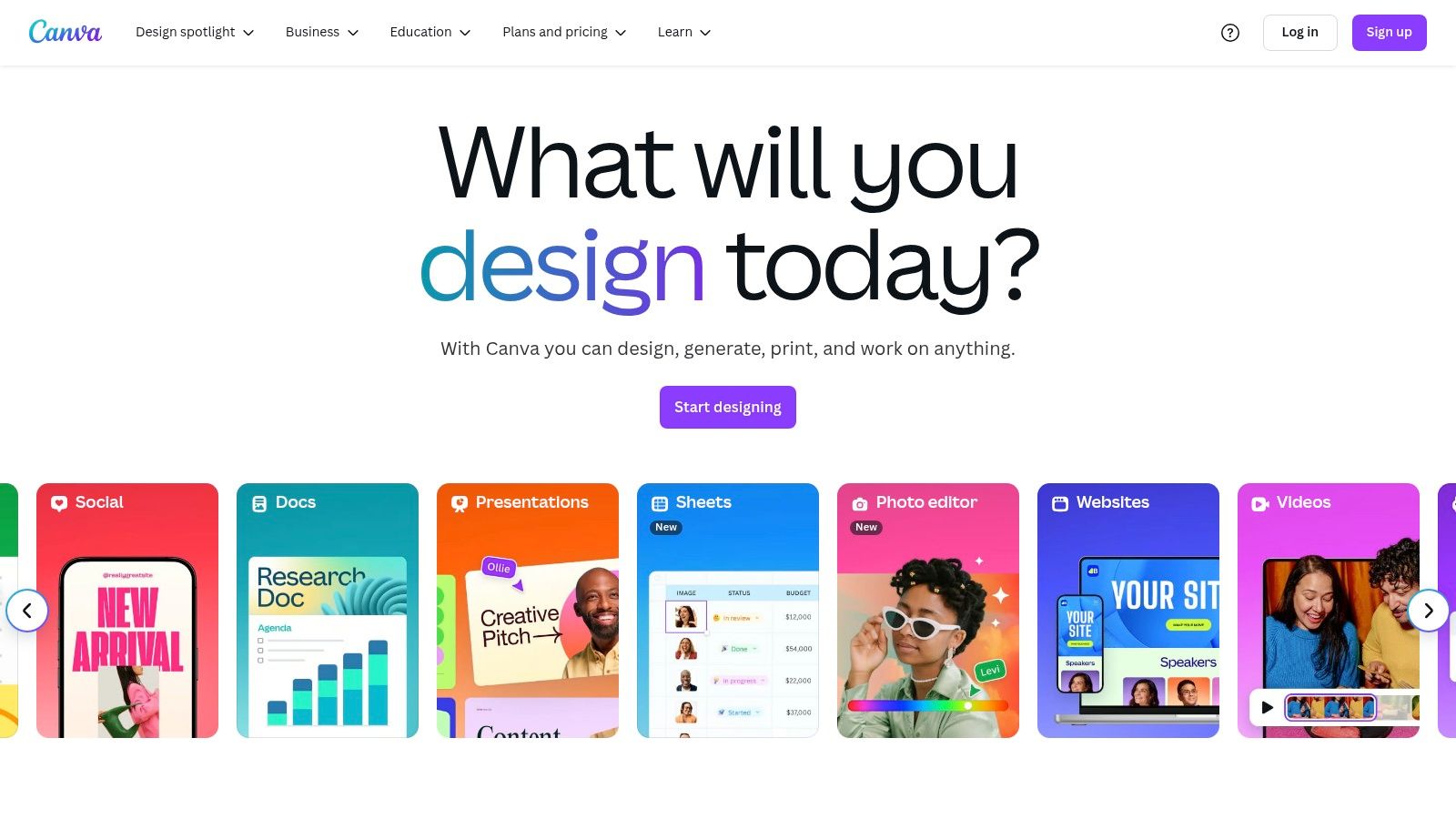
What truly sets Canva apart is how seamlessly it combines its massive template library with AI functionalities. You are not just starting from a blank prompt; you can select a professionally designed template for a social media post, presentation, or flyer, and then use AI to customise it. This synergy is its unique selling proposition, bridging the gap between automated generation and manual creative control. For instance, you can use Magic Write to generate caption ideas directly on your Instagram post design or use Magic Media to create a custom image that perfectly matches your brand’s aesthetic without ever leaving the editor.
Key Features and Practical Use
- Magic Write: Generate everything from social media captions and blog post outlines to presentation text. On the free plan, you get 50 lifetime uses, which is enough to get a feel for its power.
- Magic Media (Text-to-Image): Create unique images from a text description. The free plan offers 50 lifetime credits. This is perfect for when you need a very specific visual that stock photo libraries just do not have.
- Collaborative Workspace: The platform is built for teamwork. You can invite team members to edit designs in real-time, leave comments, and maintain brand consistency using shared folders, even on the free tier.
Actionable Insight: Use Magic Media to create hyper-specific background images for your designs. Practical Example: Instead of searching for “office,” use the prompt “a minimalist, sunlit home office with a laptop, a coffee mug, and a small green plant on a wooden desk” to generate a unique image that perfectly fits your brand’s aesthetic.
How to Create a Custom Image with Canva AI: A Step-by-Step Guide
- Open a Design: Log in to Canva and create or open a design (e.g., an “Instagram Post” template).
- Access Magic Media: On the left-side editor panel, click on “Apps” and search for “Magic Media.”
- Write Your Prompt: In the text box, describe the image you want. Be descriptive. For instance: “A vibrant, flat-lay photo of Nigerian jollof rice on a colourful plate, garnished with fried plantain.”
- Generate and Add: Click “Generate image.” Canva will provide four options. Click on your favourite to add it directly to your design.
For a deeper dive, you can explore tutorials on using AI to design assets with Canva.
Website: https://www.canva.com
3. Copy.ai
Copy.ai positions itself as a premier writing assistant, making it one of the most focused free AI tools for content creation dedicated to generating high-quality text. Its core strength is a vast library of over 90 specialised tools and templates designed for specific marketing and business writing tasks, from crafting compelling ad copy to outlining entire blog posts. This template-driven approach simplifies the creative process, offering a structured starting point for users who need to produce specific types of content quickly and efficiently.
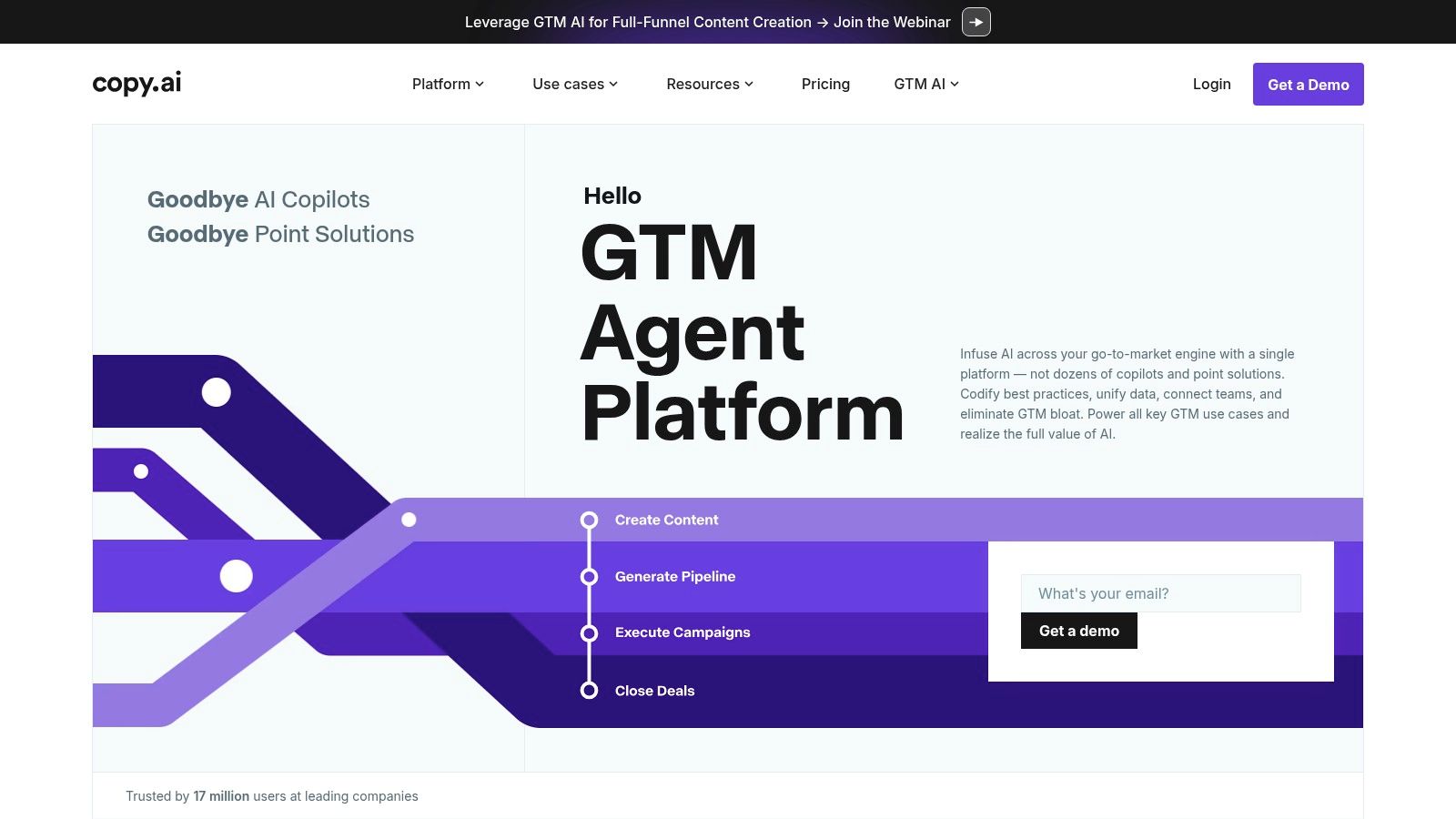
What differentiates Copy.ai is its user-friendly interface combined with a powerful “Infobase” feature. This allows you to “teach” the AI about your brand, products, or target audience, ensuring that the generated content is not just generic but tailored to your specific context and brand voice. For instance, you can save your company’s value propositions and target customer personas, and the AI will reference this information to create more relevant and on-brand copy. This moves beyond simple prompting to a more collaborative and intelligent content partnership.
Key Features and Practical Use
- Extensive Template Library: Access over 90 pre-built tools for tasks like writing blog intros, creating social media captions, generating product descriptions, and brainstorming video ideas. This is ideal for marketers needing to produce diverse content formats.
- Infobase Feature: Store key information about your business, brand voice, and objectives. The AI uses this data to generate more personalised and accurate content, saving significant editing time.
- Chat by Copy.ai: A conversational interface that allows for more dynamic content generation, brainstorming, and research, functioning like an advanced chatbot with access to real-time web data.
Actionable Insight: Use the “Product Description” tool to quickly generate compelling copy for an e-commerce store. Practical Example: Input your product name (“Handmade Adire Silk Scarf”), key features (“100% silk, locally sourced dyes, unique patterns”), and target audience (“Fashion-conscious women who value heritage”). Copy.ai will generate several descriptions you can use on your product page.
How to Write Ad Copy with Copy.ai: A Step-by-Step Guide
- Select the Tool: Log in and from the dashboard, navigate to “Templates” and select the “Digital Ad Copy” tool.
- Define Your Product: Enter the name and a brief description of the product or service you are advertising.
- Choose a Tone: Select a tone of voice from the dropdown menu (e.g., “Persuasive,” “Witty,” “Professional”).
- Generate and Review: Click “Create Copy.” The tool will produce multiple ad copy variations (headlines and body text) that you can mix, match, and edit for your campaigns.
For those looking at scaling content creation effortlessly, upgrading to a Pro plan unlocks unlimited words and advanced features.
Website: https://www.copy.ai
4. Rytr
Rytr positions itself as a streamlined and highly efficient AI writing assistant, making it a powerful contender among free AI tools for content creation, especially for those who need quality text fast. Its core strength lies in its simplicity and speed. Unlike more complex platforms, Rytr offers a clean, uncluttered interface focused on one thing: generating diverse text formats quickly. This makes it an ideal starting point for creators who feel overwhelmed by platforms with extensive design or project management features.
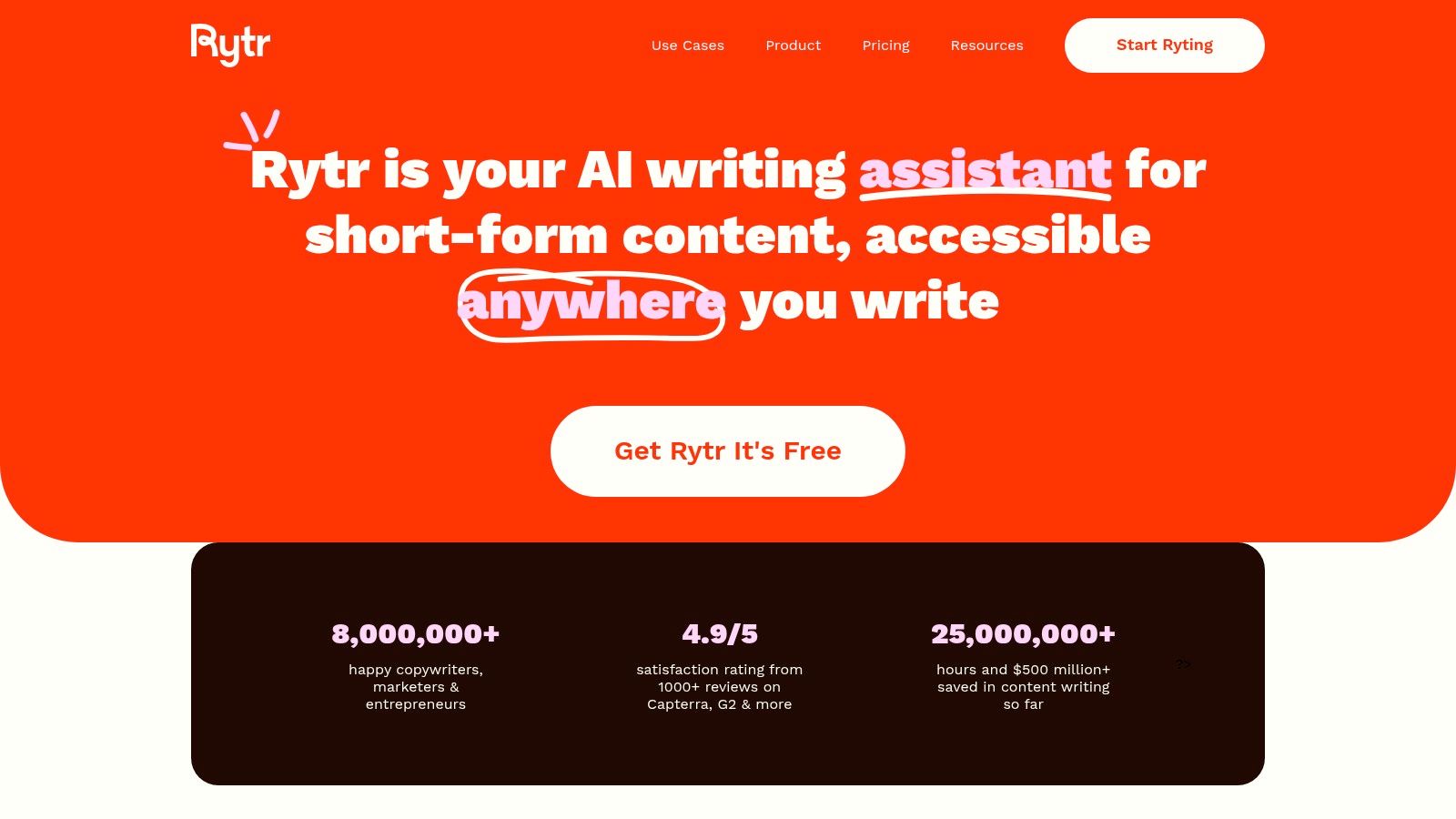
What makes Rytr stand out is its robust framework of use cases and tones, combined with multi-language support. You can select from over 40 content types, from “Blog Idea & Outline” to “YouTube Video Description,” choose one of 20+ tones like “Convincing” or “Inspirational,” and generate content in over 30 languages. This structured approach removes guesswork and guides you toward the desired output. The generous free plan, which offers 10,000 characters per month, is perfect for generating social media posts, email drafts, and product descriptions without a financial commitment.
Key Features and Practical Use
- Diverse Use Cases: With over 40 templates, you can quickly generate specific content types like ad copy, interview questions, or even song lyrics, saving significant brainstorming time.
- Multiple Tones and Languages: Tailor the AI’s output to match your brand’s voice or a specific audience’s language. This is incredibly useful for marketers managing global or multilingual campaigns.
- Built-in Plagiarism Checker: The integrated checker (available on paid plans) provides an extra layer of confidence, ensuring the generated content is original before you publish it.
Actionable Insight: Use the “Magic Command” tool for highly specific, custom requests that don’t fit a standard template. Practical Example: Enter the command “Write 3 subject lines for an email announcing a 20% flash sale on our skincare products, using an urgent tone.” This gives you targeted micro-copy instantly.
How to Generate a YouTube Video Description with Rytr: A Step-by-Step Guide
- Choose Use Case: Log in and select “Video Description” from the dropdown list of use cases.
- Enter Video Title: Provide the title of your video, for example, “How to Make the Perfect Nigerian Jollof Rice.”
- Set Tone and Creativity: Select a tone (e.g., “Enthusiastic”) and the number of variants you want.
- Ryte for me: Click the “Ryte for me” button. Rytr will generate a detailed description that you can copy, paste, and edit directly into your YouTube upload.
The tool is a clear example of the role artificial intelligence plays in enhancing content delivery, simplifying complex tasks for everyone.
Website: https://rytr.me
5. Pictory
Pictory specialises in transforming long-form text content into engaging, shareable videos, establishing itself as a go-to free AI tool for content creation for marketers and bloggers. Its core strength lies in its ability to automate the tedious process of video production. The platform intelligently analyses your script or article, selects relevant stock footage, and syncs it with an AI-generated voiceover, turning a static blog post into a dynamic video in minutes, not hours.
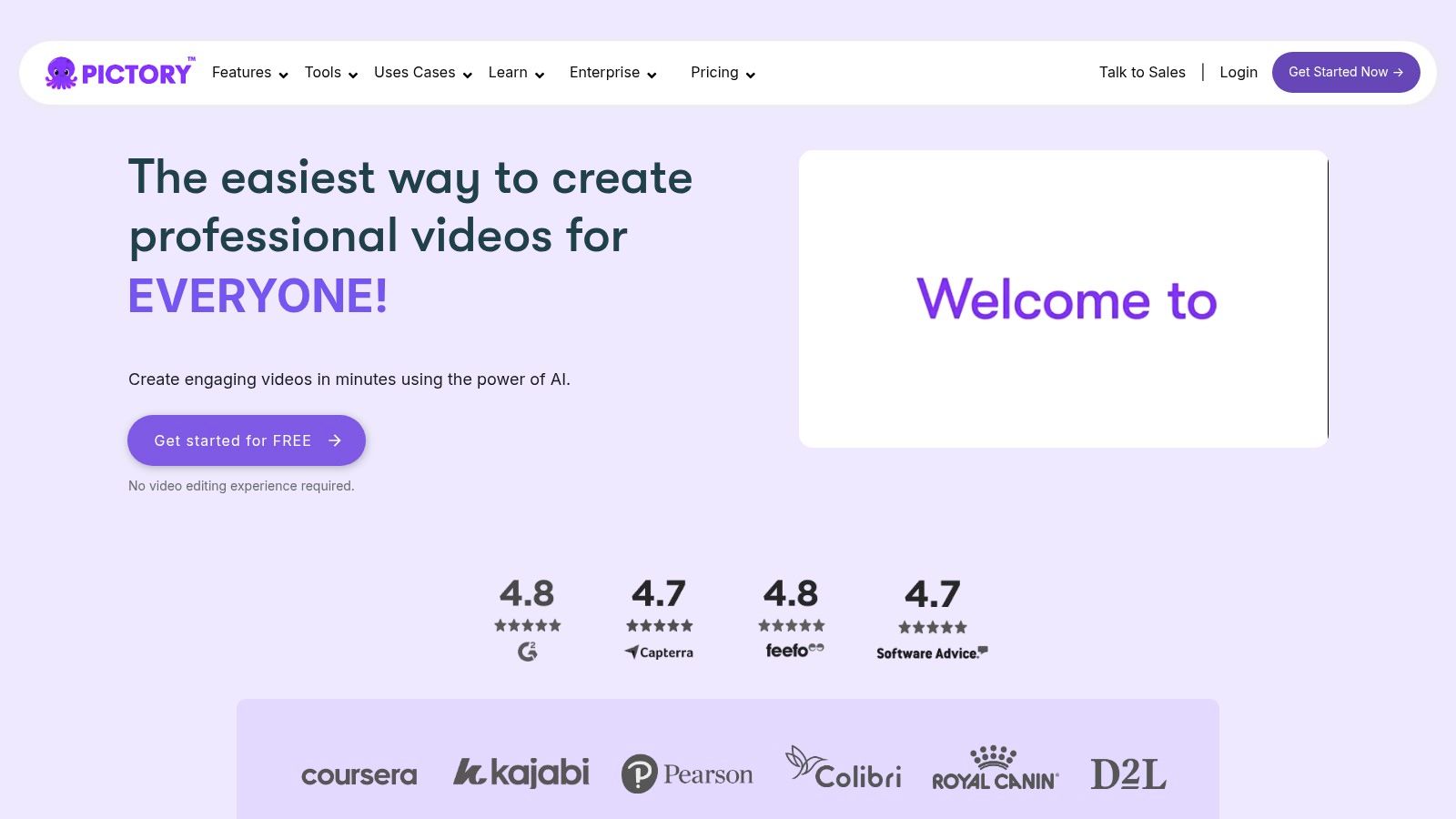
What makes Pictory stand out is its laser focus on repurposing existing content. Instead of starting from scratch, you leverage assets you already have, like articles, scripts, or press releases. This makes it incredibly efficient for content teams looking to maximise their output and reach audiences on video-first platforms like YouTube and TikTok. The AI does the heavy lifting of scene selection and timing, but you retain full editorial control to swap visuals, edit text overlays, and choose different voiceovers, striking a perfect balance between automation and customisation.
Key Features and Practical Use
- Article-to-Video Conversion: Simply paste a blog post URL, and Pictory’s AI will summarise it, break it into scenes, and find matching visuals. This is ideal for quickly creating video versions of your most popular articles to capture a wider audience.
- AI-Generated Voiceovers: Choose from a variety of AI voices to narrate your script. This eliminates the need for expensive voice talent or recording equipment, although the voices can sometimes sound slightly robotic.
- Extensive Stock Library: Gain access to millions of royalty-free video clips, images, and music tracks from providers like Storyblocks and Melodics to make your videos visually appealing without copyright concerns.
Actionable Insight: Repurpose customer testimonials into short, impactful social proof videos. Practical Example: Paste a positive customer review into the “Script to Video” module. Pictory will break it into scenes, find visuals representing success or happiness, and create a quick, shareable video that builds trust.
How to Turn a Blog Post into a Video with Pictory: A Step-by-Step Guide
- Select a Method: Log in and choose the “Article-to-Video” option.
- Paste Your URL: Copy the URL of the blog post you want to convert and paste it into the provided box.
- Edit the Storyboard: Pictory will extract key sentences and create a storyboard. Review the text for each scene, deleting or editing as needed.
- Customise and Generate: The AI will automatically select visuals. You can swap any image or video clip from the library. Choose a voiceover and background music, then click “Generate” to create your video.
The free trial allows you to create up to three video projects, each up to 10 minutes long, but they will contain a Pictory watermark.
Website: https://pictory.ai
6. Grammarly
While many AI tools focus on generating new content, Grammarly stands out as a crucial free AI tool for content creation dedicated to refining it. It is an AI-powered writing assistant that functions as a real-time proofreader, ensuring everything you write is clear, correct, and impactful. Its strength lies in its ubiquity; it integrates seamlessly across browsers, email clients, and documents, acting as a consistent quality control layer for all your written output.
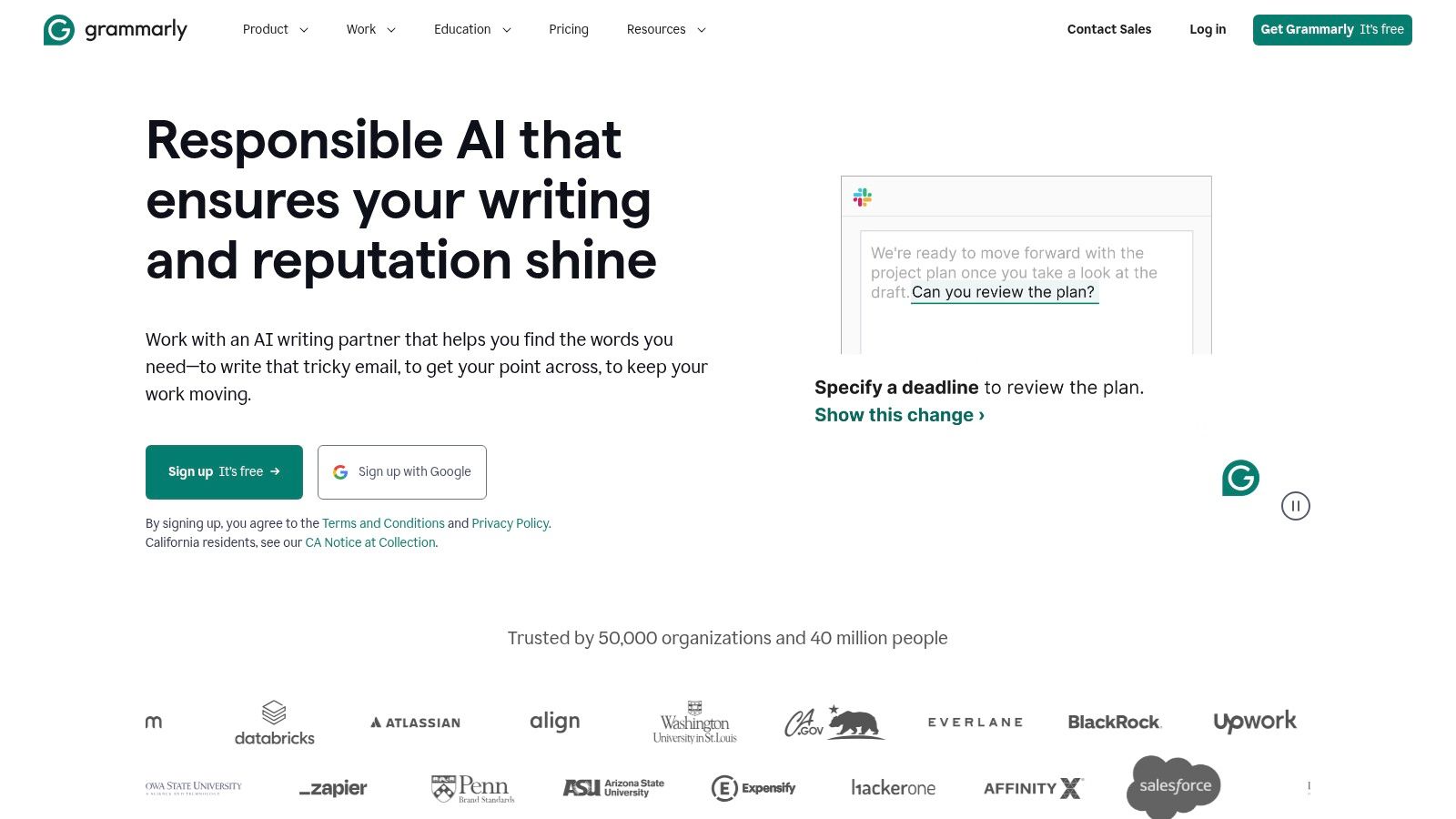
What makes Grammarly indispensable is its ability to go beyond basic spell-checking. The free version analyses your writing for correctness (grammar, spelling, punctuation) and clarity, offering suggestions to make sentences more concise and easier to read. This is invaluable for content creators who need to produce high volumes of error-free copy, from social media updates and ad copy to blog posts and newsletters. It helps maintain a professional standard, which is vital for building audience trust and credibility.
Key Features and Practical Use
- Real-time Corrections: As you type in a Google Doc, WordPress editor, or even on Twitter, Grammarly underlines errors and provides one-click suggestions for fixes. This saves significant time during the editing phase.
- Tone Detection: The free version provides a basic tone detector, helping you understand if your writing comes across as confident, friendly, or formal. This is useful for ensuring your message aligns with your brand voice.
- Browser and App Integration: Its widespread integration means you are covered almost everywhere you write online, making it a set-and-forget tool that continuously improves your work.
Actionable Insight: Use Grammarly to professionalise important client emails before sending. Practical Example: After composing a proposal email, paste the text into the Grammarly Editor. It will catch typos and suggest ways to make your sentences clearer and more confident, ensuring you make the best possible impression.
How to Improve an Article with Grammarly: A Step-by-Step Guide
- Install the Extension: Add the free Grammarly browser extension (for Chrome, Firefox, etc.).
- Write Your Content: Begin writing your article directly in a platform like Google Docs or WordPress. Grammarly will automatically start underlining potential issues in red.
- Review Suggestions: Hover over an underlined word or phrase. A pop-up will explain the issue and offer a one-click correction.
- Check Overall Score: For a deeper analysis, open the Grammarly sidebar. It will provide an overall score and categorise suggestions by correctness, clarity, and engagement, allowing for a more thorough edit.
For creators focused on producing polished, professional-grade text, Grammarly is an essential final check in the content creation workflow.
Website: https://www.grammarly.com
7. Lumen5
Lumen5 specialises in transforming static text into dynamic, engaging video content, positioning itself as a must-have free AI tool for content creation, particularly for marketers looking to repurpose blog posts and articles. Its core function is to analyse written content, such as a blog post URL or pasted text, and automatically suggest a video storyboard complete with relevant stock footage, images, and music. This drastically lowers the barrier to video production, making it accessible for creators without technical editing skills.
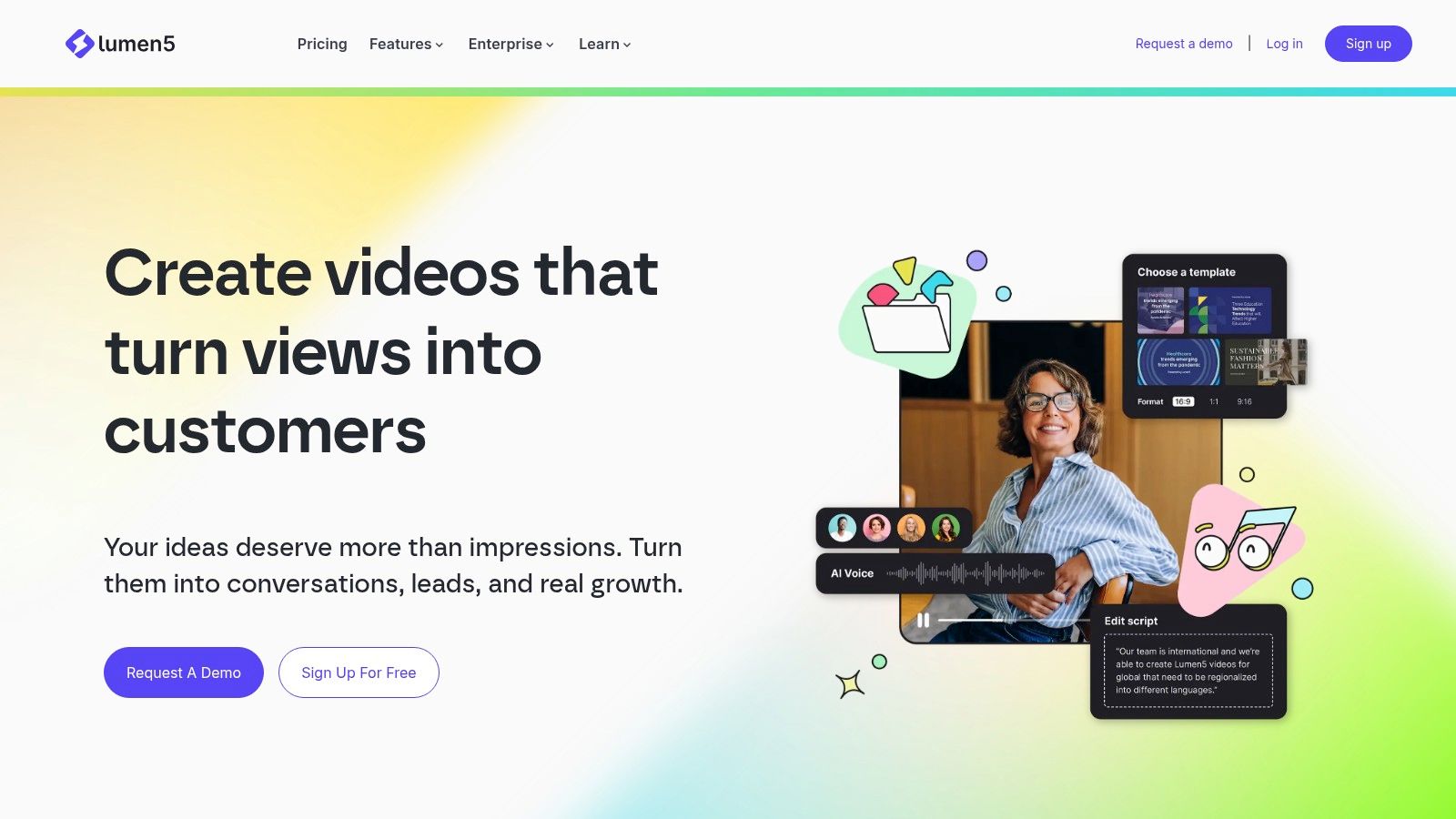
The platform’s standout feature is its intelligent text-to-video engine. It doesn’t just place text over random clips; the AI identifies key sentences and concepts from your source material to build a coherent visual narrative. This makes it incredibly efficient for creating social media videos, news summaries, or promotional clips directly from existing content. While the free plan is a great starting point, it’s important to note that videos created on this tier will include a Lumen5 watermark.
Key Features and Practical Use
- AI-Powered Text-to-Video: Simply input a link to an article, and Lumen5’s AI summarises the content, selects keywords, and matches them with visuals from its extensive media library to create a video draft.
- Extensive Media Library: Gain access to millions of free, high-quality stock photos and video clips to use in your projects, ensuring your videos look professional even on the free plan.
- Customisable Templates: Start with pre-built templates optimised for different platforms like Instagram, Facebook, or LinkedIn. You can then adjust colours and fonts to better align with your brand identity.
Actionable Insight: Create quick, informative video snippets for social media by pasting in text from a report or press release. Practical Example: Take the key findings from a market research report, paste them into Lumen5, and let the AI generate a short, data-driven video with charts and professional stock footage to share on LinkedIn.
How to Create a Video from Text with Lumen5: A Step-by-Step Guide
- Input Your Content: After logging in, choose to start with a blog post URL or by pasting your text directly.
- Select a Format and Theme: Choose a video format (e.g., 16:9 for YouTube, 1:1 for Instagram) and select a brand theme with your logo and colours.
- Refine the Storyboard: Lumen5 presents your text as a series of scenes. Click on each sentence to include it in the video. The AI will suggest visuals on the right.
- Customise and Publish: Drag and drop different stock footage or images into your scenes, add background music, and then hit “Publish” to render your watermarked video.
You can learn more about how Nigerian businesses are using generative AI tools like Lumen5 to enhance their marketing efforts.
Website: https://lumen5.com
8. QuillBot
QuillBot serves as an essential AI-powered writing companion, moving beyond simple content generation to focus on refining and enhancing existing text. It stands out as one of the most effective free AI tools for content creation for anyone looking to improve the clarity, tone, and style of their writing. Its core function is paraphrasing, but it cleverly integrates grammar checking and summarisation, making it a multi-functional editor that helps you articulate your ideas more effectively.
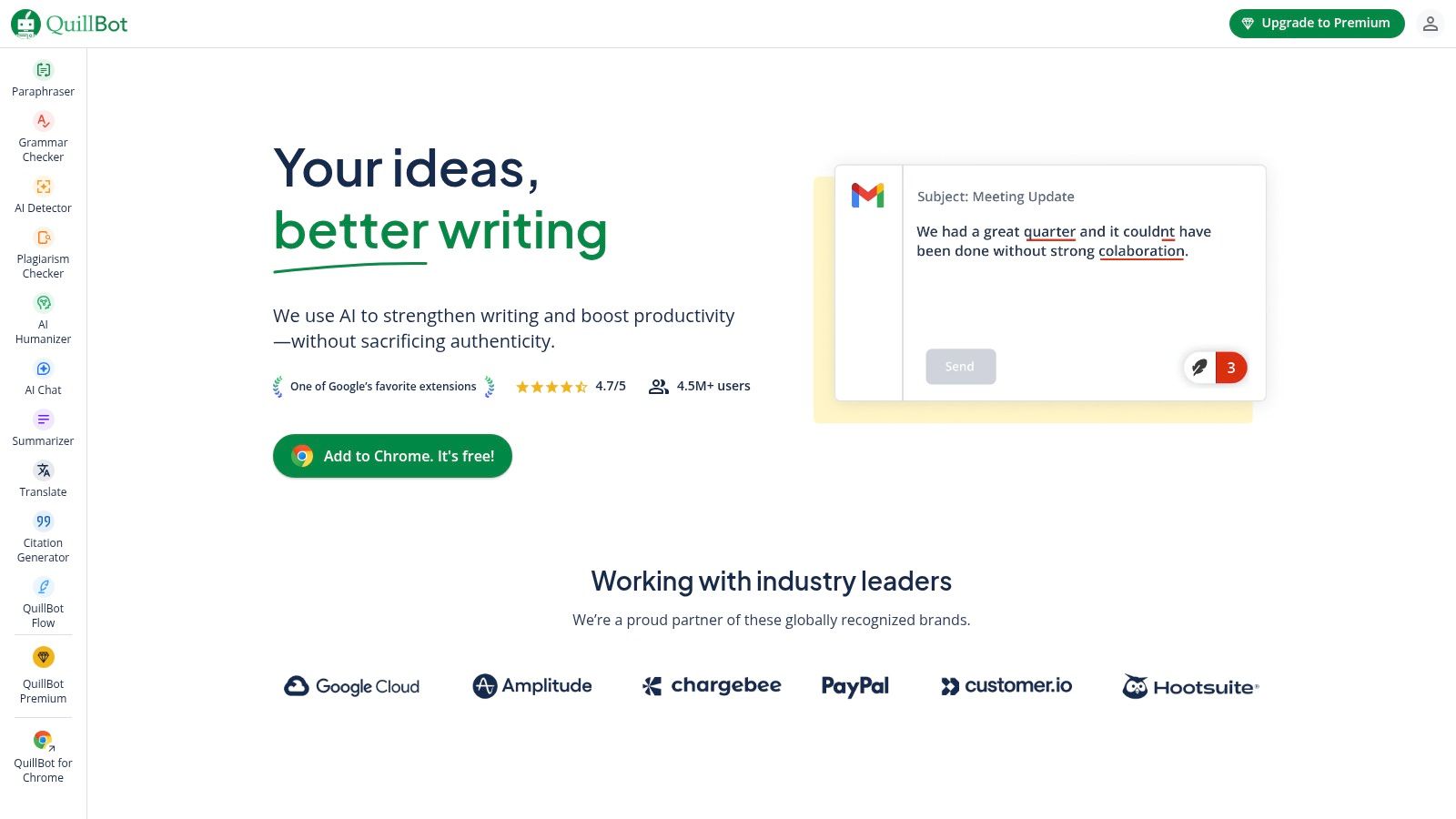
What makes QuillBot particularly valuable is its focus on preservation of meaning while offering stylistic alternatives. Unlike some tools that just swap synonyms, QuillBot’s AI analyses sentence structure and context to provide genuinely improved versions of your original text. For content creators, this is invaluable for repurposing content; you can take a paragraph from a blog post and quickly rewrite it for a LinkedIn article or an email newsletter, ensuring the language is fresh and optimised for the new platform without losing the core message.
Key Features and Practical Use
- Paraphrasing Modes: The free version offers ‘Standard’ and ‘Fluency’ modes to help you rewrite content. This is perfect for rephrasing technical jargon into simpler language for a broader audience or overcoming repetitive sentence structures in your drafts.
- Integrated Grammar Checker: Alongside paraphrasing, it scans your text for grammatical errors, punctuation mistakes, and spelling issues, acting as a first line of defence before you publish.
- Summariser Tool: Quickly condense long articles, reports, or research papers into key bullet points or a concise paragraph. This is a massive time-saver for research or for creating short social media teasers from longer-form content.
Actionable Insight: Use the Paraphraser to create multiple unique social media posts from a single core message. Practical Example: Paste the sentence “Our new software boosts productivity by 30%.” QuillBot can rephrase it as “Experience a 30% increase in efficiency with our innovative software,” or “Unlock new levels of productivity with our latest tool,” giving you varied content for Twitter, LinkedIn, and Facebook.
How to Rephrase Content with QuillBot: A Step-by-Step Guide
- Paste Your Text: Go to the QuillBot website and paste the sentence or paragraph (up to 125 words on the free plan) you want to rephrase into the input box.
- Select a Mode: Choose either “Standard” or “Fluency” mode.
- Click “Paraphrase”: The AI will instantly generate a rewritten version in the output box.
- Refine and Use: You can click on any word in the new version to see a list of synonyms, allowing you to fine-tune the result before copying it for use.
The free version of QuillBot has a character limit on the paraphraser (125 words at a time) and offers limited modes.
Website: https://quillbot.com
9. Writesonic
Writesonic positions itself as a powerful AI writing assistant specifically fine-tuned for creating marketing and SEO-optimised content. While many tools offer broad writing capabilities, Writesonic’s focus on performance-driven copy makes it a standout choice among free AI tools for content creation, especially for marketers, bloggers, and e-commerce business owners. The platform is designed to streamline the process of generating content that not only reads well but is also structured to rank on search engines.

What makes Writesonic particularly useful is its collection of purpose-built generators. Instead of a single, general-purpose text box, it offers over 100 specialised tools, from a complete AI Article Writer to a Landing Page Generator. This guided approach simplifies the creation process, as each tool is pre-configured with prompts and fields relevant to its specific output. For instance, the Article Writer guides you from generating ideas and outlines to writing a full-length, SEO-friendly draft, making it incredibly efficient for producing long-form content.
Key Features and Practical Use
- AI Article & Blog Writer: This feature takes you through a step-by-step process to create articles. You input a topic, and it helps generate a title, intro, and outline before writing the full article. This is ideal for quickly producing first drafts for your company blog.
- Paraphrasing & Summariser Tools: Easily rephrase sentences to avoid plagiarism or simplify complex text. The summariser is excellent for quickly grasping the key points of long reports or articles to create social media snippets.
- Landing Page & Ad Copy Generators: Create high-converting copy for Google Ads, Facebook Ads, or website landing pages. The platform asks for key information like product name and target audience to generate persuasive text.
Actionable Insight: Use the “SEO Meta Tags” generator to quickly create optimised titles and descriptions for your blog posts. Practical Example: Input your blog post title (“10 Tips for Container Gardening in Small Nigerian Apartments”) and a brief product description. Writesonic will generate SEO-friendly meta titles and descriptions designed to improve click-through rates from Google search results.
How to Generate a Blog Intro with Writesonic: A Step-by-Step Guide
- Navigate to the Tool: Log in, go to the Library, and select the “Blog Intros” tool.
- Input Your Title: Enter the title of your blog post.
- Set the Tone: Choose a tone of voice, such as “Engaging” or “Professional.”
- Generate and Select: Click “Generate.” Writesonic will provide several intro paragraph options. Choose the one that best hooks the reader and edit it to fit your article.
The free plan offers up to 10,000 words per month, which is a generous starting point for smaller projects.
Website: https://writesonic.com
10. Pixlr
Pixlr stands as a formidable, browser-based alternative to complex software like Photoshop, making it a stellar choice among free AI tools for content creation for those who need powerful image editing on the fly. It carves out its niche by offering a suite of advanced, AI-driven photo editing tools in a highly accessible, web-based package. You don’t need to install anything; just open your browser and start creating or refining images with a professional touch.
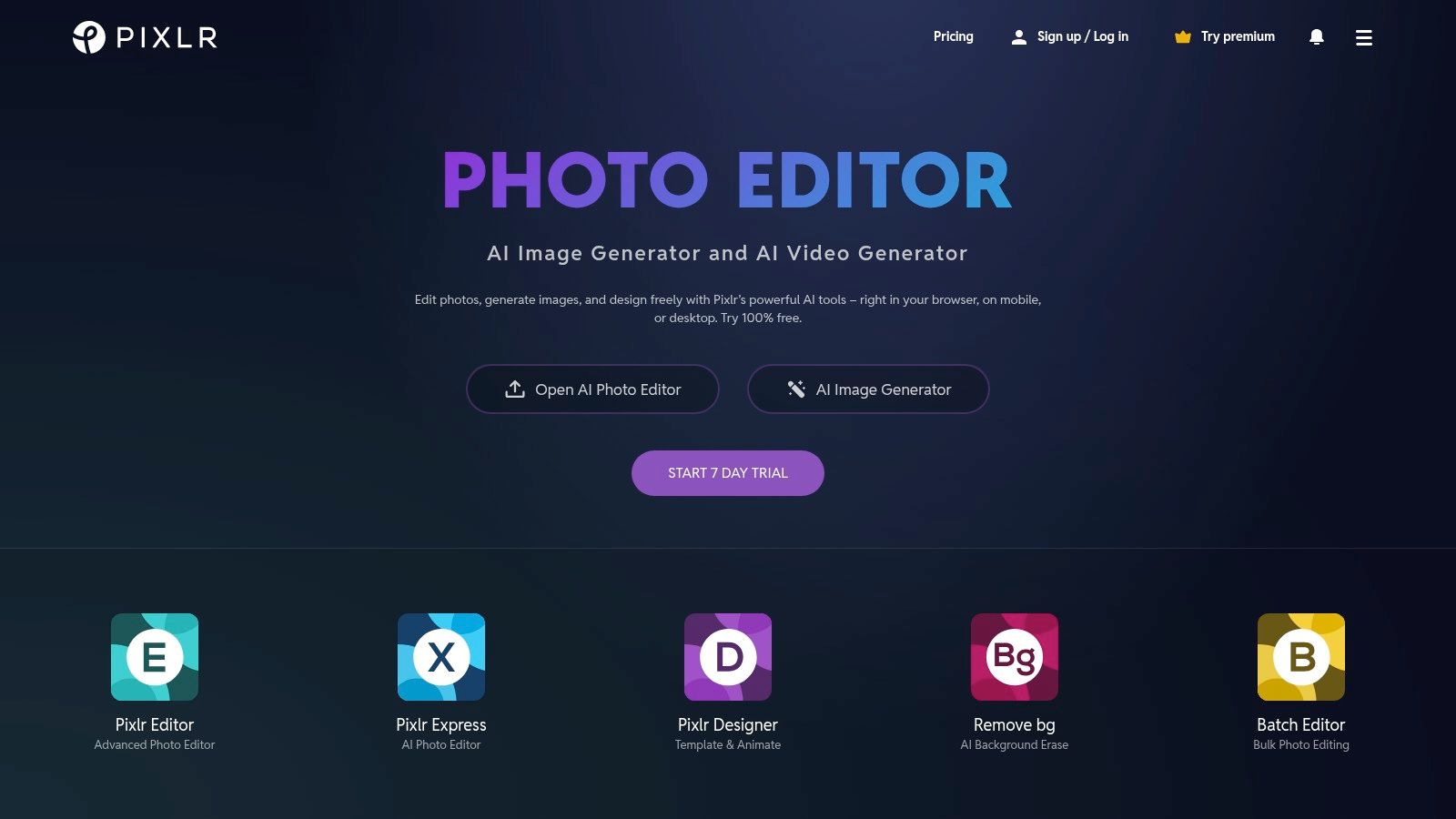
What makes Pixlr particularly useful is its focus on single-click AI solutions for common but tedious editing tasks. Unlike platforms that are purely generative, Pixlr excels at enhancing and manipulating existing photos. Its unique selling point is providing access to sophisticated editing functionalities, like precise background removal and smart object selection, without the steep learning curve or cost associated with traditional desktop editors. This makes it ideal for entrepreneurs or social media managers who need to quickly prepare product shots or promotional graphics.
Key Features and Practical Use
- AI Cutout: This is a standout feature for e-commerce and marketing. With one click, it accurately removes the background from a product photo or portrait, saving immense time compared to manual selection.
- Extensive Filters and Effects: Go beyond basic adjustments with a vast library of overlays, borders, and effects. You can instantly give your photos a vintage look, a modern vibe, or artistic flair.
- Broad Format Support: Pixlr handles various image formats, including PSD (Photoshop), PXD, JPEG, and PNG, making it a versatile hub for different project files without conversion issues.
Actionable Insight: Create professional-looking e-commerce product photos in seconds. Practical Example: Take a photo of your product against a cluttered background. Use the AI Cutout tool to instantly remove the background. Then, add a new layer with a clean white or branded colour background to create a polished product image ready for your online store.
How to Remove a Background with Pixlr: A Step-by-Step Guide
- Open Your Image: Go to the Pixlr website and choose Pixlr E (Advanced Editor) or Pixlr X (Quick Editor). Upload the image you want to edit.
- Select AI Cutout: In the toolbar, find the “Cutout/Mask” tool (often represented by scissors).
- Use the AI Auto Feature: Click on the “AI Auto” option within the cutout tool. Pixlr will automatically detect the main subject and remove the background.
- Save Your Image: Fine-tune any edges if necessary, then go to “File” > “Save” and choose PNG format to preserve the transparent background.
For more on visual content, explore guides that cover a perfect content and image generator.
Website: https://pixlr.com
11. Adobe Express
Adobe Express is the creative giant’s answer to quick, accessible design, positioning itself as a major contender among free AI tools for content creation. Built for speed and simplicity, it empowers users to rapidly produce stunning graphics, web pages, and short videos without the steep learning curve of professional Adobe software like Photoshop or Illustrator. Its core advantage lies in its integration with the powerful Adobe ecosystem, including Adobe Stock and Adobe Fonts, giving even free users a taste of premium assets.
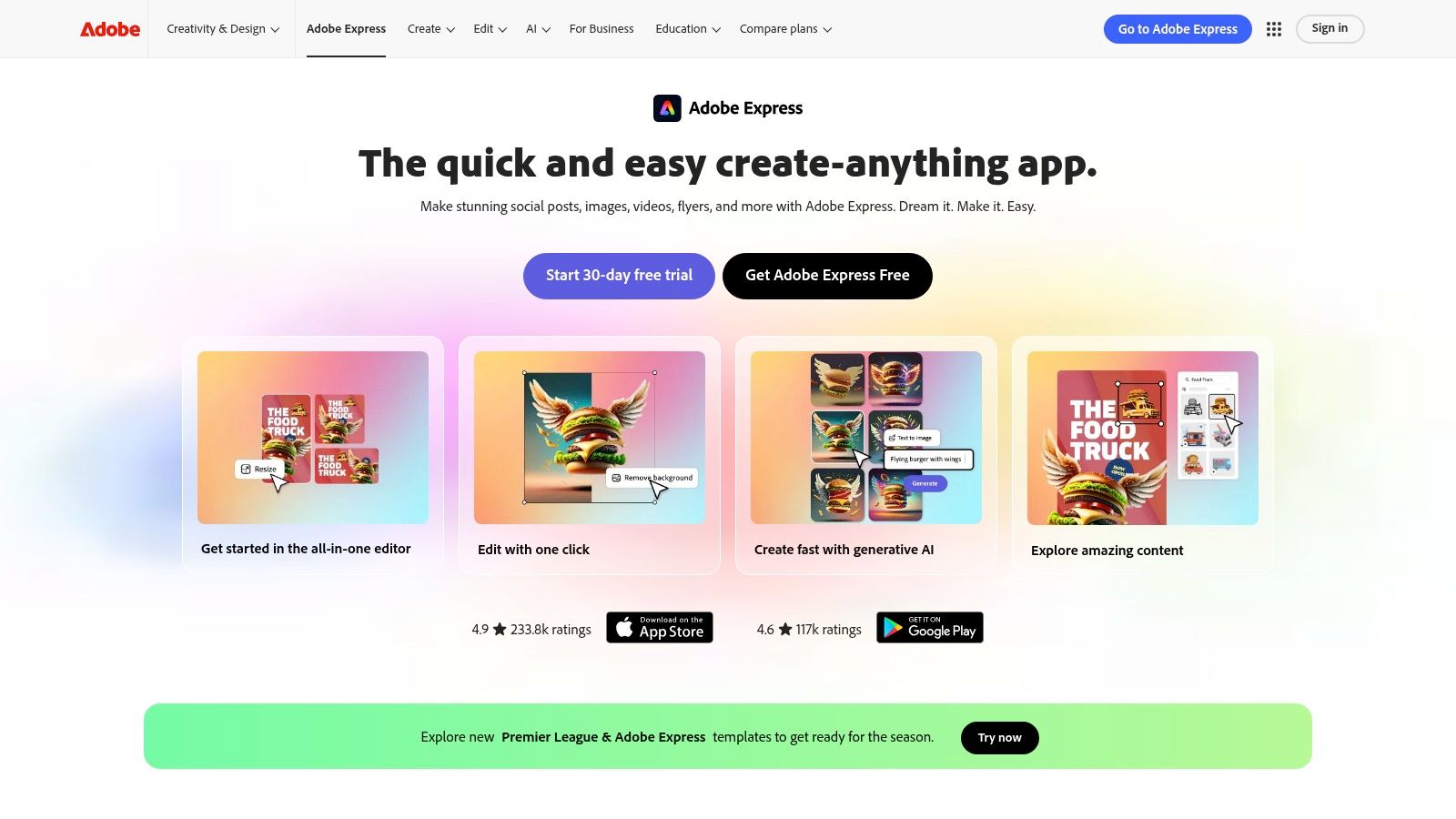
What makes Adobe Express stand out is how it streamlines the content creation workflow from start to finish. You can resize a design for different social media platforms with a single click or use the quick actions to remove a background from an image instantly. The recent integration of Adobe Firefly AI technology directly into Express allows for generative text-to-image creation and text effects, enabling a new level of customisation that goes beyond standard templates. This blend of user-friendliness and powerful, integrated AI is its unique selling point.
Key Features and Practical Use
- Quick Actions: Perform essential edits like removing backgrounds, resizing images, converting video files, or trimming clips with dedicated, easy-to-use tools. This is perfect for prepping assets before you even start a design.
- Adobe Stock Integration: The free plan provides access to a limited collection of royalty-free Adobe Stock photos, videos, and music, which significantly elevates the quality of your content without extra cost.
- Generative AI (Powered by Firefly): Use text-to-image to generate unique visuals or apply artistic text effects directly within your projects. The free plan includes 25 generative credits per month.
Actionable Insight: Use the “Resize” tool to instantly adapt one design for multiple social media platforms. Practical Example: Create an Instagram square post (1080×1080). Once done, click “Resize,” select “Instagram Story” and “Facebook Post.” Adobe Express will automatically create copies of your design perfectly formatted for each platform, saving you from manually recreating them.
How to Use Generative Text Effects in Adobe Express: A Step-by-Step Guide
- Add Text: Open a new project and add a line of text to your design.
- Select Text Effects: With the text selected, find the “Text Effects” option in the editing panel.
- Describe Your Effect: In the prompt box, describe the texture or style you want. For example: “molten gold,” “leopard print,” or “blue neon light.”
- Generate and Apply: Click “Generate.” The AI will apply the described effect directly to your text, creating a stunning, unique headline or title.
The free version is incredibly capable, though advanced features require an Adobe Express Premium subscription.
Website: https://www.adobe.com/express
12. Freepik
Freepik has expanded far beyond its roots as a stock image library, transforming into a comprehensive creative hub. It now offers a powerful suite of integrated AI tools, making it a noteworthy destination among free AI tools for content creation. Its main advantage lies in offering a multimedia AI toolkit under one roof, allowing creators to generate images, short videos, and voiceovers without juggling multiple platforms. This consolidation simplifies the content workflow for social media managers and marketers.
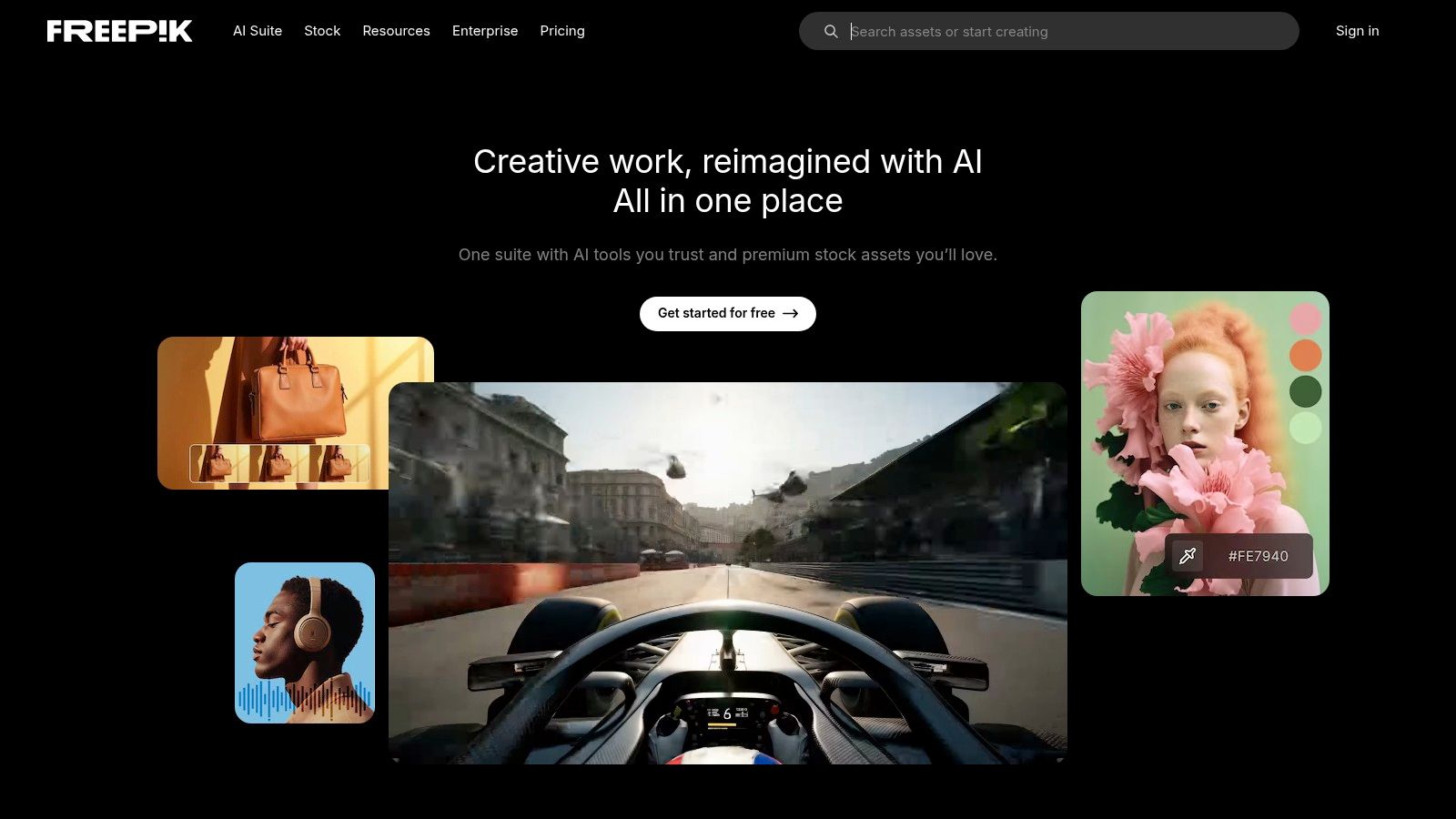
What makes Freepik stand out is the direct integration of its generative AI with its vast library of existing assets. You can generate an AI image and then immediately find complementary vectors or photos from its conventional library to build a cohesive design. For instance, you could use the AI Image Generator to create a unique background for a promotional post, then seamlessly switch to the editor to overlay it with professionally designed graphic elements and text, all within the Freepik ecosystem.
Key Features and Practical Use
- AI Image Generator: Creates high-quality, unique images from text prompts. The free plan is quite generous, allowing you to generate a good number of images daily. This is ideal for creating custom blog headers or social media visuals that align perfectly with your content.
- AI Video Generator: Transforms simple text prompts into short, dynamic video clips. While basic, it is perfect for creating engaging backgrounds for Instagram Stories or quick, eye-catching video snippets for social feeds.
- AI Voice Generator: Converts text into natural-sounding speech. This is incredibly useful for adding quick voiceovers to explainer videos or social media content without needing recording equipment.
Actionable Insight: Use the AI Image Generator to create conceptual or abstract visuals that are hard to find in stock libraries. Practical Example: A fintech company needs an image for a blog post about digital currency. Instead of a generic photo of coins, they can use the prompt “A futuristic, glowing digital network connecting Lagos and Nairobi, abstract, cinematic lighting” to create a unique and on-brand visual.
How to Generate an AI Image with Freepik: A Step-by-Step Guide
- Access the Tool: Log in to Freepik and navigate to the “AI Image Generator” from the main menu.
- Write a Detailed Prompt: In the text box, describe the image you want to create. Include details about the subject, style, colour, and lighting. For example: “A photorealistic image of a young Nigerian woman smiling, working on a laptop in a modern co-working space in Abuja.”
- Choose a Style: Select a style from the options provided, such as “Photo,” “Art,” or “3D.”
- Generate and Download: Click “Generate.” Freepik will produce several image options. You can download your favourite or click “Edit online” to add text and other graphic elements.
While the free tier provides excellent access, usage is limited daily. A premium subscription unlocks unlimited generations and the full asset library.
Website: https://www.freepik.com
Top 12 Free AI Content Creation Tools Comparison
| Platform | Core Features ✨ | User Experience ★★★★☆ | Value Proposition 💰 | Target Audience 👥 | Unique Selling Points 🏆 |
|---|---|---|---|---|---|
| RichlyAI | Text, images, video, audio, code, chatbots, voice chat, social media automation | Intuitive interface, prompt guidance, instant editing | Free plan with advanced AI; affordable enterprise-grade | Marketers, developers, students, solopreneurs, businesses | All-in-one AI hub with real-time voice and chatbot training 🏆 |
| Canva | AI text & media generation, templates, design tools | Beginner-friendly, collaborative | Free + premium for advanced AI tools 💰 | Designers, teams, marketers | Large template library; Magic Write & Magic Media ✨ |
| Copy.ai | 90+ content templates, multilingual, tone control | Quick content generation, easy to use | Free plan with word limits; paid upgrades | Marketers, bloggers, social media users | Extensive templates, 25 languages ✨ |
| Rytr | Multiple tones, plagiarism checker, 40+ use cases | Simple UI, multilingual support | Affordable pricing; free plan char limit | Bloggers, marketers, content creators | Built-in plagiarism checker ✨ |
| Pictory | Text-to-video, AI voiceovers, stock media library | Easy for non-editors, quick video production | Free version with watermarks | Content creators, marketers, non-editors | Article-to-video with stock footage ✨ |
| Grammarly | Grammar/spell check, tone detection, platform integration | Real-time corrections, user-friendly | Free basic checks; premium for advanced features | Writers, students, professionals | Advanced writing enhancement AI ✨ |
| Lumen5 | Text-to-video, media library, customizable templates | Simplifies video creation, no editing needed | Free with watermarks; premium for more features | Marketers, content creators | AI video creation with templates ✨ |
| QuillBot | Paraphrasing modes, grammar checker, summarization | Easy to use, improves clarity and style | Free version with limits; premium upgrades | Students, writers, professionals | Multi-mode paraphrasing & summarization ✨ |
| Writesonic | SEO content writing, article & landing page generation, paraphrasing | Quick content generation, simple UI | Free word limit; needs paid plans for more | Marketers, bloggers, e-commerce | SEO-focused AI content tools ✨ |
| Pixlr | AI background removal, filters, effects | Web-based, no install, free with ads | Free tools; premium for advanced features | Beginners, designers, photographers | AI Cutout and cloud editing ✨ |
| Adobe Express | Templates, Adobe Stock integration, easy UI | Simplifies design, no experience needed | Free + premium subscription | Non-designers, marketers, small businesses | Adobe Stock integration & template variety ✨ |
| Freepik | AI image, video & voice generators | User-friendly, regular updates | Free with limits; premium upgrades | Creators needing diverse multimedia content | Multi-format AI generators (image, video, voice) ✨ |
Final Thoughts
We have journeyed through an extensive landscape of powerful, accessible, and transformative free AI tools for content creation. From crafting compelling blog posts with RichlyAI and Copy.ai to designing stunning visuals with Canva and generating engaging videos with Pictory, the possibilities are truly astounding. The era where high-quality content production was the exclusive domain of large teams with significant budgets is rapidly fading. Today, with the right combination of these intelligent tools, a single creator can produce a diverse and professional portfolio of content.
This exploration has revealed that the “best” tool is not a one-size-fits-all solution. Instead, it is a matter of strategic selection based on your specific goals, workflow, and audience. A social media manager might find the combination of Adobe Express for quick visuals and Rytr for snappy captions to be their daily driver. A blogger, on the other hand, might lean heavily on QuillBot for paraphrasing research, Grammarly for polishing prose, and Freepik for sourcing unique, AI-generated images. The key takeaway is to view these tools not as isolated solutions, but as components of a dynamic, personalised content creation ecosystem.
Key Takeaways and Strategic Selection
To truly harness the power of these free AI tools for content creation, it’s crucial to move beyond simple experimentation and adopt a strategic approach. Here are the core principles to guide your implementation:
- Define Your Primary Need: Before diving in, identify your biggest content bottleneck. Is it writing first drafts? Creating eye-catching thumbnails? Editing video content? Your primary pain point will immediately narrow down your choices. For instance, if video production is your biggest time sink, Lumen5 and Pictory should be your first ports of call.
- Understand the “Freemium” Model: Remember that “free” often comes with limitations. This could be a cap on monthly word counts (like with Writesonic or Rytr), watermarks on video exports (a common Pictory limitation), or restricted access to premium templates and features (as seen in Canva). Always assess if the free plan’s offerings are sufficient for your current output. It is often a wise strategy to use the free tier to validate a tool’s effectiveness before considering an upgrade.
- Master the Art of Prompting: Your output is only as good as your input. This is especially true for text and image generators. Learning to write clear, detailed, and context-rich prompts is a skill that will dramatically improve your results. Instead of asking for a “blog post about marketing,” try a more detailed prompt like, “Write a 500-word blog post for a Nigerian audience of small business owners, explaining three low-cost digital marketing strategies, using an encouraging and informative tone.”
Your Actionable Next Steps
Feeling inspired but not sure where to start? Here is a simple, actionable plan to get you going:
- Choose One Bottleneck: Don’t try to master all twelve tools at once. Pick the one area of content creation that slows you down the most.
- Select Two Tools to Test: From our list, select two tools that address your chosen bottleneck. For example, if writing is your challenge, you might pit RichlyAI against Copy.ai.
- Assign a Test Project: Use both tools to complete the same small, real-world task. This could be writing a social media post, creating a blog post introduction, or designing a graphic for your next promotion.
- Evaluate and Integrate: Compare the results, the ease of use, and the overall experience. Which tool felt more intuitive? Which one produced a result closer to your vision with less editing? Choose the winner and make a conscious effort to integrate it into your regular workflow for the next month.
The world of free AI tools for content creation is not just about producing more content faster; it’s about unlocking new creative avenues, levelling the playing field, and empowering creators across Nigeria and Africa to share their stories with the world. By embracing these tools with a curious and strategic mindset, you are not just optimising your workflow; you are future-proofing your creative career.
Ready to supercharge your writing and overcome writer’s block for good? Start with RichlyAI, a powerful platform designed to help you craft high-quality, optimised content with incredible speed. Explore our suite of free tools and see how RichlyAI can become the cornerstone of your content creation strategy today.

One thing these roundups rarely touch on: free AI content that actually gets indexed and ranked. We’ve seen dozens of tools generate decent text, but without SEO metadata, canonical URLs, and structured data, that content sits in Google’s gray zone. Content is only valuable if it’s discoverable — we built something similar to bridge that gap.