
The landscape of ai content creation tools has exploded, transforming them from simple text generators into comprehensive creative partners for text, images, video, and code. With a vast array of options available, the challenge isn’t finding a tool, but finding the right one for your specific goals, budget, and workflow. Choosing incorrectly can lead to wasted time and subscription costs for features you don’t need.
This guide cuts through the noise to provide a practical roadmap. We move beyond generic feature lists to give you an actionable analysis of the top platforms in the market. This isn’t just about what the tools do; it’s about what you can do with them.
Inside this comprehensive resource, you will find:
- Detailed Breakdowns: We’ll dive into 12 leading tools, including RichlyAI, ChatGPT, Adobe Firefly, and Jasper.
- Actionable Use Cases: Each tool review includes a realistic, step-by-step example you can replicate immediately.
- Honest Assessments: We provide a clear-eyed view of pros and cons, helping you understand each platform’s limitations as well as its strengths.
- Direct Access: Every entry features screenshots for a visual preview and direct links to get you started faster.
Whether you are a solo creator automating social media posts, a marketing team scaling content production, or a developer integrating AI assistance, this breakdown will help you select the most effective ai content creation tools.
1. RichlyAI
RichlyAI establishes itself as an all-in-one hub for ai content creation tools, consolidating text, image, video, audio, code, and chatbot generation into a single workflow. This integrated approach is its core strength, designed to eliminate the friction of switching between multiple specialized applications. It serves a broad audience, from individual creators and marketers to developers and small businesses.
The platform’s prompt-driven interface allows for rapid content ideation and generation. You can draft a blog post, create accompanying visuals, generate an audio narration, and even develop a code snippet for your website without ever leaving the RichlyAI environment. This unified system is particularly effective for multi-format content campaigns.

alt text: An interface showing RichlyAI’s content creation tools, highlighting its all-in-one capabilities.
Practical Example: Creating a Social Media Campaign
Here’s a step-by-step example of how a social media manager can use RichlyAI to launch a campaign for a new eco-friendly water bottle:
- Ideate & Draft: In the text generator, use the prompt:
Generate five short, punchy ad copy variations for an Instagram post about our new recyclable water bottle. Highlight its sleek design and leak-proof cap. Tone: energetic and eco-conscious. - Generate Visuals: Switch to the image generator. Use a refined prompt:
A vibrant, high-quality product photo of a sleek, minimalist water bottle on a mossy rock next to a clear stream.Generate three variations. - Create an Audio Snippet: Go to the audio tool and input one of the ad copy variations. Use the prompt:
Generate a 15-second voiceover. Voice: upbeat female, clear and friendly. - Automate Publishing: Navigate to the social media scheduler. Upload the best image and the generated audio snippet (as part of a short video). Schedule three different posts for Instagram and LinkedIn over the next week, using the different ad copy variations.
Summary
| Feature | Analysis |
|---|---|
| Ideal User | Content creators, marketers, developers, and solopreneurs seeking a unified platform to manage diverse AI-driven workflows. |
| Pricing | Offers a free starting plan, which currently promotes “Unlimited Text Generation FOREVER.” Paid tiers are available for advanced features, but full pricing is not publicly detailed. |
| Pros | True all-in-one solution (text, image, audio, video, code, chatbots), generous free tier, built-in social media automation, and a complementary AI tool marketplace. |
| Cons | Lack of transparent pricing for upper tiers and missing enterprise-level details (like SOC2 compliance or SLAs) may be a hurdle for larger corporate adoption. |
| Actionable Takeaway | Leverage the free plan to consolidate your most frequent content tasks (like blog drafting and social media post creation) to measure productivity gains before considering an upgrade. |
Tools & Resources
- Website: https://richlyai.com
- Further Reading: RichlyAI blog about AI for content creation
2. OpenAI – ChatGPT
As the flagship conversational AI from OpenAI, ChatGPT has evolved far beyond simple text generation. It now functions as a multimodal creative partner, capable of drafting sophisticated articles, brainstorming marketing ideas, analyzing complex documents, generating code, and holding voice conversations. Its clean interface makes it accessible for beginners, while its powerful features cater to professionals.
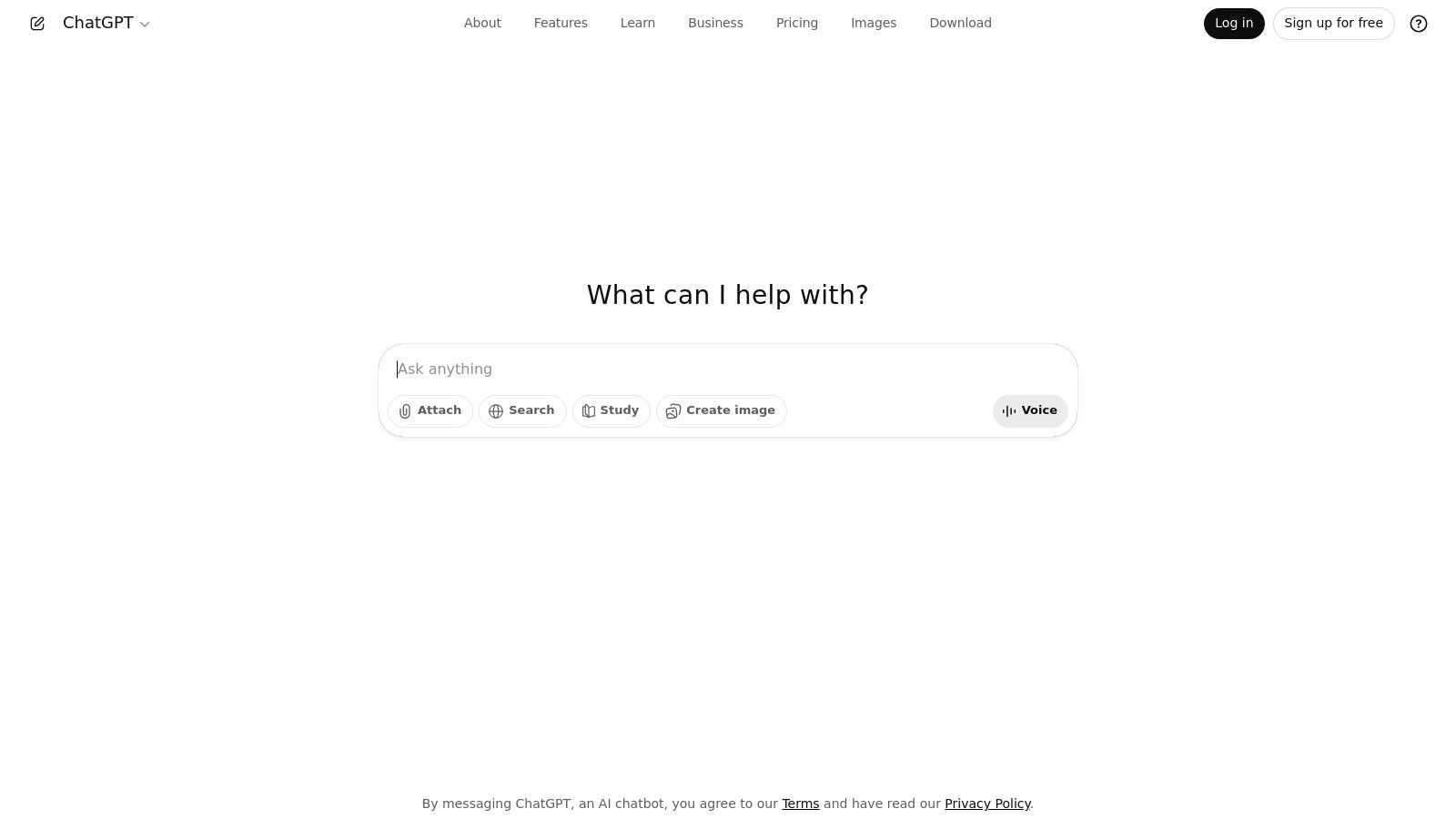
alt text: A user interacting with the ChatGPT interface, showcasing its conversational capabilities for content creation.
What sets ChatGPT apart is its versatility and rapid pace of feature integration. The ability to upload files (like PDFs or spreadsheets) and ask for summaries or data analysis streamlines research-heavy tasks. For teams, the Business and Enterprise tiers provide a secure, collaborative workspace with a crucial guarantee that your data is not used for training OpenAI’s models, making it a viable choice among ai content creation tools for corporate use.
Practical Example: Repurposing a Webinar into a Multi-Format Campaign
Follow these steps to multiply the value of a single webinar recording:
- Upload the Transcript: Upload the .txt file of your webinar transcript to ChatGPT.
- Generate a Blog Post: Use the prompt:
Act as a senior content marketer. Using the attached webinar transcript, write a 1200-word blog post titled "5 Key Takeaways from Our Webinar on AI in Marketing." Structure it with an introduction, five key sections with H2 headings, and a conclusion. Extract direct quotes from the speaker to add authority. - Create Social Media Snippets: Follow up with:
Now, create 3 separate Twitter posts based on the key takeaways from the blog post. Include relevant hashtags like #AI, #Marketing, and #Webinar. - Draft a Summary Email: Finally, prompt:
Draft a concise email to our newsletter subscribers who missed the webinar. Summarize the key points from the transcript and include a call-to-action to read the full blog post on our site.
Actionable Takeaways
- Content Repurposing: Upload a transcript and ask ChatGPT to create a blog post, social media updates, and a summary email.
- Custom GPTs for Workflow Automation: Build a custom “Brand Guardian GPT” trained on your company’s style guide to ensure all copy is on-brand.
- Data-Driven Content: Upload a CSV file of survey results and ask ChatGPT to identify key trends and draft an article summarizing the findings.
Tools & Resources
- Website: https://openai.com/chatgpt
- Further Reading: AI prompt examples
3. Microsoft Copilot (Microsoft 365 Copilot)
Microsoft Copilot deeply embeds AI assistance directly into the Microsoft 365 ecosystem, transforming familiar applications like Word, Excel, PowerPoint, and Teams into powerful content creation engines. Unlike standalone tools, its primary strength lies in its context-aware integration, leveraging your organization’s data through Microsoft Graph to provide relevant, secure, and work-grounded answers. This makes it an indispensable asset for businesses already standardized on Microsoft’s platform.
alt text: An animation showing Microsoft Copilot assisting a user within PowerPoint to generate slides from a Word document.
What truly sets Copilot apart is its enterprise-grade foundation. It’s not just about generating text; it’s about doing so within a secure, compliant, and governable framework. Copilot Studio further extends its capabilities, allowing organizations to build custom AI agents and workflows tailored to specific business processes.
Practical Example: Creating a Presentation from a Report
Here’s how to turn a dense Word document into a client-ready presentation in minutes:
- Open PowerPoint: Start a new, blank presentation.
- Summon Copilot: Click the Copilot icon in the Home ribbon.
- Give the Command: Select the “Create presentation from file” option.
- Reference the Source: In the prompt box, type
/to bring up a list of your recent files. Select the Word document namedQ3_Marketing_Performance_Report.docx. - Refine and Edit: Copilot will automatically generate a series of slides with titles, bullet points, and speaker notes based on the document’s content. Review the slides, adjust the design, and add any necessary visuals.
Actionable Takeaways
- Meeting Summarization: Use Copilot in Teams to automatically generate meeting summaries, transcribe conversations, and assign action items.
- Drafting Documents from Outlines: In Word, provide Copilot with a simple outline for a report. It can instantly generate a full first draft.
- Presentation Creation: Give Copilot a command in PowerPoint like, “Create a 10-slide presentation about our Q3 marketing results based on the sales_report.docx.”
Tools & Resources
4. Adobe Firefly
Adobe Firefly is a family of creative generative AI models integrated into Adobe’s suite of tools. Rather than a standalone app, it acts as a co-pilot within platforms like Photoshop and Adobe Express, allowing creators to generate images, apply effects, and use features like Generative Fill without leaving their existing workflows. It is engineered to be commercially safe, as it’s trained on Adobe Stock images, openly licensed content, and public domain content.
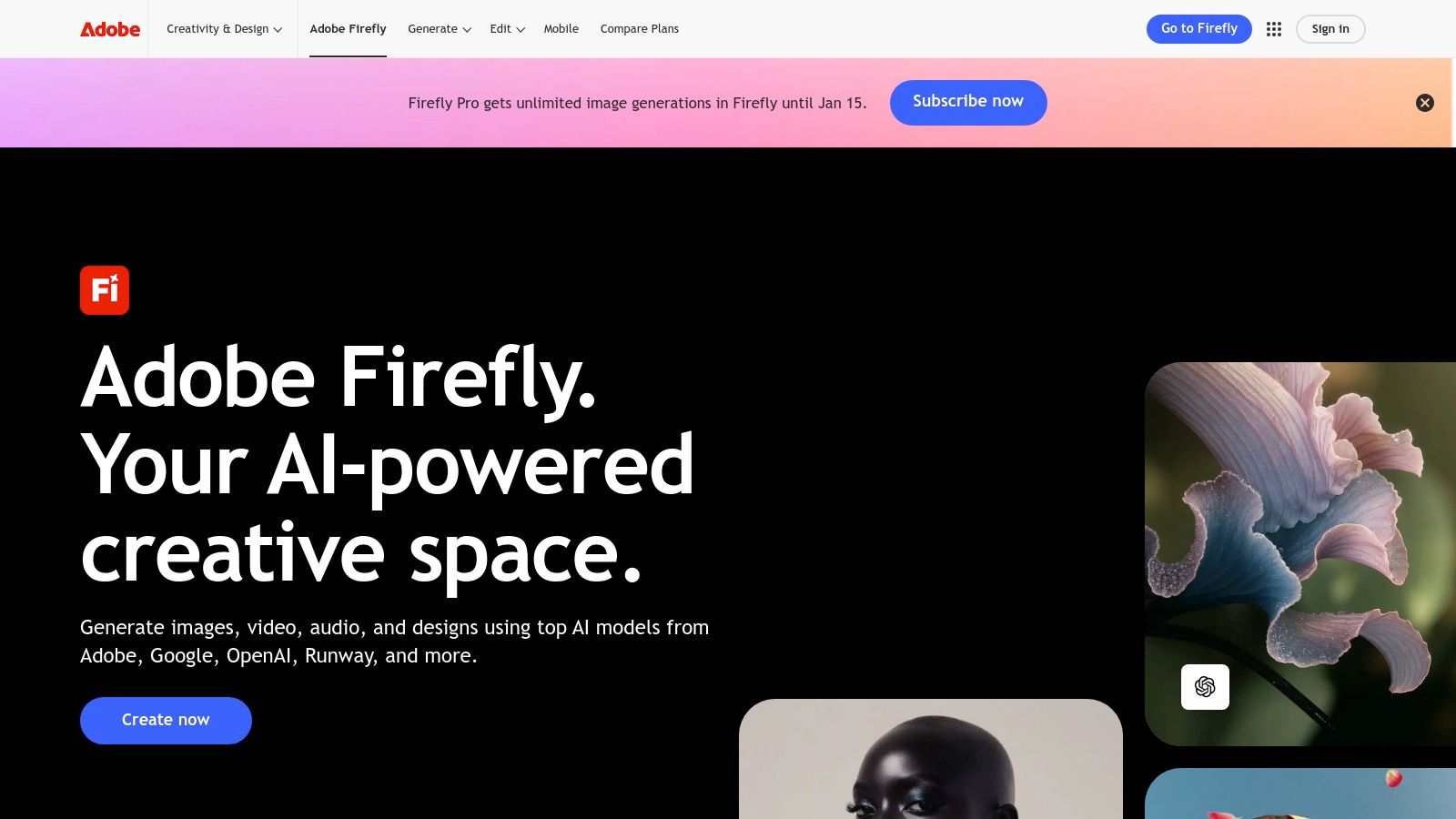
alt text: The Adobe Firefly interface showcasing its text-to-image generation capabilities for creative content.
What makes Firefly stand out is its deep integration and its focus on brand safety. The “Generative Fill” feature in Photoshop is a game-changer, allowing users to extend images or add/remove objects with simple text prompts. For corporate teams, the guarantee that the output is safe for commercial use is a significant advantage.
Practical Example: Expanding a Photo for a Website Banner
Follow these steps to turn a portrait-oriented photo into a wide banner image:
- Open Image in Photoshop: Open your vertical (portrait) image.
- Expand the Canvas: Select the Crop Tool (C). Drag the handles of the crop box outwards to create empty space on the sides where you want to extend the background.
- Select the Empty Area: Use the Marquee Tool (M) to select the empty areas you just created.
- Use Generative Fill: The context-sensitive taskbar will appear. Click the “Generative Fill” button.
- Generate the Background: Leave the prompt box empty and click “Generate.” Firefly will analyze the existing pixels and intelligently fill in the empty space with a perfectly matching background.
Actionable Takeaways
- Effortless Image Extension: Use Generative Fill in Photoshop to expand a vertical photo into a horizontal banner.
- Product Mockup Creation: Take a photo of your product and use Firefly in Adobe Express to generate new, unique backgrounds.
- Conceptual Art & Mood Boards: Quickly generate multiple visual styles for a marketing campaign by using text-to-image prompts.
Tools & Resources
- Website: https://www.adobe.com/products/firefly
- Further Reading: best AI image generators
5. Canva – Magic Studio
Canva has transformed from a simple design tool into an AI-powered content suite with its Magic Studio. It integrates AI directly into the familiar, user-friendly design interface, allowing marketers and non-designers to produce professional-quality social media posts, marketing materials, and short videos with unprecedented speed. Magic Studio combines text generation (Magic Write), AI image creation (Magic Media), and intelligent asset adaptation (Magic Switch) into a single workflow.
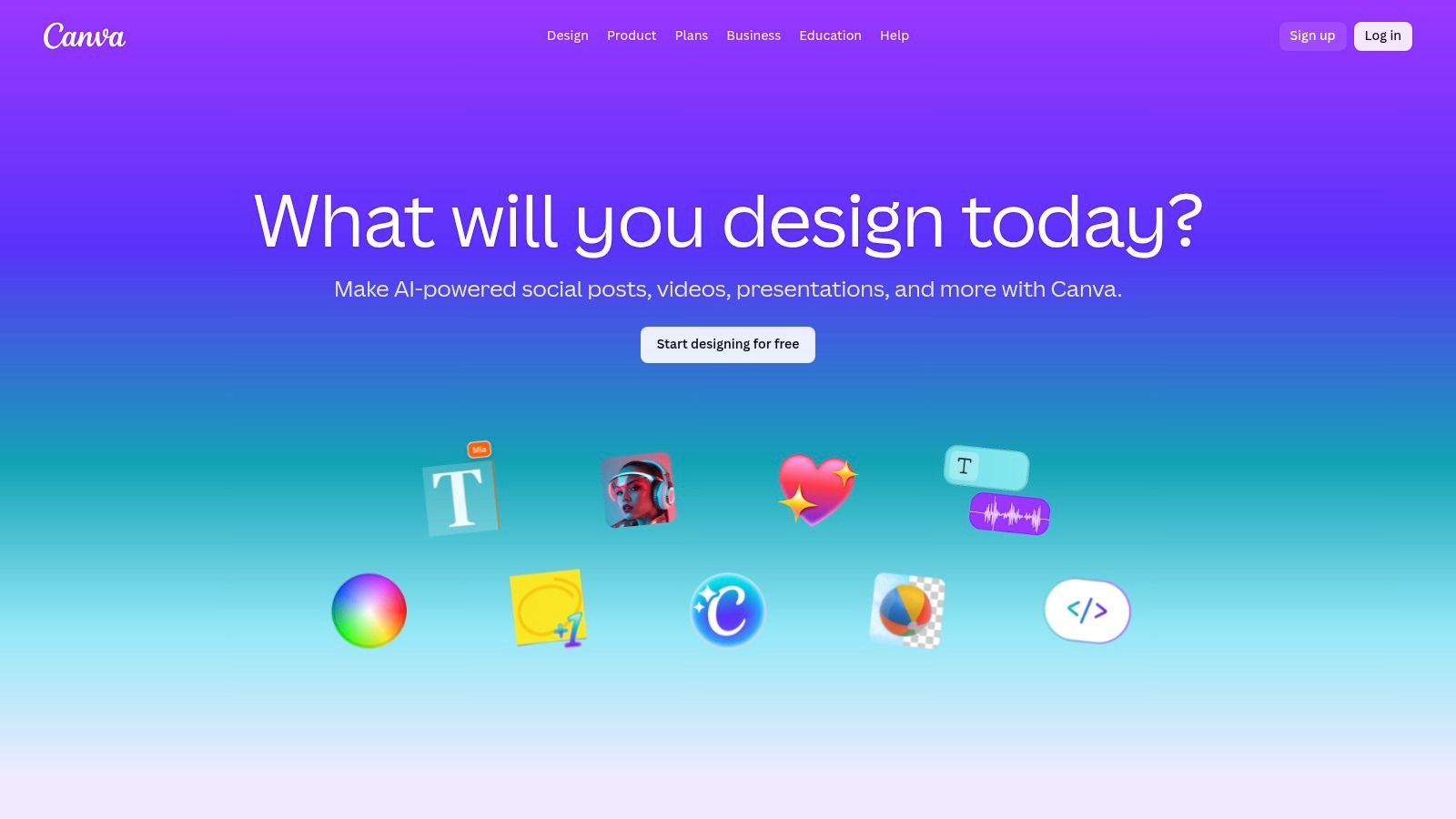
alt text: A designer using Canva’s Magic Studio features to generate images and text directly within a social media post template.
What makes Canva’s implementation stand out is its seamless integration with a massive library of templates. This allows teams to maintain brand consistency while leveraging AI to accelerate production. The ability to generate copy, create a unique image, and then instantly resize the entire design for different social platforms with Magic Switch makes it one of the most efficient ai content creation tools for campaign execution.
Practical Example: Creating and Resizing a Campaign Asset
Here’s how to create a promotional graphic and adapt it for multiple platforms:
- Start with a Prompt: In the Canva home screen, use Magic Design with the prompt:
Create an Instagram post for a 25% off summer sale for a local bookstore. Use a vibrant, sunny color palette. - Generate and Select: Canva will generate several template options. Choose the one that best fits your brand.
- Refine the Copy: Select the headline text box. Click the “Magic Write” button and use the prompt
Make this more excitingto get alternative copy ideas. - Resize for Other Platforms: Once the design is finalized, click “Magic Switch” in the top menu. Select “Facebook Post” and “Email Header.”
- Review and Download: Canva will automatically create copies of your design, intelligently resizing and rearranging elements to fit the new dimensions. Review each version and make minor adjustments as needed before downloading.
Actionable Takeaways
- Campaign Asset Creation: Use Magic Design to generate a full set of branded marketing assets from a single prompt.
- Content Localization: With Magic Switch, instantly translate the text in a design into multiple languages.
- On-Demand Visuals: Use Magic Media to generate custom images or short video clips that perfectly match your campaign’s aesthetic.
Tools & Resources
- Website: https://www.canva.com/magic-studio
6. Jasper
Jasper is an enterprise-grade AI content platform engineered for marketing teams. It moves beyond simple text generation to offer a suite of tools for creating on-brand, multi-channel marketing campaigns at scale. Its core strength lies in its ability to understand and enforce brand identity through its “Brand Voices” and “Knowledge” features, ensuring every piece of content is consistent.
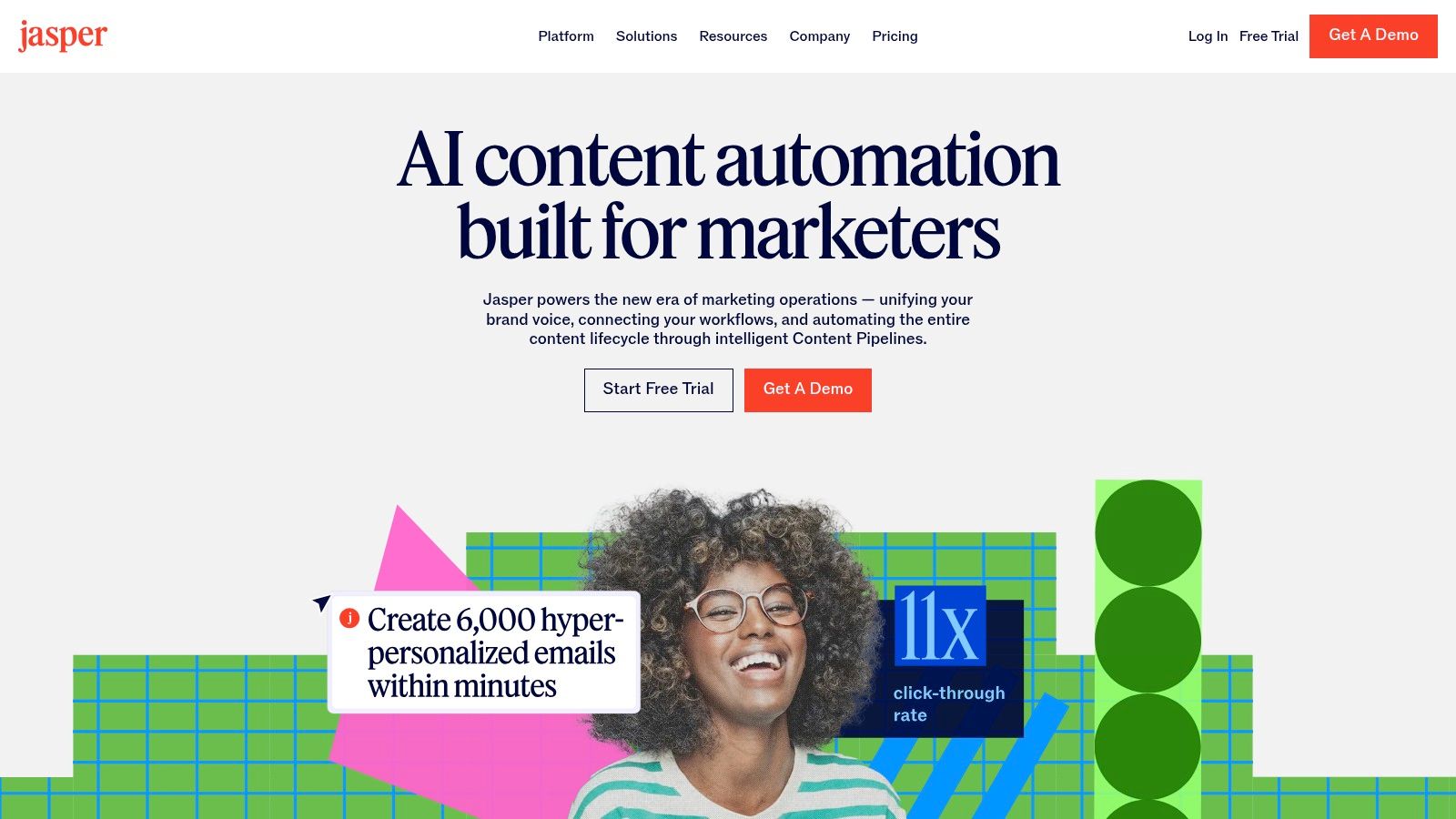
alt text: The Jasper interface showcasing its campaign creation canvas, a tool for orchestrating multi-asset marketing content.
What distinguishes Jasper is its focus on marketing workflows and governance. Features like the “Canvas” allow teams to map out and generate entire campaigns with multiple assets in a single, collaborative space. For businesses needing to scale their use of ai content creation tools, Jasper provides essential enterprise features like administrative controls and team management.
Practical Example: Orchestrating a Campaign in the Canvas
Use the Jasper Canvas to generate a complete marketing campaign from a single brief:
- Create the Core Brief: Start a new Canvas. In the first node, write a detailed brief for a new product launch, including target audience, key features, and unique value proposition.
- Generate a Press Release: Create a new node connected to the brief. Use the prompt:
Using the information in the brief, write a 400-word press release announcing the product launch. - Create an Email Sequence: Add another node. Prompt:
Write a 3-part email sequence to our customer list based on the press release. Email 1: Announce the launch. Email 2: Highlight a key feature. Email 3: Share a customer testimonial. - Generate Social Posts: Create a final node. Prompt:
Generate 5 unique social media posts for LinkedIn to promote the launch, referencing the key messages from the brief. - Review and Refine: All assets are now in one interconnected document, ensuring consistent messaging across the entire campaign.
Actionable Takeaways
- Campaign Orchestration: Use the Canvas to brainstorm and generate a press release, email announcements, and social media posts from one brief.
- Enforce Brand Consistency: Upload your style guides and product catalogs into Jasper’s Knowledge base to train the AI.
- Create Custom Marketing Tools: Use the App Builder to create a simple “Ad Headline Generator” tailored to your target audiences.
Tools & Resources
- Website: https://www.jasper.ai
7. Copy.ai
Copy.ai positions itself as a comprehensive AI content platform for marketing, sales, and operations teams. It moves beyond simple text generation by incorporating a chat interface, automated workflows, and an agent studio, allowing businesses to create repeatable processes and scale their content output significantly. This focus on automation and go-to-market (GTM) team enablement makes it a powerful contender.
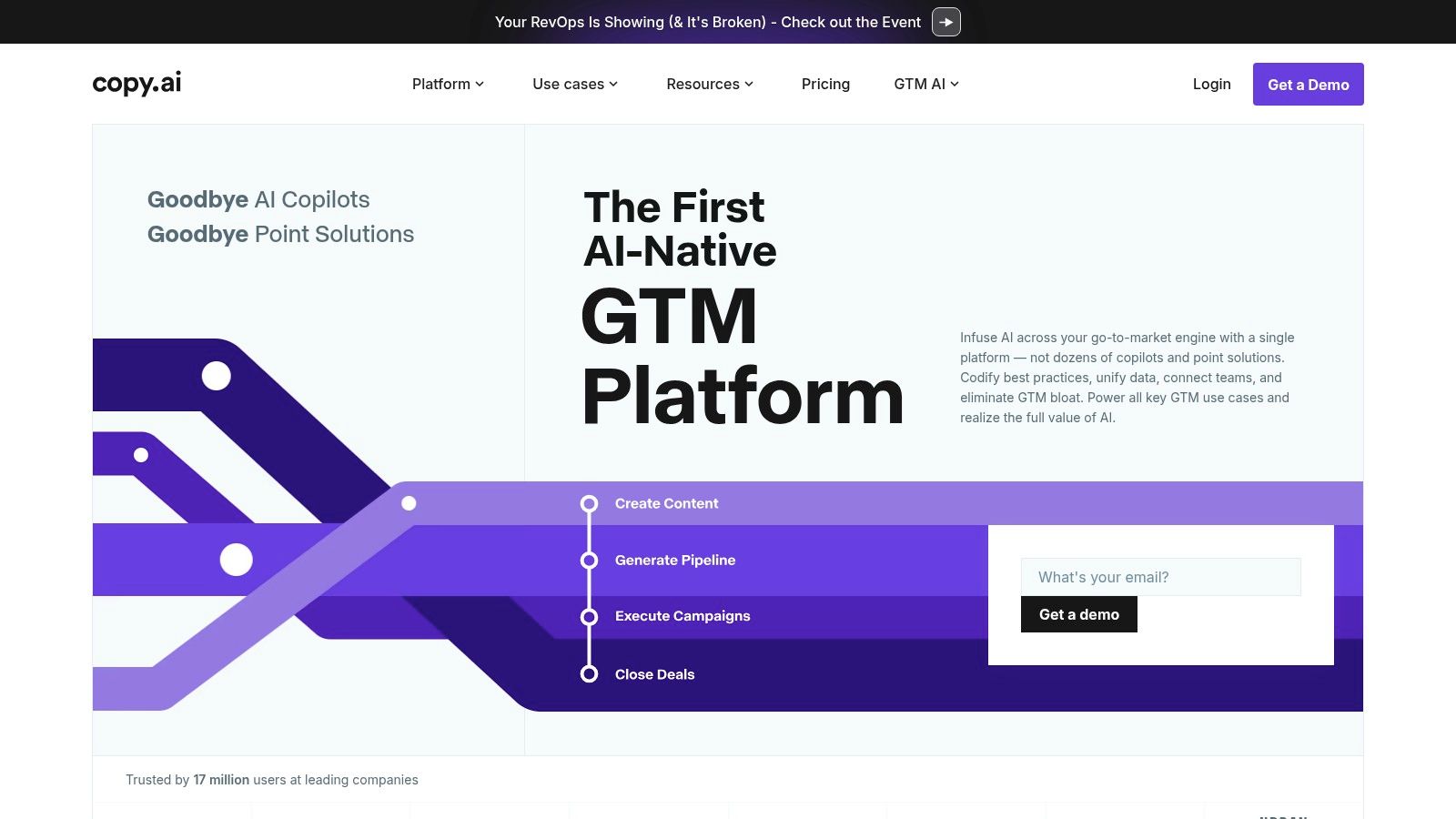
alt text: The Copy.ai platform interface, showing its workflow automation and content generation features.
What makes Copy.ai stand out is its architecture for automation. While many tools focus on one-off content pieces, Copy.ai’s Workflow feature allows you to build multi-step content pipelines, such as turning a case study into social media posts, an email, and a blog brief in one click. Access to multiple large language models (LLMs) ensures you can select the best AI for a specific task.
Practical Example: Automating Sales Outreach
Use a Workflow to generate personalized sales emails at scale:
- Create a New Workflow: Navigate to the Workflows section and start a new workflow.
- Define Input: The input for the workflow will be a prospect’s LinkedIn profile URL.
- Add First Action (Web Scrape): Create a step to scrape the text from the provided LinkedIn URL.
- Add Second Action (AI Generation): Add a second step that uses the scraped text as context. Use the prompt:
Analyze the provided LinkedIn profile text. Identify the person's current role, company, and a recent accomplishment. Draft a 150-word cold outreach email that references this specific information and introduces our SaaS product as a solution to a likely pain point for their role. - Run the Workflow: Now, you can input a list of LinkedIn URLs, and the workflow will automatically generate a unique, personalized email for each prospect.
Actionable Takeaways
- Sales Outreach Automation: Use Workflows to generate personalized sales emails at scale by inputting prospect LinkedIn profiles.
- Content Calendar Fulfillment: Build a workflow that takes a topic and automatically generates a blog post draft, social captions, and email subject lines.
- Marketing Reporting: Create an agent to analyze weekly campaign performance data and generate a concise summary report.
Tools & Resources
- Website: https://www.copy.ai
- Further Reading: best AI writing assistants
8. Notion with Notion AI
Notion has evolved from a powerful workspace for docs and projects into an integrated ecosystem where content creation and knowledge management converge, powered by AI. Notion AI is embedded directly within the editor, allowing users to summarize notes, improve writing, generate first drafts, or automatically populate database fields. It’s designed for teams who want to eliminate context switching.
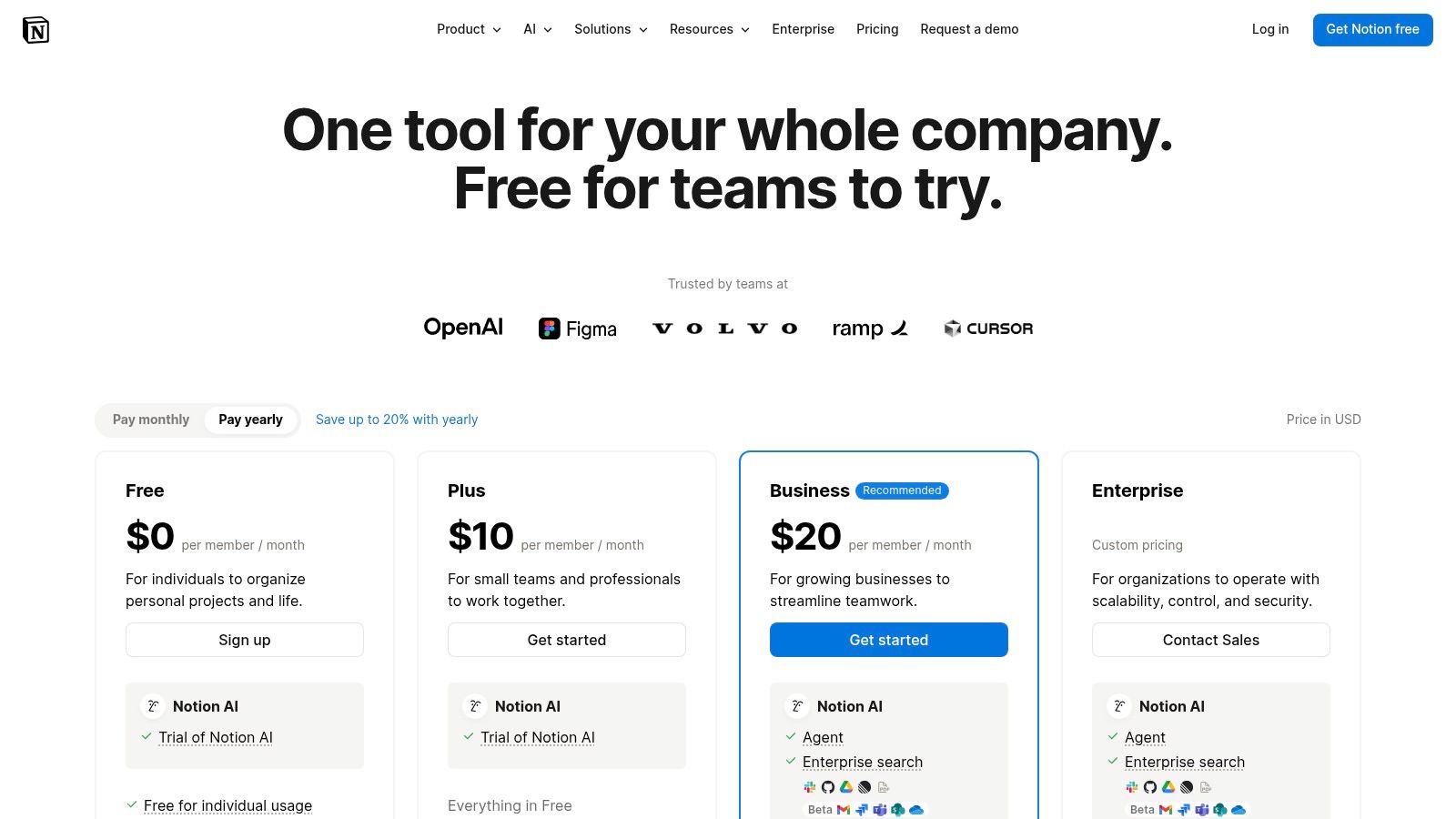
alt text: A user interacting with the Notion AI interface inside a Notion page, demonstrating its text generation and summarization features.
What makes Notion a unique player is its context-aware assistance. The “Q&A” feature acts like an enterprise search agent, instantly answering questions by sourcing information directly from your team’s workspace pages. This tight integration of knowledge base and AI assistant creates a powerful feedback loop where your team’s collective knowledge directly fuels AI-powered content creation.
Practical Example: Automating a Content Calendar
Set up a content calendar in Notion that drafts social posts for you:
- Create a Database: Create a new Notion database with properties for “Title” (your blog post title), “Status,” “Publish Date,” and “Social Copy” (Text property).
- Add AI Custom Autofill: Edit the “Social Copy” property. Change its type to “AI custom autofill.”
- Write the Prompt: In the prompt box, write:
Write a short, engaging tweet to promote the blog post titled "[Title]". Include 2-3 relevant hashtags.Notion will automatically use the content from the “Title” property of that database entry. - Automate Drafting: Now, whenever you add a new blog post title to your calendar, the “Social Copy” field will automatically populate with a draft tweet. You can then edit it and copy it to your scheduler.
Actionable Takeaways
- Create a Content Calendar Database: Use an AI custom autofill property to automatically generate a first draft of a social media post for each new blog entry.
- Team Wiki with AI Summaries: Use the AI “Summarize” block at the top of long pages to give team members an instant overview.
- Meeting Note Automation: Jot down raw meeting notes, then use Notion AI to instantly clean them up, identify action items, and generate a concise summary.
Tools & Resources
- Website: https://www.notion.so/pricing
9. Descript
Descript revolutionizes audio and video editing by treating media like a text document. Instead of complex timelines, you edit by simply correcting a transcript. This text-based approach dramatically lowers the barrier to entry for producing professional-quality content, allowing creators to focus on their narrative rather than technical skills. It’s one of the most intuitive ai content creation tools for podcasters and marketers.
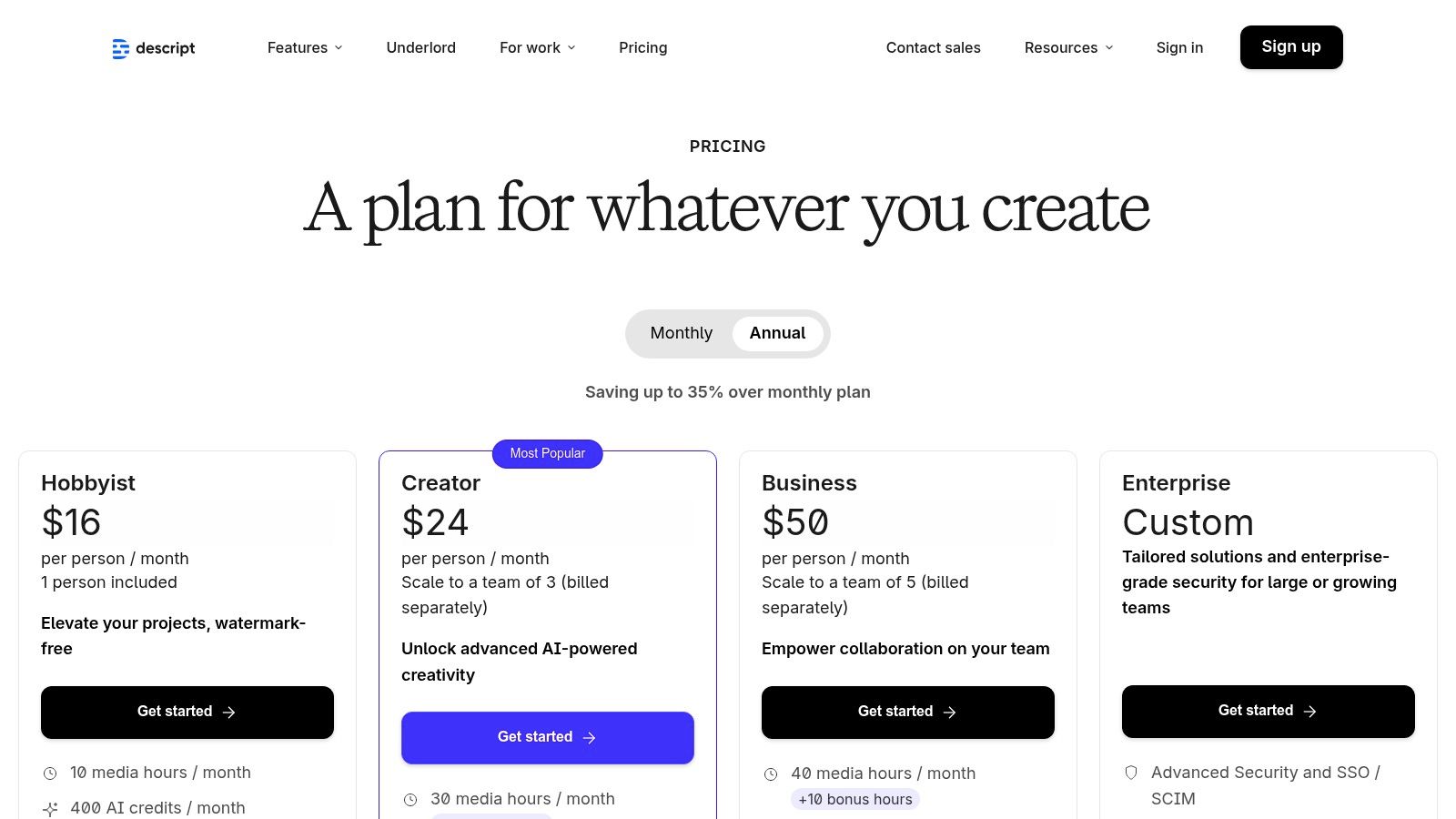
alt text: A user editing video content within the Descript interface, highlighting the text-based transcript workflow.
What makes Descript exceptional is its integration of powerful AI features. Studio Sound removes background noise with a single click, while AI effects can correct a speaker’s eye contact. Its “Underlord” AI assistant can instantly find the best clips, write summaries, and suggest edits, transforming raw footage into polished content in minutes.
Practical Example: Editing a Podcast Episode
Here’s a fast workflow for polishing a raw podcast recording:
- Import and Transcribe: Drag your raw audio file into a new Descript project. It will automatically be transcribed.
- Remove Filler Words: Click the “Actions” (star icon) menu and select “Remove filler words.” Descript will highlight all instances of “um,” “uh,” etc. Click “Remove all” to delete them from both the text and the audio/video.
- Apply Studio Sound: Select the audio track in the timeline, go to the right-hand sidebar, and toggle on “Studio Sound.” This will instantly reduce echo and background noise.
- Edit by Deleting Text: Read through the transcript. If a speaker repeated a sentence or went off-topic, simply highlight that text in the transcript and press the delete key. This will seamlessly remove the corresponding section from the audio.
Actionable Takeaways
- Effortless Video Repurposing: Highlight key quotes in a video transcript and use the “Make clip” feature to instantly create social media shorts.
- Fix Recording Mistakes: Use the text-to-speech “Overdub” feature. Type a correction into the transcript, and Descript will generate audio in your voice to fix the mistake.
- Podcast Production Workflow: Record in Descript to automatically transcribe, remove filler words, and apply Studio Sound for broadcast-quality audio.
Tools & Resources
- Website: https://www.descript.com/pricing
10. Runway
Runway has established itself as a pioneering force in generative video, offering a suite of powerful tools that transform text and images into dynamic video content. It’s a creative playground for filmmakers, marketers, and artists looking to produce high-quality, conceptual video clips without complex animation software. The platform is built around state-of-the-art video models like Gen-3, which produce remarkably coherent results.
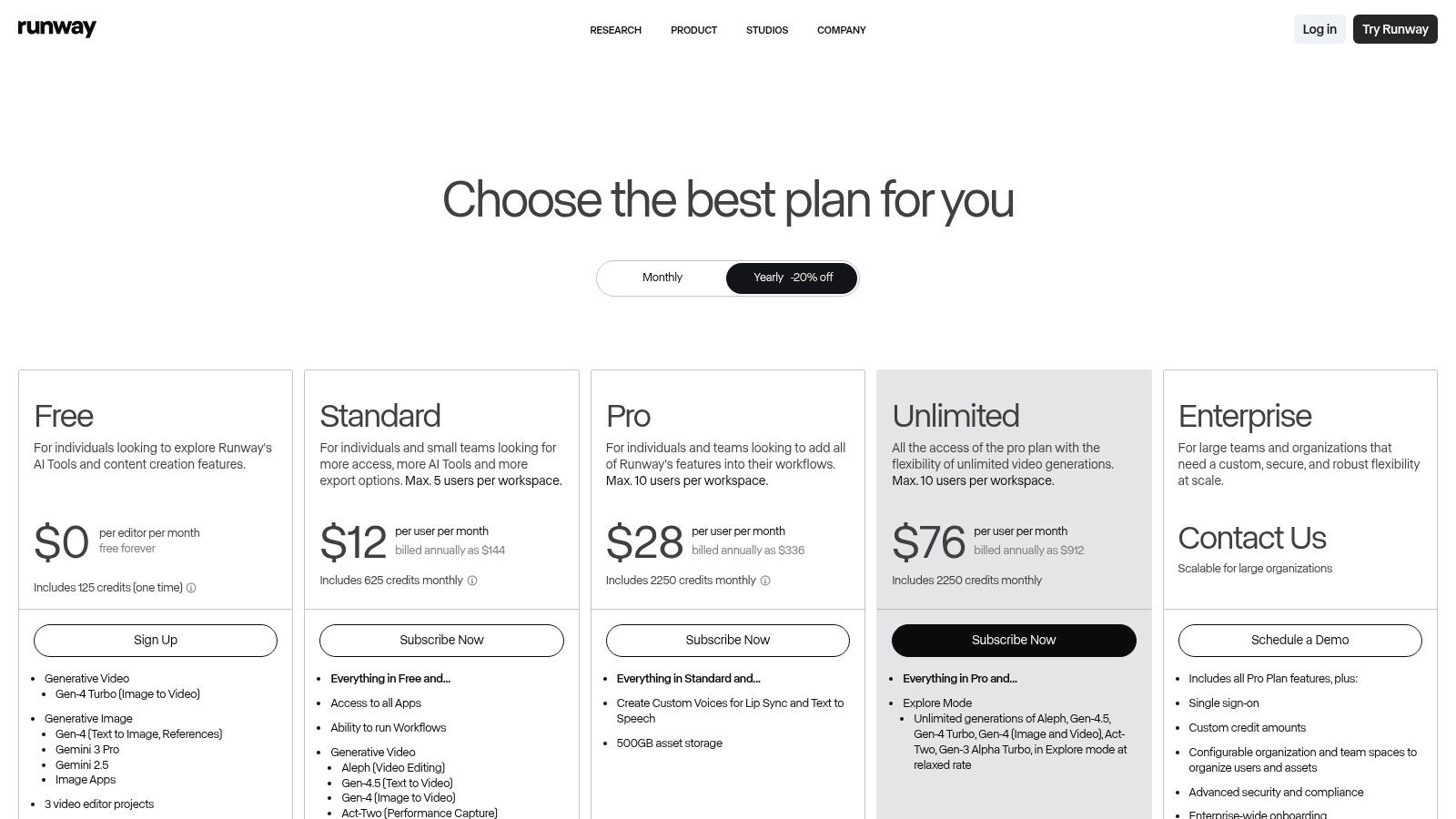
alt text: A screenshot of the Runway platform’s pricing page, showing different subscription tiers.
What makes Runway a go-to choice is its integrated project editor and a clear, credit-based system. This allows users to not only generate clips but also edit them within the same environment. While the credit math can be complex, the free tier provides a generous starting point for experimentation.
Practical Example: Creating a Conceptual Video Ad
Generate a short, eye-catching ad for a new coffee brand:
- Start with Text-to-Video: In the Runway dashboard, select the Text-to-Video tool.
- Write a Detailed Prompt: Enter a descriptive prompt:
A cinematic slow-motion shot of dark roast coffee beans falling onto a rustic wooden table, with soft morning light coming through a window. Photorealistic, 4K. - Generate and Select: Runway will generate a short video clip (typically 4 seconds). If you like the result, proceed. If not, tweak the prompt and regenerate.
- Extend the Clip: Once you have a clip you like, use the “Extend” feature. Runway will analyze the last frame and generate the next 4 seconds, creating a longer, more cohesive video.
- Add Motion Control: Use advanced camera controls to add a slow pan or zoom effect to make the shot feel more dynamic and professional.
Actionable Takeaways
- Marketing & Ad Concepts: Quickly storyboard and generate short video ads for social media campaigns with prompts like “A cinematic shot of a new sneaker splashing through a puddle.”
- Film Pre-visualization: Directors can use Runway to create “animatics,” generating key scenes to establish mood, pacing, and camera angles.
- Enhance Static Content: Animate a static product photo by uploading it and using Runway’s image-to-video feature.
Tools & Resources
- Website: https://runwayml.com
- Further Reading: best AI video generators
11. Synthesia
Synthesia transforms video production by enabling users to create professional, studio-quality videos with AI avatars and voiceovers without needing cameras or microphones. This platform is a leader in scalable video content, particularly for corporate training, HR communications, and product explainers. Users can type a script, choose a photorealistic avatar, and generate a polished video in over 140 languages.
alt text: An AI-generated avatar from Synthesia presenting information in a corporate training video.
What distinguishes Synthesia is its focus on enterprise-level scalability and ease of use. The web-based editor features a library of templates, avatars, and assets that allow for rapid content creation, while higher-tier plans offer API access and SCORM exports for seamless integration with existing learning management systems (LMS).
Practical Example: Creating a Multilingual Training Video
Produce a new employee onboarding video and deploy it globally:
- Choose a Template: Start a new video in Synthesia and select a pre-made corporate training template.
- Select an Avatar: Choose one of the 125+ stock avatars that fits your company’s brand.
- Input the Script: Paste your English-language training script into the script box.
- Generate the English Version: Click “Generate video.” Review the video to ensure the pacing and delivery are correct.
- Duplicate and Translate: Duplicate the video project. In the new version, click the “Translate” button. Select Spanish and German. Synthesia will automatically translate the script and generate a new voiceover in those languages, perfectly synced to the avatar’s lip movements.
Actionable Takeaways
- Standardize Onboarding: Create a library of training videos. A single script can be translated and voiced in multiple languages with one click.
- Rapid Product Updates: When a new software feature is released, quickly produce a short explainer video using a screen recording and an AI avatar guide.
- Personalized Sales Outreach: Use Synthesia’s API to generate personalized video messages at scale, dynamically inserting a prospect’s name into the script.
Tools & Resources
- Website: https://www.synthesia.io
12. Kapwing
Kapwing solidifies its place among ai content creation tools as an all-in-one, browser-based video editor designed for speed and collaboration. It excels at simplifying complex video tasks for social media managers, integrating AI-powered features like script generation, automatic clip creation, and one-click translation and dubbing. Its intuitive interface lowers the barrier to entry, making professional-looking video accessible to non-editors.
alt text: The Kapwing video editor interface, showing its timeline and AI-powered tools for creating social media content.
What makes Kapwing stand out is its focus on repurposing and localization. The “Repurpose Studio” can take a long-form video and automatically generate multiple short, vertical clips with subtitles, perfect for TikTok and Reels. The platform’s transcript-based editing allows users to edit video by simply editing text, a massive time-saver for interview-style content.
Practical Example: Repurposing a YouTube Video for Social Media
Turn one long video into a week’s worth of social content:
- Import via URL: In Kapwing, select “Start with a URL” and paste the link to your long-form YouTube video.
- Enter the Repurpose Studio: Kapwing will automatically transcribe the video. Select the “Repurpose” option.
- Let AI Find Clips: The AI will analyze the transcript and suggest several engaging, short clips based on moments of high energy or key topics.
- Edit and Brand: Select the clips you want to use. Kapwing will automatically reframe them to a vertical 9:16 aspect ratio and add animated subtitles. You can then adjust the subtitle style and add your brand’s logo.
- Export and Schedule: Export the final clips and schedule them for release on TikTok, Instagram Reels, and YouTube Shorts.
Actionable Takeaways
- Content Localization: Upload a product demo video and use the AI dubbing tool to create versions in Spanish and German.
- Rapid Social Clip Creation: Paste a YouTube link into the Repurpose Studio and let the AI find the most engaging moments and generate viral-style clips.
- Transcript-Based Editing: Upload a meeting recording and edit the video by deleting irrelevant sentences from the auto-generated transcript.
Tools & Resources
- Website: https://www.kapwing.com
12 AI Content Tools — Quick Feature Comparison
| Product | Core Features | Quality & UX (★) | Value & Pricing (💰) | Target Audience (👥) | Unique Selling Points (✨) |
|---|---|---|---|---|---|
| 🏆 RichlyAI | Text, image, audio, video, code, chatbots, real‑time voice, social automation; AI Tools Hub marketplace | 4.5★ — intuitive prompt UI, instant edits | 💰 Free tier (Unlimited Text) + affordable upgrades; marketplace free + one‑time premium | 👥 Creators, marketers, devs, SMBs, sellers | ✨ All‑in‑one multi‑format + social automation + discovery marketplace |
| OpenAI – ChatGPT | Conversational multimodal, code help, file analysis, Custom GPTs, enterprise workspaces | 5★ — state‑of‑the‑art, frequent updates | 💰 Free limited plan; paid for advanced models & Business features | 👥 Individuals → Enterprises needing robust AI & compliance | ✨ Custom GPTs, file analysis, strong business privacy |
| Microsoft Copilot | Copilot in Word/Excel/PowerPoint/Teams, Copilot Chat & Studio, Graph integration | 4.5★ — smooth in‑app experience for 365 users | 💰 Requires Microsoft 365 licensing; some features metered | 👥 Enterprises standardized on Microsoft 365 | ✨ Deep 365 integration, enterprise governance & analytics |
| Adobe Firefly | Generative image/video/audio, Generative Fill, Photoshop/Express integration | 4★ — creator‑grade, brand‑safe outputs | 💰 Credit‑based; best value in Creative Cloud bundles | 👥 Designers, creative teams, brands | ✨ Legal/commercial‑use guardrails + native Photoshop workflows |
| Canva – Magic Studio | AI copy, images, short video, templates, brand kits, scheduling | 4★ — very user‑friendly, template driven | 💰 Free tier; paid team plans (some AI gated) | 👥 Marketers, non‑designers, small teams | ✨ Fast templates + Magic Switch for resizing/localization |
| Jasper | Brand Voices, Canvas campaigns, AI App Builder, API, enterprise controls | 4★ — marketing‑focused UX with governance | 💰 Per‑seat pricing; Business tier for full features | 👥 Multi‑channel marketing teams & agencies | ✨ Brand governance + campaign orchestration |
| Copy.ai | Chat generation, multi‑model access, agent studio, workflows | 3.5★ — chat‑centric, guided onboarding | 💰 Clear tiers; advanced agents on higher plans | 👥 Sales, marketing, operations teams | ✨ Multi‑model access + agent automation workflows |
| Notion + Notion AI | Docs, databases, meeting notes, summarization, enterprise search | 4★ — unified workspace + knowledge UX | 💰 Business tier includes AI; reasonable team pricing | 👥 Teams needing knowledge + project management | ✨ AI integrated into docs, databases & search |
| Descript | Transcript‑first audio/video editor, TTS, dubbing, avatars, Studio Sound | 4★ — fast for podcasts & creators | 💰 Credits/minutes model; paid tiers for exports | 👥 Podcasters, video creators, educators | ✨ Text‑based editing + Studio Sound & AI co‑editor |
| Runway | Text/image→video, editor, asset storage, credit mapping | 4★ — cutting‑edge video models, evolving UX | 💰 Free tier; credit‑based pricing for high quality | 👥 Video creatives, marketers, experimental teams | ✨ State‑of‑the‑art video generation models |
| Synthesia | Avatar videos, lip‑sync, translations (140+ languages), templates, API | 4★ — polished enterprise workflows | 💰 Tiered; Enterprise for API, SSO, unlimited minutes | 👥 L&D, training, marketing teams | ✨ Photoreal avatars + multi‑language scaling |
| Kapwing | Browser editor, script gen, auto‑subtitles, dubbing, TTS, Repurpose Studio | 4★ — easy for non‑editors, fast turnaround | 💰 Free with watermark; credits for AI features | 👥 Social creators, educators, small teams | ✨ Repurpose Studio + clear credit pricing |
Your Next Steps: Putting AI to Work Today
We’ve explored a comprehensive landscape of modern AI content creation tools, from the versatile text generation of ChatGPT to the revolutionary video editing of Descript. The goal was not just to list features, but to demonstrate how these platforms can reshape your workflows, save time, and elevate your output.
The core takeaway is that the era of manual, time-intensive content creation is evolving. Whether you’re a solo creator with writer’s block or a marketing team aiming to scale visual content, there is an AI tool designed to address your bottleneck. The power of these tools lies not in replacing human creativity, but in augmenting it.
How to Choose Your First AI Tool: A Practical Framework
The number of options can feel overwhelming. Instead of adopting everything at once, use a targeted approach to see tangible results quickly.
Follow these steps to make a strategic choice:
- Identify Your Biggest Content Bottleneck: Where do you spend the most time for the least return? Is it writing initial blog drafts? Creating custom social graphics? Producing voiceovers? Pinpoint the single biggest point of friction.
- Match Bottleneck to Tool Category: Match your problem to a solution.
- Problem: “I can’t write blog posts fast enough.” -> Solution: AI Text Tools (Jasper, ChatGPT).
- Problem: “Our social feed lacks original images.” -> Solution: AI Image Tools (Adobe Firefly, Canva).
- Problem: “Editing podcasts takes days.” -> Solution: AI Audio/Video Tools (Descript).
- Run a Small Pilot Project: Select one tool that addresses your bottleneck. Define a small, low-risk project to test its capabilities. For example, use Jasper to generate three blog post outlines or use Synthesia to create one short internal training video.
- Measure and Evaluate: Assess the outcome. Did the tool save time? Improve quality? Was it intuitive? This hands-on experience is more valuable than any review.
Actionable Takeaways
- Start small: Choose one tool that solves your single biggest content problem right now.
- Focus on one workflow: Master how the tool can improve a specific task, like turning meeting notes into a summary or generating ad copy variations.
- Learn basic prompting: Invest 30 minutes in learning how to give clear, context-rich instructions to the AI. This is the highest-leverage skill you can develop.
- Always edit and verify: Use AI to generate the first 80%, but always apply your human expertise for the final 20% to ensure quality, accuracy, and brand voice.
The journey into AI-powered content creation is an iterative process of experimentation and learning. By starting small, focusing on a single high-impact problem, and committing to a thoughtful implementation strategy, you can unlock unprecedented levels of efficiency and creativity.
Ready to unify your creative process? RichlyAI offers a platform built for the modern creator, providing a central hub to manage all the content you generate with these amazing tools. Explore how to amplify the value of your AI investment by visiting RichlyAI today.
