
Finding the best AI writing assistant is no longer about just fixing typos or rephrasing sentences. Today’s tools are sophisticated partners capable of brainstorming entire marketing campaigns, drafting complex code, generating creative fiction, and summarizing dense research papers. The challenge isn’t a lack of options, but rather a paralyzing overabundance. Which platform genuinely understands your specific needs? Is it a grammar-focused powerhouse like Grammarly, a versatile content generator like Jasper, or a deeply integrated workspace tool like Notion AI?
This guide cuts through the noise. We move beyond generic feature lists to provide a comprehensive, hands-on analysis of the top contenders. We’ve tested each tool to give you a clear-eyed view of its true capabilities and limitations. You’ll find detailed breakdowns, step-by-step examples, and honest assessments to help you make an informed decision.
Our goal is to match you with the right AI, not just the most popular one. Whether you are a developer seeking code completion, a student refining an academic essay, or a marketer desperate to overcome creative blocks, this resource is your definitive roadmap. Each entry includes:
- In-depth analysis: A look at core features and what makes each tool unique.
- Practical examples: Step-by-step instructions showing how to use the tool for a real-world task.
- Actionable takeaways: Short, bulleted next steps you can implement immediately.
- Pricing details: A straightforward summary of costs and plans.
Stop wasting time on trial-and-error. Let’s identify the perfect AI writing partner to augment your workflow and amplify your creative output.
1. RichlyAI
RichlyAI stands out as a formidable contender for the best AI writing assistant by positioning itself as a comprehensive, all-in-one creative ecosystem. It moves beyond simple text generation to offer a unified hub for producing text, images, audio, video, and code. This integrated approach is designed to eliminate the need for multiple, disparate tools, streamlining the creative workflow for marketers, developers, and solopreneurs alike.
The platform’s core, RichlyAI Hub, serves as an intuitive content studio where users can transition seamlessly between tasks. Its combination of multi-model text generation, real-time voice chat, and integrated social media automation makes it a powerful productivity engine. For those seeking to leverage AI for business, the ability to train custom chatbots with proprietary data is a significant advantage.

Alt text: The RichlyAI platform dashboard, showcasing its versatile AI tools for content creation and discovery.
What To Do With This: Step-by-Step Social Media Campaign Automation
A digital marketer can use RichlyAI to manage an entire social media campaign from a single interface. Here’s a typical workflow:
- Generate a Blog Post: Use the text generation tool to write a long-form article on a target topic like “5 SEO Tips for Small Businesses.”
- Create Visuals: Switch to the image generation tool to create a compelling hero image and several social media graphics for the post.
- Repurpose Content: Use the AI assistant to summarize the blog post into several bite-sized social media updates tailored for X, LinkedIn, and Instagram.
- Schedule and Automate: Access the built-in social automation tool to schedule the generated posts and images to be published over the next week.
This entire process, which would normally require at least three separate tools (a writer, a design app, and a scheduler), is completed within RichlyAI.
Actionable Takeaways
- Leverage the social automation feature to create and schedule a week’s worth of content in a single session.
- Use the code generation and helper tools to accelerate development and debugging tasks.
- Take advantage of the generous free plan to handle all your content creation needs without an initial investment.
Further Reading
- Tools/Resources: RichlyAI
- References: Explore our guide to free AI writing assistants for more budget-friendly options.
2. Grammarly
Grammarly is arguably one of the most recognized names in writing assistance, evolving from a robust grammar checker into a comprehensive AI writing partner. Its key strength lies in its ubiquity; it integrates seamlessly across nearly every platform where you write, from browsers and desktop apps to Microsoft Office and Google Docs. This makes it an incredibly low-friction tool to adopt for real-time feedback on correctness, clarity, engagement, and delivery.
Beyond its foundational proofreading, Grammarly now incorporates generative AI features. This allows users to draft, ideate, and rewrite content directly within their workflow. It’s an excellent choice for users who need a reliable, always-on editor that catches errors and refines tone without requiring a disruptive context switch. For those new to AI writing tools, Grammarly offers a familiar and intuitive entry point.
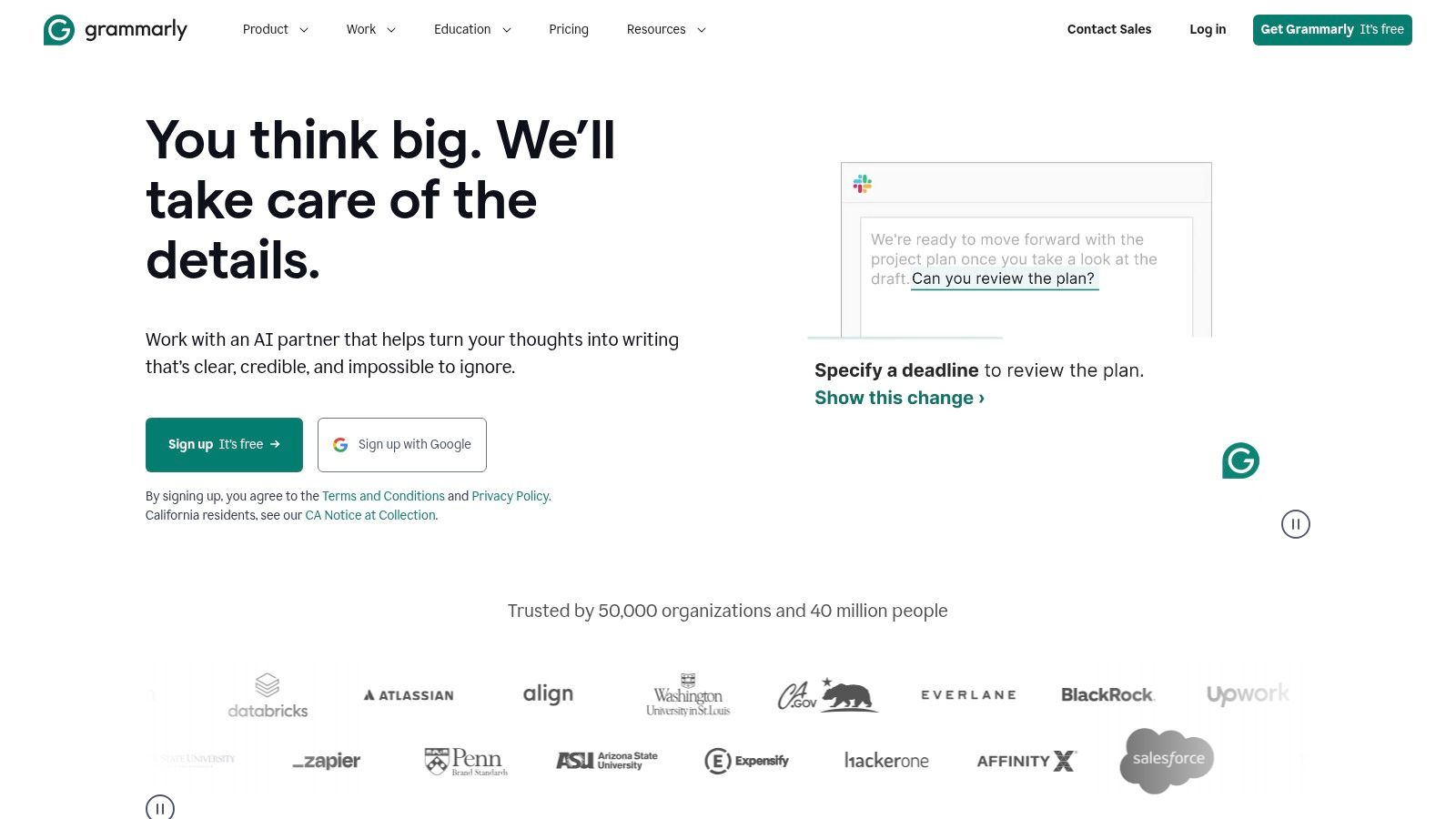
Alt text: Grammarly’s interface showing suggestions for clarity and correctness in a document.
What To Do With This: Step-by-Step Email Polishing
Scenario: You need to send a firm but professional follow-up email to a client about an overdue invoice.
- Draft: Write a quick, direct version of your email in Gmail. Example: “Hi John, Just following up on invoice #123. It’s now 15 days past due. Please provide an update on the payment.”
- Activate Grammarly: Let the Grammarly extension analyze the text. It might flag your tone as “direct” or “forceful.”
- Use Generative AI: Highlight your draft and click the Grammarly icon. Select the option to “Rewrite for a different tone.” Choose a “confident and professional” style.
- Review & Send: Grammarly will generate a revised version that maintains the message’s urgency while ensuring it remains courteous, helping preserve the client relationship. Example revised text: “Hi John, I’m writing to follow up on invoice #123, which appears to be overdue. Could you please let me know the status of the payment? We appreciate your partnership.”
Actionable Takeaways
- Install the browser extension to get real-time feedback on every email and social media post you write.
- Use the “Set goals” feature to tailor suggestions to your specific audience and level of formality.
- Experiment with the generative AI rewrite function to quickly see alternative ways to phrase your ideas.
Further Reading
- Tools/Resources: Grammarly’s Official Website
- References: Learn more about the power of AI in content creation.
3. Jasper
Jasper is a powerful AI writing assistant tailored specifically for marketing teams and content creators who need to produce high-quality, on-brand material at scale. Its core strength lies in its sophisticated brand-consistency tools, which allow teams to define a specific brand voice, upload knowledge assets, and set audience profiles. This ensures that every piece of content, from a blog post to a social media campaign, remains perfectly aligned with the company’s messaging.
Unlike general-purpose writers, Jasper is built around collaborative workflows. It’s an ideal choice for organizations that require structured content creation, review, and approval processes. For marketing departments looking to scale their output without sacrificing brand integrity, Jasper provides a centralized and intelligent platform that goes beyond simple text generation.

Alt text: Jasper’s content creation interface showing its various templates and tools.
What To Do With This: Step-by-Step Brand-Aligned Blog Post Creation
Scenario: Your marketing team needs to draft a blog post announcing a new product feature, ensuring it matches the company’s established “innovative yet approachable” tone.
- Setup Brand Voice & Knowledge: In Jasper’s settings, upload your style guide and recent marketing copy to train your Brand Voice. In the Knowledge base, add the new feature’s specs, benefits, and target user.
- Create a Brief: Use a Jasper template to create a content brief. Define the target audience as “existing customers who are tech-savvy but time-poor,” specify the primary keyword, and set the goal to drive feature adoption.
- Draft in Canvas: Move to the Canvas and command Jasper: “Generate a blog post outline based on the brief.” Then, for each section, instruct the AI to “write in our brand voice” to ensure consistent tone and terminology.
- Review & Refine: The AI-generated draft will use the correct terminology and tone. The team can then collaborate directly in the document, leaving comments and making edits before publishing, streamlining the entire process.
Actionable Takeaways
- Train your Brand Voice by providing at least three high-quality examples of your existing content.
- Use the Content Canvas for long-form articles to combine AI generation with manual editing in one seamless document.
- Explore the campaign feature to group related content assets (e.g., blog post, social media updates, email) together.
Further Reading
- Tools/Resources: Jasper’s Official Website
- References: For inspiration, check out these AI prompt examples.
4. Writesonic
Writesonic is a versatile AI writing assistant designed to streamline content creation for marketers, bloggers, and businesses. Its primary advantage is a vast library of over 100 templates, covering everything from SEO-optimized blog posts and Google Ads copy to social media updates and product descriptions. This template-driven approach makes it an excellent tool for users who need to produce a high volume of specific content formats quickly and efficiently.
The platform balances user-friendliness with powerful features, making it accessible for solo creators while offering the scalability needed for enterprise teams. Writesonic stands out by offering a clear path from a low-cost entry point to unlimited word generation on its higher-tier plans. This flexibility makes it a strong contender for users whose content needs are likely to grow over time.

Alt text: Writesonic’s interface showing its template library for various content types.
What To Do With This: Step-by-Step Ad Copy Generation
Scenario: You need to create several compelling ad variations for a new product launch on Facebook.
- Select Template: In the Writesonic dashboard, navigate to the “Ads” section and choose the “Facebook Ads” template.
- Input Details: Fill in the required fields: product name (“SmartBrew Coffee Maker”), a brief description (“Brews perfect coffee in 60 seconds with app control”), and the target audience’s pain points (“Wasting time, inconsistent coffee”).
- Generate: Click “Generate” to produce multiple ad copy options, each with a different angle (e.g., focusing on speed, taste, or technology) and a unique call to action.
- Review & Refine: Select the top three variations. Make minor edits for tone or brand voice, and export them for your campaign. This process takes minutes and provides a solid foundation for A/B testing your ad creative.
Actionable Takeaways
- Use the “Article Writer” feature to go from a keyword to a full-fledged blog post in under five minutes.
- Experiment with different quality settings (Premium vs. Superior) to balance cost and output sophistication.
- Leverage the multi-language support to quickly adapt successful ad copy for international markets.
Further Reading
- Tools/Resources: Writesonic’s Official Website
- References: This tool can help you improve your overall writing skills by providing high-quality examples.
5. Copy.ai
Copy.ai positions itself less as a simple writing tool and more as an automated marketing and sales platform powered by AI. Its core strength is moving beyond single-shot content generation into creating repeatable, automated workflows. This makes it a powerful choice for teams looking to scale their content operations, from lead enrichment to personalized outreach, all managed from a single hub.
Where many tools focus on drafting, Copy.ai emphasizes automation and operational efficiency. It provides access to multiple leading AI models (from OpenAI, Anthropic, and Google) within its chat interface, allowing users to choose the best engine for a specific task. For businesses aiming to build systems around their content and sales processes, Copy.ai provides the infrastructure to connect AI-powered writing directly to business outcomes.
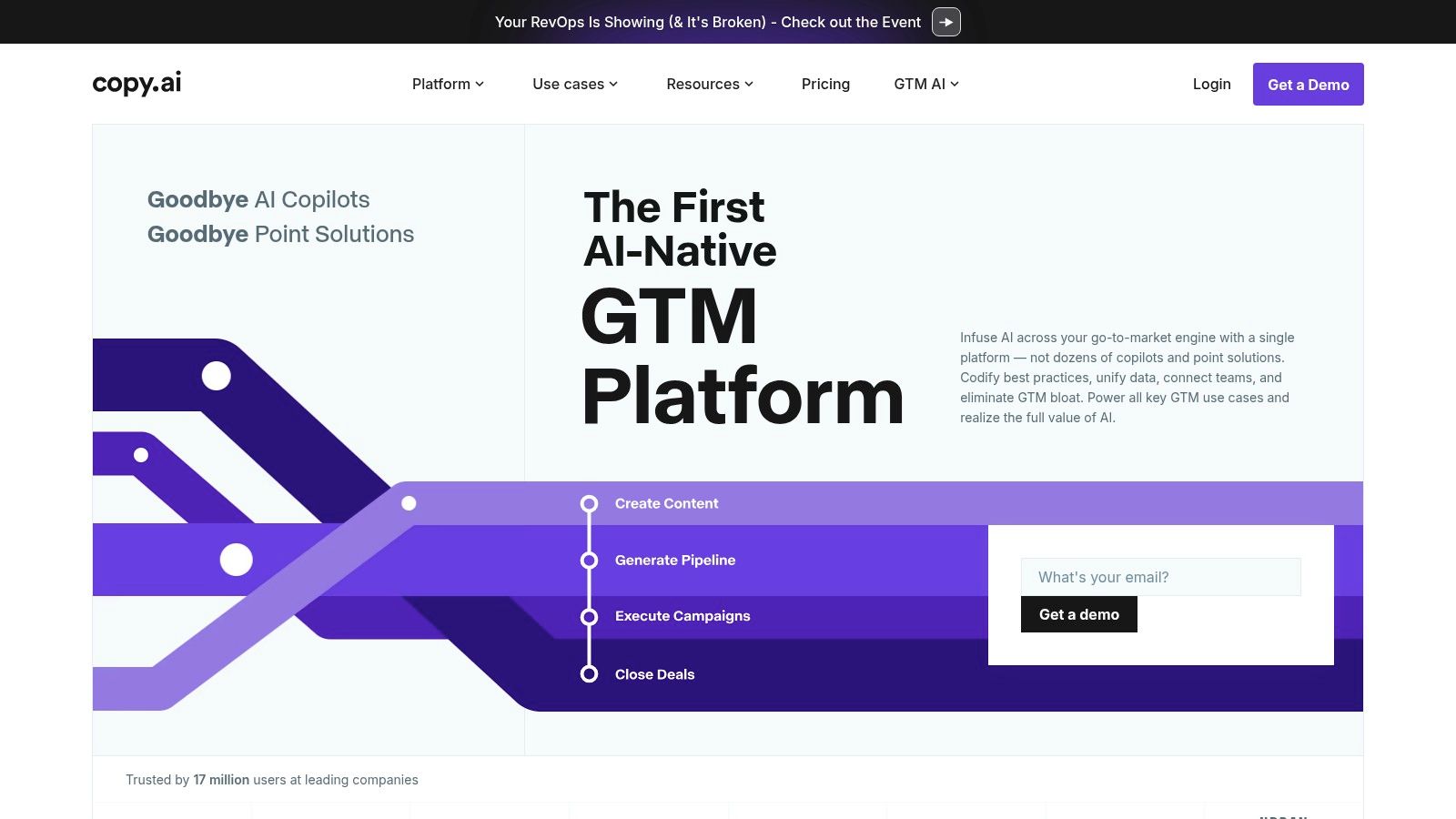
Alt text: Copy.ai’s workflow interface, demonstrating how users can automate content and marketing tasks.
What To Do With This: Step-by-Step Automated Sales Prospecting
Scenario: A sales team needs to create personalized outreach emails for 100 new leads based on their LinkedIn profiles.
- Set Up Workflow: In Copy.ai, create a new Workflow. The trigger can be a list of LinkedIn profile URLs pasted from a spreadsheet.
- Configure Actions: Add an action to “Scrape Website” to extract key information from each profile, such as
{{job_title}},{{company}}, and{{recent_post_topic}}. - Generate Content: Add another action using an AI prompt that references the scraped data. For example: “Write a short, friendly email to
{{Name}}from{{Company}}, mentioning their recent post about{{recent_post_topic}}and introducing our product as a solution for[pain point].” - Execute & Export: Run the workflow. Copy.ai will process all 100 URLs and generate a unique, personalized email for each lead, which can then be exported as a CSV for use in a sales outreach tool. This transforms a multi-day manual task into a 10-minute automated process.
Actionable Takeaways
- Build your first Workflow to automate a repetitive task, like summarizing weekly industry news or generating social media posts from blog articles.
- Use the multi-model chat to compare outputs from different LLMs for a single prompt to see which one best suits your needs.
- Explore the pre-built prompt library to discover new ways to use AI for marketing and sales tasks.
Further Reading
- Tools/Resources: Copy.ai’s Official Website
- References: Learn more about advanced prompting in our prompt engineering guides.
6. QuillBot
QuillBot has carved out a niche as a powerful AI writing assistant, particularly favored by students, academics, and researchers. Its core strength lies in its sophisticated paraphrasing tool, which goes beyond simple synonym replacement to rephrase sentences and paragraphs while preserving the original meaning. This makes it an invaluable asset for avoiding plagiarism, improving clarity, and exploring different ways to articulate complex ideas.
Beyond its paraphraser, QuillBot offers a suite of integrated tools, including a summarizer, grammar checker, and citation generator. This creates a cohesive writing environment tailored to academic and research-oriented workflows. It excels at helping users refine their own writing rather than generating content from scratch, positioning it as a tool for enhancement and polish. For writers focused on academic integrity and clarity, QuillBot is an exceptional choice.
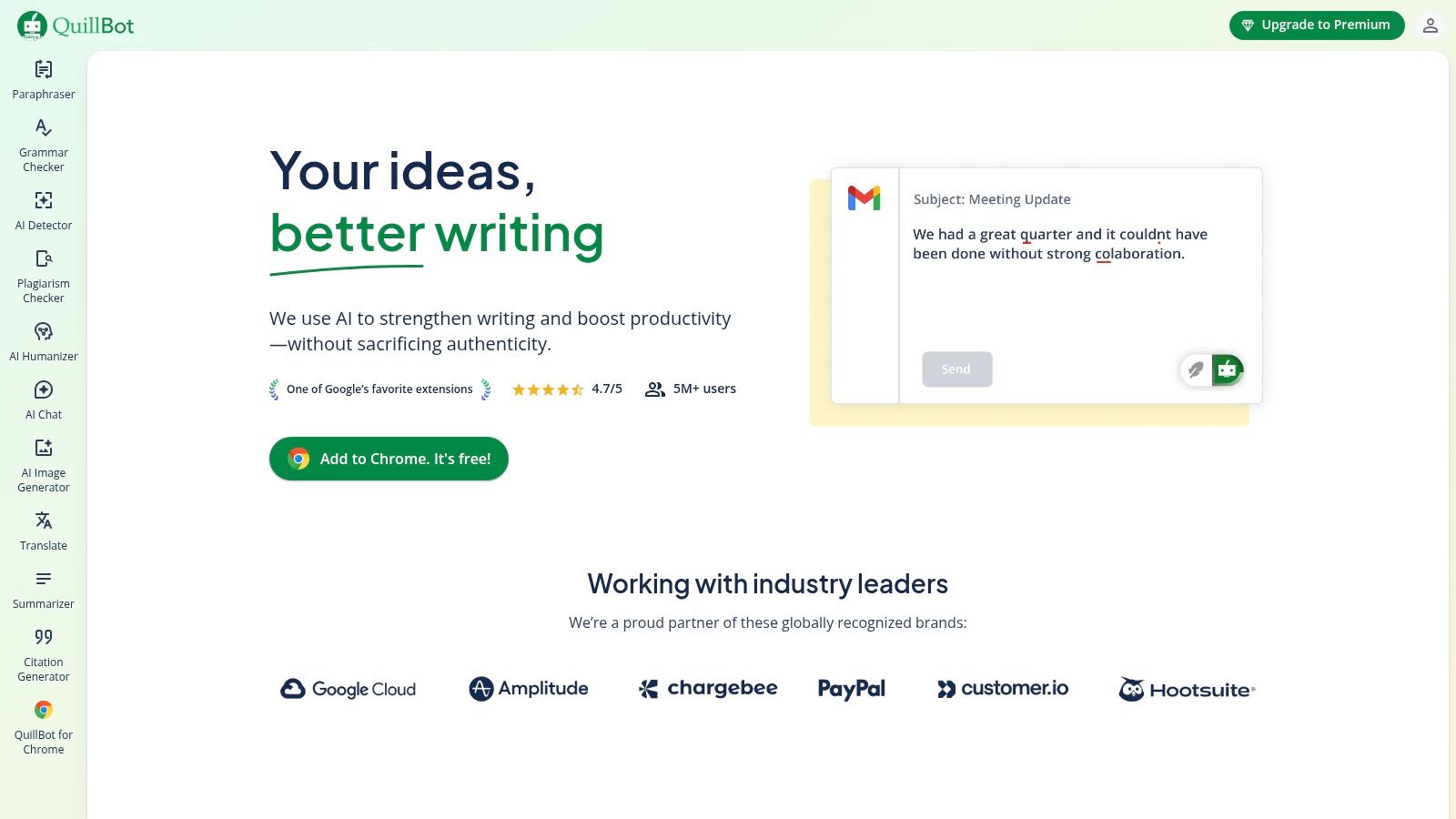
Alt text: QuillBot’s user interface showcasing its paraphrasing tool with multiple modes.
What To Do With This: Step-by-Step Academic Text Rephrasing
Scenario: You are writing a research paper and need to incorporate information from a source without plagiarizing or using awkward phrasing.
- Paste Source Text: Copy the source text you wish to reference and paste it into QuillBot’s Paraphraser tool. Example source: “The rapid proliferation of digital technologies has fundamentally altered the landscape of modern communication.”
- Select Mode: Choose a mode like “Formal” or “Academic” to ensure the output matches the tone of your paper.
- Paraphrase & Refine: Click “Paraphrase” and review the generated text. Example output: “The swift expansion of digital tools has profoundly reshaped the field of contemporary communication.” You can then click on individual words like “swift” to see a list of synonyms (“rapid,” “quick”) and further refine the sentence.
- Cite Your Source: Use the integrated Citation Generator to create a proper APA, MLA, or Chicago style citation for the original source, ensuring you maintain academic integrity.
Actionable Takeaways
- Use the “Synonym” slider to control how much the vocabulary changes, allowing you to fine-tune the output from a simple rephrase to a complete rewrite.
- Install the Word or Google Docs extension to use the paraphraser and grammar checker directly within your writing environment.
- Leverage the Summarizer tool to quickly condense long articles or research papers into key bullet points for faster analysis.
Further Reading
- Tools/Resources: QuillBot’s Official Website
- References: Check out our guide on how to improve writing skills.
7. Notion AI
Notion AI is a powerful assistant deeply integrated into the Notion workspace, transforming it from a mere documentation tool into an active content creation environment. Its core advantage is its native context; it operates directly within your notes, wikis, and project boards, eliminating the need to switch between apps. This makes it an exceptional choice for teams and individuals who already rely on Notion for knowledge management and collaborative workflows.
Rather than being a standalone tool, Notion AI functions as an embedded partner that can summarize meeting notes, draft documents, brainstorm ideas, or even translate text right on the page. For users heavily invested in the Notion ecosystem, it’s an incredibly seamless and efficient way to leverage AI, making it one of the best AI writing assistant options for integrated productivity. It excels at turning scattered thoughts into structured content without ever leaving your central hub.
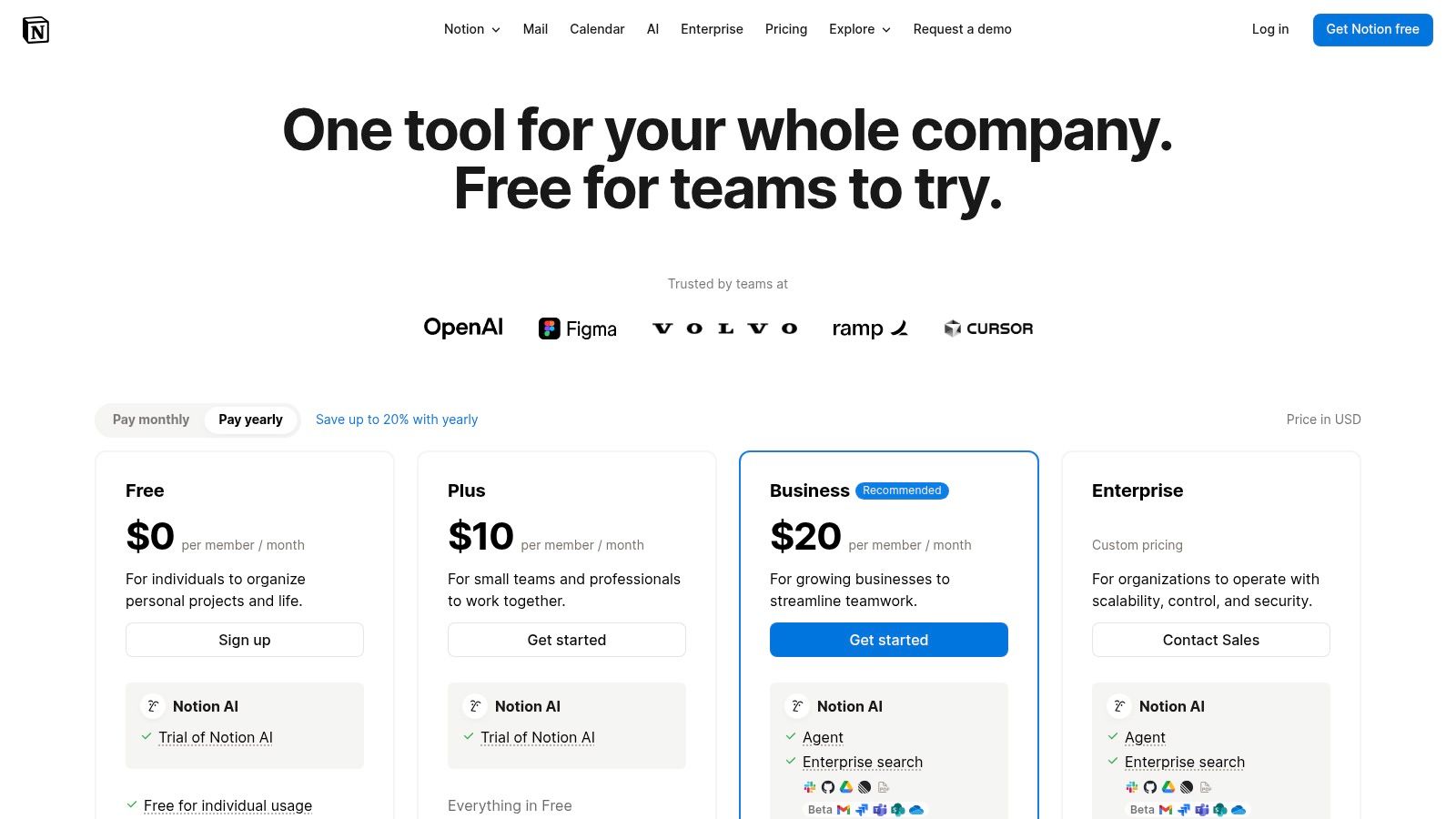
Alt text: Notion AI’s pricing plans, showcasing different tiers for individuals and teams.
What To Do With This: Step-by-Step Meeting Summary Generation
Scenario: You’ve just finished a project kick-off meeting and have a page full of raw, unstructured notes in Notion.
- Open Notion Page: Navigate to the page containing your meeting notes.
- Activate Notion AI: At the bottom of your notes, press the spacebar to bring up the AI prompt.
- Command the AI: Type “Summarize this page” and press Enter. After it generates the summary, type a new command: “Find all action items from the text above and list them with checkboxes.”
- Review & Assign: Notion AI will instantly generate a clean summary and a checklist of action items (e.g.,
☐ David to finalize budget by Friday). You can then tag team members directly on these items to assign responsibility, turning messy notes into a clear, actionable record in seconds.
Actionable Takeaways
- Highlight any text block and use the “Ask AI” menu to instantly improve writing, fix spelling, or change the tone.
- Use the “Help me write” feature on a blank page to brainstorm ideas for blog posts, marketing plans, or meeting agendas.
- For teams, use the Q&A feature to ask questions about your entire workspace and get answers synthesized from your internal documentation.
Further Reading
- Tools/Resources: Notion AI’s Official Website
- References: Notion AI can be a great starting point for drafting content you later refine with tools from our list of free AI writing assistants.
8. Microsoft Copilot (for Microsoft 365)
Microsoft Copilot represents one of the deepest integrations of an AI writing assistant into an existing productivity ecosystem. For users and organizations heavily invested in Microsoft 365, Copilot isn’t just an add-on; it’s a work-grounded partner embedded directly within Word, Outlook, and PowerPoint. Its primary strength is its ability to access and reason over your organizational data, like documents and emails, to generate highly relevant, context-aware content.
This “work-grounded” approach makes it distinct from general-purpose assistants. Instead of just writing, it drafts, summarizes, and transforms content based on your existing work, all while adhering to enterprise-grade security and compliance standards. This makes it a powerful choice for businesses that need a secure AI tool that understands their internal context without requiring a switch to a third-party platform.
Alt text: Microsoft Copilot integrated into Microsoft Word, generating a draft based on a prompt.
What To Do With This: Step-by-Step Project Proposal Drafting
Scenario: You need to create a project proposal in Word, but all the key details are scattered across a presentation and an Excel sheet stored in your OneDrive.
- Open a New Word Document: Create a blank document for your proposal.
- Launch Copilot: Click the Copilot icon in the ribbon to open the sidebar. Use the prompt: “Draft a project proposal based on the files
/Q3_Marketing_Plan.pptxand/Project_Budget.xlsx.” - Review the Draft: Copilot will generate a structured proposal, pulling objectives and timelines from the presentation and financial data from the spreadsheet.
- Refine and Finalize: Use Copilot to polish the draft. Highlight a technical section and command it to “make this more accessible for a non-technical audience.” Then, ask it to “summarize the key takeaways in a bulleted list” for an executive summary. This turns hours of data consolidation into a quick, AI-assisted drafting session.
Actionable Takeaways
- In Outlook, use Copilot to summarize long email threads into bullet points to quickly get up to speed.
- In PowerPoint, provide a Word document and ask Copilot to generate a presentation, complete with speaker notes.
- Use the “Coach” feature in Outlook to get feedback on the tone and clarity of your emails before sending them.
Further Reading
- Tools/Resources: Microsoft Copilot for Microsoft 365
- References: Understanding AI in content creation helps maximize tools like Copilot.
9. Google Gemini (Google AI Pro/Ultra)
Google Gemini is the tech giant’s direct answer to the demand for a powerful, integrated AI assistant. Its primary strength lies in its deep integration within the Google ecosystem, particularly for users of Workspace and Google One. It’s designed to be a research and creation partner, embedded directly into tools like Gmail and Google Docs, reducing the need to switch contexts when drafting content or synthesizing information.
For users heavily invested in Google’s suite of products, Gemini provides a native and increasingly sophisticated writing experience. While the base model is a capable generalist, the paid tiers (Pro and the upcoming Ultra) unlock advanced capabilities like long-context understanding and deep research, positioning it as a strong contender for those who need a powerful research and first-draft tool built into their existing workflow.
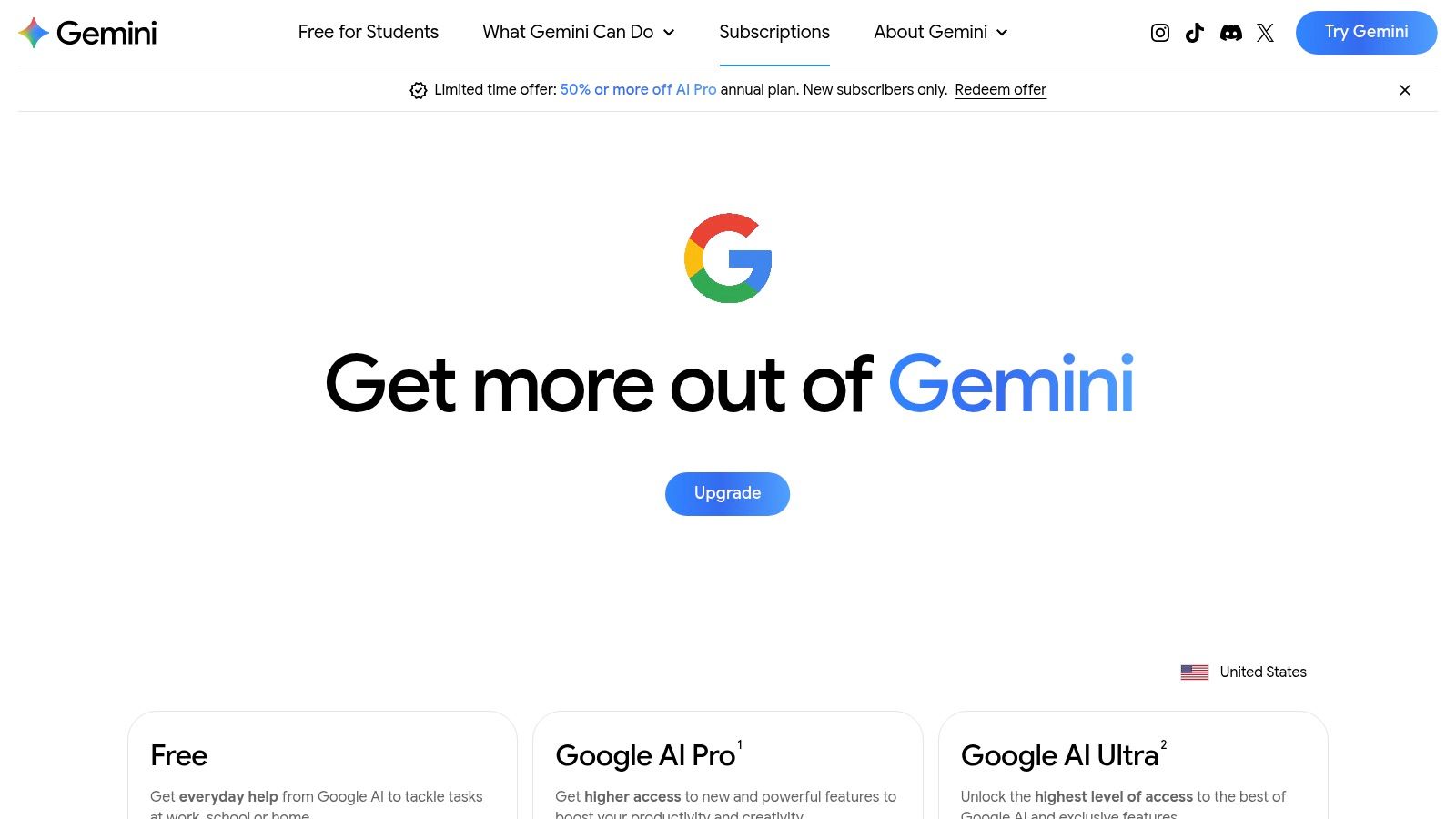
Alt text: The Google Gemini subscription page showing different tiers like Gemini Advanced.
What To Do With This: Step-by-Step Blog Post Research and Drafting
Scenario: You need to write a blog post about the impact of quantum computing on cybersecurity.
- Start in Google Docs: Open a new document for your blog post.
- Generate an Outline: Use the “Help me write” feature (Gemini icon) and prompt it: “Draft an outline for a blog post about the impact of quantum computing on modern encryption standards.”
- Expand a Section: Choose a section from the generated outline, such as “The Threat of Shor’s Algorithm.” Highlight it and prompt Gemini: “Expand on this point, explaining Shor’s Algorithm in simple terms and its risk to RSA encryption.”
- Refine and Edit: Gemini will generate a detailed paragraph. You can then use further prompts to “simplify the language,” “adjust the tone to be more accessible,” or “add a real-world analogy,” streamlining the research and drafting process entirely within Docs.
Actionable Takeaways
- In Gmail, use Gemini to draft professional replies based on the context of an email thread.
- In Google Sheets, use the “Help me organize” feature to automatically create tables and plans from unstructured data.
- Use the standalone Gemini web app for complex research queries that can draw on real-time information from Google Search.
Further Reading
- Tools/Resources: Google Gemini Official Site
- References: Master these techniques with our prompt engineering guides.
10. Rytr
Rytr positions itself as a highly accessible and budget-friendly AI writing assistant, making it a popular choice for freelancers, bloggers, and small businesses. Its core strength lies in a straightforward, template-driven approach. Instead of a complex, open-ended prompt interface, users select a specific use case, like a blog post outline or a social media ad, provide minimal input, and receive structured content almost instantly. This simplicity makes it an excellent tool for those who need to produce high-volume, short-form content quickly without a steep learning curve.
The platform is designed for speed and efficiency, offering a clean interface that prioritizes function over flair. While it may not have the advanced brand governance or deep analytical features of enterprise-level solutions, Rytr provides remarkable value, especially with its generous unlimited-generation plans. It is a solid contender for anyone seeking a no-fuss, cost-effective tool to overcome writer’s block and accelerate content production.
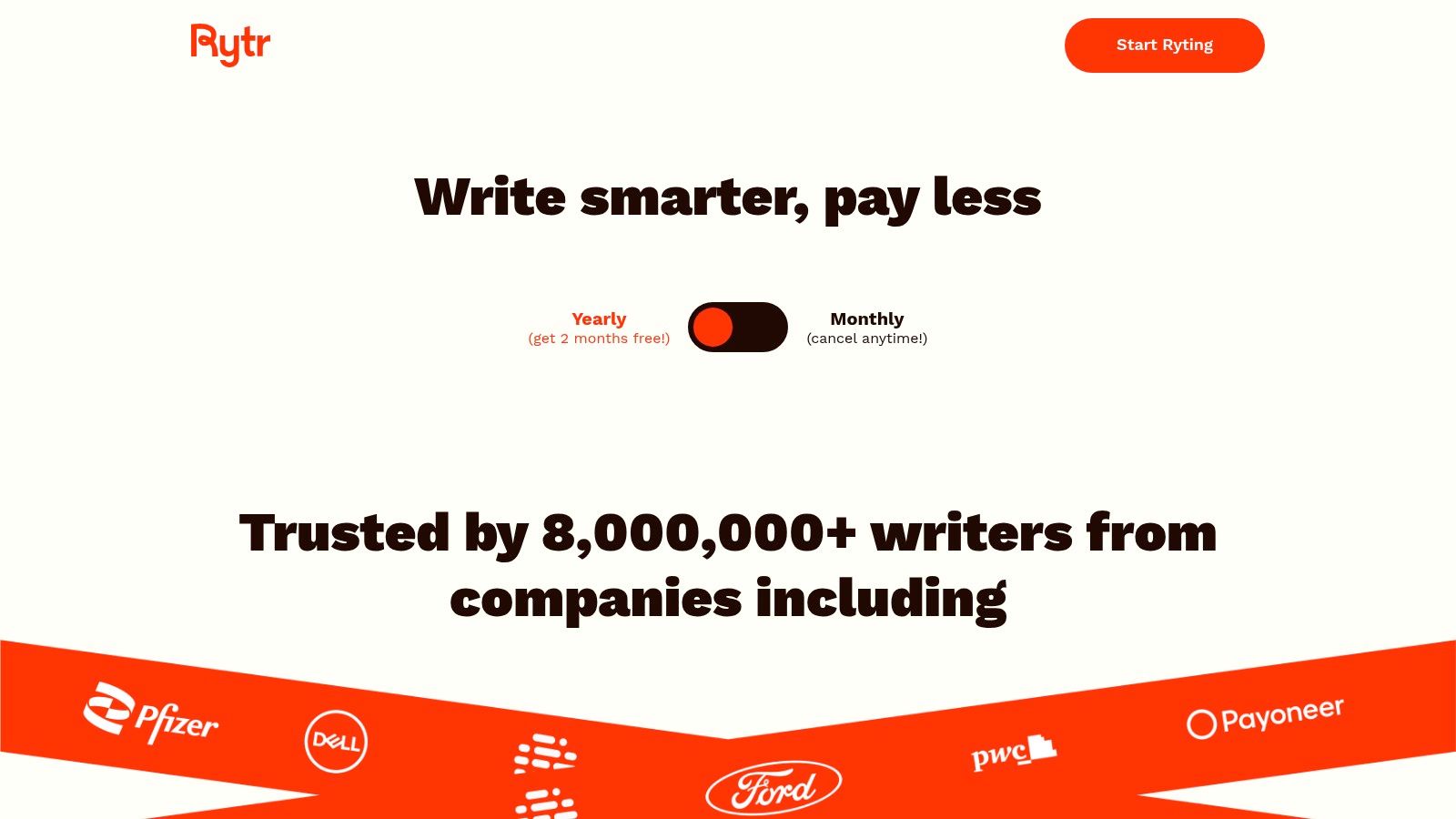
Alt text: Rytr’s interface showing its template-based workflow for generating various content types.
What To Do With This: Step-by-Step Social Media Ad Copy Generation
Scenario: You need to create several variations of a Facebook ad to promote a new online course on digital marketing.
- Select Use Case: In the Rytr dashboard, choose the “Facebook, Twitter, LinkedIn Ads” use case from the dropdown menu.
- Provide Input: Enter a brief product description, such as “A comprehensive online course covering SEO, content marketing, and social media strategy for beginners.”
- Choose Tone & Variants: Select a “Convincing” tone and set the number of variants to three. Click “Ryte for me.”
- Review & Refine: Rytr will instantly generate three distinct ad copy options. You can then edit them directly, mix and match elements, or use the built-in “rephrase” or “shorten” tools to polish the final versions before launching your campaign.
Actionable Takeaways
- Use the “Blog Idea & Outline” use case to generate dozens of content ideas and structures in minutes.
- Select a specific tone (e.g., “Humorous,” “Inspirational”) to instantly change the flavor of your content.
- Leverage the built-in plagiarism checker (on paid plans) to ensure the originality of your AI-generated content.
Further Reading
- Tools/Resources: Rytr pricing page
- References: See how it stacks up against other options in our guide to free AI writing assistants.
11. Sudowrite
Sudowrite carves out a unique niche in the AI writing assistant landscape by focusing exclusively on creative writing. It’s not built for marketers or business analysts; instead, it’s a dedicated partner for novelists, screenwriters, and storytellers. This platform provides genre-aware tools designed to break writer’s block, expand on ideas, and refine prose, acting as a brainstorming companion rather than just a content generator. Its strength lies in understanding the nuances of narrative structure, character development, and descriptive language.
For authors struggling with a specific scene or needing to flesh out a plot point, Sudowrite offers specialized features that generic AI tools lack. It can describe a scene through a character’s senses, suggest plot twists, or rewrite a paragraph in a different literary style. This makes it an indispensable tool for long-form fiction, where maintaining a consistent voice and creative momentum is paramount.
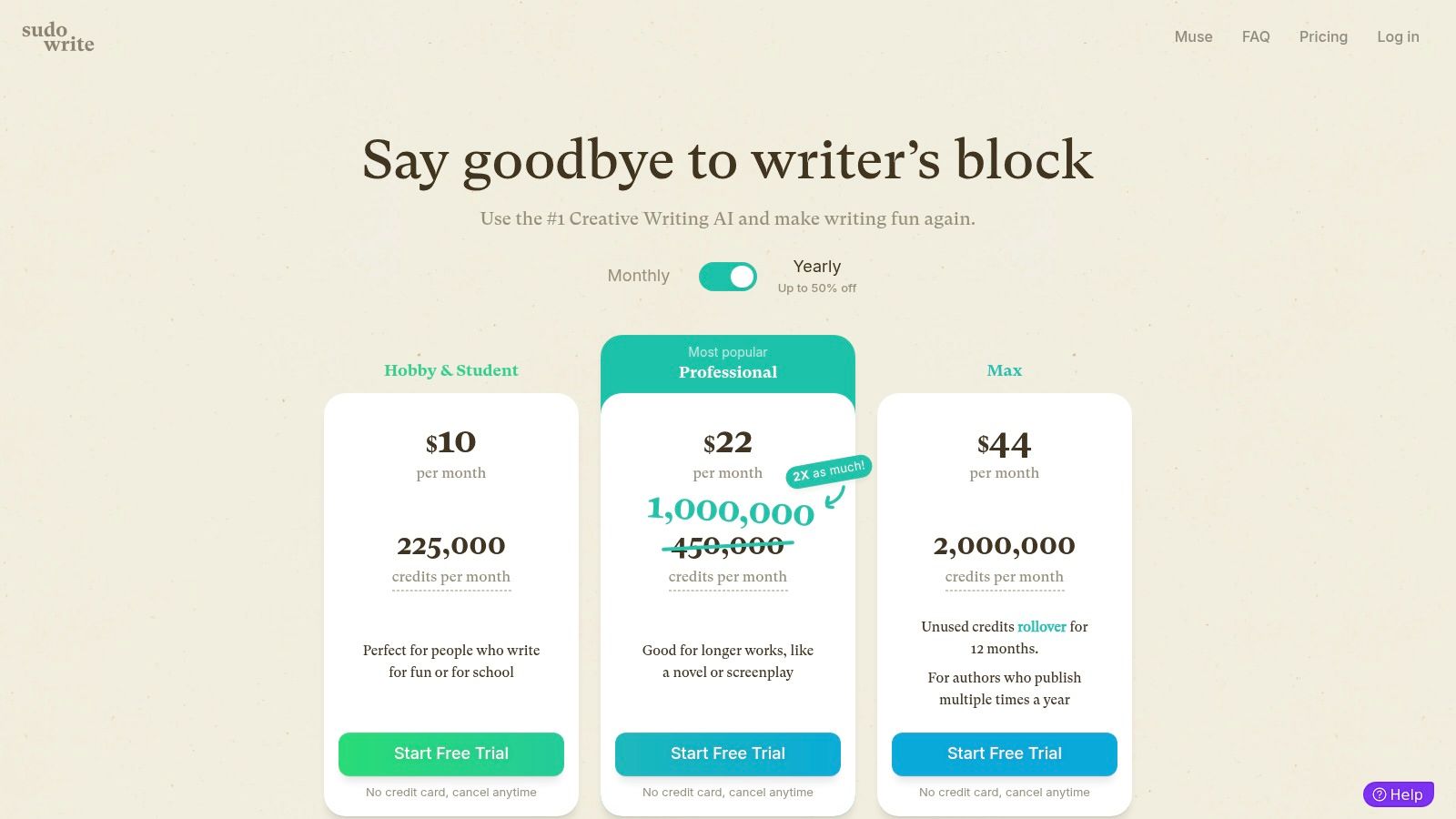
Alt text: Sudowrite pricing plans page showing Hobby, Pro, and Max tiers.
What To Do With This: Step-by-Step to Overcome Writer’s Block
Scenario: You’re writing a fantasy novel and your main character enters a mysterious, ancient forest, but you’re struggling to describe it vividly.
- Write a Basic Sentence: Start with a simple sentence in the Sudowrite editor, like “Elara walked into the forest.”
- Use the Describe Tool: Highlight the sentence and click the “Describe” button. Select the “Five Senses” option.
- Generate Descriptions: Sudowrite will generate paragraphs detailing what Elara sees (motes of dust dancing in slivers of light), hears (the scuttling of unseen things), smells (damp earth and decay), feels (the chill air on her skin), and even tastes (the metallic tang of fear).
- Integrate and Refine: Select the best generated phrases and descriptions, editing them to fit your character’s voice and the story’s tone. This instantly transforms a flat moment into an immersive experience for the reader.
Actionable Takeaways
- Use the “Brainstorm” feature to generate lists of character names, plot twists, or magic items relevant to your genre.
- When you get stuck, use the “Write” button to see several different AI-generated continuations of your last sentence.
- Leverage the “Rewrite” tool to rephrase a clunky paragraph, making it more concise, descriptive, or intense.
Further Reading
- Tools/Resources: Sudowrite’s Official Website
- References: For non-fiction writers, tools like RichlyAI might be a better fit for content generation.
12. OpenAI ChatGPT
OpenAI’s ChatGPT is the general-purpose conversational AI that brought large language models into the mainstream. While not a dedicated writing app, its versatility makes it an indispensable tool for drafting, brainstorming, summarizing, and refining text. Its core strength lies in its powerful, state-of-the-art models (like GPT-4) that can handle a vast range of writing tasks, from generating creative story plots to drafting complex technical documents.
ChatGPT excels as a creative partner and research assistant. It’s ideal for users who need to quickly generate ideas, outlines, or first drafts from a simple prompt. Unlike specialized editors, its power is in its flexibility; you can ask it to adopt any persona, explain complex topics simply, or translate text, making it a powerful foundation for any writing project. For anyone serious about leveraging AI, mastering its conversational interface is key.
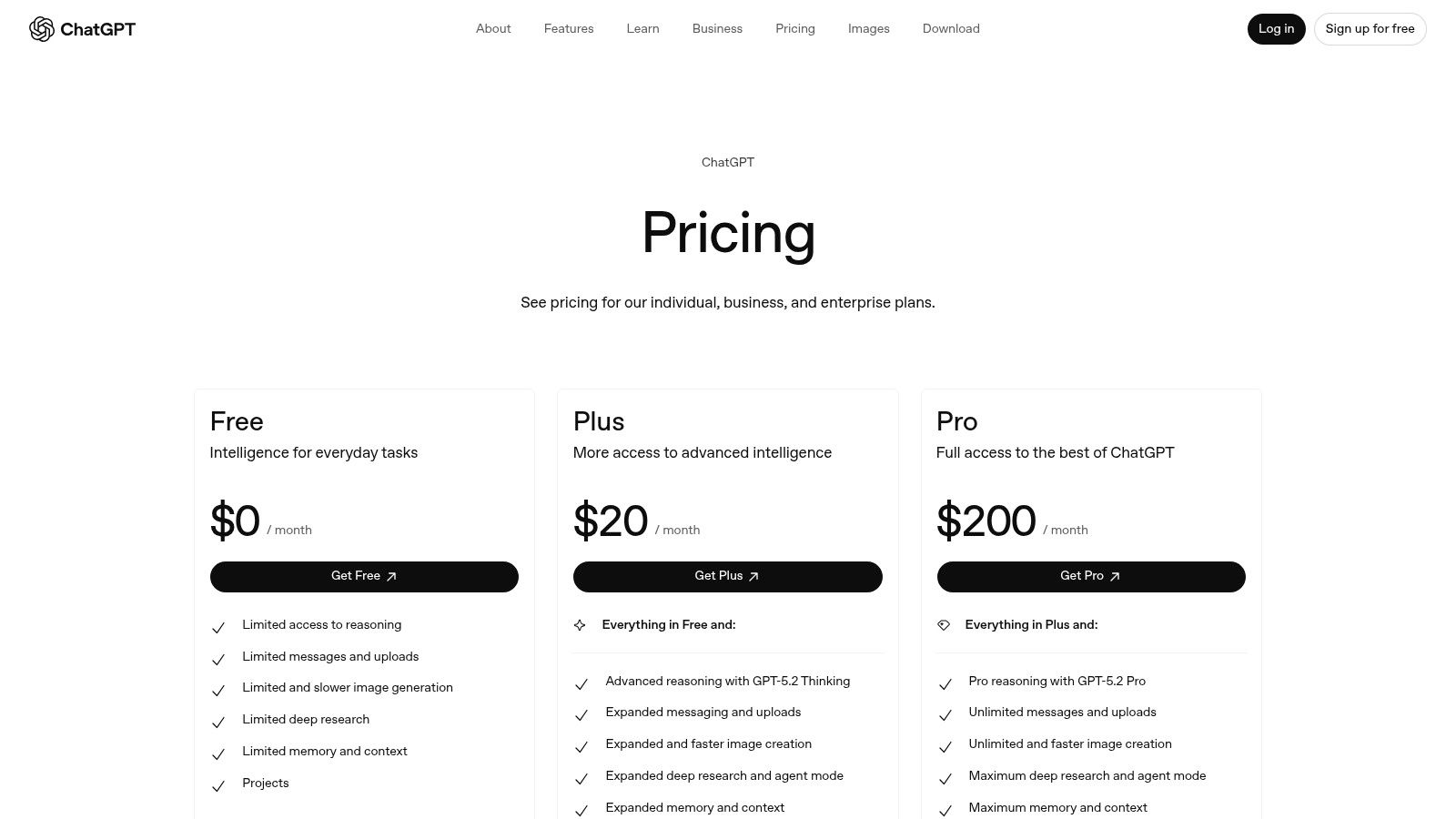
Alt text: The pricing page for OpenAI ChatGPT, showing Free, Plus, and Team plans.
What To Do With This: Step-by-Step Blog Post Outline Creation
Scenario: You need to structure a detailed blog post about the benefits of remote work for small businesses.
- Initial Prompt: Start with a clear instruction: “Act as a content strategist. Create a detailed blog post outline for the topic ‘The Top 5 Benefits of Remote Work for Small Businesses.’ Include an introduction with a hook, a section for each benefit with 3 talking points, and a conclusion with a call to action.”
- Refine the Outline: ChatGPT will generate a structured outline. You can then refine it with a follow-up prompt: “For the ‘Cost Savings’ benefit, expand on the talking points with specific examples like reduced office rent, lower utility bills, and access to a wider talent pool without geographic salary adjustments.”
- Draft a Section: Pick a section from the refined outline and command ChatGPT to write a draft. For example: “Write an engaging 150-word introduction for this blog post based on the outline. Start with a surprising statistic about remote work adoption.” This iterative process helps you build content piece by piece.
Actionable Takeaways
- Use custom instructions to tell ChatGPT about your role and preferred writing style so it remembers your context in every conversation.
- On paid plans, upload a PDF or spreadsheet and ask ChatGPT to analyze the data and write a summary.
- Use the voice feature on the mobile app to brainstorm ideas verbally while you’re on the go.
Further Reading
- Tools/Resources: OpenAI’s Official Website for ChatGPT
- References: To get the most out of ChatGPT, study these prompt engineering guides.
Top 12 AI Writing Assistants — Quick Comparison
| Product | Core features (✨) | Quality (★) | Price/Value (💰) | Target audience (👥) |
|---|---|---|---|---|
| 🏆 RichlyAI | ✨ Multi‑modal studio: text, images, audio, video, code, chatbots + AI Tools Hub (11k tools) | ★★★★★ | 💰 Free‑forever plan + paid upgrades | 👥 Marketers, creators, developers, solopreneurs |
| Grammarly | ✨ Real‑time grammar, clarity, tone, rewriting; wide app integrations | ★★★★☆ | 💰 Free + clear paid tiers | 👥 Writers, professionals, teams |
| Jasper | ✨ Long‑form Canvas, Brand Voices, campaign workflows, API | ★★★★ | 💰 Per‑seat pricing; business tiers | 👥 Marketing teams, agencies |
| Writesonic | ✨ 100+ templates (blogs/ads), multi‑language, scalable word plans | ★★★★ | 💰 Competitive entry; credit/word limits | 👥 Solo creators, small agencies |
| Copy.ai | ✨ Multi‑model chat, agents & workflow automations | ★★★★ | 💰 Seat & credit tiers; Agents plan pricier | 👥 Marketing teams, automation users |
| QuillBot | ✨ Paraphraser, summarizer, plagiarism check, integrations | ★★★★ | 💰 Free + Premium (clear limits) | 👥 Students, researchers |
| Notion AI | ✨ Native AI in pages: writing, notes, research, collaboration | ★★★★ | 💰 Add‑on; Business/Enterprise for full features | 👥 Notion users, teams |
| Microsoft Copilot (M365) | ✨ In‑app drafting across Word/Outlook/Excel + Copilot Chat | ★★★★★ | 💰 Requires Microsoft 365; premium tiers | 👥 Enterprises, Office users |
| Google Gemini | ✨ Drafting in Gmail/Docs, Deep Research, Canvas, media credits | ★★★★ | 💰 Pro/Ultra paid tiers + credits | 👥 Google Workspace users, researchers |
| Rytr | ✨ Template‑based writing, unlimited plans, multi‑tone support | ★★★ | 💰 Very low entry pricing; unlimited options | 👥 Freelancers, students, budget users |
| Sudowrite | ✨ Genre‑aware brainstorming, plotting, chapter tools for fiction | ★★★★ | 💰 Credit tiers; author‑focused pricing | 👥 Novelists, creative writers |
| OpenAI ChatGPT | ✨ Latest models, voice/image/file support, custom GPTs & projects | ★★★★★ | 💰 Free tier + Plus/Enterprise plans | 👥 Broad: developers, teams, creators |
Your Next Step: Supercharge Your Writing with AI
We’ve journeyed through a comprehensive landscape of AI writing assistants, from versatile powerhouses like RichlyAI and Jasper to specialized tools like Grammarly for polish and Sudowrite for creative fiction. The core takeaway is clear: the era of purely manual writing is over. The question is no longer if you should use an AI writing assistant, but which one will become your indispensable co-pilot.
The perfect tool is not a one-size-fits-all solution; it’s a deeply personal choice that hinges on your specific workflow, goals, and budget. For a marketing team, the robust brand voice controls and collaboration features of a tool like Jasper or Writesonic might be non-negotiable. Conversely, a student or researcher might find QuillBot’s paraphrasing and citation tools invaluable for academic integrity.
Ultimately, the best AI writing assistant for you is the one that seamlessly integrates into your existing processes, reduces friction, and elevates your output without sacrificing your unique voice. It should feel less like a machine you’re commanding and more like a partner you’re collaborating with.
How to Choose Your Ideal AI Writing Partner
Selecting the right tool can feel overwhelming, but you can simplify the process by focusing on your primary needs. Use this framework to guide your decision and move from analysis to action.
- Identify Your Core Task: What is the single most time-consuming writing task you perform? Is it drafting initial blog posts, polishing emails for clarity, generating ad copy variations, or summarizing research? Pinpoint this primary use case first.
- Define Your “Best-For” Category: Based on our article, which user profile do you most closely align with? Are you a content marketer needing SEO optimization (RichlyAI, Jasper), a developer documenting code (Copilot, Gemini), a novelist battling writer’s block (Sudowrite), or an academic striving for precision (Grammarly, QuillBot)? Let this guide your shortlist.
- Test with a Real-World Project: Nearly every tool on our list offers a free trial or a freemium plan. Don’t just test with generic prompts. Take a real project you’re currently working on-a blog post, a marketing email, a report-and try to complete it using your top two or three contenders. This hands-on experience is the ultimate tiebreaker.
- Evaluate the Workflow Integration: How easily does the tool fit into your daily routine? Does it require constant tab-switching, or does it offer a browser extension or native app integration that makes it invisible? The less friction, the more likely you are to use it consistently. Consider how tools like Notion AI or Microsoft Copilot shine by living directly within your existing workspace.
Actionable Takeaways: Your Next Steps
Before you close this tab, commit to taking immediate action. The true value of these tools is only unlocked through implementation.
- Start a Free Trial Today: Pick one tool from this list that best matches your primary need and sign up for its free trial or plan right now.
- Assign It a Specific Task: Give the AI a small, concrete task from your to-do list, such as “Write three alternative headlines for my latest article” or “Summarize this 2,000-word report into five bullet points.”
- Analyze the Output Critically: Review the AI’s work. How much editing was required? Did it capture the intended tone? Use this first-hand experience to judge its true utility.
- Explore One Advanced Feature: Push beyond basic generation. Try a feature you haven’t used before, like creating a custom template, using a brand voice feature, or connecting it to a real-time data source.
The journey to finding the best AI writing assistant is an investment in your own productivity and creativity. By taking a strategic, hands-on approach, you can move from being a writer to being an editor-in-chief, guiding powerful technology to produce exceptional content faster than ever before. The future of writing is a partnership, and your AI co-pilot is waiting.
Ready to experience a tool that combines powerful, high-quality content generation with an intuitive workflow designed for professionals? RichlyAI offers a comprehensive suite of features to help you create everything from SEO-optimized blog posts to compelling marketing copy with unparalleled speed and control. See how the best AI writing assistant can transform your process by trying RichlyAI today.
