
The world of video creation is undergoing a fundamental shift. What once required expensive equipment, specialized software, and days of production can now be accomplished in minutes from a web browser. AI video generation has moved from a niche experiment to an essential tool for marketers, educators, and creators seeking to produce high-quality content with unprecedented speed and cost-efficiency. The core problem these platforms solve is the bottleneck of traditional video production, opening up new creative and commercial possibilities.
This guide is designed to be a practical buyer’s resource, not just another list. We cut through the hype to provide a detailed analysis of the best AI video generators available today. To help you find the perfect fit, we’ve organized the tools into two primary categories that address distinct needs:
- Generative Text/Image-to-Video: These tools, like Runway and Pika, create entirely new video scenes from simple text prompts or static images. They are ideal for original storytelling, artistic expression, and creating unique b-roll.
- AI Presenter & Avatar Video: Platforms such as Synthesia and HeyGen specialize in turning scripts into polished videos featuring realistic AI avatars. This is perfect for corporate training, marketing explainers, and multilingual content localization without ever needing a camera.
Throughout this comprehensive roundup, you will find detailed breakdowns of each tool, including its standout features, pricing, ideal use cases, pros, and cons. We’ve included screenshots and direct links to help your evaluation. By the end of this article, you will have a clear framework for selecting the AI video generator that aligns perfectly with your specific project goals, budget, and technical comfort level.
1. Ai Tools – Best Ai Video Generators
For those navigating the crowded market of video automation, the Ai Tools – Best Ai Video Generators hub by RichlyAI is less a single tool and more of an indispensable command center. Instead of offering one specific video generation model, it provides a curated, searchable directory of the industry’s top solutions. This makes it a powerful starting point for anyone from marketers to developers looking to find the right tool without endless searching.
The platform’s core strength lies in its actionable comparison data. Each listing is equipped with screenshots, feature highlights, and direct vendor links, allowing for rapid, side-by-side evaluations. This approach streamlines the decision-making process, transforming a weeks-long research project into a focused afternoon of discovery and testing.
Why It Stands Out
What truly distinguishes this resource is its practical integration with RichlyAI’s broader ecosystem. It’s not just a static list; it’s a dynamic launchpad. You can move from discovering a tool to actively testing its capabilities and generating assets within the same environment. This integrated workflow is invaluable for rapid prototyping and validating if a tool fits your specific needs before committing. Its comprehensive scope, drawing from a database of over 11,000 AI tools, ensures the selections remain current and reflective of the latest market innovations, offering a reliable source for anyone serious about leveraging AI for content creation.
Actionable Takeaways
- Start Here for Research: Use this hub as your initial step to map out the current landscape of the best AI video generators and shortlist 3-4 candidates.
- Leverage Comparison Data: Focus on the feature highlights and screenshots to quickly compare tools that fit your specific use case, such as text-to-video or avatar generation.
- Test Before You Commit: Take advantage of the platform’s workflow integrations to rapidly prototype a video concept and confirm a tool’s suitability.
Website: AI Tools Hub
2. Runway
Runway positions itself as a comprehensive, full-stack creative suite for generative video, making it a powerful contender among the best AI video generators. It’s far more than a simple text-to-video tool; it’s an ecosystem designed for creators and professional studios who need a robust set of features for complex projects. The platform is known for its frequent and significant model updates, evolving from Gen-3 to the current Gen-4.5, which consistently pushes the boundaries of AI video quality and coherence.
This suite offers text-to-video and image-to-video generation, performance capture tools like Act-Two for character animation, and an integrated editing workflow. This makes it ideal for users who want to conceptualize, generate, and refine video content all within a single environment. The collaborative workspaces and substantial asset storage cater directly to teams and enterprise-level production needs, setting it apart from more consumer-focused tools.
Practical Example: Creating a Product B-Roll Clip
A marketing team needs a short, atmospheric video for a new coffee brand. Instead of a costly photoshoot, they use Runway.
- Generate Base Image: They start with an AI image generator, creating a high-quality photo of their coffee bag on a rustic wooden table.
- Upload to Runway: They upload this image to Runway’s Image-to-Video tool.
- Add a Prompt: They use the prompt: “Steam gently rises from a coffee cup next to the bag, morning light streams through a window, slow-motion.”
- Generate & Refine: Runway generates a 4-second clip. They use the “Extend” feature to make it 8 seconds long and add it to their promotional video.
Navigating the Platform
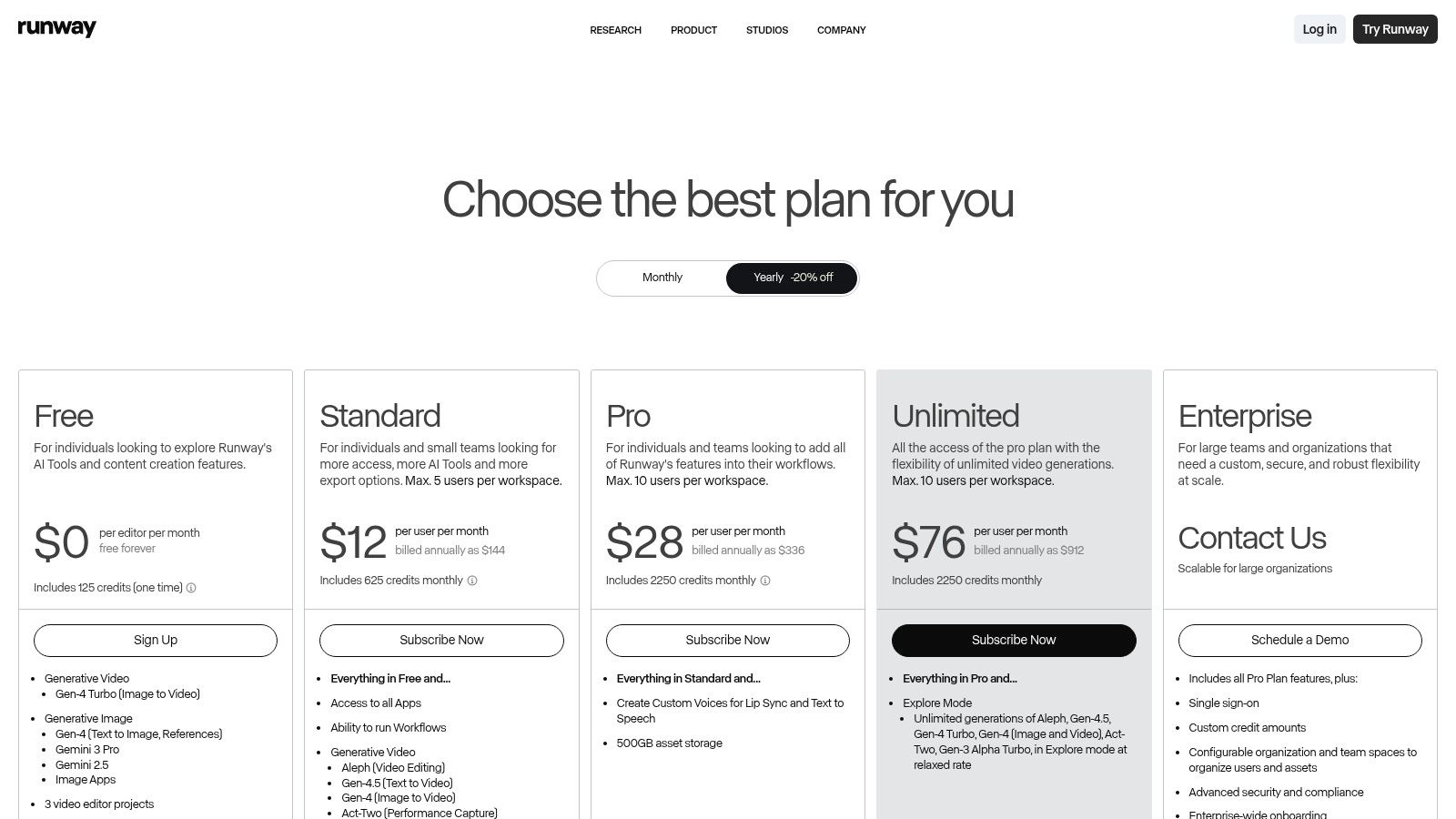
Runway’s interface is professional and feature-rich, which can feel complex at first. The credit-based system requires some getting used to; each generation or tool usage deducts a specific number of credits, with costs varying by the model and settings used. While the “Unlimited” plan offers great value, it defaults to a slower “relaxed/explore” rendering mode, so users needing the fastest output will still consume credits. For mastering outputs, learning more about Runway’s prompt engineering can significantly improve the quality and accuracy of your generated videos.
| Feature | Free Plan | Standard ($15/mo) | Pro ($35/mo) | Unlimited ($95/mo) |
|---|---|---|---|---|
| Credits/Month | 125 | 625 | 1250 | 2250 |
| Video Generation | Gen-1, Gen-2 | Gen-1, Gen-2 | All Models | All Models |
| AI Magic Tools | Limited | Standard | Advanced | Full Access |
| Asset Storage | 5GB | 100GB | 500GB | 2TB |
| Team Collaboration | No | No | 3 Seats | 5 Seats |
Actionable Takeaways
- Prototype with Image-to-Video: Start with a static image to guide the AI, giving you more control over the final scene’s composition.
- Use Motion Brush: Don’t re-generate an entire clip. Use the Motion Brush tool to add movement to specific areas of your video (like clouds or water) for a more refined result.
- Master Prompting: Invest time in learning prompt structure. Combine subject, action, environment, and style (e.g., “cinematic,” “drone shot”) for better outputs.
Website: https://runwayml.com/pricing
3. Pika
Pika establishes itself as a highly accessible and creative-focused AI video generator, making it a strong choice for social media creators, artists, and those looking for rapid ideation. It emphasizes a user-friendly experience that encourages experimentation through text, image, and even video-to-video generation. The platform is designed for producing short, dynamic clips and stands out with its suite of easy-to-use creative tools that allow users to modify and enhance their creations on the fly.
Unlike more technically complex platforms, Pika prioritizes speed and creative iteration. Its toolset, featuring options to add effects, expand the canvas, or alter specific elements, is geared towards producing visually engaging short-form content quickly. This makes it one of the best AI video generators for users who want to transform a simple idea into a polished clip without a steep learning curve or professional editing software.
Practical Example: Animating a Logo for Social Media
A startup wants an animated version of its logo for Instagram Reels.
- Upload Logo: They upload their static PNG logo (with a transparent background) to Pika.
- Enter Prompt: They type the prompt: “The logo slowly rotates and glimmers with a subtle golden light, cinematic.”
- Add Camera Motion: They use Pika’s built-in controls to add a “slow zoom out” effect.
- Extend & Export: The initial 3-second clip looks good. They use the “Add 4s” button to extend it and then export the final video for their social media channels.
Navigating the Platform
Pika offers a straightforward, web-based interface that feels more like a creative app than a complex software suite. Its credit-based system is easy to understand, with different modes like Turbo and Pro consuming credits at different rates for faster or higher-quality results. The free plan provides a generous starting point for experimentation, while paid tiers unlock commercial use rights, remove watermarks, and offer a larger pool of monthly credits, making them suitable for professional creators and marketers. You can find more info on AI image generation to create your source material.
| Feature | Free Plan | Standard ($10/mo) | Pro ($58/mo) |
|---|---|---|---|
| Credits/Month | 300 | 700 | 2,000 |
| Generation Mode | Standard | Standard | Turbo & Standard |
| Watermark | Pika Watermark | No Watermark | No Watermark |
| Commercial Use | No | Yes | Yes |
| Upscale & Extend | Limited | Included | Included |
Actionable Takeaways
- Use Video-to-Video: To change the style of an existing clip, upload it and use a prompt like “Turn this into a vintage 1980s anime style.”
- Modify Region: If only part of your video is wrong (e.g., a character’s face), use the “Modify Region” tool to select that area and re-generate just that part, saving credits.
- Expand Canvas: Start with a standard 16:9 video, then use the “Expand Canvas” tool to reformat it to 9:16 for TikTok or Reels without losing the core subject.
Website: https://pika.art
4. Luma AI – Dream Machine
Luma AI’s Dream Machine has rapidly emerged as a formidable player among the best AI video generators, celebrated for its high-fidelity, photorealistic outputs. It leverages its proprietary Ray series models to generate stunningly coherent and detailed short clips from both text and images. The platform is engineered for creators who prioritize visual quality and dynamic, cinematic motion, making it an excellent choice for producing short-form content, artistic visuals, and conceptual animations.
Its standout “Modify” mode is a game-changer, allowing users to transform live-action footage while preserving the original performance and camera movement. This feature bridges the gap between raw generation and post-production, offering a unique tool for rotoscoping-style effects and creative video transformations. Luma AI also stands out for its transparent credit system, which clearly documents the cost of each generation based on quality, duration, and resolution.
Practical Example: Creating a Cinematic Title Sequence
A filmmaker wants to create a dreamy, abstract opening sequence for a short film.
- Write a Descriptive Prompt: They enter a detailed prompt into Dream Machine: “A single red leaf slowly falls through a dense, foggy forest. Sunbeams pierce through the canopy. Cinematic, hyper-realistic, slow motion, rack focus.”
- Generate in Draft Mode: They first generate a “Draft” version to check the composition and motion. This costs fewer credits.
- Refine and Extend: The draft looks promising. They refine the prompt slightly for more dramatic lighting and then generate the final version in high quality.
- Chain Clips Together: They generate two more related clips (e.g., the leaf landing in a puddle) and edit them together in external software to create a 15-second sequence.
Navigating the Platform
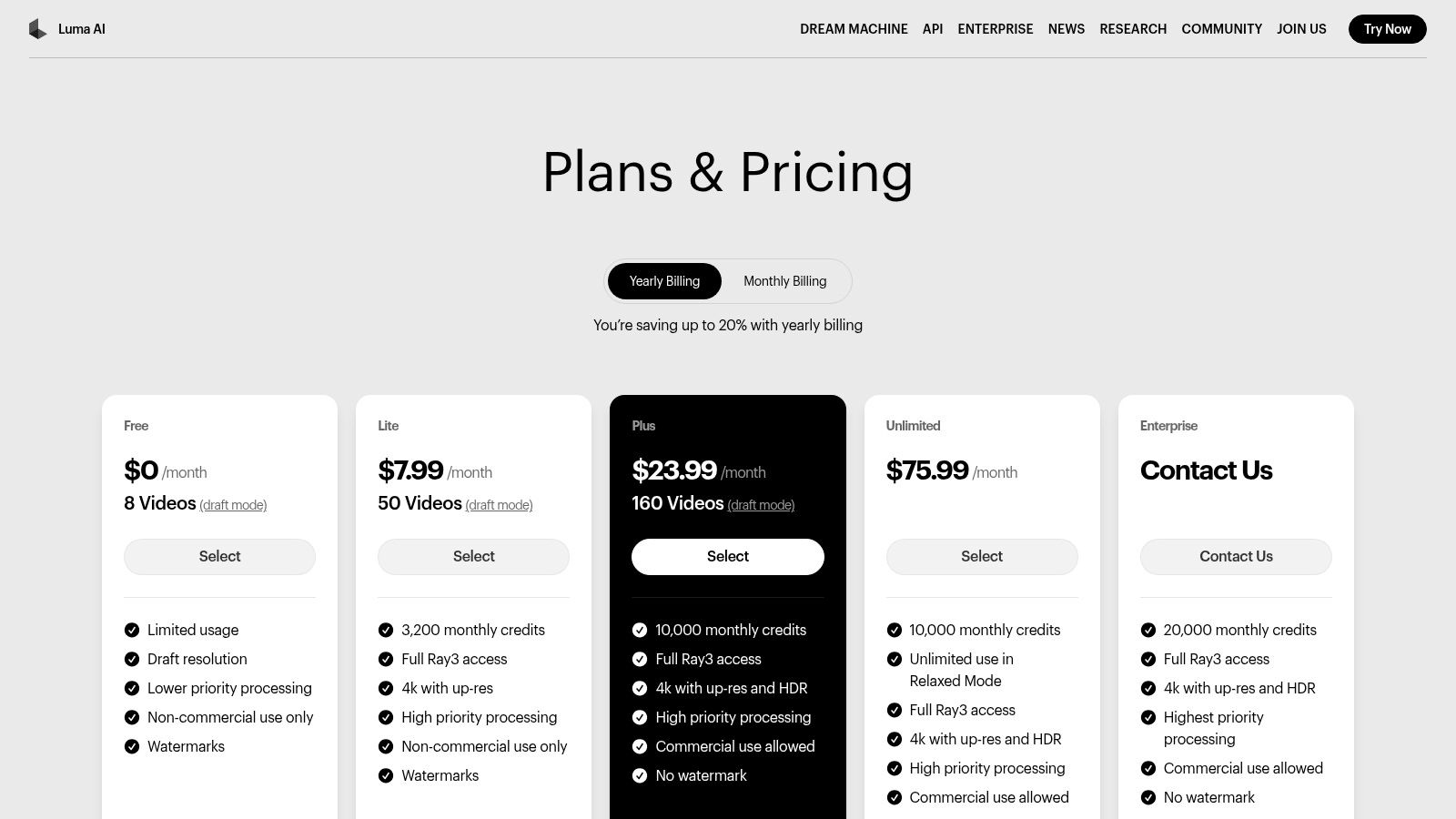
Luma AI’s interface is clean and user-friendly, centered around a simple prompt bar. The credit system is straightforward: each video generation deducts credits based on its settings. For example, a standard 10-second generation might cost 10 credits, while a high-quality one could cost more. This transparency helps you plan your usage and decide when to opt for faster drafts versus polished final clips. To get the most out of the platform, start with simple, descriptive prompts and iterate, using the “Extend” feature to build longer scenes.
| Feature | Free Plan | Standard ($30/mo) | Pro ($100/mo) | Premier ($500/mo) |
|---|---|---|---|---|
| Credits/Month | 30 | 400 | 2,000 | 10,000 |
| Generations/Day | 10 | 100 | 500 | 2,000 |
| Priority Queue | No | No | Yes | Yes |
| Commercial Use | No | Yes | Yes | Yes |
| API Access | No | No | No | Yes |
Actionable Takeaways
- Use Negative Prompts: Add a negative prompt (e.g.,
-neg ugly, blurry, watermark) to tell the AI what to avoid, improving the quality of your output. - Generate Drafts First: Always generate low-credit “Draft” versions to test your ideas before committing credits to a high-quality final render.
- Leverage Modify Mode: Film a short clip of yourself on your phone and use the “Modify” mode with a prompt like “Turn this into a bronze statue” for unique effects.
Website: https://lumalabs.ai/pricing
5. Synthesia
Synthesia has carved out a distinct niche among the best AI video generators by focusing on polished, avatar-based video production for corporate use cases. Instead of generating abstract scenes, it excels at creating professional-looking training videos, internal communications, and how-to guides featuring realistic AI presenters. This makes it an ideal solution for businesses that need to scale video content creation without the logistical overhead of studios, cameras, and actors.
The platform is built around a library of stock AI avatars and an intuitive script-to-video workflow. Its strength lies in its enterprise-ready features, including robust security, collaboration tools, and support for over 120 languages, making it a go-to for global organizations. Synthesia’s commitment to ethical AI, using only professionally licensed actors for its avatars, also provides a level of brand safety that is critical for corporate clients.
Practical Example: Creating a Multilingual HR Training Video
An HR department needs to roll out a new security policy to its global workforce.
- Choose a Template and Avatar: They select a professional “Corporate Training” template and an AI avatar that fits their company culture.
- Paste the Script: They paste the English script for the training module directly into Synthesia’s script box.
- Add Visuals: On each “slide,” they add relevant screen recordings of the new security software and bullet points highlighting key policies.
- Translate with One Click: They use the AI dubbing feature to instantly generate versions of the video in Spanish, German, and Japanese. The avatar’s lip movements automatically sync to the new languages.
- Distribute: They export the videos and upload them to their company’s Learning Management System (LMS).
Navigating the Platform
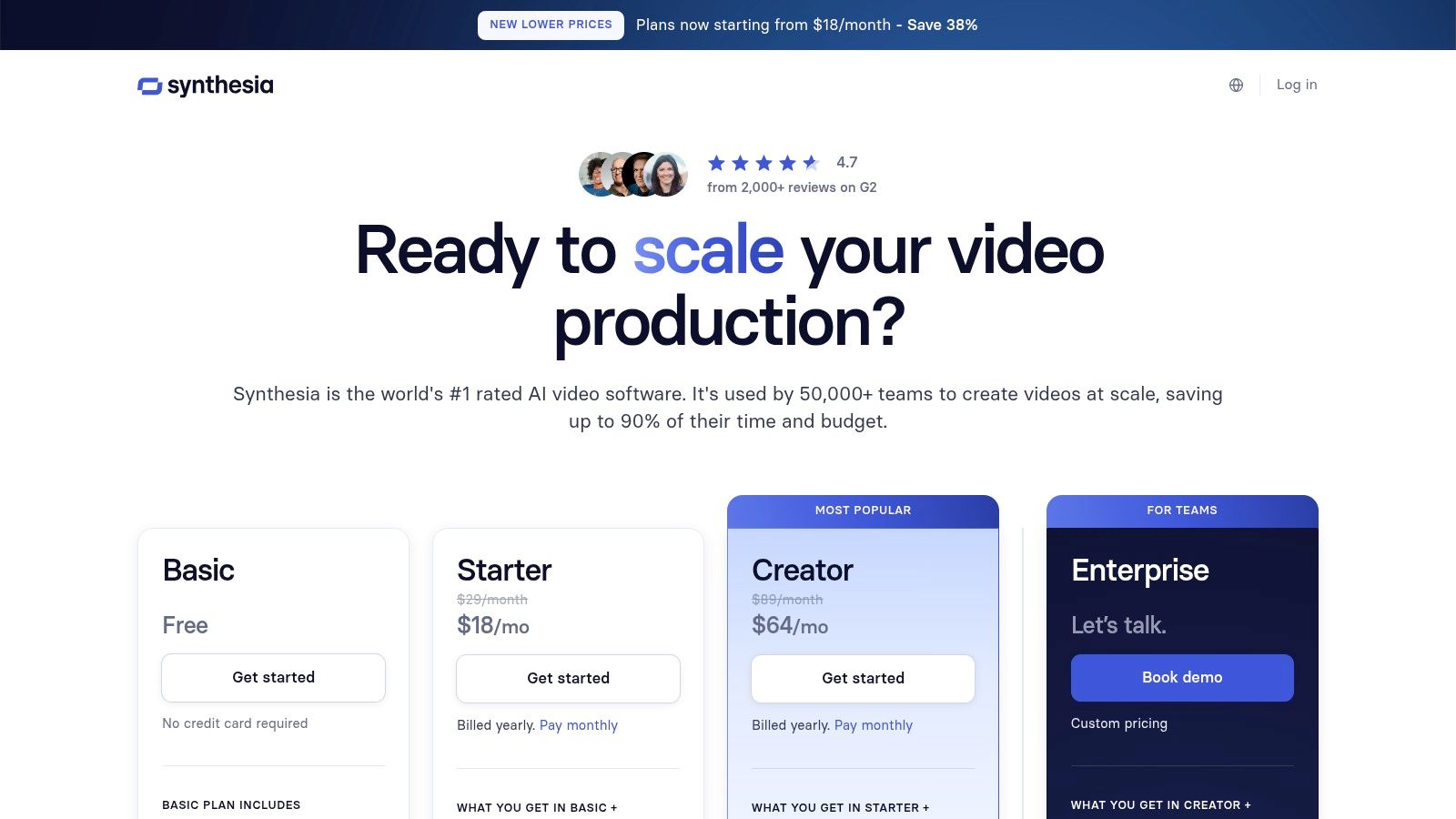
Synthesia offers a user-friendly, slide-based interface that feels similar to creating a PowerPoint presentation, making it highly accessible for non-technical users. The workflow is straightforward: you choose an avatar, type or paste your script, and customize the scene with text, images, or screen recordings. The pricing is based on a “minutes per year” model, where one minute of video generation is roughly equivalent to one credit. While the Starter and Creator plans are great for individuals and small teams, the costs for custom avatars and API access are reserved for the Enterprise plan.
| Feature | Starter ($29/mo) | Creator ($89/mo) | Enterprise (Custom) |
|---|---|---|---|
| Video Minutes/Year | 120 (10/mo) | 360 (30/mo) | Custom |
| Stock Avatars | 90+ | 140+ | 150+ & Custom |
| Languages & Voices | 120+ | 120+ | 120+ |
| AI Script Assistant | Yes | Yes | Yes |
| Collaboration | No | 3 Seats | 5+ Seats & SSO |
Actionable Takeaways
- Use Scene-Based Structure: Break your script into smaller paragraphs, with each paragraph on a new “scene.” This makes editing and adding visuals much easier.
- Vary Camera Angles: For longer videos, switch between “full body” and “circle” avatar shots to keep the visual presentation dynamic and engaging.
- Utilize the AI Script Assistant: If you’re stuck, use the built-in script assistant to generate a draft for a training or marketing video, then edit it to fit your needs.
Website: https://www.synthesia.io/pricing-options
6. HeyGen
HeyGen specializes in avatar-driven video generation, carving out a niche as one of the best AI video generators for corporate and marketing communications. It excels at creating polished, professional videos using a vast library of stock avatars or custom-made ones, making it ideal for training materials, sales outreach, and multilingual content. The platform’s strength is its simplicity and focus on human-centric video without needing cameras or actors.
This focus makes HeyGen particularly valuable for SMBs and enterprise teams looking to scale video production efficiently. With features like voice cloning, extensive language support, and team-oriented tools such as brand kits and collaborative workspaces, it provides a streamlined workflow for creating consistent, on-brand video content for various business functions.
Practical Example: Personalized Sales Outreach Video
A sales representative wants to send a personalized video to a high-value lead.
- Create an Instant Avatar: They record a 2-minute video of themselves speaking clearly into their webcam to create a personalized “Instant Avatar.”
- Clone Their Voice: They upload a separate audio sample to create a clone of their own voice for authenticity.
- Write a Personalized Script: They write a short script: “Hi [Lead Name], I saw your company is expanding into the SaaS market and wanted to share how our platform can help…”
- Generate and Send: They combine their avatar, cloned voice, and script to generate a video. This process takes minutes, allowing them to send dozens of personalized videos in the time it would take to record one.
Navigating the Platform
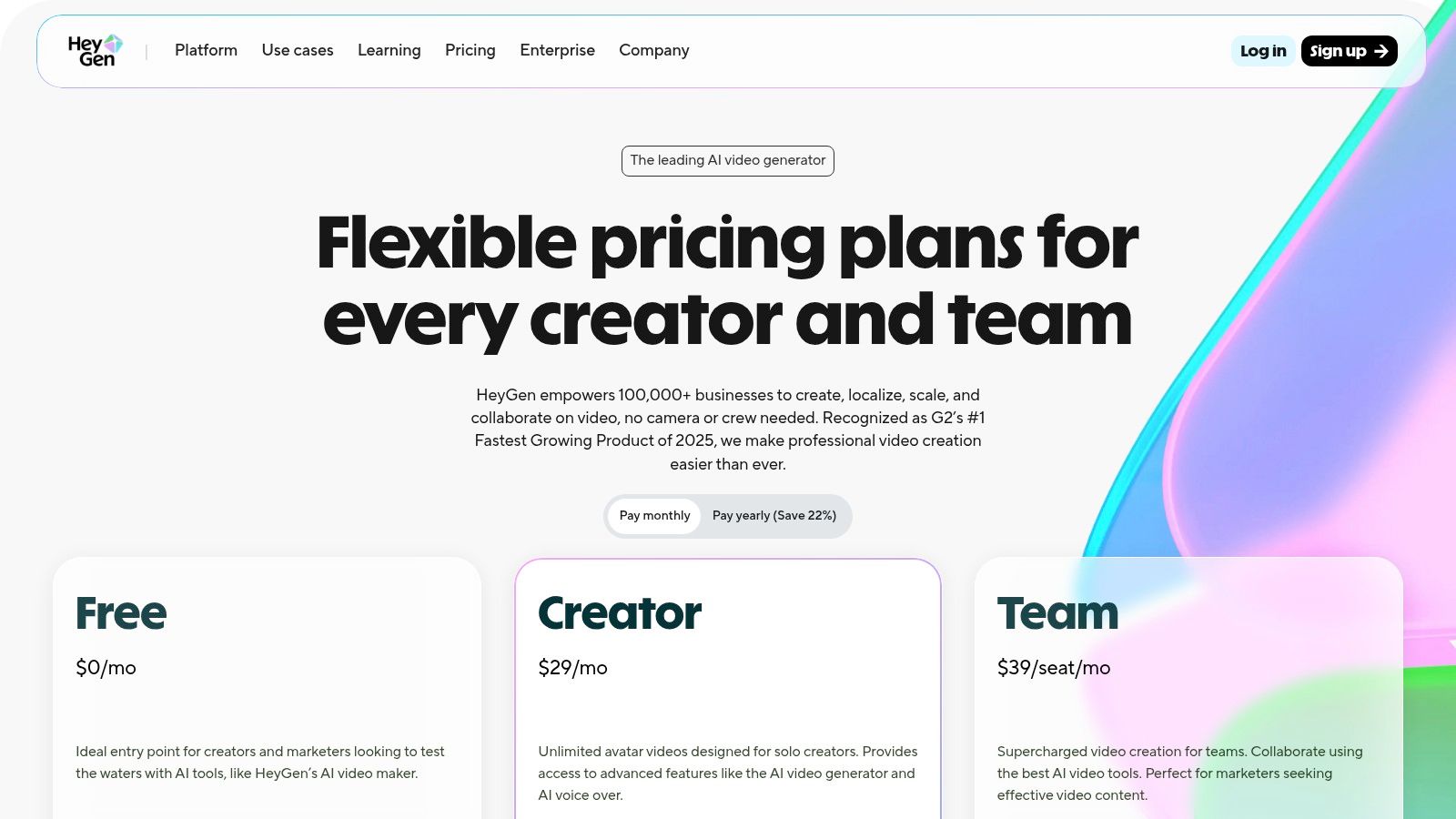
HeyGen offers a user-friendly, intuitive interface that makes video creation accessible even for beginners. The platform operates on a credit-based system where each minute of generated video consumes a set number of credits. The free plan is quite generous, allowing users to test the core features thoroughly before committing. As you move up the paid tiers, you unlock higher video resolution, faster processing times, and advanced features like brand kits. For teams looking to streamline their content creation, HeyGen provides a powerful way to automate social media posts by quickly generating engaging video updates.
| Feature | Free Plan | Creator ($29/mo) | Business ($89/mo) | Enterprise (Custom) |
|---|---|---|---|---|
| Credits/Month | 1 | 15 | 30 | Custom |
| Max Video/Seat | 1 min | 5 min | 20 min | Custom |
| Avatars | 100+ Public Avatars | 1 Instant Avatar | 3 Instant Avatars | Studio Avatars |
| Brand Kit | No | Yes | Yes | Yes |
| Processing | Standard | Standard | Priority | Highest Priority |
Actionable Takeaways
- Start with a Template: Don’t build from scratch. Use HeyGen’s templates for social media, e-learning, or advertising to get a professionally designed layout instantly.
- Use the Video Translate Feature: Upload an existing video of someone speaking and use the translate tool to dub it into another language with accurate lip-syncing.
- Set Up Your Brand Kit: Before generating videos, upload your logo, brand colors, and fonts to the Brand Kit. This ensures every video is consistent and professional.
Website: https://www.heygen.com/pricing
7. Colossyan
Colossyan carves out a specific and valuable niche among the best AI video generators by focusing squarely on corporate training and workplace learning. Instead of general creative generation, it provides a specialized platform for creating professional AI-presenter-led videos for learning and development (L&D), localization, and interactive training modules. The platform is engineered for businesses that need to produce consistent, high-quality instructional content at scale, complete with features designed for enterprise-level deployment.
Its core strength lies in its extensive library of hyper-realistic AI avatars and a powerful multi-language translation engine, allowing companies to localize training materials quickly and cost-effectively. With a clean, intuitive interface, even users without video editing experience can produce polished content, making it a go-to solution for HR departments, corporate trainers, and global marketing teams.
Practical Example: Creating an Interactive Onboarding Module
A company wants to create an engaging onboarding video for new hires about company values.
- Outline the Script with Branches: They write a script where the AI avatar presents a scenario. For example: “You see a colleague struggling with a deadline. What do you do?”
- Add Interactive Choices: Using Colossyan’s interactive features, they add two on-screen buttons: “A) Offer to help” and “B) Inform their manager.”
- Create Video Branches: They create short, separate video segments for each choice. If the user clicks “A,” a video plays where the avatar praises teamwork. If they click “B,” a different video explains the company’s communication chain.
- Export as SCORM: They export the final interactive video as a SCORM package and upload it directly into their LMS, where they can track new hire responses.
Navigating the Platform
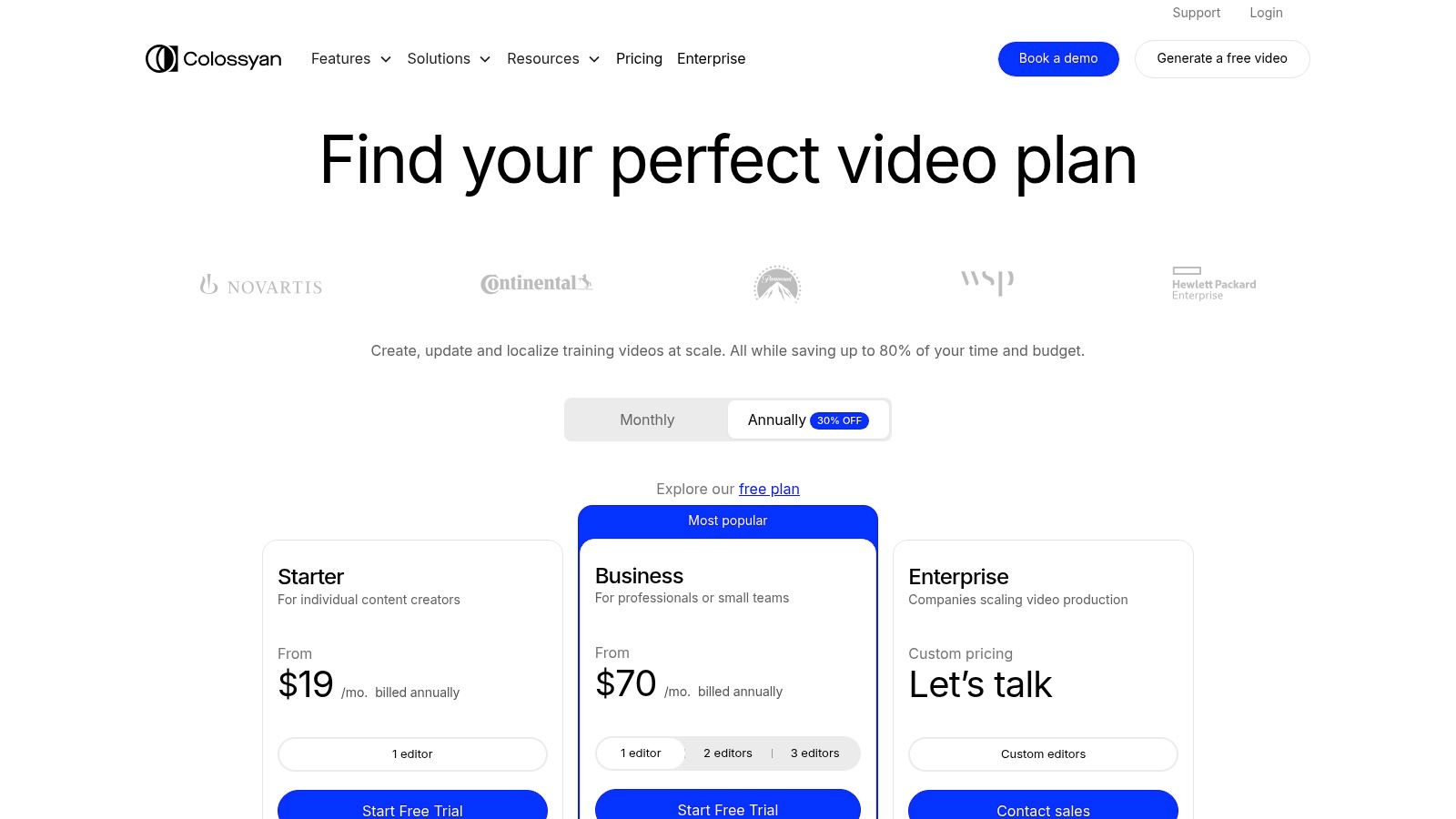
Colossyan offers a user-friendly, drag-and-drop interface that simplifies the video creation process. Users can start with a template, add an avatar, paste their script, and customize scenes with brand assets. The platform operates on a “minutes per month” system, where each plan allocates a certain amount of video generation time. While the Starter plan offers a taste, the Business and Enterprise tiers provide unlimited minutes, which is essential for organizations producing content in bulk.
| Feature | Starter ($27/mo) | Business ($96/mo) | Enterprise (Custom) |
|---|---|---|---|
| Minutes/Month | 10 | Unlimited | Unlimited |
| Seats Included | 1 | 3 | Custom |
| AI Avatars | 10+ | 50+ | 50+ & Custom |
| Languages | 8 | 70+ | 70+ |
| Interactive Videos | No | Yes | Yes |
| SCORM Export | No | No | Yes |
Actionable Takeaways
- Use Auto-Translation for Localization: Create your master training video in English, then use the one-click auto-translate feature to generate versions for all your global offices.
- Convert PowerPoint to Video: Instead of writing a new script, upload an existing PowerPoint presentation. Colossyan will automatically convert the slides and speaker notes into a video draft.
- Add Quizzes to Test Knowledge: For compliance or certification training, embed multiple-choice questions directly into the video to ensure viewers are retaining information.
Website: https://www.colossyan.com/pricing
8. D‑ID
D-ID specializes in creating talking head videos from still photographs, positioning itself as a leader in AI-driven digital presenters and conversational agents. Rather than full scene generation, its core function is to animate a face in an image, synchronizing lip movements with uploaded audio or text-to-speech narration. This makes it an invaluable tool for creating training materials, corporate communications, and educational content without the need for live actors or complex animation software.
The platform offers both a user-friendly web Studio for quick projects and a robust API for developers to build custom, real-time conversational AI experiences. This dual offering makes it one of the most versatile AI video generators for use cases centered on human-like interaction and presentation, from simple explainer videos to advanced virtual assistants.
Practical Example: Creating a Museum Exhibit Guide
A museum wants to create an exhibit where a historical figure “speaks” to visitors.
- Source a Portrait: They find a high-quality, public-domain portrait of the historical figure.
- Upload to D-ID: They upload the image to the D-ID Studio.
- Write a Script: A curator writes a short, first-person script detailing the figure’s life and accomplishments.
- Generate with TTS: They paste the script into the text-to-speech engine, selecting a voice that matches the persona (e.g., an older, male, British accent).
- Export and Display: D-ID animates the portrait, making it appear as if the person is speaking the script. The museum then displays this video on a screen next to the exhibit.
Navigating the Platform
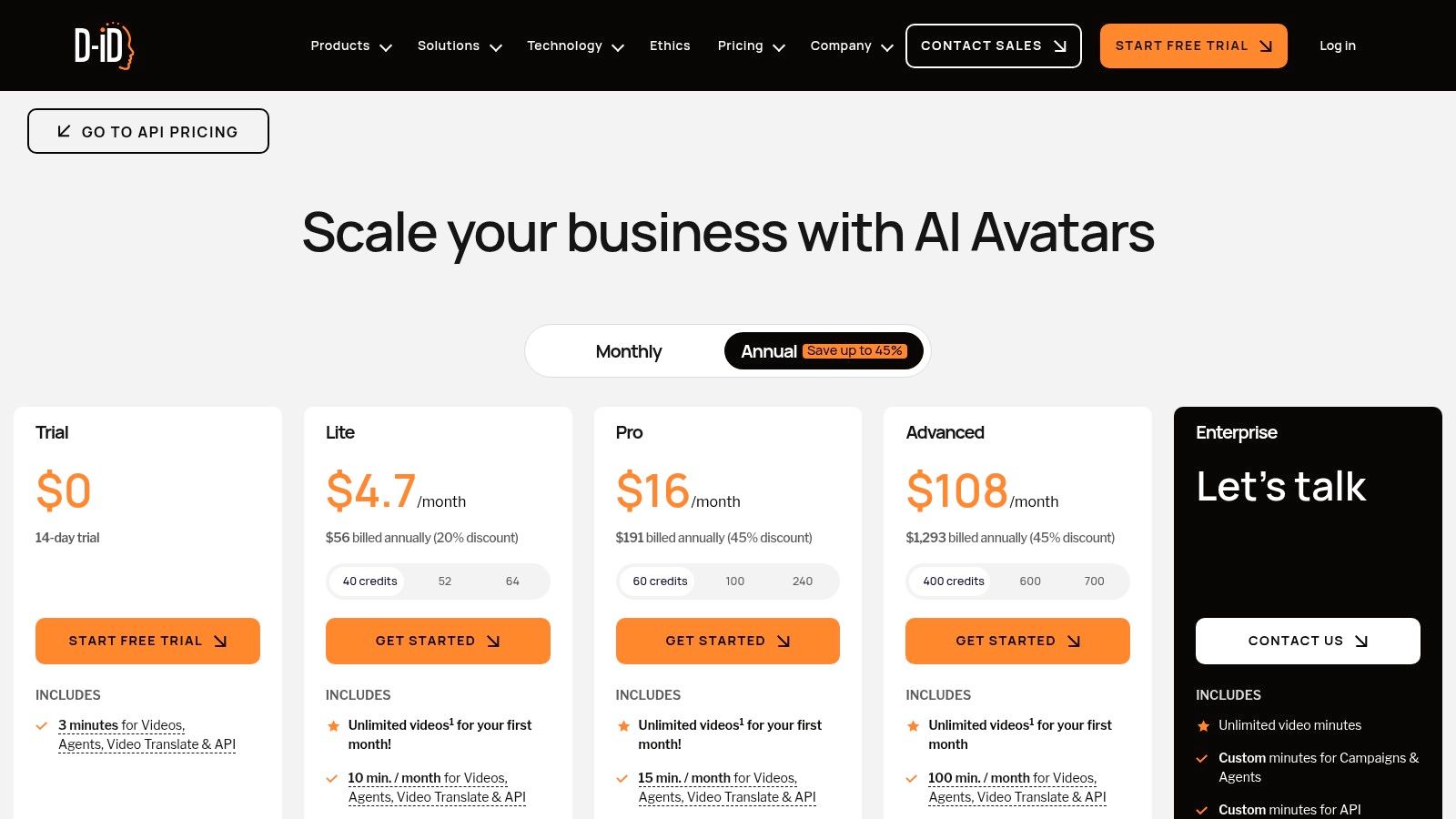
D-ID’s Studio interface is straightforward and intuitive. Users simply choose a presenter (from stock options or their own upload), input text or upload an audio file, and generate the video. The credit system is based on video length, but it’s important to note that credits are consumed in 15-second increments. A 5-second video will use the same number of credits as a 14-second one, so planning content to maximize each block is an effective way to manage your quota. The free trial and lower-tier plans include a D-ID watermark.
| Feature | Trial (Free) | Lite ($5.99/mo) | Pro ($34.99/mo) | Advanced ($209/mo) |
|---|---|---|---|---|
| Credits (Minutes) | 5 mins | 10 mins | 15 mins | 65 mins |
| Watermark | D-ID Watermark | D-ID Watermark | AI Watermark | AI Watermark |
| Presenters | Standard | Standard | Standard + Premium | All Presenters |
| API Access | No | No | Yes | Yes |
| Commercial License | No | No | Yes | Yes |
Actionable Takeaways
- Optimize Credit Usage: Group short sentences together to create video clips that are just under 15, 30, or 45 seconds to get the most value from each credit.
- Use High-Resolution Photos: The quality of your final video depends heavily on the source image. Use a clear, front-facing portrait for the best results.
- Leverage the API for Scale: If you need to generate hundreds of personalized videos (e.g., for a marketing campaign), use the API to automate the creation process instead of doing it manually in the Studio.
Website: https://www.d-id.com/pricing-studio/
9. InVideo AI
InVideo AI carves out its niche as a powerful script-to-video platform designed specifically for marketers and content creators. Its primary function is to transform a simple text prompt or a detailed script into a polished video draft in minutes. The platform achieves this by intelligently selecting relevant clips from a vast stock media library, generating a voiceover, and syncing everything to create a cohesive narrative, making it one of the best AI video generators for rapid content production.
This workflow-centric approach is ideal for teams that need to produce social media content, advertisements, or promotional videos at scale without a steep learning curve. The AI acts as a creative assistant, handling the heavy lifting of sourcing and sequencing media, allowing users to focus on refining the final product with branding, captions, and transitions in its intuitive editor.
Practical Example: Creating a YouTube Explainer Video
A finance blogger wants to create a video titled “5 Smart Ways to Invest Your First $1,000.”
- Enter the Prompt: They type the title into InVideo AI’s prompt box and specify “A clear, encouraging female voiceover” and “Bright, modern visuals.”
- AI Generates Draft: The AI generates a 2-minute video. It finds stock clips related to money, growth, and technology; writes a script covering five investment tips; generates the voiceover; and adds background music.
- Edit the Timeline: The blogger reviews the video. They swap out a stock clip they don’t like for another one from the library, add their channel’s logo as a watermark, and tweak the text overlays to match their brand font.
- Export and Upload: After 10 minutes of edits, they export the final video and upload it to YouTube.
Navigating the Platform
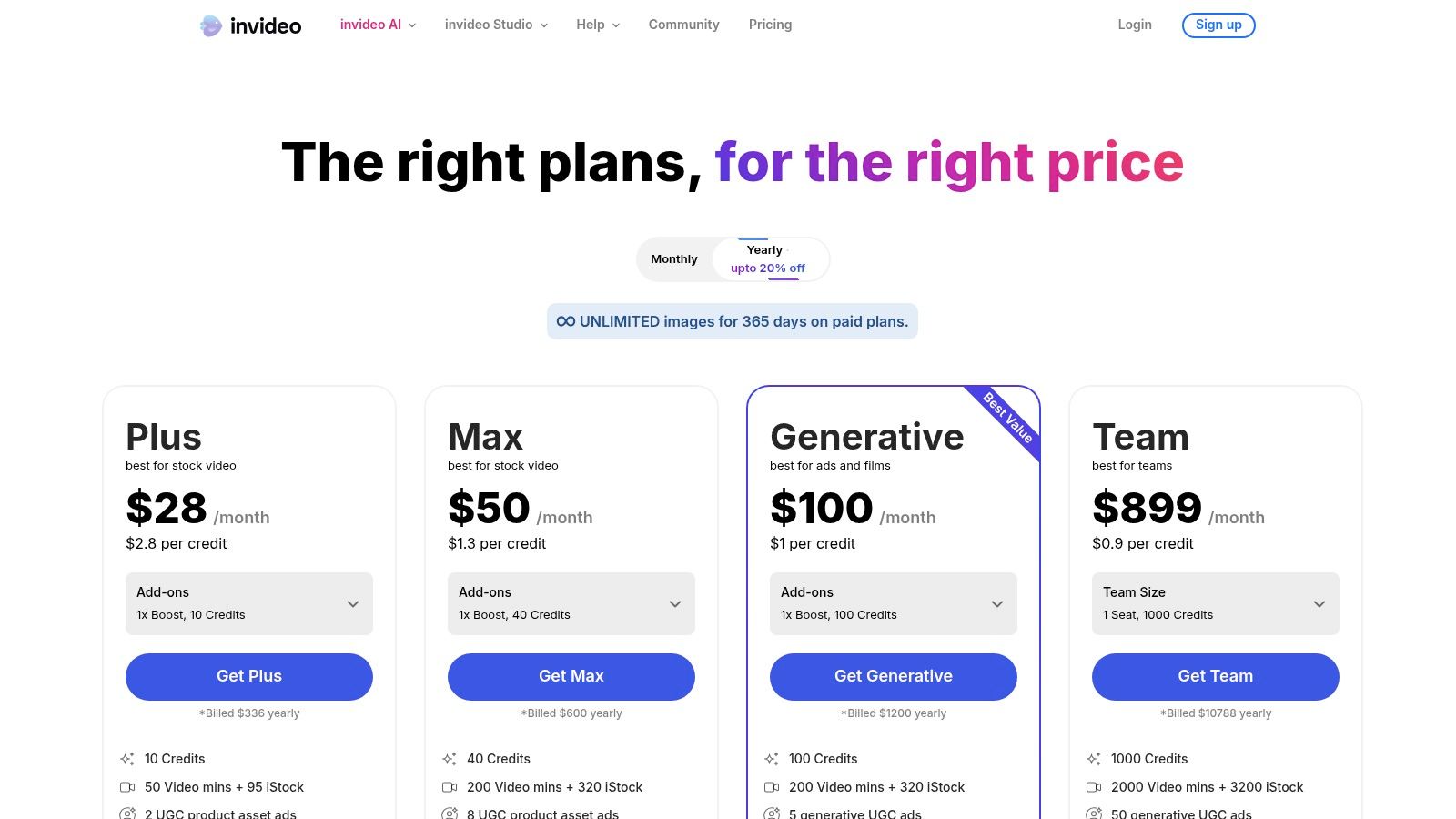
The user interface is exceptionally straightforward and built around a simple, prompt-based workflow. You start by giving the AI your instructions, and it returns a fully editable video timeline. This makes it highly accessible for non-technical users, such as social media managers or small business owners. The free plan is a great way to test the workflow, but it comes with a watermark and export limitations, and it doesn’t include the core AI generation features. For full creative freedom, a paid plan is necessary.
| Feature | Free Plan | Plus ($25/mo) | Max ($60/mo) |
|---|---|---|---|
| AI Generation Minutes | 0 | 50/mo | 200/mo |
| Video Exports | 4 (watermarked) | Unlimited | Unlimited |
| Stock Media | 1M+ (Standard) | 16M+ (Premium) | 16M+ (Premium) |
| Storage | 10GB | 100GB | 400GB |
| Users | 1 | 1 | 1 |
Actionable Takeaways
- Be Specific with Your Initial Prompt: Instead of “a video about marketing,” try “Create a 60-second YouTube Short about the top 3 SEO tips for beginners in 2024, use an upbeat male voice.”
- Use the “Replace Media” Feature: If the AI chooses an irrelevant stock clip, don’t delete the scene. Click on the clip and use the “Replace” button to search the stock library for a better alternative.
- Edit in Bulk: Use the editor to apply your brand’s colors and fonts to all text captions at once, saving time on manual adjustments.
Website: https://invideo.io/pricing
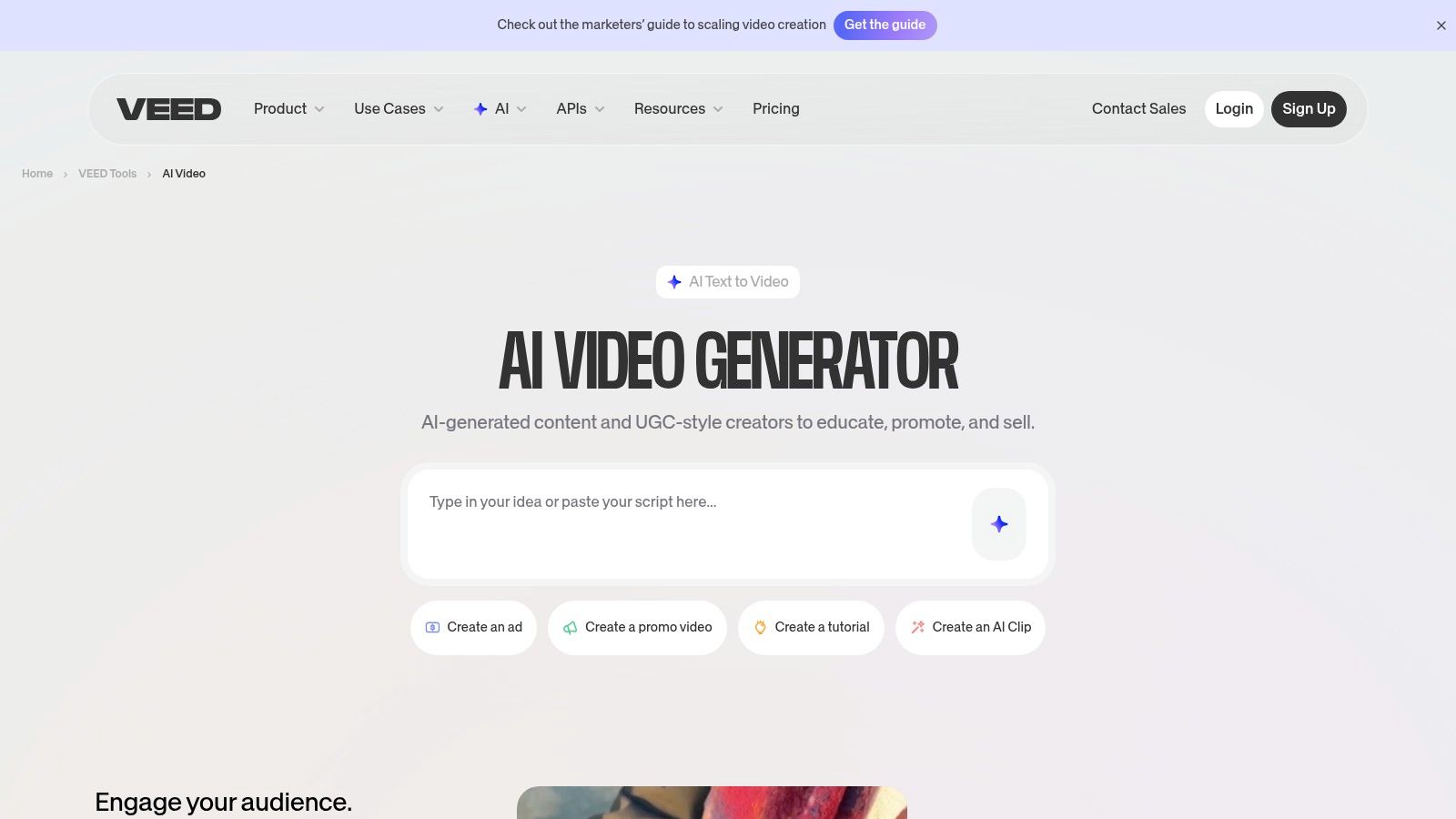
10. VEED.IO (AI Video Generator)
VEED.IO integrates its AI video generator directly into its well-established, browser-based online video editor. This unique approach positions it less as a standalone generator and more as a comprehensive content creation and repurposing tool. Instead of just producing clips, VEED.IO allows users to generate, edit, subtitle, and refine their videos within a single, unified workflow, making it one of the best AI video generators for creators focused on efficiency.
The platform is particularly strong for repurposing existing content or creating social media videos from scratch. Its key strength lies in the seamless transition from text-prompt generation to a full suite of editing tools. This includes automated subtitling, translation, and brand kit integration, which helps maintain consistency across all video assets. The inclusion of team workspaces and SSO options on higher-tier plans also makes it a viable choice for businesses and creative agencies.
Practical Example: Repurposing a Podcast Clip
A podcaster wants to turn a 1-minute audio highlight into an engaging video for Instagram.
- Upload Audio: They upload the MP3 audio clip of the podcast highlight into the VEED editor.
- Auto-Transcribe: They use the “Auto Subtitle” tool to generate and sync captions for the audio.
- Generate B-Roll: For the visual, they use the integrated AI Video Generator. They type a prompt related to the topic, like “An animated brain with glowing connections, abstract, technology theme.”
- Assemble and Brand: They place the generated video on the timeline, add a waveform animation for the audio, apply their brand’s colors to the subtitles, and add their podcast logo.
- Export: They export the final video in a 9:16 vertical format, ready for Instagram.
Navigating the Platform
VEED.IO offers a user-friendly, drag-and-drop interface that will feel familiar to anyone who has used a modern online editor. AI generation is an option within the main studio, making it easy to access. The AI features are credit-based, with specific amounts allocated to each paid plan. It’s important to note that the free plan does not include AI video generation, and some advanced AI models may require purchasing additional credits even on paid subscriptions. This makes it crucial to choose a plan that aligns with your expected generation volume.
| Feature | Free Plan | Basic ($18/mo) | Pro ($30/mo) | Business ($59/mo) |
|---|---|---|---|---|
| AI Video Generation | No | Yes (Limited) | Yes (Standard) | Yes (Advanced) |
| AI Credits/Month | 0 | 720 | 3,600 | 8,640 |
| Export Quality | 720p | 1080p | 4K | 4K |
| Auto Subtitles | 30 min/yr | 1440 min/yr | 8,000 min/yr | 20,000 min/yr |
| Brand Kit | No | Yes | Yes | Yes |
Actionable Takeaways
- Generate B-Roll Directly in the Timeline: When editing a talking-head video, use the AI generator to create relevant B-roll clips to cover jump cuts or illustrate a point without leaving the editor.
- Use “Clean Audio” Tool: After adding a voiceover or uploading audio, use the one-click “Clean Audio” feature to remove background noise instantly.
- Save Templates: If you create a video format you’ll use often (like a podcast clip), save the entire project as a template to speed up your workflow for future episodes.
Website: https://www.veed.io/tools/ai-video/ai-video-generator
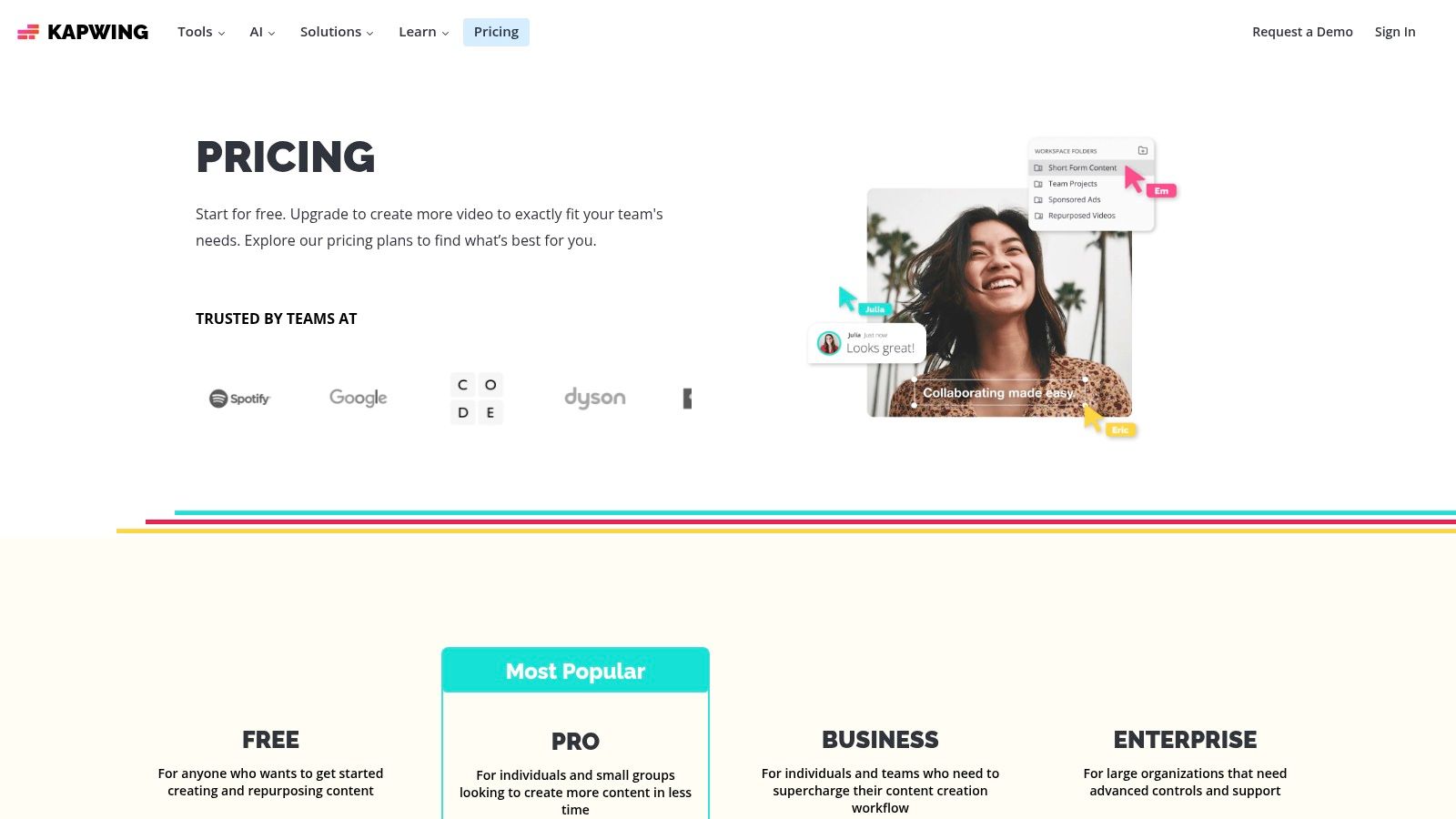
11. Kapwing
Kapwing carves out a unique space among the best AI video generators by positioning itself as a browser-based creative suite that merges traditional video editing with powerful AI-assist features. It’s designed primarily for social media teams and content creators who need an all-in-one solution for creating, editing, and repurposing video content quickly. Rather than focusing solely on generative video from scratch, Kapwing excels at enhancing existing workflows with AI.
The platform integrates tools for auto-subtitling, translation, text-to-speech, and even AI-powered lip-sync dubbing, making it incredibly useful for localizing content or creating accessible videos. This combination of a robust editor and smart AI helpers means users can handle their entire content production process, from initial edits to final polish, without leaving their browser. Its collaborative workspaces further streamline the process for teams.
Practical Example: Dubbing a Video for a New Market
A US-based creator wants to post their popular tech review video for a Spanish-speaking audience.
- Upload and Transcribe: They upload their final English video to Kapwing and use the AI tool to generate an accurate English transcript and subtitles.
- Translate to Spanish: With one click, they translate the entire transcript and subtitles into Spanish.
- Clone Voice and Dub: They use the AI voice cloning tool on their original English audio. Then, they apply the Spanish text to their cloned voice to generate a Spanish voiceover.
- AI Lip Sync: They use the “AI Lip Sync” feature to subtly adjust the video of them speaking so their lip movements more closely match the new Spanish audio.
- Export: The creator now has a fully localized video ready for a new international audience.
Navigating the Platform
Kapwing’s interface is intuitive and user-friendly, resembling popular online design tools, which makes it accessible for non-editors. Its credit system is straightforward, with clear tables explaining how many credits are consumed per minute of transcription or character of text-to-speech. While the Pro plan offers substantial credits, users should monitor their usage on features like lip-syncing, which can be credit-intensive. For those looking to integrate such tools into their workflow, it’s helpful to explore a broader range of AI tools for video editing to see how they compare.
| Feature | Free Plan | Pro ($24/mo) | Business ($64/mo) |
|---|---|---|---|
| Credits/Month | 10 | 300 | 1,000 |
| Export Resolution | 720p (with watermark) | 4K | 4K |
| Auto Subtitles | 10 mins/month | 300 mins/month | 1,000 mins/month |
| AI Editing Tools | Limited Access | Full Access | Full Access |
| Brand Kit | No | 1 Kit | Unlimited Kits |
Actionable Takeaways
- Use Smart Cut to Remove Silences: Upload raw footage and use the “Smart Cut” tool. It will automatically detect and delete long pauses, tightening up your edit in seconds.
- Generate Ideas with the Script Generator: If you’re facing writer’s block, use the AI script generator to brainstorm ideas for a TikTok or YouTube video based on a simple keyword.
- Collaborate with Comments: For team projects, share a project link and have reviewers leave time-stamped comments directly on the video timeline for clear, actionable feedback.
Website: https://www.kapwing.com/pricing
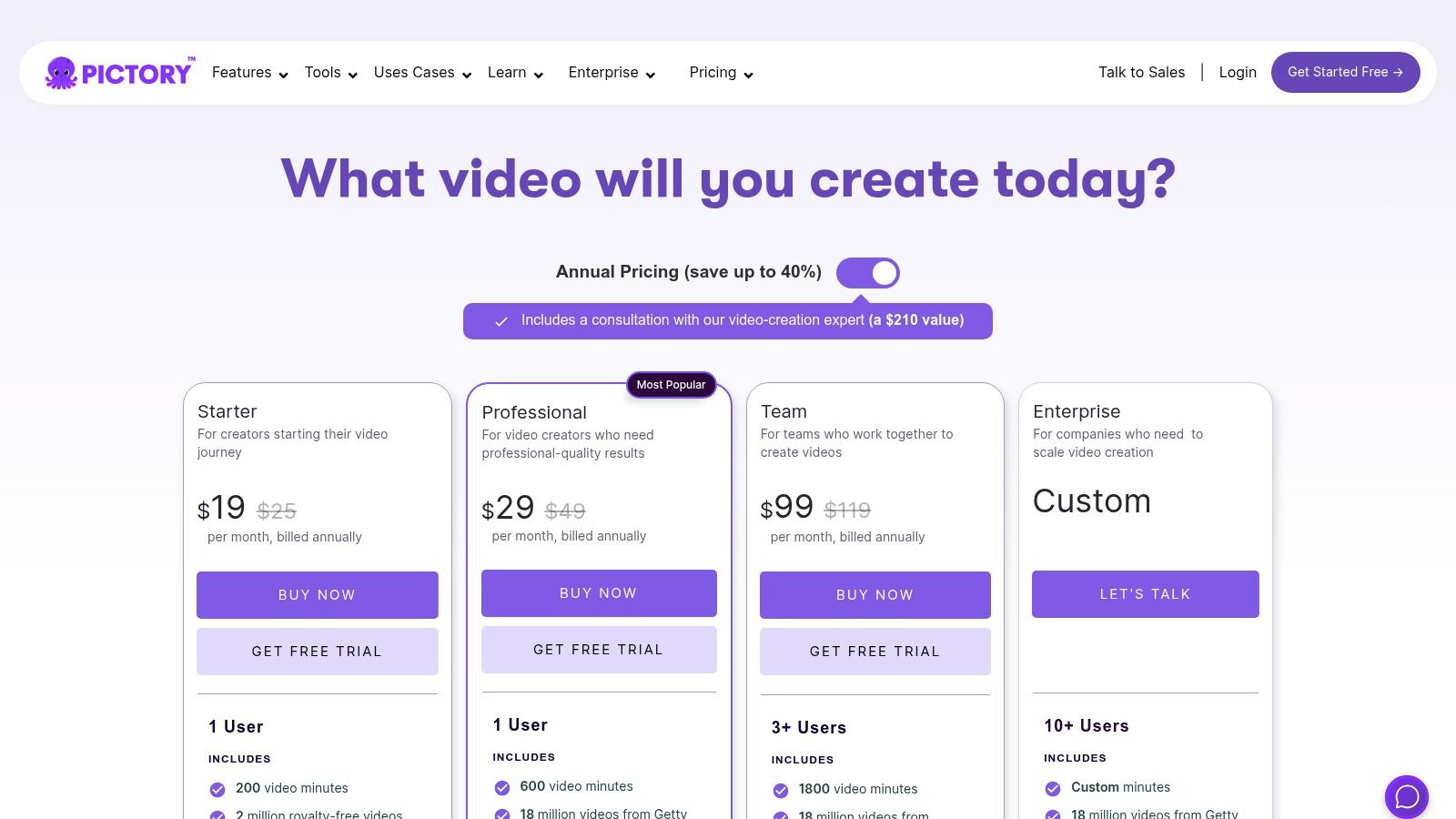
12. Pictory
Pictory excels at a specific, high-demand niche within the AI video generator landscape: content repurposing. Rather than focusing on generative text-to-video, it provides an incredibly efficient workflow for transforming existing long-form content like articles, scripts, and webinars into short, shareable, and branded videos. This makes it a go-to tool for marketers, bloggers, and content creators who need to maximize the reach of their existing assets without needing any traditional video editing skills.
The platform is engineered for speed and simplicity. By automatically transcribing long videos, identifying key highlights, and pairing text with a vast library of stock media, Pictory automates the most time-consuming parts of video creation. Its strength lies in its ability to quickly produce professional-looking social media clips, video summaries, and course content, complete with AI-powered voiceovers and automatic captions.
Practical Example: Turning a Blog Post into a Social Video
A content marketer has just published a “Top 10 Travel Destinations” blog post and wants to promote it on social media.
- Paste the URL: They choose the “Article-to-Video” option and paste the URL of their blog post into Pictory.
- AI Creates Storyboard: Pictory’s AI reads the article, extracts key sentences from each of the 10 points, and creates a storyboard with one scene per destination. It also automatically finds relevant stock video clips (e.g., a beach for a tropical destination, mountains for a hiking spot).
- Customize and Brand: The marketer quickly reviews the scenes, swaps one or two video clips, adds their company logo, and chooses a branded color scheme for the captions.
- Add Voiceover: They select a friendly, upbeat AI voice to narrate the text from each scene.
- Generate and Share: Within 15 minutes, they have a professional, 90-second summary video of their blog post, ready to be shared on Instagram and Facebook.
Navigating the Platform
Pictory’s interface is exceptionally user-friendly and designed for those without video editing experience. The workflow is linear and intuitive: you choose a function (e.g., “Article to Video”), input your source material, and the AI presents a storyboard for you to edit. While it’s powerful, be aware that the maximum export quality is 1080p, which is suitable for social media but may not meet the needs of all professional projects. Some advanced features, like premium stock media or certain AI voices, also consume separate AI credits.
| Feature | Standard ($23/mo) | Professional ($47/mo) | Teams ($119/mo) |
|---|---|---|---|
| Videos/Month | 30 | 60 | 90 |
| Max Video Length | 10 mins | 20 mins | 120 mins |
| AI Voices | 15 Premium Voices | 30 Premium Voices | 60 Premium Voices |
| Stock Library | Standard | Storyblocks | Storyblocks & Getty |
| Branding Kits | 1 | 5 | 10 |
Actionable Takeaways
- Edit Your Video by Editing Text: In the “Video-to-Highlights” mode, don’t use a timeline. Simply delete sentences or words from the AI-generated transcript, and Pictory will automatically remove those corresponding video segments.
- Create a Brand Kit First: Before making any videos, set up your brand kit with your logo, intro/outro clips, and font choices. You can then apply it to any new project with a single click.
- Use the Summarize Feature: For long articles, let the AI “Auto Summarize” the text to create a more concise storyboard, which you can then build upon.
Website: https://pictory.ai/pricing
Top 12 AI Video Generators Comparison
| Tool / Page | ✨ Core features | 👥 Target | 🏆 Unique selling point | ★ Quality | 💰 Price / Value |
|---|---|---|---|---|---|
| Ai Tools – Best Ai Video Generators | ✨ Curated index, screenshots, metadata & direct links | 👥 Creators, marketers, devs, educators | 🏆 Massive, constantly updated catalog (11k+) + RichlyAI integration | ★★★★☆ | 💰 Free discovery; optional one‑time premium listing |
| Runway | ✨ Gen‑4.5 text→video, image→video, Act‑Two capture, team workspaces | 👥 Creators → Enterprises | 🏆 Cutting-edge models & frequent updates | ★★★★☆ | 💰 Credit‑based rendering; clear individual/enterprise tiers |
| Pika | ✨ Text/image/video→video, effects toolkit (Pikatwists etc.) | 👥 Short‑form creators | 🏆 Low entry cost + rapid creative iteration | ★★★☆☆ | 💰 Credit plans; affordable entry, scalable credits |
| Luma AI – Dream Machine | ✨ Ray series TTV/ITV, Modify mode, HDR/EXR options | 👥 Filmmakers, VFX & photoreal creators | 🏆 High‑fidelity photoreal clips + transparent credit table | ★★★★☆ | 💰 Per‑video credit pricing; HQ outputs cost more |
| Synthesia | ✨ Avatar TTV, multilingual dubbing, enterprise exports (SCORM) | 👥 Corporate L&D, comms teams | 🏆 Mature enterprise features, compliance & SCORM support | ★★★★☆ | 💰 Minutes/credits; custom avatars & advanced features cost extra |
| HeyGen | ✨ Large avatar library, voice cloning, brand kits, 4K export | 👥 SMBs & teams | 🏆 Generous free tests + competitive per‑seat team pricing | ★★★★☆ | 💰 Team plans competitive; premium features on higher tiers |
| Colossyan | ✨ Presenter avatars, interactive quizzes/branching, SCORM | 👥 Training, localization & education | 🏆 Built for L&D workflows; unlimited minutes on Business/Enterprise | ★★★★☆ | 💰 Starter limits; Business/Enterprise for scale |
| D‑ID | ✨ Photo→talking video, avatar agents, robust API | 👥 Educators, explainers, developers | 🏆 Simple photo→speaking workflow + strong developer API | ★★★★☆ | 💰 Shared minute pool; trial watermarks; pay as you go |
| InVideo AI | ✨ Script→video drafts, templates, stock library, AI assistant | 👥 Marketers & non‑technical teams | 🏆 Fast social/ad creative workflows with large template library | ★★★★☆ | 💰 Free (watermarked) tier; paid plans unlock generative features |
| VEED.IO (AI Video Generator) | ✨ Embedded text→video in editor, subtitling, dubbing | 👥 Content repurposers & teams | 🏆 Editing + generation in one browser tool | ★★★★☆ | 💰 AI gen on paid plans; some models need extra credits |
| Kapwing | ✨ Auto‑subtitles, dubbing, lip‑sync, generative helpers | 👥 Social creators & teams | 🏆 Strong editing + AI assist with transparent credit tables | ★★★★☆ | 💰 Clear credit pricing; paid for 4K/brand kit |
| Pictory | ✨ Script/URL→short branded videos, auto captions, stock libs | 👥 Content marketers & non‑editors | 🏆 Cost‑effective repurposing (high minutes per price) | ★★★★☆ | 💰 High export minutes; 1080p max; some features use credits |
Your Next Move: How to Choose the Right AI Video Generator
Navigating the landscape of the best AI video generators can feel overwhelming, but the journey to finding the perfect tool starts with a simple truth: the “best” generator is the one that best fits your specific project. As we’ve explored, the market is not a one-size-fits-all arena. A cinematic artist chasing photorealistic, dynamic scenes will find their creative partner in a tool like Runway or Luma AI’s Dream Machine, while a corporate learning and development manager will achieve their training goals far more efficiently with an avatar-based platform like Synthesia or Colossyan.
The key is to move past the hype and match the technology to your tangible needs. A social media manager needing to quickly turn blog posts into engaging video snippets will value Pictory’s text-to-video workflow. In contrast, a startup founder looking to create a polished, human-led product demo without a film crew will find immense value in HeyGen’s capabilities. Understanding this fundamental difference in purpose is the most critical step in your decision-making process.
Your Final Decision-Making Checklist
Before you commit to a subscription, run your top contenders through this final checklist. This framework will help you move from consideration to confident selection, ensuring the tool you choose aligns perfectly with your resources and objectives.
- Define Your Primary Use Case: What is the single most important type of video you need to create? Is it a marketing ad, a training module, a social media clip, or an artistic short film? Be specific. A tool optimized for one is rarely the best for another.
- Assess Your Technical Skill Level: Honestly evaluate your comfort with complex interfaces. Tools like Runway offer deep creative control but come with a steeper learning curve. Conversely, platforms like InVideo AI or VEED are designed for beginners, prioritizing speed and ease of use over granular control.
- Evaluate the Realism and Quality Required: Does your project demand photorealistic human avatars and backgrounds, or is a more stylized or illustrative output acceptable? For client-facing corporate communications, the realism of Synthesia might be non-negotiable. For internal announcements, a simpler tool could suffice.
- Consider Your Input Source: Will you primarily be working from text prompts (text-to-video), existing video clips (video-to-video), static images (image-to-video), or scripts for digital avatars? Ensure the platform’s core strength matches your most common starting point.
- Calculate the Total Cost of Ownership: Look beyond the monthly subscription fee. Consider credit usage, rendering times, the cost of generating multiple iterations, and any add-on features. A seemingly cheap plan can become expensive if it requires too many credits for high-quality output.
- Analyze Customization and Personalization: How much control do you need over the final product? For instance, avatar-based generators offer deep customization for corporate branding. Beyond branding, consider the potential for creating highly personalized video messages for specific audiences, a feature that can dramatically increase engagement for marketing or internal communications campaigns.
Embracing the AI Video Revolution
Choosing from the best AI video generators is less about finding a definitive winner and more about empowering your own creative or business workflow. Each tool we’ve covered represents a unique solution to a specific problem. By using the checklist above, you can pinpoint the exact platform that will not only save you time and resources but also unlock new possibilities for visual storytelling. The power to create compelling video is no longer confined to those with professional editing skills or massive budgets. It’s now in your hands, waiting for your vision.
Ready to stay ahead of the curve in the world of AI? RichlyAI offers the latest news, in-depth tool reviews, and actionable guides to help you master artificial intelligence. Visit RichlyAI to discover the insights you need to build, innovate, and lead in the AI era.
