
Video creation is no longer reserved for those with expensive equipment and years of editing experience. The rise of powerful AI video generators has fundamentally changed the game, enabling anyone from solo content creators and marketers to developers and startups to produce high-quality video content from simple text prompts, images, or even just an idea. This shift solves a critical problem: the high cost and time investment traditionally required for video production. Now, you can generate marketing assets, social media clips, and product demos in minutes, not days.
However, the market is crowded with options, each promising revolutionary results. Sifting through them to find the best AI video generators that deliver on their claims without a steep learning curve or prohibitive cost can be a challenge. That’s where this guide comes in. We’ve gone beyond the marketing hype to rigorously test and evaluate the top platforms available today, focusing on practical application and real-world results.
This comprehensive resource is designed to help you make an informed decision quickly. For each tool on our list, you will find:
- A concise one-line summary.
- A breakdown of key features and capabilities.
- Clear, up-to-date pricing information.
- Actionable best-use cases for specific professional needs.
- An honest assessment of pros and cons based on hands-on testing.
We provide direct links and visual examples for every platform, so you can see the technology in action. Forget wading through generic feature lists. This guide provides the actionable insights you need to select the right AI video generator for your specific project, whether you’re creating realistic avatars with Synthesia, cinematic shots with Runway, or viral clips with Pika. Let’s find the perfect tool to bring your vision to life.
1. Luma AI – AI Tools Hub
Best For: Creating cinematic, photorealistic 3D video from real-world captures using just a smartphone.
Luma AI positions itself as one of the best AI video generators by uniquely transforming simple video captures into dynamic, navigable 3D scenes. It excels at democratizing complex 3D rendering, making it an outstanding choice for creators who need high-impact visuals without a steep learning curve or expensive equipment. Instead of generating video from text prompts, Luma’s AI intelligently reconstructs the geometry and texture of a scene from a short video clip shot on your iPhone.
This process synthesizes depth, parallax, and realistic lighting, allowing you to create smooth, virtual camera movements that would otherwise require a professional camera rig and 3D modeling software. The result is striking, shareable content perfect for eye-catching social media posts, immersive product showcases, or unique marketing assets. Its mobile-first workflow is a significant differentiator, enabling users to go from real-world capture to a polished, cinematic video in minutes.
Key Features & Analysis
- AI-Driven 3D Reconstruction: Luma’s core strength is its NeRF (Neural Radiance Fields) technology. It analyzes a video to build a complete 3D model, generating convincing depth and realistic reflections that traditional video can’t replicate.
- Virtual Camera Control: After processing, you gain full control over a virtual camera within the 3D scene. This allows you to program complex camera paths like dolly zooms, crane shots, and orbits, adding immense production value.
- Mobile-First Workflow: The entire process is optimized for mobile. You can capture, upload, and generate your 3D video directly from an iPhone, making it incredibly accessible for on-the-go content creation.
How It Works: A Practical Example
- Capture: Walk slowly and steadily around your subject (e.g., a new sneaker for a product ad) with your iPhone, capturing it from multiple angles in a 20-30 second video.
- Upload: Open the Luma AI app and upload your video clip.
- Process: Luma’s AI cloud servers process the footage, reconstructing the 3D scene. This can take several minutes.
- Animate: Once ready, use the app’s intuitive interface to set keyframes for your virtual camera. You can create a slow, dramatic orbit around the sneaker to showcase its design details.
- Render & Export: Finalize your camera path and export the final video, ready to be shared on social media or integrated into a larger marketing campaign.
Pros & Cons
| Pros | Cons |
|---|---|
| Mobile-First Convenience: No specialized gear needed beyond an iPhone. | Capture Dependent: Output quality relies heavily on good lighting and steady camera movement. |
| Cinematic Output: Creates smooth, professional camera moves. | Processing Time: Complex scenes or high-res renders can take significant time to process. |
| Low Barrier to Entry: No 3D modeling or complex software skills required. | Subject Limitations: Struggles with transparent, reflective, or very thin objects like glass or hair. |
| Free to Start: Offers a generous free tier for experimentation. | Not a Text-to-Video Tool: It enhances real-world captures, it doesn’t create video from prompts. |
2. Synthesia
Best For: Creating professional, avatar-led videos for corporate training, internal communications, and product marketing.
Synthesia is a market leader in AI video generation, focusing on creating professional, avatar-led videos for enterprise use cases like corporate training, internal communications, and product marketing. It excels at producing polished, consistent content at scale, making it one of the best AI video generators for businesses looking to streamline their video production workflows without sacrificing quality. The platform’s strength lies in its robust feature set, including an extensive library of stock avatars and languages, and strong security protocols.
What sets Synthesia apart is its enterprise-readiness. Unlike more creatively-focused tools, it is built for corporate environments with features like SCORM compatibility for Learning Management Systems (LMS), API access for integration, and robust brand-kit management. This makes it an ideal choice for teams that need to localize training materials or create consistent HR onboarding videos across multiple regions.
Key Features & Analysis
- Diverse Avatars and Languages: Access over 230 stock AI avatars and create custom digital twins of real people. With support for more than 140 languages and AI-powered dubbing, global teams can localize video content with a single click while maintaining accurate lip-syncing.
- Professional Templates & Assets: The platform includes a large library of professionally designed video templates, a built-in screen recorder, and access to royalty-free media, simplifying the entire creation process.
- Enterprise Integrations: Synthesia offers powerful integrations, including API access and SCORM exports, allowing seamless connection to existing business systems and training platforms.
How It Works: A Practical Example
- Select Template & Avatar: Start a new project and choose a pre-designed template for a “New Employee Onboarding” video. Select one of the 230+ stock avatars that fits your company’s brand voice.
- Enter Your Script: In the script panel, type or paste the welcome message. For instance: “Welcome to the team! In this video, we’ll cover our company values and your first-week checklist.”
- Choose Language & Voice: Select “English (US)” and a specific voice tone (e.g., “Friendly”). If you need a Spanish version, simply select “Spanish” and the AI will dub the video with accurate lip-sync.
- Add Visuals: Use the built-in media library to add your company logo to the corner and a background image of your office.
- Generate & Share: Click “Generate video.” Within minutes, you’ll receive an email with the final MP4 file, ready to be embedded in your company’s intranet or LMS.
Pricing and Access
Synthesia offers a few pricing tiers designed for different scales of use. The “Personal” plan is available for individuals, while the “Enterprise” plan is custom-priced for teams and offers advanced features like custom avatars, brand kits, and enhanced security. Access is web-based, requiring no software installation, making it easily deployable across an organization. While not the cheapest option, its pricing reflects its positioning as a comprehensive corporate solution.
- Website: https://www.synthesia.io
| Feature | Pros | Cons |
|---|---|---|
| Use Case | Corporate training, internal communications, scaled video localization. | Not ideal for highly creative or cinematic video styles. |
| Output Quality | High-quality, consistent, and professional-looking avatar videos. | Avatar movements can sometimes feel slightly rigid. |
| Ease of Use | Intuitive interface that simplifies complex video creation. | Credit-based system can be confusing for new users. |
| Pricing | Scalable for business needs with robust enterprise features. | Advanced features are locked behind higher-tier plans. |
3. HeyGen
Best For: Creating lifelike spokesperson videos for marketing, sales outreach, and e-learning with rapid localization.
HeyGen is a powerful, all-in-one AI video generator known for its lifelike spokesperson videos, rapid localization features, and impressive voice cloning technology. It strikes a balance between professional-grade output and user-friendly operation, making it one of the best AI video generators for marketing teams, content creators, and businesses needing quick turnarounds. The platform is particularly strong in creating engaging, human-centric content for social media, sales outreach, and e-learning modules.
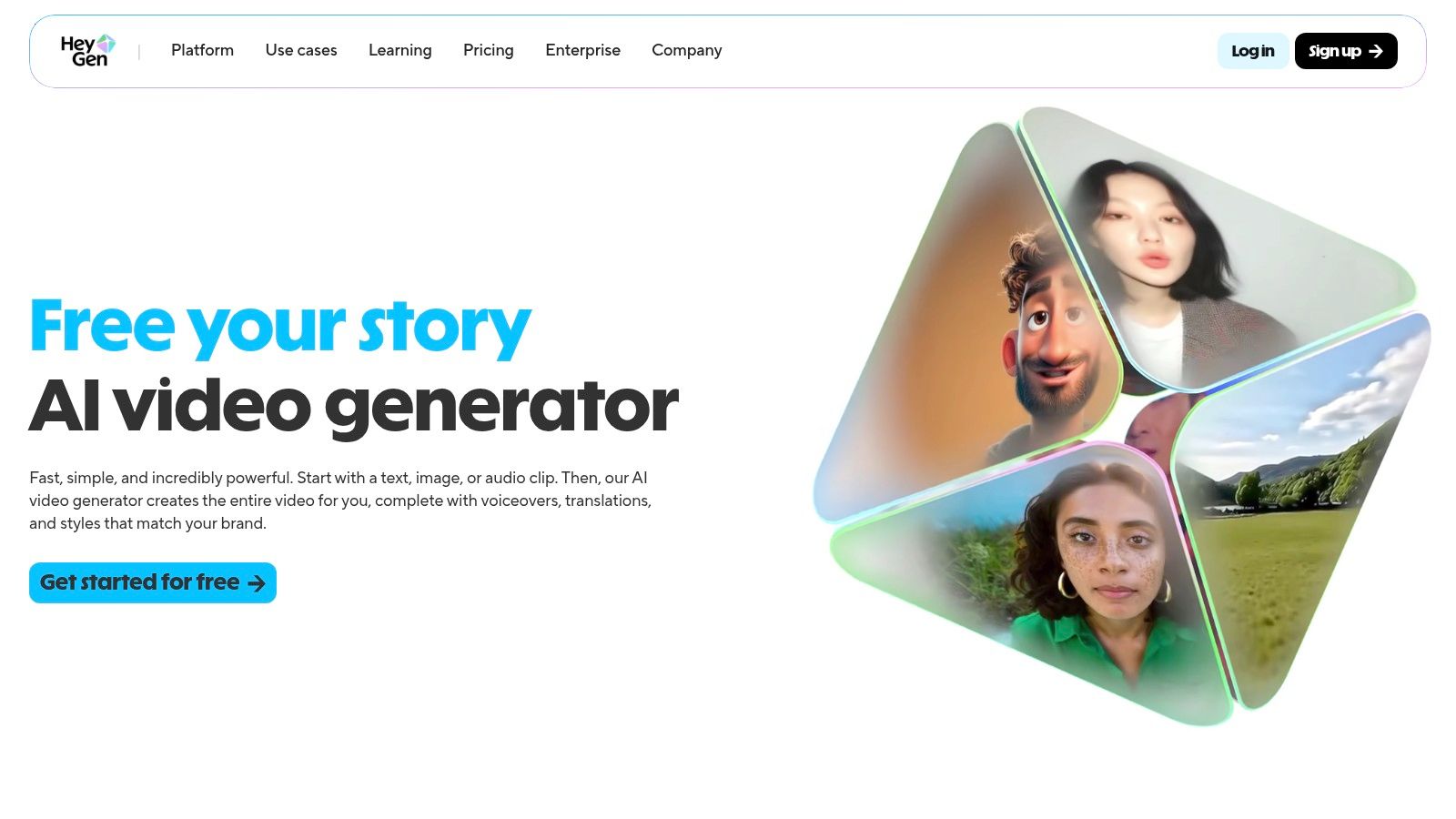
What sets HeyGen apart is its focus on speed and naturalism, powered by its advanced ‘Avatar IV’ model that produces more fluid gestures. Its mobile app support allows for video creation on the go, a unique offering in the space. For example, a sales team can quickly generate personalized video messages for leads directly from their phones, a task that would otherwise require significant time and resources. This accessibility, combined with robust collaboration tools, makes it a versatile choice for dynamic teams.
Key Features & Analysis
- Extensive Avatar & Language Library: HeyGen provides a massive library of over 500 stock avatars and offers custom avatar creation. It supports more than 175 languages and dialects, complete with high-fidelity voice cloning for authentic localization.
- Mobile App & Fast Processing: The dedicated iOS app enables users to create and edit videos from anywhere. The platform is optimized for fast rendering, allowing for quick content iteration and deployment.
- Collaboration and High-Resolution Exports: Paid plans include a collaboration workspace for teams, along with 1080p and 4K video export options, ensuring professional quality for all marketing and communication needs.
How It Works: A Practical Example
- Create a Custom Avatar (Optional): Record a 2-minute video of yourself speaking clearly on your phone, following HeyGen’s instructions. Upload it to create a digital twin.
- Start a New Video: Choose your custom avatar or a stock one. Select a template designed for a “LinkedIn Outreach” video.
- Personalize the Script: Use the text field to add a personalized script: “Hi [Lead Name], I saw your post on AI-driven marketing and wanted to share how our tool can help you achieve [specific goal].” Use the dynamic variable feature to easily swap names.
- Clone Your Voice: Upload a short audio sample of your voice. HeyGen will create a clone that you can apply to the script for authentic-sounding delivery.
- Generate & Send: Click “Submit.” The video will render quickly, and you can share the link directly with your prospect on LinkedIn, increasing engagement and response rates.
Pricing and Access
HeyGen uses a credit-based system with a free plan that includes a watermark and limitations. Paid tiers, like the “Creator” and “Business” plans, offer more credits, premium features, and higher export quality. Pricing is structured to be accessible for individuals and scalable for teams, with moderate per-seat costs that include collaboration features. Access is primarily web-based, but the iOS app provides added flexibility for mobile workflows.
- Website: https://www.heygen.com
| Feature | Pros | Cons |
|---|---|---|
| Use Case | Sales outreach, social media marketing, and e-learning videos. | Watermarking and strict limits on the free plan can be restrictive. |
| Output Quality | Very lifelike avatars with natural gestures and high-res exports. | Lip-sync accuracy can vary slightly with complex scripts. |
| Ease of Use | Highly intuitive interface with a fast learning curve. | The credit system may require some planning for heavy users. |
| Pricing | Scalable plans with generous team features at a competitive price. | Some advanced features like 4K export are tied to higher tiers. |
4. Runway
Best For: Artists and filmmakers who need a cutting-edge creative suite for generating cinematic clips and visual effects.
Runway is a cutting-edge creative suite that positions itself at the forefront of generative AI video. Primarily known for its advanced text-to-video and image-to-video models like Gen-2, it empowers creators to produce cinematic short clips, abstract visuals, and concept art from simple prompts. It stands out by integrating these powerful generative tools directly into a web-based video editor, making it one of the best AI video generators for artists and filmmakers who need a seamless workflow from concept to final edit.
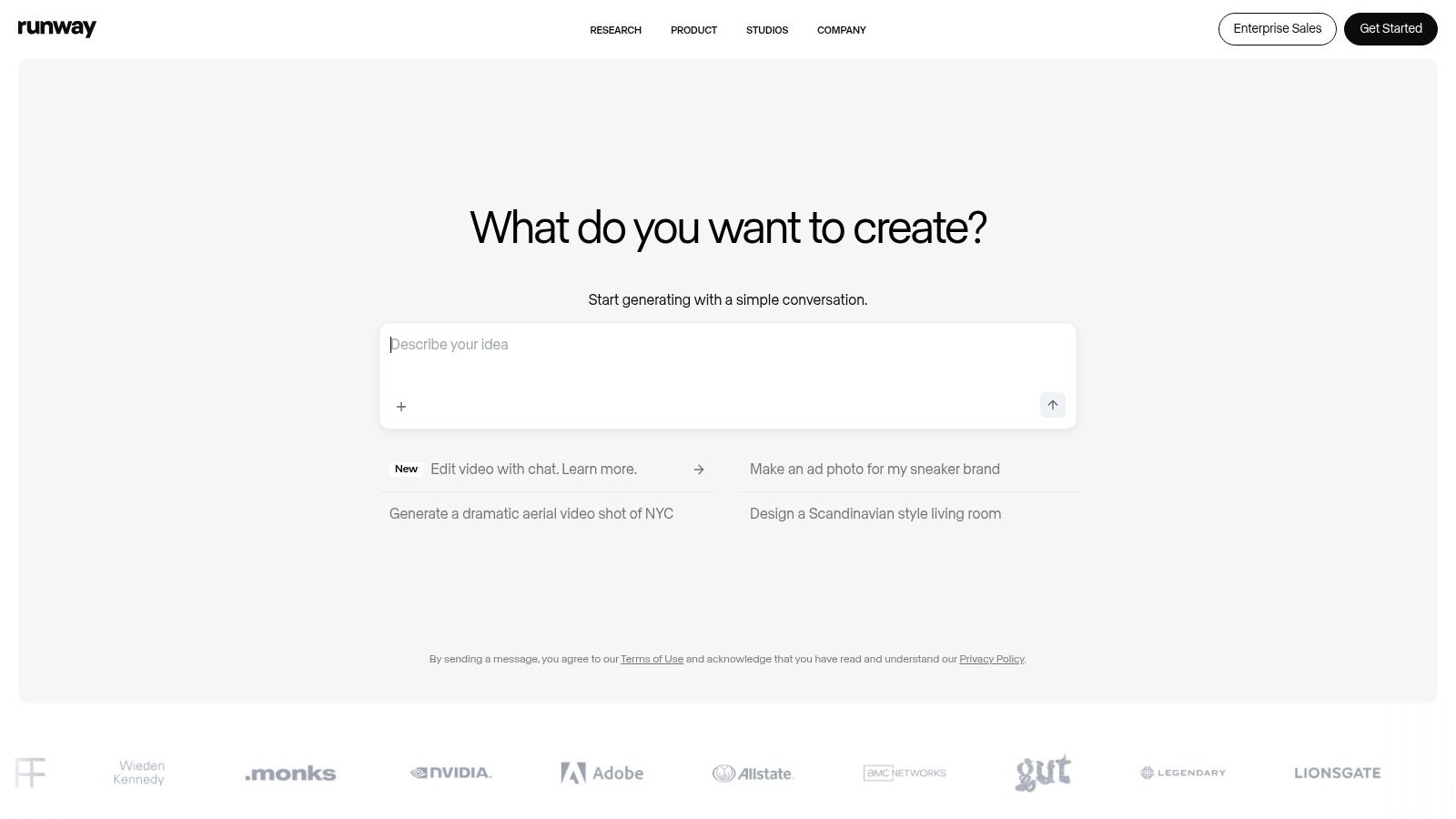
What sets Runway apart is its focus on high-fidelity, artistic video generation rather than corporate-style avatar videos. The platform is built for experimentation, allowing users to blend AI-generated footage with their own clips, apply effects like green screen and motion tracking, and export in high resolution. This makes it an ideal choice for short-form content creators, animators, and visual effects artists looking to push creative boundaries without the steep learning curve of traditional VFX software.
Key Features & Analysis
- Advanced Generative Models: Features text-to-video (Gen-2), image-to-video, and other “AI Magic Tools” like motion tracking, inpainting, and infinite image expansion, providing a comprehensive creative toolkit.
- Integrated Web Editor: A full-featured, timeline-based video editor is built directly into the platform, allowing you to generate, edit, and export content all in one place. Paid tiers support up to 4K export.
- Credit-Based System: Generation is managed through a flexible credit system. This allows users to pay for what they use, with options to purchase additional credits as needed for larger projects.
How It Works: A Practical Example
- Generate a Base Clip: In the Runway editor, select the “Text to Video (Gen-2)” tool. Enter the prompt: “A cinematic aerial shot of a lone car driving on a coastal road at sunset, golden hour lighting.” Generate the 4-second clip.
- Extend the Scene: Drag the generated clip to the timeline. Select the clip and use the “Extend 4s” feature. Runway will generate the next 4 seconds, maintaining scene consistency. Repeat until you have a 12-second shot.
- Apply an AI Effect: Upload a logo image. Use the “Motion Tracking” tool to track the roof of the car. Attach the logo to the tracked point, making it appear as if it’s painted on the car.
- Add Audio and Export: Import a royalty-free music track from the asset library. Trim it to fit your clip, add a subtle fade-out, and export the final video in 1080p for a high-impact social media ad.
Pricing and Access
Runway offers a tiered pricing model that includes a free plan with limited credits for users to experiment with the tools. Paid plans like “Standard” and “Pro” provide a larger monthly credit allowance, access to higher-resolution exports (up to 4K), and more advanced features. The “Unlimited” and “Enterprise” tiers offer even more capabilities for heavy users and teams. Access is entirely web-based, making it accessible from any modern browser.
- Website: https://runwayml.com
| Feature | Pros | Cons |
|---|---|---|
| Use Case | Cinematic shorts, music videos, concept art, and creative visual effects. | Longer, narrative-driven scenes may require significant iteration. |
| Output Quality | Among the most advanced and artistic prompt-to-video outputs available. | Credit system can be depleted quickly with experimentation. |
| Ease of Use | Combines powerful generation and editing tools in a single, intuitive interface. | Achieving a highly specific visual outcome can require prompt engineering skills. |
| Pricing | Free and affordable entry tiers make it accessible for experimentation. | Costs can add up for high-volume or high-resolution generation. |
5. Pika
Best For: Artists and marketers who need to rapidly prototype and create dynamic, short-form video clips with creative control.
Pika has rapidly emerged as a powerful text and image-to-video platform, distinguishing itself with incredible speed and a focus on creative control for short-form content. It is optimized for artists, marketers, and social media creators who need to iterate quickly on dynamic clips. The platform’s strength is its combination of multiple generative models and a suite of editing tools that allow for granular manipulation of scenes, objects, and characters within the generated video.
What sets Pika apart is its transparent, credit-based system and an emphasis on rapid prototyping. Unlike some competitors that abstract their costs, Pika clearly states the credit price for each generation based on duration and resolution. This, combined with its fast generation speeds, makes it one of the best AI video generators for users who value cost control and want to experiment with numerous ideas without committing to a large, upfront expense. The “Modify Region” and object replacement tools also provide a unique level of post-generation editing flexibility.
Key Features & Analysis
- Multiple Generation Models: Users can choose from several models (including Turbo and Pro) to balance speed and quality, allowing for quick drafts or high-fidelity final outputs.
- In-Video Editing Tools: Features like “Extend Video,” “Modify Region” (change a specific area), and object replacement give creators significant control to modify and refine their videos directly on the platform.
- Transparent Credit System: The platform operates on a granular credit model where costs are clearly defined per second of video, enabling users to manage their budget with precision.
How It Works: A Practical Example
- Generate a Character Clip: Enter the prompt: “A cute, fluffy cat wearing a tiny wizard hat, sitting on a pile of books, anime style.” Generate a 3-second clip.
- Extend the Duration: Use the “Extend Video” function twice to create a longer, 9-second clip of the cat blinking and looking around.
- Modify the Scene: Select the “Modify Region” tool. Draw a mask around the wizard hat. In the prompt box, type “a tiny pirate hat.” Pika will re-render only that part of the video, swapping the hat while keeping the cat and background consistent.
- Add Camera Motion: Use the camera control options to add a slow “Zoom In” effect to the entire clip for a more dramatic feel.
- Upscale and Export: Once satisfied, use the “Upscale” feature to enhance the resolution and export the final clip for use as a social media GIF or video post.
Pricing and Access
Pika offers a free tier with watermarked videos and a flexible, credit-based paid structure. The “Standard” plan provides a monthly credit allotment at a great value, with options to purchase additional credits as needed. Paid plans remove the watermark and grant commercial usage rights. The entire platform is web-based, making it accessible from any modern browser without downloads, perfect for creators on the go.
- Website: https://pika.art
| Feature | Pros | Cons |
|---|---|---|
| Use Case | Short social media clips, artistic experiments, rapid video prototyping. | Longer narrative videos require stitching multiple clips together. |
| Output Quality | High-quality, dynamic video with impressive motion and style adherence. | Credit management can feel complex for first-time users. |
| Ease of Use | Very fast iteration cycles and flexible tools for scene modification. | The array of tools and models may have a slight learning curve. |
| Pricing | Transparent, granular credit pricing offers excellent value on paid tiers. | Free tier is limited by watermarks and lower generation priority. |
6. Luma AI – Dream Machine
Best For: Artists and filmmakers who need high-fidelity, photorealistic short clips with realistic physics and motion.
Luma AI’s Dream Machine is a high-fidelity, text-to-video generator engineered for creating short, cinematic clips with a strong emphasis on realistic physics and fluid motion. It stands out as one of the best AI video generators for artists, filmmakers, and creators who need photorealistic or surreal five-second shots. The platform’s strength lies in its ability to understand and render complex interactions between objects, characters, and environments, producing clips that feel dynamic and coherent.
What sets Dream Machine apart is its accessibility and focus on raw generative quality over complex editing suites. While other tools bundle features for creating full-length marketing videos, Luma focuses on perfecting the core generation model. This makes it a powerful tool for generating b-roll, creating captivating social media content, or rapidly prototyping visual concepts without the steep learning curve of traditional CGI software.
Key Features & Analysis
- High-Fidelity Generation: The model is trained to produce high-quality, 120-frame clips with consistent motion and character appearance from simple text or image prompts.
- Extend, Reframe, & Upscale: Users can extend their initial 5-second clips to create longer sequences, reframe the video to different aspect ratios, and upscale the final output to 4K resolution with HDR on paid plans.
- Transparent Credit System: Luma provides a clear, credit-based system. Generations have a predictable cost, and users can purchase top-ups, allowing for flexible usage that scales from hobbyist projects to commercial productions.
How It Works: A Practical Example
- Upload an Initial Image: Instead of text, upload a still photo you took of a friend smiling at a café.
- Animate with a Prompt: In the prompt field, describe the desired action: “The person in the image slowly blinks and takes a sip from their coffee cup, steam gently rising.”
- Generate the Clip: Dream Machine will analyze the image and the prompt, animating the still photo into a realistic 5-second video clip where the action takes place.
- Extend the Action: Use the “Extend” feature to add another 5 seconds, prompting “They look up from the cup and smile at the camera.”
- Upscale and Download: For the highest quality, use the “Upscale to 4K” option (available on paid plans) and download the clip to use as a dynamic shot in a personal film project or a high-end commercial.
Pricing and Access
Luma AI offers a tiered pricing model that accommodates a wide range of users. A free plan provides a generous monthly credit allowance for non-commercial use, which is perfect for experimentation. Paid plans like Plus, Pro, and Premier increase the monthly credit supply, grant commercial usage rights, offer higher generation priority, and unlock features like 4K upscaling. Access is available directly through the web platform and an iOS app.
- Website: https://lumalabs.ai
| Feature | Pros | Cons |
|---|---|---|
| Use Case | Short cinematic clips, surreal art, social media content, and visual prototyping. | Not ideal for long-form narrative content without significant editing. |
| Output Quality | Excellent realism, physics, and motion for short clips. | The free/draft mode includes a visible watermark. |
| Ease of Use | Very simple prompt-based interface, accessible to beginners. | Short clip duration requires stitching for longer videos. |
| Pricing | Generous free tier for non-commercial use; clear credit costs. | High-volume generation can become costly. |
7. Canva (Magic Studio – Create a Video Clip with Veo 3)
Best For: Marketers and content creators who need to quickly generate branded video assets within their existing design workflow.
Canva has integrated a powerful AI video generator into its widely-used design suite, making it a go-to for marketers and content creators needing quick, branded video assets. Powered by Veo 3, this feature, found within Canva’s Magic Studio, generates short, high-quality 8-second video clips complete with synchronized audio from a simple text prompt. Its primary strength is the seamless integration into the familiar Canva ecosystem, allowing users to instantly create b-roll or video intros and immediately polish them with brand kits, text overlays, and other design elements.
What sets Canva apart is its convenience and workflow efficiency. Instead of generating a clip in one tool and importing it into another for editing, users can do everything in one place. This makes it one of the best AI video generators for creating social media content, ad creatives, or quick video snippets for presentations. For a team already invested in Canva, this feature adds significant value by centralizing another crucial content creation step, streamlining the entire production process from concept to final export.
Key Features & Analysis
- Integrated Veo 3 Engine: Leverages advanced AI to produce 8-second video clips with synchronized audio directly from text prompts, ensuring high-quality, relevant results.
- Full Canva Editor Integration: Generated clips are immediately available in the Canva editor, where users can apply brand kits, add text, use templates, and access a vast library of stock assets to finalize the video. You can find out more by exploring our detailed Canva (Magic Studio – Create a Video Clip with Veo 3) tool review.
- Team Collaboration & Publishing: Built on Canva’s collaborative platform, teams can work on video projects together and publish them directly to multiple social media formats or download them for other uses.
How It Works: A Practical Example
- Open a Design: Start a new “Instagram Reel” project in Canva.
- Access Magic Media: In the left-hand menu, go to “Apps” and find “Magic Media.” Select the “Video” tab.
- Generate a Clip: Enter the prompt: “A satisfying time-lapse of a flower blooming, vibrant colors, soft lighting.” Click “Generate.” Canva will produce four 8-second video options.
- Add to Timeline: Choose your favorite clip and drag it onto your design canvas. It will automatically become the background.
- Brand and Finalize: Use Canva’s text tools to add a headline like “Bloom Where You’re Planted.” Apply your brand’s font and color from your saved Brand Kit. Add your logo as a small overlay in the corner.
- Publish: Download the final MP4 or use Canva’s Content Planner to schedule it for direct publishing to your Instagram account.
Pricing and Access
The AI video generation feature is available to users on Canva’s paid plans, including Pro, Teams, Enterprise, and Nonprofit tiers. Access is web-based and fully integrated into the standard Canva interface. Pricing is subscription-based, with monthly generation limits that vary by plan. While not a standalone video tool, its inclusion in the broader Canva Pro subscription offers excellent value for existing users looking to expand their creative capabilities without adding another specialized tool to their stack.
- Website: https://www.canva.com
| Feature | Pros | Cons |
|---|---|---|
| Use Case | Quick social media b-roll, ad creatives, video intros, presentation clips. | Not suitable for long-form video or complex cinematic narratives. |
| Output Quality | High-quality, coherent short clips with relevant, synchronized audio. | Output is limited to 8 seconds, which may be too short for some applications. |
| Ease of Use | Extremely intuitive, especially for those familiar with the Canva interface. | Credit system and generation limits can be restrictive for power users. |
| Pricing | Included in affordable Canva Pro plans, offering great overall value. | Full access requires a paid subscription; not available on the free plan. |
8. Kapwing
Best For: Social media managers and marketers needing a fast, all-in-one platform for creating and editing daily content.
Kapwing is an all-in-one, browser-based video editor that integrates AI generation tools directly into a familiar creative workflow. It is designed for social media managers, marketers, and creators who need to produce and refine content quickly. Kapwing’s strength lies in combining AI video generation, automated subtitling, and a full suite of editing tools in one accessible platform, making it one of the best AI video generators for rapid, day-to-day content creation.
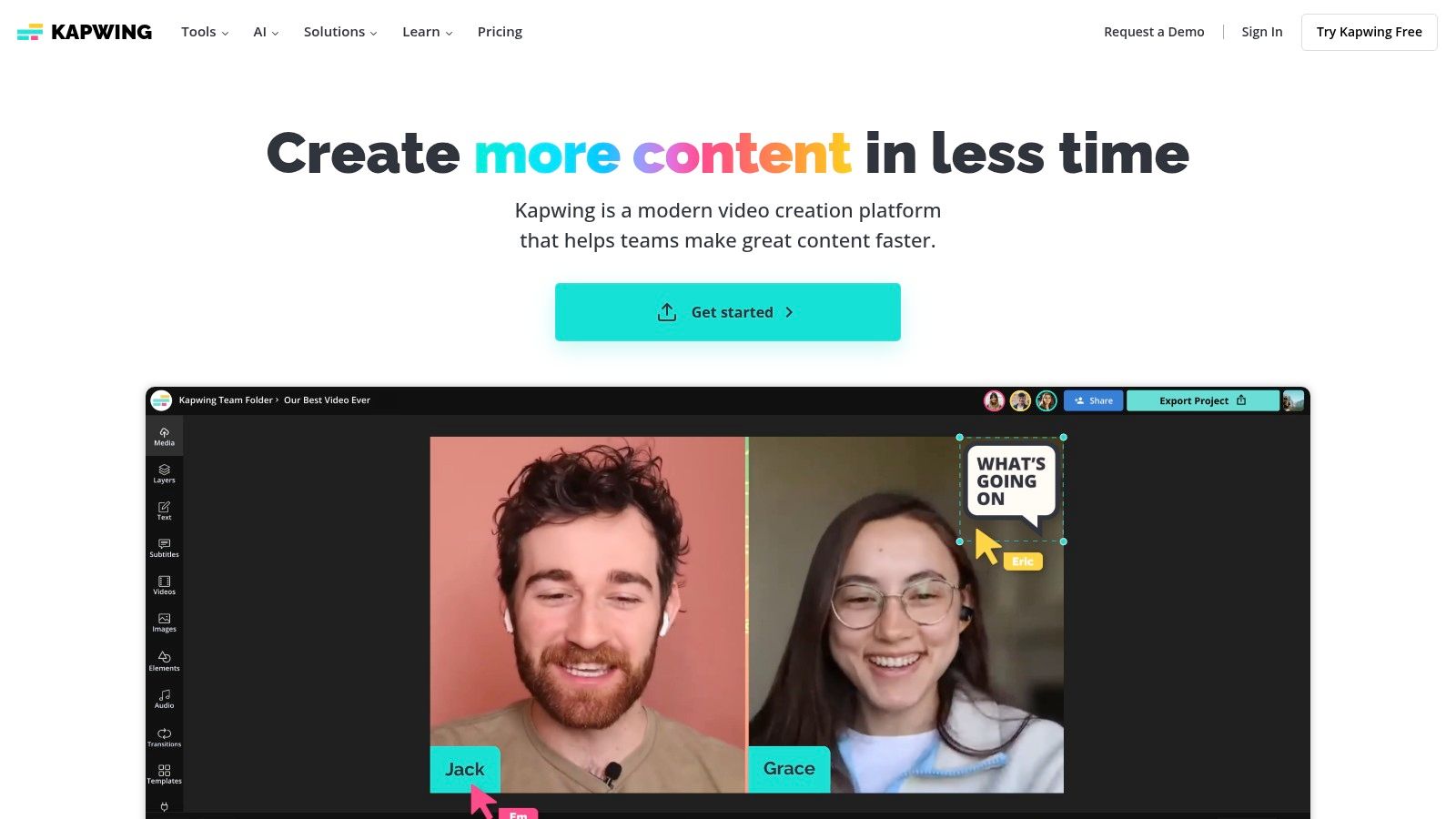
What sets Kapwing apart is its focus on the complete social media workflow. Users can generate a video from a text prompt, immediately add animated subtitles, resize it for different platforms like TikTok or YouTube Shorts, and apply branded templates without ever leaving the application. This streamlined process makes it an ideal solution for teams that need to maintain a high content velocity without juggling multiple software tools.
Key Features & Analysis
- Integrated AI Studio: Kapwing’s AI tools allow users to generate video from text or an image, create AI-generated images, and even write scripts. The output can be instantly dropped onto the editing timeline for further refinement.
- Comprehensive Editing Suite: The platform includes a robust set of features, including smart subtitling, automatic background removal, a vast library of templates, and access to stock assets.
- Collaboration and Brand Kits: Paid plans support team collaboration with shared workspaces and brand kits, allowing users to maintain consistency with custom fonts, colors, and logos across all projects.
How It Works: A Practical Example
- Generate B-Roll: In the Kapwing editor, select the “AI Video Generator.” Enter the prompt: “A minimalist shot of hands typing on a modern laptop in a bright, clean office.” Generate the clip.
- Add Your Main Footage: Upload a screen recording of your software product in action. Place it on a track above the AI-generated b-roll.
- Create Smart Subtitles: Select the screen recording clip and use the “Auto Subtitle” feature. Kapwing will transcribe the audio and generate timed captions. Choose an animated style for the captions to make them more engaging.
- Resize for TikTok: Use the “Resize Canvas” tool and select the 9:16 aspect ratio for TikTok. Adjust the positions of your video clips and subtitles to fit the vertical format.
- Apply Brand Kit: Add your company’s logo from your saved Brand Kit and apply a branded color palette to the subtitle text. Export the final video, ready for upload.
Pricing and Access
Kapwing offers a free tier that allows users to test the platform’s core functionality, with exports at 720p and a watermark. Paid plans like “Pro” and “Business” unlock higher-resolution exports (1080p/4K), remove the watermark, increase storage, and provide access to the full suite of AI features and collaboration tools. The AI generation features operate on a credit-based system. Access is entirely web-based, making it easy to use on any computer with an internet connection.
- Website: https://www.kapwing.com
| Feature | Pros | Cons |
|---|---|---|
| Use Case | Social media marketing, quick content creation, all-in-one editing. | Not suited for complex cinematic or feature-length productions. |
| Output Quality | Good for social media; paid tiers offer 1080p and 4K exports. | Free exports are watermarked and limited to 720p resolution. |
| Ease of Use | Very intuitive with a gentle learning curve for beginners. | The credit-based system for AI features can be a bit confusing. |
| Pricing | Accessible free tier provides a good starting point. | Key features and higher quality require a paid subscription. |
9. Descript
Best For: Podcasters, educators, and content creators who need an editing-first platform to refine and repurpose dialogue-heavy content.
Descript is a unique all-in-one audio and video editor that operates as easily as a word processor, integrating powerful AI features to streamline content creation. It is primarily an editing-first platform, ideal for creators who focus on podcasts, tutorials, and screen recordings. Its AI capabilities, including a co-editor and voice cloning, make it one of the best AI video generators for transforming long-form content into engaging short-form clips with minimal effort.
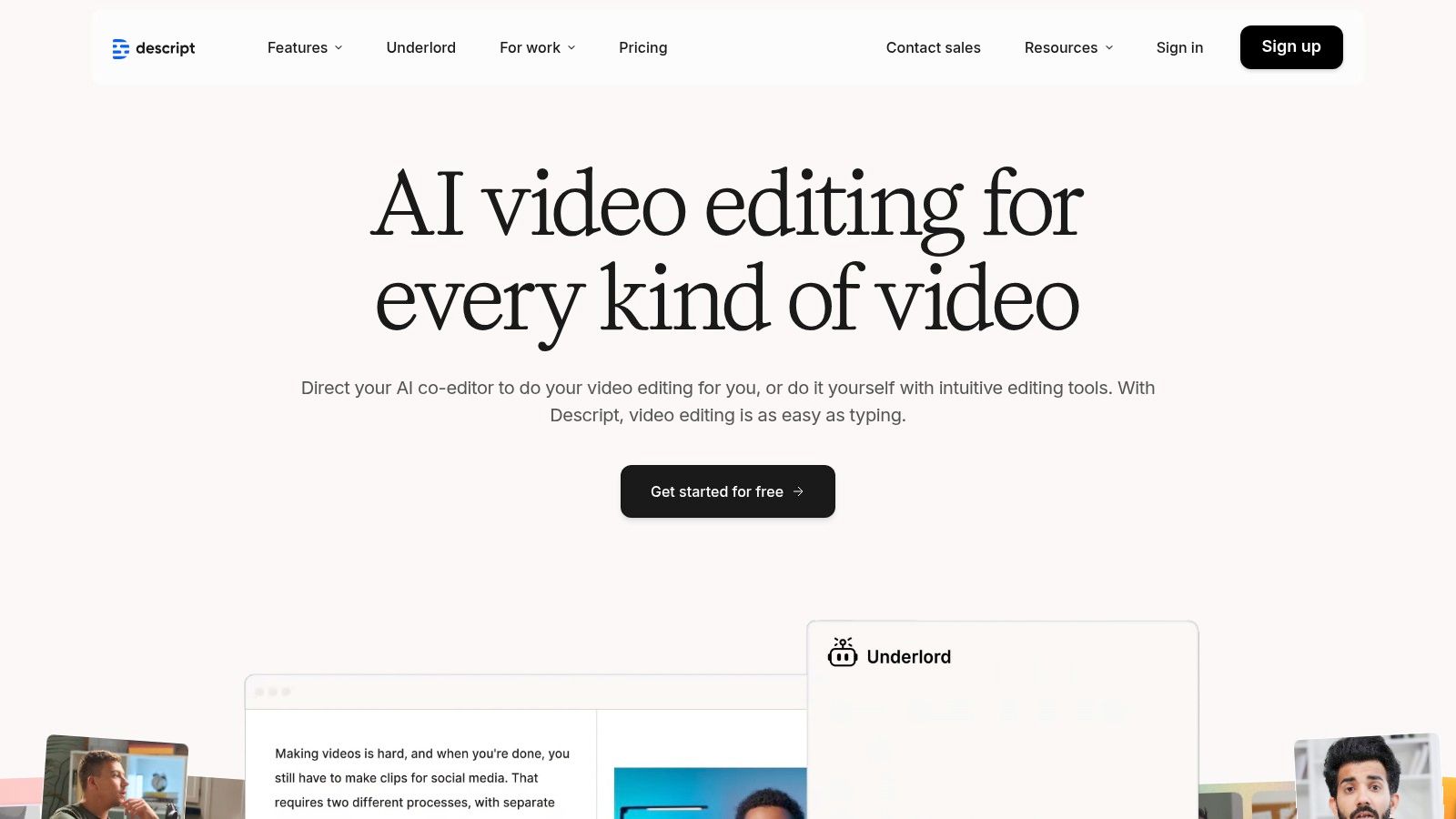
What sets Descript apart is its text-based editing workflow. Instead of manipulating complex timelines, users edit the video by simply editing the auto-generated transcript. This approach dramatically lowers the barrier to entry for video editing and is perfectly suited for dialogue-heavy content. For instance, removing filler words like “um” or “uh” is as simple as finding and deleting them in the text, and the video updates automatically. This seamless script-to-video process is a game-changer for podcasters and educators.
Key Features & Analysis
- Text-Based Video Editing: Edit video by editing a text document. The intuitive workflow includes automatic transcription, filler word removal, and an AI co-editor named Underlord to help script, summarize, and find the best clips.
- Overdub Voice Cloning: Create an ultra-realistic clone of your own voice to correct audio mistakes or generate new dialogue without re-recording. This feature is a massive time-saver for correcting minor errors post-production.
- Studio Sound & Screen Recording: Enhance audio quality with a single click using the Studio Sound feature, which removes background noise and echo. The platform also includes a high-quality screen and camera recorder, making it a complete solution for creating tutorials and presentations.
How It Works: A Practical Example
- Record and Transcribe: Record a 30-minute video podcast interview directly in Descript. The platform will automatically transcribe the entire conversation into a text document.
- Edit the Transcript: Read through the transcript. Highlight and delete any filler words (“ums,” “ahs”) and off-topic sections. The corresponding video and audio are removed automatically.
- Fix a Mistake with AI: You notice you misstated a company’s name. Highlight the incorrect name in the transcript, click “Overdub,” and type the correct name. Descript will generate the correction in your own cloned voice.
- Find the Best Clips with AI: Use the AI co-editor (Underlord) and ask it to “find 5 of the most impactful quotes from this interview.” It will highlight several key moments.
- Create Social Clips: For each highlighted quote, right-click and “Duplicate to new composition.” Add animated captions and a branded background to create five separate, shareable social media clips from your single long-form recording.
Pricing and Access
Descript provides a very accessible pricing model, including a solid free tier for getting started. Paid plans include “Creator,” “Pro,” and a custom “Enterprise” tier, which unlock features like unlimited Overdub, 4K video export, and advanced team collaboration tools like a brand studio. Access is available via a downloadable desktop app for Mac and Windows, with some features available on the web.
- Website: https://www.descript.com
| Feature | Pros | Cons |
|---|---|---|
| Use Case | Podcasts, tutorials, screen recordings, content repurposing. | Generation features are newer compared with specialized generators. |
| Output Quality | High-quality audio and up to 4K video on paid plans. | AI-generated elements can be less polished than dedicated tools. |
| Ease of Use | Exceptionally intuitive text-based editing workflow. | The sheer number of features can be overwhelming for beginners. |
| Pricing | Generous free tier and scalable paid plans for creators. | Advanced AI usage is tied to credits and higher plan levels. |
10. InVideo AI
Best For: Marketers and creators who need a fast, automated workflow to turn ideas into social media videos with minimal effort.
InVideo AI is a powerful text-to-video assistant designed for speed and efficiency, making it a top contender among the best AI video generators for social media managers, marketers, and content creators. It streamlines the entire creation process, transforming a simple text prompt into a scripted, voiced, and visually populated video draft in minutes. The platform combines AI scriptwriting, voiceovers, and stock media selection into a single, intuitive workflow.
What sets InVideo AI apart is its focus on workflow automation for creators who need to produce content quickly without deep video editing knowledge. By simply providing an idea, the AI generates a script, breaks it into scenes, finds relevant stock footage, and adds a voiceover and background music. This makes it an excellent tool for producing social media ads, YouTube explainers, or marketing shorts with minimal manual effort, similar to other fast-turnaround tools in the space. For an in-depth look at a comparable AI video creation tool, you can learn more about its competitors on Richly AI.
Key Features & Analysis
- AI-Powered Workflow: The core feature is its prompt-to-video engine. Users input a topic, and the AI handles scriptwriting, scene creation, media selection, and voiceover, delivering a near-complete first draft.
- Extensive Stock Library: Gain access to a vast library of stock images and video clips from premium sources like iStock, ensuring high-quality visuals for any project.
- Web-Based Editor: The entire platform is cloud-based, requiring no powerful hardware or software installation. The editor allows for easy tweaks to the AI-generated script, media, and text overlays.
How It Works: A Practical Example
- Enter Your Prompt: In the main prompt box, type your video idea: “Create a 30-second Instagram Reel about the top 3 benefits of drinking coffee. Use an upbeat, energetic tone and a modern aesthetic.”
- Define Audience & Platform: Select your target audience as “Young Professionals” and the platform as “Instagram Reels.”
- Generate the Draft: Click “Generate.” InVideo’s AI will write a short script, break it into scenes (“Benefit 1: Increased Focus!”), select relevant stock clips (people working, coffee pouring), add a synthetic voiceover, and choose upbeat background music.
- Refine with Commands: Review the draft. If you don’t like a clip, use the command box to type: “Change the clip in scene 2 to someone smiling while drinking coffee.” The AI will replace it instantly.
- Export and Post: Once you’re happy with the result, export the video. It’s already perfectly formatted for Reels, ready to be uploaded to your social media accounts.
Pricing and Access
InVideo AI offers a free plan that includes watermarked exports and limited AI generation credits, which is great for testing the platform. Paid plans, like “Plus” and “Max,” remove the watermark, increase export limits, provide more AI credits, and grant access to the full iStock media library. The tiered structure is designed to scale with a creator’s or a small business’s output needs.
- Website: https://invideo.io
| Feature | Pros | Cons |
|---|---|---|
| Use Case | Social media ads, YouTube shorts, explainer videos, tutorials. | Not built for complex, cinematic, or long-form video projects. |
| Output Quality | Good quality for social media; relies on stock asset library. | Lacks the polish of high-end, avatar-focused platforms. |
| Ease of Use | Extremely intuitive idea-to-draft workflow for non-editors. | Advanced users may find the editing controls somewhat limited. |
| Pricing | Accessible entry-level plans and a functional free tier. | The free plan is restrictive with watermarks and limited credits. |
11. Pictory
Best For: Content marketers and creators who want to efficiently repurpose blog posts and articles into engaging social media videos.
Pictory excels at transforming long-form text content like blog posts, scripts, and articles into engaging, shareable social media videos. It is one of the best AI video generators for content marketers and creators looking to repurpose existing assets with maximum efficiency. The platform automates the heavy lifting by selecting relevant stock footage, adding captions, and generating AI narration, turning a simple text document into a dynamic video in minutes.
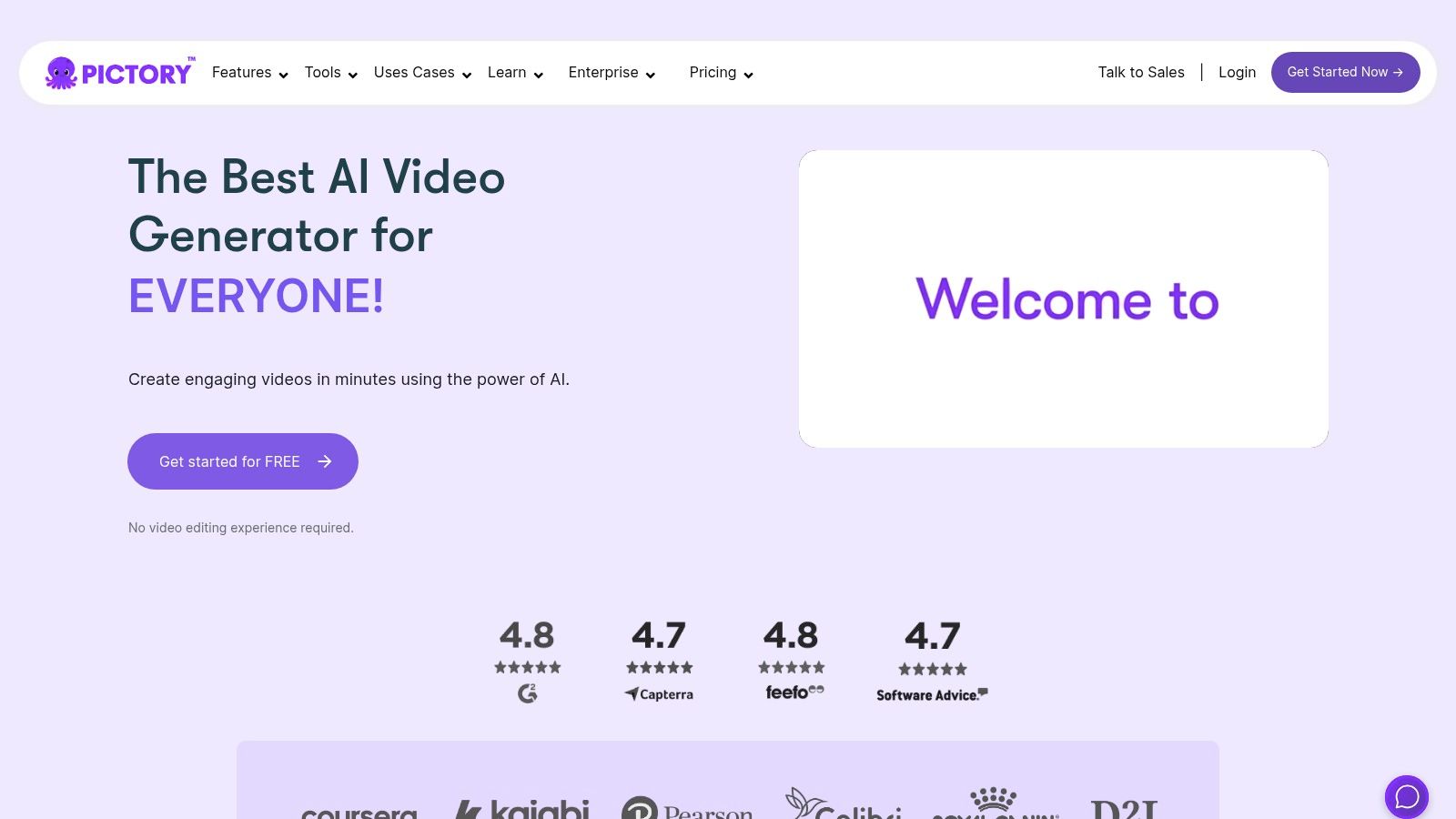
What sets Pictory apart is its laser focus on content repurposing and its extremely user-friendly interface. While other tools offer complex avatar creation or cinematic generation, Pictory is built for speed and simplicity. This makes it the ideal tool for a user who needs to create a dozen YouTube Shorts from a single blog post without a steep learning curve or advanced video editing skills.
Key Features & Analysis
- Script & Blog-to-Video: Pictory’s core feature intelligently analyzes your text, summarizes key points into scenes, and automatically finds matching stock video clips and images to visualize the content.
- Automatic Captioning & Narration: The platform automatically transcribes and adds captions to your video, which is crucial for social media engagement. It also offers a wide selection of realistic AI voices for narration.
- Extensive Stock Media Libraries: Depending on the plan, users get access to millions of premium, royalty-free video clips and images from Storyblocks and Getty Images, ensuring high-quality visuals.
- Branding Customization: Users can apply brand kits to maintain consistency, adding custom intros, outros, logos, and fonts to all videos created. This is a vital feature for businesses building brand recognition.
How It Works: A Practical Example
- Input Your Article: Choose the “Article to Video” feature and paste the URL of your blog post titled “5 Tips for Better Sleep.”
- Review the AI Summary: Pictory will process the article and automatically create a storyboard, pulling out key sentences for each scene. You can quickly edit the text or remove scenes you don’t need.
- Customize Visuals and Audio: The AI will have already selected stock video clips for each scene (e.g., a calm bedroom, a person meditating). Swap any clips you don’t like from the vast stock library. Go to the “Audio” tab and select an AI voice and a calming background music track.
- Apply Your Brand: Select your saved Brand Kit to automatically add your logo to the corner of every scene and apply your brand’s fonts and colors to the captions.
- Generate and Download: Click “Generate” to create the final video. Pictory will combine the text, visuals, and audio into a polished MP4, ready for you to share on platforms like YouTube or LinkedIn.
Pricing and Access
Pictory offers a tiered subscription model that caters to different user needs, from solo creators to agencies. The “Starter” plan is competitively priced and provides a great entry point, while the “Professional” and “Teams” plans offer more videos per month, higher-quality AI voices, and access to premium stock media libraries. The platform is entirely web-based, making it accessible from any device without requiring powerful hardware.
- Website: https://pictory.ai
| Feature | Pros | Cons |
|---|---|---|
| Use Case | Repurposing blogs and articles for social media, creating YouTube Shorts. | Not suited for complex edits or cinematic video production. |
| Output Quality | Good for social media; visuals depend on the stock library quality. | Lacks the advanced features of more sophisticated video editors. |
| Ease of Use | Extremely intuitive and easy to learn, perfect for non-video professionals. | AI-selected media may sometimes require manual replacement. |
| Pricing | Affordable entry-level plans make it accessible for individual creators. | Higher-tier plans are needed for premium stock media and voices. |
12. D-ID (Creative Reality Studio)
Best For: Creating presenter-led training modules, social media explainers, and marketing messages quickly from a still photo.
D-ID’s Creative Reality Studio specializes in transforming still images into photorealistic talking-head videos with remarkable speed. It is one of the best AI video generators for creators and businesses who need to produce presenter-led content, such as training modules, social media explainers, or marketing messages, without the cost of a live-action shoot. The platform’s core strength is its ability to animate any face from a photo using just text or an audio file, making avatar creation incredibly accessible.
What sets D-ID apart is its focus on ease and speed for generating presenter-style videos. While other tools offer full-scene generation, D-ID hones in on the talking-head format, perfecting the lip-sync and facial animations from a single image. This makes it an excellent choice for projects where a consistent, personable presenter is needed to deliver information directly to the audience. Its Canva plugin further streamlines the workflow for marketers and content creators.
Key Features & Analysis
- Photo-to-Video Animation: The platform’s standout feature is its ability to take any portrait photo and animate it into a speaking avatar. Users can upload their own image or choose from a library of pre-made presenters.
- Text-to-Speech and Script Assist: D-ID supports numerous languages and voices for its text-to-speech engine. It also includes an AI script assistant to help generate or refine video scripts directly within the platform.
- Integrations and API: A powerful API allows developers to integrate D-ID’s technology into their own applications. The platform also offers a convenient plugin for Canva, enabling users to add talking avatars to their designs seamlessly.
How It Works: A Practical Example
- Choose Your Presenter: In the Creative Reality Studio, click “Create Video.” You can upload a professional headshot of your company’s CEO or choose one of the stock presenters.
- Write the Script: In the script box on the right, type a short announcement: “This quarter, our team exceeded sales goals by 15%! A huge thank you to everyone for your hard work.”
- Select a Voice: Choose the language (e.g., “English (US)”) and select a voice style that matches the message, such as “Excited” or “Professional.”
- Generate the Video: Click the “Generate Video” button. D-ID’s AI will animate the facial features of the photo to speak the script with accurate lip-syncing.
- Share Internally: Download the generated video clip and share it in your company’s Slack channel or include it in an internal newsletter for a more personal and engaging announcement than a simple text-based email.
Pricing and Access
D-ID uses a credit-based system and offers several plans. A free trial is available for users to test the platform, which includes a D-ID watermark. Paid plans start with the “Lite” tier for personal use, scaling up to “Pro” and “Advanced” for more credits and features like commercial licensing and premium support. Custom “Enterprise” plans are available for large teams. The platform is entirely web-based, ensuring easy access from any browser.
- Website: https://www.d-id.com
| Feature | Pros | Cons |
|---|---|---|
| Use Case | Quick creation of explainer videos, training content, and social media updates. | Focused on presenter/talking-head format, not cinematic scenes. |
| Output Quality | Realistic lip-syncing and facial expressions on animated photos. | Animation is limited to the head and shoulders, lacking body movement. |
| Ease of Use | Very intuitive interface; upload a photo and script to generate a video in minutes. | The credit/minutes structure can be confusing for first-time users. |
| Pricing | Affordable entry-level plans are great for light or experimental usage. | Lower-tier plans include D-ID branding on the final video. |
Top 12 AI Video Generators — Feature Comparison
| Tool | Core capabilities | Quality / UX (★) | Best for / Target (👥) | Pricing & Value (💰) | Unique strengths (✨ / 🏆) |
|---|---|---|---|---|---|
| Luma AI – AI Tools Hub | Mobile-first iPhone capture → photoreal 3D video and virtual camera moves | ★★★★ (capture-dependent) | 👥 Marketers, social creators, product teams | 💰 Freemium; cloud/hardware processing costs | ✨ Mobile capture + AI reconstruction; 🏆 Photoreal 3D without modeling |
| Synthesia | Enterprise AI avatars, localization, templates & APIs | ★★★★★ | 👥 Enterprises, L&D, comms teams | 💰 Enterprise/credit tiers; higher-tier features costly | ✨ 230+ avatars, 140+ languages; 🏆 Strong compliance & security |
| HeyGen | Lifelike spokesperson videos, voice cloning, mobile app | ★★★★ | 👥 SMEs, marketers, creators | 💰 Moderate per-seat; free limits & watermarks | ✨ Fast lifelike avatars & mobile workflow |
| Runway | Gen-2 text/image→video + web editor and masking | ★★★★★ | 👥 Filmmakers, concept artists, advanced creators | 💰 Credit-based with extra purchases; reasonable entry | ✨ Integrated generation+editor; 🏆 Leading prompt-to-video outputs |
| Pika | Multiple video models, granular credit pricing, rapid iteration tools | ★★★★ | 👥 Social creators, rapid iterators | 💰 Transparent credit costs; good value for short clips | ✨ Very fast iteration, flexible scene/asset swaps |
| Luma AI – Dream Machine | High-fidelity prompt-to-video (short clips), 4K/HDR up-res | ★★★★★ | 👥 Cinematic creators, studios | 💰 Clear credit tiers; Plus/Unlimited for commercial use | ✨ Realistic physics/motion; 🏆 High-fidelity cinematic shorts |
| Canva (Magic Studio Veo 3) | 8s Veo 3 AI clips inside Canva editor with audio & brand tools | ★★★★ | 👥 Marketers, teams, non-designers | 💰 Requires Pro/Teams for full access; limited free generations | ✨ Seamless brand/editor integration for quick social-ready clips |
| Kapwing | Browser-based AI generation + editor, templates, subtitles | ★★★★ | 👥 Social creators, small teams | 💰 Freemium; paid removes watermark & enables 1080p/4K | ✨ All-in-one editor + fast social export workflow |
| Descript | Editing-first AI co-editor, text-based editing & voice cloning | ★★★★★ | 👥 Podcasters, educators, creators | 💰 Freemium; credits/tiers for advanced AI & exports | ✨ Script→edit→generate loop; 🏆 Industry-standard for creators |
| InVideo AI | Text-to-video assistant with AI script, voiceover & stock assets | ★★★★ | 👥 Marketers, non-editors, social advertisers | 💰 Freemium; watermark on free plan, paid templates | ✨ Fast idea→draft workflow with strong templates |
| Pictory | Script/blog → short videos with captions and stock media | ★★★ | 👥 Content repurposers, solo creators | 💰 Competitive starter pricing; paid removes watermark | ✨ Easy repurposing of long-form into shorts; simple onboarding |
| D-ID (Creative Reality Studio) | Photoreal talking-head videos from photos and text/voice | ★★★★ | 👥 Training, explainers, presenter-style content | 💰 Credit/minutes model; affordable entry tiers | ✨ Fast presenter avatar creation; Canva plugin integration |
Conclusion: Choosing Your AI Co-Pilot and Taking the Next Step
The landscape of AI video generation is no longer a distant sci-fi concept; it’s a dynamic and accessible reality for creators, marketers, and businesses. We’ve journeyed through a diverse set of the best AI video generators, from the cinematic prowess of Runway and Luma AI’s Dream Machine to the polished, avatar-driven presentations of Synthesia and HeyGen. Each tool offers a unique blend of capabilities, catering to different workflows, skill levels, and creative ambitions.
The core takeaway is that the “best” tool is rarely a one-size-fits-all solution. Your ideal AI video generator depends entirely on your specific goals. Are you creating high-fidelity, artistic shorts? Runway or Pika might be your creative sandbox. Do you need to produce scalable, professional training videos in multiple languages? Synthesia is an undisputed leader. Are you a social media manager aiming for rapid, template-driven content? Tools like InVideo or Kapwing will accelerate your workflow immensely.
The true power of these platforms is not just in generating video from a text prompt but in how they integrate into and augment your existing creative process. They are not here to replace human creativity but to amplify it, acting as a tireless co-pilot that can handle the tedious, time-consuming aspects of video production. This frees you up to focus on the strategic and narrative elements that truly matter.
How to Choose Your Ideal AI Video Generator
Selecting the right platform can feel overwhelming. To make a confident decision, filter your options through a practical, needs-based lens. Focus on the job you need to get done, not just the flashy features.
Here is a simple framework to guide your choice:
- Define Your Primary Use Case: Be specific. Is it for creating short-form social media ads, corporate e-learning modules, product demo videos, or experimental art films? This is the most critical step. For example, a marketer needing quick social ads has vastly different needs than a filmmaker exploring generative art.
- Assess Your Technical Skill Level: Are you a seasoned video editor comfortable with timelines and keyframes, or a complete beginner who needs a simple, intuitive interface? Tools like Canva and Pictory are built for accessibility, while Runway offers deeper control for those with more experience.
- Evaluate Your Input-to-Output Needs: What are you starting with?
- Text-to-Video: If you’re turning scripts or articles into video, Pictory and InVideo are excellent.
- Idea-to-Video: For generating entirely new visual concepts from a simple prompt, Pika and Dream Machine are at the forefront.
- Video-to-Video / Editing: If you have existing footage that needs enhancing, editing, or stylizing, Descript and Kapwing provide powerful, AI-assisted editing suites.
- Consider Your Budget and Scalability: Start with free trials whenever possible. Test the workflow and evaluate the output quality for yourself. Consider not just the monthly cost but the value it provides in terms of time saved and production quality. Is a $20/month plan that saves you 10 hours of work a worthwhile investment? For most, the answer is a resounding yes.
Actionable Takeaways
The best way to understand the power of these tools is to dive in. Don’t just read about them; use them.
- Pick Two Tools to Trial: Based on the framework above, select the top two platforms that fit your needs. Choose one that’s a safe bet for your primary task and one that pushes your creative boundaries.
- Recreate a Simple Project: Take a recent, simple video project you completed and try to recreate it using your two trial tools. This direct comparison will reveal more about a tool’s workflow and limitations than any review.
- Focus on the Prompt: For generative tools like Runway or Luma, spend time learning prompt engineering. A well-crafted prompt is the difference between a generic output and a stunning, specific result.
- Repurpose Existing Content: If you have a blog or podcast, use Pictory or Descript to turn one piece of long-form content into five short social media clips. This is the fastest way to see an immediate ROI.
- Join a Community: Many of these tools, especially newer ones like Pika and Luma AI, have active Discord or Slack communities. Join them to see what other users are creating, ask questions, and learn advanced techniques.
The world of AI-powered video is evolving at a breathtaking pace. By embracing these tools now, you are not just optimizing your workflow; you are positioning yourself at the vanguard of a creative revolution. The future of video content is here, and it’s more accessible, faster, and more imaginative than ever before.
Finding and keeping up with the rapidly growing list of AI tools can be a full-time job. To discover and compare the latest platforms in video, audio, marketing, and more, explore the curated database at RichlyAI. We’ve already done the research to help you find the perfect AI solution for any task. Visit AI Tools Hub to streamline your search.