

As a freelancer, your most valuable asset isn’t your portfolio; it’s your time. The constant juggle between finding clients, managing projects, handling administrative tasks, and producing high-quality work can quickly lead to burnout. Repetitive tasks like drafting proposals, transcribing interviews, or debugging code consume hours that could be spent on strategic growth or creative execution.
This is precisely the problem the right AI tools for freelancers are designed to solve. They act as a force multiplier, automating the mundane so you can focus on the meaningful.
This article moves beyond abstract hype and provides a practical, hands-on guide to integrating AI into your freelance workflow. We’re not just listing tools; we’re breaking down exactly how they can optimize your operations.
You will find a curated selection of platforms designed for specific freelance needs, from writing and design to coding and project management. Each entry includes key features, pricing details, honest pros and cons, and real-world examples to show you what’s possible.
Think of this as your playbook for building a more efficient and profitable freelance business. You’ll learn how to generate client proposals in minutes, create stunning visuals without being a design expert, and streamline communication to enhance client satisfaction.
The goal is to help you find the perfect AI partner for your specific needs, allowing you to compete with larger agencies and scale your services effectively. Let’s dive into the tools that will redefine your freelance career.
1. Proposal Genie
Proposal Genie stands out as an indispensable asset for freelancers navigating competitive online marketplaces. It directly addresses one of the most time-consuming and critical tasks: writing compelling project proposals. By leveraging AI to analyze job descriptions on platforms like Upwork and Freelancer.com, it crafts customized, professional, and context-aware proposals in a fraction of the time it would take manually, making it one of the most potent ai tools for freelancers focused on client acquisition.
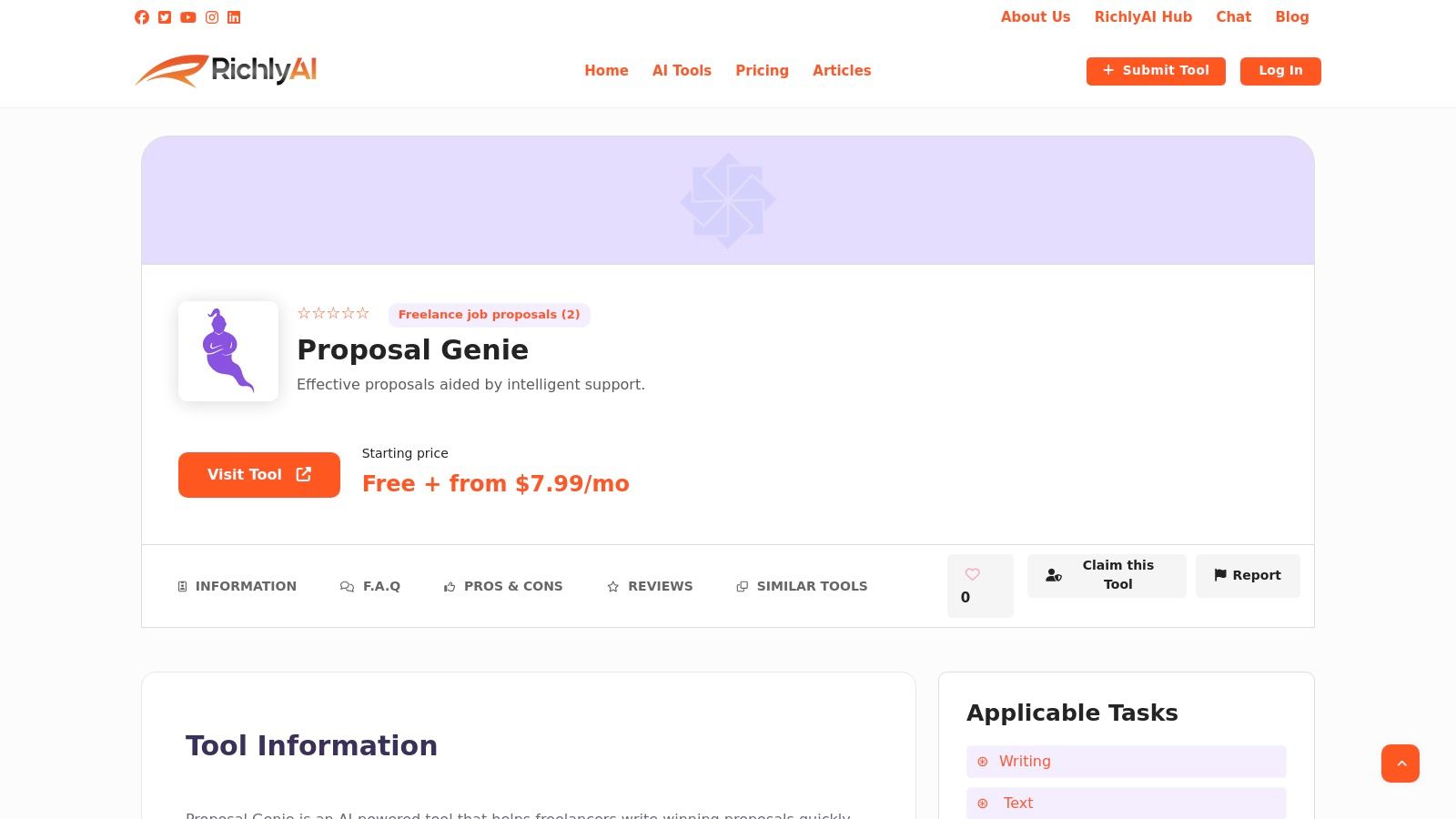
Alt text: A screenshot of the Proposal Genie interface, showing a generated project proposal next to a job description from a freelance platform.
What sets Proposal Genie apart is its closed-loop system for improvement. The platform doesn’t just generate text; it provides built-in analytics to track your proposal’s performance, helping you understand which approaches secure the best response and hire rates. This data-driven feedback mechanism transforms proposal writing from a guessing game into a refined strategy.
Key Features
- Automated Proposal Generation: The primary function intelligently drafts proposals by matching your skills and experience to the specific requirements of a job post.
- Performance Analytics: A built-in dashboard tracks metrics like view rates, response rates, and hire rates, offering clear insights into what resonates with clients.
- Expert Feedback Signals: The system provides quality indicators and suggestions, helping you refine your messaging before you hit “submit.”
Step-by-Step Example: Winning an Upwork Gig
Here’s how a freelance web developer can use Proposal Genie to land a new project in under five minutes:
- Copy the Job URL: Find a promising project on Upwork for building a Shopify store and copy the job post’s URL.
- Paste into Proposal Genie: Paste the URL directly into the tool. The AI analyzes the client’s needs, budget, and desired tone.
- Generate the Draft: Click “Generate.” The tool creates a draft proposal that highlights your relevant Shopify experience and suggests a clear project timeline.
- Review & Personalize: The draft is your 90% solution. Add a personal touch, like mentioning a specific, similar project from your portfolio or asking a clarifying question about their brand.
- Submit & Track: Submit the polished proposal through Upwork. Later, check your Proposal Genie analytics to see if the client viewed the proposal, helping you gauge interest and decide when to follow up.
Actionable Takeaways
- Seed Your Profile: Before generating, make sure your professional summary and skills are well-defined within Proposal Genie for the most accurate drafts.
- Personalize the Hook: Treat the AI draft as a high-quality template. Always add a unique, human touch in the first two sentences to stand out.
- Use the Analytics: Regularly review the analytics dashboard to identify patterns. Do proposals with a certain opening line perform better? Use these insights to refine your master template.
Further Reading
- Claim Proposal Genie on the AI Tools Hub
- How to Write a Winning Freelance Proposal
2. ChatGPT by OpenAI
ChatGPT is a foundational AI assistant and an indispensable multi-tool for freelancers across nearly every discipline. It excels at a vast range of tasks, from drafting marketing copy and debugging code to brainstorming business ideas and summarizing complex research papers. Its versatility makes it one of the most powerful ai tools for freelancers looking to streamline workflows and boost productivity without juggling multiple specialized applications.
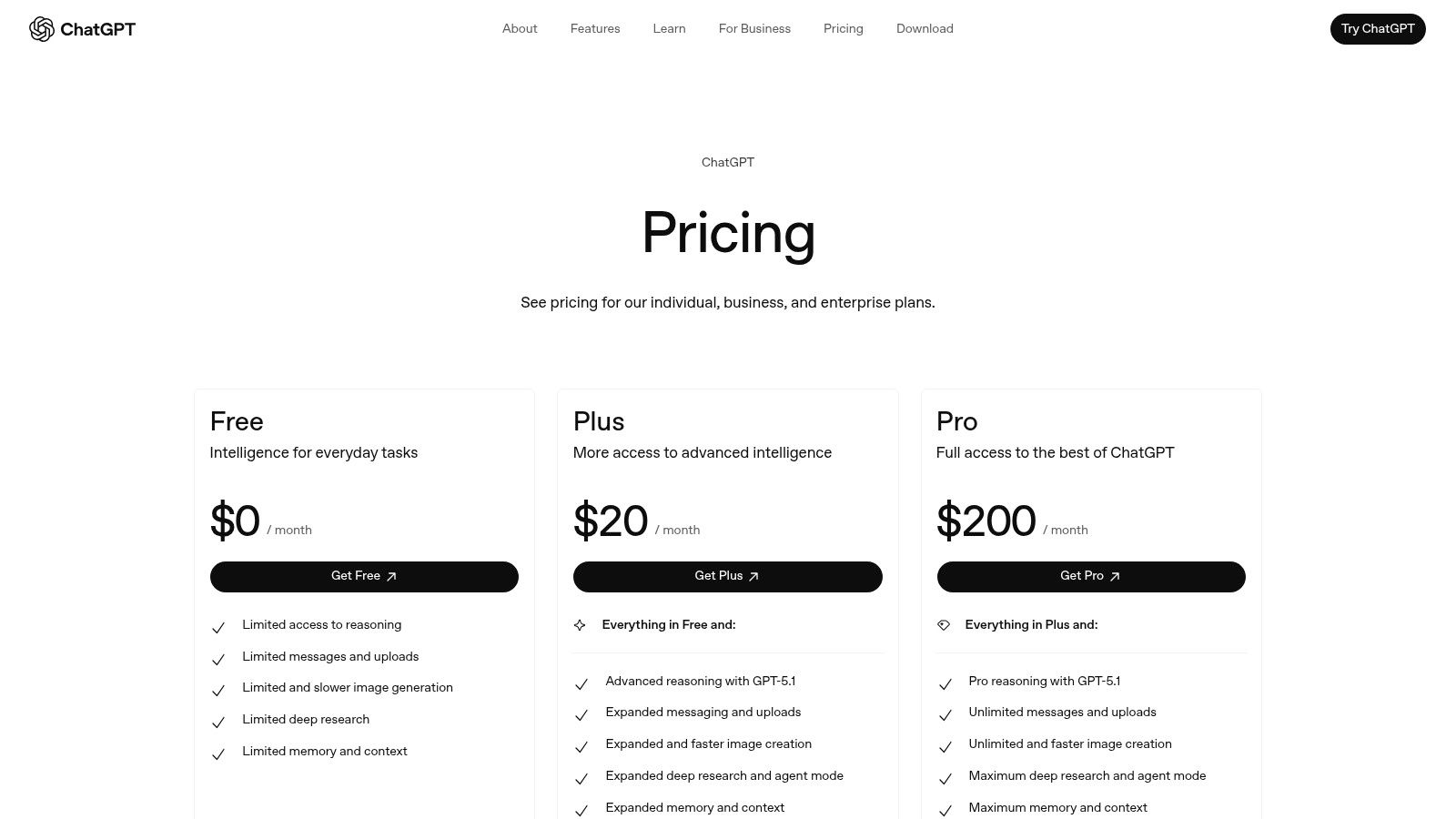
Alt text: A screenshot of the ChatGPT interface showing its chat-based interaction model.
What sets ChatGPT apart is its robust ecosystem and rapid evolution. Access to the latest OpenAI models (like GPT-4o), file uploads for data analysis, and an extensive library of custom GPTs allow users to tailor the tool to specific needs. For instance, a freelance social media manager can use a custom GPT to generate on-brand posts, while a developer can upload a Python script for debugging, all within the same interface.
Key Features & Pricing
| Feature | Free Tier | Plus ($20/mo) | Team ($25/user/mo) |
|---|---|---|---|
| Model Access | GPT-3.5, limited GPT-4o | GPT-4, GPT-4o | GPT-4, GPT-4o (Higher limits) |
| Custom GPTs | Browse only | Create & Use | Create & Use |
| Data Analysis | No | Yes | Yes |
| File Uploads | Yes | Yes | Yes |
| Workspace | Personal | Personal | Collaborative |
Step-by-Step Example: Outlining a Blog Post
A freelance writer can use ChatGPT to accelerate their content creation process. Instead of starting from a blank page, they can use a prompt to generate a comprehensive outline.
- Open ChatGPT and start a new chat.
- Provide a Detailed Prompt: Use a structured prompt like:
"Act as an expert SEO content strategist. I am writing a 1500-word blog post on 'The Top 5 Project Management Tools for Freelance Designers'. Create a detailed, SEO-optimized outline. Include an H1, H2s for each tool, and H3s for Key Features, Pricing, and Pros/Cons under each. Also, suggest an introduction hook and a concluding call-to-action." - Review and Refine: ChatGPT will produce a structured outline. The writer can then ask for revisions, such as
"Make the tone more conversational"or"Add a section comparing these tools in a table."
Actionable Takeaways
- Give It a Persona: Start your prompts with a role (e.g., “Act as a senior copywriter…”). This primes the AI for better, more context-aware responses.
- Iterate on Prompts: Don’t accept the first answer. Ask follow-up questions to refine the output.
- Use Custom Instructions: In your settings, add custom instructions about your role, tone, and typical output formats to save time on every prompt.
Further Reading & Resources
- Tool Link: ChatGPT
- Pricing: https://openai.com/chatgpt/pricing/
- Further discussions on ChatGPT
3. Claude by Anthropic
Claude is a sophisticated AI assistant prized for its exceptional reasoning, detailed writing, and commitment to safety. It is particularly effective for freelancers needing to draft complex documents like proposals, generate long-form content, or conduct in-depth research. Its ability to handle nuanced and lengthy conversations makes it one of the most reliable ai tools for freelancers focused on high-quality analytical and creative work.
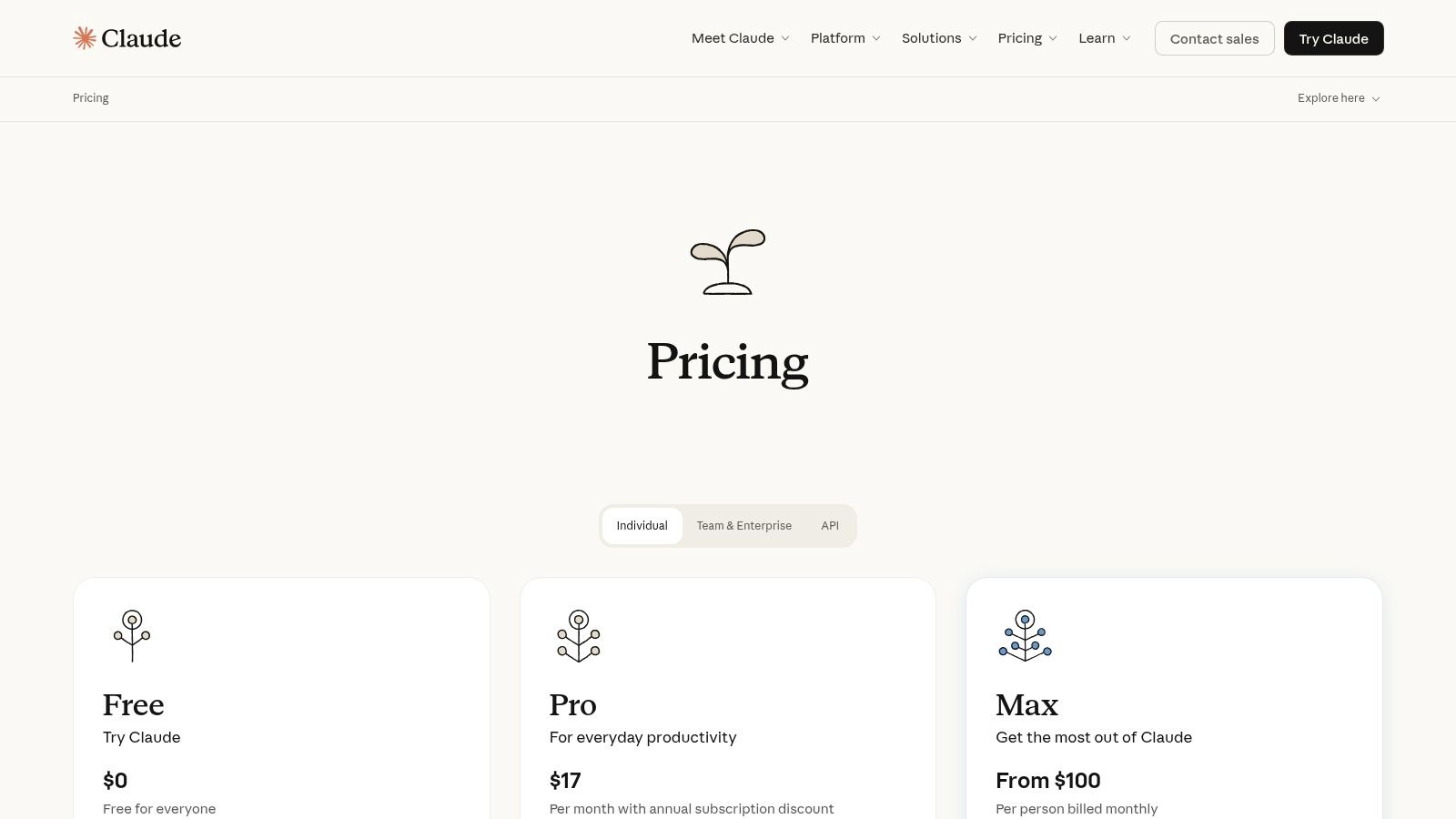
Alt text: A screenshot of the Claude AI interface, showing its clean and minimalist chat-based design.
What distinguishes Claude is its large context window and strong performance on tasks requiring deep comprehension. Freelancers can upload multiple documents, such as research papers or client briefs, and ask Claude to synthesize, compare, or extract key information from the entire set at once. This capability makes it a powerful hub for complex freelance projects.
Key Features & Pricing
| Feature | Free Tier | Pro ($20/mo) | Team ($30/user/mo) |
|---|---|---|---|
| Model Access | Claude 3 Sonnet | Claude 3 Opus, Sonnet, Haiku | Claude 3 Opus, Sonnet, Haiku |
| Usage Limits | Limited | 5x Higher Limits | Higher Limits than Pro |
| Context Window | Standard | 200K | 200K |
| File Uploads | Yes | Yes | Yes |
| Team Size | 1 | 1 | 5-seat minimum |
Step-by-Step Example: Analyzing a Client Brief
A freelance consultant can use Claude to quickly digest and outline a response to a detailed client request for proposal (RFP).
- Start a New Chat: Open a new conversation in Claude.
- Upload Documents: Drag and drop the RFP PDF, the client’s past project summaries, and your company’s service catalog into the chat window.
- Provide a Detailed Prompt: Use a clear instruction like:
"Analyze the attached RFP in the context of our service offerings and past client work. Identify the top 3 client priorities, suggest a unique value proposition we can offer, and generate a high-level project plan outline. List any potential red flags or questions we need to ask the client for clarification." - Refine the Output: Claude provides a comprehensive analysis. The consultant can then ask follow-up questions like,
"Based on this, draft a three-paragraph executive summary for our proposal."
Actionable Takeaways
- Leverage File Uploads: For any task involving existing documents (contracts, briefs, reports), upload them first to give Claude the full context.
- Ask for Summaries: Use Claude to summarize long email chains or meeting transcripts to quickly get the key action items.
- Compare and Contrast: Upload two or three documents (e.g., competitor websites) and ask Claude to create a comparative analysis table.
Further Reading & Resources
- Tool Link: Claude
- Pricing: https://claude.com/pricing
4. Google One AI (Gemini)
For freelancers deeply embedded in the Google ecosystem, the Google One AI Pro plan is a powerful upgrade that integrates the Gemini model directly into familiar applications like Docs, Sheets, and Gmail. This subscription bundles advanced AI capabilities with a generous 2 TB of cloud storage, making it one of the most practical ai tools for freelancers who want to enhance their existing workflows rather than adopt entirely new platforms.
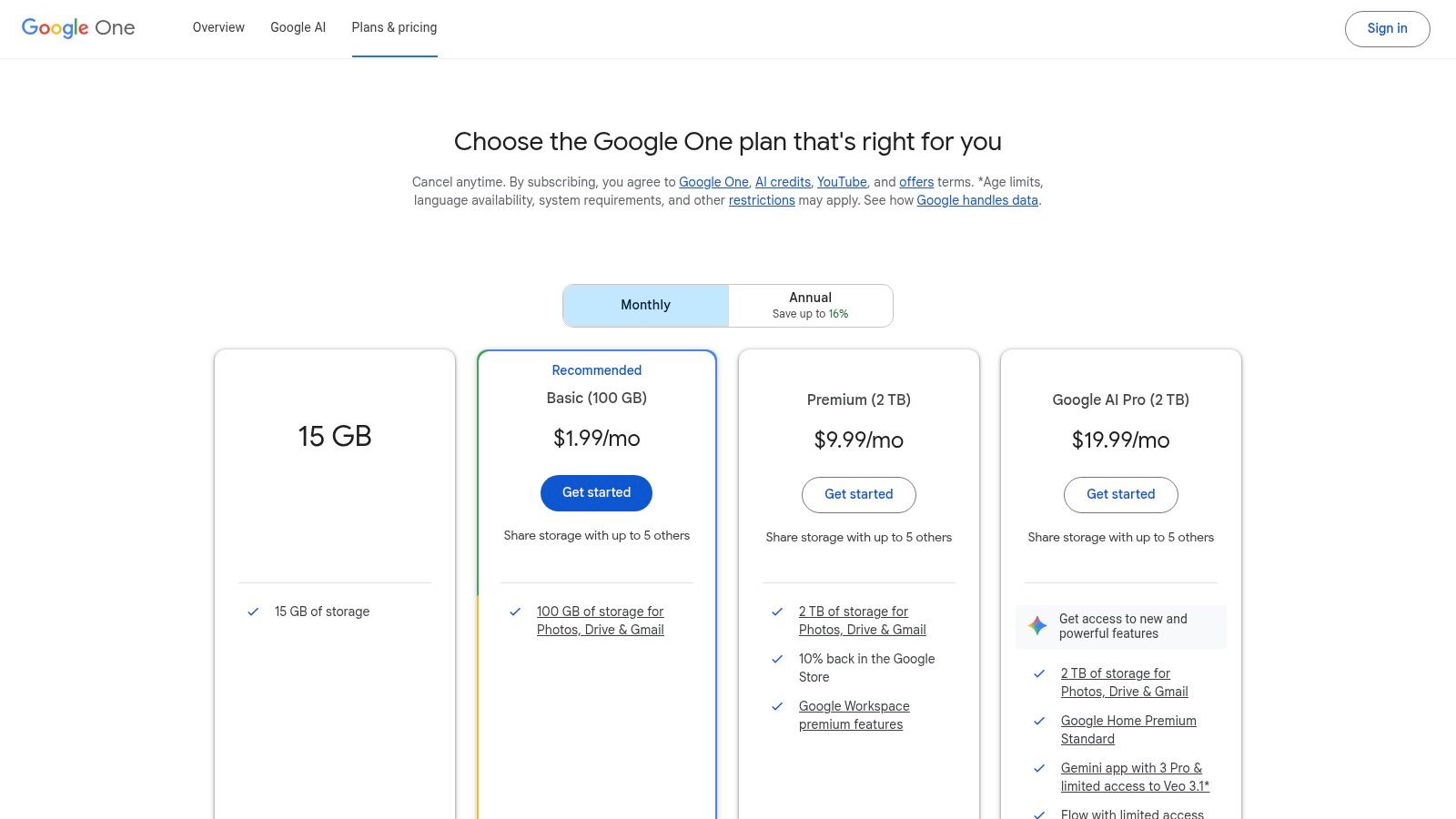
Alt text: A screenshot of the Google One AI Pro plan page, highlighting Gemini Advanced and its integration into Google apps.
What makes this plan compelling is its seamless integration. It streamlines tasks from drafting emails in Gmail to analyzing data in Sheets, all within a unified environment. Subscribers get access to Gemini Advanced and superior features in the research tool NotebookLM, transforming Google Workspace from a set of productivity apps into an integrated, AI-powered command center.
Key Features & Pricing
| Feature | Standard Google Account | Google One AI Pro ($19.99/mo) |
|---|---|---|
| Model Access | Gemini (Standard) | Gemini Advanced |
| Google Apps Integration | No | Yes (Docs, Sheets, Gmail, etc.) |
| Google One Storage | 15 GB | 2 TB |
| NotebookLM Features | Standard | Plus (Higher Limits) |
Step-by-Step Example: Summarizing Research in Google Docs
A freelance researcher can leverage Gemini within Google Docs to quickly distill information without leaving their document.
- Open a Google Doc containing your raw research notes or pasted articles.
- Activate the Gemini Side Panel: Click the sparkling “Help me write” icon.
- Highlight the Text: Select the text you want to summarize.
- Prompt and Insert: In the side panel, type a prompt like,
"Summarize the highlighted text into five key bullet points for a client presentation."Gemini generates the summary, which you can insert directly into your document.
Actionable Takeaways
- Use “Help me write” in Gmail: Instantly draft professional emails, shorten long ones, or change the tone from formal to casual.
- Analyze Data in Sheets: Use Gemini to create formulas, generate pivot tables, or classify text data with natural language prompts.
- Generate Slides: In Google Slides, use Gemini to create entire presentations from a text prompt, complete with layouts and images.
Further Reading & Resources
- Tool Link: Google One AI
- Pricing: https://one.google.com/plans
5. GitHub Copilot
GitHub Copilot is an AI pair programmer that acts as a powerful coding assistant for freelance developers, data scientists, and automation experts. It integrates directly into popular code editors to provide real-time code completions, function generation, and even entire script suggestions. Its deep context awareness makes it one of the most essential ai tools for freelancers in tech, helping to reduce boilerplate coding and accelerate development cycles significantly.
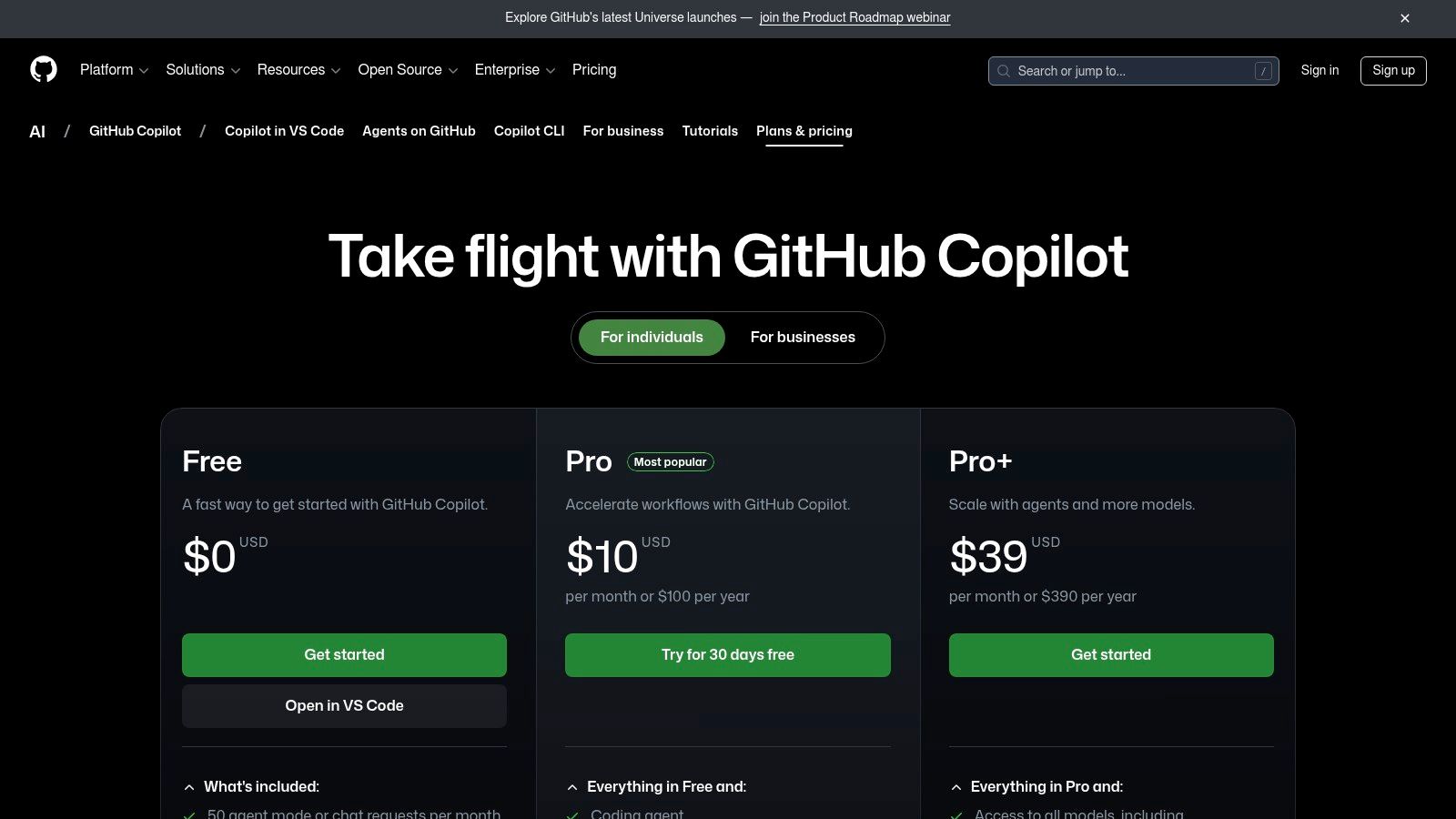
Alt text: A screenshot of GitHub Copilot integrated into VS Code, showing AI-powered code suggestions appearing inline.
What makes GitHub Copilot stand out is its seamless integration into the developer’s existing workflow. Rather than switching to a separate application, it works within environments like VS Code and JetBrains. This allows for an uninterrupted coding flow, where developers can use natural language comments to prompt code generation or use the chat feature to debug complex issues without ever leaving their editor.
Key Features & Pricing
| Feature | Copilot Individual (Free) | Copilot Individual ($10/mo) | Copilot Business ($19/user/mo) |
|---|---|---|---|
| Code Completions | Yes (Verified students, teachers) | Yes | Yes (Org-wide policy mgmt) |
| IDE & CLI Integration | Yes | Yes | Yes |
| Copilot Chat in IDE | No | Yes | Yes |
Step-by-Step Example: Building a Python Function
A freelance Python developer can use Copilot to quickly generate a function for a common task, like fetching data from an API.
- Open Your Project: In an IDE like VS Code with the Copilot extension installed, open your Python file.
- Write a Descriptive Comment: Type a comment outlining the function’s purpose:
# Function to fetch user data from the JSONPlaceholder API for a given user ID. - Accept the Suggestion: As you press Enter, Copilot suggests the complete Python function, including the
requestslibrary import, error handling, and JSON parsing. PressTabto accept the code. - Refine with Chat: If needed, open Copilot Chat and ask it to
"add docstrings and type hints to this function"for better code quality.
Actionable Takeaways
- Write Comments First: Instead of writing code, write a clear, descriptive comment of what you want the code to do. Copilot will often generate the exact code you need.
- Use Copilot Chat for Debugging: Paste an error message into the chat and ask it to explain the error and suggest a fix.
- Learn New Languages: Use Copilot to translate code snippets from a language you know to one you’re learning.
Further Reading & Resources
- Tool Link: GitHub Copilot
- Pricing: https://github.com/features/copilot/plans
- Best AI coding assistants
6. Zapier
Zapier is the central nervous system for a freelancer’s tech stack, connecting over 6,000 applications to automate repetitive tasks. With the integration of AI, it has become one of the most essential ai tools for freelancers aiming to build efficient, scalable solo businesses. Its no-code interface allows anyone to link apps and create “Zaps” that handle everything from lead routing to content generation automatically.
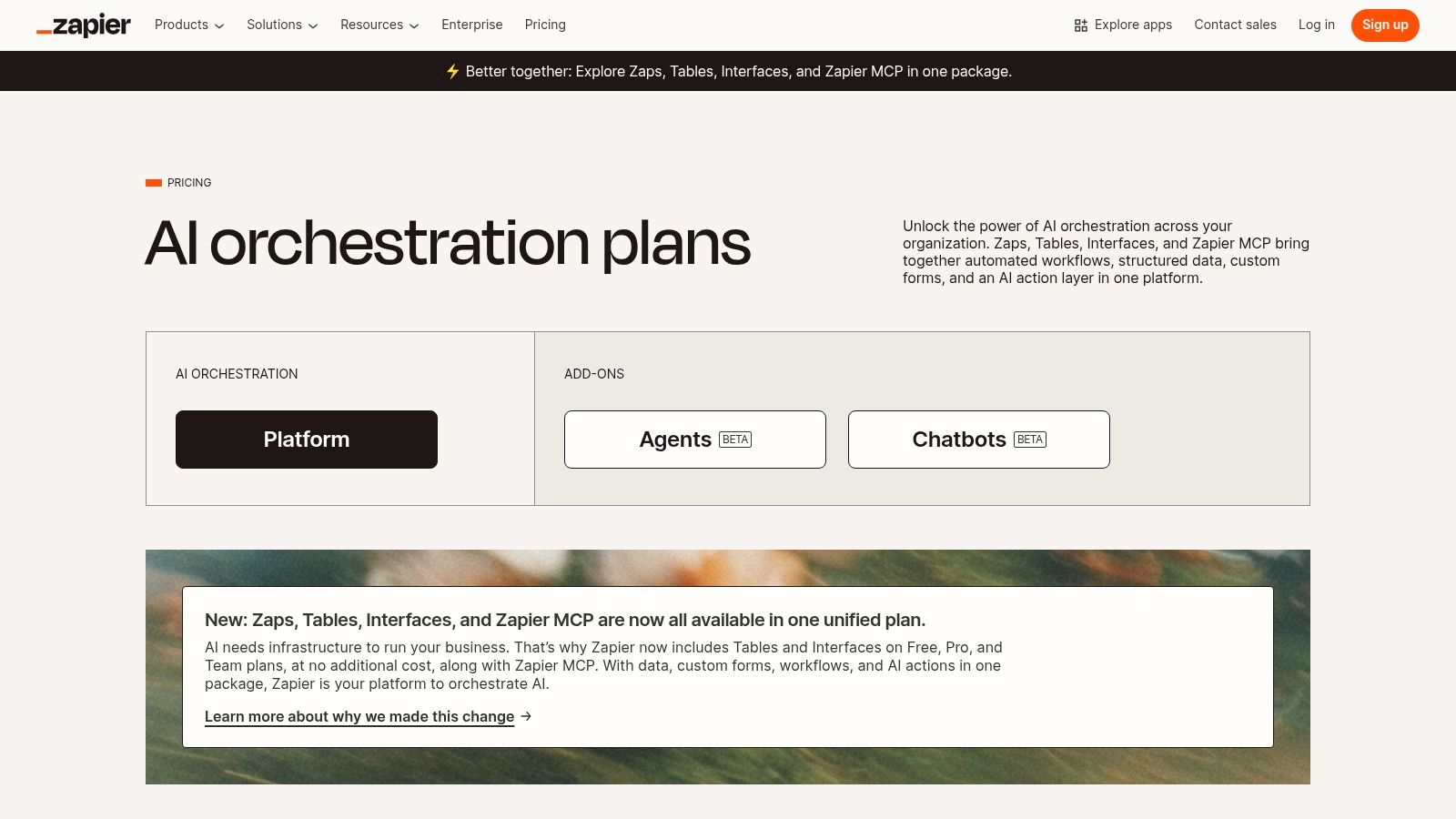
Alt text: A screenshot of the Zapier visual workflow builder, showing how different apps can be connected to automate tasks.
What makes Zapier exceptional is its blend of robust integration and accessible AI. Freelancers can now embed AI steps directly into their workflows to parse emails, draft replies, or summarize notes. This transforms simple automations into intelligent systems that save hours of manual administrative work, allowing freelancers to focus entirely on client-facing, high-value activities.
Key Features & Pricing
| Feature | Free | Starter ($19.99/mo) | Professional ($49/mo) |
|---|---|---|---|
| Tasks/mo | 100 | 750 | 2,000 |
| Zaps | 5 | 20 | Unlimited |
| AI Steps | Included (task usage) | Included (task usage) | Included (task usage) |
| Update Time | 15 mins | 15 mins | 2 mins |
Step-by-Step Example: Automating Client Onboarding
A freelance consultant can use Zapier to create a seamless client onboarding system that runs on autopilot.
- Set the Trigger: Create a new Zap with the trigger “New Submission in Typeform” for your client intake form.
- Add an AI Action: Use the “OpenAI” or “Zapier AI” action to parse the form submission. Prompt it to:
"Extract the client's name, company, and project summary. Draft a professional welcome email confirming their submission and outlining the next steps." - Create Project & Send Email: Add a step to create a new project in Asana using the client’s information. Follow it with a “Send Email in Gmail” action, using the AI-drafted text as the body.
Actionable Takeaways
- Start with a Simple Zap: Connect two apps you use daily. For example, automatically save your “Starred” Gmails to a “To-Do” list in Notion.
- Automate Social Media: Create a Zap that posts your new blog articles from an RSS feed to your LinkedIn and Twitter accounts.
- Use AI for Triage: Set up a Zap that uses an AI step to analyze incoming support emails, categorize them by urgency, and add them to your task manager.
Further Reading & Resources
- Tool Link: Zapier
- Pricing: https://zapier.com/pricing
- AI workflow automation tools
7. Canva Magic Studio
Canva Magic Studio integrates a powerful suite of AI features directly into a user-friendly design platform, making it an essential tool for freelancers who need to produce high-quality visuals without a steep learning curve. For freelancers managing multiple clients, this platform is one of the most effective ai tools for freelancers to deliver professional-grade creative work consistently and quickly.
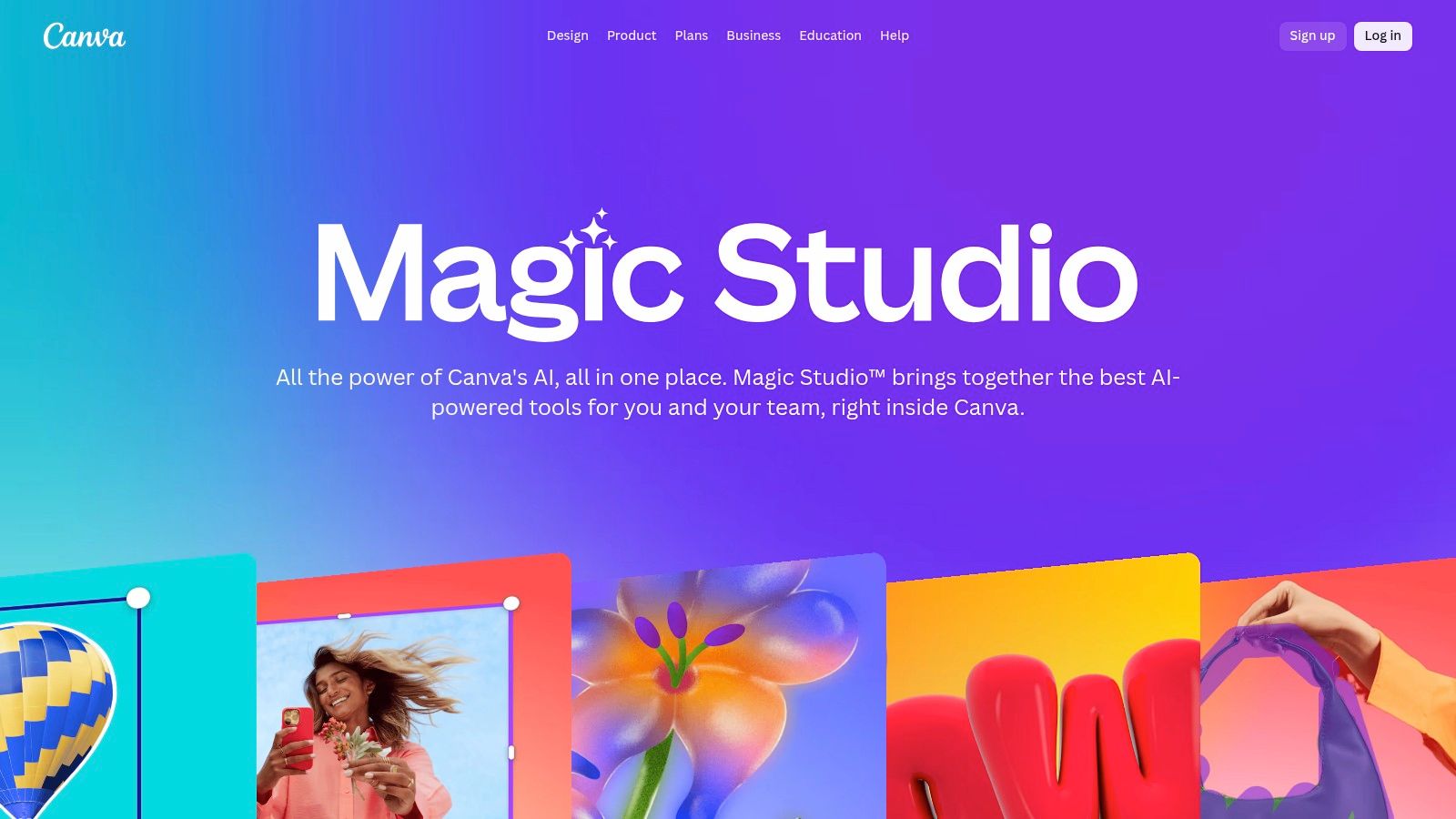
Alt text: A user interacting with Canva Magic Studio’s AI features to create a design.
What makes Magic Studio stand out is its seamless integration of AI into a familiar drag-and-drop interface. Features like Magic Write (text generation), Magic Media (image creation), and Magic Switch (format resizing) are built directly into the workflow. A freelance content creator can draft a blog post graphic, then instantly resize and rephrase it for Twitter, LinkedIn, and Instagram stories, all while maintaining brand consistency.
Key Features & Pricing
| Feature | Free Tier | Pro ($14.99/mo) | Teams ($29.99/user/mo) |
|---|---|---|---|
| Magic Write | 50 lifetime uses | 500 uses/month | 3000 uses/month |
| Magic Media | 50 lifetime credits | 500 credits/month | 1000 credits/month |
| Magic Switch/Resize | Limited | Yes | Yes |
| Brand Kit | Limited (3 colors) | Yes (100 kits) | Yes (300 kits) |
Step-by-Step Example: Creating a Social Media Ad
A freelance marketer can use Magic Studio to design a complete ad campaign from a single idea.
- Open a New Design: In Canva, select a template (e.g., Instagram Post).
- Generate Image with Magic Media: Use a prompt like
"A minimalist, abstract background with pastel colors and a calm aesthetic"to generate a unique background image. - Generate Copy with Magic Write: Activate Magic Write to generate compelling ad copy with a prompt like:
"Write a short, punchy headline and a 2-sentence body text for a 20% off sale on handmade ceramic mugs." - Use Magic Switch: With one click, resize the final design for other platforms like Facebook and Pinterest stories, with the AI automatically rearranging elements to fit.
Actionable Takeaways
- Use Magic Switch for Repurposing: Never create the same design twice. Finish one version and use Magic Switch to instantly create versions for every social platform.
- Generate Ideas with Magic Write: If you’re stuck, use Magic Write directly on the canvas to brainstorm headlines or taglines.
- Leverage Brand Kits: For recurring clients, set up a Brand Kit with their logos, fonts, and colors to ensure consistency across all AI-generated designs.
Further Reading & Resources
- Tool Link: Canva Magic Studio
- Pricing: https://www.canva.com/magic/
- Free AI image generators
8. Adobe Firefly
Adobe Firefly, seamlessly integrated into the Creative Cloud suite, is a powerhouse for creative freelancers. It brings generative AI directly into the professional-grade applications that designers, photographers, and video editors already use daily, like Photoshop and Illustrator. This makes it one of the most practical ai tools for freelancers in creative fields, embedding powerful features like Generative Fill directly into existing, familiar workflows.
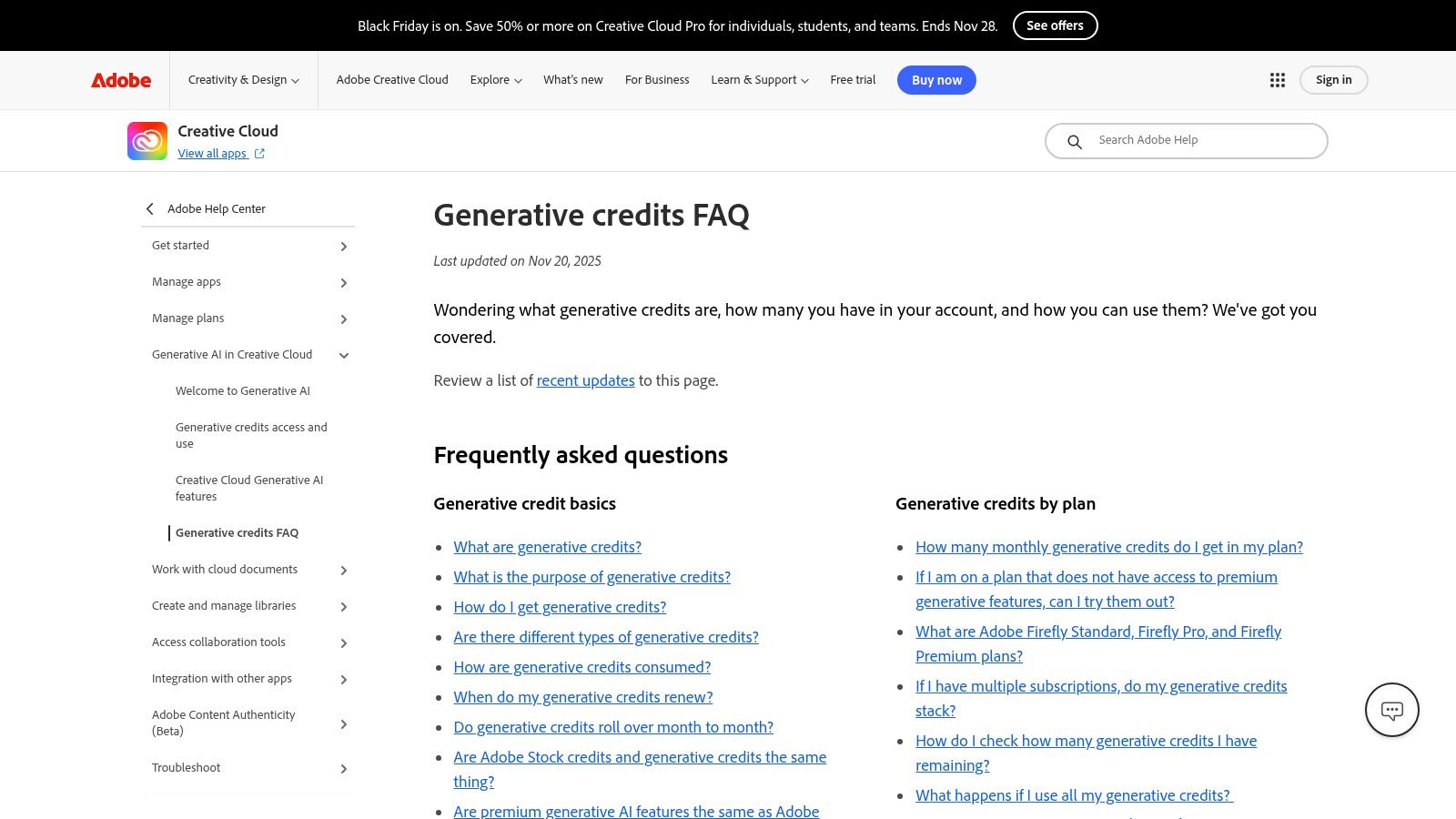
Alt text: A screenshot of Adobe Firefly’s web interface, showcasing its text-to-image generation capabilities with various artistic style options.
What makes Firefly stand out is its deep integration and commercial safety, as its models are trained on Adobe Stock and openly licensed content. A freelancer can use Generative Fill in Photoshop to realistically expand a photo’s background or use text-to-image in Illustrator to create editable vector graphics from a simple prompt. The system operates on a “Generative Credits” model.
Key Features & Pricing
| Feature | Creative Cloud All Apps ($59.99/mo) | Firefly Premium ($4.99/mo) | Free Plan (with Adobe ID) |
|---|---|---|---|
| Generative Credits | 1000/month | 100/month | 25/month |
| Integration | Photoshop, Illustrator, Express | Web & Mobile App | Web & Mobile App |
| Generative Fill/Expand | Yes | No (requires Photoshop) | No (requires Photoshop) |
| Text to Image | Yes | Yes | Yes |
Step-by-Step Example: Expanding a Photo in Photoshop
A freelance photographer can use Firefly’s Generative Expand to change a photo’s aspect ratio without cropping valuable content.
- Open the Image in Adobe Photoshop.
- Select the Crop Tool (C): Drag the crop borders outward to the desired new dimensions, creating an empty canvas area.
- Click “Generate”: In the contextual task bar that appears, leave the prompt blank and click “Generate.” Photoshop’s AI will analyze the existing image and fill the empty space with new, matching content.
- Review and Refine: Photoshop provides three variations in the Layers panel. The photographer can choose the best one or regenerate until the result is perfect.
Actionable Takeaways
- Use Generative Fill for Removals: In Photoshop, use the Lasso tool to select an unwanted object, then click “Generative Fill” and “Generate” with an empty prompt to remove it seamlessly.
- Create Vector Graphics in Illustrator: Use the “Text to Vector Graphic” feature to generate editable icons and patterns from simple text descriptions.
- Prototype with the Web App: Quickly generate concept images in the Firefly web app to show clients before spending credits on high-resolution work in Photoshop.
Further Reading & Resources
- Tool Link: Adobe Firefly
- Pricing: https://helpx.adobe.com/firefly/get-set-up/learn-the-basics/generative-credits-faq.html
9. Runway
Runway is a powerful creative suite for freelancers in video production, marketing, and content creation. It excels at generating video and image assets from simple text prompts, making it an essential tool for rapid prototyping or producing unique visual content without a full production team. Its comprehensive set of features establishes it as one of the most versatile ai tools for freelancers working in visual media.
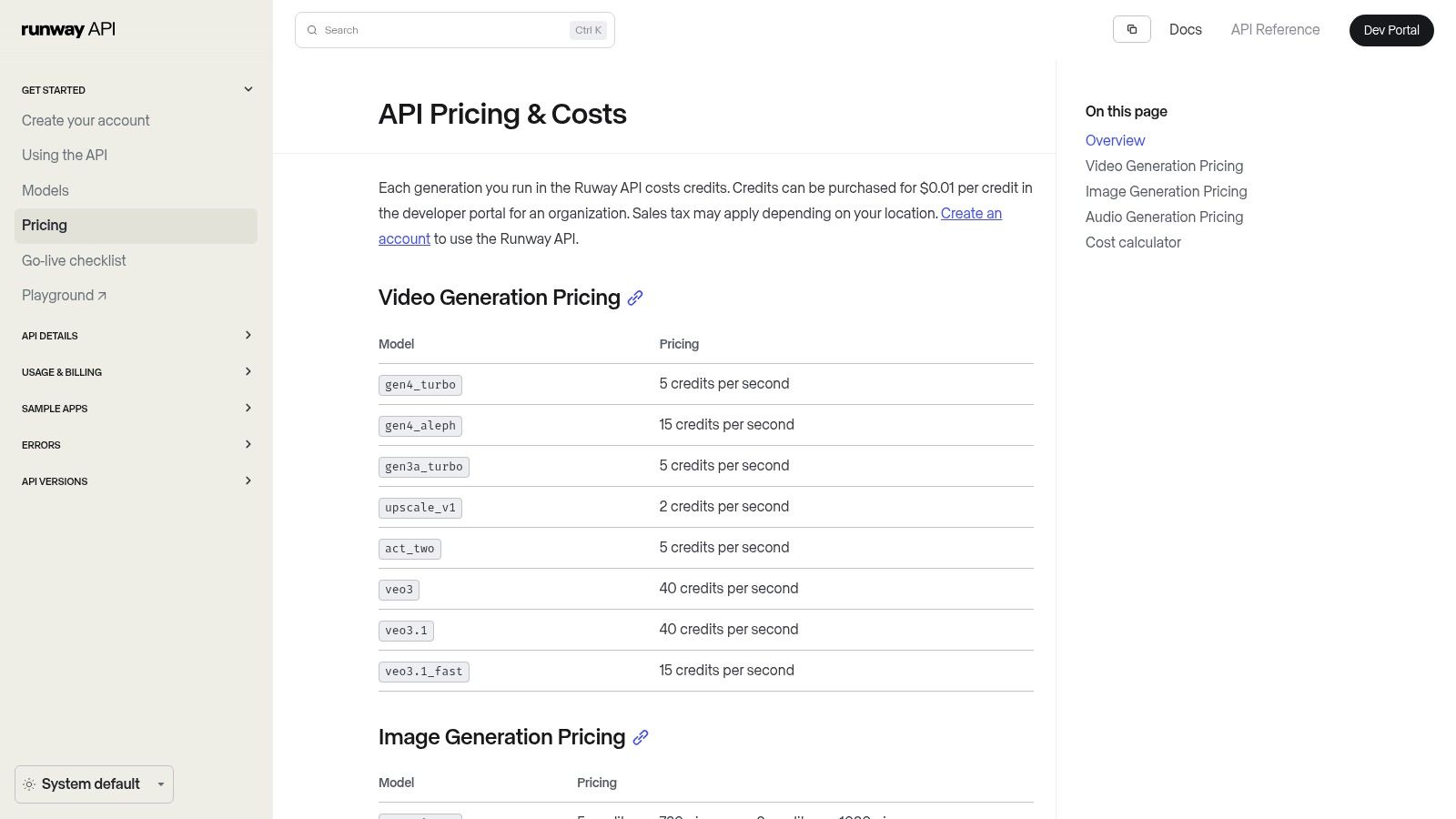
Alt text: Runway’s text-to-video generation interface, showcasing its simple prompt-based system.
What sets Runway apart is its credit-based system and API access, allowing for precise control over costs and integration into custom workflows. Freelance animators can generate concept footage for client approval, while social media managers can produce eye-catching video clips in minutes. The platform’s commitment to cutting-edge models like Gen-3 ensures users have access to high-quality generative capabilities.
Key Features & Pricing
| Feature | Basic ($12/mo) | Standard ($28/mo) | Pro ($76/mo) |
|---|---|---|---|
| Monthly Credits | 625 | 1250 | 2250 |
| Gen-3 Model | Yes | Yes | Yes |
| Image Upscaling | Up to 2K | Up to 2K | Up to 4K |
| API Access | No | No | Add-on |
Step-by-Step Example: Creating a Short Video Ad
A freelance marketer can use Runway to quickly create a concept for a social media video ad.
- Open Runway: Navigate to the Gen-3 text-to-video tool.
- Enter a Detailed Prompt: Type a specific visual description like:
"A 4-second cinematic slow-motion shot of a coffee bean falling into a splash of milk, hyper-realistic, 4K." - Generate and Iterate: Runway produces the video clip. The marketer can adjust camera controls, apply styles, or generate variations to refine the shot.
- Export: Once satisfied, they can export the clip and use it as a foundational element in their video ad project.
Actionable Takeaways
- Image-to-Video: Upload a static image and use a prompt to animate it, bringing product photos or illustrations to life.
- Storyboard Rapidly: Generate a series of short 4-second clips to quickly build a visual storyboard for a client pitch.
- Use “Inpainting” for Edits: Magically remove or change objects in your generated videos just by masking the area and providing a text prompt.
Further Reading & Resources
- Tool Link: Runway
- Pricing: https://docs.dev.runwayml.com/guides/pricing
- Best AI video generators
10. Descript
Descript is an AI-powered audio and video editor that transforms media creation into a text-based workflow. For freelancers like podcasters, course creators, and social media managers, it dramatically speeds up the editing process. Instead of manipulating timelines, you edit the auto-generated transcript, and the corresponding video and audio cuts are made automatically. This unique approach makes it one of the most efficient ai tools for freelancers creating spoken-word content.
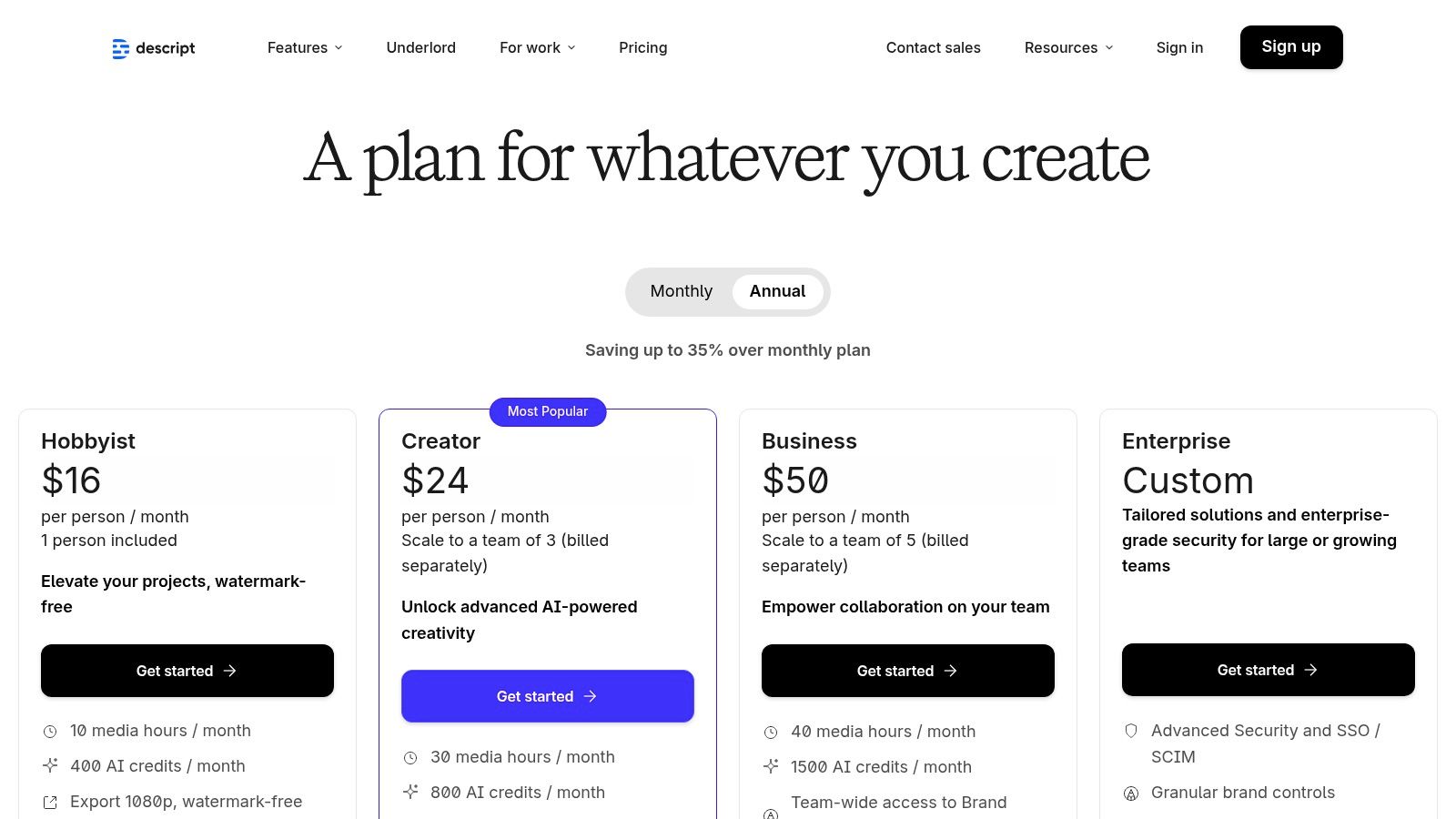
Alt text: A screenshot of the Descript interface showing its signature text-based video editing workflow.
What truly sets Descript apart is its suite of integrated AI features. With a single click, “Studio Sound” can make amateur recordings sound professionally produced by removing background noise. The “Overdub” feature lets you create an AI clone of your voice to correct mistakes, while its AI tools can instantly find and remove filler words like “um” and “uh.”
Key Features & Pricing
| Feature | Free | Creator ($12/mo) | Pro ($24/mo) |
|---|---|---|---|
| Transcription Hours | 1 hour/month | 10 hours/month | 30 hours/month |
| Watermark | On exports | No | No |
| Studio Sound | Yes | Yes | Yes |
| Overdub & AI Voices | No | Yes | Yes |
| Filler Word Removal | No | Yes (um, uh) | Yes (18+ words) |
Step-by-Step Example: Editing a Social Media Video Clip
A freelance podcaster can quickly turn a long-form interview into a polished, shareable social media reel.
- Upload the File: Drag your video file into a new Descript project. It will automatically transcribe the content.
- Find a Highlight: Read the transcript to find a compelling 60-second segment. Highlight the text and use the “Duplicate to a new composition” feature.
- Refine with AI: In the new composition, click the “Actions” icon and select “Remove filler words” to instantly clean up the dialogue. Apply “Studio Sound” to enhance audio quality with one click.
- Add Visuals: Switch to a vertical video format. Use the built-in tools to add dynamic AI captions, a background image, and a progress bar to make the clip engaging.
Actionable Takeaways
- Use Studio Sound on Everything: Apply it to any voice recording to instantly improve its quality.
- Create Templates: Build a template with your brand’s fonts, colors, and logos for social media clips to speed up your workflow.
- Correct Mistakes with Overdub: Instead of re-recording, train an AI version of your voice and simply type the correction into the script.
Further Reading & Resources
- Tool Link: Descript
- Pricing: https://www.descript.com/pricing
11. Product Hunt
Product Hunt isn’t an AI tool itself, but rather a crucial discovery platform for any freelancer wanting to stay on the cutting edge. Its Artificial Intelligence topic is a daily feed of the newest AI-powered apps, making it one of the best resources for finding niche ai tools for freelancers before they become mainstream. It helps you discover specialized solutions for writing, design, coding, and more, often straight from the makers themselves.
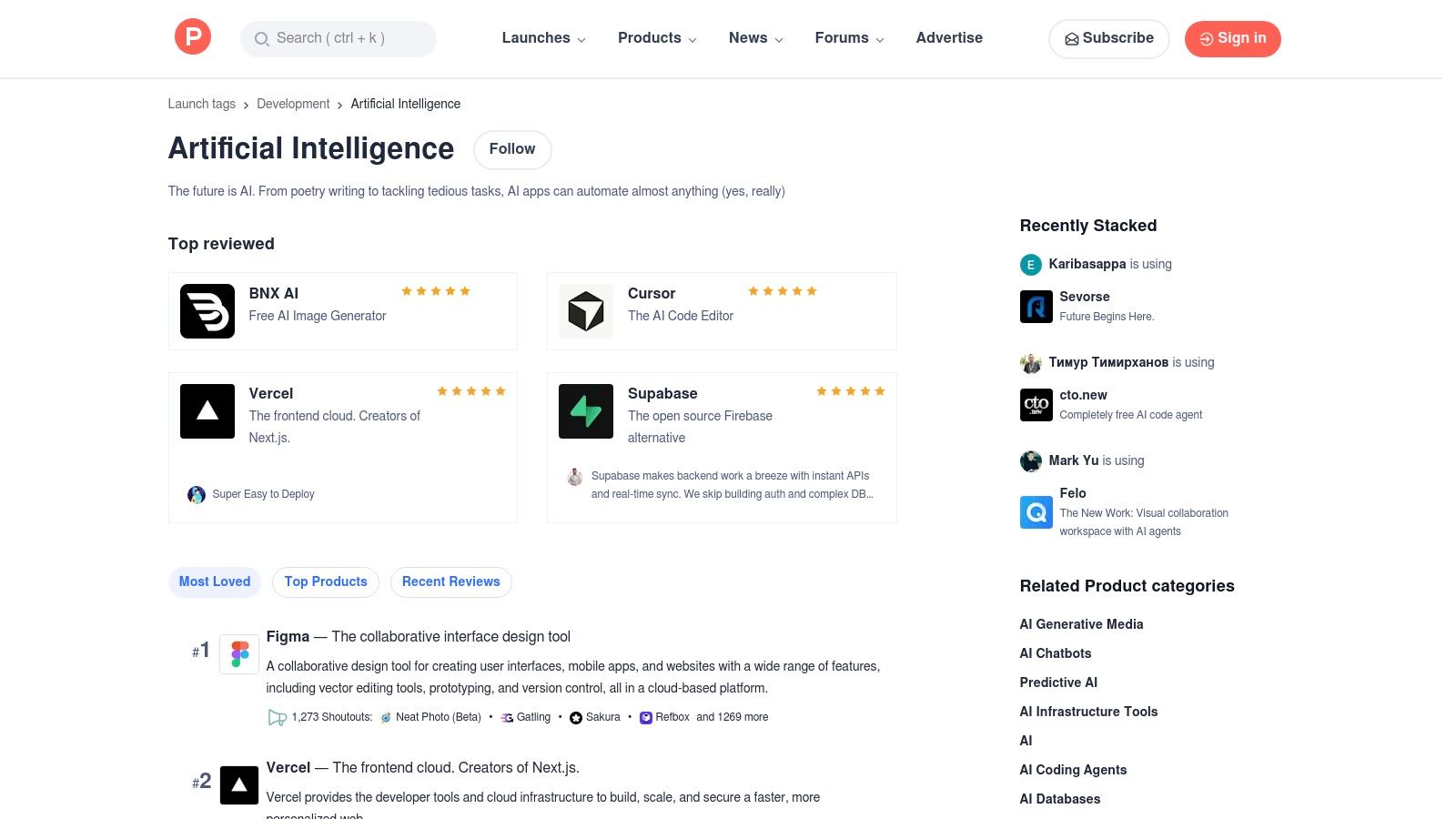
Alt text: A screenshot of the Product Hunt website showing its “Artificial Intelligence” topic page, listing various newly launched AI products.
What makes Product Hunt essential is the community context it provides. Each product launch is accompanied by reviews, upvotes, and a discussion section where you can ask the founders questions directly. This allows you to quickly gauge a tool’s practical value and see how other professionals are using it, helping you avoid hype and invest time in tools that solve real problems.
Key Features
| Feature | Details | Cost |
|---|---|---|
| Discover New Tools | Daily feed of the latest AI product launches. | Free |
| Community Feedback | Upvotes, reviews, and comments from early adopters. | Free |
| Founder Q&A | Direct access to ask founders questions about their products. | Free |
Step-by-Step Example: Finding a New AI Image Upscaler
A freelance graphic designer needs a better tool for enhancing low-resolution client assets.
- Visit Product Hunt: Navigate to the “Artificial Intelligence” topic.
- Search: Use the search bar for “image upscaler” or “image enhancer.”
- Filter and Review: Scan the list of tools, sorted by popularity (upvotes). Read the comments to see which tools deliver the best results without artifacts.
- Engage and Evaluate: If a promising tool is found, check the discussion for special launch-day deals or ask the founder a technical question like,
"Does your tool support batch processing?"
Actionable Takeaways
- Subscribe to the Daily Digest: Get the top new AI tools delivered to your inbox every day so you don’t miss out.
- Follow Collections: Find curated lists of AI tools for specific needs, like “Best AI tools for marketers.”
- Check for Deals: Many founders offer exclusive discounts for the Product Hunt community on launch day.
Further Reading & Resources
- Tool Link: Product Hunt AI
12. G2
G2 is not a single tool, but a comprehensive software marketplace that acts as an essential research hub for freelancers. Its “AI Writing Assistant” category page is a powerful resource for comparing the ever-growing landscape of writing tools. Instead of relying on marketing hype, freelancers can use G2’s verified user reviews, detailed feature comparisons, and Grid rankings to make an informed decision, making it one of the most valuable platforms for vetting ai tools for freelancers before committing to a subscription.
What sets G2 apart is its focus on peer-driven data and its robust filtering system. A freelance marketer can filter tools specifically for small businesses, ensuring they don’t waste time evaluating enterprise-level solutions. The side-by-side comparison feature provides a realistic view of how each tool performs in a real-world setting.
Key Features
| Feature | Description |
|---|---|
| Grid® Rankings | Visual quadrants showing tools ranked by market presence and user satisfaction. |
| Verified Reviews | In-depth reviews from real users, often detailing specific use cases. |
| Side-by-Side Compare | Select multiple tools to compare features, pricing, and ratings in a direct-view format. |
| Small-Business Filter | Narrows down options to software best suited for solo operators and small teams. |
Step-by-Step Example: Choosing a New AI Writer
A freelance content strategist wants to find an alternative to their current AI writer that has better long-form content generation features.
- Navigate to the Category: Go to G2’s AI Writing Assistant category page.
- Apply Filters: Use the filters on the left-hand side to select “Small-Business” to narrow the results. Further filter by features like “SEO Content.”
- Analyze the Grid®: Identify tools in the “High Performers” or “Leaders” quadrant.
- Compare Top Contenders: Select 2-3 promising tools and use the “Compare” feature to see a head-to-head breakdown of their features and user ratings.
- Read Verified Reviews: Click into the top choice and read recent reviews from other freelancers to understand common pain points and benefits before signing up for a trial.
Actionable Takeaways
- Filter for Small Business: Always use this filter to see tools that are relevant and affordable for freelancers.
- Read the “Cons”: Pay close attention to the user-submitted “Cons” to understand a tool’s limitations before you buy.
- Check Recent Reviews: Sort reviews by “Newest” to get the most up-to-date feedback on a tool’s performance and features.
Further Reading & Resources
- Tool Link: G2 AI Writing Assistants
Final Thoughts: Your AI Implementation Plan
The goal is not just to use AI, but to use it strategically. The true power is unlocked when you integrate these tools deeply into your specific, day-to-day operations to solve your biggest bottlenecks. A freelance writer’s ideal stack will look vastly different from a developer’s. Start by identifying your most significant pain point and find a targeted AI solution to address it.
Actionable Takeaways
- Identify One Bottleneck: Pinpoint the single most repetitive, time-consuming task in your freelance business. Is it writing first drafts? Is it creating social media graphics? Choose one area to focus on first.
- Test Two Contenders: Select two tools from our list that address your identified bottleneck (e.g., ChatGPT vs. Claude for writing). Sign up for their free trials and give each a real-world test on a small project.
- Automate a Single Workflow: Use a tool like Zapier to connect two of your existing apps. A practical start: create a Zap that automatically saves attachments from client emails to a specific Google Drive folder.
- Track Your ROI: For your next project using an AI tool, track the time it takes. Compare this with a similar project completed without AI. The time saved is your most immediate return.
Tools & Resources Recap
- Proposal & Client Acquisition: Proposal Genie
- Generative AI & Writing: ChatGPT, Claude, Google One AI
- Development: GitHub Copilot
- Automation: Zapier
- Design & Video: Canva Magic Studio, Adobe Firefly, Runway, Descript
- Discovery & Research: Product Hunt AI, G2 AI Writing Assistants
Further Reading
- How to Write Effective AI Prompts for Content Creation
- Comparing the Top AI Coding Assistants for Web Developers
- The Ultimate Guide to Automating Your Freelance Business
The era of the AI-augmented freelancer is here. By thoughtfully integrating these intelligent tools, you are not just keeping pace with change—you are actively shaping a more efficient, creative, and profitable future for your business.
Finding the right AI tool is the first step, but staying updated is an ongoing challenge. The AI Tools Hub is a curated directory designed to help you discover and compare the latest ai tools for freelancers across every category. Stop wasting time searching and start building your perfect AI toolkit today.