

Navigating the expansive market of AI tools for educators can be overwhelming. The challenge isn’t just finding a tool; it’s finding the right tool that genuinely reduces workload, enhances learning, and integrates smoothly into your existing classroom routines without adding unnecessary complexity.
This curated list is designed to cut through the noise, providing a practical, in-depth guide to the most effective AI platforms available for teachers today. We move beyond generic feature lists to give you actionable insights based on real-world classroom applications.
This resource will help you discover platforms that can streamline your daily tasks, from generating differentiated lesson plans and creating accessible reading passages to designing engaging, interactive assessments.
Each entry is structured for quick evaluation, offering a clear overview of what the tool does, who it’s for, and its specific strengths and weaknesses. You’ll find concrete use-case scenarios, honest pros and cons, and crucial details on pricing and student data privacy considerations, including notes on FERPA compliance where applicable.
To make your decision-making process even easier, every tool profile includes:
- Step-by-step instructions to get you up and running immediately.
- Direct links to each platform and our more detailed reviews.
- Screenshots to give you a clear visual of the user interface.
Whether you’re looking to save hours on administrative work, create more dynamic and personalized learning experiences for your students, or simply explore what’s possible with educational AI, this guide provides the clarity needed to select and implement the best AI tools for educators with confidence. Let’s dive into the platforms that are truly making a difference in classrooms.
1. MagicSchool.ai
MagicSchool.ai is a comprehensive, teacher-first AI platform designed to significantly reduce the administrative workload for K-12 educators. It acts as a central hub, bundling over 80 specialized tools that address common teacher tasks, from generating differentiated lesson plans and creating rubrics to drafting parent communication emails. What sets MagicSchool.ai apart is its strict focus on the K-12 environment, incorporating education-specific safety features and a commitment to student data privacy.
Alt text: A screenshot of the MagicSchool.ai platform dashboard, showcasing a variety of teacher-focused AI tools available.
The platform also includes “Raina,” an AI chatbot trained on education-safe data, making it a reliable assistant for both teachers and students. For districts, it offers enterprise-level controls, SIS/LMS integrations, and administrator dashboards to ensure compliance and effective implementation. This makes it one of the most robust AI tools for educators seeking a secure, all-in-one solution.
How to Create a Lesson Plan in 3 Steps
A 5th-grade science teacher can use MagicSchool.ai to create a complete unit on ecosystems. Here’s how:
- Generate the Core Lesson: Select the “Lesson Plan Generator” tool. Input the grade level (5th), topic (“Introduction to Forest Ecosystems”), and a learning objective (“Students will be able to identify three trophic levels in a forest food web”). The AI generates a full plan, including a hook, direct instruction, and an exit ticket.
- Differentiate Materials: Next, use the “Text Leveler” tool to paste a paragraph from the generated lesson plan. Create three versions: one at a 3rd-grade level for struggling readers and another at a 7th-grade level for advanced students.
- Draft Communications: Finally, open the “Email to Families” tool. Prompt it to write a brief, friendly email explaining the new ecosystems unit and suggesting a related family activity, like visiting a local park.
Key Considerations
| Pros | Cons |
|---|---|
| Quick Time-to-Value: Immediately useful for daily teacher tasks. | Paid Tiers Required: Unlimited use is behind a subscription. |
| Education-Specific: Built with student privacy (FERPA) in mind. | Enterprise Focus: Advanced controls are for district-wide plans. |
| All-in-One Platform: Consolidates dozens of tools into one interface. | Learning Curve: Exploring 80+ tools can initially feel overwhelming. |
Pricing & Access
MagicSchool.ai offers a free plan with limited generations, which is an excellent way to explore the platform. For unlimited access and more advanced features, the MagicSchool Plus plan for individual teachers is available. Enterprise plans are designed for schools and districts and include advanced admin controls and integrations.
Actionable Takeaways
- Start with the Free Plan: Explore the 80+ tools with the free version to identify which ones best fit your workflow before committing to a paid plan.
- Use the Rubric Generator: Save hours by inputting your assignment criteria and letting the AI generate a detailed, customizable rubric.
- Explore Raina for Safe Search: Introduce students to the AI chatbot “Raina” as a classroom-safe alternative for research and inquiry.
Website: https://www.magicschool.ai/
2. Diffit
Diffit is a specialized AI tool for educators designed to tackle one of the most persistent challenges in the classroom: differentiation. It empowers teachers to take any text, article, or topic and instantly generate adapted reading materials for various grade levels. The platform excels at producing leveled passages, key vocabulary lists, summaries, and multiple-choice questions, making complex content accessible to all students, regardless of their reading proficiency.
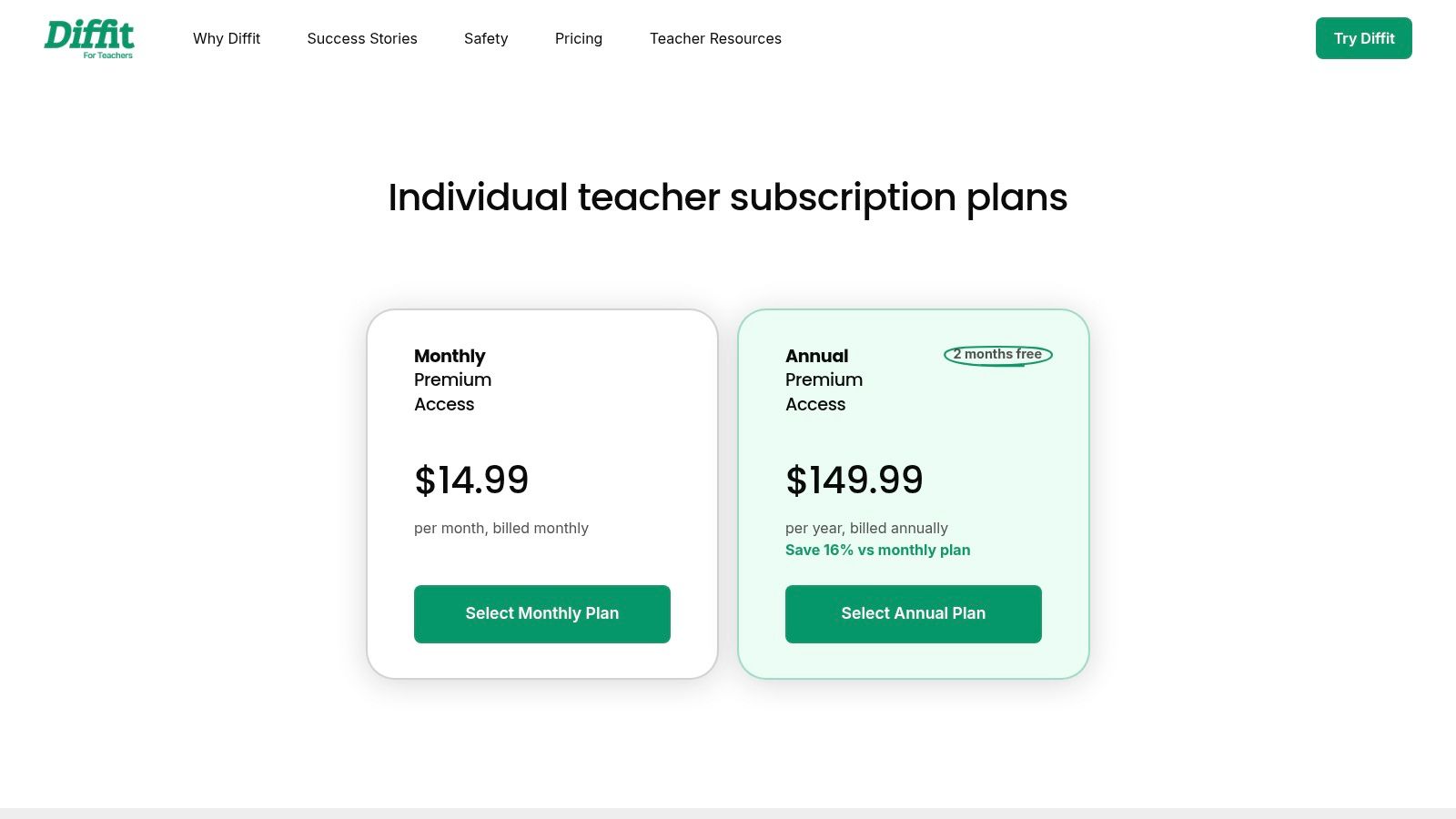
Alt text: A screenshot of the Diffit interface, showing options to generate differentiated reading passages and related activities from a topic or article.
What makes Diffit a standout among AI tools for educators is its seamless integration with existing classroom workflows. Materials can be exported directly to Google Docs, Slides, Forms, and Microsoft tools with a single click. For school administrators, Diffit offers district-wide dashboards and maintains a strong focus on student data privacy, with attention to FERPA and COPPA compliance and citing its sources for generated content.
How to Differentiate an Article in 3 Steps
An 8th-grade history teacher preparing a lesson on the Industrial Revolution can input a link to a high-level academic article. Here’s how to create accessible resources:
- Input the Source: In Diffit, select “An Article or Video” and paste the URL of a college-level article about the Industrial Revolution. Select the target grade level, for example, “5th Grade.”
- Generate and Refine: Diffit generates a simplified text, a summary, key vocabulary words with definitions, and multiple-choice questions. The teacher can then request a Spanish translation for an English Language Learner with one click.
- Export Directly: The teacher clicks “Export” and selects “Google Forms” for the comprehension questions, creating a self-grading quiz, and “Google Docs” for the simplified text, creating a handout for students.
Key Considerations
| Pros | Cons |
|---|---|
| Strong Differentiation Focus: Excels at adapting content for ELA. | Advanced Features are Paid: Standards alignment requires a subscription. |
| Easy Workflow Integration: Exports directly to Google/Microsoft. | Individual Teacher Licenses: Requires credit card, no purchase orders. |
| School/District Ready: Offers admin controls and privacy compliance. | Niche Focus: Less of an all-in-one tool compared to broader platforms. |
Pricing & Access
Diffit provides a free version that is highly functional for generating basic adapted resources. The premium subscription, Diffit for Teachers, unlocks advanced features like longer text inputs, standards alignment, and more export options. Diffit for Schools & Districts provides site licenses with administrative oversight and professional development.
Actionable Takeaways
- Adapt Existing Content: Use the “Anything!” feature to paste in your existing curriculum materials and instantly create multiple leveled versions.
- Support Skill Development: Use the generated summaries to help students practice critical literacy skills, such as learning how to summarize a book or a complex article.
- Leverage Google Forms Export: Save time on assessment creation by exporting generated multiple-choice questions directly into a self-grading Google Form.
Website: https://web.diffit.me/
3. Curipod
Curipod is an AI-powered platform designed to transform static presentations into dynamic, interactive learning experiences. It enables educators to generate complete, standards-aligned lessons from a simple prompt or convert existing slide decks into engaging, teacher-paced activities. What makes Curipod stand out is its emphasis on student participation through built-in tools like polls, word clouds, drawings, and Q&A sessions, fostering a more collaborative and discussion-driven classroom.
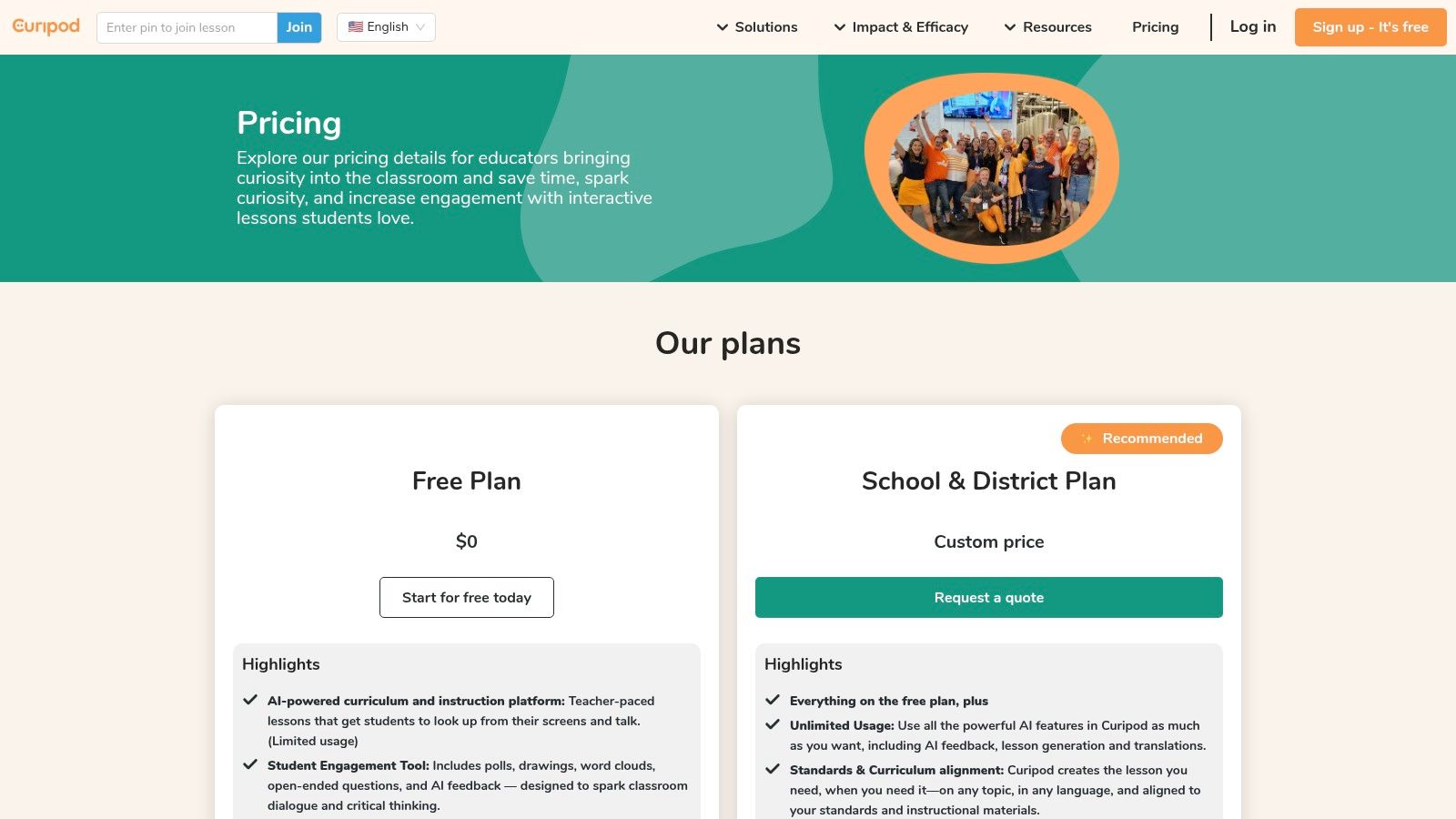
Alt text: A screenshot of the Curipod interface, showing an interactive lesson slide with options for polls, drawings, and word clouds.
The platform also provides powerful post-lesson analytics, using AI to generate insights and summaries from student responses. This gives teachers a clear overview of class understanding and participation levels. With real-time moderation tools and features that encourage every student to contribute, Curipod is an excellent AI tool for educators looking to boost engagement and facilitate meaningful classroom discussions.
How to Create an Interactive Lesson in 3 Steps
A high school history teacher preparing a lesson on the causes of World War I can use Curipod to generate an interactive presentation. Here’s how:
- Generate the Presentation: The teacher enters a prompt like, “A full lesson with interactive activities on the main causes of World War I for 10th graders.” Curipod generates a slide deck with information, learning objectives, and placeholders for activities.
- Add Interactive Elements: The teacher adds a “Poll” slide asking students to vote on the most significant cause (Militarism, Alliances, Imperialism, or Nationalism). They also add a “Word Cloud” slide for students to brainstorm related vocabulary.
- Launch and Analyze: During class, students join the lesson with a code and participate in the activities. After the lesson, the teacher reviews the AI-generated report, which summarizes the poll results and highlights key themes from the word cloud, identifying common misconceptions.
Key Considerations
| Pros | Cons |
|---|---|
| Strong Student Engagement: Interactive elements keep students active. | AI Feature Limits: The free plan has restrictions on AI usage. |
| Useful Post-Lesson Reports: AI insights provide valuable feedback. | Custom Pricing: District-level pricing requires a direct quote. |
| Easy to Use: Quickly converts existing materials or new ideas. | Teacher-Paced: Best suited for synchronous, in-class activities. |
Pricing & Access
Curipod offers a free plan with basic features and limited use of its AI tools, making it easy to try out. The Premium plan unlocks unlimited AI lesson generations and full access to all interactive features for individual teachers. School and District plans are available with custom pricing and include features like SSO integration and priority support.
Actionable Takeaways
- Convert an Old Presentation: Start by uploading an existing PowerPoint or Google Slides presentation to see how Curipod can instantly add interactive elements.
- Use the AI Feedback Feature: After a lesson, explore the AI-generated summary of student responses to quickly gauge comprehension and plan your next steps.
- Start with a Poll: Begin your next class with a Curipod poll as a “Do Now” or bell-ringer activity to immediately engage students and activate prior knowledge.
Website: https://curipod.com/
4. Brisk Teaching
Brisk Teaching is a powerful AI browser extension that integrates directly into the tools educators use every day, such as Google Docs, Slides, PDFs, and even YouTube. Instead of requiring teachers to switch to a new platform, Brisk embeds over 20 AI tools into their existing workflow. This unique approach allows for seamless grading, providing targeted feedback, leveling text for different reading abilities, and translating materials on the fly without ever leaving the document or website.
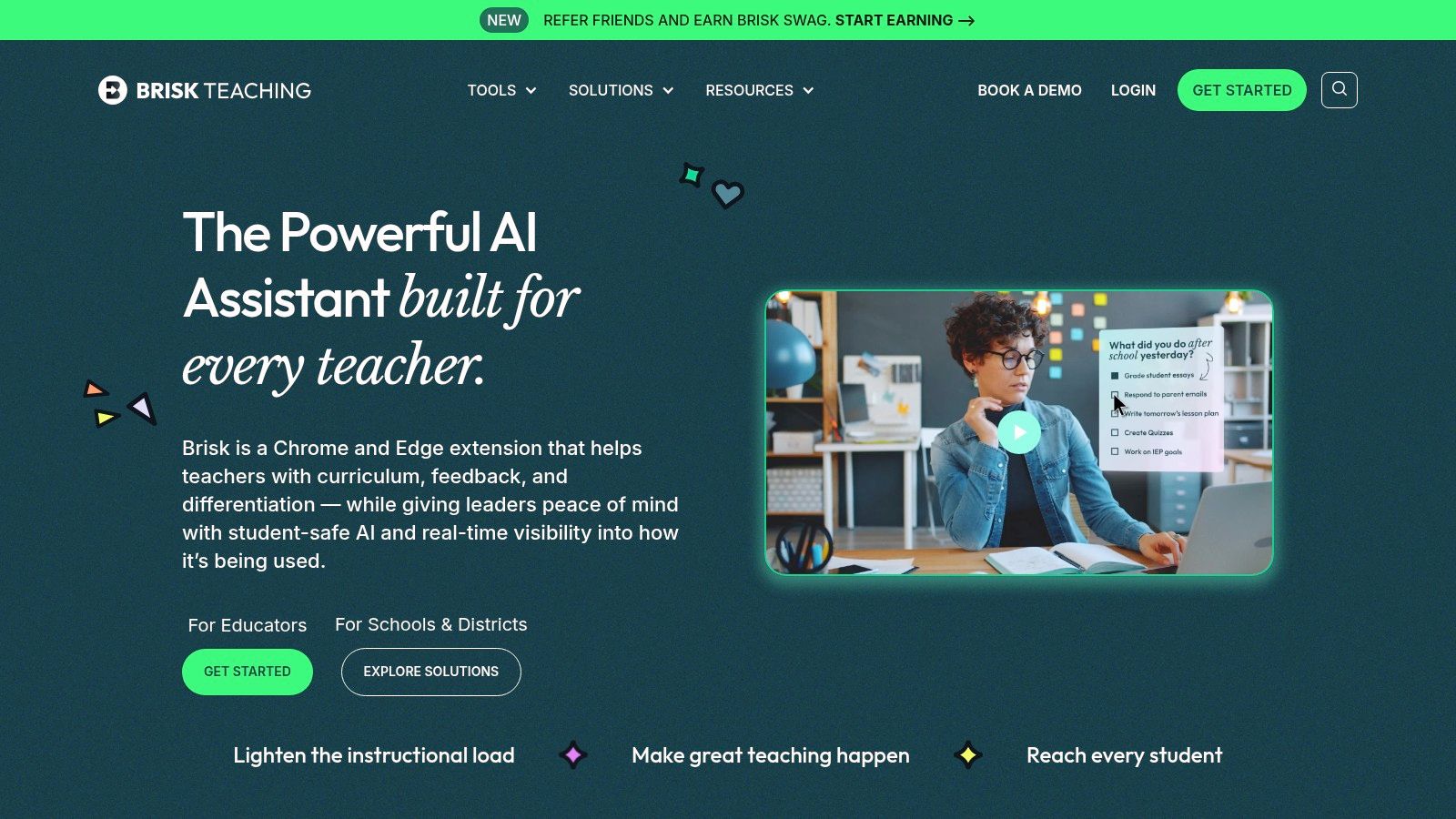
Alt text: A screenshot showing the Brisk Teaching extension integrated into a Google Doc, with options for giving feedback and changing the reading level.
Its core strength is meeting teachers where they are, eliminating the friction of adopting a new system. By living inside Chrome or Edge, it enhances familiar applications with AI capabilities focused on planning, differentiation, and assessment. With a strong privacy stance and a generous free-forever tier for individual educators, Brisk stands out as one of the most accessible AI tools for educators looking to save time without overhauling their digital habits.
How to Give Feedback on an Essay in 3 Steps
An 8th-grade history teacher is reviewing student essays submitted as Google Docs. Here’s how they use Brisk to provide targeted feedback:
- Open the Document and Extension: With the student’s essay open in Google Docs, the teacher clicks the Brisk icon in the bottom-right corner of the screen.
- Select Feedback Criteria: From the Brisk menu, they choose “Give Feedback.” They can select a pre-made rubric (e.g., “Argumentative Essay”) or create a custom one by specifying criteria like “Thesis Strength,” “Evidence Usage,” and “Clarity.”
- Generate and Insert Comments: Brisk analyzes the text against the rubric and generates specific, targeted comments. The teacher reviews the suggestions and clicks to insert them directly into the document as comments, saving significant grading time. For an ELL student, they can then translate the feedback into the student’s native language with another click.
Key Considerations
| Pros | Cons |
|---|---|
| No-New-Platform Approach: Integrates directly into existing tools. | Browser-Dependent: The best experience is limited to Chrome/Edge users. |
| Generous Free Plan: The “Free Forever” tier is robust for teachers. | Advanced Features Gated: Some capabilities are behind paid plans. |
| Strong Privacy Stance: Focuses on educator adoption and data safety. | Integration-Only: Lacks a central, standalone platform dashboard. |
Pricing & Access
Brisk Teaching offers a Free Forever plan for individual educators that includes most of its core features. For additional capabilities and resources, an Educator Pro plan is available. For schools and districts, Brisk for Schools & Districts provides enterprise-level controls, administrative visibility, and professional development options.
Actionable Takeaways
- Install the Extension: Add the free Chrome or Edge extension to start using Brisk’s AI tools inside your Google Workspace immediately.
- Use “Change Level” on Web Articles: Instantly differentiate any online article for students at various reading levels to make complex texts more accessible.
- Streamline Feedback: Use the “Give Feedback” feature on a Google Doc to provide targeted, rubric-aligned comments to students in a fraction of the time.
Website: https://www.briskteaching.com/
5. Khan Academy – Khanmigo for Teachers
Khan Academy, a trusted name in nonprofit education, extends its reach into AI with Khanmigo for Teachers. This suite of AI-powered tools is designed to act as a teacher’s assistant, deeply integrated within the familiar Khan Academy ecosystem. Rather than being a standalone product, Khanmigo enhances the existing platform by providing over 20 free tools for tasks like lesson planning, rubric generation, and creating exit tickets, all tied directly to Khan’s extensive content library.
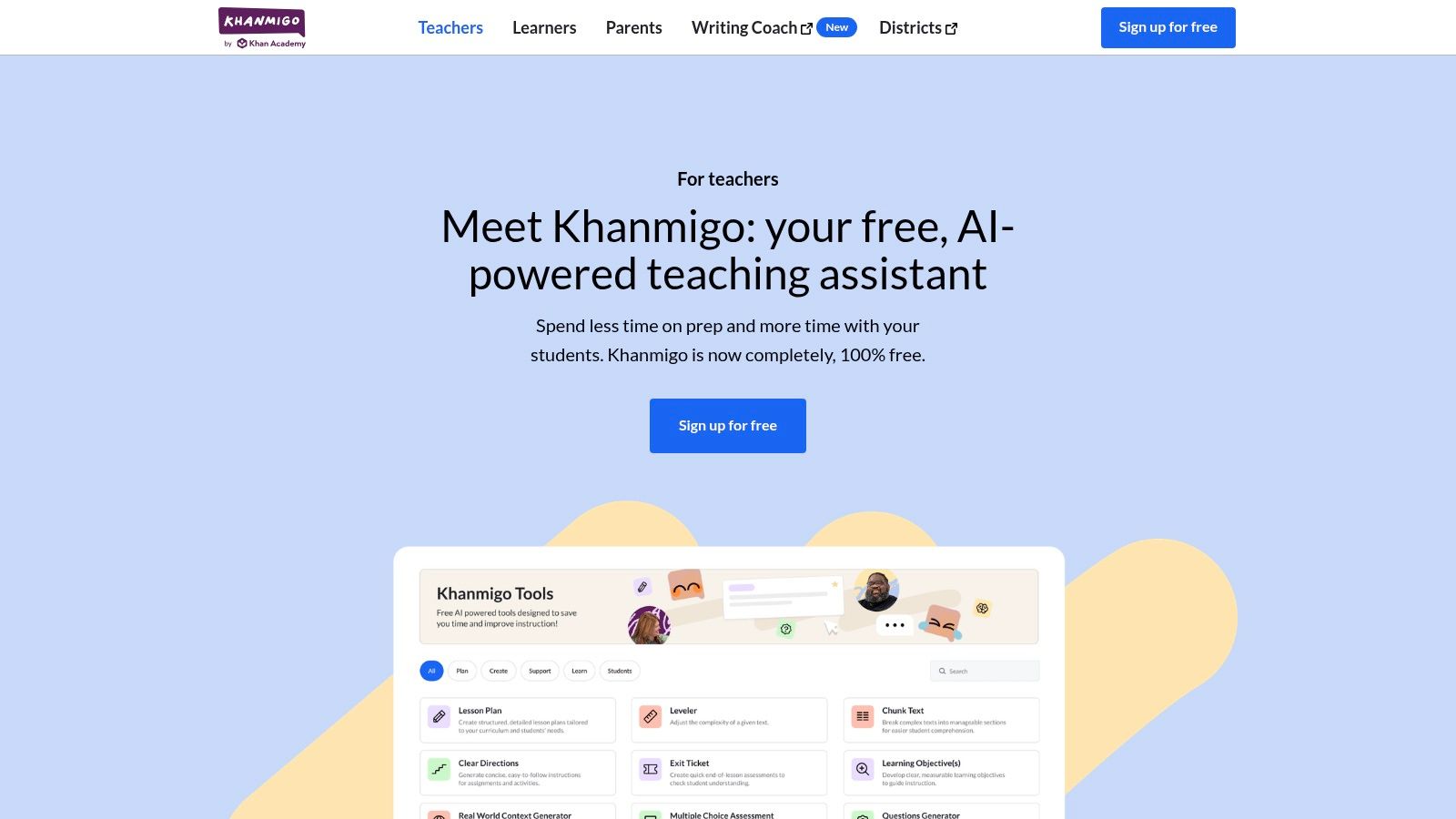
Alt text: A screenshot of the Khanmigo for Teachers dashboard showing AI-powered tools like “Create a hook” and “Generate learning objectives”.
What makes Khanmigo a standout option is its commitment to being a no-cost, privacy-forward copilot for educators in the U.S. It leverages AI to provide class snapshots and recommend relevant Khan Academy content to address learning gaps. Its integration with Canvas further streamlines workflows, making it one of the most accessible AI tools for educators already using these platforms. The project reflects a thoughtful approach to the future impact of AI on education, prioritizing support over replacement.
How to Create an Engaging Lesson Opener in 3 Steps
An 8th-grade math teacher preparing a unit on linear equations can use Khanmigo to kick off the lesson. Here’s how:
- Access Teacher Tools: In their Khan Academy teacher dashboard, they navigate to the Khanmigo tools and select “Create a hook for a lesson.”
- Provide Context: They enter the topic: “Introduction to linear equations and slope.” The AI generates several creative ideas, such as relating slope to the steepness of a ski hill or the rate of a car’s acceleration.
- Generate an Exit Ticket: After planning the hook, they use the “Create exit ticket questions” tool. They specify the topic and ask for three questions to quickly assess if students understood the core concepts of slope and y-intercept at the end of the class.
Key Considerations
| Pros | Cons |
|---|---|
| Free for Teachers: The complete suite of teacher tools is free. | Student Features are Paid: Full student-facing tutoring requires a subscription. |
| Integrated with Khan Content: Directly connects tasks to a vast educational library. | Admin Setup May Be Needed: Canvas integration might require district IT approval. |
| Trusted Nonprofit: Backed by Khan Academy’s focus on privacy and education. | Evolving Platform: Features and availability are still developing and expanding. |
Pricing & Access
The teacher-facing tools within Khanmigo are completely free for educators in the United States. Access is available directly through the Khan Academy platform and via a Canvas integration. The student-facing AI tutor features are part of a paid subscription plan for families.
Actionable Takeaways
- Activate Your Free Access: If you’re a U.S. teacher, sign in to your Khan Academy account to start using the free teacher tools immediately.
- Use for Differentiated Content: Generate “class snapshot” reports to quickly identify learning gaps and let Khanmigo suggest targeted Khan Academy assignments.
- Create Engaging Hooks: Use the “Create a hook for a lesson” tool to find creative, real-world ways to introduce new topics and capture student interest.
Website: https://www.khanmigo.ai/teachers
6. Canva for Education
Canva for Education extends the popular design platform by offering its premium features completely free to verified K-12 teachers, students, and districts. It integrates Canva’s powerful Magic Studio AI tools, like Magic Write and Magic Media, into a secure, education-focused environment. This offering is designed to accelerate the creation of visually engaging classroom materials, from presentations and infographics to worksheets and videos, making it one of the most accessible AI tools for educators.
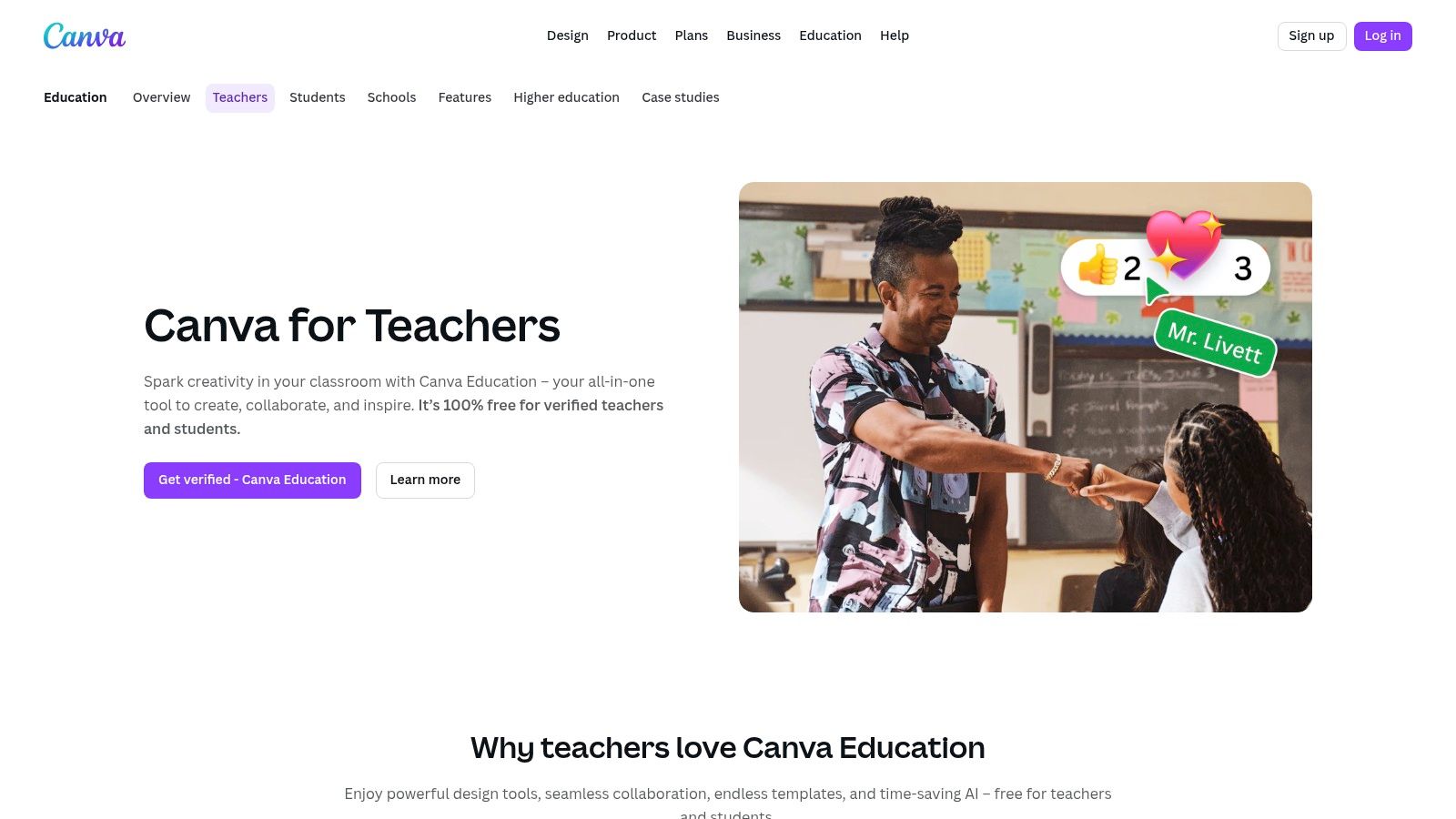
Alt text: An educator using Canva for Education’s interface to design a colorful classroom presentation on a laptop.
The platform stands out by bundling its entire suite of Pro features, an extensive library of over 80,000 education-specific templates, and premium media assets at no cost for the education community. With FERPA and COPPA compliance, along with integrations for Google Classroom, Canvas, and Schoology, it provides a safe and seamless tool for both individual classroom use and district-wide deployment.
How to Create a Presentation in 3 Steps
An 8th-grade history teacher needs to create an engaging presentation on the American Revolution. Here’s the Canva workflow:
- Generate a Draft with AI: From the Canva homepage, the teacher selects “Magic Design for Presentations” and enters the prompt: “A 10-slide presentation for 8th graders on the key events of the American Revolution, from the Boston Tea Party to the Treaty of Paris.” Canva generates a complete draft with text and suggested images.
- Customize with AI Media: On a slide about the Battle of Yorktown, the teacher wants a unique image. They use “Magic Media,” enter the prompt “A cartoon-style drawing of General Cornwallis surrendering to George Washington,” and insert the AI-generated image into the slide.
- Share to LMS: Once the presentation is finalized, the teacher clicks “Share” and selects the “Google Classroom” integration, posting it directly as an assignment for students to review.
Key Considerations
| Pros | Cons |
|---|---|
| Free for K-12: Full Pro features are available at no cost. | Verification Required: Access requires a verification process. |
| Vast Template Library: Accelerates lesson and resource creation. | Usage Limits: Heavy AI generation tasks may be subject to credits. |
| LMS Integration: Connects with Google Classroom, Canvas, and more. | Not a Core AI Platform: Primarily a design tool with AI features added. |
Pricing & Access
Canva for Education is 100% free for eligible K-12 teachers, students, schools, and districts worldwide. Users must go through a verification process to prove their educator or student status to gain access to all the premium features, including the Magic Studio AI toolkit.
Actionable Takeaways
- Get Verified Immediately: Start the verification process to unlock the full suite of Pro features for your classroom.
- Use Templates as a Starting Point: Don’t start from scratch. Browse the 80,000+ education templates to find a design for your next lesson, then use AI to customize it.
- Explore AI-Powered Presentations: Use Magic Design for Presentations to instantly generate a full slideshow from a simple text prompt. Learn more about how it stacks up against other top AI presentation tools.
Website: https://www.canva.com/education/teachers/
7. Quizizz
Quizizz is a highly engaging assessment and practice platform that leverages AI to simplify content creation for educators. It allows teachers to instantly generate quizzes and interactive lessons from various sources, including web links, YouTube videos, PDFs, or existing documents. What makes Quizizz a standout choice is its fusion of gamified learning with powerful, AI-driven assessment tools, catering to both individual classroom needs and district-wide educational goals.
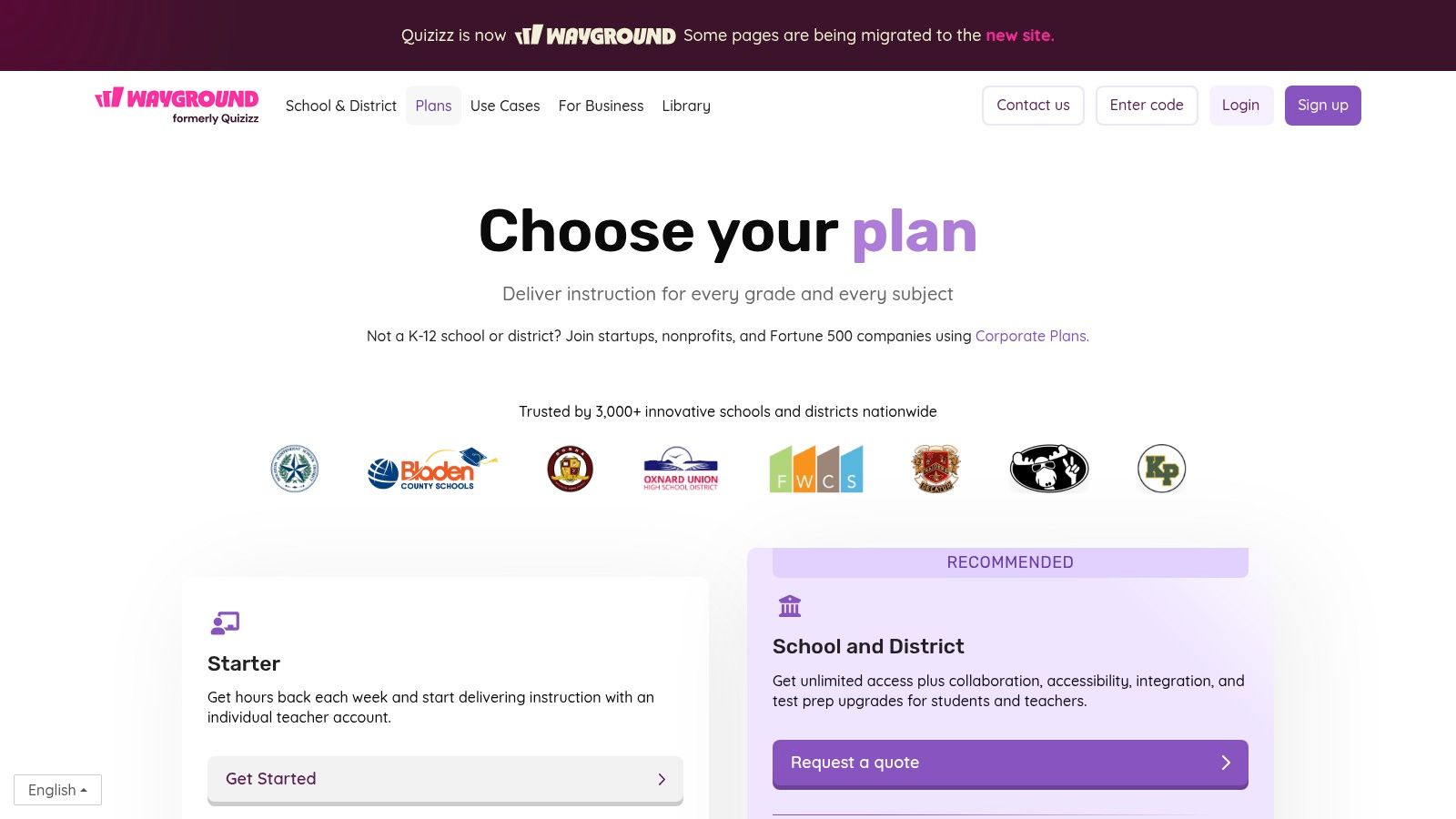
Alt text: A screenshot of the Quizizz interface, showing an AI-generated quiz question with multiple-choice answers, ready for classroom use.
The platform supports a vast library of pre-made activities and integrates smoothly with popular Learning Management Systems (LMS). For schools and districts, Quizizz offers robust solutions that scale effectively and even provides routes for U.S. federal funding eligibility, thanks to its evidence-based designation (ESSA Level III). This makes it one of the most versatile AI tools for educators looking for both engagement and standards-aligned assessment.
How to Create a Quiz from a Video in 3 Steps
An 8th-grade history teacher wants to create a quiz based on a 10-minute Crash Course video about the American Revolution. Here’s the process:
- Input the Video Link: In the Quizizz dashboard, the teacher clicks “Create” and selects the AI-powered “YouTube Link” option. They paste the URL of the Crash Course video.
- Generate and Review Questions: The AI processes the video transcript and generates 10 multiple-choice questions based on the content. The teacher quickly reviews the questions, edits one for clarity, and adds a “Fill in the Blank” question for variety.
- Launch the Game: The teacher launches the quiz as a live, instructor-paced game in class. Students join on their devices and compete, while the teacher sees real-time data on student performance on the main screen.
Key Considerations
| Pros | Cons |
|---|---|
| Scales from Free to District: Accessible for individual teachers and entire school systems. | Regional Feature Variation: Availability of some features can differ by location. |
| Funding Eligible: ESSA L3 designation can support school funding applications. | Paid Plans Needed: Advanced instructional tools require a subscription. |
| Engaging Activity Types: Moves beyond simple quizzes to interactive lessons and videos. | Content Overload: The large library can sometimes be overwhelming to navigate. |
Pricing & Access
Quizizz offers a free Basic plan with core functionalities, which is perfect for trying out the platform. The School & District plans unlock the full suite of instructional tools, advanced question types, LMS integrations, and administrative oversight. Pricing for these plans is customized based on the institution’s size and needs.
Actionable Takeaways
- Use the AI Quiz Generator: Instantly create formative assessments by simply pasting a URL, uploading a PDF, or typing a topic to save significant prep time.
- Explore the Public Library: Before creating from scratch, search the extensive library of millions of teacher-created quizzes and lessons.
- Convert Quizzes to Lessons: Enhance student engagement by turning a standard quiz into an interactive presentation with embedded media and instructional slides.
Website: https://quizizz.com/home/plans
8. Quizlet
Quizlet is a well-established study platform that leverages AI to enhance learning through its vast library of user-generated content. While known for digital flashcards, its AI features aim to transform passive review into active learning. The platform offers tools for creating diverse study materials, from simple flashcards to more complex practice tests, making it a versatile resource for both student-led and teacher-directed practice.
Alt text: A screenshot of the Quizlet interface showing a digital flashcard set with study modes like Learn and Test available.
What makes Quizlet a staple among AI tools for educators is its accessibility and familiar interface, which lowers the adoption barrier for students. The platform’s teacher-focused features allow educators to create classes, track student progress, and customize study materials. Although its advanced AI chatbot, Q-Chat, was retired, its core AI-powered learning modes continue to offer adaptive study sessions that focus on areas where students need the most help.
How to Prepare Students for a Test in 3 Steps
A high school history teacher preparing for a final exam can create a comprehensive Quizlet study set covering key dates, figures, and events. Here’s how they can leverage it:
- Create the Study Set: The teacher creates a new study set and either manually inputs terms and definitions or imports them from a spreadsheet. The set includes over 50 key concepts for the exam.
- Assign Adaptive Practice: The teacher shares the set with their class and instructs students to use the “Learn” mode. This AI-powered mode presents questions in various formats and prioritizes terms students struggle with, creating a personalized study plan for each student.
- Track Class Progress: Using the teacher dashboard, the educator can view “Class Progress” to see which students have started studying and which terms the class as a whole is finding most difficult. This data informs the final in-class review session.
Key Considerations
| Pros | Cons |
|---|---|
| Low-Cost Annual Plan: Very affordable compared to other specialized AI tools. | Retired AI Chatbot: Q-Chat AI tutor was retired, removing a key AI feature. |
| Familiar Interface: Easy for students and teachers to start using immediately. | Limited Advanced AI: Lacks the generative AI capabilities of newer platforms. |
| Institutional Discounts: Offers group and volume discounts for schools. | Content Quality Varies: Relies heavily on user-generated sets which can be inconsistent. |
Pricing & Access
Quizlet offers a robust Free version with ads and basic features. The Quizlet Plus plan unlocks an ad-free experience, offline access, and advanced content creation tools, available as an affordable annual subscription. Group and volume discounts are also available for schools and departments looking to purchase subscriptions for multiple users.
Actionable Takeaways
- Utilize “Learn” Mode: Encourage students to use the AI-powered “Learn” mode, which creates an adaptive study plan based on their correct and incorrect answers.
- Track Progress with Classes: Create a class within Quizlet to share sets and monitor student activity and mastery of the material.
- Explore User-Generated Content: Before creating a new study set from scratch, search Quizlet’s extensive library to find and adapt existing high-quality sets. Discover more about using tools like Quizlet for exam success.
Website: https://quizlet.com/upgrade
9. Google Workspace with Gemini for Education
Google Workspace with Gemini for Education integrates powerful AI capabilities directly into the familiar suite of Google tools that many schools already use. This approach brings AI assistance into Docs, Slides, Sheets, and Gmail, minimizing the learning curve for teachers and students. The platform is designed with education-specific terms and robust admin controls, ensuring that AI implementation aligns with school policies and privacy commitments.
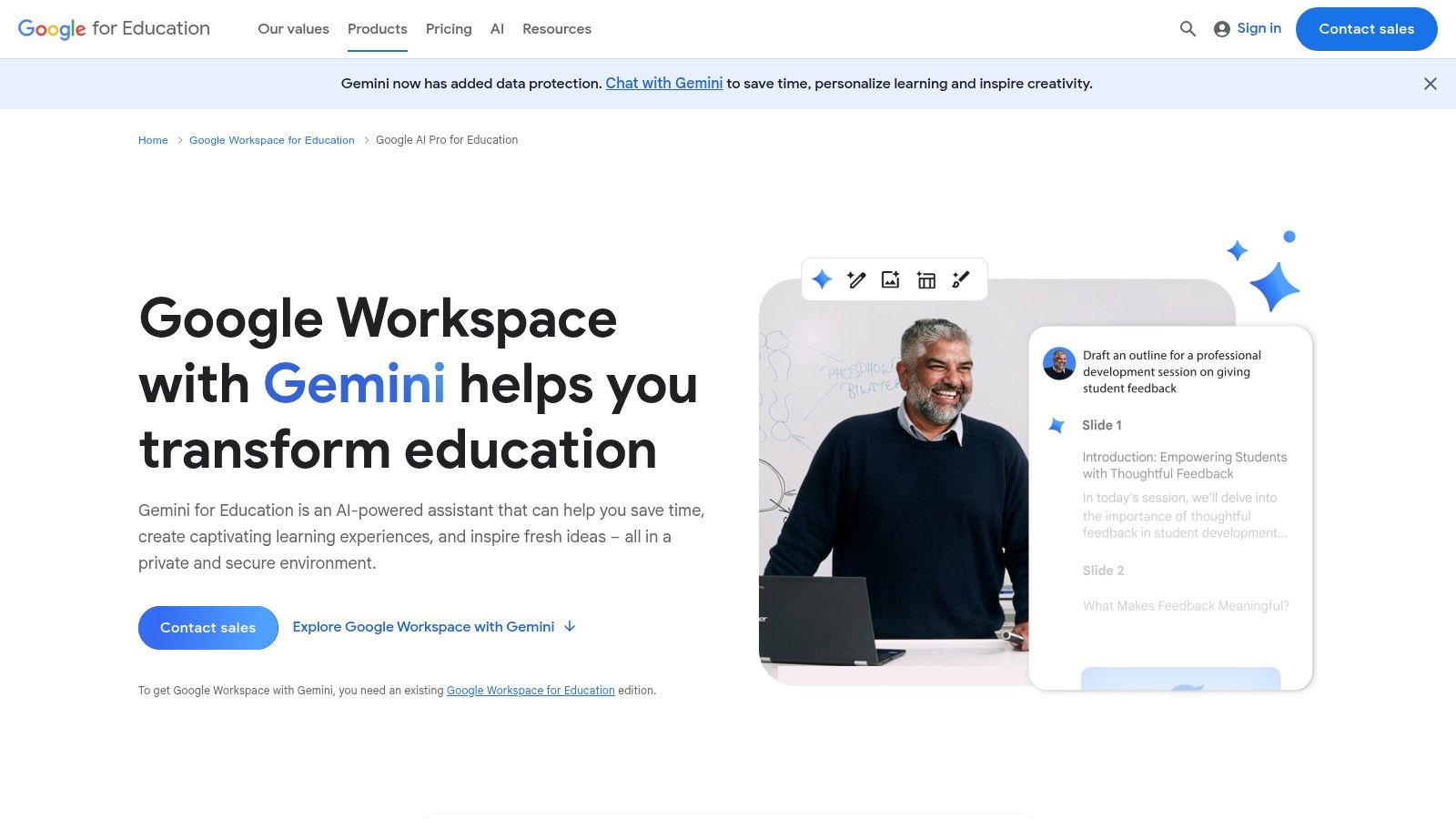
Alt text: An illustration showing the Gemini AI logo integrated with Google Workspace app icons like Docs, Sheets, and Slides, signifying AI features within the suite.
Unlike standalone AI tools for educators, Gemini for Education leverages existing workflows within Google Classroom and the broader Workspace ecosystem. The platform also includes access to NotebookLM, a specialized research and writing tool. For districts ready to invest, paid add-ons like Gemini Education unlock more advanced features, making it a scalable solution for institutions committed to the Google ecosystem.
How to Streamline Administrative Tasks in 3 Steps
A high school history teacher can use the Gemini integration to save time on daily tasks. Here’s a realistic workflow:
- Generate a Discussion Guide: In Google Docs, the teacher opens a primary source document. They use the Gemini side panel and prompt it: “Create a 5-question Socratic discussion guide based on this text for 11th graders.” Gemini generates the questions, which the teacher copies into the lesson plan.
- Create a Presentation Outline: In a new Google Slides presentation, they use the “Help me organize” feature, prompting it: “Create a 7-slide presentation outline on the causes of the Industrial Revolution.” Gemini creates the slides with titles and bullet points.
- Draft a Parent Email: In Gmail, they click “Help me write” and type: “Write a professional email to parents about an upcoming field trip to the history museum on October 25th, asking for chaperones.” Gemini drafts a clear, complete email ready to be sent.
Key Considerations
| Pros | Cons |
|---|---|
| District-Grade Security: Built with robust privacy and admin tools. | Paid Add-Ons Required: Most advanced capabilities are not free. |
| Familiar Interface: Minimal change management for existing users. | Complex Licensing: Navigating add-on options can be confusing. |
| Seamless Integration: Works directly within existing Workspace apps. | Ecosystem Lock-In: Most beneficial for schools already using Google. |
Pricing & Access
Core Google Workspace for Education is free for qualifying institutions. The AI capabilities are available through paid add-ons like Gemini Education and Gemini Education Premium, which are licensed for users aged 18 and over. Pricing is tiered and requires contacting Google for a quote based on the institution’s size and needs.
Actionable Takeaways
- Check for Eligibility: If your school uses Google Workspace, ask your administrator about plans for activating Gemini for Education add-ons.
- Explore NotebookLM: Use NotebookLM with your Google Drive sources to create an AI-powered research assistant for planning complex units or professional development presentations.
- Start in Google Docs: Experiment with the “Help me write” feature in a blank Google Doc to generate lesson hooks, exit tickets, or assignment instructions to see how it fits your style.
Website: https://edu.google.com/workspace-for-education/add-ons/gemini-for-google-workspace/
10. Microsoft Copilot for Microsoft 365 (Education)
Microsoft Copilot for Microsoft 365 (Education) integrates powerful AI capabilities directly into the suite of applications that many schools and districts already use daily. Rather than a standalone tool, it acts as an intelligent assistant within Word, PowerPoint, Excel, Outlook, and Teams. This native integration is its key differentiator, allowing educators to leverage AI without leaving their existing workflows. For institutions heavily invested in the Microsoft ecosystem, this provides a seamless way to enhance productivity and creativity.
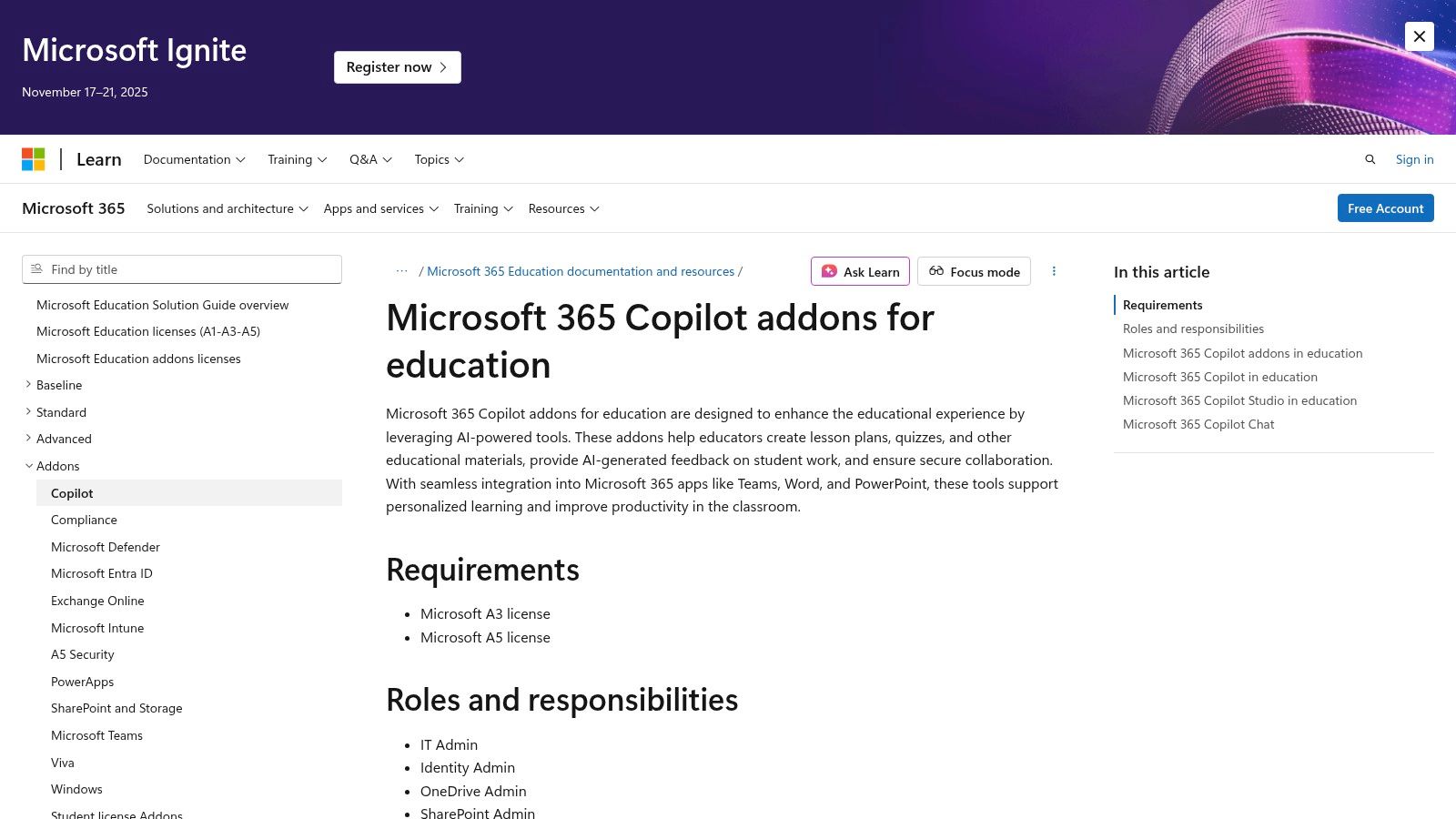
Alt text: An illustration showing how Microsoft Copilot integrates with various Microsoft 365 applications like Teams, Word, and PowerPoint for educational purposes.
The platform is built with enterprise-grade security and compliance, a critical factor for educational institutions handling sensitive student data. With specific licensing for A3/A5 faculty and staff, districts can deploy these AI tools for educators with the assurance of robust governance and control. Copilot can streamline administrative tasks, support lesson creation, and even help manage classroom communication directly within the familiar Microsoft 365 environment.
How to Create a Presentation from a Document in 3 Steps
A high school history teacher has a detailed Word document outlining a lecture on the Cold War. Here’s how they use Copilot to create a presentation:
- Initiate Presentation Creation: The teacher opens PowerPoint and clicks the Copilot button. They select the “Create presentation from file” option.
- Reference the Source Document: They provide a link to the Word document stored in their OneDrive. Copilot analyzes the document’s structure, headings, and key points.
- Generate and Refine: Copilot automatically generates a multi-slide presentation, creating titles, bullet points, and speaker notes based on the Word outline. The teacher can then use further prompts to ask Copilot to “add an image of the Berlin Wall” to a specific slide or “summarize this slide in three bullet points.”
Key Considerations
| Pros | Cons |
|---|---|
| Strong Fit for Microsoft Districts: Seamlessly integrates into existing workflows. | Licensing Complexity: EDU availability is for faculty/staff on A3/A5 plans. |
| Clear Governance & Security: Built with enterprise-level compliance for education. | Significant Add-on Cost: Can be expensive for districts to implement at scale. |
| Broad Impact: Benefits instruction, administration, and school operations. | Seat Minimums May Apply: Some licensing options require minimum user counts. |
Pricing & Access
Microsoft Copilot for Microsoft 365 is available as an add-on for educational institutions with Microsoft 365 A3 or A5 faculty licenses. Pricing is typically on a per-user, per-year basis, and institutions should contact their Microsoft representative for specific educational pricing and deployment details, as seat minimums and other requirements may apply.
Actionable Takeaways
- Consult Your IT Department: If your district uses Microsoft 365, ask your technology administrator about eligibility for A3/A5 faculty licensing for Copilot.
- Draft with Copilot in Word: Use Copilot to generate first drafts of lesson plans, parent emails, or assignment outlines by providing a simple prompt.
- Summarize in Teams: Leverage Copilot to get quick summaries of long chat threads or video meeting transcripts to save time catching up on communications.
Website: https://learn.microsoft.com/en-us/microsoft-365/education/guide/1-addons/addons-copilot
11. OpenAI – ChatGPT (Business/Enterprise/Edu)
While many educators use the free or individual Pro versions of ChatGPT, OpenAI’s dedicated plans for organizations offer a significant leap in security, control, and scalability for educational institutions. The Business and Enterprise/Edu tiers are designed for schools and districts that want to leverage the power of a high-utility general AI while maintaining administrative oversight. These plans provide crucial features like data privacy by default (data is not used for training), SSO/SCIM for user management, and detailed analytics.
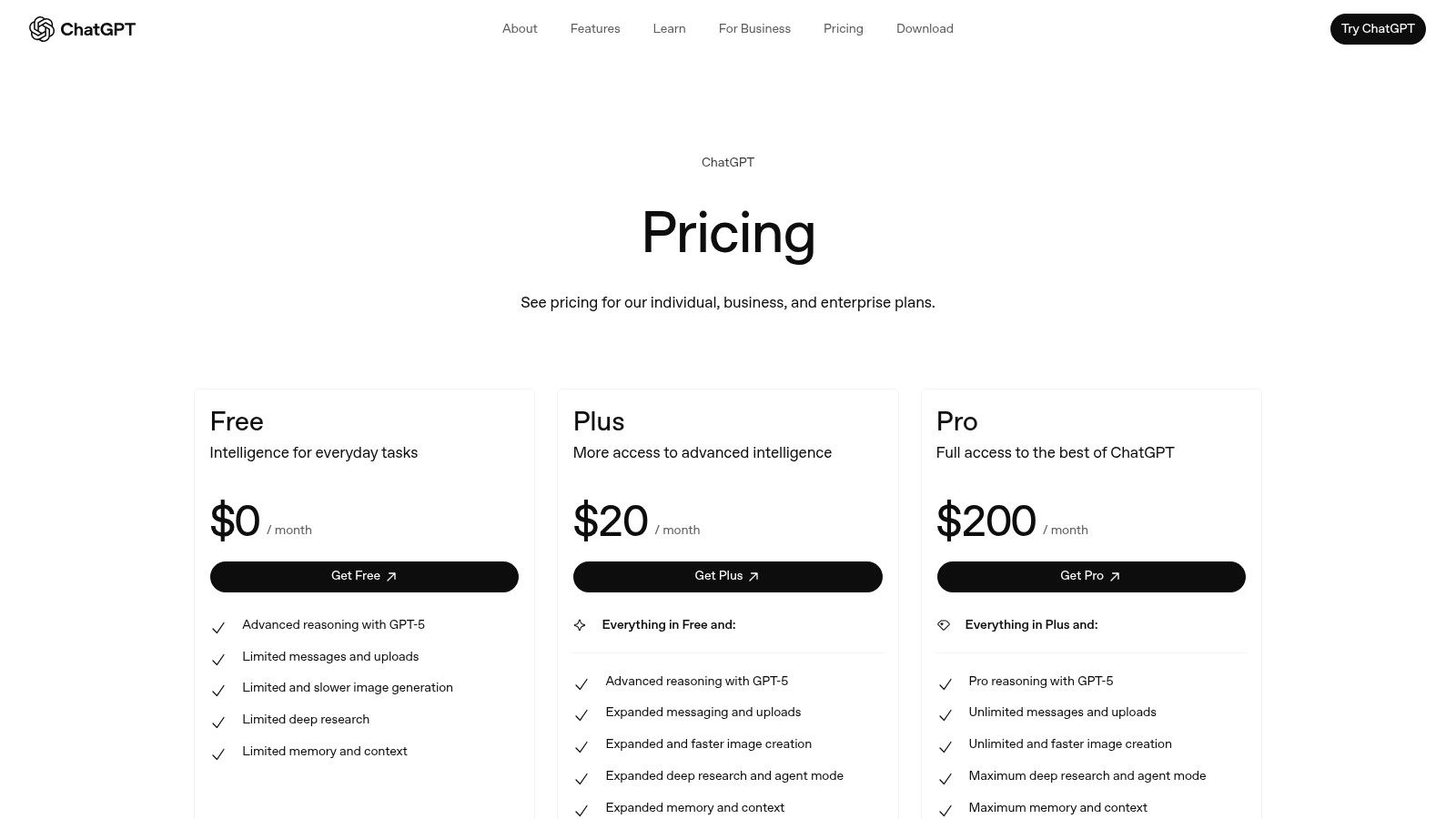
Alt text: A screenshot of the ChatGPT interface showcasing its conversational AI capabilities, ready for an educator’s prompt.
What distinguishes the institutional plans is the move from a consumer tool to a managed educational resource. Administrators can control access, monitor usage through analytics, and ensure compliance with institutional data policies. This makes it a viable option for districts looking to deploy one of the most powerful and flexible AI tools for educators in a controlled and secure environment, suitable for everything from curriculum design to administrative support.
How to Differentiate an Assignment in 3 Steps
An instructional technology coach for a school district could use the admin dashboard to create a dedicated workspace for the high school English department. A teacher then uses it to differentiate an essay prompt.
- Establish the Base Assignment: The teacher uploads the text of The Great Gatsby chapter 3 and their standard essay prompt: “Analyze the theme of perception vs. reality in the party scene.”
- Generate Scaffolds: They prompt ChatGPT: “Using the uploaded text and prompt, generate three versions of this assignment. One for advanced students with a focus on literary criticism, one at grade level, and one for struggling readers that includes a graphic organizer and sentence starters.”
- Create the Rubric: The teacher then follows up with a new prompt: “Create a 4-point analytic rubric for the grade-level version of this assignment, with criteria for Thesis, Evidence, and Analysis.” The AI generates a complete, customizable rubric.
Key Considerations
| Pros | Cons |
|---|---|
| High-Utility General AI: Versatile for any subject or task. | Requires Configuration: Institutional plans need setup and management. |
| Flexible Deployment: Scales from small teams to entire districts. | Credit-Based Usage: High usage may require careful credit planning. |
| Secure & Compliant: Data is excluded from training by default. | General Purpose: Not specifically designed for K-12 pedagogy out-of-the-box. |
Pricing & Access
OpenAI offers several tiers. The Team plan is priced per user and provides a collaborative workspace with admin controls. For larger institutions, the Enterprise plan offers SSO, advanced security, and unlimited usage, with pricing based on institutional needs. There is no specific “Edu” plan listed publicly, as educational institutions typically fall under the Enterprise umbrella with custom pricing.
Actionable Takeaways
- Request a Demo: If you’re a school administrator, contact OpenAI’s sales team to understand how an Enterprise plan can be tailored for your district’s needs.
- Create Department Workspaces: Use the admin console to set up separate, secure workspaces for different departments to foster focused collaboration.
- Develop Usage Guidelines: Establish clear best practices and ethical guidelines for teachers and staff on how to use ChatGPT for professional tasks.
Website: https://openai.com/chatgpt/pricing
12. SchoolAI
SchoolAI is a K-12 focused platform designed for safe, district-wide AI implementation. It emphasizes student-facing tools within a secure ecosystem, providing administrators with the compliance assurances they need, including FERPA, COPPA, and SOC 2 certifications. The platform’s core is “Spaces,” a vast library of over 200,000 premade, curriculum-aligned activities that allow teachers to integrate AI into lessons immediately.
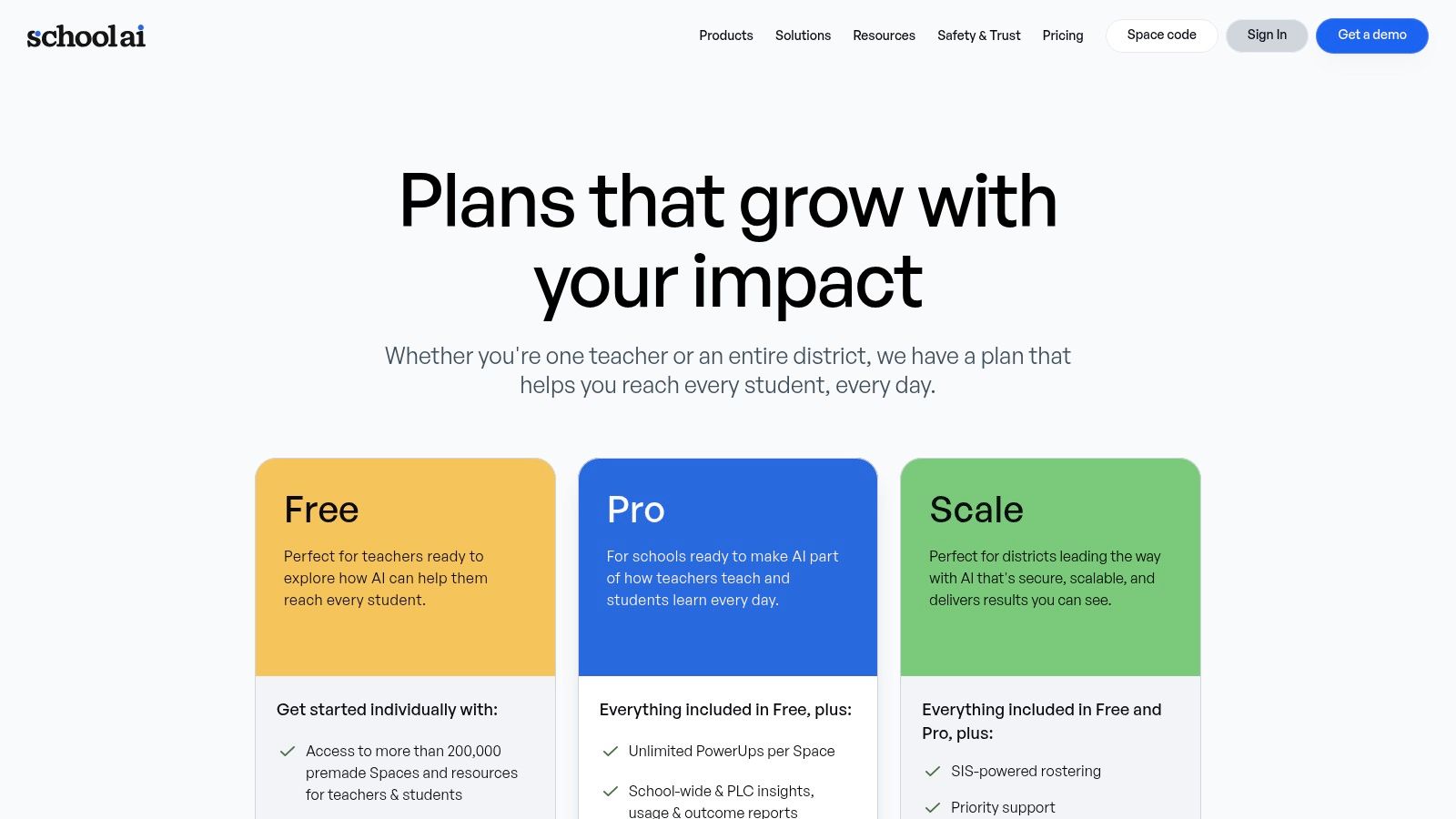
Alt text: The SchoolAI dashboard showing various premade ‘Spaces’ for classroom activities, designed for student-safe AI interaction.
What distinguishes SchoolAI is its focus on structured student interaction. “Orbits” and “PowerUps” guide students through AI-powered tasks safely, while teacher dashboards offer insights into usage and learning. This turnkey approach makes it one of the top AI tools for educators in districts that prioritize pre-vetted content, compliance, and a controlled environment for student AI use.
How to Launch a Student AI Activity in 3 Steps
An 8th-grade history teacher wants students to understand different perspectives on the American Revolution. Here’s how they use SchoolAI:
- Find a “Space”: The teacher logs into SchoolAI, browses the library of premade “Spaces,” and finds an activity called “Revolutionary Perspectives.” This Space is designed for students to interview AI-powered historical figures.
- Launch the Activity: The teacher launches the Space and shares a unique code with the class. Students log in and are prompted to choose a character to interview, such as George Washington, a British Loyalist, or an undecided colonist.
- Monitor Student Interaction: As students type questions to their chosen character, the teacher monitors all conversations in real-time on their dashboard. They can see which students are asking insightful questions and provide support to those who are struggling, all within a secure and controlled environment.
Key Considerations
| Pros | Cons |
|---|---|
| K-12 Safety & Compliance: Built with FERPA, COPPA, and SOC 2 in mind. | Quote-Based Pricing: Pro and enterprise pricing is not transparent. |
| Large Premade Library: 200,000+ resources allow for instant use. | District-Focused: Best value is realized with school or district adoption. |
| Student-Facing Tools: Safely empowers students to use AI directly. | Less Teacher Customization: More focused on premade content than DIY tools. |
Pricing & Access
SchoolAI offers a Free tier for teachers to explore and use the extensive library of premade content. For full features, including unlimited access, teacher dashboards, and administrative controls, schools and districts must request a quote for Pro or Enterprise plans.
Actionable Takeaways
- Explore “Spaces” for Free: Sign up for the free plan to browse the massive library of premade activities to find resources that fit your curriculum.
- Introduce a Safe Chatbot: Use a pre-built “Orbit” as a student’s first interaction with generative AI in a controlled, safe environment.
- Leverage the Chrome Extension: Install the extension to easily integrate SchoolAI’s capabilities into your existing online workflows and learning management systems.
Website: https://schoolai.com/
12 AI Tools for Educators — Comparative Overview
| Tool | Core features | UX / Quality (★) | Price & Value (💰) | Target (👥) | Unique selling points (✨ / 🏆) |
|---|---|---|---|---|---|
| MagicSchool.ai | 80+ teacher & 50+ student tools; Raina chatbot; SIS/LMS & enterprise controls | ★★★★ — school-safe, admin dashboards | 💰 Free tier; paid for unlimited/enterprise | 👥 K–12 teachers & districts | ✨ Raina + curriculum alignment; 🏆 enterprise guardrails |
| Diffit | Leveled texts, vocab, questions, graphic organizers; exports to Google/Microsoft | ★★★★ — strong differentiation UX | 💰 Tiered; teacher licenses require card; district plans | 👥 ELA & content-area teachers, literacy specialists | ✨ Level-adjusted texts & standards/DOK alignment |
| Curipod | AI lesson generation; polls, drawings, word clouds; student reports | ★★★★ — high engagement & analytics | 💰 Free limited AI; paid tiers & district quotes | 👥 Teachers wanting interactive, discussion-driven lessons | ✨ Interactive lesson elements + AI insights |
| Brisk Teaching | Browser extension with 20+ in-context teacher tools for Docs/Slides/PDFs/YouTube | ★★★★ — no-new-platform workflow | 💰 💰 Free Forever; Educator Pro for advanced | 👥 Teachers using Chrome/Edge & Google tools | ✨ In-app AI where teachers already work; 🏆 generous free plan |
| Khan Academy – Khanmigo for Teachers | 20+ teacher tools, class snapshots, Canvas integration, Khan content tie-ins | ★★★★ — trusted nonprofit experience | 💰 Free for teachers; some student features paid | 👥 Teachers preferring Khan-aligned, no-cost tools | ✨ Free content-integrated copilot; 🏆 nonprofit trust |
| Canva for Education | Canva Pro + Magic Studio AI; 80k+ education templates; LMS & SSO integrations | ★★★★★ — rich design & templates | 💰 Free for verified K–12 educators; some limits on heavy generation | 👥 K–12 teachers, students & districts for visual content | ✨ Massive template/media library; 🏆 Free Pro for verified edu |
| Quizizz | AI quiz generation from links/PDFs; activity library; LMS & funding support | ★★★★ — scalable assessment UX | 💰 Free starter → paid district plans; funding routes | 👥 Teachers & districts needing assessments | ✨ AI quiz gen + ESSA L3 evidence tag |
| Quizlet | Large user-generated study library; Plus for advanced creation & study | ★★★ — familiar, low-cost study UX | 💰 💰 Affordable annual Plus; institutional discounts | 👥 Students & teachers for practice & review | ✨ Massive content library; low-cost access |
| Google Workspace + Gemini (Edu) | Gemini in Docs/Slides/Sheets/Gmail/Classroom; EDU add-ons & admin controls | ★★★★ — seamless in familiar apps | 💰 Paid EDU add-ons (Gemini tiers) | 👥 Schools already on Google Workspace | ✨ Deep native integration; 🏆 district-grade privacy & admin tools |
| Microsoft Copilot for 365 (Education) | Copilot in Word/PowerPoint/Excel/Outlook/Teams; EDU licensing & governance | ★★★★ — native Microsoft experience | 💰 EDU add-on licensing; seat minimums/cost at scale | 👥 Microsoft 365 districts & faculty | ✨ Native productivity AI + enterprise governance; 🏆 broad institutional impact |
| OpenAI – ChatGPT (Business/Enterprise/Edu) | General-purpose LLM for planning/feedback; SSO, analytics, data-exclusion options | ★★★★★ — high-utility, flexible AI | 💰 Per-seat Business; Enterprise/Edu plans & credits | 👥 Institutions & teachers seeking flexible LLMs | ✨ Large context windows & flexible deployment; 🏆 state-of-the-art model |
| SchoolAI | 200k+ premade Spaces, student-safe Orbits, Chrome extension, teacher dashboards | ★★★★ — student-safe, quick adoption | 💰 Free tier; Pro/Enterprise quotes | 👥 Schools seeking turnkey student-facing AI | ✨ Huge premade library + compliance certifications; 🏆 K–12 safety focus |
Final Thoughts
The landscape of education is rapidly evolving, and as we’ve explored, AI tools for educators are no longer a futuristic concept but a present-day reality. From automating tedious administrative tasks to generating highly personalized learning pathways, these technologies offer a powerful new toolkit for enhancing both teaching efficiency and student engagement. We’ve journeyed through a dozen distinct platforms, each offering a unique value proposition, from MagicSchool.ai’s comprehensive lesson planning to Canva’s AI-infused design capabilities.
The core takeaway is not that AI is here to replace educators, but to augment their abilities. These tools act as tireless assistants, creative partners, and data analysts, freeing up valuable time for what truly matters: direct mentorship, fostering critical thinking, and creating inspiring classroom environments. The most effective AI integration happens when technology serves pedagogy, not the other way around.
Choosing Your First AI Teaching Assistant
Embarking on this journey can feel overwhelming given the sheer number of options. To move from exploration to implementation, consider this structured approach to selecting the right AI tools for educators based on your specific needs:
- Identify Your Biggest Pain Point: What is the one task that consumes the most time or causes the most frustration?
- Is it lesson planning? Start with a dedicated tool like MagicSchool.ai or Brisk Teaching.
- Is it creating assessments? Look into Quizizz or Quizlet’s AI features.
- Is it differentiating content for diverse learners? A tool like Diffit is designed specifically for this.
- Is it student engagement? Explore the interactive lesson capabilities of Curipod.
- Evaluate Your Existing Ecosystem: The path of least resistance is often the most effective.
- If your school is a Google Workspace district, exploring Gemini for Education is a logical next step.
- Similarly, if you operate within a Microsoft 365 environment, Copilot integration will feel more natural.
- Start Small and Iterate: You do not need to adopt an entire suite of tools at once. Select one platform that addresses your primary need. Master its core functions, gather feedback from students, and measure its impact. This focused approach prevents overwhelm and builds a foundation of confidence for future integrations. For those looking to explore an even broader range of options, this guide offers a comprehensive list of the top 12 AI tools for educators that can provide additional context.
The Path Forward: Ethical and Effective Implementation
As you integrate these powerful tools, always keep critical considerations at the forefront. Student data privacy is paramount. Before adopting any new platform, thoroughly review its privacy policy and ensure it complies with regulations like FERPA and your district’s specific guidelines. Engage your IT department early in the process.
Furthermore, cultivate a culture of responsible AI use in your classroom. Teach students to think critically about AI-generated content, to verify information, and to understand the technology’s limitations. This is not just about using tools; it’s about preparing students for a world where AI is ubiquitous.
The journey with AI tools for educators is one of continuous learning and adaptation. The platforms we discussed today are just the beginning. By embracing a mindset of curiosity and strategic implementation, you can unlock unprecedented opportunities to innovate, personalize, and ultimately, amplify your impact as an educator.
Ready to find the perfect AI tool for your specific classroom needs? Explore the AI Tools Hub, our comprehensive, searchable directory of AI solutions. Filter by category, features, and pricing to compare the tools mentioned here and discover hundreds more.