

Educators spend countless hours on administrative tasks, from lesson planning and grading to differentiating instruction for diverse learners. Students, in turn, often struggle to find study methods that adapt to their unique learning styles. The right technology can alleviate these burdens, but navigating the crowded market of educational software is a challenge in itself.
This guide cuts through the noise to deliver a curated, practical list of the best AI tools for education, designed to help you reclaim your time and enhance learning outcomes.
This is not another generic roundup. We move beyond marketing hype to provide an actionable resource for K-12 teachers, higher-ed faculty, administrators, and students. Each entry in our list has been selected based on its real-world utility, ease of implementation, and commitment to data privacy.
Inside, you will find a detailed breakdown of tools organized into clear categories:
- Learning & Study Aids: Platforms that directly support student comprehension and retention.
- Content Creation & Lesson Planning: Tools to streamline curriculum development and resource generation.
- Administrative & Institutional Platforms: Solutions for grading, feedback, and school-wide integration.
- Vetting & Discovery Resources: Toolkits to help you critically evaluate and choose the right AI for your needs.
Every review includes a one-line summary, key features, pricing, and an honest assessment of its pros and cons. To ensure you can get started immediately, we’ve also included a quick setup tip, a practical use-case example with screenshots, and direct links for each tool.
Our goal is to equip you with the information needed to confidently select and implement the best AI tools for your specific educational environment.
1. Mindgrasp — AI Tools Hub
Mindgrasp distinguishes itself as a premier AI learning assistant, purpose-built for the academic ecosystem. It moves far beyond simple text summarization by ingesting a diverse range of educational materials, including dense textbooks, lecture recordings, and web articles, to create a centralized, intelligent study hub. This multi-format capability is its core strength, allowing students to consolidate all their course content into one actionable platform.
The platform excels at transforming passive content into active learning tools. It doesn’t just shorten text; it generates structured notes, creates accurate summaries, and provides an interactive Q&A function that allows users to query their own materials. This functionality makes it one of the best AI tools for education, enabling learners to quickly grasp complex topics and prepare for exams more efficiently.
Alt text: A screenshot of the Mindgrasp interface showing a video being analyzed and summarized into key points.
Standout Features & Practical Use Cases
Mindgrasp’s design directly addresses common academic challenges, making it an indispensable asset for students and educators alike. Its institutional adoption across numerous universities and K-12 districts speaks to its reliability and practical value in real-world educational settings.
- Multi-Format Ingestion: The ability to process PDFs, DOCX files, web links, and even audio/video lecture files sets Mindgrasp apart. A student can upload a professor’s 90-minute lecture video, a required textbook chapter PDF, and a supplementary online article, and the AI will synthesize notes from all three sources.
- Automated Note Generation & Q&A: Instead of manually re-watching lectures or re-reading chapters, users can ask specific questions like, “What were the main arguments against mercantilism discussed in the lecture?” The AI will instantly pull relevant information from the uploaded content.
- Accessibility and Review: The audio-to-text transcription and summarization feature is a powerful accessibility tool. It provides searchable text notes from audio-only lectures, benefiting students with hearing impairments or those who prefer to review material by reading.
| Feature | Ideal For | Use Case Example |
|---|---|---|
| Lecture Summarization | Higher Education Students | Upload a 2-hour Zoom recording of a biology lecture to get a 10-minute summary and a list of key terms for flashcards. |
| Document Q&A | K-12 & University Students | Upload a 50-page history textbook chapter and ask, “Explain the causes of the Peloponnesian War in three bullet points.” |
| Multi-Source Synthesis | Researchers & Content Creators | Combine a research paper, a webpage, and presentation slides to generate a cohesive summary of a single topic for a literature review. |
Actionable Takeaways & Next Steps
- Front-load your content: Create a “course folder” for each subject and immediately upload your syllabus, initial readings, and any lecture recordings. This builds a strong knowledge base for the AI.
- Ask specific questions: Instead of a general “summarize this,” ask targeted questions like, “What are the three most important equations from this chapter?” to get more precise results.
- Verify for critical tasks: For major assignments or exams, always cross-reference AI-generated summaries with the original source material to ensure accuracy and nuance.
Tools & Resources
- Pricing: Free plan available; premium plans with student discounts start from $9.99/month.
- Explore Alternatives: To see how Mindgrasp compares to other leading academic tools, explore additional options on the RichlyAI Tools Hub.
- Privacy: Review their terms of service regarding data handling, especially when uploading institution-owned lecture recordings or proprietary materials.
2. Khan Academy – Khanmigo
Khanmigo leverages Khan Academy’s vast, trusted educational library to offer a safe and curriculum-aligned AI assistant for both students and teachers. It acts as a Socratic-style tutor for learners, guiding them toward answers rather than simply providing them, and serves as a powerful time-saving tool for educators, handling everything from lesson planning to generating student progress reports.
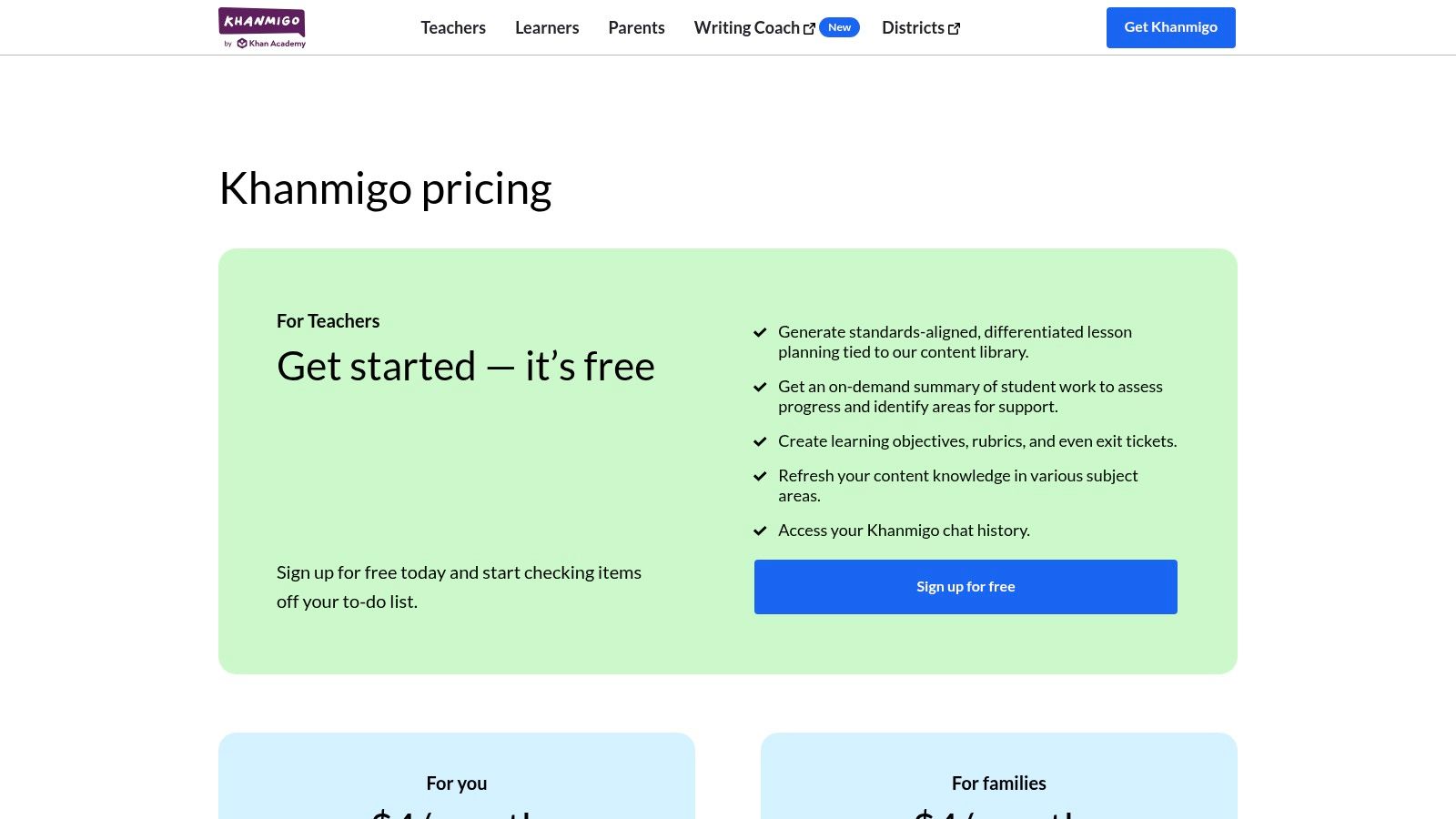
Alt text: Khan Academy – Khanmigo AI assistant interface showing a student-tutor interaction.
What sets Khanmigo apart is its deep integration with existing Khan Academy content, ensuring the AI’s guidance is directly tied to proven learning paths. Unlike general-purpose AI, its responses are designed to be pedagogically sound, making it one of the best AI tools for education focused on genuine learning outcomes.
Practical Application: A Step-by-Step Example
Here’s how a teacher can use Khanmigo to create a lesson hook:
- Log in to your Khan Academy teacher account and navigate to Khanmigo.
- Select the “Lesson Hook” tool from the menu of teacher options.
- Enter your prompt. For a lesson on the Pythagorean theorem, you might type: “My 8th-grade students are about to learn the Pythagorean theorem. Give me three creative ways to introduce the topic that connect it to real-world scenarios.”
- Review the AI-generated options. Khanmigo might suggest a story about ancient Egyptian rope stretchers, a challenge involving the shortest path across a park, or an example from video game design.
- Choose and customize the hook that best fits your students’ interests.
Actionable Takeaways & Next Steps
- Generate an engaging lesson hook: Use the “Create a lesson hook” tool to grab student attention for your next unit on photosynthesis or the American Revolution.
- Guide student inquiry: Instead of giving answers, encourage students to ask Khanmigo, “Help me understand the quadratic formula without just giving me the answer.”
- Explore district features: Administrators can request a demo of district-level plans, which include essential features like rostering via Clever/ClassLink and data dashboards.
Tools & Resources
- Website: Khanmigo
- Pricing: Individuals: $4/month or $44/year (U.S. only). Teachers: Free access to teacher tools. Districts: Custom pricing.
- Further Reading: Explore our insights into the AI’s future impact on education.
3. Quizlet (Quizlet Plus with AI features)
Quizlet enhances its globally recognized digital flashcard platform with a suite of AI-powered study tools. Features like Magic Notes, AI-enhanced practice tests, and the Q-Chat tutor transform traditional study sets into interactive, adaptive learning experiences. This makes it one of the best AI tools for education by layering intelligent assistance on top of a massive, user-generated content library that students already trust and use daily.
Alt text: The Quizlet mobile app interface showing the Q-Chat AI tutor feature.
What makes Quizlet stand out is its ability to instantly convert any set of notes or a PDF document into flashcards, practice quizzes, and a personalized study plan using its Magic Notes feature. The AI doesn’t just digitize content; it actively guides the learning process. Q-Chat, its AI tutor, can quiz students, deepen their understanding with follow-up questions, or even help them apply concepts through creative exercises, all within a familiar and highly accessible mobile-first interface.
Practical Application: A Step-by-Step Example
Here’s how a student can use Magic Notes to prepare for a test:
- Open the Quizlet app or website and select “Magic Notes.”
- Upload your materials. You can paste text directly, type notes, or upload a file (e.g., a PDF of your lecture slides). For example, upload a 10-page PDF on the human circulatory system.
- The AI processes the content and automatically generates flashcards, practice questions, and a summary.
- Engage with the generated content. You can immediately start a practice test based on the key terms from your slides or ask Q-Chat, “Explain the difference between arteries and veins using an analogy.”
- Refine and study. Edit the flashcards or ask the AI to generate more questions on a specific sub-topic you’re struggling with.
Actionable Takeaways & Next Steps
- Instantly create study sets: Use the Magic Notes feature to upload a PDF of your lecture slides and ask the AI to “create a 20-question practice test.”
- Prepare for exam variability: Start a session with Q-Chat on a specific topic, like “cellular respiration,” and ask it to “quiz me with different question types.”
- Solidify memory through creative application: After a study session, ask Q-Chat to “help me create a story using these vocabulary words” to reinforce your learning.
Tools & Resources
- Website: Quizlet
- Pricing: Quizlet Plus: $35.99/year or $7.99/month. A 7-day free trial is available. Basic flashcard features remain free.
- Platform: Available on web browsers and as highly-rated native iOS and Android apps.
4. Grammarly for Education (institutional)
Grammarly for Education takes the well-known AI writing assistant and packages it for institutional use, providing students with advanced feedback on grammar, clarity, and tone while giving administrators the necessary controls for privacy and deployment. It integrates seamlessly across learning management systems (LMS), browsers, and desktop applications, making it a ubiquitous tool for improving writing skills in any context.
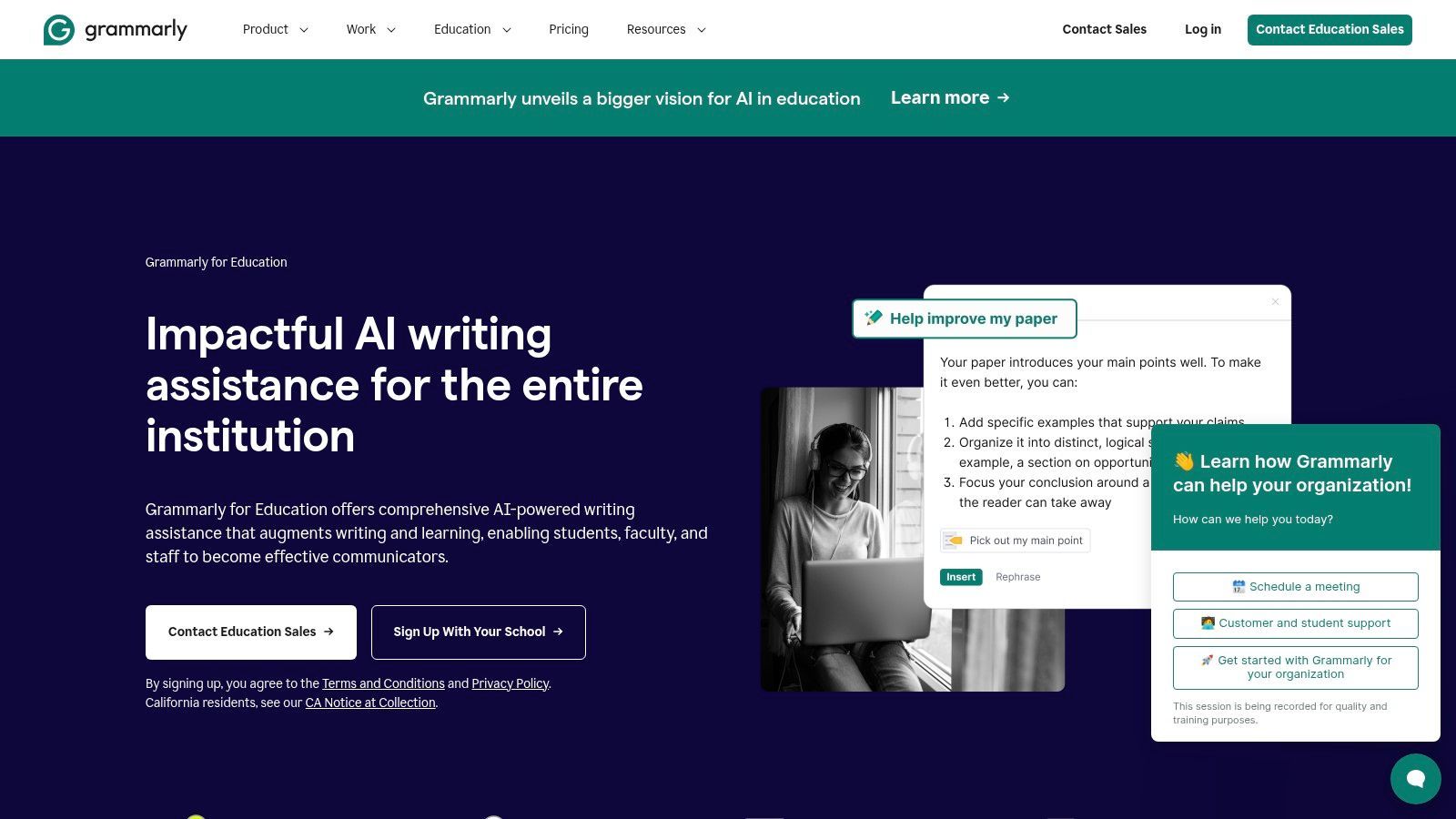
Alt text: The Grammarly for Education dashboard showing analytics on student usage and writing improvements.
What makes this one of the best AI tools for education is its focus on institutional needs. Unlike the individual version, Grammarly for Education offers centralized administration, analytics dashboards to track student engagement, and compliance features essential for the academic environment. This allows institutions to provide a powerful writing tool at scale without compromising on data security or oversight, fostering better writing habits across the entire student body.
Practical Application: A Step-by-Step Example
Here’s how a student can use Grammarly to improve a research paper:
- Write a draft of their essay in Google Docs or Microsoft Word with the Grammarly extension enabled.
- Review the initial suggestions: Address the red underlines for grammar and spelling errors first.
- Check the tone detector: Grammarly might indicate the tone is “informal.” The student can then review suggestions for replacing conversational phrases like “a bunch of reasons” with more academic alternatives like “several key factors.”
- Use the citation tool: After writing, the student can use Grammarly’s built-in citation generator to ensure all sources are correctly formatted in APA or MLA style, helping to prevent accidental plagiarism.
- Run a final plagiarism check against Grammarly’s database before submitting the final paper.
Actionable Takeaways & Next Steps
- Check writing tone: Encourage students to use the tone detector before submission to ensure their writing is appropriately formal for an academic paper versus a discussion board post.
- Improve citation hygiene: Use the citation formatting tool to quickly generate and check citations for research papers, helping to avoid accidental plagiarism.
- Monitor writing trends: Administrators can leverage the analytics dashboard to identify which departments show high engagement, using that data to champion writing initiatives campus-wide.
Tools & Resources
- Website: Grammarly for Education
- Pricing: Free: Basic suggestions. Premium: Advanced features for individuals. Education: Custom institutional pricing.
- Compliance: Offers enterprise-grade security, including SAML single sign-on, and is committed to privacy standards like GDPR and FERPA.
5. Turnitin (Feedback Studio + Originality)
Turnitin is an institutional staple for upholding academic integrity, offering a comprehensive suite of tools for similarity checking, feedback, and AI writing detection. It integrates directly into major Learning Management Systems (LMS), allowing educators to seamlessly check student submissions against a massive database of internet, academic, and student paper content.
What makes Turnitin a persistent leader is its evolution from a simple plagiarism checker into a holistic assessment platform. Its AI writing detection capability helps institutions navigate the challenges of generative AI, while tools like Draft Coach empower students to check their own work in Google Docs or Microsoft Word before submission. For educators, it’s a powerful workflow tool for providing rich, consistent feedback and managing grading.
Practical Application: A Step-by-Step Example
Here’s an instructor’s workflow using Feedback Studio for grading essays:
- Create an assignment in your LMS (e.g., Canvas, Blackboard) with the Turnitin integration enabled.
- Students submit their papers directly through the LMS as they normally would.
- Open a submission in the Feedback Studio viewer. The originality report and AI writing score are automatically displayed.
- Use QuickMarks: Instead of retyping common feedback, drag and drop pre-made comments like “Needs a stronger thesis statement” or “Cite this source” directly onto the student’s paper.
- Leave a voice comment: Record up to three minutes of audio feedback to provide personalized, nuanced guidance that text alone can’t convey.
- Enter the final grade in the rubric, which automatically calculates the score and sends it to the LMS gradebook.
Actionable Takeaways & Next Steps
- Provide faster, better feedback: Use the built-in grading tools and QuickMarks in Feedback Studio to deliver more consistent and higher-quality feedback on student essays.
- Empower student self-checking: Encourage students to use the Draft Coach add-on (if available) to review their work for similarity and citation issues before submission.
- See the workflow in action: Administrators should request a demo showing Turnitin’s integration with their specific LMS to understand the end-to-end instructor experience.
Tools & Resources
- Website: Turnitin
- Pricing: Institution-only licensing. Requires a custom quote based on institution size.
- Compliance: Adheres to global privacy standards like GDPR and is designed to be FERPA compliant.
6. Microsoft 365 with Copilot for Education
Microsoft brings its powerful generative AI, Copilot, directly into the familiar suite of 365 applications that countless schools already use. This integration places an intelligent assistant inside Word, PowerPoint, Excel, Teams, and more, empowering educators and students with contextual AI help without needing to switch platforms.
It’s designed to streamline administrative tasks for faculty and provide sophisticated learning support for students, all within a secure, managed environment.
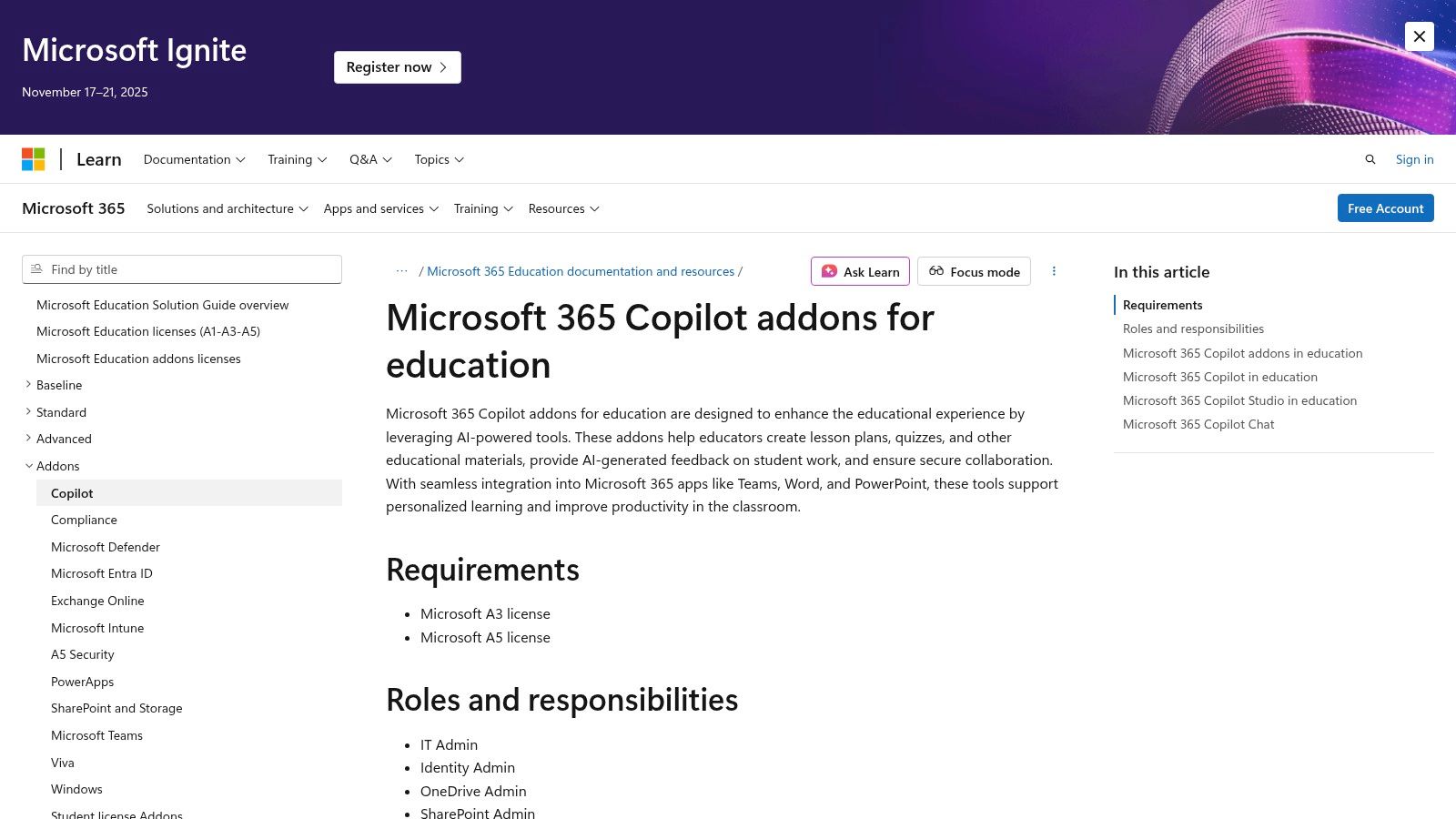
Alt text: An educator using Microsoft Copilot to generate lesson plan ideas within a Microsoft 365 application.
What makes Copilot a strong contender for the best AI tools for education is its deep integration into existing workflows, particularly within Microsoft Teams for Education. Faculty can use it to generate lesson plans, create engaging presentations from a simple Word document, or summarize long email threads in Outlook. For institutions heavily invested in the Microsoft ecosystem, Copilot provides a seamless AI layer with the robust data governance, security, and compliance controls that districts and universities require.
Practical Application: A Step-by-Step Example
Here’s how a teacher can create a presentation from a lesson plan in minutes:
- Open PowerPoint and select the “Copilot” button on the ribbon.
- Choose “Create presentation from file.”
- Provide a prompt with the location of your lesson plan document. For instance: “Create a presentation based on the lesson plan in /Documents/History/Industrial_Revolution_Lesson.docx”
- Copilot analyzes the document and generates a complete slideshow, including title slides, agenda, content slides with key points, and even suggestions for speaker notes.
- Review and customize: The teacher can then easily edit the slides, add images, or ask Copilot to “add a slide about the impact of the steam engine” to further refine the presentation.
Actionable Takeaways & Next Steps
- Automate presentation creation: Use Copilot in PowerPoint to instantly generate a presentation, complete with speaker notes, from your existing Word document-based lesson plan.
- Summarize meetings instantly: Ask Copilot in Teams to summarize key action items and decisions from a lengthy staff meeting recording to quickly draft a follow-up email.
- Brainstorm and refine writing: Students (18+) can use Copilot in Word to get feedback on the clarity and tone of a research paper draft or to help brainstorm arguments for an essay.
Tools & Resources
- Website: Microsoft 365 Copilot for Education
- Pricing: Specific pricing varies by license type (e.g., A3, A5). Contact a Microsoft representative for quotes.
- Compliance: Built on Microsoft’s enterprise-grade security. Data is processed within the institution’s own Microsoft 365 tenant, helping meet GDPR and FERPA requirements.
7. Google Workspace for Education with Gemini Education add-ons
Google brings its powerful Gemini AI directly into the familiar ecosystem of Workspace apps like Docs, Slides, and Gmail, tailored specifically for educational institutions. Through dedicated add-ons, it provides enterprise-grade AI features that are secure, private, and designed to enhance productivity and learning for both educators and students. This integration makes it one of the best AI tools for education, as it lives where the work already happens.
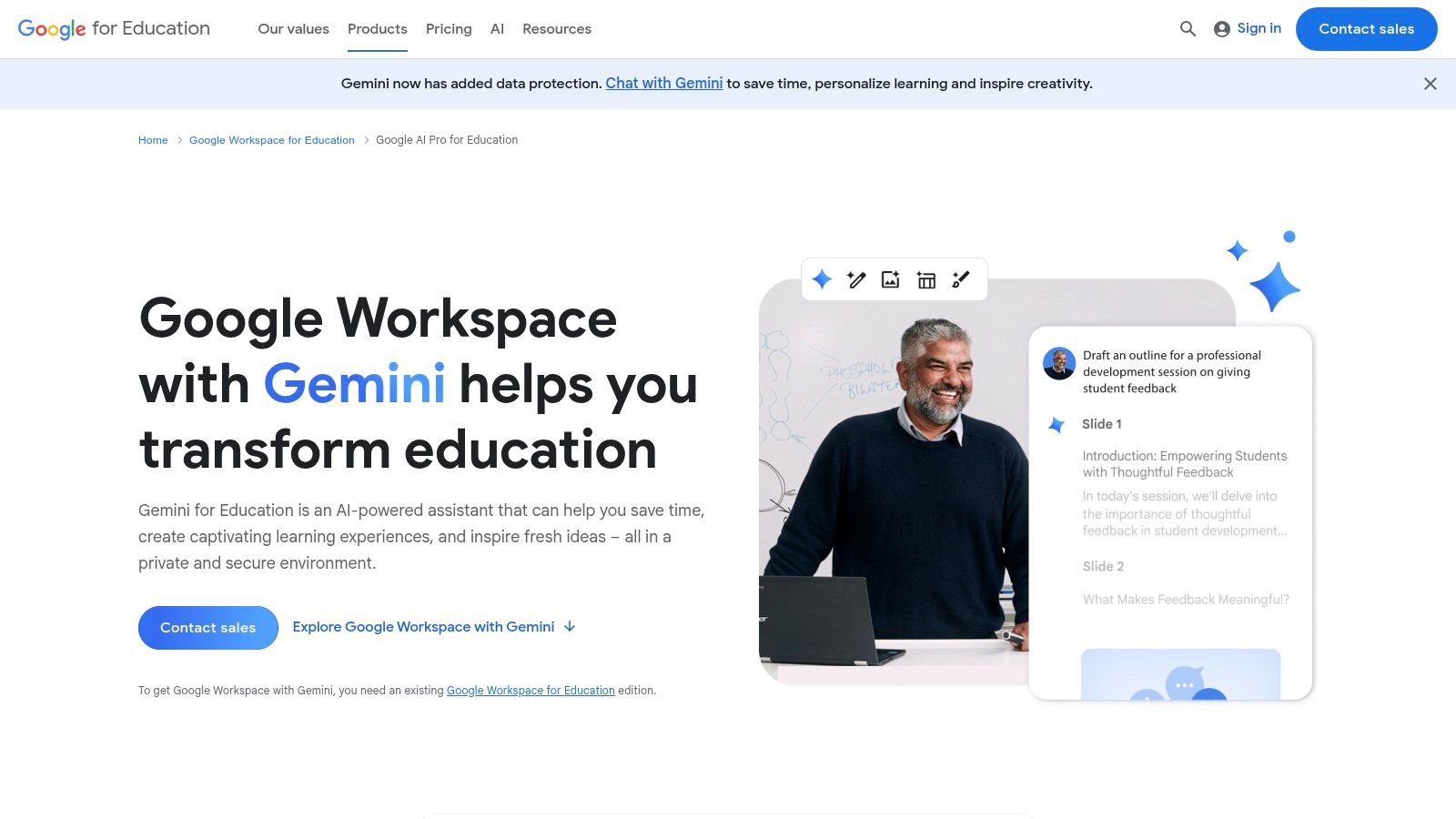
Alt text: Google Workspace for Education with Gemini Education add-ons user interface showing AI features in Google Docs.
What sets Google’s offering apart is its focus on the specific needs and privacy requirements of educational tenants. The Gemini Education add-ons provide access to AI-powered features within the core Workspace suite and include access to NotebookLM, a specialized research and writing assistant. This approach allows schools to leverage cutting-edge AI without compromising on the security and data-handling policies they rely on.
Practical Application: A Step-by-Step Example
Here’s how a teacher can generate a study guide using AI in Google Docs:
- Open the Google Doc containing your lecture notes for an upcoming exam.
- Click the “Help me write” button (the pencil icon with a star).
- Enter a prompt in the text box. For example: “Create a study guide from this document about the key causes of World War I. Include a section for key terms and definitions, and three open-ended discussion questions.”
- Gemini generates the study guide directly in your document based on the content of the notes.
- Refine the output. You can then accept the generated text, ask for a revision (e.g., “make it more concise”), or manually edit it to perfection before sharing it with students via Google Classroom.
Actionable Takeaways & Next Steps
- Generate class materials instantly: Use the AI in Google Docs to create a study guide or quiz based on your lecture notes, saving hours of prep time.
- Supercharge student research: Introduce students to NotebookLM (included with the add-on) to upload research sources and have an AI partner help them synthesize information and outline their next paper.
- Compare feature tiers: Administrators should review the two Gemini Education tiers to determine which best aligns with the institution’s strategic goals and budget.
Tools & Resources
- Website: Google Workspace for Education Add-ons
- Pricing: Gemini Education: Starting at $4/user/month. Gemini Education Premium: $10/user/month. Requires a base Google Workspace for Education edition.
- Further Reading: How to Use AI in Education: A Practical Guide for Educators.
8. Canva for Education (Magic Studio for classrooms)
Canva for Education integrates its powerful Magic Studio AI tools directly into the classroom, offering a free, visually-driven platform for educators and students. It transforms lesson creation from a chore into a creative process, allowing teachers to instantly generate presentations, worksheets, and engaging visual aids. It’s a comprehensive toolkit for boosting creativity and streamlining classroom communication.
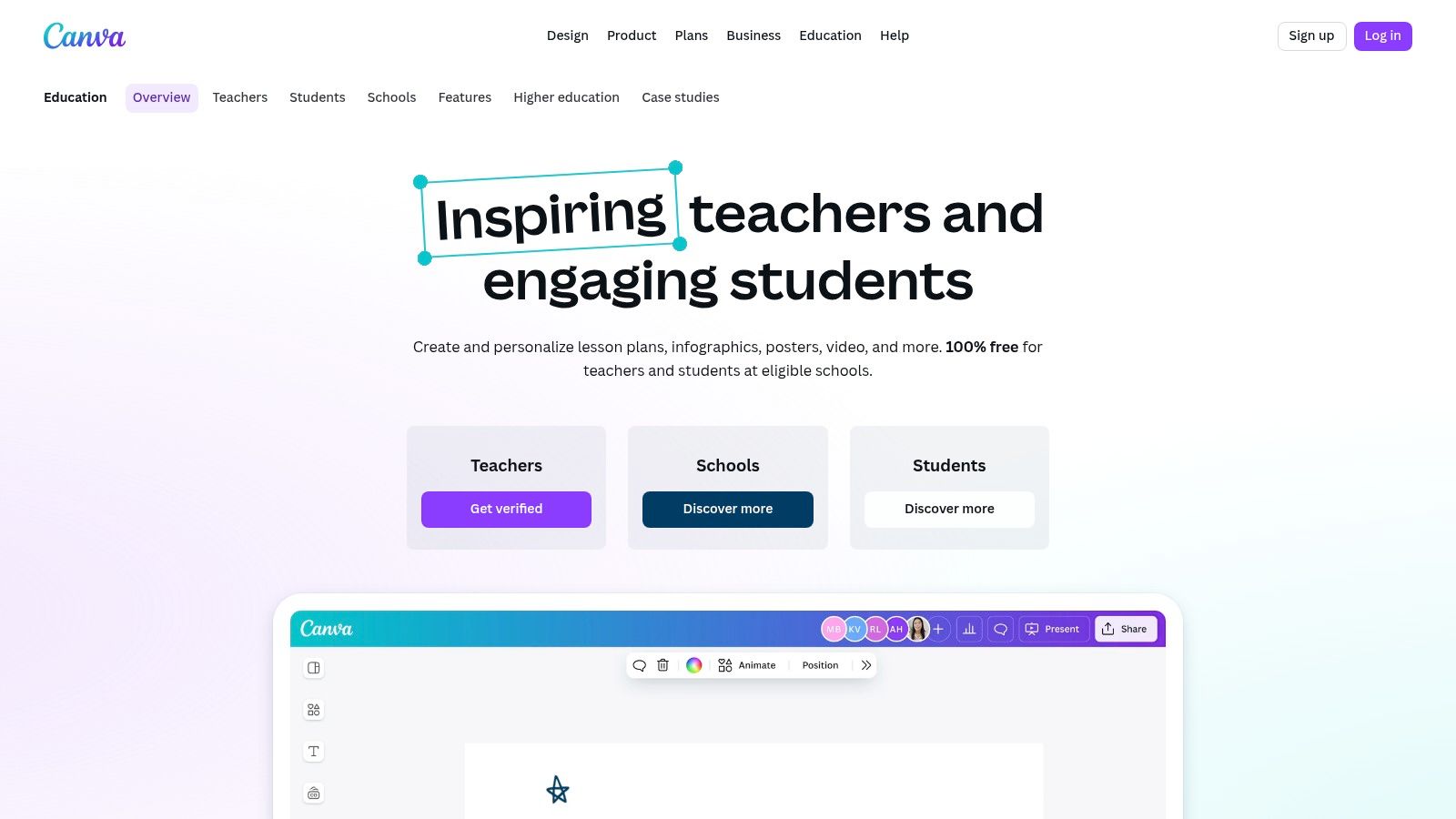
Alt text: A teacher using Canva for Education’s Magic Studio to design a colorful classroom presentation on a laptop.
What makes Canva one of the best AI tools for education is its accessibility and focus on visual learning. Instead of just generating text, its AI features create complete, professional-looking designs with a simple prompt. Teachers can use Magic Write to draft lesson plans or assignment instructions, and Magic Design to instantly turn that text into a polished presentation, saving hours of prep time while providing high-quality, engaging materials for students.
Practical Application: A Step-by-Step Example
Here’s how to use Magic Design to generate a presentation:
- Log in to your Canva for Education account and open a new presentation.
- Click on the “Magic Design” button on the side panel.
- Enter your prompt. Be descriptive. For example: “Create a 5-slide presentation for 4th graders about the life cycle of a butterfly, including slides for egg, larva, pupa, and adult stages.”
- Canva generates several design options. It will create the slides, select layouts, find relevant images, and choose appropriate fonts.
- Select a design and customize. Pick the style you like best and then easily change the text, swap images, or add your own school’s branding.
Actionable Takeaways & Next Steps
- Generate lessons visually: Use Magic Design by typing a prompt like “create a 5-slide presentation about the water cycle for 4th graders” to instantly get a customizable lesson.
- Foster student collaboration: Have students collaborate on a group project by sharing a Canva design, allowing everyone to add text, images, and videos in real-time.
- Verify your whole district: Admins can work with IT to verify their entire district for free access, ensuring consistent branding and enabling safe AI features across all schools.
Tools & Resources
- Website: Canva for Education
- Pricing: Free for all verified K-12 educators, their students, schools, and entire districts.
- Compliance: Magic Studio tools for students under 18 are designed for safety. Canva is COPPA and FERPA compliant.
9. Perplexity – Education Pro and student offers
Perplexity positions itself as a “conversational answer engine” rather than a traditional chatbot, excelling at research-centric tasks by providing aggregated answers with clickable citations. It is specifically designed for inquiry-based learning, allowing students and educators to trace information back to its original source, which is critical for academic integrity. It cuts through the noise of standard search engines to deliver synthesized, accurate information.
Alt text: Perplexity AI interface showing a search query with cited sources.
What makes Perplexity one of the best AI tools for education is its “Focus” feature, particularly the Academic and Wolfram Alpha modes, which hone in on scholarly papers and computational data. The platform’s commitment to education is further solidified by its Education Pro plan, which offers the full power of its Pro version at a significant discount for verified students and faculty.
Practical Application: A Step-by-Step Example
Here’s a student workflow for starting a research paper:
- Open Perplexity and select the “Focus” dropdown menu.
- Choose “Academic.” This restricts the search to peer-reviewed papers and academic journals.
- Enter a research question. For example: “What were the primary economic impacts of the Marshall Plan on post-WWII Western Europe?”
- Review the synthesized answer. Perplexity provides a paragraph-style answer, but crucially, each sentence is footnoted with a number corresponding to a source.
- Click the citations to go directly to the source articles to evaluate their credibility and gather more detailed information for the literature review.
Actionable Takeaways & Next Steps
- Find peer-reviewed sources fast: Use the “Academic” focus setting when starting a research paper to find scholarly sources for your literature review.
- Synthesize multiple papers: Ask Perplexity to “Summarize the key arguments in the following five research papers on climate change” by uploading the PDFs to get a quick overview for lecture preparation.
- Strengthen your thesis: Use the platform to generate a list of potential counterarguments to your thesis, with citations, to fortify your paper before submission.
Tools & Resources
- Website: Perplexity
- Pricing: Free Tier: Limited Pro searches. Pro: $20/month. Education Pro: $10/month for verified students and educators.
- Further Reading: Find out more about its application in our guide to AI for Nigerian students.
10. MagicSchool.ai
MagicSchool.ai is an educator-first AI platform offering a massive suite of over 80 specialized tools designed to streamline daily teaching tasks. From planning lessons and differentiating materials to creating assessments and communicating with parents, it acts as a comprehensive digital assistant, freeing up valuable time for K-12 educators to focus on instruction. It also includes 50+ student-facing tools, all within a secure, classroom-ready environment.
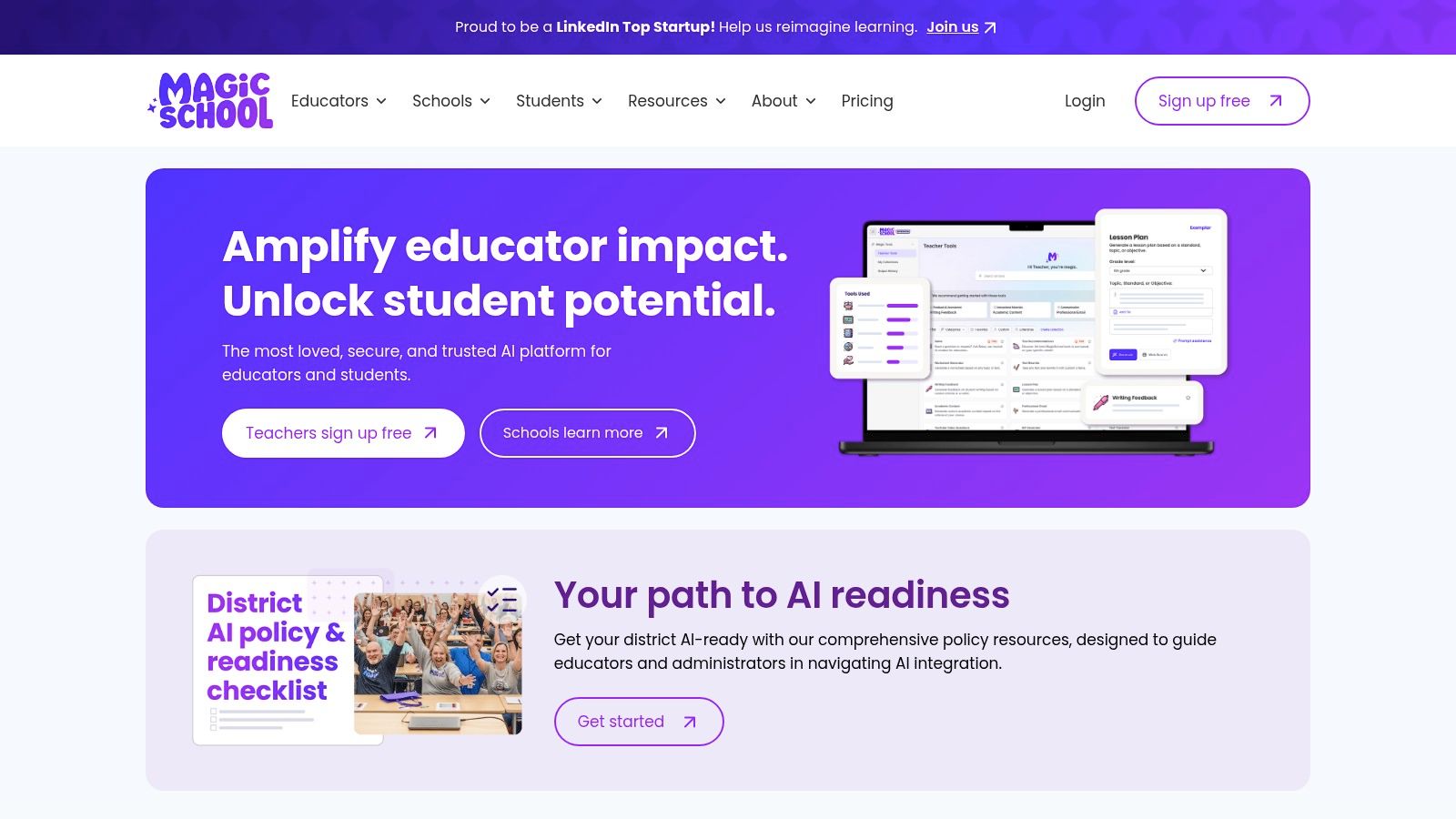
Alt text: The MagicSchool.ai dashboard showcasing its wide array of teacher-focused AI tools.
What makes MagicSchool.ai one of the best AI tools for education is its laser focus on practical, real-world classroom workflows. The platform is not a general-purpose AI; it’s purpose-built for the specific needs of teachers, with strong privacy guardrails like FERPA and COPPA compliance. The interface is remarkably intuitive, allowing for rapid onboarding.
Practical Application: A Step-by-Step Example
Here’s how a teacher can generate a standards-aligned rubric:
- Log in to MagicSchool.ai and select the “Rubric Generator” from the dashboard.
- Specify the grade level (e.g., “10th Grade”).
- Paste the state standard or learning objective. For example: “CCSS.ELA-LITERACY.W.9-10.1 – Write arguments to support claims in an analysis of substantive topics or texts, using valid reasoning and relevant and sufficient evidence.”
- Describe the assignment. For example: “A 5-paragraph persuasive essay on the theme of justice in ‘To Kill a Mockingbird’.”
- Click “Generate.” The AI creates a detailed rubric with criteria (e.g., “Claim & Thesis,” “Evidence & Reasoning,” “Clarity & Conventions”) and performance levels (e.g., “Exemplary,” “Proficient,” “Developing”).
Actionable Takeaways & Next Steps
- Generate rubrics instantly: Use the “Rubric Generator” to create a detailed, standards-aligned rubric for your next project-based assessment.
- Draft IEP goals: Leverage the “IEP Goal Generator” to help draft specific, measurable, and achievable goals for a student’s Individualized Education Program.
- Get a district overview: Administrators should request a demo of the Enterprise version to see how the central dashboard provides insights into AI adoption across the district.
Tools & Resources
- Website: MagicSchool.ai
- Pricing: Free Tier: Core tools are free. Plus: $9.99/month (paid annually) for premium features. Enterprise: Quote-based.
- Compliance: FERPA and COPPA compliant, with robust student data privacy protections.
11. Common Sense Education – AI Toolkit and PD for Educators
Common Sense Education provides an essential, vendor-neutral hub for educators and administrators navigating the complexities of AI adoption. Instead of being a single AI tool, it’s a trusted nonprofit resource offering free professional development, privacy reviews of popular AI products, and a comprehensive AI Toolkit for School Districts designed to guide responsible implementation from policy to practice.
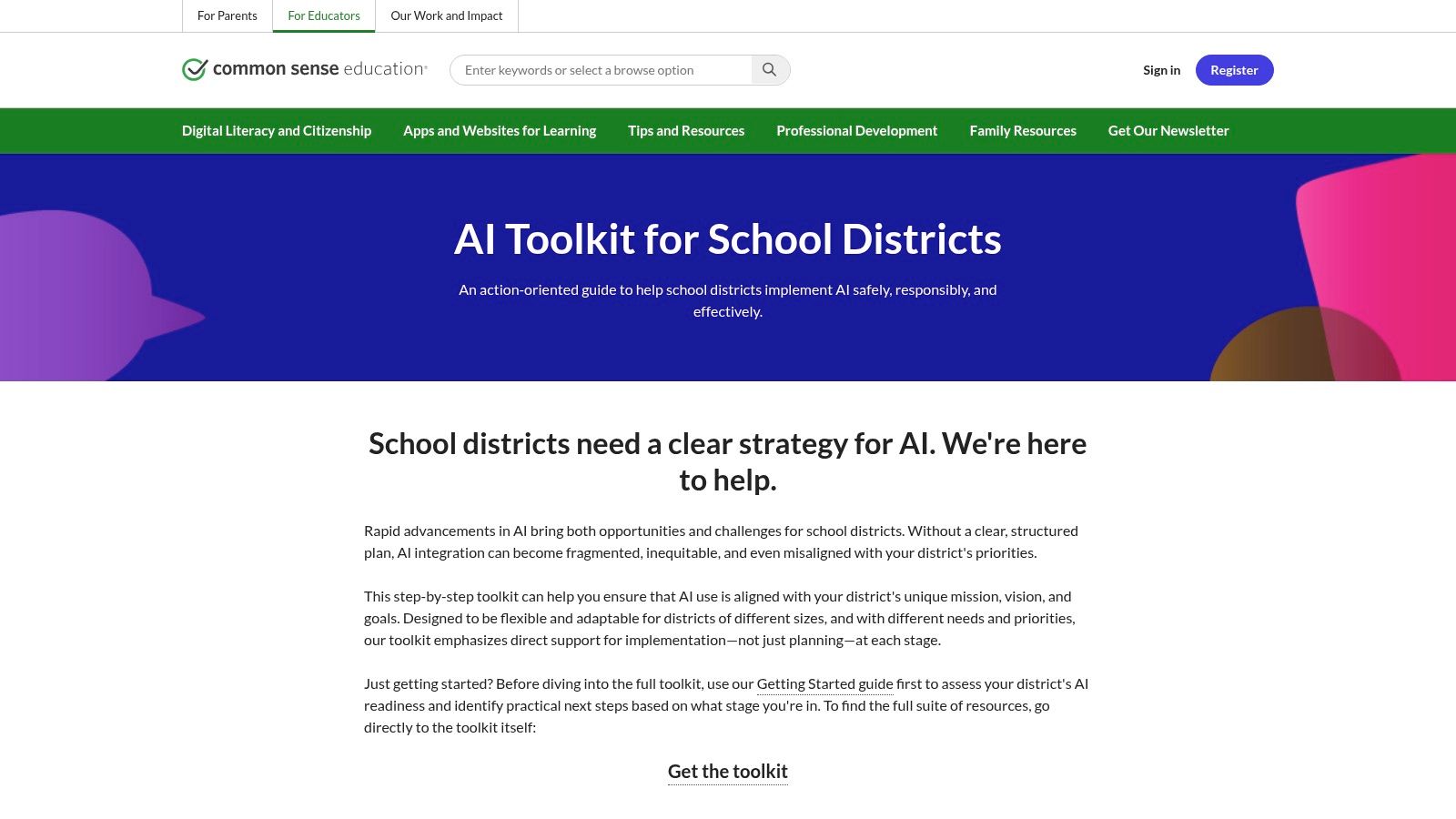
Alt text: Common Sense Education – AI Toolkit and PD for Educators website homepage.
What sets this platform apart is its unwavering focus on safety, ethics, and practical policy. While other entries on this list are products to be used, Common Sense Education is a resource to learn how to use them safely and effectively. It empowers districts with templates for AI readiness, acceptable use policies, and communication plans, making it one of the best AI tools for education leaders focused on strategic, system-wide integration.
Practical Application: A Step-by-Step Example
Here’s how an administrator can begin developing an AI policy:
- Navigate to the Common Sense Education AI Toolkit website.
- Download the “AI Toolkit for School Districts.” This is typically a collection of documents (e.g., Google Docs, PDFs).
- Open the “Acceptable Use Policy (AUP) Template.” This document provides pre-written, customizable language for students and staff.
- Convene a working group of teachers, parents, and IT staff to review the template.
- Customize the template to fit the district’s specific technology environment and pedagogical goals, addressing key questions like whether students can use AI for brainstorming or only for grammar checks.
- Use the companion resources (e.g., communication templates) to plan the rollout of the new policy to the school community.
Actionable Takeaways & Next Steps
- Build foundational AI literacy: Teachers should enroll in the free “AI Basics for Teachers” professional development course to gain confidence in using AI.
- Develop your AI policy: Administrators can download the “AI Toolkit for School Districts” to access ready-made templates for creating an AI readiness checklist and acceptable use policy.
- Vet new AI tools: IT Directors should use the platform’s detailed privacy reviews to evaluate new AI-powered educational tools before school-wide approval.
Tools & Resources
- Website: Common Sense Education AI Toolkit
- Pricing: Completely free.
- Focus: Provides guidance and privacy evaluations to help schools assess risks related to FERPA, COPPA, and CIPA.
12. EdSurge Product Index (by ISTE)
The EdSurge Product Index, backed by ISTE, is less of a direct AI tool and more of an essential meta-tool for educational leaders. It’s a curated directory where administrators and tech buyers can discover, compare, and vet edtech products, including the latest AI solutions, against rigorous learning, privacy, and interoperability standards. This makes it an invaluable resource for building shortlists and informing RFPs.
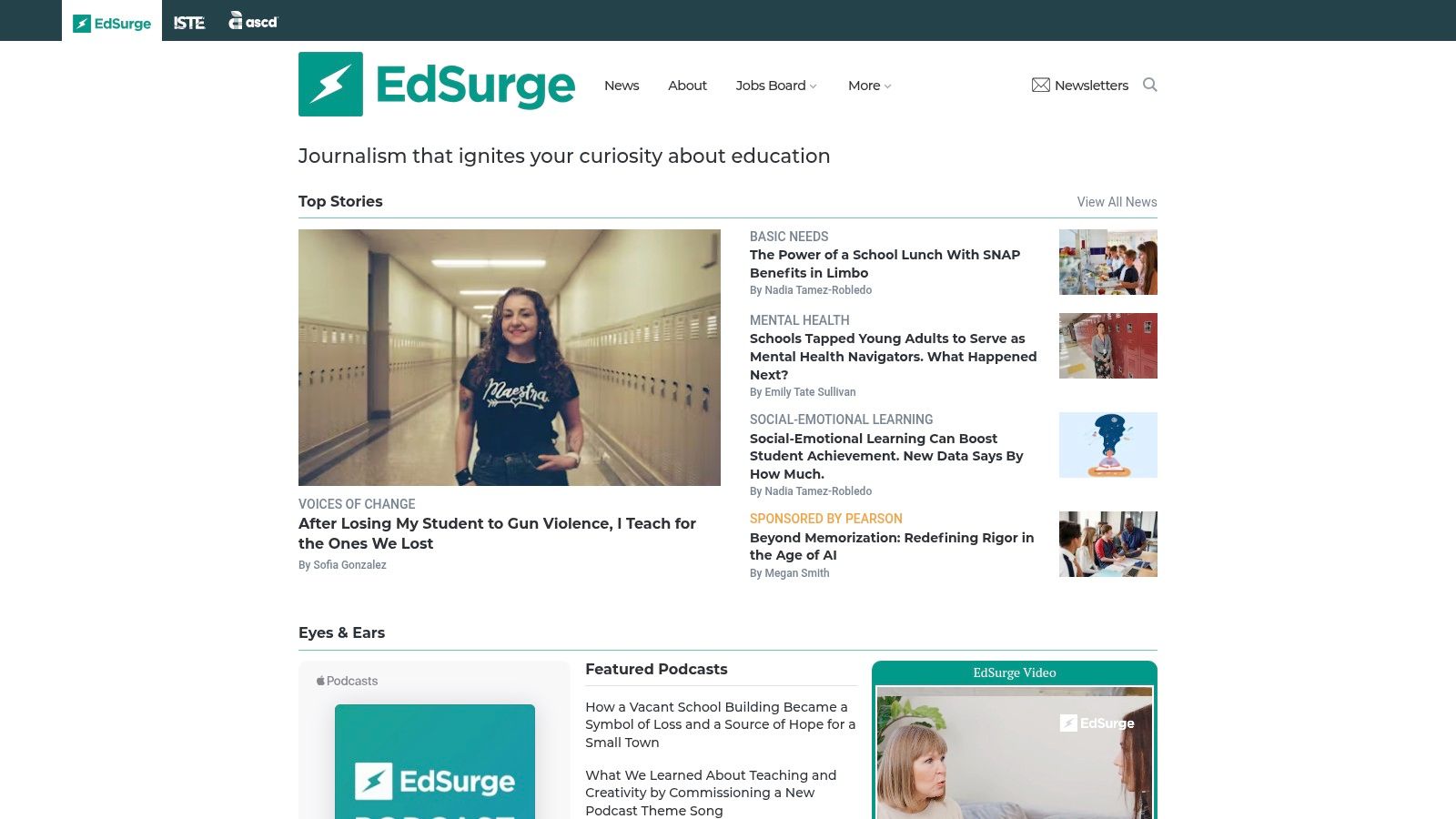
Alt text: The EdSurge Product Index website homepage showing the search and filter interface for educational technology.
What sets the EdSurge Index apart is its role as a neutral, standards-aligned comparison hub. Rather than promoting specific tools, it provides editorially maintained descriptions and “Signals” from trusted partners, such as privacy reviews from Common Sense Media or interoperability certifications. This focus on objective data makes it one of the best AI tools for education procurement, helping district leaders make informed decisions based on evidence rather than marketing claims.
Practical Application: A Step-by-Step Example
Here’s a workflow for a curriculum director vetting AI math tutors:
- Go to the EdSurge Product Index website.
- Use the search bar and filters. Search for “AI math tutor” and then apply filters for “Middle School” grade level and “Digital Promise” product certification.
- Create a shortlist. This narrows the field from dozens of potential products to a manageable list of 3-4 certified tools.
- Compare the products. Click on each product profile to review its features, pricing model, and—most importantly—its “Signals.” Check for privacy reports from Common Sense and interoperability standards like OneRoster.
- Initiate contact. Based on the comparison, the director can now confidently contact the vendors of the top two products to request a formal demo and pilot proposal.
Actionable Takeaways & Next Steps
- Build a certified shortlist: Use the filters to create a list of AI-powered writing assistants that have a “Digital Promise” product certification before your next curriculum meeting.
- Ensure seamless integration: Compare the interoperability standards (like OneRoster) of three competing AI math tutors to ensure they will work with your existing SIS.
- Check for privacy red flags: Before piloting a new AI tool, check its profile on the index for any privacy concerns or reviews from other educators.
Tools & Resources
- Website: EdSurge Product Index
- Pricing: Free to use for discovery and comparison.
- Further Reading: You can also find more AI tools for education to compare.
Putting AI to Work: Your Next Steps
Navigating the expansive landscape of AI in education can feel overwhelming, but the potential for transformative change is immense. We’ve explored a diverse array of tools, from comprehensive platforms like Microsoft 365 with Copilot to specialized assistants like Khanmigo for tutoring and MagicSchool.ai for teacher productivity. The central theme is clear: the best AI tools for education are not about replacing the human element of teaching but amplifying it.
The most effective tools act as powerful co-pilots. They automate administrative burdens, personalize learning pathways for individual students, and provide educators with deeper insights into classroom performance. For instance, a history teacher could use Perplexity to curate a set of primary source documents for different reading levels, while an English teacher leverages Turnitin’s Feedback Studio to offer more timely and targeted writing advice.
Ultimately, successful AI adoption hinges on a thoughtful, human-centered strategy. It’s about choosing tools that align with specific pedagogical goals, prioritize student data privacy, and integrate seamlessly into existing workflows.
Actionable Takeaways & Next Steps
- Identify a Single Pain Point: Don’t try to solve everything at once. Is lesson planning your biggest challenge? Look at MagicSchool.ai. Do students struggle with research? Introduce them to Perplexity.
- Pilot with a Small Group: Select a few tech-enthusiast teachers or a single department to test-drive a new tool like Mindgrasp. This creates a low-stakes environment to gather feedback.
- Prioritize Professional Development: Before a wide rollout, leverage resources like the Common Sense Education AI Toolkit. A practical PD session could involve having teachers use Canva’s Magic Studio to create one new lesson asset.
- Establish Clear Usage Guidelines: Work with administrators to create an Acceptable Use Policy for AI that defines what constitutes plagiarism versus ethical assistance.
- Measure and Iterate: Define what success looks like before you start. Is it a reduction in time spent on grading? Use surveys and performance data to assess a tool’s impact after a set period. For educators exploring the potential of artificial intelligence, understanding the fundamentals of AI’s Future Impact on Education: Your Practical Guide can provide valuable context for making informed decisions.
The journey into AI-enhanced education is a marathon, not a sprint. By taking deliberate, strategic steps, educators can harness the power of these incredible tools to create more dynamic, personalized, and effective learning environments.