

Staring at a blank screen or spending hours on tedious tasks doesn’t have to be your reality. Artificial intelligence has fundamentally shifted the content creation process, offering powerful tools that augment your skills, accelerate your workflow, and unlock new creative possibilities. Whether you’re a digital marketer, software developer, or social media manager, integrating the right AI can be a game-changer, transforming how you produce everything from blog posts to professional-grade videos.
This guide moves beyond generic lists. We provide a practical, hands-on deep dive into the best AI tools for content creation, organized by specific use cases like writing, image generation, and video.
For each tool, you’ll find an analysis of its key features, ideal applications, and limitations. This isn’t just about what these platforms are; it’s about what you can do with them. We’ll show you exactly how to use ChatGPT to turn a transcript into a blog post or how to use Adobe Firefly to expand an image seamlessly.
Our goal is to help you make an informed decision. As you explore our detailed breakdowns, remember that the AI tool ecosystem is vast. For a comprehensive overview and comparison, you may find other curated lists of the best AI tools for content creation valuable for cross-referencing.
This guide is your resource for navigating the options and finding the perfect AI co-pilot to supercharge your content needs. Let’s get started.
1. OpenAI – ChatGPT
As the platform that brought generative AI into the mainstream, ChatGPT remains a top AI tool for content creation due to its sheer versatility. It excels as a comprehensive workspace for brainstorming, drafting, editing, and even coding. Its strength lies in transforming complex requests into coherent outputs, from detailed blog outlines to functional Python scripts.
Alt text: A screenshot of the ChatGPT interface showing a conversation with the AI model, demonstrating its chat-based functionality.
What sets it apart is its rapidly expanding ecosystem. With the GPT Store, you can access custom GPTs for specific tasks like SEO analysis. The platform’s ability to analyze data from uploaded files (like PDFs or spreadsheets) and browse the web makes it an indispensable research assistant. For teams, the Business and Enterprise tiers provide critical features like enhanced security and admin controls, making it a viable solution for organizational workflows.
How to use ChatGPT for content creation (step-by-step example)
- Open ChatGPT and start a new chat.
- Upload a file. Click the paperclip icon and select a transcript file from a recent webinar or interview (e.g.,
webinar_transcript.txt). - Provide a clear prompt. In the message box, type the following command:
"Act as a professional content editor. Using the attached transcript, write a 700-word Q&A style blog post. Create a compelling title, a short introduction, and a concluding paragraph that summarizes the key takeaways. Format the questions as H3 headings." - Review and refine. ChatGPT will generate the blog post. Review the output for accuracy and tone. If needed, provide follow-up instructions like, “Make the tone more conversational,” or “Expand on the answer to the third question.”
| Feature | Free | Plus ($20/mo) | Team ($25/user/mo) | Enterprise (Custom) |
|---|---|---|---|---|
| Access to GPT-4o | Rate Limited | Yes | Yes | Yes |
| Advanced Data Analysis | No | Yes | Yes | Yes |
| Custom GPTs | No | Yes | Yes | Yes |
| Team Workspace | No | No | Yes | Yes |
| Admin Controls | No | No | Yes | Yes |
- Actionable Takeaways:
- Upload a video transcript and ask ChatGPT to turn it into a Q&A style blog post.
- Use the prompt, “Act as a marketing strategist. Generate 10 viral video ideas for a brand that sells sustainable coffee beans.”
- Upload a CSV of customer survey results and ask it to “Identify the top three customer pain points and write an article addressing each one.”
- Tools/Resources:
- Website: https://openai.com/chatgpt
- GPT Store: Explore custom GPTs for specialized tasks directly within the ChatGPT interface.
2. Adobe – Firefly + Creative Cloud Pro
Adobe cements its place among the best AI tools by deeply embedding its Firefly generative AI across the Creative Cloud suite. This isn’t a standalone gadget; it’s a professional-grade engine integrated into apps like Photoshop, Illustrator, and Premiere Pro. Its strength is its workflow-centric design, allowing professionals to use features like Generative Fill within their existing projects.
Alt text: A screenshot of the Adobe Firefly web interface showing an image being edited with the Generative Fill feature, highlighting a specific area of the image for modification.
What truly sets Firefly apart is its commitment to commercial safety. Trained on Adobe Stock’s licensed library, its models are designed to generate content that is commercially viable, automatically attaching Content Credentials to disclose AI involvement. This enterprise-ready approach provides a level of assurance that freelancers and creative teams require.
How to use Adobe Firefly in Photoshop (step-by-step example)
- Open an image in Adobe Photoshop.
- Select the Crop Tool (shortcut: C).
- Expand the canvas. Drag the crop handles outward to create empty space around your image.
- Generate the fill. In the contextual taskbar that appears, leave the prompt box empty and click the “Generate” button.
- Choose a variation. Firefly will automatically fill the new space, matching the original image’s style and lighting. It will provide three variations in the Properties panel for you to choose from.
| Feature | Free (25 credits/mo) | Premium ($4.99/mo) | Creative Cloud All Apps |
|---|---|---|---|
| Generative Credits | 25 per month | 100 per month | 1,000 per month |
| Commercial Use | Yes | Yes | Yes |
| Firefly Web App | Yes | Yes | Yes |
| Creative Cloud Integration | No | No | Yes |
| Content Credentials | Yes | Yes | Yes |
- Actionable Takeaways:
- In Photoshop, use “Generative Expand” to flawlessly fill in extra canvas space.
- In Illustrator, use “Generative Recolor” to instantly apply a mood board’s color palette to your vector artwork.
- In Premiere Pro, generate video clips from text prompts directly on your timeline to create supplementary footage.
- Tools/Resources:
- Further Reading:
- Learn more about how to use Photoshop to edit pictures with integrated AI features.
3. Canva – Magic Studio (Pro/Business)
Canva’s Magic Studio suite firmly places it among the best AI tools for content creation. It excels at integrating AI directly into the design workflow, making it incredibly efficient for users who need to produce branded content quickly without deep design expertise. The platform combines AI-powered writing, image generation, video editing, and presentation creation into a single, intuitive interface.
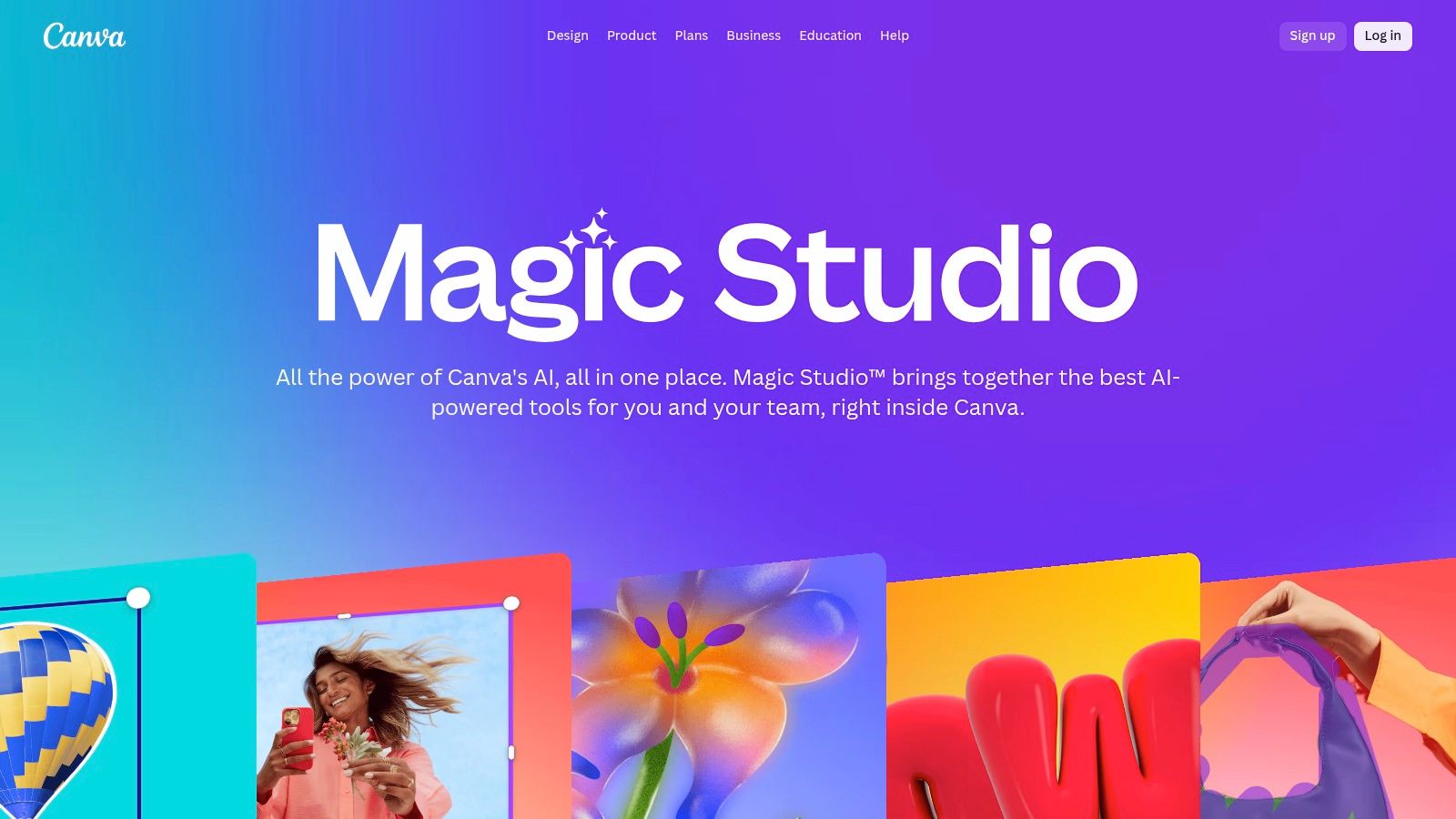
Alt text: A screenshot of the Canva Magic Studio interface, showing various AI-powered design and content creation tools available in a single dashboard.
What truly sets Magic Studio apart is its focus on content repurposing. The Magic Switch feature allows you to instantly transform a single design—like a presentation—into a blog post, a social media carousel, or even a video script. This capability, combined with Brand Kits, empowers teams to maintain consistency across all channels effortlessly.
How to repurpose content with Canva’s Magic Switch (step-by-step example)
- Open an existing design in Canva, such as a 10-slide presentation.
- Click “Magic Switch” in the top-left menu.
- Select a new format. Under the “Transform” section, choose “Blog Post.”
- Confirm the transformation. Click “Transform into Blog Post.” Canva’s AI will analyze the text and images from your slides and reformat them into a coherent blog post draft in Canva Docs, which you can then edit and export.
| Feature | Free | Pro ($14.99/mo) | Teams ($29.99/user/mo) |
|---|---|---|---|
| Magic Write | 50 lifetime uses | 500 uses/user/mo | 3000 uses/user/mo |
| Magic Switch | Limited | Yes | Yes |
| Magic Edit/Morph | 50 lifetime uses | 500 uses/user/mo | 3000 uses/user/mo |
| Brand Kit | 1 Kit (limited) | 100 Kits | 300 Kits |
| AI App Integrations | Limited | Yes | Yes |
- Actionable Takeaways:
- Use Magic Design to generate social media graphics, then use Magic Switch to reformat them for different platforms.
- In a design, use Magic Write with the prompt, “Write five catchy taglines for a new vegan protein bar.”
- Upload a product photo and use Magic Edit to replace the background with a professional studio setting.
- Tools/Resources:
- Website: https://www.canva.com/magic/
4. Microsoft Copilot (Designer + Microsoft 365 Copilot)
Microsoft Copilot embeds generative AI directly into tools like Word, PowerPoint, and Outlook. This deep integration makes it one of the best AI tools for content creation within a corporate workflow. It excels at drafting documents, summarizing email threads, and designing presentations by leveraging your organization’s own data, ensuring outputs are relevant and contextually aware.
Alt text: A screenshot of the Microsoft Copilot interface within PowerPoint, showing the AI generating a slide deck based on a prompt.
What sets Copilot apart is its enterprise-grade security. It operates within Microsoft’s secure cloud, respecting existing data access policies. This makes it an ideal choice for organizations that handle sensitive information. Copilot Studio allows businesses to build custom AI agents and workflows, extending its utility far beyond simple content generation.
How to draft a blog post with Copilot in Word (step-by-step example)
- Open a new document in Microsoft Word (with a Microsoft 365 Copilot license).
- Activate Copilot. The “Draft with Copilot” dialog box will appear.
- Provide a detailed prompt. Type a command that references a file on your OneDrive. For example:
"Write a 500-word blog post about the benefits of hybrid work. Base it on the key findings in the file /Q3_employee_survey_report.docx. Use a professional but engaging tone." - Generate and edit. Copilot will access the specified document, analyze its contents, and draft the blog post directly in your Word document for you to refine.
| Feature | Free (Copilot) | Pro ($20/mo) | for M365 ($30/user/mo) | Studio (Custom) |
|---|---|---|---|---|
| Integration in M365 Apps | No | Yes | Yes | Yes |
| Enterprise Data Grounding | No | No | Yes | Yes |
| Access to GPT-4 Turbo | Peak Times Only | Yes | Yes | Yes |
| Custom GPT Builder | No | Yes | No | Yes |
| Enterprise Security & SSO | No | No | Yes | Yes |
- Actionable Takeaways:
- In Word, prompt Copilot to “Write a blog post about [topic], based on the key findings in the attached [file].”
- In PowerPoint, ask Copilot to “Create a 10-slide presentation for a new product launch.”
- In Outlook, ask Copilot to “Summarize the key decisions and action items from this email thread.”
- Tools/Resources:
- Website: https://www.microsoft.com/copilot
5. Jasper
Jasper is a marketing-centric AI platform for teams that need to produce consistent, on-brand content at scale. It moves beyond simple text generation to offer a complete content operations workspace. Its strength lies in its ability to deeply understand and replicate a brand’s voice, tone, and factual knowledge base across all outputs.
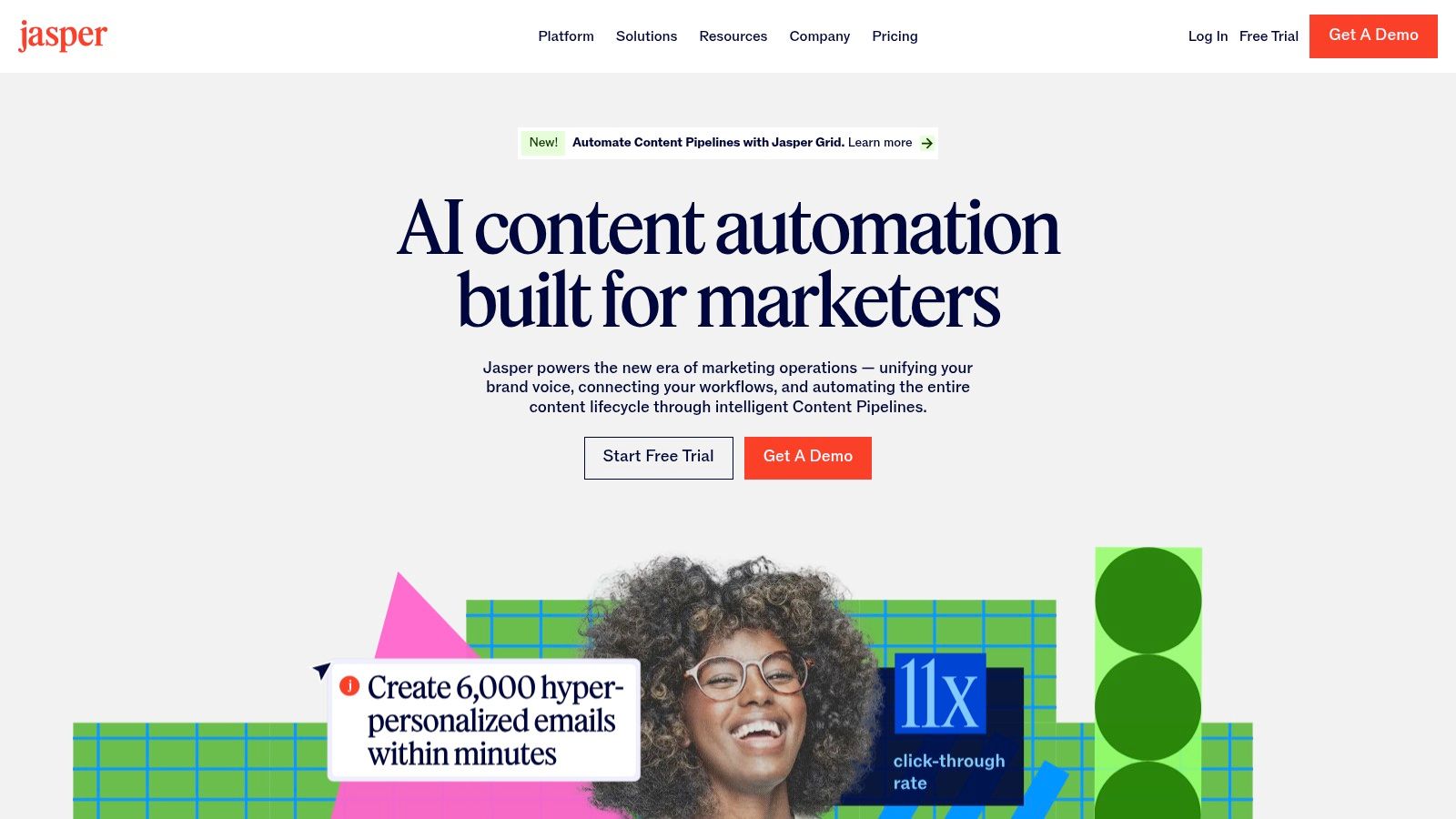
Alt text: A screenshot of the Jasper interface displaying the Brand Voice configuration options, where users can upload assets to train the AI.
What sets Jasper apart is its toolset for orchestrating entire marketing campaigns. You can define a brand voice by uploading style guides and product catalogs. The platform then uses this knowledge to generate everything from ad copy and social media posts to detailed campaign briefs. This ensures every piece of content aligns with strategic goals without constant manual oversight.
How to configure and use Brand Voice in Jasper (step-by-step example)
- Navigate to Brand Voice. In your Jasper dashboard, go to the “Brand Voice” section.
- Create a new voice. Click “Create Voice” and give it a name (e.g., “Company X – Friendly Expert”).
- Provide source material. Upload documents like your brand style guide, well-performing blog posts, or marketing copy. You can also scan your website to extract the voice automatically.
- Apply the voice. When creating new content, such as a blog post, simply select your configured Brand Voice from a dropdown menu. Jasper will automatically generate all text in that specific style and tone.
| Feature | Creator ($39/seat/mo) | Pro ($59/seat/mo) | Business (Custom) |
|---|---|---|---|
| Brand Voice | 1 | 3 | Unlimited |
| Knowledge Base | No | Yes | Yes |
| Campaign Workflows | No | 10 | Unlimited |
| Collaboration | No | 5 Seats | Unlimited |
| API & Integrations | No | No | Yes |
- Actionable Takeaways:
- Use the Brand Voice feature to train Jasper on your company’s style guide for consistent outputs.
- Create a campaign brief and ask Jasper to generate coordinated assets like Google Ads copy and Facebook post captions.
- Build a simple “AI App” that takes a product feature as input and generates a standardized benefit statement.
- Tools/Resources:
- Website: https://www.jasper.ai
6. Copy.ai
Copy.ai is an AI content platform engineered for marketing, sales, and operations teams. It integrates a chat interface with workflow automations and trainable “Content Agents,” allowing teams to create repeatable, on-brand content at scale. Its core strength is providing multi-model access, letting you choose the best engine (like GPT-4o or Claude 3) for your task.
Alt text: A screenshot of the Copy.ai platform showcasing its workflow and content automation features, with various templates visible.
What sets it apart is its focus on operationalizing content creation. Instead of one-off prompts, you can build automated workflows that handle recurring tasks like drafting sales emails or repurposing blog posts into social media updates. It’s a structured solution for businesses looking to systematize their content engine.
How to automate content repurposing with Copy.ai Workflows (step-by-step example)
- Go to the “Workflows” tab in Copy.ai.
- Create a new workflow. Start from scratch or use a template like “Turn Blog Post into Social Media Campaign.”
- Define the input. Set the input variable to be a URL (e.g.,
blog_post_url). - Add action steps. Add steps that use the input. For example:
- Step 1: “Summarize the content from
blog_post_url.” - Step 2: “Using the summary, write a 5-tweet thread.”
- Step 3: “Using the summary, write a 300-word LinkedIn post.”
- Step 1: “Summarize the content from
- Run the workflow. Now, you can simply input a blog post URL, and the workflow will automatically generate all the social media content.
| Feature | Free | Pro ($36/mo) | Team ($188/mo) | Scale (Custom) |
|---|---|---|---|---|
| Unlimited Chat Words | No (2k limit) | Yes | Yes | Yes |
| Multi-Model Access | No | Yes | Yes | Yes |
| Brand Voice | 1 Voice | 5 Voices | Unlimited | Unlimited |
| Workflows & Agents | No | 500 Runs | 3,000 Runs | Custom |
| Team Collaboration | No | No | Yes (5 seats) | Yes |
- Actionable Takeaways:
- Use a workflow to automatically generate personalized cold outreach emails from a prospect’s LinkedIn URL.
- Create a workflow that takes a blog post link and generates a tweet thread and LinkedIn post.
- Train a custom Content Agent on your company’s style guide to ensure new copy is on-brand.
- Tools/Resources:
- Website: https://www.copy.ai
- Further Reading:
- Explore more options among the best AI copywriting tools.
7. Descript
Descript revolutionizes media editing by transforming audio and video into a text document. This makes it one of the best AI tools for content creation for podcasters and marketers who need high-quality media without a steep learning curve. The platform’s core strength is its AI workflow, which automates transcription, filler word removal, and audio enhancement.
Alt text: A screenshot of the Descript interface showing a video timeline and its corresponding transcribed text, illustrating the text-based editing feature.
What truly sets Descript apart is its integrated AI features. The “Studio Sound” feature can make amateur recordings sound professionally produced, while its Overdub function allows you to create realistic AI voice clones for correcting errors. This comprehensive toolkit dramatically speeds up the production cycle from raw recording to finished content.
How to edit a podcast with Descript (step-by-step example)
- Import your audio file into a new Descript project. It will be automatically transcribed.
- Remove filler words. Click the “Actions” (star) icon, search for “Remove filler words,” and select it. Descript will identify all “ums” and “ahs” and allow you to delete them in one click.
- Correct mistakes by editing text. Find a sentence in the transcript where a speaker misspoke. Simply delete the incorrect words from the text, and Descript will automatically remove the corresponding audio from the timeline.
- Apply Studio Sound. Select the audio track, go to the right-hand panel, and toggle on “Studio Sound” to instantly improve the audio quality.
| Feature | Free | Creator ($12/user/mo) | Pro ($24/user/mo) | Enterprise (Custom) |
|---|---|---|---|---|
| Transcription | 1 hr/month | 10 hrs/month | 30 hrs/month | Custom |
| Studio Sound | Yes | Yes | Yes | Yes |
| Filler Word Removal | Limited (ums, ahs) | Yes (18+ filler words) | Yes (18+ filler words) | Yes |
| AI Voice (Overdub) | No | Yes | Yes | Yes |
| Team Collaboration | 1 Editor, 3-hr projects | 1 Editor, 10-hr projects | Yes (Unlimited) | Yes |
- Actionable Takeaways:
- Import a podcast recording and use “Remove Filler Words” to instantly clean up “ums” and “ahs.”
- Highlight a quote in your video transcript and click “Create Clip” to generate a shareable vertical video.
- Fix a misspoken word by typing the correct word and letting the AI Overdub feature generate audio in your voice.
- Tools/Resources:
- Website: https://www.descript.com
8. Runway
Runway is at the forefront of generative video, making it a go-to tool for anyone serious about motion content. It’s a sophisticated platform for generating high-quality video clips from text or images, offering models like Gen-3 that produce cinematic outputs. It’s a creative suite for filmmakers and agencies looking to push the boundaries of visual storytelling.
Alt text: A screenshot of the Runway interface showcasing its video generation capabilities, with a user prompt and the resulting AI-generated video clip.
What makes Runway stand out is its focus on creative control. The platform’s models understand cinematic language, enabling the creation of clips with specific camera movements and character consistency. With features like 4K upscaling and a suite of AI Magic Tools, Runway bridges the gap between AI experimentation and professional production.
How to generate a video clip in Runway (step-by-step example)
- Log into Runway and navigate to the Gen-3 (or latest) model.
- Write a descriptive prompt. Be specific with cinematic terms. For example:
"A cinematic slow-motion shot of rain falling on a neon-lit city street at night, reflective puddles on the asphalt. dolly shot moving forward." - Set parameters. Adjust settings like duration, aspect ratio (e.g., 16:9), and motion control to guide the camera movement.
- Generate and iterate. Click “Generate.” Runway will produce a few variations. You can then choose the best one or use it as a base for further refinement.
| Feature | Free | Standard ($12/user/mo) | Pro ($28/user/mo) | Unlimited ($76/user/mo) | Enterprise (Custom) |
|---|---|---|---|---|---|
| Credits/Month | 125 credits | 625 credits | 1125 credits | 2250 credits | Custom |
| Video Watermarks | Yes | No | No | No | No |
| 4K Video Upscaling | No | Yes | Yes | Yes | Yes |
| Custom Model Training | No | No | No | No | Yes |
| API Access | No | No | No | No | Yes |
- Actionable Takeaways:
- Generate custom b-roll footage by prompting, “A cinematic slow-motion shot of rain falling on a neon-lit city street.”
- Upload a product photo and use the image-to-video feature to create a short, dynamic ad.
- Create a visual storyboard for a film pitch by generating a series of short clips depicting key scenes.
- Tools/Resources:
- Website: https://runwayml.com
- Further Reading:
- Explore other AI video generators available today.
9. Synthesia
Synthesia is a leading AI video platform that transforms text scripts into professional videos in minutes. It replaces cameras and actors with a vast library of AI avatars and voices, making it ideal for creating training and communication content at scale. It allows businesses to create, translate, and distribute content with unparalleled efficiency.
Alt text: A screenshot of the Synthesia video creation interface, showing an AI avatar on a slide with text and media elements in the editor.
What sets Synthesia apart is its enterprise-readiness. With over 140 languages, AI-powered dubbing, and the ability to create custom avatars, it’s built for global teams. The platform also supports SCORM exports, making it instantly compatible with most Learning Management Systems (LMS). Security protocols and brand kits make it a go-to for standardizing video communication.
How to create a training video with Synthesia (step-by-step example)
- Choose a template and avatar. Start a new video project in Synthesia and select a pre-designed template and an AI avatar.
- Input your script. In the script box for the first scene, paste the text you want the avatar to speak.
- Add visuals. On the right-hand panel, add text, images, or screen recordings to the scene to complement the narration.
- Generate the video. Click “Generate video.” Synthesia will process the script and visuals to create a complete video file with the avatar speaking your text. For a multilingual version, use the “Dub” feature.
| Feature | Personal ($22/mo) | Starter ($67/mo) | Creator ($200/mo) | Enterprise (Custom) |
|---|---|---|---|---|
| Included Video Mins/Year | 120 | 360 | 1200 | Custom |
| AI Avatars | 90+ | 125+ | 145+ | 230+ |
| Languages & Voices | 120+ | 120+ | 130+ | 140+ |
| AI Dubbing | No | No | Add-on | Yes |
| Custom Avatars | No | No | Add-on | Yes |
| Team Collaboration | No | No | Yes | Yes |
- Actionable Takeaways:
- Paste a script from a compliance document to generate a SCORM-compliant training module for your LMS.
- Create a product demo in English, then use one-click dubbing to generate versions in Spanish and German.
- Create a quick “how-to” video explaining a new software feature and embed it in your knowledge base.
- Tools/Resources:
- Website: https://www.synthesia.io
10. Midjourney
For creators seeking the pinnacle of aesthetic quality in AI-generated visuals, Midjourney has established itself as a leader. Operating through its web app and Discord, it excels at producing highly artistic and detailed images perfect for concept art, mood boards, and unique marketing collateral. Its strength lies in its powerful models that interpret creative prompts with a distinct artistic flair.
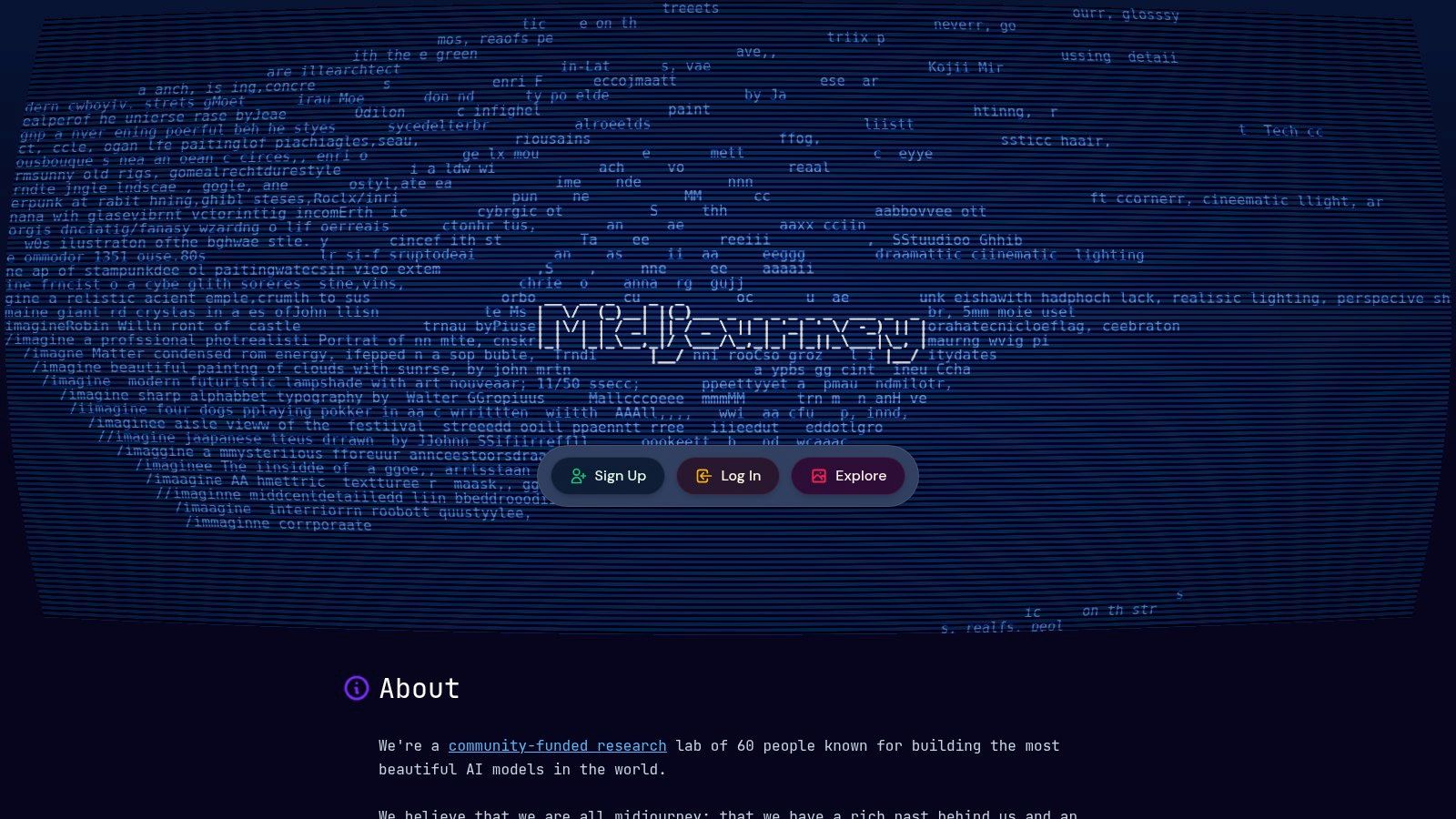
Alt text: A grid of four highly detailed, photorealistic images of a futuristic city generated by Midjourney, showcasing its artistic capabilities.
What sets Midjourney apart is its community-driven approach. The active Discord server serves as a gallery and learning hub. Features like Style Tuner allow users to create consistent aesthetic styles. While some platforms offer free AI image generators, Midjourney’s subscription is geared toward users who prioritize top-tier quality.
How to generate a consistent character in Midjourney (step-by-step example)
- Generate your base character. Start with a detailed prompt for your character. For example:
/imagine prompt: a portrait of a female cyborg detective, neon-lit alley background, trench coat, determined expression, photorealistic --ar 3:4 --style raw - Get the seed number. Once you have an image you like, react to the image with the envelope emoji (✉️). Midjourney Bot will send you a DM with the job details, including the “Seed” number. Copy this number.
- Use the seed number in a new prompt. Create a new prompt for the same character in a different setting, but include the
--seedparameter./imagine prompt: a female cyborg detective standing in a futuristic office, looking at a holographic screen --ar 16:9 --seed [paste your seed number here]This technique helps maintain character consistency across multiple images.
| Feature | Basic ($10/mo) | Standard ($30/mo) | Pro ($60/mo) | Mega ($120/mo) |
|---|---|---|---|---|
| Fast GPU Time / mo | 3.3 hr | 15 hr | 30 hr | 60 hr |
| Unlimited Relaxed Generations | No | Yes | Yes | Yes |
| Stealth Mode | No | No | Yes | Yes |
| Max Concurrent Jobs | 3 | 3 | 12 | 12 |
| HD Video Mode | No | No | Yes | Yes |
- Actionable Takeaways:
- Use the prompt
/imagine prompt: concept art of a futuristic biotech airship, art deco style, cinematic lighting --ar 16:9to visualize a creative project. - Generate a background scene and use the
Vary (Region)feature to place your product realistically within it. - Use the
/tunecommand to create a unique Style Code you can apply to all future images for brand consistency.
- Use the prompt
- Tools/Resources:
- Website: https://www.midjourney.com
11. G2 – AI Writing Assistants Category
Instead of a single tool, G2’s AI Writing Assistant category is a powerful research hub for comparing the best AI tools. It aggregates hundreds of platforms and presents them with verified user reviews, feature comparisons, and satisfaction ratings. Its value lies in providing an objective, market-wide view, helping you see how these tools perform in real-world business environments.
Alt text: A screenshot of the G2 website showing the AI Writing Assistants category page, with a grid of software logos and user ratings.
What sets G2 apart is its granular filtering and unbiased social proof. You can drill down into options based on your company size, specific features, and satisfaction scores. The platform synthesizes thousands of reviews into digestible “Pros” and “Cons” summaries, saving you hours of research. It’s an indispensable first stop for building a shortlist.
How to build a shortlist using G2 (step-by-step example)
- Navigate to the G2 category page for AI Writing Assistants.
- Apply filters. On the left sidebar, use the filters to narrow the results. For example:
- Under “Company Size,” select “Small-Business.”
- Under “Features,” check the box for “Plagiarism Checker.”
- Sort the results. At the top of the grid, sort the filtered results by “Highest Rated” to see the tools that small businesses rate most favorably for that feature set.
- Analyze the top 3-5 tools. Click into each product page to read recent reviews and compare their pricing and features to create your final trial list.
| Feature | Description |
|---|---|
| Verified User Reviews | G2 authenticates reviewers to ensure feedback comes from real users. |
| Comparison Grids | Visually compare tools side-by-side on features, pricing, and ratings. |
| Advanced Filtering | Narrow down the list by company size, user segment, features, and more. |
| Category Reports | Access quarterly “Grid Reports” that map out market leaders and contenders. |
| Pros & Cons Summaries | AI-powered summaries of user reviews highlight common likes and dislikes. |
- Actionable Takeaways:
- Filter the category by “Small Business” and “Highest Rated” to create an initial list of top tools to trial.
- Before buying a tool, read recent G2 reviews to check for recurring issues or new features.
- Sort by “Newest” to discover emerging, specialized AI writers that might fit your needs better.
- Tools/Resources:
12. Capterra – AI Writing Assistant Shortlist
Capterra’s AI Writing Assistant Shortlist is a vendor-neutral comparison hub, making it an essential starting point for buyers. It serves as a meta-resource, aggregating user reviews, features, and pricing to help businesses, particularly SMBs, navigate the crowded AI market. Its value lies in providing a structured, high-level overview before you commit to trials.
Alt text: A screenshot of the Capterra AI Writing Assistant Shortlist page, showing a grid of different software options with their ratings and a brief description.
What sets Capterra apart is its focus on the buyer’s journey. You can filter the extensive list by features (like SEO management), user ratings, and business size, quickly narrowing the field to relevant contenders. Each product profile provides a snapshot of key details and links to alternatives, facilitating a comprehensive comparison.
How to use Capterra for comparative analysis (step-by-step example)
- Visit the Capterra Shortlist page.
- Use the “Filter by” feature. On the left, expand the “Features” section.
- Select your must-haves. Check the boxes for essential features you need, for example, “Content Management” and “SEO Management.”
- Review the generated list. Capterra will update the grid to show only the tools that meet your criteria. Use this curated list to compare user ratings and pricing at a glance, then click through to the ones that look most promising.
| Feature | Availability | Best For | Cost to Use | Direct Purchase |
|---|---|---|---|---|
| AI Writing Assistant Shortlist | Yes | SMBs & buyers evaluating multiple solutions | Free | No (Links Out) |
| User Reviews & Ratings | Yes | Social proof and user experience validation | Free | No |
| Feature & Price Filtering | Yes | Creating a targeted list of options | Free | No |
| Alternative Recommendations | Yes | Discovering direct competitors | Free | No |
- Actionable Takeaways:
- Use filters to create a shortlist of 3-5 AI writers that fit your feature needs and budget before starting trials.
- Before purchasing a tool, check its Capterra profile to read user reviews and see how it stacks up.
- Sort by “Highest Rated” to uncover lesser-known but highly effective AI tools for your requirements.
- Tools/Resources:
Top 12 AI Content-Creation Tools — Comparison
| Tool | Core features ✨ | UX / Quality ★ | Value 💰 | Target audience 👥 | USP / Highlights 🏆 |
|---|---|---|---|---|---|
| OpenAI – ChatGPT | ✨ Multimodal GPTs, custom GPTs, file uploads, web grounding | ★★★★☆ Fast iteration, broad capabilities | 💰 Free + paid Business/Enterprise tiers | 👥 Developers, teams, creators, researchers | 🏆 Extensive ecosystem & custom GPT marketplace |
| Adobe – Firefly + Creative Cloud Pro | ✨ Generative Fill/Expand, AI video/audio, CC integrations | ★★★★☆ Pro-grade tools, steeper learning curve | 💰 CC Pro subscription (higher cost) | 👥 Creative professionals, studios, agencies | 🏆 Deep integration with Adobe pro apps & provenance |
| Canva – Magic Studio (Pro/Business) | ✨ Magic Write/Edit/Morph, templates, multi-format export | ★★★★☆ Extremely fast, template-driven UX | 💰 Free + Pro/Business plans (team pricing) | 👥 Non-designers, marketing teams, SMBs | 🏆 Rapid template workflows & broad app integrations |
| Microsoft Copilot (Designer + 365) | ✨ Draft/summarize, image gen in Office, Copilot Studio | ★★★★☆ Seamless Office experience, enterprise-ready | 💰 Tied to Microsoft 365 subscriptions | 👥 Enterprises, knowledge workers, sales/marketing | 🏆 Deep M365 data grounding, compliance & SSO |
| Jasper | ✨ Brand Voice, Canvas long-form, Agents, knowledge bases | ★★★★☆ Marketing-focused, collaborative | 💰 Subscription (higher for enterprise) | 👥 Marketing teams, content ops | 🏆 Strong brand management & campaign orchestration |
| Copy.ai | ✨ Multi-model access, automations, trainable Content Agents | ★★★☆☆ Good for marketing workflows | 💰 Competitive entry plans; scalable tiers | 👥 SMB marketers, sales teams | 🏆 Multi-model choice + value-oriented plans |
| Descript | ✨ Text-based audio/video editing, Studio Sound, AI dubbing | ★★★★☆ Very accessible for creators & podcasts | 💰 Creator/team plans; media hours & credits | 👥 Podcasters, video creators, educators | 🏆 Fast text-driven editing & clip workflows |
| Runway | ✨ Gen‑3/Gen‑4 video models, upscaling, API access | ★★★★☆ Cutting-edge results; learning curve for best use | 💰 Credit-based; can be costly for long/4K videos | 👥 Agencies, studios, VFX creators | 🏆 State-of-the-art text-to-video + API automation |
| Synthesia | ✨ Avatars, AI dubbing (140+ languages), templates, SCORM | ★★★★☆ Fast script-to-video production | 💰 Credit/minute model; tiered plans | 👥 L&D, training teams, marketing | 🏆 Scalable avatar-driven video & translations |
| Midjourney | ✨ High-aesthetic image gen, Discord/web workflow, HD mode | ★★★★☆ Renowned visual quality, strong community | 💰 Subscription tiers (relaxed/unlimited on some plans) | 👥 Artists, concept designers, creatives | 🏆 Top-tier image aesthetics & active community |
| G2 – AI Writing Assistants Category | ✨ Category rankings, filters, verified user reviews | ★★★★☆ Review-driven, practical insights | 💰 Free to browse; links to vendor pricing | 👥 Buyers, procurement, evaluators | 🏆 Real-user reviews & shortlist builder |
| Capterra – AI Writing Assistant Shortlist | ✨ Shortlists, product profiles, pricing snapshots | ★★★★☆ Vendor-neutral comparisons | 💰 Free research hub; some sponsored listings | 👥 SMBs, buyers comparing multiple tools | 🏆 Buyer guides & SMB-focused shortlists |
Final Thoughts
Navigating the landscape of AI for content creation is about finding the right partner for your workflow. We’ve explored some of the best AI tools for content creation, from the versatile text generation of ChatGPT to the stunning visuals of Midjourney. Each tool represents a fundamental shift in the speed and scale at which we can operate. The era of the blank page is over; AI now provides a powerful starting point and an efficiency engine.
The central takeaway is that AI is not a replacement for human creativity but an accelerant for it. It automates tedious tasks, generates novel ideas, and frees up your time to focus on strategy, narrative, and connection. The true power lies in skillfully integrating these tools into a cohesive workflow.
Actionable Takeaways: Your Next Steps
Moving from exploration to implementation requires a strategic approach. Here’s a practical framework for getting started:
- Define Your Primary Use Case: Identify your biggest content bottleneck. Is it writing blog posts (consider Jasper), creating social visuals (Canva), or producing videos (Runway)? Your primary need should guide your initial choice.
- Start with a Pilot Project: Don’t overhaul your entire workflow at once. Select one specific project, like drafting next month’s blog calendar, and use a free trial to execute it from start to finish. This provides a low-risk way to measure its impact.
- Establish Clear Guidelines: The quality of AI output depends on your input. Create a simple “Prompt Library” for your team with standardized prompts for common tasks to ensure consistency.
- Integrate and Automate: Consider how a new tool fits with your existing stack. Look for opportunities to connect tools, like using ChatGPT to generate a script and importing it into Synthesia to create the video.
- Measure and Refine: Track key metrics like time spent on content creation or the volume of content produced. Use this data to refine your process.
Ultimately, the best AI tools are the ones that seamlessly blend into your process, empowering you to create better, faster, and more innovative work.
Further Reading & Resources
- As you refine your content creation, explore additional AI blog to enhance content performance.
- Ready to discover your next favorite tool? The AI Tools Hub is a comprehensive, searchable directory to help you find the perfect AI solution. Find your ideal AI tool today at AI Tools Hub.