
The creative process has fundamentally shifted. High-quality, custom visuals are no longer exclusive to those with advanced design skills or expensive software subscriptions. Thanks to a new wave of powerful and accessible tools, anyone can now translate a simple text description into a stunning, unique image in seconds. This guide is built to help you navigate this exciting space and find the perfect platform for your specific needs, whether you’re a marketer, developer, artist, or just curious about AI.
We’ve gone deep on the most popular free AI image generators, moving beyond marketing claims to provide a practical, hands-on analysis. Instead of just listing features, we show you what each tool can actually do. You’ll find a detailed breakdown of each platform, covering its core strengths, the real limits of its free tier, and ideal use-case scenarios.
This comprehensive resource is designed to be your go-to reference. For every tool listed, including Adobe Firefly, Microsoft Designer, and Leonardo.ai, you’ll get:
- A concise summary of its key capabilities.
- An honest look at its limitations, such as daily credit caps or watermarking.
- Actionable tips and step-by-step instructions to help you generate better results immediately.
- Screenshots and direct links to get you started without any friction.
Our goal is to cut through the noise and empower you to choose the best free AI image generator for your project. Let’s dive in and start creating.
1. Adobe Firefly
Adobe Firefly is an excellent choice for creatives and professionals already embedded in the Adobe ecosystem. It stands out as a high-quality, ethically-trained, and commercially safe option. Rather than just being a standalone tool, Firefly is a generative AI engine integrated directly into flagship products like Photoshop and Adobe Express, making it one of the most practical free AI image generators for seamless professional workflows.
Alt text: A sample image created with Adobe Firefly showing a futuristic cityscape with flying vehicles, demonstrating the platform’s high-quality output.
The free tier provides users with 25 monthly “generative credits,” which are consumed for actions like generating an image or using Generative Fill. While this limit may feel restrictive for heavy use, it’s perfect for occasional projects, experimentation, or enhancing existing creative work. The key differentiator is its commercial usability; Adobe has trained Firefly on Adobe Stock’s licensed library, which provides users with IP indemnification for the content they create, a critical feature for businesses.
Key Features & Limitations
| Feature | Description | Free Tier Limit |
|---|---|---|
| Text-to-Image | Create images from text prompts using the Firefly web app. Includes style presets and reference image support. | Consumes 1 credit per generation. |
| Generative Fill/Expand | Add, remove, or expand content in images non-destructively within Photoshop and Express. | Consumes 1 credit per use. |
| Adobe Integration | Access Firefly features directly within Photoshop, Illustrator, Express, and other Adobe creative apps. | Credit usage applies across all apps. |
| Commercial Use | Images generated are designed to be commercially safe. | Available on the free plan. |
Practical Use Case: How to Repurpose an Image for Instagram Stories
A social media manager can use Generative Expand in Photoshop to instantly convert a square product photo into a 9:16 vertical format for Instagram Stories.
- Open your square product image in Photoshop.
- Select the Crop Tool (
C). - Drag the top or bottom handles to extend the canvas to a 9:16 aspect ratio.
- In the contextual toolbar, set the “Fill” option to Generative Expand.
- Click the Generate button. Firefly will automatically fill the new space with content that realistically extends the original photo, creating a seamless vertical image in seconds.
Actionable Takeaways
- Leverage Integration: Use Firefly directly within Photoshop or Express to speed up your existing design process.
- Conserve Credits: Finalize your prompt ideas offline before generating to make the most of your 25 monthly credits.
- Explore Style Effects: Experiment with the built-in “Effects” presets (e.g., Hyperrealistic, Steampunk, Art Deco) to quickly achieve a desired aesthetic.
- Use Reference Images: Upload a style reference image to guide the look and feel of your generations for more consistent results.
Further Reading & Resources
- Learn how Adobe Firefly enhances content creation workflows.
- Tool: https://www.adobe.com/sensei/generative-ai/firefly.html
2. Microsoft Designer (Image Creator)
Microsoft Designer, which incorporates the former Bing Image Creator, is a fantastic starting point for anyone new to AI art or needing quick visuals for social media. Powered by OpenAI’s DALL·E models, it offers a simple, no-fuss web interface that makes it one of the most accessible free AI image generators available. You just sign in with a Microsoft account and can begin creating immediately, making it ideal for casual users and marketers who need fast, decent-quality graphics without a steep learning curve.
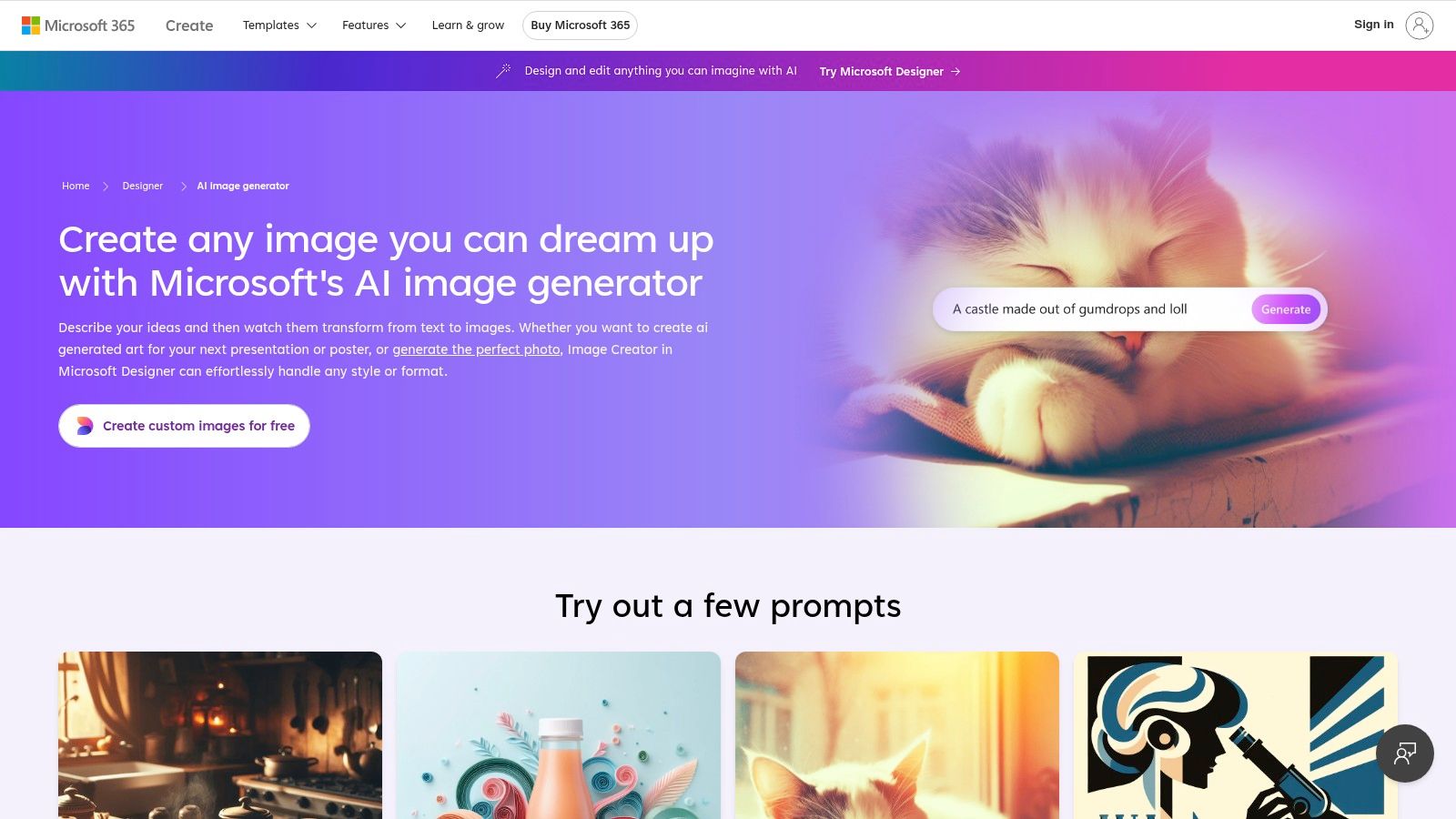
Alt text: A sample image from Microsoft Designer showing a photorealistic cat wearing sunglasses and a leather jacket, demonstrating its ability to create high-quality, fun images.
The free offering is generous, providing users with daily “boosts” for faster image generation. Once these boosts are used, generation continues at a slower pace, but it remains completely free. The key advantage is its direct integration with the broader Microsoft Designer platform, allowing you to instantly drop a generated image into a social media post template, add text, and export it. While it lacks the advanced controls of more professional tools, its speed and ease of use are hard to beat for everyday tasks.
Key Features & Limitations
| Feature | Description | Free Tier Limit |
|---|---|---|
| Text-to-Image | Generate images from text prompts using a simple web interface powered by the latest DALL·E models. | Free with daily “boosts” for priority generation. Unlimited slower generations. |
| Microsoft Designer Integration | Seamlessly use your generated images in social media templates, presentations, and other designs within the Designer app. | Fully available on the free plan. |
| Microsoft Account Login | Easy access for anyone with a Microsoft account (Outlook, Hotmail, etc.), with no separate signup required. | A Microsoft account is required for access. |
| Content Filtering | Employs strong content filters to ensure generated images are safe and appropriate. | Can be restrictive and may block some creative prompts. |
Practical Use Case: How to Create a Custom Blog Post Header
A blogger can use the Image Creator to generate a unique featured image for their latest article.
- Navigate to Microsoft Designer’s Image Creator.
- Enter a descriptive prompt like:
"a vibrant, flat illustration of a person writing at a desk with a coffee cup, clean vector style, bright and modern color palette". - Click Generate. Review the four image options provided.
- Select the best image and click Edit. This opens the image directly in the Microsoft Designer app.
- Use the built-in Text tools to add the blog post title directly onto the image and export the final header.
Actionable Takeaways
- Be Descriptive: Since there are fewer style controls, be very specific in your prompt. Use words like “photorealistic,” “isometric 3D render,” “line art,” or “oil painting” to guide the output.
- Use Designer Templates: After generating an image, click “Edit” to jump directly into Microsoft Designer to quickly format it for Instagram, Facebook, or a blog banner.
- Iterate Quickly: Take advantage of the fast generation boosts to try several variations of a prompt to find the perfect image for your needs.
- Add Negative Prompts: Use the prompt editor to specify what you don’t want (e.g.,
-text,-blurry) to refine results.
Further Reading & Resources
3. Canva Magic Studio
Canva Magic Studio is the perfect entry point for individuals and teams who need more than just an image generator. It integrates AI image creation directly into a comprehensive, user-friendly design platform, making it one of the best free AI image generators for creating complete marketing assets, social media posts, or presentations without needing separate tools. It’s designed for non-designers who value templates, collaboration, and a seamless workflow from idea to publication.
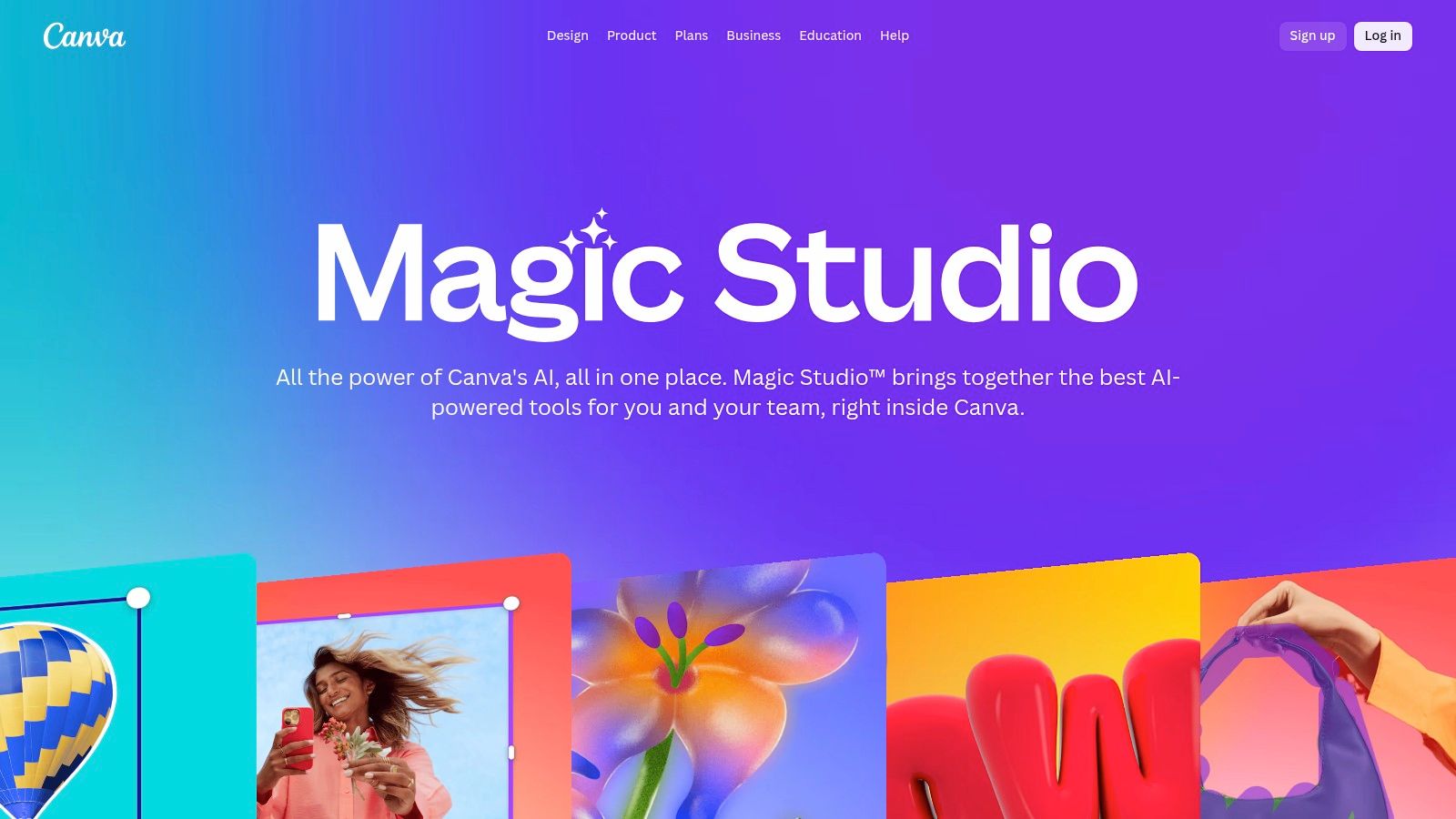
Alt text: An example of Canva Magic Studio’s interface showing a text prompt that generated several images of a futuristic garden, all within the Canva design canvas.
The free plan offers 50 lifetime text-to-image credits through its “Magic Media” app. While this is a one-time allotment rather than a recurring monthly credit system, it’s a generous starting point for users to explore the tool’s capabilities. The real power of Canva is its ecosystem; you can generate an image and immediately use it in a branded template, apply filters, add text, and collaborate with team members, all within a single browser tab.
Key Features & Limitations
| Feature | Description | Free Tier Limit |
|---|---|---|
| Magic Media (Text-to-Image) | Generate images and videos directly inside the Canva editor using simple text prompts. | 50 lifetime credits. |
| Template & Asset Library | Access a vast library of design templates, stock photos, and elements to combine with your AI creations. | Limited selection on the free plan. |
| End-to-End Design Workflow | Go from image generation to a fully designed and published asset without leaving the platform. | Available on the free plan. |
| Collaboration Tools | Invite team members to view, comment on, and edit designs in real-time. | Core features available on the free plan. |
Practical Use Case: How to Design a Promotional Instagram Post
A small business owner can use Magic Media to generate a custom image for a seasonal promotion.
- Open a new “Instagram Post” template in Canva.
- On the left-hand menu, select the Apps tab and find Magic Media.
- In the prompt box, enter:
"a cozy cafe decorated for autumn with pumpkins and warm lights, photorealistic style". - Select a style like Photo and click Generate.
- Click on the generated image you like best to add it directly to your Instagram post template.
- Use Canva’s text and graphics tools to add your logo and promotional text (e.g., “20% Off Fall Lattes”).
Actionable Takeaways
- Combine with Templates: Use your AI-generated images as the foundation for Canva’s professionally designed templates to create polished final assets quickly.
- Use Credits Wisely: Since the 50 credits are lifetime, use them for final design elements rather than broad experimentation.
- Explore Style Options: Test the various style presets within Magic Media (e.g., “Photo,” “Dreamy,” “Anime”) to get stylistically consistent results for your brand.
- Use Magic Edit: Select a generated image and use the “Magic Edit” tool to replace or add elements within the image by simply “painting” over an area and describing the change.
Further Reading & Resources
- Explore the features inside Canva Magic Studio and how they compare to other tools.
- Tool: https://www.canva.com/magic/
4. Leonardo.ai
Leonardo.ai is a powerhouse platform ideal for creators who crave granular control and stylistic consistency. It has rapidly become a favorite by offering a suite of advanced features often reserved for paid services, positioning itself as one of the most versatile free AI image generators available. The platform gives users a daily allowance of free “tokens,” which are used to generate images, train custom models, and access a variety of fine-tuned community models.
Alt text: A sample image from Leonardo.ai showing a highly detailed fantasy character, showcasing the platform’s ability to create artistic and intricate visuals.
The free tier generously provides 150 daily tokens, which reset every 24 hours. A key differentiator for Leonardo.ai is the ability to train your own AI models on your specific art style or subjects, allowing for unparalleled brand or character consistency. While images generated on the free plan are public by default, the platform’s robust toolset, including advanced upscaling and negative prompting, makes it a top choice for artists and designers willing to trade privacy for power.
Key Features & Limitations
| Feature | Description | Free Tier Limit |
|---|---|---|
| Daily Tokens | A renewable daily credit system for generating images and using other platform features. | 150 free “Fast Tokens” per day. |
| Custom Model Training | Train a unique model on your own images to achieve a consistent style or character. | Available, consumes tokens. |
| Advanced Controls | Features like Image to Image, Alchemy upscaler, and precise prompt weighting for detailed outputs. | Most features are available. |
| Image Privacy | Generated images are public by default. Private generations require a paid subscription. | No private generations. |
Practical Use Case: How to Create Consistent Game Assets
An indie game developer can use Leonardo.ai to create a consistent set of character portraits for their new RPG.
- Gather Data: Collect 10-15 images of your initial character sketches or style references.
- Train a Model: Go to “Training & Datasets” and create a new dataset with your images. Start a training job to create a custom model based on your art.
- Generate Assets: Once trained, select your new custom model in the image generator.
- Use prompts like
"portrait of the main character, smiling, heroic lighting"or"portrait of the main character, angry, battle scene"to generate dozens of character variations in the exact same art style.
Actionable Takeaways
- Train a Model: For consistent outputs, gather 10-15 images of a specific style or character and use the “Training & Datasets” feature to create your own model.
- Use Community Models: Browse the “Finetuned Models” to find a pre-trained style that matches your vision, saving you tokens on training your own.
- Leverage Alchemy: Enable the “Alchemy” feature when generating images for a significant boost in quality, coherence, and prompt adherence.
- Use Negative Prompts: Add specific terms to the “Negative Prompt” box (e.g.,
ugly, deformed, blurry) to prevent common AI artifacts and improve image quality.
Further Reading & Resources
- Explore a variety of tools and techniques for text-to-image creation.
- Tool: https://leonardo.ai/
5. Ideogram
Ideogram has carved out a unique niche by excelling where many other AI image generators struggle: reliably rendering text and typography. This makes it an invaluable tool for creating designs like logos, posters, t-shirts, and memes where legible text is a core component. While many platforms produce garbled letters, Ideogram’s model is specifically trained to handle typographic elements, making it one of the best free AI image generators for graphic design tasks.
Alt text: A sample image created with Ideogram showing a stylized logo for a coffee shop with the words “Morning Brew Co.” clearly rendered in a vintage font.
The free plan offers users 25 daily generations (100 credits), which are processed in a “slow” queue. This is a generous starting point for experimentation and smaller projects. The platform’s standout “Magic Prompt” feature automatically enhances and details your initial ideas, often leading to more creative and polished results with less effort. For those needing faster speeds or more features, Ideogram offers affordable paid plans with priority generation.
Key Features & Limitations
| Feature | Description | Free Tier Limit |
|---|---|---|
| Reliable Text Rendering | Generates images with coherent and stylized text, ideal for logos, posters, and signage. | Included in free generations. |
| Magic Prompt | An AI-powered feature that automatically enhances and expands on user prompts for better results. | Available on the free plan. |
| Daily Free Credits | Users receive 100 credits (25 generations) daily, which are processed in a slower queue. | 100 credits per day. |
| Community Remixing | Browse and remix prompts and images created by other users on the platform to learn and iterate quickly. | Fully available on the free plan. |
Practical Use Case: How to Design a Podcast Logo
A creator on a tight budget can design a professional-looking logo for their new podcast.
- Open Ideogram and locate the prompt bar.
- Enter a detailed prompt that includes the text in quotes and describes the desired style. Example:
Logo for "Cosmic Queries" podcast, vector art, minimalist, a planet with a question mark, navy blue and gold. - Select an aspect ratio (e.g., 1:1 for a square logo).
- Enable the Magic Prompt feature to let the AI add stylistic details.
- Click Generate and review the options, which will feature the text correctly spelled and integrated into the designs.
Actionable Takeaways
- Specify Text Clearly: When prompting, put the text you want to appear in quotes (e.g.,
sticker that says "AI Rocks") to guide the model. - Use Magic Prompt: Enable the “Magic Prompt” feature to automatically add detail and style to your concepts, especially if you’re unsure how to describe an aesthetic.
- Iterate on Public Designs: Browse the public feed to find a style you like, then click “Remix” to adapt the prompt for your own project.
- Choose a Style Tag: Use the style tags below the prompt box (like “typography,” “logo,” “cinematic”) to further guide the generation.
Further Reading & Resources
- Learn about crafting effective prompts by exploring advanced prompt engineering techniques.
- Tool: https://ideogram.ai/
6. NightCafe Studio
NightCafe Studio is a community-centric platform that has been a long-standing favorite among AI art enthusiasts. It provides access to multiple generative models, including the powerful SDXL, making it a versatile choice for experimentation. Rather than a purely professional tool, NightCafe focuses on social engagement, daily challenges, and a robust credit system, positioning itself as one of the most accessible free AI image generators for hobbyists and newcomers looking to join an active community.
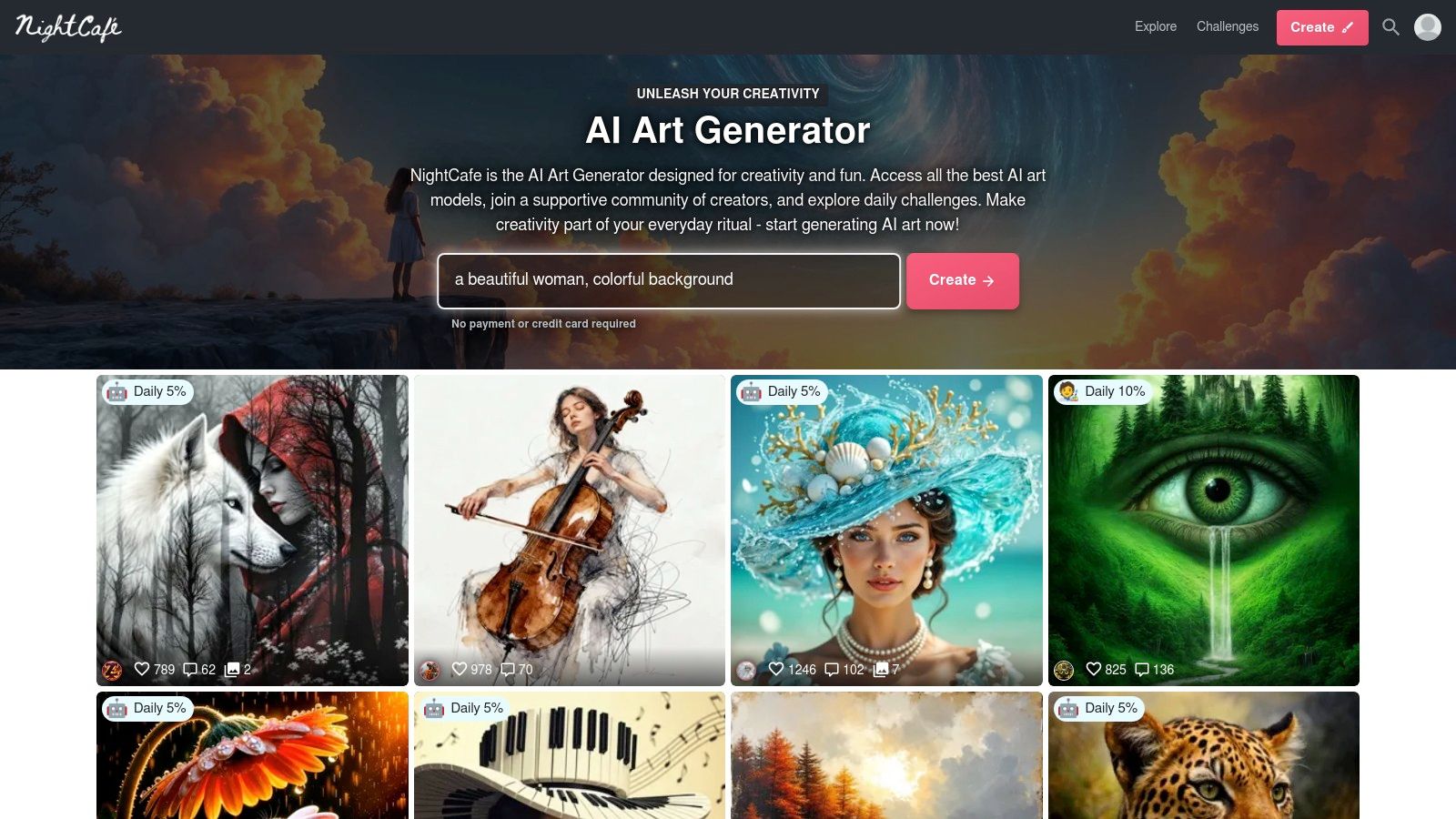
Alt text: A sample image created with NightCafe Studio showing a highly detailed, colorful portrait of a mystical creature, highlighting the artistic styles possible on the platform.
The platform operates on a credit-based system, offering a generous allotment of free daily credits just for logging in and participating. This encourages regular use and allows for consistent creation without a paid subscription. A standout feature is the ability to order prints of your creations directly, bridging the gap between digital art and physical products. While heavy usage may require purchasing credits, the free tier is more than sufficient for casual exploration and participating in community events.
Key Features & Limitations
| Feature | Description | Free Tier Limit |
|---|---|---|
| Multiple Models | Access various models like SDXL, DALL-E 2, and Stable Diffusion 2.1 for diverse artistic outputs. | Credit costs vary by model and settings. |
| Daily Free Credits | Earn free credits daily by logging in, voting in challenges, and other community activities. | 5 credits upon daily login, with more ways to earn. |
| Community Challenges | Participate in daily themed AI art contests to showcase your work and win credits. | Free to enter. |
| Print Services | Order high-quality prints of your generated artwork directly from the platform. | This is a paid service. |
Practical Use Case: How to Build a Portfolio and Get Feedback
An aspiring digital artist wants to build a portfolio and get feedback.
- Log in daily to claim 5 free credits.
- Each day, use the credits to create a new piece of art. For example, select the SDXL model and use the prompt:
"ethereal portrait of a forest spirit, glowing mushrooms, fantasy art, highly detailed". - Choose one of the Preset Styles, such as “NightCafe” or “Artistic Portrait,” to instantly apply a consistent look.
- Submit your best creation to the Daily Challenge.
- Browse other submissions, “like” your favorites, and leave comments to engage with the community and receive feedback on your own work.
Actionable Takeaways
- Log In Daily: Make it a habit to log in and claim your free credits to accumulate them for larger projects.
- Participate in Challenges: Join the “Daily Challenge” to test your prompting skills against a specific theme and earn more credits.
- Study Top Creations: Browse the “Explore” feed to see what prompts and settings are producing the most popular images, then adapt those techniques.
- Evolve Images: Use the “Evolve” feature on one of your creations to generate new variations based on the original, allowing for iterative refinement.
Further Reading & Resources
7. Freepik AI Image Generator (Freepik AI Suite)
Freepik’s AI Image Generator is a powerful tool integrated directly into its massive stock asset library, making it an excellent all-in-one solution for creators. It is designed for users who need to generate custom images while also leveraging existing stock photos, vectors, and templates. This integration makes it one of the most practical free AI image generators for designers who require a seamless blend of generated and curated content.
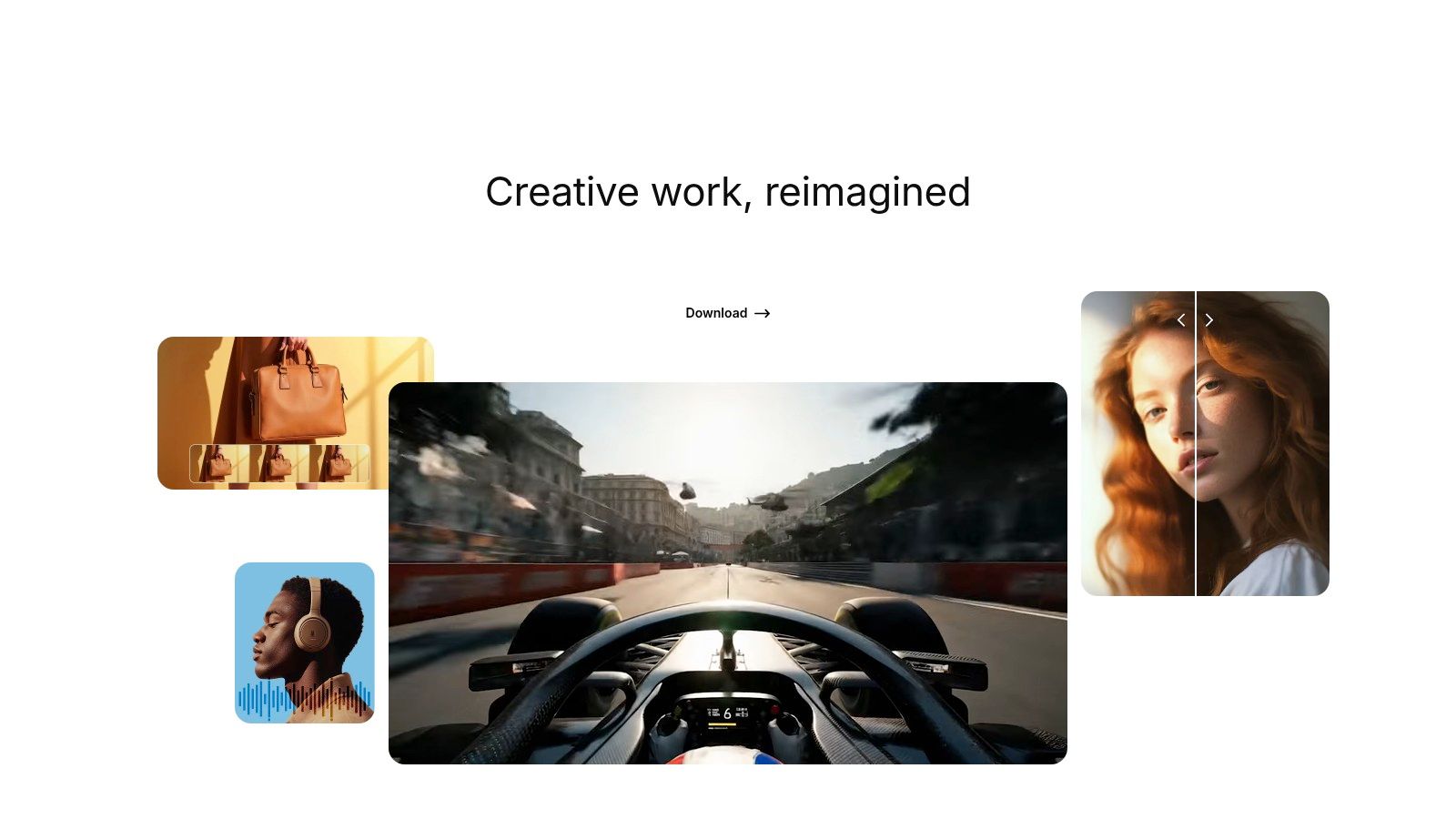
Alt text: An image created with Freepik AI Image Generator showing a photorealistic portrait of a woman with vibrant, artistic makeup, highlighting the platform’s ability to produce high-quality visuals.
The free tier offers a limited number of daily credits, which is suitable for testing the platform or for small-scale projects. The real strength of Freepik lies in its premium plans, which provide a generous or nearly unlimited generation capacity, significantly reducing the friction of credit-based systems. This makes it ideal for users who find other free-tier limits too restrictive and are willing to upgrade for high-volume creation within a comprehensive content ecosystem.
Key Features & Limitations
| Feature | Description | Free Tier Limit |
|---|---|---|
| Integrated AI Generation | Create unique images from text prompts directly within the Freepik asset platform. | Limited daily credits for generation. |
| Stock Asset Library | Access millions of stock photos, vectors, and icons to complement your AI-generated visuals. | Limited downloads on the free plan. |
| Editing & Upscaling | Basic editing and image upscaling tools are available to refine generated content. | Usage may consume credits or be limited. |
| Multiple AI Models | Access to various models and styles to achieve different creative looks and outcomes. | Full access may require a premium plan. |
Practical Use Case: How to Create a Website Banner
A freelance graphic designer can use the Freepik AI Image Generator to create a unique background for a client’s website banner.
- Generate a Base Image: Use the AI generator with a prompt like
"abstract background with flowing blue and gold lines, minimalist, elegant, 4K resolution". - Find Complementary Assets: If the AI image needs more focus, use the main Freepik search bar to find a stock asset. Search for
"gold geometric frame vector". - Combine and Edit: Download the AI background and the vector frame. Open them in a design tool (like Adobe Illustrator or Freepik’s online editor).
- Finalize: Place the vector frame over the AI-generated background and add the client’s text to complete the banner, creating a polished final product in minutes.
Actionable Takeaways
- Combine AI and Stock: Don’t just generate images; enhance them by searching for and integrating Freepik’s stock vectors and photos.
- Experiment with Styles: Use the different available models and style selectors (e.g., Photo, Digital Art, 3D) to find the aesthetic that best matches your project’s needs.
- Consider Premium for Volume: If you consistently need more than a few images per day, the premium plan’s generous limits offer great value.
- Use the Live Paint Feature: After generating, try the “Live paint” feature to interactively add colors and elements to your image in real-time.
Further Reading & Resources
8. Picsart AI Image Generator
Picsart is a versatile, mobile-first design platform where AI image generation is seamlessly integrated into a broader suite of creative editing tools. It excels as a user-friendly option for social media enthusiasts, content creators, and anyone needing to quickly produce eye-catching visuals without a steep learning curve. Unlike standalone generators, Picsart allows you to create an image from a prompt and immediately start adding text, stickers, filters, and other edits within the same workflow, making it a highly practical choice among free AI image generators.
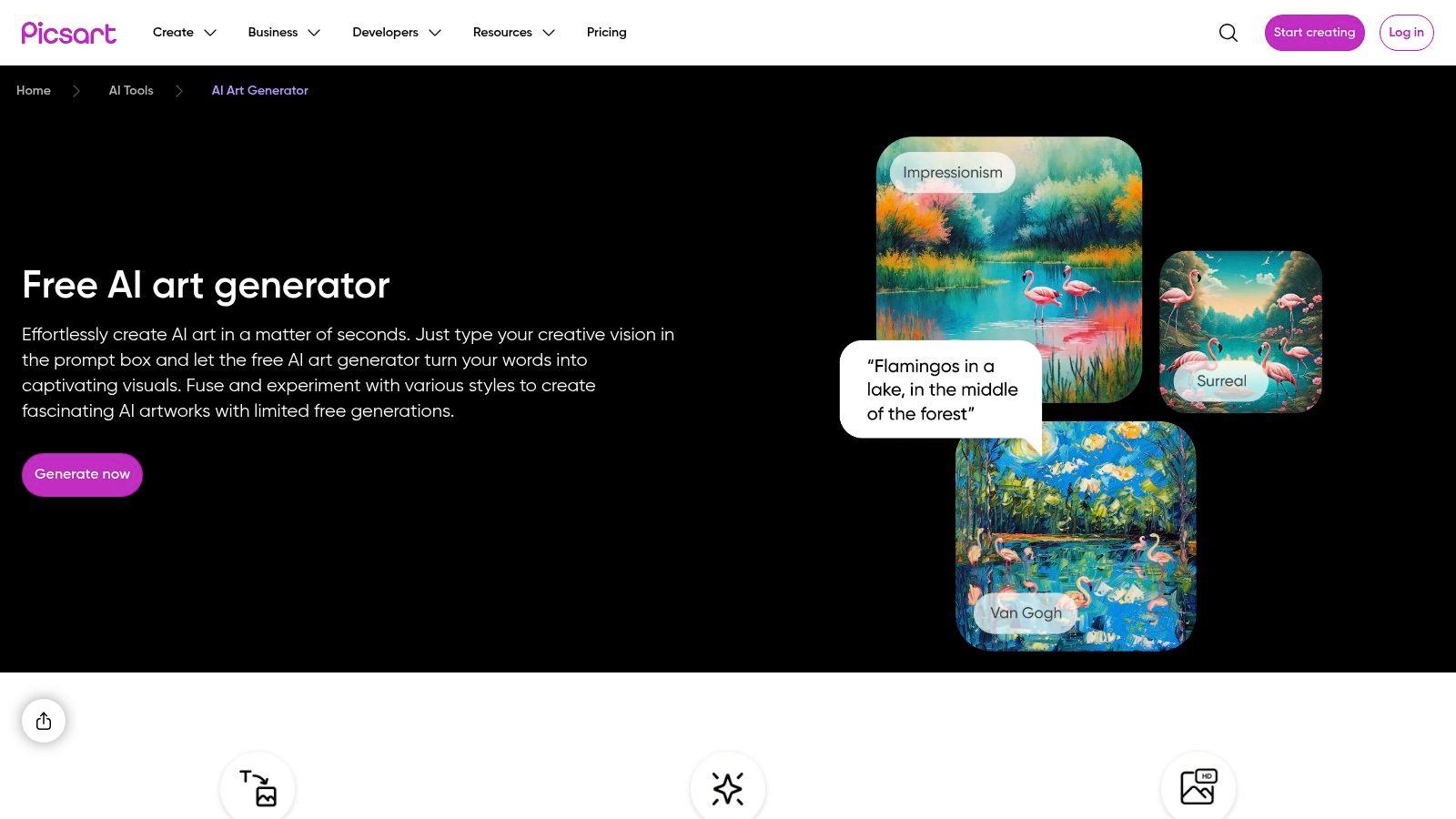
Alt text: A sample image from the Picsart AI Image Generator showing a stylized, artistic portrait of a woman with vibrant floral elements.
The free plan provides a limited number of credits (often a small daily or weekly allowance) for AI features, which is suitable for casual use and experimentation. The platform’s strength lies in its all-in-one nature; you can go from a simple text idea to a fully polished Instagram post in minutes. While the free version may include watermarks on certain exports and has a tight credit limit, it offers an accessible entry point into AI-assisted design on both web and mobile.
Key Features & Limitations
| Feature | Description | Free Tier Limit |
|---|---|---|
| Integrated AI Generator | Create images from text prompts directly within the main Picsart editor. | Limited by a daily/weekly credit allowance. |
| All-in-One Editor | Access a full suite of editing tools, templates, stickers, and text effects to enhance AI creations. | Some premium assets and tools are locked. |
| Web & Mobile Apps | Generate and edit images seamlessly on your desktop or on the go with dedicated mobile applications. | Credit allowance is shared across devices. |
| Style Presets | Choose from dozens of artistic styles to guide the AI’s output without complex prompt engineering. | All styles are generally available. |
Practical Use Case: How to Create an Instagram Story on Your Phone
A small business owner can use the Picsart mobile app to create a quick promotional story.
- Open the Picsart App and tap the
+icon to start a new project. - Scroll down to the “AI Tools” section and select Text to Image.
- Enter a prompt like
"a gourmet cupcake on a whimsical, pastel-colored stand, digital art style". Select a vibrant style preset. - After the image is generated, it opens directly in the Picsart editor.
- Use the Sticker tool to search for a “50% OFF” sticker and add it to the image.
- Use the Text tool to add more details, then export and share directly to your Instagram Story.
Actionable Takeaways
- Utilize the Ecosystem: Don’t just generate an image and leave; use Picsart’s built-in filters, text tools, and templates to turn your AI creation into a finished design.
- Check Daily Credits: If your free plan has a daily credit refresh, log in each day you plan to create to maximize your allowance.
- Start with Styles: For quick results, browse the various style presets available in the AI generator to find an aesthetic that matches your vision before writing a complex prompt.
- Explore AI Replace: After generating, use the “AI Replace” tool to select part of your image and change it with a new text prompt (e.g., replace the cupcake’s frosting color).
Further Reading & Resources
9. Google ImageFX (Labs)
Google ImageFX offers a playground for creatives wanting to experiment with Google’s powerful Imagen models. As part of Google’s AI Test Kitchen, it provides a glimpse into the future of the company’s generative tools, positioning itself as one of the more unique free AI image generators for prompt exploration. Its standout feature is the “expressive chips” interface, which helps users discover new creative directions by suggesting prompt modifications.
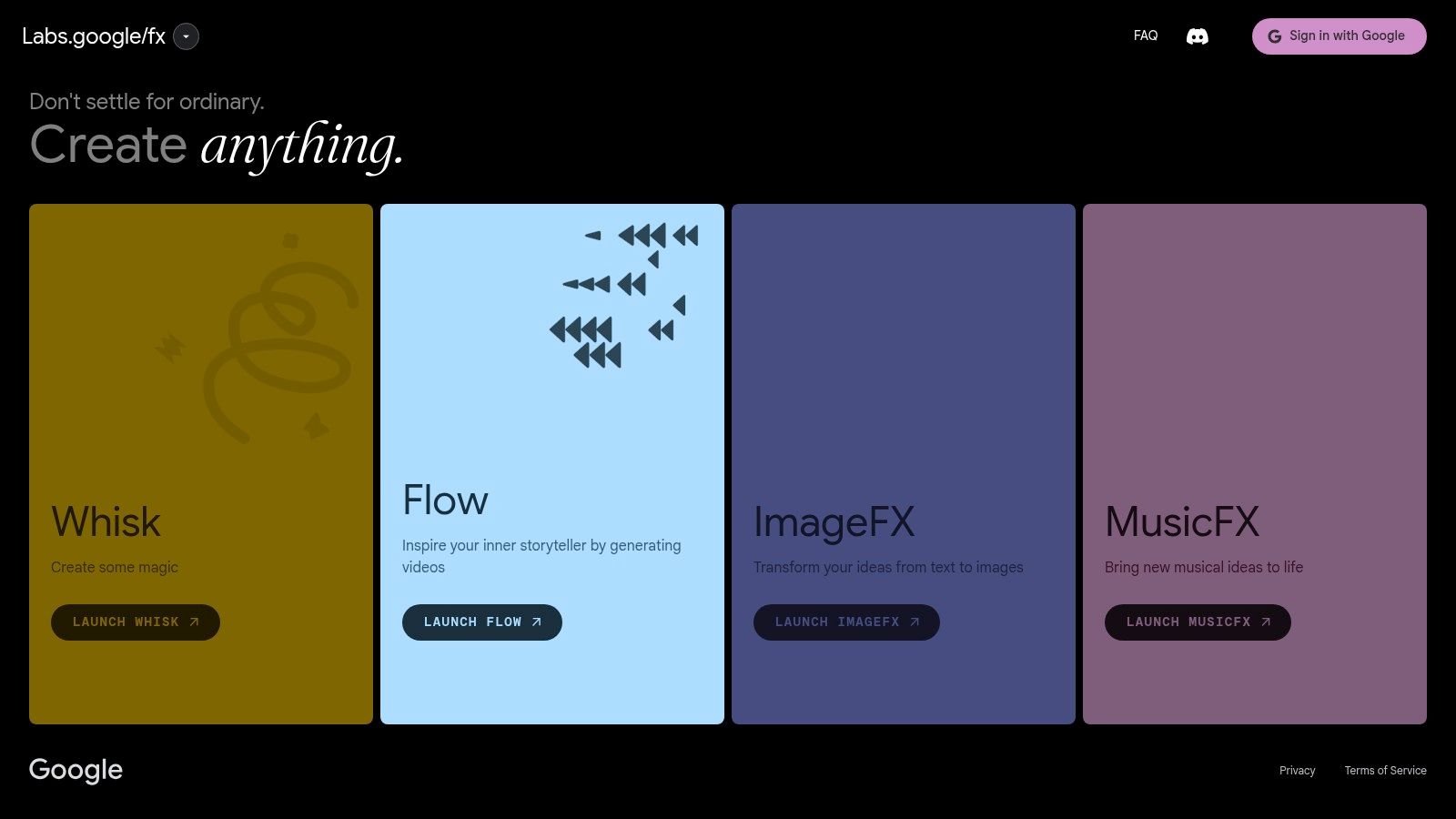
Alt text: A user interface of Google ImageFX showing an image of a red race car and several prompt suggestions like “minimalist” and “in a photorealistic style”.
The platform is entirely free for users in supported regions (primarily the US) with a Google account. It emphasizes responsible AI development by automatically applying SynthID digital watermarking and IPTC metadata to all generated images, helping to identify them as AI-created. While its experimental nature means features can change, and strict content filters are in place, it’s an excellent no-cost way to test the capabilities of Google’s foundational image models.
Key Features & Limitations
| Feature | Description | Free Tier Limit |
|---|---|---|
| Imagen 2 Model | Access to Google’s high-quality text-to-image model for detailed and photorealistic outputs. | Completely free; no credit system. |
| Expressive Chips | Interactive prompt suggestions that allow you to easily add or modify concepts, styles, and elements. | Unlimited use. |
| Responsible AI | All images are created with SynthID watermarking and IPTC metadata for transparency. | Always on; cannot be disabled. |
| Geographic Access | Primarily available to users in the United States and select other regions via Google Labs. | Access is region-locked. |
Practical Use Case: How to Brainstorm Creative Concepts
A concept artist struggling with “creator’s block” can use ImageFX for rapid brainstorming.
- Start with a simple prompt:
"a knight in a forest". - Once the initial images are generated, look at the “expressive chips” highlighted in the prompt. Click on
knightand select a suggested variation likesteampunk knight. - Next, click on
forestand selectbioluminescent forest. - Finally, add another chip for style by clicking the
+and choosingcinematic lighting. - In under a minute, the artist has explored multiple distinct concepts without having to manually type complex prompts, generating dozens of unique visual ideas.
Actionable Takeaways
- Use Expressive Chips: Don’t just type a static prompt; click the highlighted “chips” to discover new aesthetic and conceptual combinations you might not have considered.
- Check for Watermarks: Be aware that all images contain a SynthID watermark, which is important for understanding the origin of the content if used elsewhere.
- Embrace Experimentation: Use ImageFX as a rapid-prototyping tool to test out wild ideas before committing to a more resource-intensive generator.
- Seed Your Generations: Find an image you like and click the
...menu to “Set seed.” This will make subsequent generations more stylistically similar to the selected image.
Further Reading & Resources
- Tool: https://labs.google/fx
10. Lexica
Lexica serves a dual purpose as both a capable AI image generator and a massive, searchable library of existing AI-generated art and their corresponding prompts. This makes it an invaluable resource for inspiration and for learning the art of prompt engineering by studying what works for others. Its straightforward interface and generation queues offer a clear entry point into AI image creation, positioning it as one of the most educational free AI image generators available.
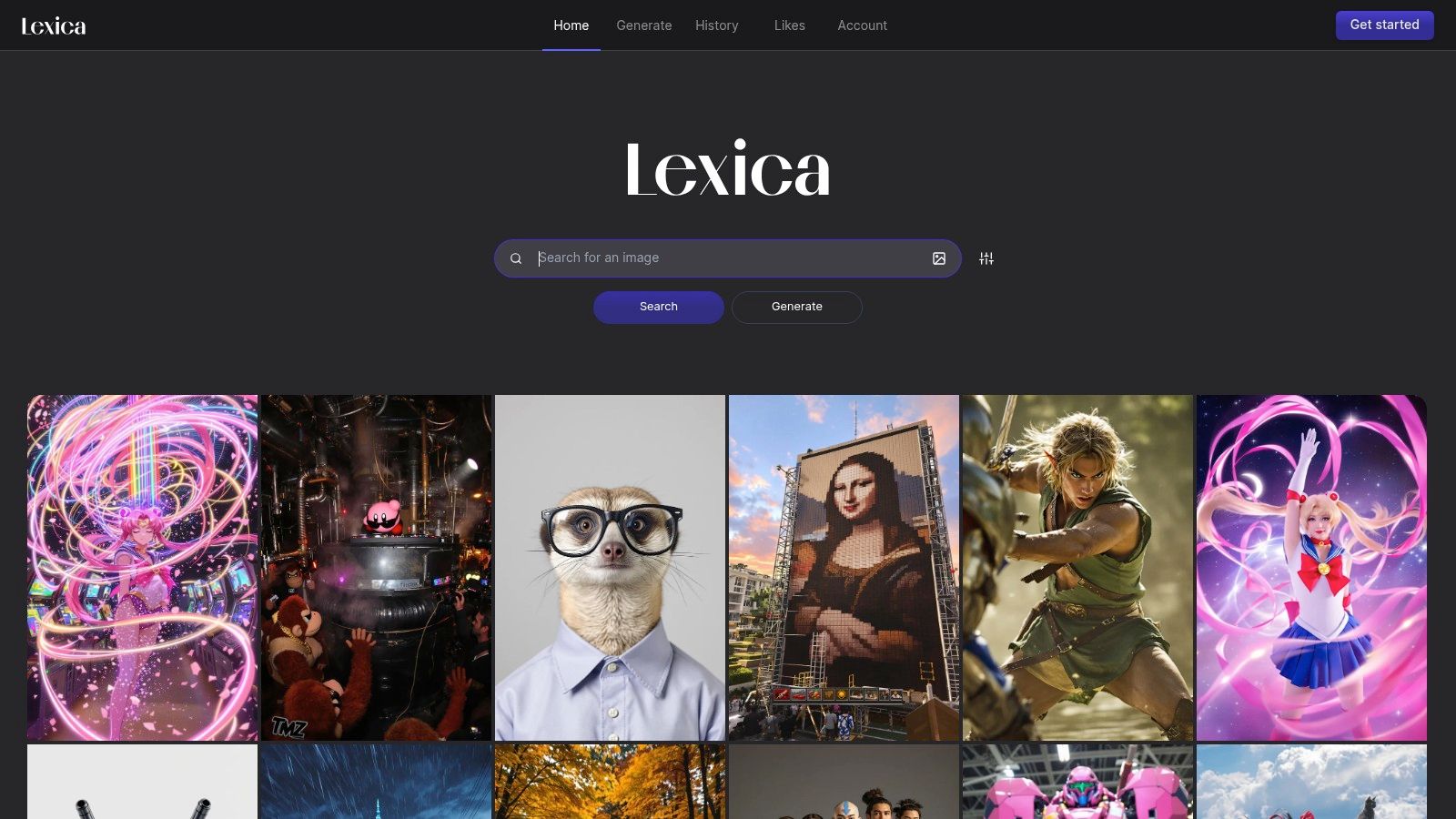
Alt text: The Lexica interface showcasing its searchable gallery of AI-generated images and their prompts, highlighting its utility for inspiration.
The free plan grants users a generous monthly allotment of 100 “slow” generations and 16 “fast” generations, which is more than enough for regular experimentation. The key distinction is the generation speed; fast generations are near-instant, while slow generations enter a queue and can take a minute or two. A significant consideration for free users is that all generated images are public by default, which reinforces the platform’s community-driven nature but may not be suitable for private or commercial projects.
Key Features & Limitations
| Feature | Description | Free Tier Limit |
|---|---|---|
| Searchable Gallery | Explore millions of AI-generated images and copy or remix their prompts. | Unlimited browsing. |
| Image Generation | Create images from text prompts using Lexica’s proprietary model, Aperture. | 16 fast/100 slow generations per month. |
| Public by Default | All images created on the free plan are publicly visible in the community gallery. | Privacy requires a paid plan. |
| Upscale & Variations | Generate higher-resolution versions of an image or create similar variations. | Consumes generation credits. |
Practical Use Case: How to Learn Advanced Prompting
A hobbyist artist struggling to create a “magical forest” scene can use Lexica to learn how to write better prompts.
- Go to the Lexica homepage and use the search bar to enter
"magical forest". - Browse the results and identify a few images that perfectly match the desired aesthetic.
- Click on an image to view its full details, including the exact prompt used to create it.
- Analyze the prompt: Notice keywords you hadn’t considered, such as
"bioluminescent,""ethereal lighting,""ancient mossy trees,"and"god rays." - Copy and adapt: Click “Copy prompt” and paste it into the “Generate” tab. Modify the subject (e.g., add
"a lone wolf"to the scene) and generate a new image using the improved, more descriptive prompt.
Actionable Takeaways
- Use it as a Prompt Library: Before generating, search for your core concept (e.g., “cyberpunk cat”) to see how others have successfully prompted it.
- Manage Your Queues: Use your 16 “fast” generations for initial concept testing and the 100 “slow” generations for refining ideas where speed isn’t critical.
- Reverse Engineer Styles: Find an image with a style you love, click on it, and use the “Copy prompt” or “Remix” feature to apply that aesthetic to your own subject.
- Upload an Image to Guide: Use the “Image to Image” feature by uploading a reference photo to heavily influence the composition and style of your generation.
Further Reading & Resources
- Tool: https://lexica.art/
11. Hugging Face Spaces
Hugging Face Spaces is less a single tool and more an enormous, open-source playground for AI. It’s a platform where developers and researchers host thousands of AI model demonstrations, many of which are powerful free AI image generators. This makes it an unparalleled resource for anyone who wants to experiment with the cutting-edge of image generation without any local setup or cost.
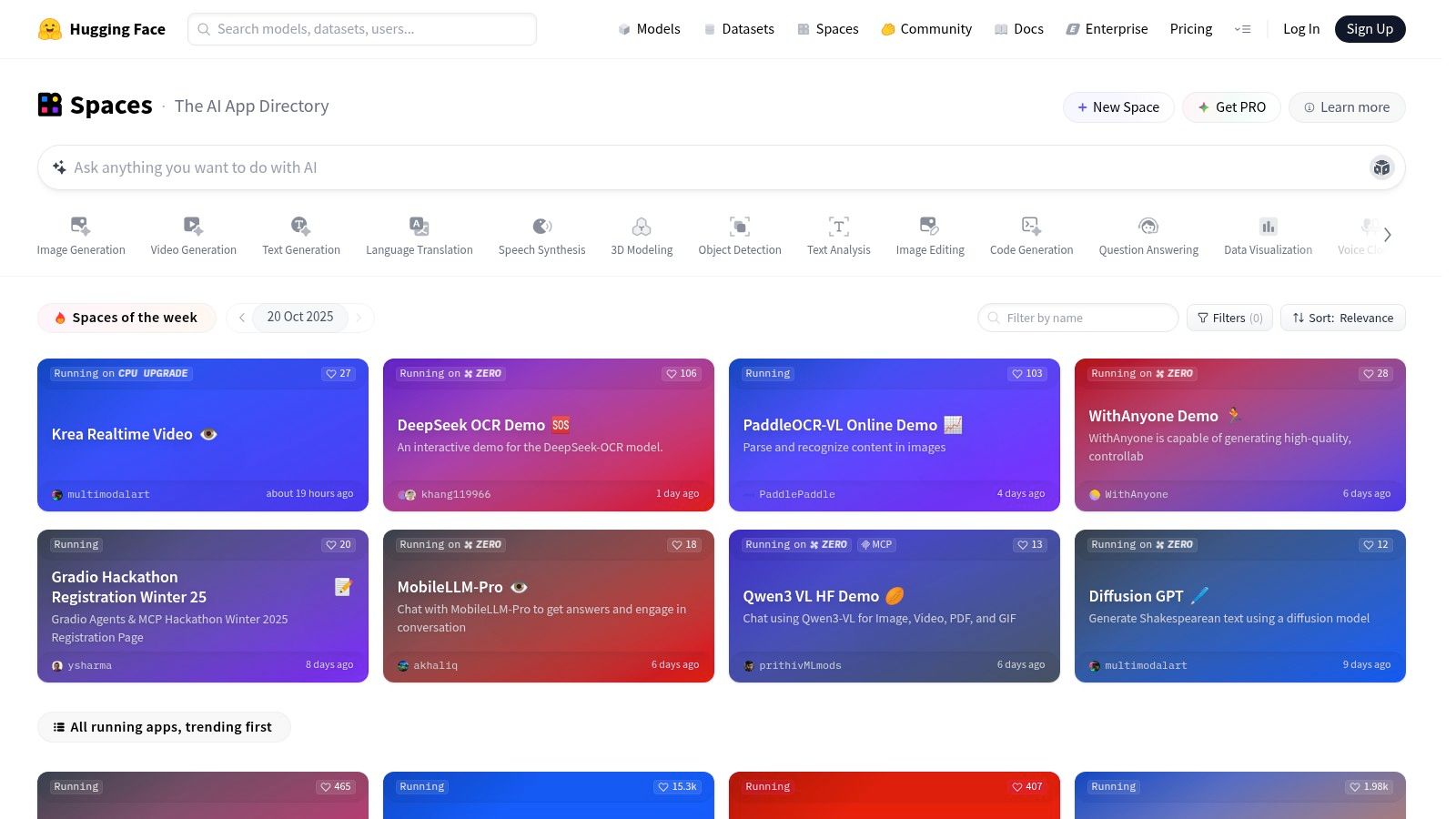
Alt text: The Hugging Face Spaces interface showing a gallery of community-hosted AI applications, including numerous image generation models.
Unlike polished commercial products, Spaces provides direct access to a vast array of community-built models, from the latest Stable Diffusion variants to niche artistic tools. While this means performance and uptime can vary, the value lies in its variety and transparency. Users can test countless models, compare their outputs, and even peek at the underlying code. The experience is completely free for generation, though popular Spaces can sometimes have a queue.
Key Features & Limitations
| Feature | Description | Free Tier Limit |
|---|---|---|
| Model Variety | Access hundreds of community-hosted text-to-image demos, including Stable Diffusion, SDXL, and other novel models. | Completely free to use. |
| No Setup Required | Run complex AI models directly in your browser without installing any software or managing dependencies. | No limits on generation, but queues may exist. |
| Open Source Access | Many Spaces allow you to view the source code and even duplicate the Space to run your own instance. | Varies by individual Space. |
| Experimental Tools | Test cutting-edge features like ControlNet, specialized LoRAs, and unique image-to-image workflows. | Usage rights depend on the model’s license. |
Practical Use Case: How to Test a Niche AI Model
A digital artist wants to experiment with a niche “pixel art” style AI model they read about in a research paper.
- Navigate to the Hugging Face Spaces website.
- Use the search bar at the top and enter
"pixel art". Filter the results by selecting the Spaces category. - Browse the list of available demos. Look for a popular or well-maintained Space, such as one based on a known model like SDXL with a pixel art LoRA.
- Open the Space and enter a prompt like
"a knight fighting a dragon, 16-bit pixel art". - Generate the image directly in the browser to instantly see if the model’s output is suitable for their project, all without any complex local installation.
Actionable Takeaways
- Filter and Search: Use the search bar and filter for “Text-to-Image” to quickly find relevant image generation Spaces.
- Check Model Cards: Always review the model card associated with a Space to understand its intended use, limitations, and licensing.
- Be Patient with Queues: Popular demos can be busy. If a Space is overloaded, try it again at a different time or look for an alternative demo of the same model.
- Sort by Likes: When searching, sort the Spaces by “Most Likes” to find the most popular and reliable community demos first.
Further Reading & Resources
12. Craiyon
Craiyon, originally known as DALL·E Mini, is one of the most accessible and straightforward entry points into AI art generation. It stands out for its simplicity and no-signup-required web interface, making it an excellent choice for beginners, casual users, or anyone needing quick, conceptual images without commitment. While it may not offer the photorealistic quality of more advanced models, it remains one of the foundational free AI image generators that democratized the technology for a massive audience.
Alt text: An example of the Craiyon interface showing nine images generated from the prompt “a cute corgi wearing a party hat.”
The free version is entirely ad-supported, which means users can generate unlimited images but may experience queues during peak times and will see watermarks on their creations. For those who need faster speeds, higher quality, and no watermarks, Craiyon offers affordable Supporter and Professional tiers. Its core appeal lies in its ease of use: you visit the site, type a prompt, and get a 3×3 grid of nine image concepts in about a minute, making it perfect for rapid brainstorming.
Key Features & Limitations
| Feature | Description | Free Tier Limit |
|---|---|---|
| Simple Text-to-Image | A clean, no-frills web UI for generating nine image variations from a single text prompt. | Unlimited generations. |
| No Signup Required | Users can start generating immediately without creating an account or providing any personal information. | Fully available on the free tier. |
| Negative Prompts | An option to specify elements to exclude from the generated image for better control. | Included in the free plan. |
| Image Quality & Speed | Free tier images have a watermark and generation can take 1-2 minutes due to queues. | Paid plans offer faster speeds and higher quality. |
Practical Use Case: How to Create a Simple Presentation Graphic
A teacher needs a simple, illustrative graphic for a presentation slide.
- Go to Craiyon.com. No signup is needed.
- In the prompt bar, type a simple description:
"astronauts playing soccer on the moon, cartoon style". - In the Negative Words box below, enter terms like
"blurry, text, watermark"to improve the quality of the output. - Click the Draw button.
- After about a minute, review the nine generated image concepts. Click on the one that best fits the lighthearted tone of the lesson, take a screenshot, and add it directly to the presentation slide.
Actionable Takeaways
- Use for Brainstorming: Generate nine concepts at once to quickly explore different visual ideas for a blog post or social media graphic before refining them elsewhere.
- Be Specific and Simple: Craiyon works best with clear, direct prompts. Avoid overly complex sentences and focus on key subjects and actions.
- Leverage Negative Prompts: Use the “Negative Words” feature to remove common unwanted elements like text, extra limbs, or blurry features.
- Choose a Style: Use the style buttons underneath the prompt box (like “Art,” “Photo,” or “Drawing”) to give the AI a better starting point.
Further Reading & Resources
- Get an in-depth view of how Craiyon compares to other free tools.
- Tool: https://www.craiyon.com/
12 Free AI Image Generators — Feature Comparison
| Tool | Core features | Quality (★) | Pricing (💰) | Target (👥) | Unique selling points (✨ / 🏆) |
|---|---|---|---|---|---|
| Adobe Firefly | Text-to-image, Generative Fill, Photoshop/Express integration | ★★★★★ | 💰 Limited free credits; paid for heavy use | 👥 Creatives, agencies, pros | ✨ Enterprise IP indemnification; 🏆 Deep Adobe ecosystem |
| Microsoft Designer | DALL·E-powered text-to-image in templates, web UI | ★★★★☆ | 💰 Free with Microsoft account | 👥 Social creators, casual designers | ✨ Fast, template-ready outputs; 🏆 No-cost access |
| Canva Magic Studio | Canvas AI, templates, collaboration, asset library | ★★★★☆ | 💰 Free tier; advanced AI on paid plans | 👥 Non-designers, teams, marketers | ✨ All-in-one design + AI; 🏆 Large template library |
| Leonardo.ai | High-quality generation, personal model training, upscaling | ★★★★★ | 💰 Daily free tokens; paid tiers for privacy/unlimited | 👥 Creators, small studios, professionals | ✨ Personal model fine-tuning; 🏆 Strong control & style consistency |
| Ideogram | Strong text/typography rendering, credit-based plans | ★★★★☆ | 💰 Weekly free slow credits; paid priority credits | 👥 Poster designers, typographers | ✨ Exceptional in-image text/typography; 🏆 Clear top-up pricing |
| NightCafe Studio | Multiple models, earnable daily credits, community & prints | ★★★☆☆ | 💰 Daily free credits; subscriptions/paid credits | 👥 Hobbyists, community creators | ✨ Community challenges & print marketplace |
| Freepik AI Image Generator | AI generation + integrated stock asset library | ★★★★☆ | 💰 Free with limits; paid generous/unlimited (2025) | 👥 Content creators needing stock assets | ✨ Fast iteration with stock assets; 🏆 Generous paid generation tiers |
| Picsart AI Image Generator | Editor + text-to-image, templates, web & mobile apps | ★★★☆☆ | 💰 Small weekly free credits; paid plans for more | 👥 Social creators, casual editors | ✨ All-in-one mobile/web editing workflow |
| Google ImageFX (Labs) | Imagen-class models, SynthID watermark, IPTC metadata | ★★★★☆ | 💰 Free (US, experimental) | 👥 Researchers, prompt testers | ✨ Built-in safety/metadata; 🏆 Access to Google image models |
| Lexica | Generator + massive searchable prompt/image gallery | ★★★★☆ | 💰 Free limited; paid for faster/privacy tiers | 👥 Prompt engineers, learners | ✨ Huge prompt gallery for inspiration; 🏆 Learning resource |
| Hugging Face Spaces | Community-hosted model demos (SD/SDXL), runnable apps | ★★★★☆ | 💰 Mostly free; reliability varies by Space | 👥 Experimenters, developers | ✨ Hundreds of demos & runnable code; 🏆 Free experimentation |
| Craiyon | Simple web prompt-to-image generator, no-frills UI | ★★☆☆☆ | 💰 Free base; Pro/Supporter for speed/privacy | 👥 Beginners, casual users | ✨ Extremely accessible and easy to try; 🏆 Free baseline access |
Your Next Steps in AI Image Creation
You’ve just explored a curated landscape of the best free AI image generators available today. From the commercially safe outputs of Adobe Firefly to the artistic community focus of Leonardo.ai, and the seamless design integration of Canva’s Magic Studio, the sheer variety of tools means there’s a perfect fit for nearly any creative project you can imagine. We’ve broken down the credit systems, analyzed the unique features like Ideogram’s typography skills and NightCafe’s multiple algorithms, and provided actionable prompts to get you started. The key takeaway is that the barrier to entry for high-quality, AI-driven visual creation has virtually disappeared.
The journey from a simple text prompt to a stunning visual is no longer reserved for those with expensive software or deep technical skills. Now, the primary skill is creative articulation. Your ability to clearly and vividly describe your vision is the new currency in this digital art revolution. By understanding the nuances between these platforms, you can strategically choose the right tool for the job, whether it’s for marketing materials, social media content, artistic exploration, or rapid prototyping of ideas.
Choosing Your First AI Image Generator
Feeling overwhelmed by the options? Don’t be. The best way to find your favorite free AI image generator is by diving in and experimenting. Here’s a simple, practical approach to help you decide:
- Define Your Primary Use Case: What will you be creating most often?
- For Social Media & Marketing: Start with Canva Magic Studio or Microsoft Designer. Their integration with broader design suites makes creating polished, branded content incredibly efficient.
- For Artistic & Stylized Images: Your first stops should be Leonardo.ai or NightCafe Studio. Their community models, fine-tuning options, and diverse style presets are built for creative exploration.
- For Reliable Text & Logos: If your concepts involve text, begin with Ideogram. Its ability to render coherent typography sets it apart from many competitors in the free tier.
- For Quick, Fun & Unlimited Generations: When you just want to play without worrying about credits, fire up Craiyon or explore the many models on Hugging Face Spaces.
- Run a “Prompt-Off”:
- Pick a single, detailed prompt that represents a typical project for you. For example:
A photorealistic image of a vintage red Vespa scooter parked on a cobblestone street in Rome, golden hour lighting, a cafe with a striped awning in the background, cinematic style. - Run this exact prompt in your top 2-3 chosen tools.
- Compare the outputs side-by-side. Notice the differences in style, realism, composition, and how each AI interpreted your words. This simple test will reveal more about a tool’s “personality” than any feature list ever could.
- Pick a single, detailed prompt that represents a typical project for you. For example:
Actionable Takeaways for Immediate Results
As you move forward, keep these key principles in mind to maximize your success with any free AI image generator:
- Iterate on Your Prompts: Your first prompt is rarely your best. Start broad, then add details. Refine your language, specify lighting (e.g., “dramatic backlighting”), camera angles (“low-angle shot”), and artistic styles (“in the style of Hayao Miyazaki”) to guide the AI.
- Understand the “Free” Limitations: Free tiers are fantastic, but they have limits. Pay close attention to daily/monthly credit allowances, image resolution caps, and watermarking policies. This will help you manage your workflow and know when it might be time to consider a paid plan.
- Embrace the Imperfections: AI can produce strange and unexpected results. Use these “happy accidents” as creative springboards. Sometimes, an AI’s misinterpretation can lead to a more interesting and unique final image than you originally envisioned.
The world of AI-powered art is expanding at an incredible pace. The tools we’ve covered are not just utilities; they are creative partners waiting for your direction. By starting with the free platforms listed here, you are building a foundational skill set for the future of digital content creation. So, pick a tool, write your first prompt, and begin bringing your imagination to life.
Ready to discover even more cutting-edge AI tools to enhance your creative and professional workflows? The platforms listed here are just the beginning. At RichlyAI, we’ve built a comprehensive and searchable hub featuring thousands of AI solutions for every possible need, from image generation to code assistance. Explore our curated database to find the next great tool for your toolkit.
2 Replies to “12 Best Free AI Image Generators to Try in 2026”
Amazing roundup of AI image generators for 2026! Tools like Adobe Firefly and Microsoft Designer make it so easy to bring creative ideas to life, even for beginners. I can see myself using these platforms to create visuals that capture mood and storytelling—perfect for projects that explore memory and nostalgia. Definitely a great way to visually illustrate concepts like reminiscence definition in a unique, engaging way.
This article does a fantastic job of breaking down curated free AI image generators with practical details like credit systems and integration features, making it super helpful for both newbies and hobbyists; if you want to dive into even more AI tools beyond what’s listed here, there’s a comprehensive searchable hub available that covers thousands of solutions for various creative and professional needs.
free online tool mytoolhub