
Getting your WhatsApp chats onto your PC is a game-changer for productivity, and thankfully, it’s simple to do. You have two main options: using WhatsApp Web directly in your browser or downloading the dedicated desktop app. Both methods mirror the chats from your phone after you scan a QR code, giving you the full WhatsApp experience on a bigger screen with a proper keyboard.
Why Link WhatsApp to Your PC?
Typing long messages on a phone is slow and prone to errors. The most immediate benefit of linking WhatsApp to your PC is using a full-sized keyboard, which makes communication faster and more comfortable. Beyond just typing, you can drag and drop files, photos, and videos straight from your desktop into a chat.
Practical Example: Imagine you’re a real estate agent in Lagos. A client requests photos of a new property. Instead of fumbling with your phone’s gallery, you can drag the high-resolution images directly from your computer’s folder into the WhatsApp chat. It’s faster and keeps your workflow smooth.
Here are the key advantages you’ll notice right away:
- Type Faster: A physical keyboard improves speed and accuracy, which is essential for detailed business chats or long conversations with friends.
- Share Files Easily: Drag, drop, and send files from your computer. No more emailing things to yourself just to forward them on WhatsApp.
- Stay Focused: Get message notifications directly on your computer screen, so you won’t miss anything important while working.
- Multitask Efficiently: Keep your chats open in one window while you work in another, reducing the need to constantly check your phone.
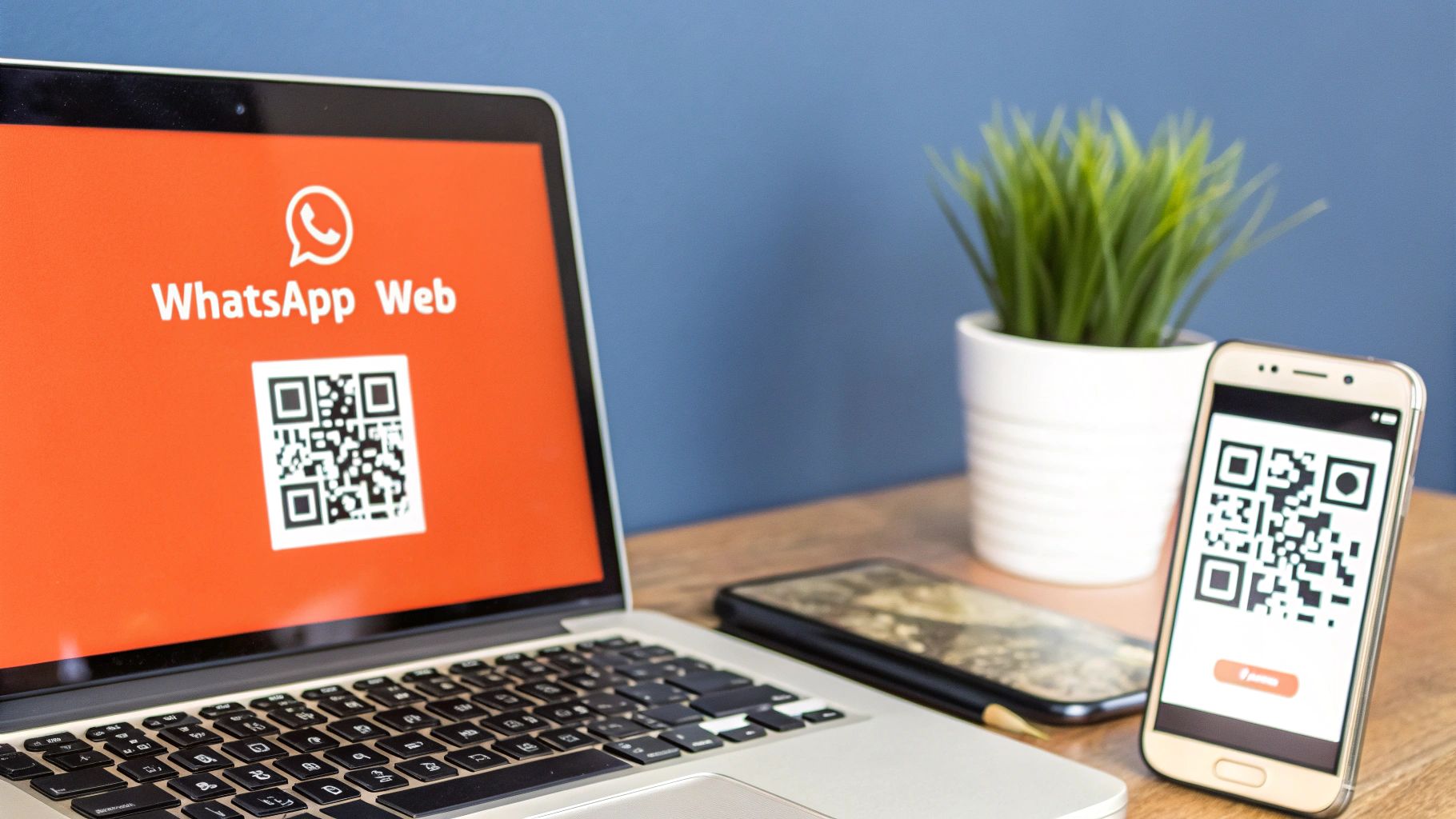
This simple link transforms WhatsApp from just a mobile app into a powerful desktop communication tool. This is especially useful in Nigeria, where WhatsApp is the most-used social platform, with a staggering 91.9% of internet users on it regularly. You can learn more about how WhatsApp is used for marketing in Nigeria on cdpinstitute.org.
Choosing Your Method: WhatsApp Web vs Desktop App
You have two official ways to get WhatsApp on your PC: WhatsApp Web and the WhatsApp Desktop app. The best choice depends on your workflow.
WhatsApp Web is the browser-based version. It requires no installation, making it perfect for quick access on a shared computer or if you prefer not to install extra software. Just open a browser, go to the website, scan a QR code, and you’re in.
The WhatsApp Desktop app is a standalone program you install on your computer. This is the better option if you use WhatsApp heavily for work. It provides a more integrated experience with native system notifications and better support for keyboard shortcuts.
WhatsApp Web vs Desktop App: A Quick Comparison
This side-by-side table helps clarify which option is right for you.
| Feature | WhatsApp Web (Browser) | WhatsApp Desktop App |
|---|---|---|
| Installation | None required; runs in your browser | Must be downloaded and installed |
| Best For | Quick access, temporary use, shared computers | Daily, heavy use on your main PC |
| Notifications | Browser-based alerts (can be inconsistent) | Native OS notifications (more reliable) |
| Keyboard Shortcuts | Basic support | Full support for more advanced shortcuts |
| Calls | Not supported | Full support for voice and video calls |
The Desktop app offers a richer feature set, especially with calling, while the Web version provides unbeatable convenience for on-the-go access.
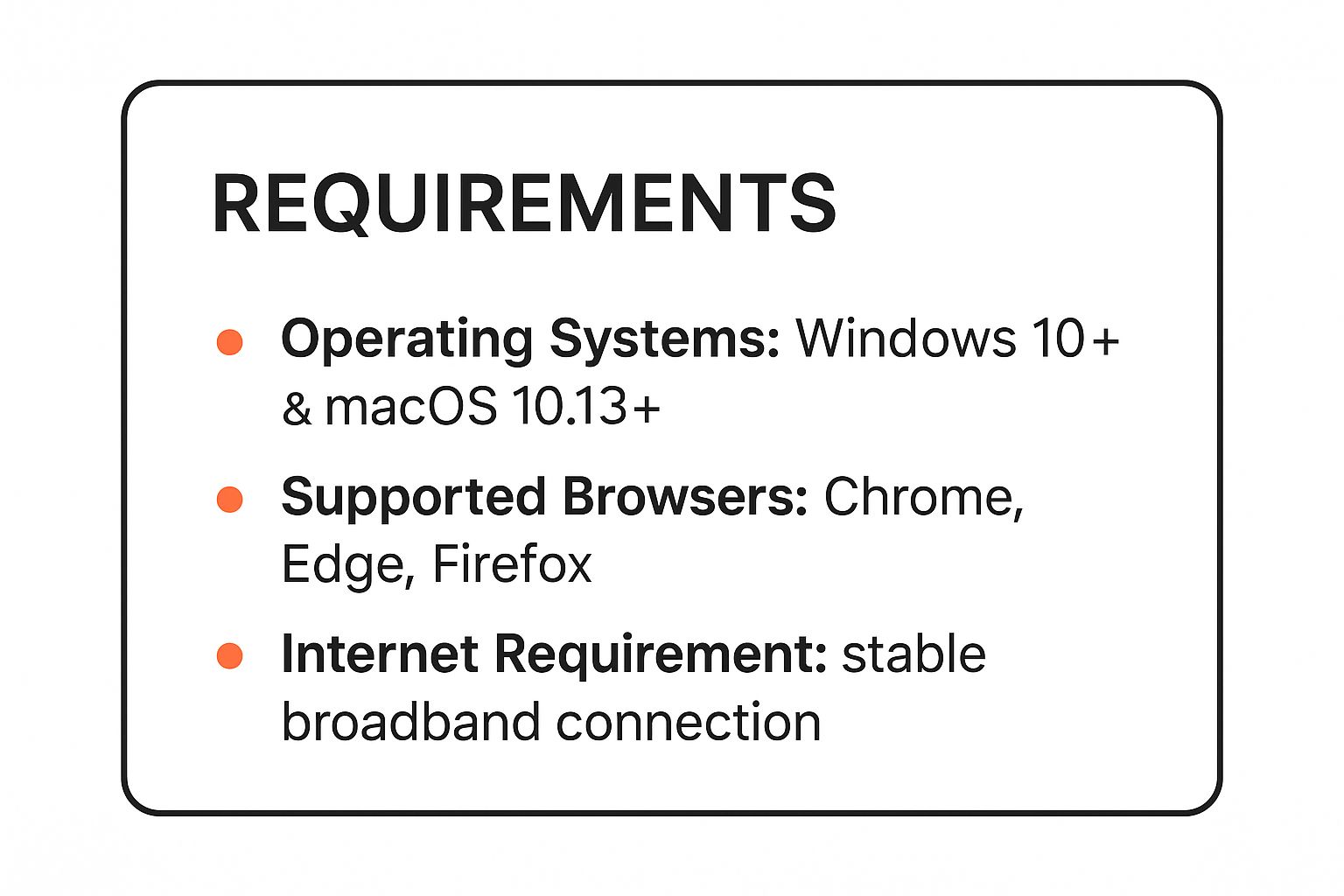
Ultimately, if you just need to send a few messages from a library computer, WhatsApp Web is your friend. But if your PC is your primary workstation, the desktop app is the clear winner. You could use the desktop app to easily share a video you created showing someone how to activate screen record on iPhone.
Connecting with WhatsApp Web in Under a Minute
The fastest way to get your WhatsApp chats on your PC is with WhatsApp Web. There’s nothing to install—all you need is your phone and a web browser. The connection is made by scanning a unique QR code that securely pairs your phone with your computer.
Step-by-Step Guide to Connecting with WhatsApp Web
Follow these numbered steps to get connected instantly.
- Open WhatsApp Web: On your computer, open a browser (like Chrome, Firefox, or Safari) and go to web.whatsapp.com. A QR code will appear on the screen.
- Open WhatsApp on Your Phone: Grab your phone and open the WhatsApp application.
- Go to Linked Devices:
- On Android, tap the three-dot menu in the top-right corner and select “Linked devices.”
- On iPhone, go to the “Settings” tab and tap “Linked Devices.”
- Link a New Device: Tap the “Link a Device” button. Your phone’s camera will activate.
- Scan the QR Code: Point your phone’s camera at the QR code displayed on your computer screen.
Your chats will immediately appear in your browser window. If you’re on a private computer, check the “Keep me signed in” box before scanning the code to stay logged in for future sessions.
Crucial Security Tip: If you’re using a public or shared computer, always remember to log out when you’re finished. You can log out from the browser menu or remotely from the “Linked Devices” section on your phone.
The official WhatsApp website has a great visual of what this looks like, showing exactly where that QR code appears on your PC screen.
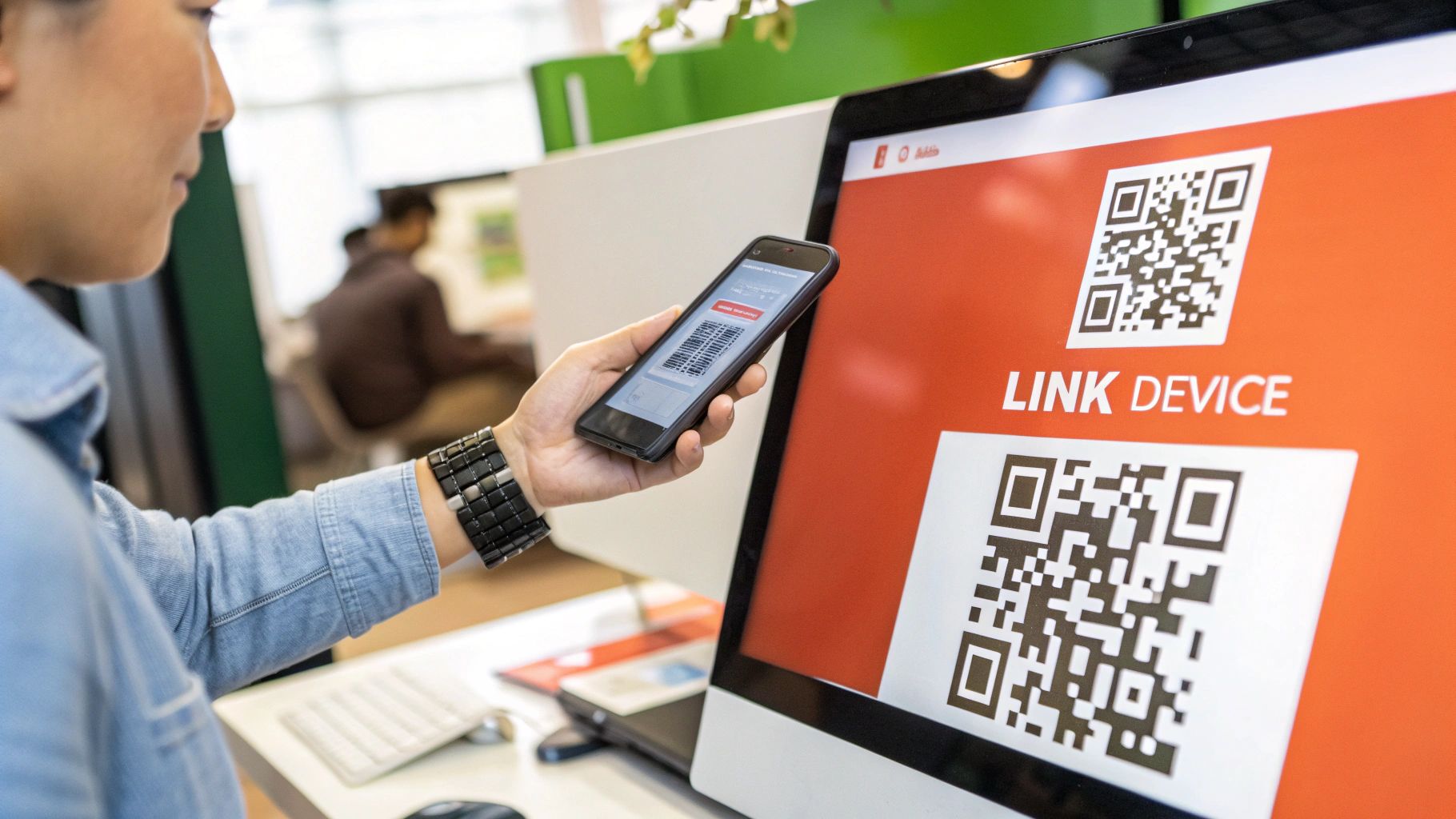
For sheer speed and simplicity, you can’t beat this method for getting your messages onto a larger display.
For a More Permanent Setup: The WhatsApp Desktop App
If you use WhatsApp constantly for work or personal communication, the dedicated desktop app is the superior choice. It runs as a standalone program, meaning you get more reliable notifications and don’t need to keep a browser tab open.
Step-by-Step Guide to Installing the Desktop App
Getting the official app is straightforward. Just download the installer and scan the QR code.
- Go to the Official Download Page: Open your web browser and navigate to the official WhatsApp download page. Downloading directly from the source ensures you get safe, legitimate software.
- Download the Installer: The website will automatically detect whether you’re using Windows or macOS. Click the green “Download” button to save the installer file to your computer.
- Run the Installation: Locate the downloaded file (usually in your ‘Downloads’ folder) and double-click it. Follow the on-screen instructions to install the application.
- Link Your Phone: Once installed, launch the WhatsApp app on your computer. You will see a QR code. Open WhatsApp on your phone, go to Settings > Linked Devices > Link a Device, and scan the QR code on your computer screen.
Your account will sync, and all your chats will be ready to go.
This stable setup is ideal for your main computer, much like how a native app for learning how to record on iPhone provides a smoother experience than a web tool. The desktop app is far less likely to log you out randomly, which can happen with the browser version if you clear your cookies.
Advanced Tips for Power Users
Once you’re set up, these tricks can significantly speed up your workflow.
Supercharge Your Navigation With Keyboard Shortcuts
Keyboard shortcuts are the best way to navigate WhatsApp on desktop quickly. It takes a little practice, but avoiding the mouse for common actions saves a surprising amount of time.
Here are a few essential shortcuts I use daily:
- New Chat:
Ctrl + N(Windows) /Cmd + N(Mac) - Next Chat:
Ctrl + Shift + ](Windows) /Cmd + Shift + ](Mac) - Previous Chat:
Ctrl + Shift + [(Windows) /Cmd + Shift + [(Mac) - Search in Chat:
Ctrl + Shift + F(Windows) /Cmd + Shift + F(Mac) - Mute Chat:
Ctrl + Shift + M(Windows) /Cmd + Shift + M(Mac)

Getting into the habit of using these shortcuts lets you fly through your messages without ever taking your hands off the keyboard.
Master the Search Function
Stop scrolling endlessly to find an old message. The search bar is a powerful tool, especially with its filters.
Practical Example: You need to find a contract a client sent you last month. Instead of scrolling through hundreds of messages, click the search icon, type the client’s name, click the filter button, and select “Documents.” WhatsApp will instantly show you every document exchanged in that chat, allowing you to find the PDF in seconds.
You can filter your search by:
- Photos
- Videos
- Links
- GIFs
- Audio
- Documents
For more advanced business use cases, you can even explore how to master WhatsApp integration for better customer engagement.
Troubleshooting Common Connection Issues
If you’re having trouble linking WhatsApp to your PC, it’s usually due to a few common issues with simple fixes.
QR Code Not Loading or Scanning
This is often a browser-related glitch.
- Refresh the Page: Press
Ctrl + R(Windows) orCmd + R(Mac) to reload the WhatsApp Web page. - Clear Browser Cache: If refreshing doesn’t work, clear your browser’s cache and cookies. This removes old data that might be causing conflicts.
- Zoom In: Sometimes, glare or screen resolution can make the QR code hard to scan. Try zooming in on your browser page (
Ctrl + +orCmd + +) to make the code larger.
Frequent Disconnections
If WhatsApp keeps disconnecting, the problem is almost always related to your phone’s internet connection or its power-saving settings.
- Check Your Phone’s Wi-Fi: Your phone needs a stable internet connection to maintain the link with your PC. If your Wi-Fi is weak or drops frequently, so will the connection.
- Disable Aggressive Battery Savers: Many Android phones automatically put background apps to sleep to save power. This will sever the connection to your computer. Go to your phone’s battery settings and ensure WhatsApp is exempted from any “battery optimization” or “app sleeping” features.
These symbols are often clues to simple connectivity issues that you can fix by checking your phone and browser settings. This is crucial in places like Nigeria, where the number of WhatsApp users is expected to reach up to 100 million by 2025. You can read more about WhatsApp’s massive user base in Africa on askyazi.com.
If problems persist, try clearing the app’s cache on your phone. Our guide on how to delete app data on iPhone can help.
A Few Common Questions Answered
Let’s clear up some of the common questions people have when linking WhatsApp to their computer.
Can I Use WhatsApp On My PC If My Phone Is Turned Off?
Yes. Thanks to WhatsApp’s multi-device feature, once you link your computer, it works independently. You can send and receive messages for up to 14 days even if your phone is off or has no internet connection. You only need your phone online for the initial QR code scan.
Is It Safe To Link WhatsApp To a Shared Or Public Computer?
It’s best to avoid it, but if you must, take precautions.
- Do Not Stay Signed In: Before scanning the QR code, make sure the “Keep me signed in” box is unchecked.
- Actively Log Out: When you are finished, do not just close the browser tab. Click the three-dot menu in WhatsApp Web and select “Log out.”
- Log Out Remotely: As an extra precaution, open WhatsApp on your phone, go to Settings > Linked Devices, tap the computer session you want to end, and select “Log out.”
This is a critical privacy habit, similar to knowing how to hide apps on an iPhone to keep your information secure. You can have up to four linked devices active at once, in addition to your phone.
Actionable Takeaways
- Choose the Right Method: Use WhatsApp Web for quick, temporary access on any computer. Install the Desktop App for a permanent, more feature-rich experience on your main PC.
- Scan and Go: The core of linking your account is scanning the QR code at web.whatsapp.com or on the desktop app with your phone’s WhatsApp camera (found in Settings > Linked Devices).
- Learn Keyboard Shortcuts: Speed up your workflow by using shortcuts like
Ctrl + Shift + ]to navigate between chats without using your mouse. - Use Search Filters: Find any file, link, or photo in seconds by using the search bar and its powerful filtering options (Documents, Photos, Links, etc.).
- Prioritize Security: Always uncheck “Keep me signed in” and manually log out when using a public or shared computer.
Tools and Further Reading
- Official WhatsApp Download: WhatsApp website
- General Tech Guides: My AI Front Desk Tutorials
- WhatsApp Business Integration: Master WhatsApp integration for better customer engagement
- iPhone Tutorials: How to Record on iPhone
Ready to create compelling content, stunning visuals, and efficient chatbots with ease? Join RichlyAI today and discover how our powerful AI tools can automate your workflow and boost your productivity. Explore our features at https://richlyai.com.
