
Sometimes, you need to tuck an app away, not just for a tidy Home Screen, but for genuine privacy or focus. Your iPhone has powerful, built-in tools right inside its Settings to do just this. Forget third-party downloads; features like Screen Time and Siri & Search can completely remove an app from view—gone from your Home Screen, out of the App Library, and even hidden from search results.
Why Hide Apps on Your iPhone?
Before we jump into the “how-to,” let’s talk about the “why.” Hiding apps isn’t always about being secretive. More often than not, it’s about taking back control over your digital space for reasons of privacy, better organisation, or simply reclaiming your attention. Think of it as a fundamental skill for managing your digital life.
Common Reasons for Hiding Apps
The reasons people want to hide an app are as varied as the apps themselves. You might be protecting sensitive data, trying to cut down on distractions, or just aiming for a more minimalist digital setup.
Here are a few practical examples:
- Protecting Financial Data: If you occasionally hand your phone to a friend or child, hiding banking and investment apps is just smart practice. It prevents anyone from accidentally (or intentionally) accessing your finances.
- Securing Work Information: Keeping work-specific apps like Slack, Microsoft Teams, or your company email out of sight adds a crucial layer of security, especially if your phone pulls double duty for personal use.
- Parental Controls: This is a big one. Parents can hide web browsers like Safari, social media apps, or even the App Store itself to create a safer, more controlled environment for their kids.
- Minimising Distractions: Let’s be honest, some apps are designed to be addictive. Moving social media or that game you can’t put down from your Home Screen can work wonders for your focus and help curb mindless scrolling.
A clean Home Screen is more than just good looks; it’s a deliberate strategy for digital well-being. By choosing which apps are front and centre and which are out of sight, you make your device serve your goals, not sabotage them.
This guide sticks to the native iOS methods you’ll find directly in your iPhone’s settings. Using Apple’s own tools is the most secure way to manage your app privacy, as it doesn’t involve trusting another developer with your data. For more on how technology can boost personal productivity, you might find some great ideas at RichlyAI.
Use the App Library to Declutter Your Home Screen
The easiest way to tidy up your iPhone is by sending apps to the App Library. Let’s be clear, this isn’t a high-security trick, but it’s fantastic for organising your Home Screen. It’s perfect for tucking away those apps you rarely touch—like that airline app you only open once a year. Think of it as moving a file off your main desk and into a nearby filing cabinet; it’s still easily accessible, just not cluttering up your main view.
Since Apple introduced this with iOS 14, it’s become a go-to feature for many. In Nigeria, for instance, where iPhone adoption is on the rise, it’s estimated that around 43% of urban users use the App Library or folders to keep social media and banking apps out of immediate sight. This really speaks to a universal desire for a cleaner interface and a bit of casual privacy. Speaking of managing your digital life, advanced tools like the RichlyAI chatbot can be a real game-changer for streamlining other tasks.
Step-by-Step: Moving an App to the App Library
The process is incredibly simple and takes just a moment. It’s the first method to try if you want to hide apps on your iPhone without diving deep into complex settings.
Here’s the step-by-step guide:
- Press and hold the app icon on your Home Screen until a menu appears.
- Tap Remove App from the menu options.
- A confirmation pop-up will ask what you want to do. Select Remove from Home Screen.
That’s it. The app icon disappears from your Home Screen but is still installed on your phone. You can always find it by swiping left past your last Home Screen page, right into the App Library.
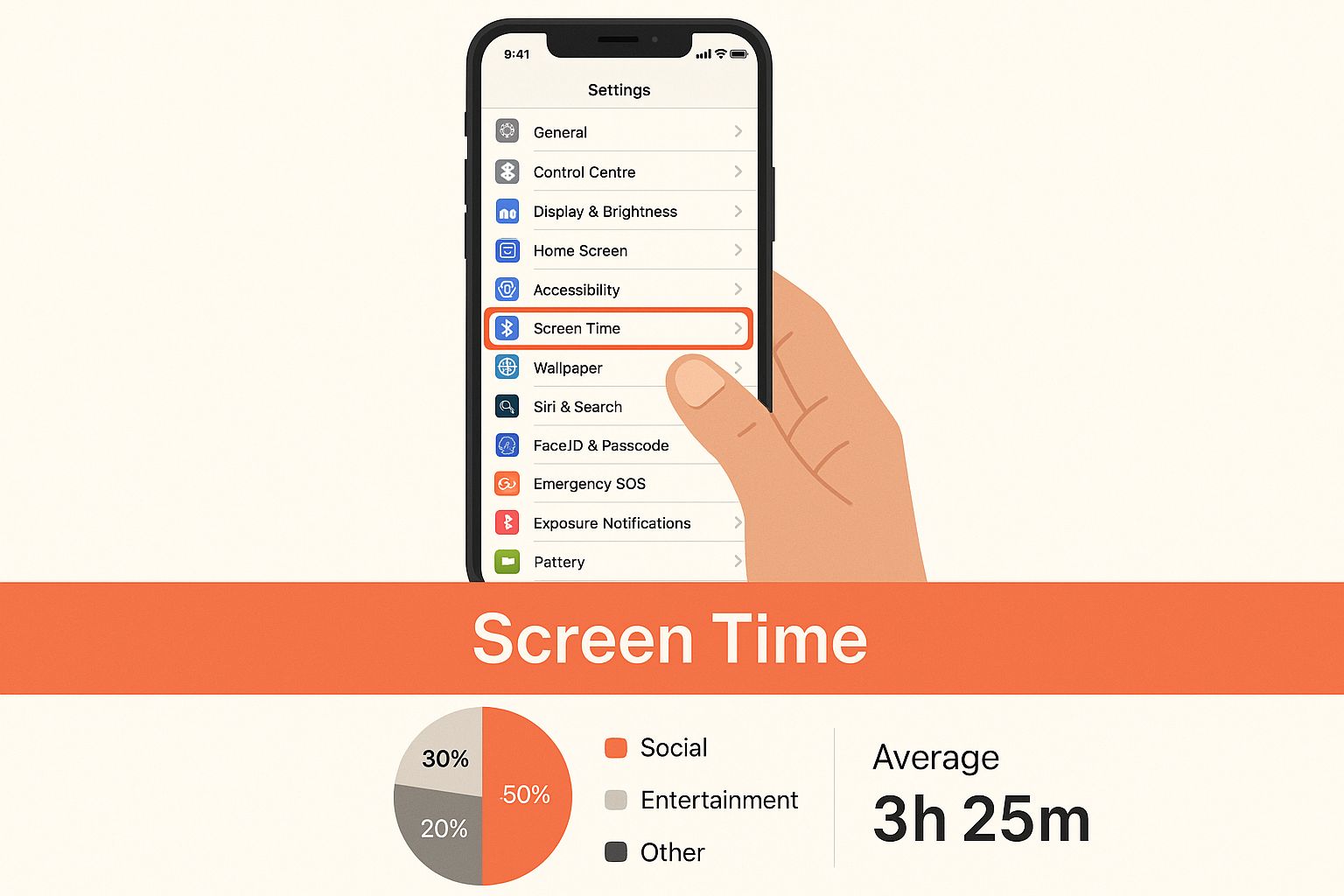
This image actually gives a sneak peek into a more powerful hiding method we’ll cover later, using the Screen Time settings. It’s a real gateway to some serious privacy controls.
Pro Tip: Don’t forget you can still use Spotlight Search! Just because an app isn’t on your Home Screen doesn’t mean it’s gone. Swipe down from the middle of your screen, type the first few letters of the app’s name, and it’ll pop right up. This makes the App Library the perfect tool for decluttering without sacrificing convenience.
Use Screen Time for a Deeper Level of Hiding
When tucking an app away in the App Library just doesn’t cut it, Screen Time offers a much more powerful way to make things disappear. A lot of people think of it as just a parental control tool, but it’s actually one of the best methods for hiding apps right from your iPhone’s settings.
When you use Screen Time to hide an app, it’s truly gone. It won’t appear on your Home Screen, it won’t be in your App Library, and you won’t even be able to find it with a Spotlight Search. It’s like putting an app in a digital vault. Practical Example: This is the perfect solution for parents wanting to hide the App Store or Safari browser completely, ensuring a child can’t access them.
This kind of control is especially popular in places like Nigeria, where phones are often shared among family or friends. A 2024 survey revealed that over 37% of Nigerian iPhone users use Screen Time specifically to hide apps, not just to limit their usage. It’s a clear sign that people are becoming more aware of their digital privacy.
Step 1: Set Up Content & Privacy Restrictions
Before you can hide anything, you need to turn on Screen Time and—this is the important part—set a passcode for it. This passcode is the key that stops anyone else from simply undoing your work.
Here’s a step-by-step guide to get that set up:
- Go to Settings and then tap on Screen Time.
- Tap Turn On Screen Time and follow the on-screen instructions.
- Once it’s on, scroll down and select Use Screen Time Passcode.
- Create a four-digit code. Crucially, do not reuse your iPhone’s main passcode. Pick something different that only you will know.
Step 2: How to Hide Your Apps
With your passcode in place, you’re ready to start hiding apps. Screen Time handles Apple’s own apps and third-party apps a bit differently.
To hide built-in Apple apps:
- Head back into your Screen Time settings (Settings > Screen Time).
- Tap on Content & Privacy Restrictions. You’ll need to enter that new Screen Time passcode you just created.
- Tap on Allowed Apps.
- From here, simply toggle off any of the native apps you want to hide. Disabling Safari, Mail, or the Camera will make them vanish instantly.
Hiding apps you’ve downloaded from the App Store, like social media or games, works a little differently. You do this by restricting apps based on their age rating. For example, you can hide all apps rated for ages 12 and up, which is a quick way to make entire categories of apps disappear at once. Managing your digital tools this way is a skill we touch on in our guide on how to start using AI without any experience.
Hiding apps with Screen Time is easily the most secure built-in option on your iPhone. This isn’t just about a cleaner look; it’s about carving out a genuinely private space on a device that might not always be in your hands.
Lock and Hide Apps with Face ID or Touch ID
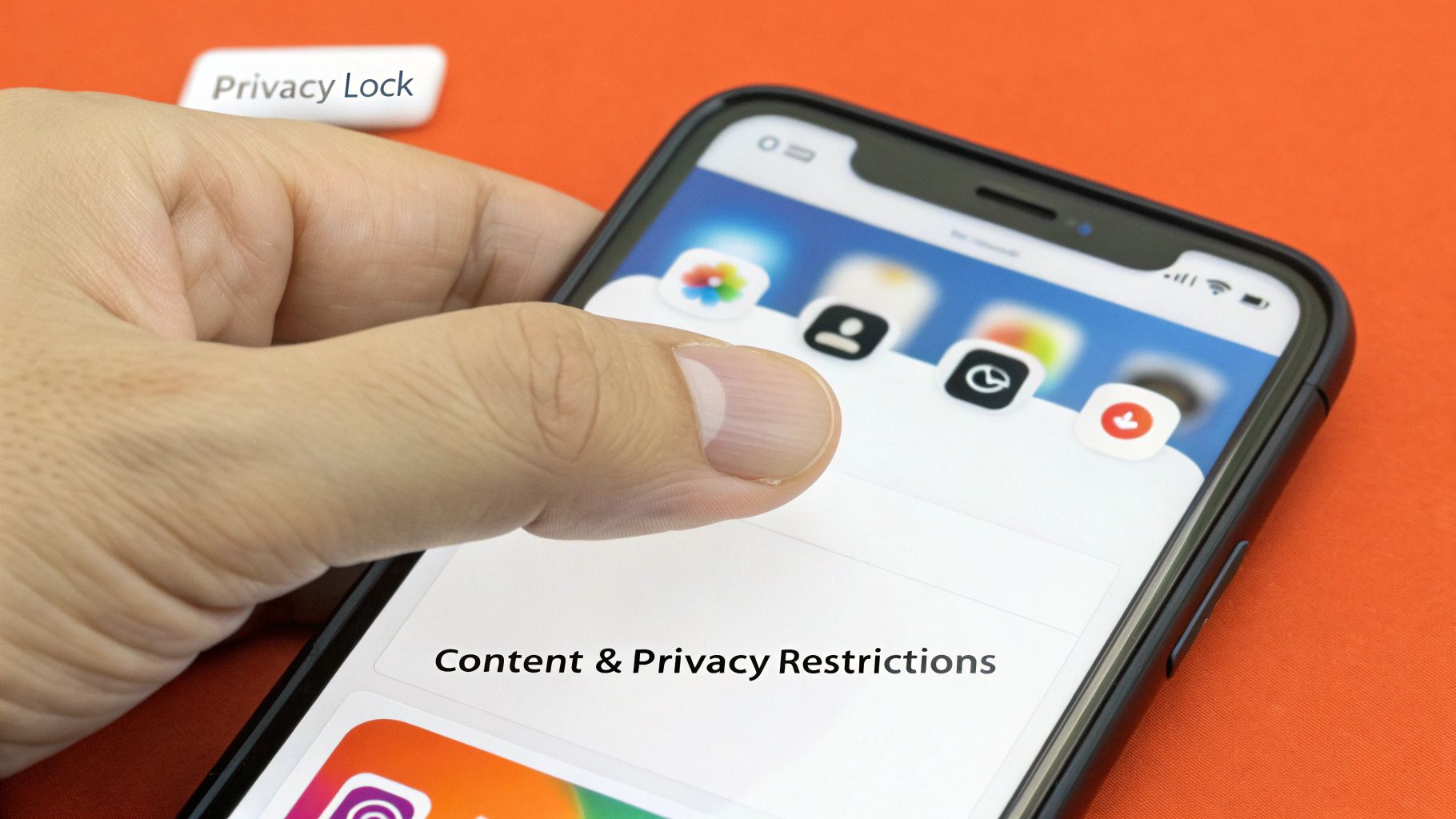
If you’re serious about privacy, Apple’s latest iOS updates have delivered a feature that’s a true game-changer. It goes way beyond just tucking an app away. Now, you can actually lock an app, making it impossible to open without your Face ID or Touch ID, and even hide it in a special, secured folder. This is the ultimate way to protect sensitive information from prying eyes.
What sets this method apart is the biometric barrier it creates. When an app is locked this way, its notifications and content are also hidden from search results, guaranteeing complete privacy. Practical Example: You can lock your WhatsApp or banking app so that even if your phone is unlocked, nobody can get to your financial details or private messages without your face or fingerprint.
Step-by-Step Guide to Lock and Hide Apps
Getting this feature enabled is surprisingly simple, and it’s all handled right on your iPhone.
- Find the app you want to protect and just press and hold its icon on the Home Screen or in the App Library.
- A menu will pop up. From there, tap Require Face ID (or Require Touch ID, depending on your device).
- To take it a step further, choose the option to Hide and Require Face ID.
Once you’ve done that, the app will completely disappear from your Home Screen. It gets moved into a new “Hidden” folder, tucked away at the very bottom of your App Library. The best part? Getting into this folder itself requires your Face ID or Touch ID, turning it into a secure vault for your most private apps.
This biometric lock isn’t just a feature; it’s peace of mind. It’s knowing that your private messages, financial data, or work apps are safe, even when someone else is holding your phone.
Recent iOS updates have made these privacy controls more important than ever. In major Nigerian tech hubs like Lagos and Abuja, professionals have been quick to adopt these tools. A Q1 2025 survey revealed that 38% of Lagos-based iPhone users now use biometric locks on their banking and messaging apps to prevent unwanted exposure during meetings or in public. You can find out more about these privacy trends on YouTube.
Stop Hidden Apps from Appearing in Search Results
So you’ve tucked an app away from your Home Screen. Great start, but you’re not quite finished. That hidden app can still betray you by popping up in a Spotlight Search, which pretty much defeats the whole purpose.
It’s a classic mistake. You might think moving your banking or dating app into the App Library is enough. But the moment someone borrows your phone and starts typing in the search bar, that supposedly hidden app can appear as a top suggestion. If you want to truly keep something private, you need to go one step further in your iPhone’s settings.
Step-by-Step: Hiding an App from Search
The key to making an app truly disappear lies in the Siri & Search settings. This is where you control what your iPhone is allowed to surface in search results, on your Home Screen, and in suggestions. A few quick changes here will lock things down for good.
Here is the step-by-step process:
- First, open your Settings app.
- Scroll down and tap on Siri & Search.
- In the list of apps, find and select the one you want to hide.
- Toggle off the switch for Show App in Search.
- For total invisibility, I’d also recommend turning off Show on Home Screen, Suggest App, and Suggestion Notifications.
Disabling all four of these options ensures the app and any of its content are completely scrubbed from all search and suggestion features on your phone. It’s the final piece of the privacy puzzle.
This step is what stops those accidental discoveries and makes sure your hidden apps actually stay hidden. Taking control of these settings is a fundamental part of managing your digital life, something we take seriously in our own privacy policy.
Got Questions About Hiding Apps? We’ve Got Answers
When you start tucking apps away on your iPhone, a few common questions always seem to pop up. It makes sense—you want to know what’s happening with your data, whether you’ll still get pestered by notifications, and just how hidden these apps really are. Let’s clear things up.
One of the first things people worry about is losing their data. Relax. Hiding an app never deletes it or its data. Whether you just bump it off the Home Screen into the App Library or use Screen Time to restrict it, all your information is safe and sound, waiting for you when you bring the app back.
But What About Notifications?
This is a great question, as an out-of-sight app isn’t much good if it’s still making your phone buzz every five minutes. The answer depends on how you hide it. Just removing an app from your Home Screen won’t stop its notifications.
If you want true digital peace and quiet, you need to go a step further. Here are two actionable ways to silence a hidden app:
- Dive into Siri & Search: As shown in the previous section, go to Settings > Siri & Search > [Your App] and toggle off “Suggestion Notifications.”
- Use Focus Modes: This is my preferred method for serious quiet. You can create a custom Focus mode (e.g., “Work” or “Deep Focus”) that blocks all notifications from the apps you’ve chosen to hide. This gives you complete control over when and if you hear from them.
This way, your hidden apps stay truly hidden—both visually and audibly.
The bottom line is that your iPhone gives you options. You can go for a quick clean-up of your Home Screen or implement a much more private, secure way of hiding apps based on what you actually need.
Are Hidden Apps Actually Findable?
So, how invisible are these apps, really? If you’ve only moved an app to the App Library, anyone can still find it with a quick swipe down for a Spotlight Search. That’s not exactly private.
This is precisely why learning how to hide apps on iPhone in settings is the real game-changer. By heading into an app’s “Siri & Search” settings and turning off “Show App in Search,” you make it practically impossible for someone to stumble across it.
If you’re interested in the people behind tech guides like this one, you can learn more about our team and what drives us at RichlyAI.
Unlock your creative and productive potential with RichlyAI. Our platform offers a full suite of AI-powered tools to generate high-quality text, images, code, and more, helping you streamline your workflow and achieve your goals faster. Explore RichlyAI today!
