
Managing storage on an iPhone can quickly get frustrating, especially when apps start taking up more space than expected. When it’s time to clear an app’s data, Apple gives you two main options: offloading the app to free up storage while keeping your personal files, or deleting it entirely to remove every bit of data and start fresh. Knowing which option to choose depends on whether you want to preserve your settings, documents, and history — or completely erase the app’s footprint from your device.
In this guide, we’ll walk you through each method step-by-step, explain when to use them, and show you how to take full control of your iPhone’s storage without losing important information.
If you’re exploring more iPhone how-tos, you might also find these guides helpful:
- How to Delete Data from an App on iPhone: Easy Step-by-Step Guide
- How to Clear Data from an App on iPhone: Easy Step-by-Step Guide
- How to Import SIM Contacts to iPhone
- How to Record Your iPhone Screen with Audio
- How to Screen Record on iPhone 8 Plus: A Quick Capture Guide
Getting to Grips with Your iPhone’s App Data
Ever look at your iPhone storage and wonder how a simple social media app has ballooned to several gigabytes? It all comes down to the data it collects over time. This isn’t just one big blob of data; it’s a mix of different files, each with its own job.
Before you start clearing things out, it’s a good idea to understand what exactly you’re deleting. Knowing the difference between the app’s essential files and its junk buildup is the key to tidying up your phone without accidentally losing something important.
What is ‘Documents & Data’?
The term “Documents & Data” is Apple’s way of describing the files that make an app truly yours. These are the bits and pieces created by your own activity, and they’re almost always things you want to hang on to.
Here are some practical examples of what “Documents & Data” includes:
- Game Progress: Your level 50 character in a game you’ve poured hours into.
- Offline Media: The offline playlists you downloaded on Spotify for your morning commute.
- In-App Creations: Drafted posts or edited photos sitting in your Instagram or TikTok accounts.
- Chat History: Your entire chat history and all the media you’ve received in apps like WhatsApp.
Wiping this data is often a one-way street. It’s like throwing out your personal filing cabinet along with all the documents inside – you can’t get them back.
A common mistake is assuming all app data is junk. The reality is that “Documents & Data” holds your personalised experience. Removing it without a backup can mean losing information you actually care about.
What About the Cache?
On the other hand, the cache is made up of temporary files an app downloads to help it run faster. It’s the app’s short-term memory. For example, a news app might cache article images so they appear instantly the next time you launch it. While this is useful, the cache can get bloated and take up a lot of space.
The good news? Clearing the cache is almost always safe. It won’t log you out of your accounts or delete your saved work. In fact, many modern tools, including those from platforms like RichlyAI, rely on smart data management to ensure everything runs smoothly.
The Offload Method: Free Up Space Without Losing Your Data
We’ve all been there. A critical iOS update pops up, but your iPhone storage is completely full. The last thing you want to do is delete your favourite travel app and lose all your saved trips or wipe your banking app and its carefully configured settings. This is where offloading comes in—it’s the perfect middle-ground solution.
Think of offloading as a clever trick your iPhone has up its sleeve. It removes the core application itself, which is often the space-hog, but it securely keeps all your personal “Documents & Data” right where they are. Your settings, logins, and saved files remain untouched on your device.
How to Offload an App: A Step-by-Step Guide
Getting this done is straightforward. You just need to dive into your iPhone’s storage settings. Here’s the step-by-step path:
- Open the Settings app on your iPhone.
- Tap on General.
- From there, select iPhone Storage. Wait a moment for the list to load.
- Scroll down and tap on the app you want to offload (e.g., a large game or social media app).
- On the next screen, tap Offload App.
- Confirm your choice by tapping Offload App again.
This is the go-to method for many people. In a place like Nigeria, where users juggle numerous apps on devices with potentially limited storage, this feature is a lifesaver. It’s a common topic, as seen in this Apple user discussion about managing storage.
The best part about offloading is that it’s completely reversible. When you need the app again, just tap its icon on your Home Screen. It will quickly reinstall, and all your settings and data will be right there, just as you left them.
This makes offloading the ideal low-risk choice for when you need to reclaim storage temporarily. You get the space you need without the headache of setting everything up again from scratch. It’s a smart way to manage your device, not unlike how modern AI helps simplify complex tasks. If that piques your interest, our guide on how to start using AI without any experience is a great place to begin.
When to Delete and Reinstall for a Clean Slate
Sometimes, offloading just doesn’t cut it. If you’ve got an app that’s consistently crashing, lagging, or just behaving strangely, it might be time for a more aggressive approach. Deleting and reinstalling an app is the ultimate reset button—it wipes out all its local files and data, giving you a completely fresh start.
This method goes much further than offloading by truly wiping the slate clean. It’s especially useful for apps that secretly hoard data or have corrupted files causing performance headaches. You know the type—apps that don’t seem to free up space even after you’ve deleted things inside them. A full reinstallation gets rid of that “ghost data” for good.
The Right Way to Delete and Reinstall: A Step-by-Step Guide
To properly nuke an app’s data from your iPhone, you’ll need to remove it completely and then grab a fresh copy from the App Store.
Here is the quickest step-by-step method right from your Home Screen:
- Press and hold the icon of the app you want to delete.
- A small menu will pop up. Tap Remove App.
- A confirmation dialog will appear. Choose Delete App (this is the option that removes all data).
- A final confirmation will appear. Tap Delete one last time.
That’s it. The app and every bit of its associated data are now gone from your device. Afterwards, just pop over to the App Store, find the app, and download it again.
Deleting an app is your most powerful tool for reclaiming storage and fixing stubborn bugs. Unlike offloading, it removes every single local file—including corrupted caches and settings—forcing a true factory reset for that specific application.
Will I Lose My Account Progress?
This is a huge concern, especially for games or your favourite social media apps. The good news is, for most modern apps, your important data is safe if it’s synced online.
Practical Example: Let’s say your Candy Crush app is glitching. Your level progress isn’t just saved on your iPhone; it’s tied to your Facebook or King account. When you delete and reinstall the app, you simply log back in, and voilà—all your progress is restored from the cloud. The same goes for your Instagram photos or your notes in Evernote. As long as it’s backed up online, you’re safe.
For students using online learning platforms, it’s a similar idea. Your progress is linked to your account, not your device. For instance, if you’re preparing for exams, you can see how you can use AI to score high in JAMB and other exams without worrying that a buggy app will erase your hard work.
Offload App vs. Delete App: Which Should You Choose?
Deciding between offloading and deleting an app really comes down to what you’re trying to achieve. One is a light touch, the other is a total reset. This table lays out the core differences to help you choose the right path.
| Feature | Offload App | Delete App |
|---|---|---|
| What It Removes | Only the app itself. | The app and all its local data. |
| Data Kept | All documents, settings, and login info. | Nothing. All local data is erased. |
| Best For | Temporarily freeing up storage quickly. | Fixing buggy apps or a full reset. |
As you can see, the methods are designed for very different situations. Let’s dig into what that means in practice.
When to Offload an App
Think of offloading as putting an app into a light sleep. It’s the perfect move when your iPhone storage is screaming for mercy, but you don’t want to lose your data.
Actionable Insight: Use this when you need to install a large iOS update but don’t want the hassle of setting up your apps again later. Offload a few large apps, run the update, then simply tap their icons to reinstall them with all your data intact.
When to Delete an App
Deleting, on the other hand, is the full-blown “scorched earth” approach. It completely erases the app from your device, along with all its local data.
Actionable Insight: Use this when an app like Facebook or Instagram is taking up gigabytes of “Documents & Data” that you can’t clear from within the app itself. Deleting and reinstalling forces it to start fresh, often reclaiming a huge amount of space.
This image really drives home how much space even small bits of data, like the app cache, can occupy.
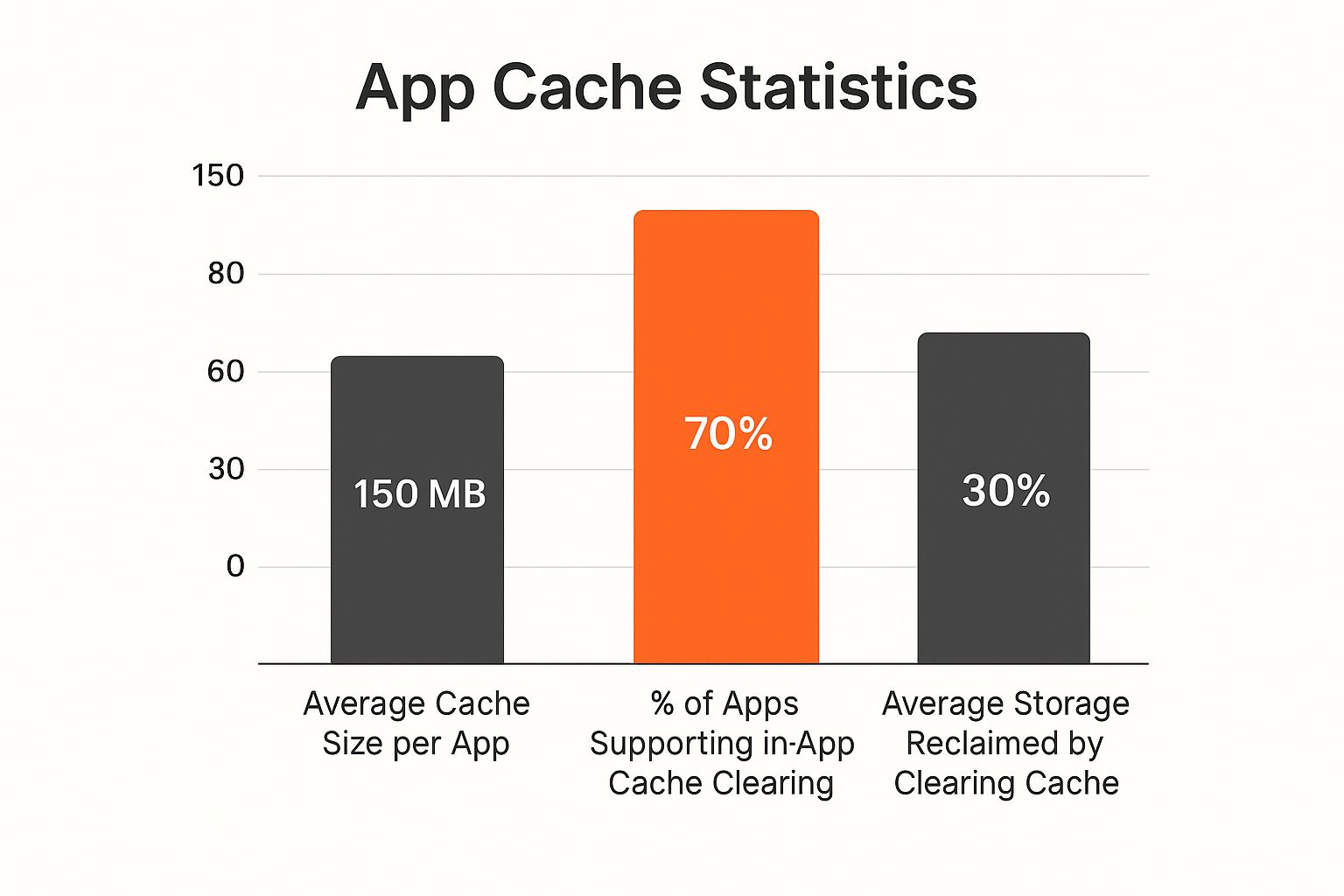
Whether you offload or delete, you’re reclaiming a good chunk of storage, but only deleting gets rid of that pesky, potentially corrupted cache.
My rule of thumb is simple: Offload to save space without losing your data. Delete to fix problems and get a clean slate.
Making the right choice here comes down to a bit of logical problem-solving. It’s a skill that’s surprisingly relevant across the tech world, and you can see how it applies in broader contexts by understanding the science behind AI from a Nigerian perspective and its approach to solving complex digital challenges.
Finding In-App Options to Clear Data
Sometimes the most straightforward way to clear an app’s data is right inside the app itself. Before you think about offloading or completely deleting it, it’s always worth poking around in the app’s settings first. Many developers build in their own little housekeeping tools, but they’re often tucked away.
This approach gives you the most control. You can be really specific, targeting just the temporary cache or old downloaded files. It’s the perfect way to get an app running smoothly again and reclaim some space without having to log back in and set everything up from scratch.
Where to Look Inside Popular Apps: A Step-by-Step Guide
Finding these options can sometimes feel like a bit of a treasure hunt, as developers don’t always label them the same way. Here’s a step-by-step guide for a few popular apps:
- WhatsApp:
- Go to Settings > Storage and Data > Manage Storage.
- WhatsApp lets you review and delete large files and media from individual chats.
- Telegram:
- Go to Settings > Data and Storage > Storage Usage.
- Tap the Clear Entire Cache button. You can also set a “Max Cache Size” to prevent it from growing too large in the future.
- Spotify:
- Tap the Settings gear icon in the top right.
- Scroll down to Storage and tap it.
- Tap the Clear cache button. This gets rid of temporary song data but, crucially, leaves your downloaded playlists untouched.
- TikTok:
- Go to your Profile, then tap the three-line menu at the top right.
- Select Settings and privacy.
- Scroll down to Free up space and tap it.
- You’ll see options to Clear both Cache and Downloads.
In fact, a noticeable trend has emerged following user privacy campaigns. Around 40% of Nigerian iPhone apps now provide built-in options to clear the cache or reset data, a practice that really picked up steam in 2023. You can see more on these kinds of app store trends and their regional differences in this report on global app removals.
The biggest advantage of using in-app tools is precision. You get to decide exactly what goes and what stays, making it a powerful first step before considering more drastic measures like a full deletion.
Using these internal features is usually the most efficient way to tackle app bloat. It’s a bit like how advanced tech operates—by understanding how information is structured, you gain the power to manage it better. This principle is at the heart of many modern tools, a topic we explore in our article on simplifying life with natural language processing.
Get Ahead of the Storage Problem
Why wait until your iPhone flashes that dreaded ‘Storage Almost Full’ warning? A bit of proactive housekeeping can save you a lot of headaches later on. Knowing how to clear data from an app on your iPhone before it becomes an emergency will keep your device running smoothly.
One of the best set-it-and-forget-it tools Apple gives you is “Offload Unused Apps.” Think of it as your iPhone’s personal assistant. It automatically removes apps you haven’t touched in ages, but—and this is the important part—it keeps all your data and documents safe.
Actionable Step: To switch it on, just go to Settings > App Store and flick the toggle for Offload Unused Apps. Easy.
Tame Your Cellular Data Usage
Here’s another big one, especially if you’re trying to keep your mobile data bill in check. Some apps are notorious for downloading huge files in the background, chewing through both your storage and your data allowance without you even realising it.
Actionable Step: You can put a stop to this. Go to Settings > Cellular, and as you scroll down, you’ll see a list of every app with permission to use mobile data. Simply toggle off any app that you don’t want using data when you’re away from Wi-Fi. It’s a smart move—in fact, insights show that up to 35% of Nigerian iPhone users regularly clear app data or cut off cellular access for certain apps to manage their storage and data costs. You can get the full rundown from Apple’s official guide on cellular data management.
Taking control of what downloads automatically is a game-changer. It not only saves your storage from unexpected clutter but also helps you manage your monthly mobile data budget more effectively.
Finally, keep an eye on Apple’s own apps. It’s often Photos and Messages that are the real storage hogs. Make it a habit to delete old, unimportant conversations in Messages. For your photos, think about using iCloud Photos; it can store your full-resolution pictures and videos safely in the cloud, leaving smaller, device-friendly versions on your iPhone to save space.
Ready to create stunning content with less effort? RichlyAI gives you the power to generate high-quality text, images, and code in just a few clicks. Streamline your workflow and unlock your creative potential by signing up for a free plan today at RichlyAI hub.
