
If you’ve ever wondered how to delete data from an app on your iPhone, you’ll find it’s pretty simple once you get the hang of it. The key is understanding your two main options: offloading the app or deleting it completely. For a total wipe that gets rid of all the associated documents and data, deleting the app is your best bet and frees up the most storage.
Why Is My iPhone Storage Always Full?
We’ve all been there. That dreaded “Storage Almost Full” notification pops up, and it feels like a constant battle to keep it at bay. More often than not, the issue isn’t the apps themselves, but the enormous amount of hidden data they accumulate over time.
Think about it: every photo you edit in VSCO, song you stream on Spotify, or level you complete in Candy Crush leaves behind a digital trail. This data can quickly add up, gobbling gigabytes of your precious storage without you even realizing it. Learning to manage this data is the secret to a happy, high-performing iPhone.
Deleting vs Offloading Apps: A Practical Breakdown
Deciding whether to offload or delete an app really comes down to what you’re trying to achieve. Think of offloading as a temporary fix to create some breathing room, while deleting is more of a permanent, deep clean. Here’s a quick breakdown to help you choose the right move.
| Action | What It Removes | What It Keeps | Practical Example |
|---|---|---|---|
| Offloading | The app itself. | Your documents, settings, and personal data. | An airline app after your trip. You want to save space now but keep your booking history for when you fly with them again. |
| Deleting | The app AND all its local data. | Nothing on your device. | A game you’ve completed and don’t plan to play again. This removes the app and all saved levels to reclaim maximum space. |
Essentially, if you know you’ll want to pick up right where you left off, offloading is a great choice. But if you’re done with an app for good and want to reclaim as much space as possible, deleting is the only way to go.
A Visual Guide to Reclaiming Your Storage
The image below gives you a clear picture of just how much more space you can save by deleting an app versus simply offloading it.
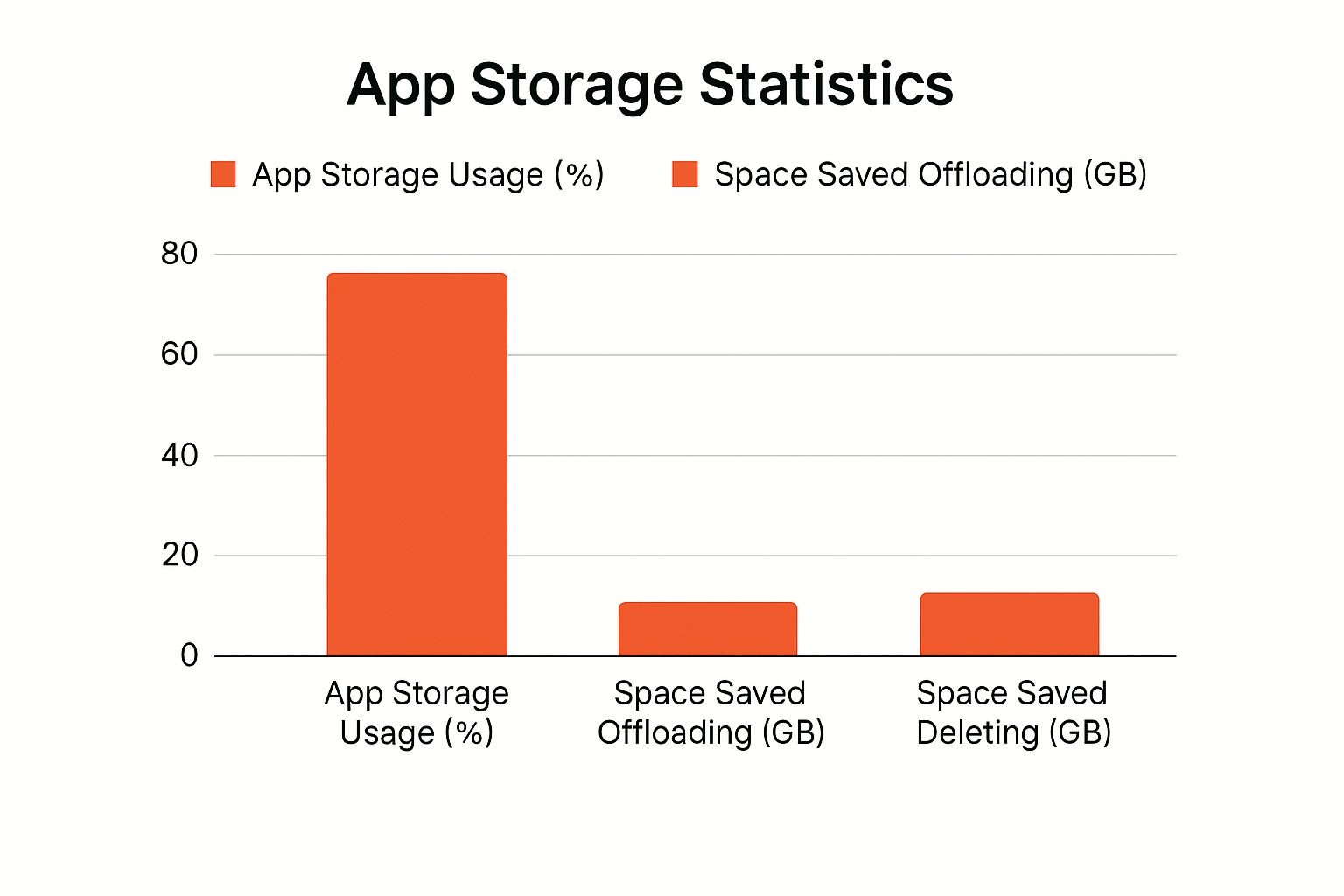
As you can see, offloading gives you a bit of relief, but deleting the app is what truly frees up your iPhone by wiping out all the documents and data it has stored.
This kind of proactive data management can make a huge difference. In fact, some studies have shown that around 67% of users who regularly clear out old app data notice a significant improvement in their device’s performance. It’s a simple habit that pays off.
Treating your phone’s storage with care is a bit like managing your finances or inventory when you start an online business; good housekeeping prevents bigger problems down the line.
The Most Thorough Way to Permanently Delete App Data
If you want to completely wipe an app and its data for good, the best way is to go straight to the source: your iPhone’s storage settings. Many people think just deleting an app from the Home Screen does the trick, but that often leaves behind bits and pieces of data. For a true clean slate, you need to go a little deeper.
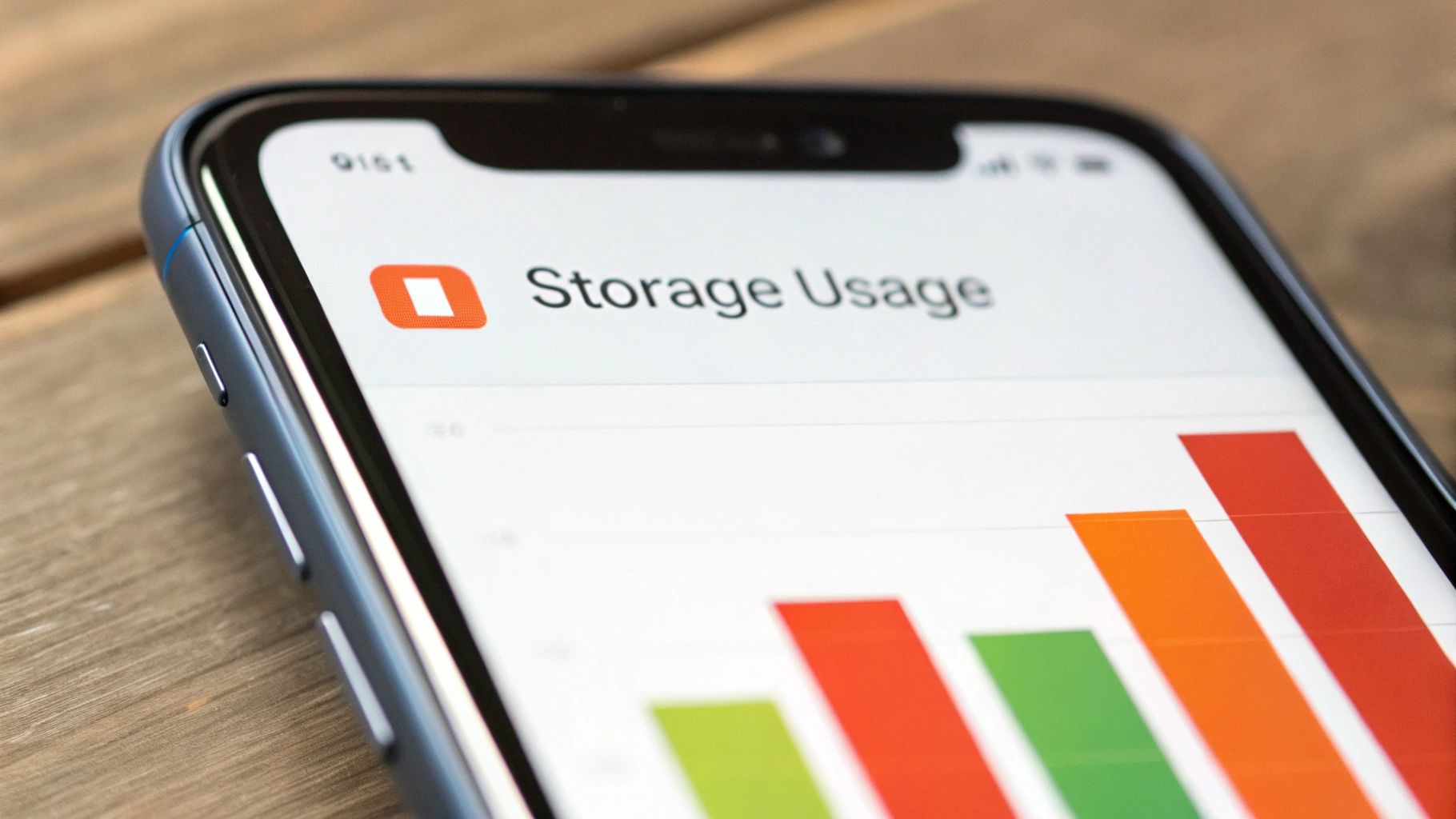
Going through the Settings app gives you a crystal-clear picture of what’s eating up your memory. You’re not just guessing; you can see exactly which apps are the main culprits and deal with them directly.
I always tell people to think of it this way: deleting from the Home Screen is like throwing away the empty box, but deleting from your storage settings is like returning the entire product and getting your space back.
A Step-by-Step Guide to Deleting App Data
First things first, you’ll need to head into your iPhone’s main control panel—the Settings app. This is where you can see a detailed breakdown of your storage and take action.
- Open the Settings app on your iPhone.
- Scroll down and tap on General.
- Tap on iPhone Storage.
- Wait a moment for the list of apps to load, sorted from largest to smallest.
- Tap on the app you want to delete.
- You will see two options: “Offload App” and “Delete App.” To remove all data, tap Delete App.
- A confirmation pop-up will appear. Tap Delete App again to permanently remove the app and all its data from your device.
This is the most effective method I’ve found to how to clear data from an app on your iPhone.
What Exactly Is “Documents & Data”?
As you scroll through the list, you’ll notice two figures under each app: the size of the app itself and the size of its “Documents & Data.” This second part is key. It’s everything the app has accumulated over time—your login details, saved files, downloaded content, and cached information.
Take a podcast app, for instance. The app itself might only be 50MB, but its “Documents & Data” could easily swell to over 5GB if you’ve downloaded lots of episodes. When you delete the app from this iPhone Storage menu, you’re not just removing the 50MB app; you’re also permanently erasing that entire 5GB of data along with it.
For many of us in Nigeria, managing phone storage isn’t just about speed; it’s about cost. With 78% of users on prepaid data plans, every megabyte counts. Regularly clearing out old app data this way is a smart habit for keeping your phone running smoothly and your data costs in check.
Getting a handle on permanent data deletion is a big step for managing your storage and protecting your privacy. For more tips on keeping your information safe, it’s worth reading these Top 10 Data Security Best Practices.
When Should You Offload an App Instead of Deleting It?
Ever been in that tight spot where your iPhone storage is full, but you can’t bear to part with an app? Maybe you don’t want to lose your game progress or all the custom settings you’ve tweaked. This is precisely when offloading becomes your best friend. It’s a clever compromise for when you need space now but don’t want to burn your bridges with the app completely.
When you offload an app, you’re telling your iPhone to delete the application itself—the part that takes up the most space—but to carefully hang onto all your “Documents & Data.” Think of it as putting the app in storage. Your login details, saved files, and personal preferences stay right where they are on your device, waiting for you.
This is a lifesaver for apps you use infrequently. I do this all the time with big, chunky apps like LumaFusion or even hefty games I only dip into occasionally. Offloading can free up gigabytes of space, and when I need the app again, a quick reinstall brings everything back exactly as I left it.
Travel apps are another perfect example. You might have an airline app or a city guide that’s essential for a trip but just sits there gathering dust for the other 50 weeks of the year. Offload it once you’re home. You’ll clear the clutter from your home screen without losing your booking history or saved favourite spots.
Let Your iPhone Handle the Housekeeping (Automatically)
If you’d rather not manually manage your apps, Apple has a fantastic set-it-and-forget-it feature: “Offload Unused Apps.” When you enable this, your iPhone will automatically start offloading apps you haven’t opened in a while whenever your storage starts to get tight. It’s a smart, background process that keeps your device tidy without you having to lift a finger.
The beauty of this feature is that it prioritises your data. Even if an app gets automatically offloaded, you can reinstall it with a single tap on its icon, and you’ll be right back where you started.
Actionable Step: To turn this on, just head over to Settings > App Store and flick the switch for Offload Unused Apps. It’s a simple move that makes a huge difference in managing your storage without causing any data-loss anxiety. This is a core part of learning how to delete data from an app on your iPhone smartly, not just permanently.
Clearing Data Without Removing the App
So, you want to keep an app but stop it from gobbling up all your iPhone’s storage? It’s a common problem. Unlike Android, Apple doesn’t give us a big, friendly “Clear Cache” button for every app. This means you have to do a bit of detective work inside each app’s own settings.
Learning how to find and use these in-app tools is the key to taming a bloated app without having to delete and reinstall it.
Honestly, it’s a bit of a mixed bag. Some developers are great about including cleanup options, while others aren’t. It’s worth taking a minute to poke around an app’s settings menu. You might find options to clear cached files, get rid of downloaded content, or wipe your browsing history, all of which can make a real difference to your phone’s performance.
Step-by-Step Examples for Popular Apps
Thankfully, many of the apps we use every day have built-in ways to do a digital spring clean. Let’s walk through a few real-world examples.
-
TikTok: This app is notorious for building up a huge cache.
- Go to your Profile tab.
- Tap the three lines in the top-right corner.
- Select Settings and privacy.
- Scroll to Free up space and tap Clear next to Cache. This frees up hundreds of megabytes without touching your account or drafts.
-
Spotify: If you download a lot of music for offline listening, this is a big one.
- Tap the Home icon.
- Tap the Settings gear in the top-right.
- Go to Storage and hit Clear cache. The real space-saver is manually removing old playlists or podcast episodes you’ve finished.
-
Safari: Your browser is constantly storing data from the websites you visit.
- Open the iPhone Settings app (not the Safari app).
- Scroll down and tap on Safari.
- Scroll down again and tap Clear History and Website Data to erase cookies, history, and other temporary files.
This kind of in-app housekeeping is often the most effective fix. I once heard from a user whose Merlin bird ID app had mysteriously ballooned to nearly 30 GB. It turned out “deleted” sound packs were never actually being removed. A full reinstallation was the only fix, but regular cache clearing could have stopped it from ever getting that bad.
Getting into the habit of checking these settings every so often will keep your apps trim and your iPhone feeling much snappier. To get the full picture on managing your device, you can learn more about how to clear data from an app on your iPhone in our comprehensive guide.
Erasing App Data From iCloud
Ever deleted an app only to reinstall it later and find all your old data magically reappears? That’s iCloud at work. Many apps use it to back up your data, which is great for convenience but can also lead to unwanted digital clutter or become a privacy issue if you don’t manage it.
If you genuinely want to delete data from an app on your iPhone for good, you have to tackle its cloud storage too. Learning to manage your iCloud space is just as vital as clearing out storage on the device itself.
Step-by-Step: Finding and Wiping iCloud Data
Getting a handle on this is surprisingly easy once you know where to look. Apple gives you a clear dashboard to see exactly which apps are hoarding your cloud storage.
Here’s the step-by-step path to take:
- Open the Settings app.
- Tap your name (Apple ID banner) right at the top.
- Tap on iCloud.
- Select Manage Account Storage (or Manage Storage on older iOS versions).
- You’ll get a list of every app using iCloud, ranked by how much space they’re taking up. Tap an app on the list.
- You’ll see a big red Delete Data or Delete Documents & Data button. Tapping it will permanently remove its files from iCloud.
I see this all the time with WhatsApp. It’s notorious for storing massive chat backups in iCloud, often several gigabytes worth. If you don’t need those old conversations, clearing them out here is one of the fastest ways to reclaim a huge chunk of your cloud allowance.
Taking this step ensures that when you delete something, it’s really gone—from both your iPhone and the cloud. It’s a fundamental part of managing your digital life, not unlike the organisational skills required when you decide to start an online business.
This is also super handy for games linked to Game Center. If you want a completely fresh start on a game, erasing its data from iCloud is the only way to guarantee you won’t be stuck with your old progress.
Common Questions About iPhone App Data
Even after going through the steps, it’s normal to have a few lingering questions. App data can be a surprisingly tricky subject, so let’s tackle some of the most common things people ask. Getting these details right is key to truly mastering your iPhone’s storage.
If I Delete and Reinstall an App, Will My Data Come Back?
Most of the time, yes, it will. Think about apps like Dropbox, Netflix, or your favorite game with cloud saves. They’re designed to sync your information with their own servers or with your iCloud account. When you delete the app and then sign back in later, all that data just downloads right back onto your phone.
Actionable Insight: If you want the data gone for good, you need to go a step further. You have to actively delete it from within the app or its associated iCloud storage before you delete the app itself. For example, delete your WhatsApp backup in iCloud settings before deleting the WhatsApp app.
Why Is “Documents & Data” So Big?
This is where the real storage bloat happens. “Documents & Data” is simply everything an app saves directly onto your iPhone.
- For WhatsApp: It’s every single message, photo, and video you’ve ever sent or received.
- For Instagram or TikTok: It’s a huge cache of profiles, videos, and posts you’ve browsed.
- For a video editor: It’s all your project files, imported clips, and rendered videos.
This is exactly why that category can easily swell to several gigabytes. When you’re hunting for space to free up, this is almost always the best place to start looking.
Does Offloading an App Save Mobile Data?
In a way, yes. An offloaded app is essentially dormant; it can’t run in the background. That means it’s not pulling down new notifications, refreshing its feed, or using any of your mobile data. The only catch is that you’ll need an internet connection (Wi-Fi or mobile data) to redownload the app when you want to use it again.
One of the biggest mistakes I see people make is thinking that just deleting an app from their home screen gets rid of everything. For a complete wipe, especially with apps tied to an online account, you have to tackle the cloud data, too. It’s really a two-part process.
Keeping your phone’s data organised takes a bit of regular effort, much like the focus required when you start an online business.
Ready to streamline your content creation and digital marketing? With RichlyAI, you can generate high-quality text, images, and social media posts in seconds. Sign up for free today and see what AI can do for you!
