
Changing your location on Facebook is straightforward once you know where to look. You can make a permanent change by updating the ‘Current City’ on your profile, or you can tag a different place in a post for a temporary update. Each option gives you different control over how your location appears and what local content you see in your feed.
Why Bother Changing Your Facebook Location?
Knowing how to change your location on Facebook is a practical skill for customizing your experience. Whether you’ve just moved, are planning a trip, or want more privacy, adjusting your location settings can make the platform more relevant to you.
Practical Example: Someone living in Lagos who’s about to move to Abuja can change their Marketplace location ahead of time. This lets them browse for apartments or look for furniture in their new city before they’ve even packed. It’s a small action that can significantly reduce the stress of a big move.
Permanent Moves vs. Temporary Visits
First, decide if you need a permanent update or a temporary one, as they serve different purposes.
- Permanent Change: This involves editing your “Current City” in the ‘About’ section of your profile. This sets your official, public location that Facebook uses to recommend local groups, events, and news.
- Temporary Tag: This is when you use the “Check In” feature or add a location to a specific photo or status update. It only applies to that single post and doesn’t change the primary city listed on your profile.
This decision tree breaks down when to use each method based on your goal.
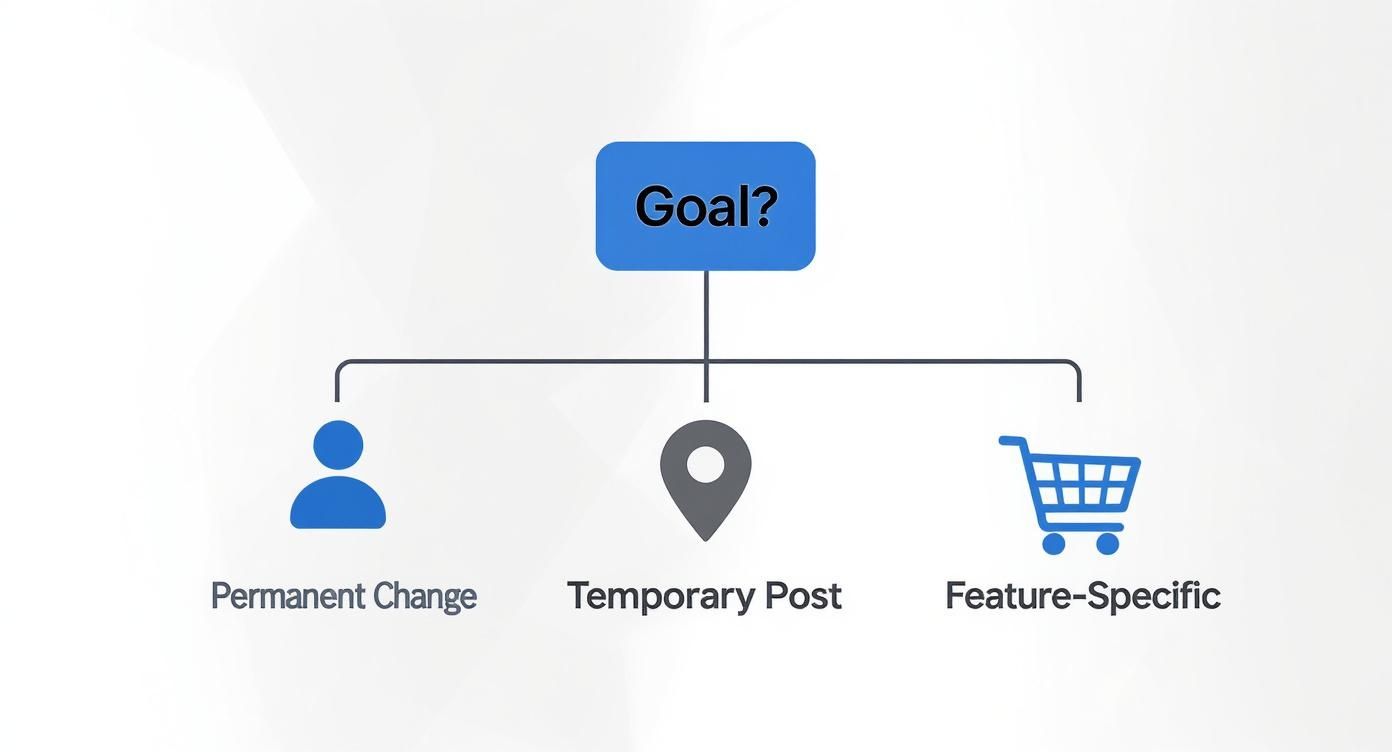
As you can see, your goal—whether it’s a major life update, a short visit, or a specific task like shopping on Marketplace—determines the best approach.
For many Nigerian users, Facebook’s location settings are key for community connection, especially for features like Marketplace and local events. The platform is built to handle these adjustments, reflecting the dynamic nature of urban life. You can read more about Lagos’s role in urban migration trends to see how this plays out.
Quick Guide to Changing Your Facebook Location
| Method | Best For | Where to Find It |
|---|---|---|
| Profile Update | A permanent move or relocation. | Your profile’s ‘About’ > ‘Places Lived’ section. |
| Post/Photo Tag | Sharing your location for a single event or memory. | The ‘Create Post’ box > ‘Check In’ or ‘Location’ icon. |
| Check-In | Letting friends know where you are right now. | The ‘Create Post’ box > ‘Check In’ option. |
| Marketplace | Browsing or selling items in a different area. | Marketplace > Tap current location to change. |
This table helps you quickly find the right method for your needs, whether you’re updating your profile or just looking for a bargain in another city.
Updating Your Current City on Your Profile
Changing your ‘Current City’ is the most significant location update you can make on Facebook. It tells friends, family, and Facebook’s algorithm that you have a new home base. This one change affects everything from the local news in your feed to the groups and events Facebook suggests.
Practical Example: You’ve just moved from Port Harcourt to Lagos for a new job. Updating your profile makes it “Facebook official.” It’s a simple action that reflects a major life change and lets your network know your new location.
On a Desktop Computer
Updating on a laptop or desktop is often easiest due to the larger screen.
Step-by-Step Instructions:
- Navigate to your profile. Click your name or profile picture at the top of the Facebook homepage.
- Go to the ‘About’ section. Click the About tab located just under your cover photo.
- Select ‘Places Lived’. On the left-hand menu, choose this option.
- Add your new city. Click on Add current city. Start typing your new location (e.g., “Lagos”), and select the correct, official city from the suggestions.
- Set your audience. Before saving, choose who can see this update: Public, Friends, or Only Me.
- Save your changes. Click Save. Facebook will ask if you want to share this as a life event on your timeline.
On the Mobile App
You can also update your location easily from your phone.
Step-by-Step Instructions:
- Go to your profile. Open the Facebook app, tap the menu icon (three horizontal lines), and then tap your name.
- Tap ‘Edit Profile’. This button is located directly under your profile picture.
- Find your details. Scroll down to the ‘Details’ section and tap the Edit button next to it.
- Add your current city. Tap Add current city, type in your new location, select it from the list, and set the privacy.
- Save the update. Tap Save to confirm. Your profile now reflects your new home.
Actionable Tip: Once you change your city, Facebook will quickly begin showing you friend suggestions, Marketplace listings, and events relevant to your new area, sometimes within hours. This helps you integrate into a new community faster.
This action recalibrates your entire Facebook experience to match your real-world location.
Adding Locations to Posts and Check-Ins
Sometimes, you don’t need a permanent profile update. You just want to share a specific moment—a great meal at a restaurant in Ikeja or photos from a holiday in Calabar. This is where adding locations to posts and using the “Check In” feature comes in.
This approach is flexible because these location tags are tied only to that specific post. They will not change the ‘Current City’ on your profile, so you can share your travels without creating confusion.
Alt text: A person using their smartphone to check in on Facebook, with a map pin icon visible.
How to Tag a Location or Check In
Sharing where you are is built directly into the posting process.
Step-by-Step Instructions:
- Start your post. Tap the “What’s on your mind?” box on your News Feed or profile.
- Find the location icon. Below the text area, tap the red map pin icon (it might say “Check In” or “Location”).
- Select your location. Facebook will suggest nearby places. You can also use the search bar to find a specific landmark, business, or city.
- Add and share. Once selected, the location will appear with your post. Finish your caption and hit “Post.”
Actionable Tip: Forgot to add a location? You can edit the post later. Find the post, tap the three-dot menu, choose ‘Edit Post,’ and tap the location icon to add or change it.
If you plan your content, it’s helpful to know how to find and manage your scheduled posts on Facebook to keep everything organized.
Changing Location for Marketplace and Dating
Features like Marketplace and Dating rely heavily on your location. Adjusting these settings can transform your experience, whether you’re searching for a deal or a new connection. These settings are independent of your main profile.
Alt text: A person shopping for items on Facebook Marketplace, illustrating the location-based nature of the feature.
Fine-Tuning Your Marketplace Searches
Facebook Marketplace is a great tool for local buying and selling. While it defaults to your profile’s location, you can easily change it.
Practical Example: You live in Ibadan but will be in Lagos next week. You want to find a specific item there.
Step-by-Step Instructions:
- Open Marketplace. Go to Marketplace and tap on your current location shown at the top.
- Set a new location. Type your desired city (e.g., “Lagos”) into the search bar and select it.
- Adjust the radius. A slider will appear. Use it to set a custom search radius, from a few kilometers up to 500km, to broaden or narrow your search.
This is perfect for arranging a purchase before you arrive or furnishing a new home from afar.
Updating Your Location on Facebook Dating
Facebook Dating uses your location to suggest nearby matches. Keeping your location updated is essential for meeting people in your current area. The app typically uses your phone’s location services but also allows you to add secondary locations if you travel frequently between cities.
Your Dating profile is completely separate from your main Facebook profile. Location changes made here will not appear on your timeline or be visible to your friends, ensuring your privacy.
To ensure accuracy, go to your Dating profile settings and check your “Dating Location.” This helps the algorithm provide relevant suggestions.
Location Settings Comparison: Marketplace vs. Dating
| Feature | How to Change Location | Impact of Location Setting | Key Tip |
|---|---|---|---|
| Marketplace | Manually set a new city and adjust the search radius (up to 500km). | Determines the listings you see for items to buy. Essential for local pickups and browsing in new areas. | Change your location ahead of a trip to find and arrange deals before you even get there. |
| Dating | Primarily updates automatically via device location services. You can add secondary locations. | Defines your pool of potential matches. An inaccurate location will show you people who aren’t nearby. | Keep your phone’s location services enabled for Facebook to get the most accurate, real-time matches. |
Managing location settings within these features gives you more control and makes them significantly more useful.
Managing Your Location Privacy Settings
Knowing how to change your location is only half the story; controlling who sees that information is just as important. You should be in charge of when your location is shared, rather than letting the app track you passively via GPS.
As of early 2025, there were around 38.7 million Facebook users in Nigeria. This large user base highlights the importance of managing personal data, including location, to connect safely with friends and businesses.
Take Control of Location Services
Facebook gets your location data because you grant it permission on your phone. It’s wise to review these permissions to ensure they align with your comfort level. The goal is to shift from passive data collection to active, intentional sharing.
Step-by-Step Instructions:
- For iPhone: Go to
Settings>Privacy & Security>Location Services. Find Facebook and chooseNever,Ask Next Time,While Using the App, orAlways. - For Android: Go to
Settings>Location>App permissions. Find Facebook and chooseAllow only while using the apporDon't allow.
Actionable Tip: The “While Using the App” setting is a good balance. It allows you to use location-based features like check-ins when the app is open but prevents Facebook from tracking you in the background.
To further protect your privacy, periodically clear your Facebook Location History from within the app’s settings.
Got Questions? Let’s Troubleshoot Your Facebook Location
Even with clear instructions, you might encounter issues. Here are solutions to common problems when changing your location on Facebook.
Alt text: A person looking at a question mark on a digital screen, representing common questions and troubleshooting for Facebook.
Why Won’t Facebook Let Me Change My Current City?
This is a common frustration. Usually, it’s because Facebook has a temporary limit on how often you can change your primary location to prevent spam.
What to do: If you’ve updated your city recently, wait a few days before trying again. Also, ensure you are selecting an official city from the dropdown list Facebook provides, as unrecognized custom locations won’t work.
Does Checking In Somewhere Change My Profile City?
No, it doesn’t. A check-in or a location tag on a post is a one-time update. It’s like a digital postcard—it shows where you were at a specific moment but doesn’t alter your official home address. Your ‘Current City’ in your ‘About’ section remains unchanged until you manually edit it.
How Can I Remove a Location From an Old Post?
If you tagged the wrong place or simply want to remove a location from a past post for privacy reasons, the fix is simple.
Step-by-Step Instructions:
- Find the post on your timeline.
- Click the three-dot menu (…) in the top-right corner of the post.
- Select ‘Edit Post’.
- In the post editor, find the location tag at the bottom and click the small ‘x’ next to it to remove it.
- Click ‘Save’ to confirm the change.
Actionable Takeaways
- Update Your Profile for Permanent Moves: For a long-term relocation, change your “Current City” in the “About” > “Places Lived” section. This updates your entire Facebook experience.
- Use Check-Ins for Temporary Updates: For visits, events, or sharing moments, use the “Check In” feature or add a location to a single post. This won’t change your primary profile location.
- Customize Marketplace and Dating: Manually change your location in Marketplace to browse other areas. Ensure location services are active for Facebook Dating to get accurate matches.
- Review Your Phone’s Privacy Settings: Go to your phone’s settings and limit Facebook’s access to your location. Choose “While Using the App” for a good balance of functionality and privacy.
- Remove Old Location Tags: If you want more privacy, you can always edit past posts to remove location tags.
Tools and Resources
- Facebook’s Official Help Center: For the most up-to-date instructions directly from the source.
- Privacy Enhancement Tools: Learn how to prevent IP address tracking for an extra layer of online security.
- Content Management: If you schedule posts with locations, learn how to find and manage your scheduled posts on Facebook.
Further Reading
- Social media scheduling tools for 2025: best picks
- Your practical guide to building a social media content calendar
- Urban Migration in Nigeria: Read more about Lagos’s role in urban migration trends to understand the real-world context of location changes.
