
Finding the right tool to bring your video concepts to life can feel overwhelming. This guide cuts through the noise, offering a detailed breakdown to help you select the best video editing software for your specific projects. We move beyond generic feature lists to provide in-depth analysis of top-tier options, from industry standards like Adobe Premiere Pro and DaVinci Resolve to accessible yet powerful tools like CapCut and Microsoft Clipchamp.
Each review focuses on practical features, real-world use cases, and an honest assessment of limitations. We explore how modern AI tools, like those in RichlyAI, are reshaping video creation by enabling powerful automated workflows from simple text prompts. For those wanting an even broader overview, a comprehensive guide to video production software comparison can offer additional perspectives.
By the end of this article, you will have a clear, actionable path to choosing the software that perfectly aligns with your workflow, skill level, and creative ambitions. We provide direct links and screenshots for every platform, ensuring you can evaluate each option efficiently and invest your time and resources wisely. Let’s find the perfect editor for your next project.
1. RichlyAI
RichlyAI Hub is an AI-driven content creation suite designed for speed and efficiency. While not a traditional, timeline-based editor, its power lies in rapidly generating video content from simple text prompts. This makes it a standout option for digital marketers and content creators who need to produce high volumes of content for social media and advertising without a steep learning curve. The platform integrates text, image, audio, and video generation into a single interface.
alt=”A screenshot of the RichlyAI platform interface, showcasing its various AI-powered content creation tools.”
What makes RichlyAI particularly useful is its integration with social media automation. This feature transforms it from a simple generator into a full content marketing tool. You can create a video, generate a caption for it, and schedule it to post on Instagram, X (Twitter), and LinkedIn without leaving the platform. This streamlined workflow automates the entire content lifecycle, making it one of the best video editing software choices for users focused on social media engagement.
Key Features and Practical Use Case
RichlyAI is built for users who need to produce short-form video content quickly. Its AI video generator is ideal for creating promotional clips, social media stories, or explainer animations without needing professional editing skills.
Practical Example: Creating an Instagram Reel for a Local Business
Let’s say you’re a marketer for a new coffee shop in Lagos. Here’s how you’d create a promotional Reel in minutes:
- Log in to RichlyAI and navigate to the AI Video generator in the dashboard.
- Write a clear prompt. In the text box, type: “Create a 30-second promotional video for ‘Lagos Brews,’ a new coffee shop. Show a modern, cosy interior, steaming cups of artisan coffee, and happy customers chatting. Use upbeat, instrumental afrobeats background music.”
- Generate and refine. The AI generates a video based on your prompt. You can review it and, if needed, regenerate with a modified prompt like “make it more vibrant and faster-paced.”
- Export and schedule. Once you’re happy with the result, export the video. Use the integrated social media scheduler to directly post it to your Instagram profile, using RichlyAI’s text generator to create an optimized caption and hashtags.
Pricing and Access
RichlyAI offers a compelling free forever plan that includes unlimited text generation. For advanced features like premium video and image generation, you will need to inquire about specific paid tiers.
Pros:
- All-in-one platform for text, image, video, and audio generation.
- Powerful social media automation simplifies content scheduling.
- Intuitive, user-friendly interface suitable for beginners.
- Generous free plan with unlimited text creation.
Cons:
- Not a traditional editor; lacks advanced features like multi-track timelines or granular effect controls.
- Detailed pricing for premium tiers requires a direct inquiry.
Website: https://richlyai.com
2. Adobe — Premiere Pro (and Creative Cloud)
Adobe Premiere Pro is the industry-standard non-linear editor (NLE) for professionals in film, television, and high-end web content creation. Its power lies not just in its robust feature set but in its seamless integration with the Adobe Creative Cloud ecosystem, making it one of the best video editing software options for professionals who use multiple creative tools.
alt=”A screenshot of the Adobe Premiere Pro user interface, showing a timeline with multiple video and audio tracks, a preview window, and various editing panels.”
Key Features and Practical Use Case
Premiere Pro’s real strength is its workflow integration. A social media manager can create sophisticated motion graphics in After Effects, clean up audio in Audition, and design thumbnails in Photoshop, with all assets linking dynamically within their Premiere Pro project.
Practical Example: Editing a Client Testimonial Video
- Import Footage: Drag your interview footage, b-roll clips, and background music into a Premiere Pro project bin.
- Assemble the Story: Create a new sequence. Drag the primary interview clip onto the timeline. Use the razor tool (
Ckey) to cut out mistakes and pauses. - Add B-roll: Drag relevant b-roll clips onto a video track above the interview. This will “cover” the speaker while they talk, making the video more visually engaging.
- Color Correct: Select a clip, open the Lumetri Color panel, and use the “Basic Correction” tab to adjust exposure, contrast, and white balance to make your footage look clean and professional.
- Export for Web: Go to
File > Export > Media. Choose theH.264format and theMatch Source - High bitratepreset for a high-quality file suitable for YouTube or Vimeo.
Pricing and Limitations
Access to Premiere Pro is via a subscription-only model, which can be a significant recurring cost. This ensures you always have the latest updates, including Adobe’s Sensei AI tools, but lacks a perpetual license option. Furthermore, Premiere Pro is resource-intensive and demands powerful computer hardware to run smoothly. The learning curve is also steeper than more basic editors.
Website: https://www.adobe.com/products/premiere.html
3. Blackmagic Design — DaVinci Resolve (Free) and DaVinci Resolve Studio
Originally famed for its Hollywood-grade color correction tools, DaVinci Resolve has evolved into a complete, all-in-one post-production suite. It uniquely combines professional editing, color grading, visual effects (VFX), motion graphics, and audio post-production into a single application. This makes it one of the best video editing software choices for creators who want a streamlined workflow without jumping between different programs.
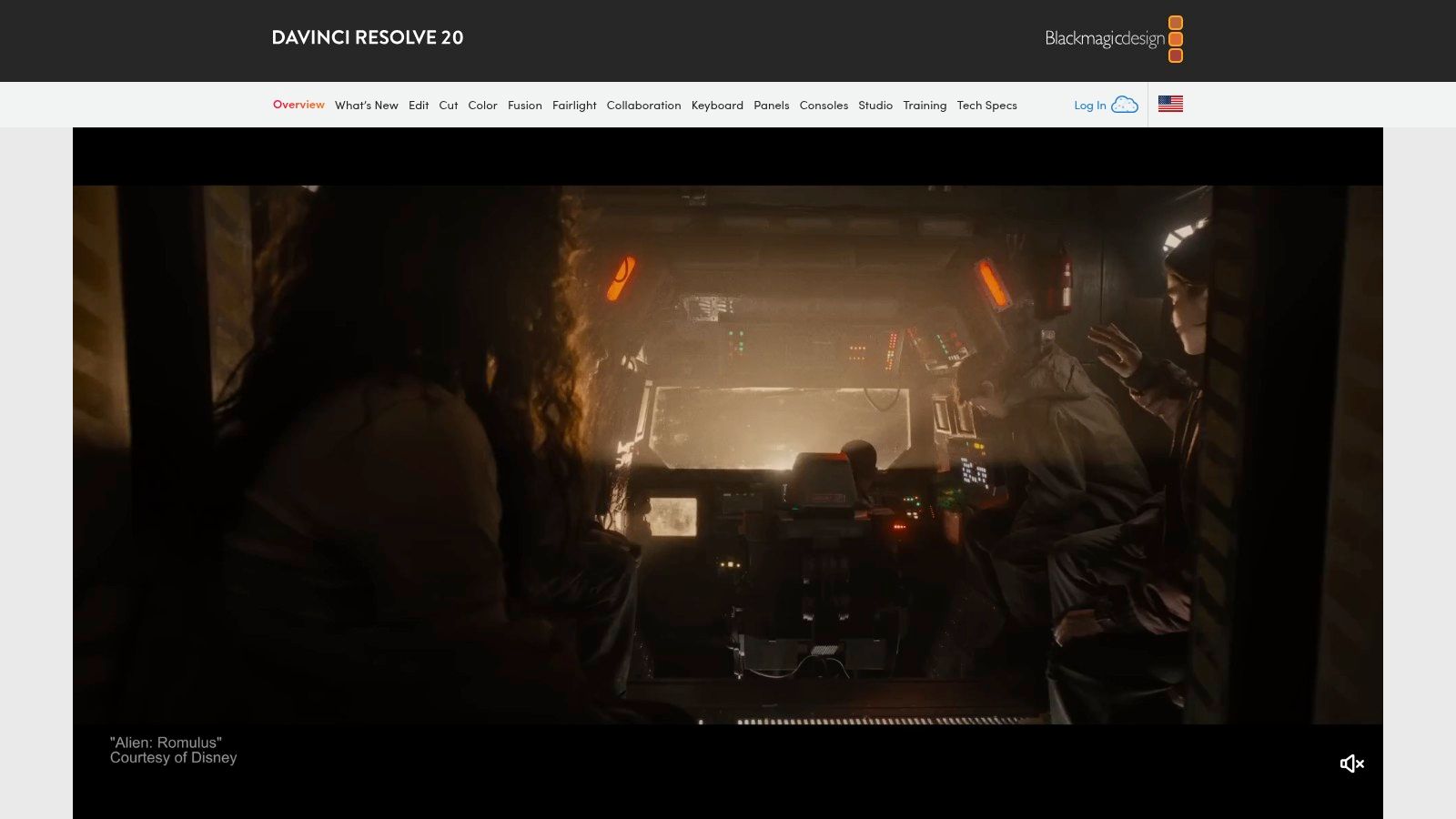
alt=”A screenshot of the DaVinci Resolve interface showing its distinct ‘pages’ for different tasks like editing, colour grading, and audio mixing at the bottom of the screen.”
Key Features and Practical Use Case
DaVinci Resolve’s biggest advantage is its “page”-based workflow. You move between different tasks—editing, effects, color, audio—by clicking dedicated tabs at the bottom of the screen. This eliminates the need for round-tripping between different software. The free version is incredibly powerful and sufficient for most users.
Practical Example: Giving a Travel Video a Cinematic Look
- Edit the Sequence: On the ‘Edit’ page, assemble your travel clips into a compelling story.
- Apply a Cinematic Grade: Switch to the ‘Color’ page. Create a new “Serial Node.” In the first node, use the color wheels to balance the exposure and saturation.
- Create the “Teal and Orange” Look: In a second node, go to the “Curves” panel. Select the “Hue vs Sat” curve. Click on the blue and cyan hues and raise them slightly. Click on the orange and red hues and raise them slightly, while lowering the other colors. This popular cinematic look makes skies pop and skin tones look warm.
- Add Letterboxing: Go back to the ‘Edit’ page. In the Inspector panel, find “Cropping” and apply a small top and bottom crop to create the black bars (widescreen) effect.
Pricing and Limitations
DaVinci Resolve offers a free version that is more capable than many paid competitors. The advanced Studio version is available for a one-time purchase, which includes all future updates, representing incredible long-term value. However, the software’s all-in-one nature presents a steeper learning curve, particularly for its specialized color and VFX pages. It can be overwhelming for beginners.
Website: https://www.blackmagicdesign.com/products/davinciresolve
4. Apple — Final Cut Pro (Mac App Store)
For creators embedded in the Apple ecosystem, Final Cut Pro is a powerhouse non-linear editor (NLE) optimized for macOS and Apple silicon. Its reputation for speed and a fluid workflow makes it one of the best video editing software choices for Mac users, from YouTubers to independent filmmakers. It distinguishes itself from subscription models by being available as a one-time purchase.
alt=”A screenshot of the Final Cut Pro user interface, displaying its unique Magnetic Timeline, a video preview window, and browser for media clips.”
Key Features and Practical Use Case
Final Cut Pro’s standout feature is its Magnetic Timeline, which automatically ripples edits and prevents clip collisions, speeding up the assembly process. For a creator filming on an iPhone, the native support for ProRes format ensures a seamless editing experience.
Practical Example: Quickly Assembling a “Talking Head” YouTube Video
- Import and Organize: Import your main camera footage and any screen recordings into a new Library. Use keywords like “A-Roll” and “B-Roll” to organize clips.
- Rough Cut on Magnetic Timeline: Drag your main “A-Roll” clip onto the timeline. As you use the blade tool (
Cmd+B) to cut out mistakes, the timeline automatically closes the gaps, saving you the step of ripple-deleting. - Add Connected Clips: Drag your screen recordings or other b-roll clips and drop them above the main timeline. They “connect” to the A-Roll, so if you move the main clip, the B-roll moves with it, staying in sync.
- Apply Effects: Open the Effects Browser (
Cmd+5), find a simple “Zoom” effect, and drag it onto a clip to add emphasis to a specific point you’re making.
Pricing and Limitations
Final Cut Pro is available exclusively on the Mac App Store for a one-time fee, which includes all future updates. The primary limitation is its macOS-only availability, which excludes PC users. Its collaboration features are also less robust than competitors like Premiere Pro, making it better suited for individual creators.
Website: https://apps.apple.com/us/app/final-cut-pro/id424389933
5. CyberLink — PowerDirector
CyberLink PowerDirector bridges the gap between consumer-level simplicity and professional-grade features, making it a strong contender for the best video editing software for content creators who need power without a steep learning curve. It is particularly well-suited for social media managers and YouTubers who want to produce high-quality videos quickly, thanks to its vast library of templates and AI-powered tools.
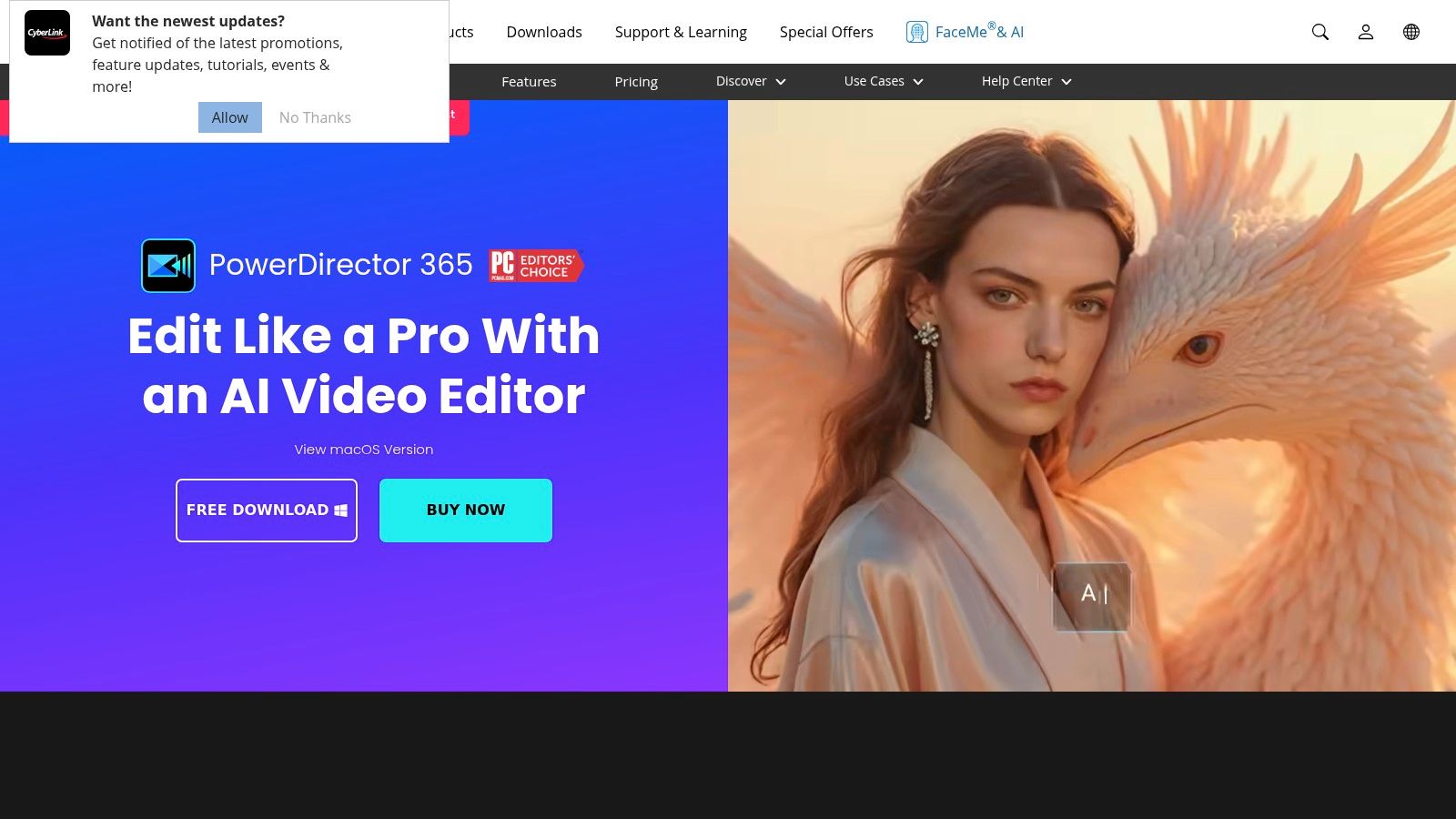
alt=”A screenshot of the CyberLink PowerDirector interface, showing a user-friendly layout with a media library, timeline, and preview window.”
Key Features and Practical Use Case
PowerDirector excels at streamlining content creation. Its AI-driven features like sky replacement or object detection quickly enhance footage, while pre-made title templates and transitions speed up the editing process. The subscription model, PowerDirector 365, provides regular updates and access to a stock library powered by Getty Images.
Practical Example: Creating an Action-Packed GoPro Video
- Start with the Video Collage Designer: Instead of a blank timeline, select the Video Collage Designer. Choose a split-screen template.
- Add Multiple Angles: Drag your main GoPro shot into the primary frame and a second camera angle (e.g., from a drone or phone) into the secondary frame.
- Use the Action Camera Center: Select a clip on your timeline and open the Action Camera Center. Use the “Stabilizer” tool to smooth out shaky footage and the “Speed” tool to create a dramatic slow-motion effect for a key moment.
- Add an Intro: Go to the “Title Room” and search for an “Action” or “Sports” intro template. Drag it to the beginning of your timeline and customize the text.
Pricing and Limitations
CyberLink offers both a subscription (PowerDirector 365) and a perpetual license. The subscription is more cost-effective for ongoing access to new features and stock content. The perpetual license receives fewer feature updates. The interface, with its sheer number of effects and templates, can feel cluttered to some users.
Website: https://www.cyberlink.com/products/powerdirector-video-editing-software
6. VEGAS Creative Software — VEGAS Pro
VEGAS Pro has a long history as a powerful and fast non-linear editor (NLE) on Windows. It built its reputation on an efficient, drag-and-drop workflow and robust audio editing capabilities. For creators who prioritize speed and want flexible purchasing options, it remains one of the best video editing software choices available, especially for those who prefer not to be locked into a subscription.
alt=”A screenshot of the VEGAS Pro user interface, showing the timeline, video preview window, and various media and effects panels.”
Key Features and Practical Use Case
The standout feature of VEGAS Pro is its licensing flexibility, offering both subscriptions and perpetual licenses. This is a major advantage for freelancers and small businesses who prefer a one-time purchase. Its integration with powerful tools like SOUND FORGE for audio mastering and bundled effects from BorisFX makes it a comprehensive package.
Practical Example: Editing a Music Video
- Sync Audio and Video: Import your master audio track and all the video clips from different takes. Use the multicam editing feature to automatically sync the clips based on their audio waveforms.
- Switch Between Angles: Play the timeline and use number keys (1, 2, 3…) to switch between camera angles in real-time, effectively creating your edit on the fly.
- Apply Beat-Timed Effects: Use the “Velocity Envelope” on a video clip by right-clicking and selecting “Insert/Remove Envelope > Velocity.” Add points to the line and drag them up or down to create speed ramps that sync perfectly with the beat of the music.
- Master the Audio: Use the bundled SOUND FORGE audio editor to apply final compression and EQ to the master track for a loud, punchy sound.
Pricing and Limitations
VEGAS Pro offers several tiers through both monthly/annual subscriptions and one-time perpetual purchases. The main limitation is its Windows-only availability. While its workflow is fast once mastered, some new users may find the user interface less modern compared to its main rivals.
Website: https://www.vegascreativesoftware.com
7. Pinnacle Systems — Pinnacle Studio (Corel)
Pinnacle Studio targets advanced consumers and semi-pros on Windows. It’s a powerful option for users who want sophisticated features like motion tracking and multicam editing without committing to a recurring subscription. By offering a perpetual license, it stands out as one of the best video editing software choices for those who prefer to own their tools outright.
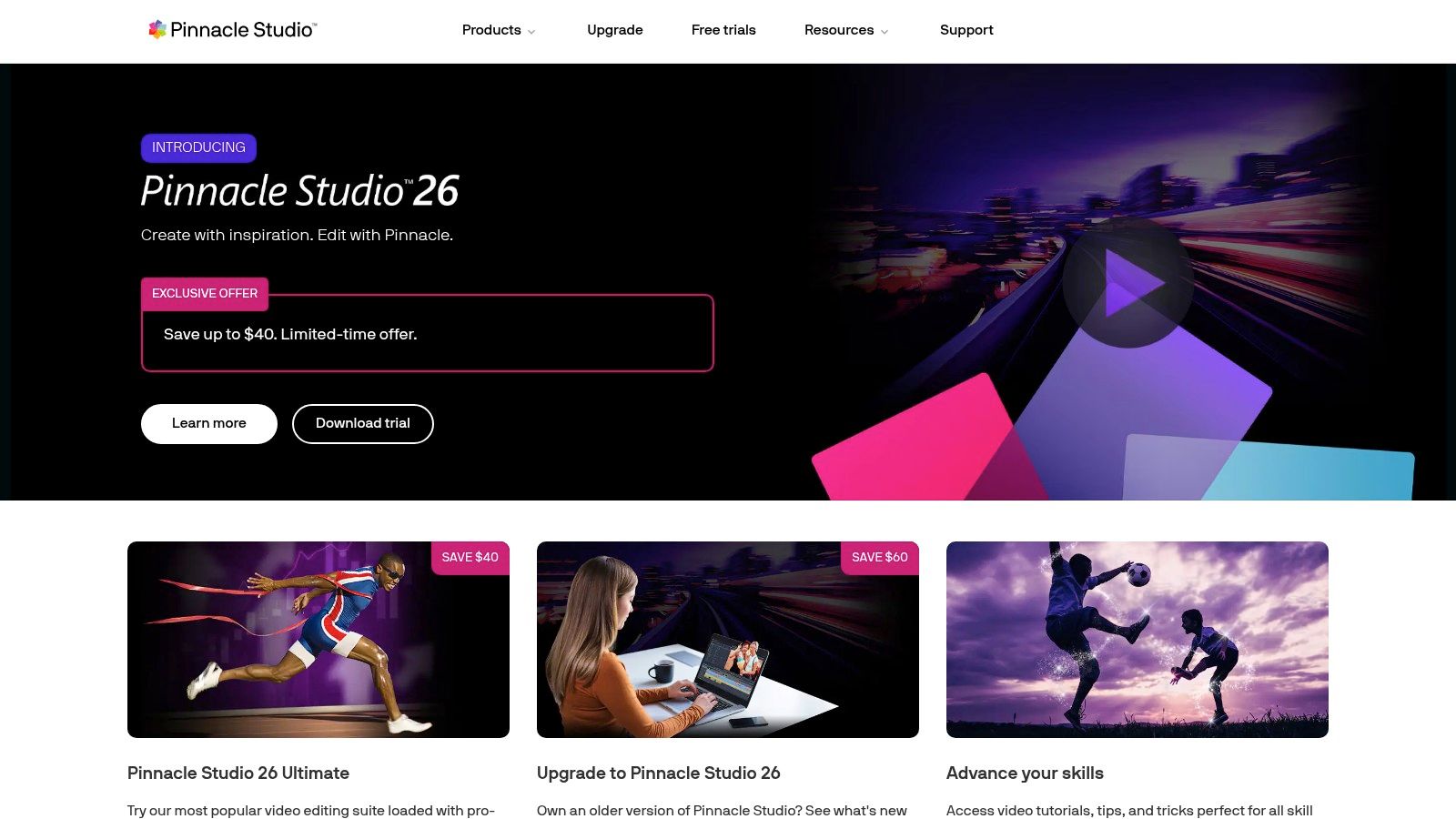
alt=”A screenshot of the Pinnacle Studio user interface, featuring a dark theme with a timeline, preview window, and various editing panels for effects and transitions.”
Key Features and Practical Use Case
Pinnacle Studio excels for creators who need advanced capabilities without the professional price tag. For instance, a YouTuber creating product reviews could use the screen capture feature, combine it with camera footage using the multicam editor, and then apply motion tracking to blur out sensitive information.
Practical Example: Creating a Dynamic Sports Highlight Reel
- Import and Organize: Bring in all your game footage. Use the multicam editor to sync clips from different angles.
- Isolate a Player with Motion Tracking: Select a clip of a key player making a move. Right-click and choose “Motion Tracking.” Draw a mask around the player.
- Apply a Selective Effect: Once the software tracks the player’s movement, you can link an effect to the track. For example, add a “Spotlight” effect that follows the player, dimming the rest of the screen to draw the viewer’s attention.
- Add a Title: Use a motion title from the library and have it animate onto the screen as the highlight plays.
Pricing and Limitations
The primary advantage of Pinnacle Studio is its one-time purchase model. It is available in tiered versions (Standard, Plus, Ultimate). However, the software is exclusive to the Windows operating system. Furthermore, free trials are not consistently offered, making it difficult to test before buying.
Website: https://www.pinnaclesys.com
8. Wondershare — Filmora
Wondershare Filmora strikes an excellent balance between user-friendliness and powerful features, making it a strong contender for the best video editing software for beginners and intermediate creators. It is designed for those who need to produce high-quality social media content, YouTube videos, or personal projects without the steep learning curve of professional NLEs.
alt=”A screenshot of the Wondershare Filmora user interface, showing a simple timeline, a large preview window, and panels for media, effects, and transitions.”
Key Features and Practical Use Case
Filmora excels in its accessibility. A creator can quickly learn how to create video content by dragging and dropping pre-made titles, transitions, and effects. The software’s growing suite of AI-powered tools, like AI Smart Cutout and AI Copywriting, further simplifies the editing process.
Practical Example: Creating a YouTube Tutorial Video
- Record Your Screen: Use Filmora’s built-in screen recorder to capture your tutorial steps.
- Use AI Smart Cutout: If you have a separate video of yourself speaking, drag it onto a track above the screen recording. Select the clip of yourself, go to AI Tools, and select “Smart Cutout.” The AI will automatically remove the background, placing you over your screen recording without needing a green screen.
- Add Callouts and Titles: Go to the “Titles” tab and find “Callout” templates. Drag these onto the timeline to point out important buttons or menus in your screen recording.
- Generate Subtitles: Once the edit is complete, use the “Speech-to-Text” feature to automatically generate and sync subtitles for your entire video.
Pricing and Limitations
Filmora offers annual subscriptions and a one-time perpetual license, making it a budget-friendly option. While highly capable, it lacks the advanced color grading and in-depth audio mixing tools found in professional software. Additionally, some advanced AI features operate on a monthly credit system, which could be a limitation for power users.
Website: https://filmora.wondershare.com
9. Avid — Media Composer
Avid Media Composer is the heavyweight champion in long-form television, news broadcasting, and feature film editing. It is purpose-built for high-pressure, collaborative environments where media management and stability are non-negotiable. It is the backbone of countless professional post-production houses, making it one of the best video editing software options for large-scale, team-based projects.

alt=”A screenshot of the Avid Media Composer interface, showing a complex timeline, bin containers for media management, and source/record monitors.”
Key Features and Practical Use Case
Media Composer’s strength is its legendary media management. Its bin-locking system is critical for large teams, allowing multiple editors to work on the same project without overwriting each other’s work. AI-powered tools like ScriptSync and PhraseFind are game-changers for documentary and unscripted content.
Practical Example: Finding a Specific Line of Dialogue in a Documentary
- Import Transcripts: Import the written transcripts for all your interviews into the project.
- Use ScriptSync: Run the ScriptSync function. The software analyzes the audio of your video clips and automatically aligns them, line by line, with the imported text transcripts.
- Find the Perfect Take: Instead of scrubbing through hours of footage, you can now simply click on a word or sentence in the transcript. Media Composer instantly jumps to that exact moment in the corresponding video clip, allowing you to find the best delivery of a specific line in seconds. This can save days of work on a large project.
Pricing and Limitations
Avid operates on a subscription model. The software’s learning curve is notoriously steep and less intuitive than many modern NLEs. For solo creators or those focused on short-form content, its powerful feature set may be overkill. Proficiency with Avid is a highly sought-after skill for professional video editor jobs.
Website: https://www.avid.com/media-composer
10. Microsoft — Clipchamp
Microsoft Clipchamp is an accessible, browser-based editor that has quickly become a go-to for quick and straightforward video projects. Integrated directly into Windows 11 and Microsoft 365, it lowers the barrier to entry for creators, marketers, and business professionals needing to produce social-media-ready videos without a steep learning curve or powerful hardware.
alt=”A screenshot of the Microsoft Clipchamp user interface, showing a simple timeline, a video preview window, and a sidebar with templates and stock media options.”
Key Features and Practical Use Case
Clipchamp shines in its AI-powered features and template-driven workflow. The AI “auto-compose” feature quickly assembles a video from raw clips, and tools for automatic captions and text-to-speech are built-in. Because it’s browser-based and integrates with OneDrive, it’s excellent for teams who need to share assets and projects.
Practical Example: Creating a Quick Social Media Ad
- Select a Template: Open Clipchamp and browse the template library. Select a template designed for an “Instagram Sale Ad.”
- Customize with Your Media: The template will have placeholder clips and text. Replace the stock video with your own product shots by dragging them from the media library.
- Use Auto-Captions: Click the “Captions” button on the side panel and select “Turn on auto-captions.” The software will transcribe your audio and create timed captions, which is essential for viewers watching with the sound off.
- Add a Voiceover with Text-to-Speech: If you don’t have a voiceover, use the “Text to speech” tool. Type your script, choose a voice style and language, and Clipchamp will generate an AI voiceover track for your ad.
Pricing and Limitations
Clipchamp offers a generous free tier that includes unlimited watermark-free exports up to 1080p resolution. The paid “Premium” plan unlocks 4K exports, premium stock assets, and brand kit features. While user-friendly, it lacks advanced color grading, multi-cam editing, and precise keyframe controls. Its reliance on a stable internet connection can also be a limitation.
Website: https://clipchamp.com
11. CapCut (ByteDance) — CapCut and CapCut Pro
Originally a mobile-first editor, CapCut has become the default tool for creators on TikTok, Instagram Reels, and YouTube Shorts. Its strength lies in its simplicity and direct integration with social media trends, offering features like auto-captioning and trending effects that are often complex to replicate in more traditional software. This makes it one of the best video editing software options for creators focused on speed and social relevance.
alt=”A screenshot of the CapCut user interface, showing a vertical video timeline with effects and text overlays, and a preview window displaying the final edit.”
Key Features and Practical Use Case
CapCut excels at producing short-form content quickly. A social media manager can record a clip, use a template to add trending audio and effects, and generate accurate captions with one tap. Cloud sync allows you to start on a phone and finish on a desktop, streamlining the workflow considerably. This is perfect for capturing content on the go, like when learning how to screen record on an iPhone for a quick tutorial.
Practical Example: Creating a Trending TikTok Video
- Find a Trending Template: Open CapCut and tap the “Template” button. Scroll through templates that are currently popular on TikTok. Find one that matches the style you want.
- Add Your Clips: Select the template. The app will prompt you to choose a specific number of video clips from your camera roll.
- Let the App Do the Work: CapCut automatically edits your clips to match the music and cuts of the trending template.
- Customize Text and Export: Change any placeholder text to your own message. Export the video directly to TikTok, where the sound will already be linked and credited.
Pricing and Limitations
The core CapCut experience is completely free. A CapCut Pro subscription unlocks premium effects, cloud storage, and higher-quality exports, but pricing varies by region. A key limitation is that subscriptions are tied to the app store where they are purchased (Apple or Google Play). While powerful for social video, it lacks the deep control required for long-form or professional projects.
Website: https://www.capcut.com
12. Amazon — Video Editing Software (Retailer/Marketplace)
While not a software developer, Amazon serves as a major digital marketplace where you can find competitive deals on boxed software or perpetual licenses for many top video editors. It is a valuable resource for comparing prices on programs like CyberLink PowerDirector, Corel VideoStudio, and Adobe Elements, especially during sales events like Black Friday.
alt=”A screenshot of the Amazon website showing a search results page for ‘video editing software,’ with various product listings from brands like Adobe, CyberLink, and Corel.”
Key Features and Practical Use Case
Amazon’s primary strength is as a one-stop shop for price comparison and user feedback. You can read hundreds of unfiltered customer reviews on a specific version of a software before buying. This makes it one of the best video editing software hubs for savvy buyers looking for lifetime licenses, avoiding the recurring costs of subscriptions.
Practical Example: Buying a Perpetual License on a Budget
- Identify Software: You decide you want Pinnacle Studio Ultimate but want to avoid a subscription.
- Search and Compare on Amazon: Search for “Pinnacle Studio Ultimate 26” on Amazon. You will see listings for both digital download codes and physical boxed versions.
- Check for Deals: Filter the search results by “Deals” to see if there are any current promotions. Often, a slightly older version of the software (e.g., last year’s release) will be heavily discounted.
- Verify Regional Compatibility: Before purchasing a digital code, carefully read the product description and customer Q&A to ensure the code is “Global” or will work in your region to avoid activation issues.
Pricing and Limitations
Pricing on Amazon is highly variable and often features discounts not available elsewhere. However, a significant limitation is that digital download codes are frequently region-locked. This can lead to activation issues if not carefully checked. While physical software can be shipped internationally, the associated costs and delivery times can be prohibitive.
Website: https://www.amazon.com/s?k=video+editing+software
Top 12 Video Editing Software Comparison
| Product | Core Features / Capabilities | User Experience & Quality ★ | Value & Pricing 💰 | Target Audience 👥 | Unique Selling Points ✨ |
|---|---|---|---|---|---|
| 🏆 RichlyAI | Text, image, video, audio, code, chatbots AI | Intuitive UI, instant AI responses ★★★★☆ | Free unlimited text generation, affordable enterprise AI | Marketers, developers, students, entrepreneurs 👥 | All-in-one AI platform, real-time voice chat, social media automation ✨ |
| Adobe — Premiere Pro | Industry-standard NLE, Adobe CC suite integration | Deep plugins, pro-grade ★★★★★ | Subscription-based 💰 | Professional editors, agencies 👥 | Broad format support, AI tools (Firefly) ✨ |
| Blackmagic Design — DaVinci Resolve | Editing, color grading, VFX, audio mixing | Powerful free version ★★★★☆ | Free & one-time Studio purchase 💰 | Pros and enthusiasts, colorists 👥 | Best color grading, VFX + audio in one ✨ |
| Apple — Final Cut Pro | Magnetic Timeline, Apple silicon optimized | Stable, fast Mac-only ★★★★☆ | One-time purchase 💰 | Mac users, professional editors 👥 | Native ProRes support, Apple ecosystem ✨ |
| CyberLink — PowerDirector | Easy interface, templates, AI updates | User-friendly, social media focused ★★★☆☆ | Perpetual & subscription flexible 💰 | Social content creators, beginners 👥 | Affordable, frequent AI/content updates ✨ |
| VEGAS Creative Software — VEGAS Pro | Robust editing + audio tools, bundles | Mature tools, stable ★★★☆☆ | Perpetual & subscription available 💰 | Windows pros, power users 👥 | Bundled audio/effects tools, promos ✨ |
| Pinnacle Systems — Pinnacle Studio | Storyboard & timeline, motion tracking | Good feature set ★★★☆☆ | One-time purchase 💰 | Advanced home & semi-pro users 👥 | Motion tracking, screen capture ✨ |
| Wondershare — Filmora | Templates, cross-platform, AI-assisted features | Beginner friendly ★★★☆☆ | Annual & perpetual plans 💰 | Beginners, social video creators 👥 | AI features with credit system ✨ |
| Avid — Media Composer | Media mgmt, collaboration, AI-powered ScriptSync | Pro broadcast quality ★★★★☆ | Subscription only 💰 | Film/TV editors, broadcast teams 👥 | Industry standard for broadcast workflows ✨ |
| Microsoft — Clipchamp | Browser app, social presets, AI tools | Simple & accessible ★★★☆☆ | Free & premium tiers 💰 | Quick social videos, business users 👥 | Cloud integration, AI TTS/captions ✨ |
| CapCut (ByteDance) | Social media templates, effects, cloud sync | Easy and fast learning ★★★☆☆ | Free core, Pro subscription varies 💰 | TikTok & short-form creators 👥 | Cross-platform, trending effects ✨ |
| Amazon (Retailer) | Marketplace for multiple editors, customer reviews | Varied by product ★★★☆☆ | Competitive deals, frequent discounts 💰 | Buyers of video editing software 👥 | Wide selection, license codes, reviews ✨ |
Your Next Steps in Video Editing
We have explored a diverse range of options, from industry-standard powerhouses to accessible, AI-driven platforms. The key takeaway is that the best video editing software is not a one-size-fits-all answer; it is the one that best aligns with your specific projects, budget, and technical skill level.
For professional productions, Adobe Premiere Pro remains a titan. For cinematic color accuracy, DaVinci Resolve is an unparalleled choice. Mac users seeking speed will find a powerful ally in Final Cut Pro.
Conversely, if your goal is rapid content creation for social media, AI-powered tools like RichlyAI are revolutionizing the process. For beginners or those on a tight budget, tools like CapCut, Clipchamp, and the free version of DaVinci Resolve offer fantastic entry points without significant financial commitment.
Making Your Decision: Actionable Takeaways
To move forward, translate this information into a confident choice. Use this checklist to guide your decision.
- Define Your Primary Use Case. Are you editing a feature film or creating daily TikTok videos? A social media manager should prioritize tools with auto-captioning like CapCut or Clipchamp. A filmmaker needs the color tools of DaVinci Resolve.
- Audit Your Hardware. Check the system requirements for your top 2-3 choices. A powerful editor like DaVinci Resolve will struggle on an underpowered laptop. Ensure your computer’s CPU, GPU, and RAM can handle the software.
- Leverage Free Trials and Versions. Dedicate time to a small test project in your top contenders. Import footage, make cuts, add text, and export. This hands-on experience is the best way to see if a workflow feels intuitive to you.
- Factor in Learning and Support. A complex tool like Avid Media Composer has a steep learning curve but extensive professional training. A simpler tool like Filmora has a large community of online tutorials. Assess how much time you can realistically invest in learning.
- Consider Your Budget Model. Do you prefer a predictable monthly subscription like Adobe Premiere Pro, or do you want to own your software outright with a one-time purchase like DaVinci Resolve Studio or Final Cut Pro?
- Evaluate the Ecosystem. Do you already use other Adobe products? Premiere Pro’s integration might be a deciding factor. Are you fully in the Apple ecosystem? Final Cut Pro will offer the smoothest experience.
Once you have selected your software, the real work begins. To ensure your creations reach their audience, consider exploring effective video marketing for social media.
Further Reading & Resources
- Tools:
- Artlist.io: For high-quality, royalty-free music and sound effects.
- Envato Elements: Subscription service for stock footage, templates, and graphics.
- Learning Resources:
- Premiere Gal: YouTube channel with excellent tutorials for Adobe Premiere Pro.
- Casey Faris: Deep dives and tutorials on DaVinci Resolve.
Ready to skip the steep learning curve and create professional-quality videos in minutes? RichlyAI uses artificial intelligence to automate video creation and editing, making it the perfect tool for marketers, creators, and entrepreneurs who need results fast. Turn your ideas into stunning videos with an AI-powered workflow by visiting RichlyAI.

Ive been using CapCut for quick social clips and always wondered if these new AI tools could actually handle something more structured like a book trailer or a character introduction — the mention of RichlyAI generating video from text prompts really stood out to me because that kind of workflow could be huge for fan-made trailers based on serialized fiction.
The comparison between different video editing software is really useful. There are so many AI powered editing tools now, so seeing the pros and cons side by side makes choosing much easier.
Software recommendations are great, but what I really need is something that simplifies the whole editing process without a headache. Check this out for a helpful tool that might speed things up a bit: Palworld breeding calculator 1.0.
This list is solid, but don’t sleep on the fact that tools like RichlyAI are changing the game for quick edits and social media. You might wanna check it out for some cool automation features. palworld breeding calculator 1.0.
This list really nails the current best editing options. If you’re looking to make quick decisions, maybe check out this tool that helps with breeding combos—it’s pretty handy for planning.palworld breeding calculator 1.0
This list really nails the current best editing options. If you’re looking to make quick decisions, maybe check out this tool that helps with breeding combos—it’s pretty handy for planning.
Thanks for your interest! Our article, “Top 10 Best Video Editing Software in 2025,” is designed to help you navigate the many options available. As mentioned in the introduction, we go beyond generic feature lists to provide in-depth analysis, including industry standards like Adobe Premiere Pro and accessible tools like CapCut. We also touch on how modern AI tools, such as RichlyAI (Section 4), are impacting video creation. The goal is to help you find software that aligns with your workflow and creative ambitions, ensuring you can evaluate each option efficiently.
Tempemail.cc English Promotion (for RichlyAI Video Editing Software Blog)
When testing, registering for various video editing software and online creative tools, you inevitably need to enter an email address to verify your account, claim free assets, or activate trial access. Exposing your personal primary email frequently not only floods your inbox with countless marketing emails and spam but also poses a risk of privacy leakage, disrupting your efficient video editing workflow with cluttered information.
Brilliant creative work! Design precision is something we value deeply at JM Electronic in our manufacturing processes. Thanks for sharing this inspiring content!
Well said! Seedance 2.0 consistently produces amazing output. More details 20seedance . com