
The modern professional’s toolkit is incomplete without the right ai tools for productivity. The challenge isn’t a lack of options, but rather navigating a crowded market to find solutions that genuinely save time and enhance output. This guide cuts through the noise, offering a deep dive into the most effective AI platforms available today. We move beyond generic feature lists to provide a practical, hands-on analysis of each tool, showing you exactly how to apply them to get results.
This resource is designed to help you make informed decisions, whether you’re a solopreneur, a team lead, or simply looking to optimize your personal workflow. We will explore how these tools integrate into daily tasks, from automating repetitive processes and generating code to organizing knowledge and streamlining communication.
Inside this listicle, you will find:
- Detailed breakdowns of top-tier AI tools like RichlyAI, Microsoft 365 Copilot, and Notion AI.
- Actionable use cases demonstrating how to apply each tool for maximum impact.
- Step-by-step instructions for key workflows you can reproduce.
- Honest pros and cons to help you weigh the benefits against the limitations.
- Clear pricing information to align with your budget.
- Actionable takeaways to implement immediately.
Our goal is straightforward: to equip you with the insights needed to select and implement the best AI tools for your specific productivity goals, eliminating guesswork and boosting your efficiency today.
1. RichlyAI
RichlyAI positions itself as an all-in-one platform, consolidating a wide array of AI-powered creative and discovery tools into a single ecosystem. It’s designed to serve a broad audience, from individual creators to entire business teams, by streamlining content generation across multiple formats. The platform moves beyond simple text generation, offering a unified suite for creating images, audio, video, and functional code.

Alt text: An AI-powered platform interface showing various content creation and social media automation tools.
What sets RichlyAI apart is its integration of a multi-modal creation hub with a massive discovery network. This unique combination makes it one of the more versatile ai tools for productivity available. Users can generate a blog post, design a corresponding social media image, and schedule it for publication without ever leaving the RichlyAI environment. This seamless workflow is a significant time-saver, particularly for marketers and solopreneurs juggling multiple content channels.
Key Features and Practical Applications
- Multi-Modal Generation: The core hub supports text, images, audio, video, and code. This allows for diverse applications, from drafting marketing copy to generating custom visuals or even debugging software.
- AI Social Media Automation: Users can directly schedule and optimize posts for X, LinkedIn, and Instagram. This feature analyzes content and suggests optimal posting times, centralizing social media management.
- AI Tools Hub Directory: An integrated directory with over 11,000 AI tools helps users find specialized solutions for niche tasks. This discovery component positions RichlyAI as a central gateway to the broader AI ecosystem.
Practical Example: Launching a Content Campaign
A digital marketer can use RichlyAI to execute an entire campaign from a single prompt. Here’s a step-by-step process:
- Generate a Blog Post: Use the text generator with a prompt like, “Write a 1,000-word blog post on the benefits of AI-powered SEO for small businesses, targeting marketing managers.”
- Create Visuals: Switch to the image generator and use a prompt derived from the post: “Create a professional, tech-themed featured image for a blog post about AI in SEO.”
- Automate Social Promotion: Use the social automation tool to craft and schedule promotional posts for X and LinkedIn. Provide a simple instruction: “Create three engaging social media posts to promote this new article, including relevant hashtags.”
- Engage with Voice: Utilize the real-time voice chat feature to brainstorm follow-up ideas or draft scripts for a related podcast segment by asking, “What are three follow-up topics based on this article?”
Pricing and Access
RichlyAI offers a generous free plan, which includes its “Unlimited Text Generation FOREVER” promotion, making it highly accessible. For more advanced features and higher usage limits, paid tiers are available.
| Plan/Feature | Key Benefit | Best For |
|---|---|---|
| Free Plan | Unlimited text generation & basic tool access | Individuals, students, and users testing the platform. |
| Paid Tiers | Advanced features, higher limits, social automation | Creators, marketers, and small businesses. |
| AI Tools Hub | Free or one-time premium listing for vendors | AI tool developers seeking visibility. |
Pros and Cons
Pros:
- Comprehensive, multi-modal creation suite in one platform.
- Integrated social media automation simplifies content distribution.
- Includes a vast discovery directory for finding other specialized AI tools.
Cons:
- Detailed pricing for paid plans is not immediately transparent on the website.
- As a generalist tool, highly specialized tasks might yield better results from niche platforms.
Actionable Takeaways
- Use the free plan’s unlimited text generation to draft all your marketing copy for a week.
- Explore the AI Tools Hub to find one niche tool that solves a specific problem for you.
- Test the social media automation to schedule a week’s worth of content in a single session.
Tools & Further Reading
- Tool: https://richlyai.com & https://richlyai.com/ai-tools
- Further Reading: Learn more about using AI for content creation.
2. Microsoft 365 with Copilot
For teams embedded in the Microsoft ecosystem, integrating AI into daily workflows doesn’t get more direct than Microsoft 365 with Copilot. This isn’t a standalone tool but an AI assistant woven into applications you use every day like Word, Excel, PowerPoint, and Teams. Its primary advantage is context; Copilot accesses your organizational data (calendars, emails, chats, documents) to provide relevant, in-the-moment assistance.

Alt text: A screenshot of the Microsoft 365 Copilot pricing page showing different plan options for businesses.
What sets it apart from other AI tools is its deep, native integration and enterprise-grade security. While other tools require you to export data, Copilot operates inside your documents. This unified experience simplifies administration, a significant plus for IT departments managing company-wide deployments.
Practical Example: Automating Project Kickoff Prep
Here’s how to prepare for a new project kickoff meeting in minutes, a task that would normally take an hour.
- Summarize in Teams: Open Copilot in your project’s Teams channel and give it a prompt: “Summarize the key decisions and action items from the ‘Project Alpha’ planning chat over the last 7 days.”
- Draft an Email in Outlook: With the summary generated, ask Copilot: “Draft an email to the project team summarizing our kickoff goals based on this summary. Find a 30-minute meeting slot next Tuesday where everyone is free and include a meeting invite.”
- Create a Presentation in PowerPoint: Finally, prompt Copilot: “Create a 5-slide presentation for the kickoff meeting using the project brief located in our SharePoint folder. Include a title slide, project goals, timeline, key stakeholders, and a Q&A slide.”
Pricing, Pros & Cons
| Aspect | Details |
|---|---|
| Pricing | Requires a Microsoft 365 Business Standard/Premium or Enterprise E3/E5 plan. Copilot Pro for individuals is $20/user/month. |
| Pros | Deep Integration: Seamlessly works within existing Microsoft apps. Centralized Governance: Simplifies IT management and security. |
| Cons | Learning Curve: Requires careful setup to ensure secure data access. Cost: Can be a significant added expense on top of M365 licenses. |
Actionable Takeaways
- In your next Teams meeting, use Copilot to generate a summary and list of action items.
- Use the “Draft with Copilot” feature in Outlook to reply to five complex emails this week.
- Ask Copilot in Excel to analyze a simple data set and identify three key trends.
Tools & Further Reading
- Tool: https://www.microsoft.com/en-us/microsoft-365-copilot/pricing-new
- Further Reading: Learn about the strategy for implementing AI tools like Copilot in your business.
3. Google Workspace with Gemini
For businesses operating within Google’s ecosystem, Gemini for Google Workspace offers a natively integrated AI assistant. Similar to Microsoft’s approach, this tool isn’t a separate application but AI-powered features embedded directly into apps like Gmail, Docs, Sheets, and Meet. It leverages your existing data within Workspace to provide contextual help.
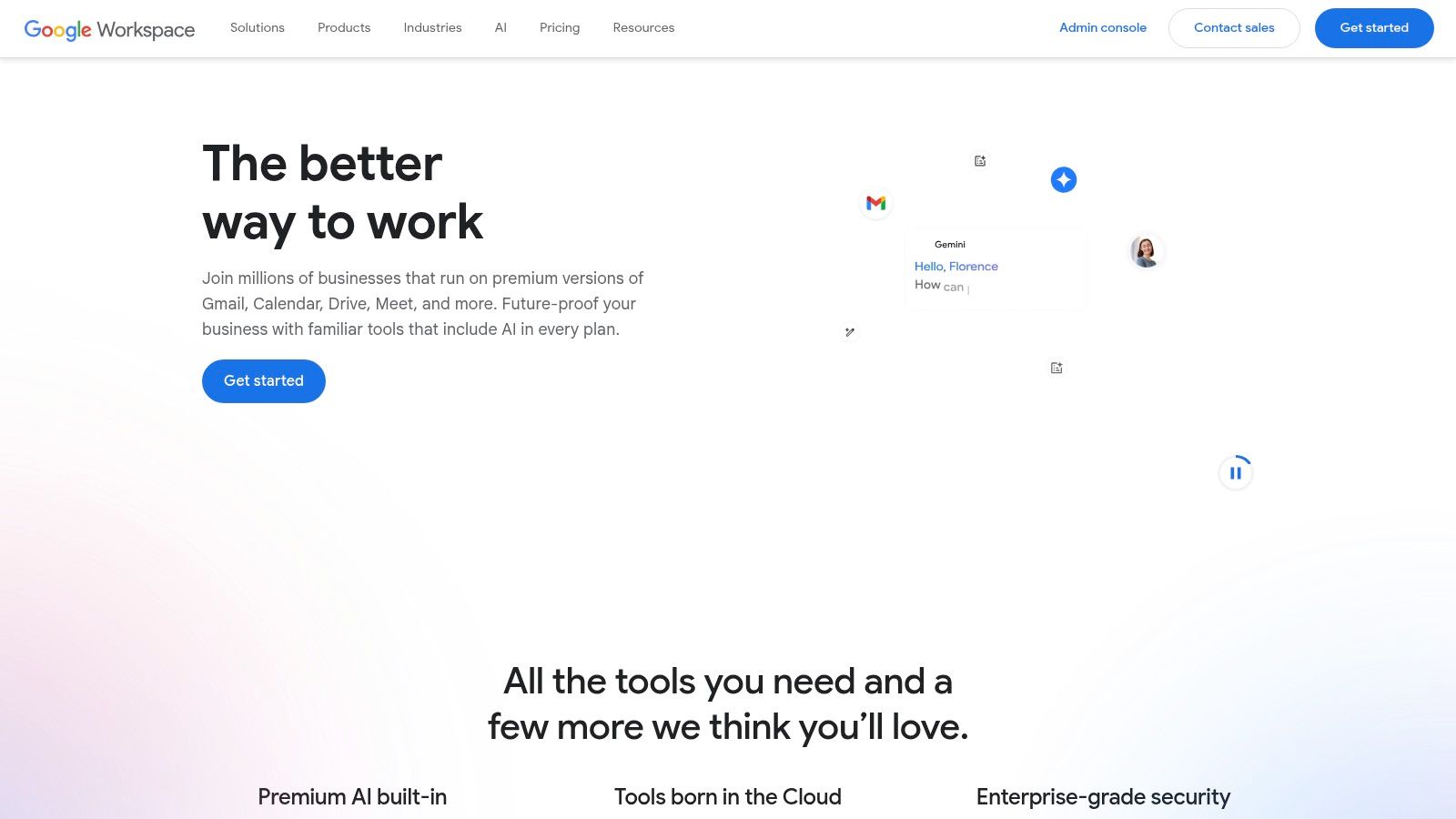
Alt text: An animation showing the “Help me write” feature powered by Gemini in Google Docs, generating text for a job description.
What sets it apart is its accessibility. Since the features are built into tools users already know, the learning curve is minimal. The AI enhances existing workflows rather than requiring new ones, which is a major benefit for organizations seeking rapid adoption with less training overhead.
Practical Example: Streamlining a Quarterly Business Review (QBR)
Here’s a step-by-step guide to preparing for a QBR using Gemini, cutting prep time by over 50%.
- Synthesize Feedback in Gmail: Use the “Summarize this thread” feature to quickly get key points from client feedback emails over the last quarter. No more manual reading and copying.
- Analyze Data in Google Sheets: With your sales data imported, select the “Help me organize” sidebar and prompt Gemini: “Create a pivot table showing sales by region for Q3 and create a bar chart highlighting the top-performing product.”
- Draft the Report in Google Docs: Start a new QBR document and prompt Gemini: “Draft an executive summary for our Q3 performance using the summary from the attached sales sheet and key client feedback points from my recent emails.”
Pricing, Pros & Cons
| Aspect | Details |
|---|---|
| Pricing | Available as an add-on to most Google Workspace plans. The Gemini Business plan is $20/user/month, with an annual commitment. Enterprise options are available. |
| Pros | Seamless Integration: Works inside the familiar Google interface. Ease of Adoption: Minimal training required for teams already using Workspace. |
| Cons | Feature Variation: AI capabilities can differ based on your Workspace plan. Admin Oversight: Requires admins to configure data and privacy settings carefully. |
Actionable Takeaways
- The next time you get a long email chain, use the “Summarize this thread” button in Gmail.
- In Google Docs, use the “Help me write” feature to overcome writer’s block on your next document.
- Ask Gemini in Google Meet to take meeting notes and generate action items automatically.
Tools & Further Reading
- Tool: https://workspace.google.com/
- References: Review Google’s trust and compliance documentation before a wide-scale rollout to ensure data access aligns with company policy.
4. OpenAI ChatGPT (ChatGPT app store)
OpenAI’s ChatGPT serves as a powerful general-purpose assistant for tasks ranging from research and drafting to coding help and data analysis. Its strength lies in its conversational interface, which allows users to refine ideas or generate content through an intuitive back-and-forth dialogue. The platform extends its core capabilities through the GPT Store, where users can access custom GPTs tailored for specific functions.
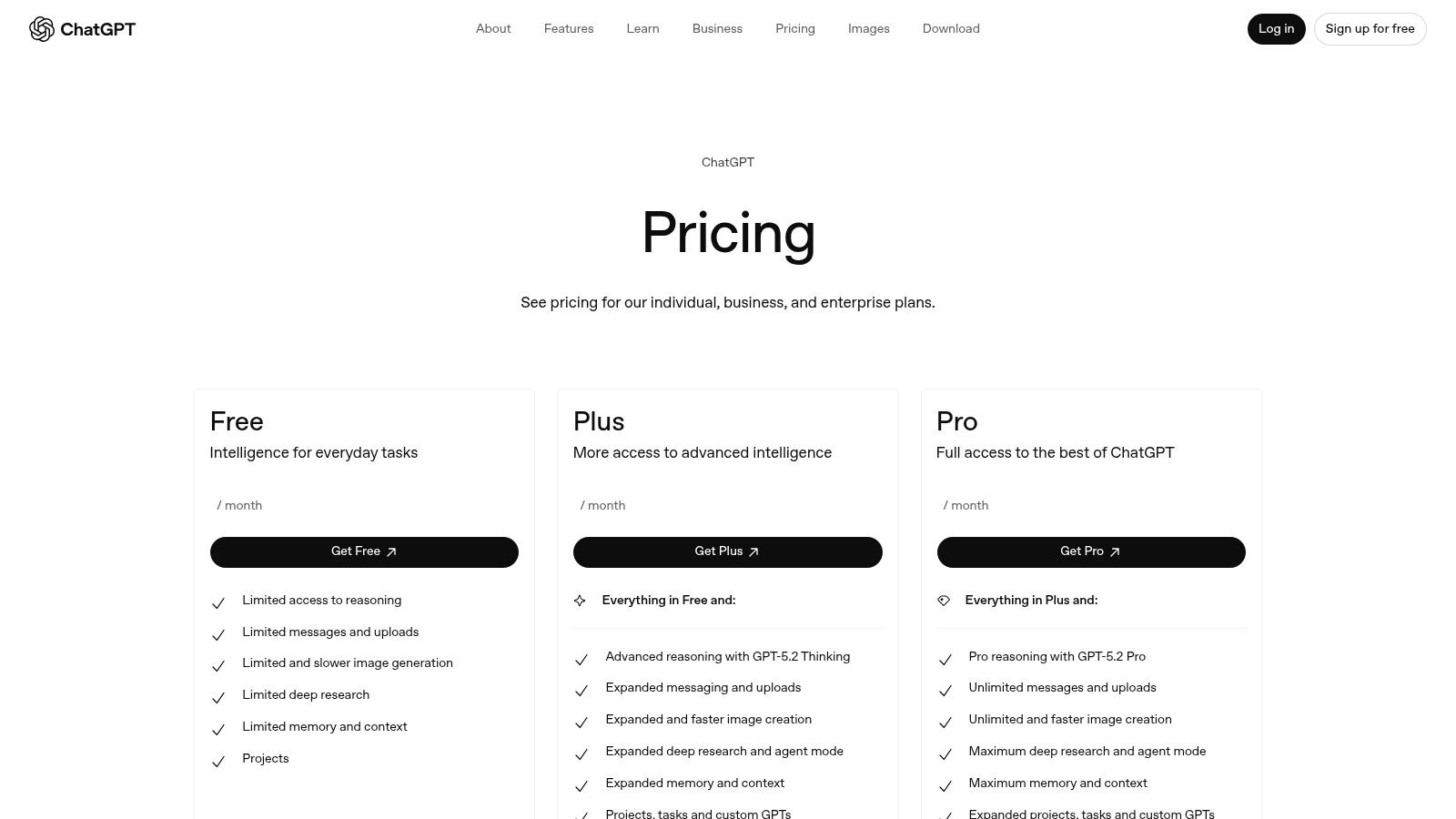
Alt text: A screenshot showing the different pricing plans for ChatGPT, including Free, Plus, and Team options.
What sets ChatGPT apart is its rapid feature evolution and broad applicability. While other tools focus on niche tasks, ChatGPT provides a flexible foundation that can be adapted to nearly any knowledge-based workflow. For businesses, the Team and Enterprise tiers add crucial administrative controls, SSO, and enhanced privacy, making it a viable option for company-wide deployment.
Practical Example: Accelerating Market Research
Here’s a step-by-step process for using ChatGPT to quickly understand a new market segment for a product launch.
- Summarize a Report: Upload a preliminary market report PDF to ChatGPT (Plus/Team plan required) and ask: “Summarize the key trends, primary competitors, and target audience demographics from this document into five bullet points.”
- Generate Marketing Angles: Use the summary to generate marketing copy. Prompt it: “Based on the summary, write three distinct ad headlines targeting the ‘young professionals’ demographic mentioned in the report. Make the tone professional but energetic.”
- Analyze Survey Data: Upload survey results as a CSV file and ask: “Analyze this CSV file to identify the top three most requested features and create a bar chart visualizing the results.”
Pricing, Pros & Cons
| Aspect | Details |
|---|---|
| Pricing | Free plan with limitations. ChatGPT Plus is $20/month. Team plans start at $25/user/month. Enterprise pricing is custom. |
| Pros | Strong general-purpose capabilities with rapid feature updates. Scales effectively from individual users to large enterprises via different tiers. |
| Cons | Usage limits and model access vary by plan. Advanced governance and enterprise controls require more expensive Business or Enterprise plans. |
Actionable Takeaways
- Use ChatGPT to rephrase a difficult email or shorten a long paragraph for clarity.
- Browse the GPT Store to find a custom GPT that automates a niche task you do regularly.
- Upload a document you need to understand quickly and ask for a bulleted summary.
Tools & Further Reading
- Tool: https://openai.com/chatgpt/pricing/
- Further Reading: A complete overview of ChatGPT can provide deeper business insights. For better results, invest time in learning effective prompt engineering.
5. Notion (with Notion AI)
For teams seeking to consolidate knowledge management and project work, Notion with its integrated AI is a powerful contender. It functions as an all-in-one workspace, combining documents, wikis, task managers, and databases. The Notion AI features are built directly into this environment, allowing users to enhance their existing content without switching applications. This tight integration is its core strength.
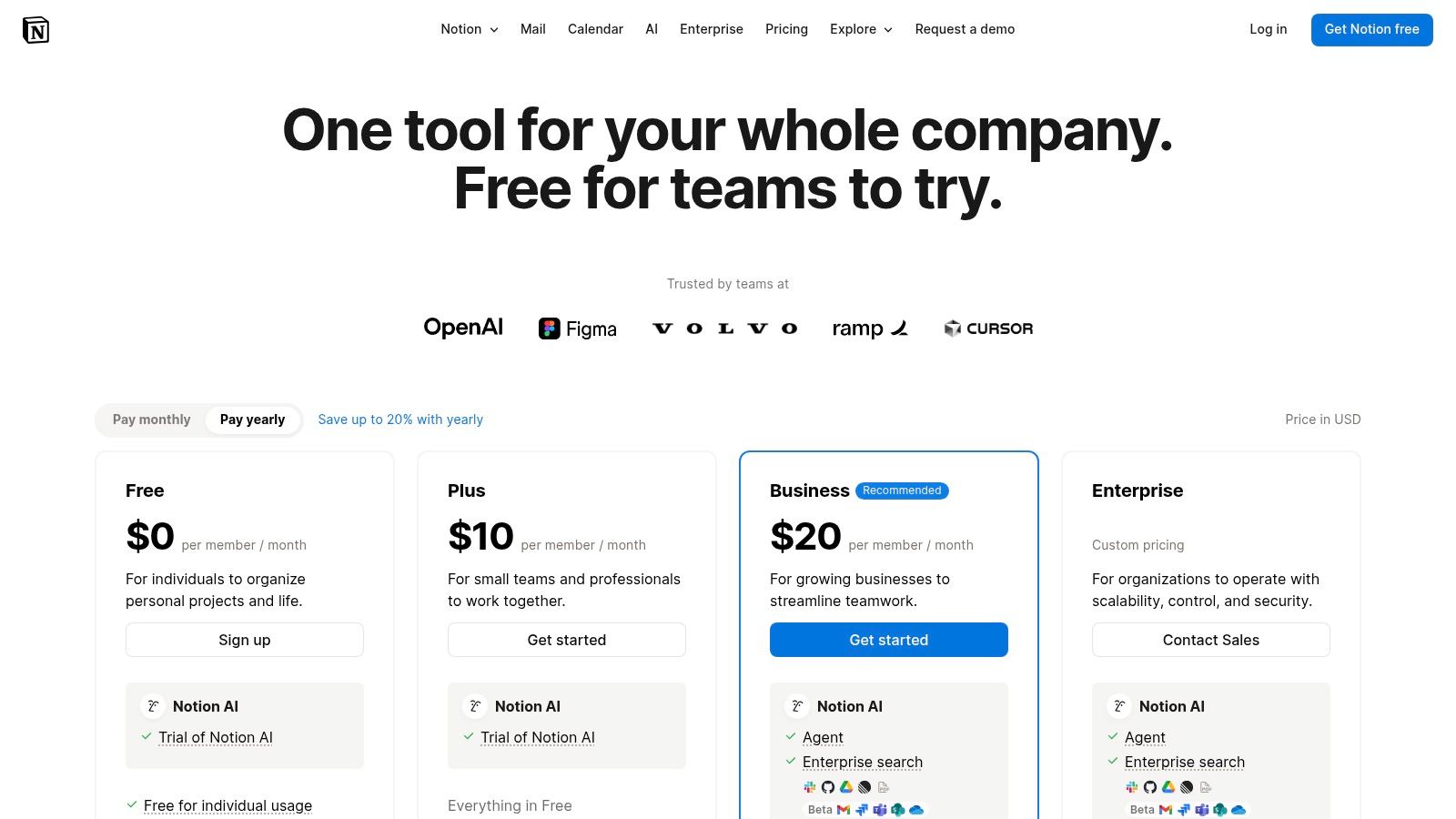
Alt text: A screenshot of the Notion pricing page, showing the Free, Plus, Business, and Enterprise plans with their features and costs.
What sets Notion apart is its flexibility combined with AI. While other tools focus on a single function, Notion allows you to build custom workflows and then supercharge them with AI. Whether it’s summarizing lengthy meeting notes or brainstorming marketing copy, the AI is always available in the context of your team’s work.
Practical Example: Automating a Content Calendar
Here’s how to use Notion AI to accelerate your content workflow from idea to publication.
- Brainstorm Ideas: In a new Notion page, press the spacebar to activate Notion AI and type the prompt: “Generate 10 blog post ideas about the impact of AI on small business marketing.”
- Create a Detailed Brief: Select the best idea. Highlight it and click the “Ask AI” button, then input: “Create a detailed content brief for this topic, including a target audience, key talking points, and an SEO keyword list.”
- Fill the Database Automatically: In your content calendar database, add a new entry for the post. Click the magic wand icon in an empty property (e.g., ‘Summary’) and use the AI Autofill feature. Prompt it: “Write a 1-2 sentence summary of this blog post based on its title and content brief.”
Pricing, Pros & Cons
| Aspect | Details |
|---|---|
| Pricing | Free plan available. Paid plans start at $8/user/month (billed annually). Notion AI is included in Business and Enterprise plans. |
| Pros | Unified Workspace: Consolidates docs, tasks, and knowledge bases. Contextual AI: AI features operate directly on your existing content. |
| Cons | Complexity: Can have a steep learning curve for new users. Cost: Full AI access is tied to more expensive Business/Enterprise tiers. |
Actionable Takeaways
- Highlight a page of your meeting notes in Notion and ask AI to create a summary and list action items.
- Use AI Autofill in a database to automatically generate social media copy for a list of blog posts.
- Ask Notion AI to “improve writing” on a paragraph you’ve written to make it more concise.
Tools & Further Reading
- Tool: https://www.notion.com/pricing
- References: A well-organized Notion setup is key. Establish clear templates and workspace structures before rolling out AI features to your team.
6. GitHub Copilot
For developers, GitHub Copilot is the quintessential AI pair programmer, designed to supercharge coding workflows directly within the integrated development environment (IDE). It goes beyond simple autocompletion, offering contextual code suggestions, entire function completions, and even test generation. Its primary strength lies in its deep integration with the developer ecosystem.

Alt text: A screenshot of the GitHub Copilot plans page, showing Individual, Business, and Enterprise tiers with their respective pricing and features.
What sets it apart is its specialized focus on the software development lifecycle. Copilot understands the context of your codebase, helping you write code faster, learn new libraries, and reduce time spent on boilerplate tasks. This allows developers to stay in their creative flow and focus on solving complex problems.
Practical Example: Building a New API Endpoint
Here’s a step-by-step workflow for a developer adding a new feature to a web application.
- Define the Function with a Comment: In your code editor, write a comment describing what you want to do. For example:
// function to fetch user data by ID from the database and handle errors. - Generate the Code: As you start typing the function signature
function getUserById(id) {, Copilot will suggest the complete function body, including the database query, error handling, and response formatting. PressTabto accept it. - Generate a Unit Test: In your test file, write another comment:
// test for the getUserById function for a valid ID. Copilot will generate a complete unit test case, including mock data and assertions, to validate the new endpoint.
Pricing, Pros & Cons
| Aspect | Details |
|---|---|
| Pricing | Individual plans start at $10/month. Business plans are $19/user/month and include enhanced security and policy management. |
| Pros | Deep IDE Integration: Works seamlessly inside popular code editors, minimizing context switching. Code Context-Awareness: Provides highly relevant suggestions. |
| Cons | Code Quality: Suggestions may sometimes be suboptimal or require refactoring. Cost: Can become expensive for large development teams. |
Actionable Takeaways
- Use Copilot Chat in your IDE to ask, “How do I implement authentication in Express.js?” instead of searching Google.
- Write a comment describing a complex regex you need, and let Copilot generate it for you.
- Ask Copilot to explain a confusing block of legacy code to speed up your debugging process.
Tools & Further Reading
- Tool: https://github.com/features/copilot/plans
- Further Reading: Explore the best AI coding assistants currently available for a deeper comparison.
7. Zapier
For those looking to connect their tech stack, Zapier has long been the gold standard in no-code automation. It now layers powerful AI capabilities into its workflows, transforming it from a simple connector into an intelligent hub. Instead of just passing data between apps, Zapier can now analyze, format, and act on that data using AI.
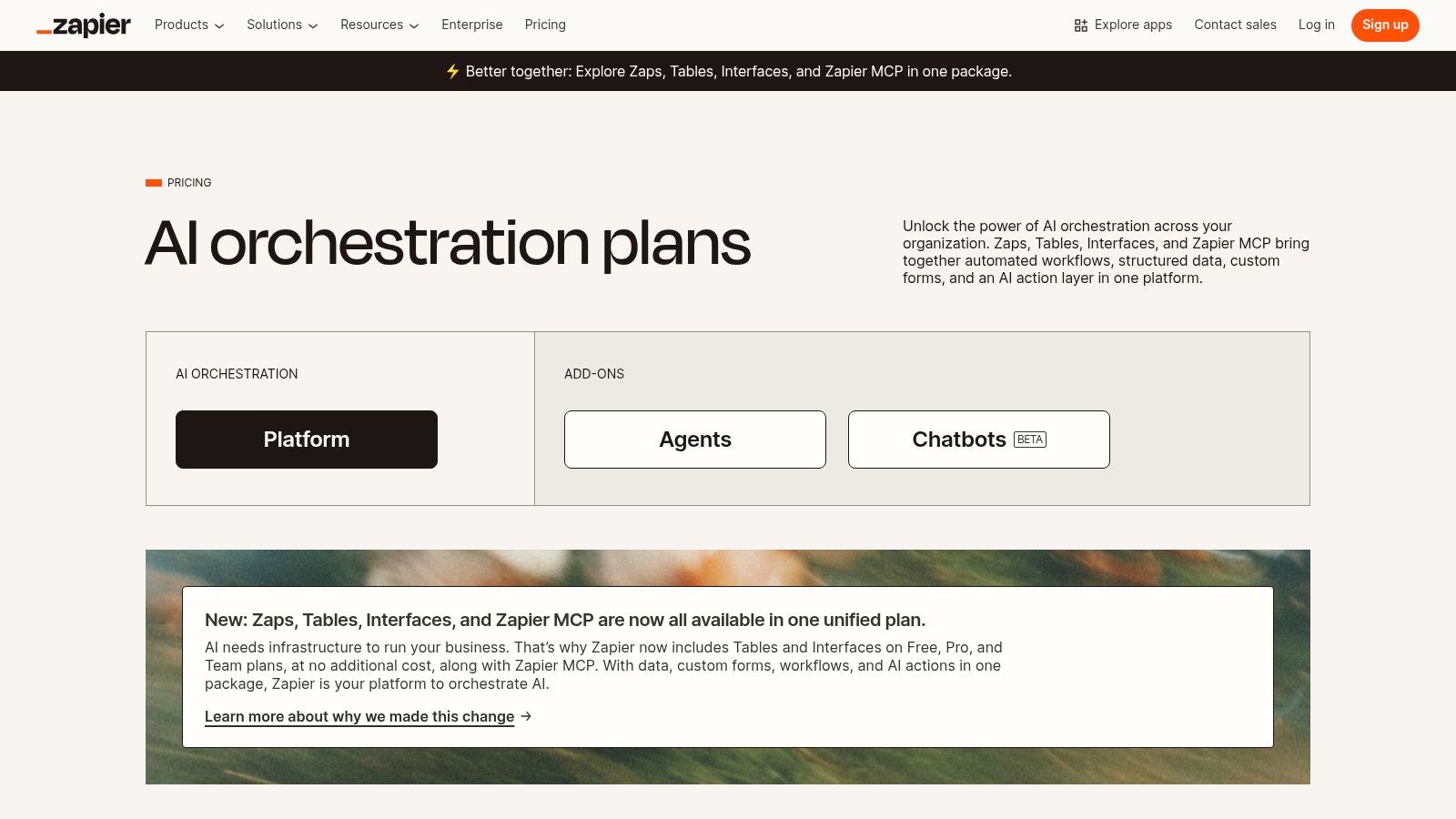
Alt text: A screenshot of the Zapier pricing page showing plans with different task limits and AI features.
What sets it apart is its massive library of over 6,000 app integrations combined with user-friendly AI. You don’t need to be a developer to build sophisticated automations that enrich data, summarize text, or classify leads. This accessibility is invaluable for teams looking to automate processes without waiting for engineering resources.
Practical Example: Creating an AI-Powered Lead Qualifier
Here’s a step-by-step guide to automatically qualifying and responding to new leads from a website contact form.
- Set the Trigger: In Zapier, create a new Zap. For the trigger, select your form app (e.g., Typeform) and the “New Entry” event.
- Add the AI Action: Add a new step and choose “Format by AI.” In the prompt field, instruct the AI: “Based on the following lead information [insert fields from form], classify this lead as ‘High,’ ‘Medium,’ or ‘Low’ priority. Then, draft a personalized opening sentence for a follow-up email.”
- Create Conditional Paths: Add a “Paths” step. Create one path for “High” priority leads and another for “Medium/Low.”
- Path A (High Priority): If the AI output contains “High,” add the lead to your CRM (e.g., Salesforce) and send an instant Slack notification to the
#sales-leadschannel. - Path B (Medium/Low Priority): If the AI output is anything else, add the lead to a nurturing sequence in your email marketing tool (e.g., Mailchimp).
- Path A (High Priority): If the AI output contains “High,” add the lead to your CRM (e.g., Salesforce) and send an instant Slack notification to the
Pricing, Pros & Cons
| Aspect | Details |
|---|---|
| Pricing | Offers a free tier with limited tasks. Paid plans start from $19.99/month (billed annually) and scale based on task volume and feature access. |
| Pros | Huge Integration Catalog: Connects to nearly any app you use. Easy to Start: Simple, intuitive interface for building automations. |
| Cons | Scales with Volume: Costs can increase quickly with high task usage. Advanced Features Gated: Key security options are on higher-tier plans. |
Actionable Takeaways
- Build a Zap that automatically saves attachments from a specific sender in Gmail to a Dropbox folder.
- Create an AI-powered Zap that summarizes articles from an RSS feed and posts them to a Slack channel.
- Automate your social media by creating a Zap that shares your new blog posts to LinkedIn and X.
Tools & Further Reading
- Tool: https://zapier.com/pricing
- Further Reading: Exploring different AI workflow automation tools can help you identify the best fit for your needs.
8. Product Hunt — Artificial Intelligence Topic
For staying on the cutting edge of AI, Product Hunt’s Artificial Intelligence topic page is an indispensable daily resource. It’s a discovery platform where new AI applications launch and compete for attention. This makes it an ideal starting point for anyone looking to find niche or brand-new ai tools for productivity before they hit the mainstream. Its primary advantage is the community-driven curation; upvotes and discussions provide real-time social proof.
Alt text: A screenshot of the Product Hunt website showing the Artificial Intelligence topic page with a list of recently launched AI tools.
What sets it apart is its focus on launch-day buzz and early adoption. While other lists are static, Product Hunt is a dynamic feed of what’s new and trending right now. You get direct access to the makers, can ask questions, and often find exclusive launch-day deals. It’s less about deep analysis and more about rapid, broad discovery.
Practical Example: Finding a Niche AI Tool
Here’s how to find a specialized AI tool to transcribe and summarize your team’s internal podcasts.
- Visit the Topic Page: Navigate to the Product Hunt “Artificial Intelligence” topic.
- Filter and Search: Use the search bar with terms like “podcast summary” or “audio transcription AI.” Alternatively, browse the “Top voted this week” to see what’s popular.
- Evaluate Listings: Scan the top results. Look at the one-line pitch, the number of upvotes, and click into the product page to read the maker’s comments and community reviews. Check for feedback related to accuracy and speed.
- Test the Tool: Once you identify a promising tool, use the direct link to visit its website, sign up for a trial, and test its capabilities with one of your podcast episodes.
Pricing, Pros & Cons
| Aspect | Details |
|---|---|
| Pricing | Free to browse and participate. Pricing for individual tools found on the platform varies by vendor. |
| Pros | Early Discovery: Find the newest tools as they launch. Community Feedback: Real user reviews and discussions provide initial validation. |
| Cons | Variable Quality: Hype can sometimes outweigh utility; not every launched tool is market-ready. High Noise: Requires frequent checking to keep up with listings. |
Actionable Takeaways
- Set a weekly reminder to spend 15 minutes browsing the top AI tools of the week on Product Hunt.
- Follow 3-5 AI tool makers on the platform to stay updated on their future launches.
- When you find a promising tool, ask a specific question in the comments section to engage directly with the founder.
Tools & Further Reading
- Tool: https://www.producthunt.com/topics/artificial-intelligence
- References: Remember that a Product Hunt launch is just the first step. Use it as a discovery tool, but always conduct your own vetting before committing to a new solution for your core workflow.
9. G2 — Generative AI Software Category
G2’s Generative AI category serves as a crucial research hub for anyone navigating the crowded market of productivity solutions. It’s a B2B software marketplace that aggregates extensive user reviews, comparison grids, and market data. For decision-makers, its primary value lies in offering a structured way to discover and evaluate the best AI tools based on real-world feedback rather than just marketing claims.
What sets it apart is the volume of verified user reviews and its powerful filtering system. While other lists offer curated opinions, G2 provides a democratic view, allowing you to slice data by company size, user role, and specific features. This helps you see how a tool performs for a business like yours, moving beyond generic praise to find granular insights on implementation, support, and ROI.
Practical Example: Shortlisting a Content Creation Tool
Here’s a step-by-step process for a marketing manager tasked with finding the top three AI writers to trial.
- Navigate to the Category: Go to the G2 Generative AI category and select the “AI Content Creation” subcategory.
- Apply Filters: Use the left-hand filters to narrow the list. Select your company size (e.g., “Mid-Market”), highest user satisfaction ratings, and specific required features like “SEO optimization” or “brand voice analysis.”
- Compare Top Contenders: Check the boxes for the top three to five highest-rated tools from the filtered list and click the “Compare” button. This creates a side-by-side chart that clearly lays out features, pricing models, and user ratings for critical aspects like ease of use and quality of support, making your decision much easier.
Pricing, Pros & Cons
| Aspect | Details |
|---|---|
| Pricing | Free to browse and compare. Vendors pay for premium profile features, but user access is complimentary. |
| Pros | Broad Market Coverage: A vast collection of user reviews across hundreds of tools. Useful Comparisons: Side-by-side charts simplify vendor shortlisting. |
| Cons | Vendor Influence: Some listings can be vendor-driven, so it’s important to read reviews critically. Time-Consuming: Finding the best insights requires time to sort through reviews. |
Actionable Takeaways
- Before your next software purchase, look up the tool on G2 and read the three most recent negative reviews to understand its potential weaknesses.
- Use the comparison feature to evaluate two of your current software tools against a potential new competitor.
- Filter by your company size and industry to find reviews that are most relevant to your specific use case.
Tools & Further Reading
- Tool: https://www.g2.com/categories/generative-ai
- References: Look for patterns in reviews. If multiple users from similar companies mention the same pro or con, it’s likely a reliable data point.
10. Chrome Web Store — “Work smarter, not harder with AI” Collection
This entry is a curated ecosystem of AI tools directly within your browser. The Chrome Web Store’s “Work smarter, not harder with AI” collection offers a vetted list of extensions that add AI capabilities to your existing web-based workflows. This approach is ideal for individuals looking for lightweight, single-purpose tools that can be installed with one click.
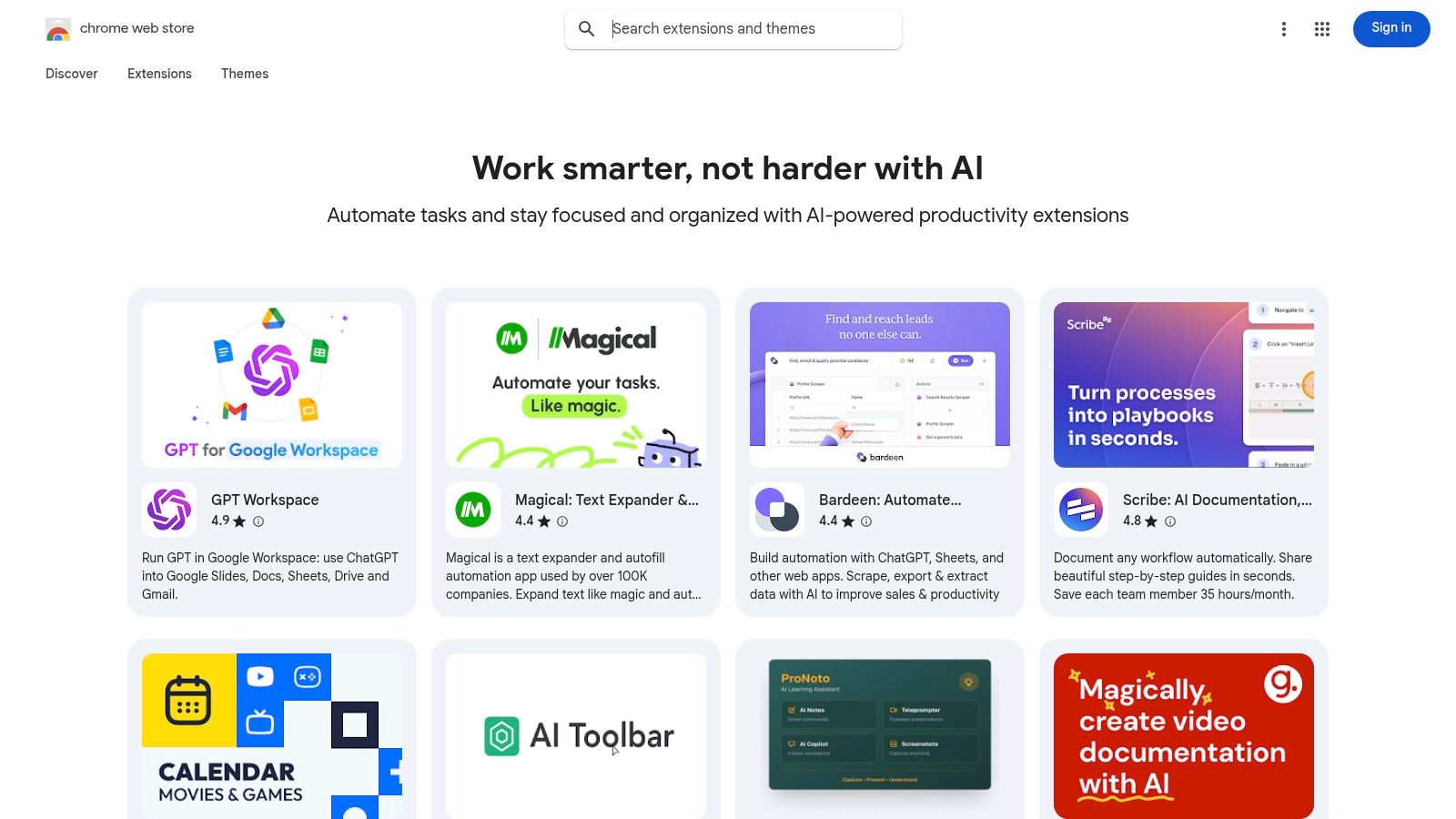
Alt text: A screenshot of the Chrome Web Store collection of AI productivity extensions, showing various tools like Grammarly and Scribe.
What sets this collection apart is its low barrier to entry. You can experiment with multiple AI solutions without committing to a platform-wide subscription. Since the extensions operate within the browser, they are inherently cross-platform. This makes it a flexible way to augment your productivity without overhauling your core software stack.
Practical Example: Enhancing Online Research and Writing
Here’s how you can use several AI extensions simultaneously to streamline the process of drafting a competitive analysis report.
- Summarize Content: While viewing a lengthy industry report online, use an extension like SciSpace Copilot to get an AI-powered summary and key takeaways without leaving the page.
- Draft and Refine: As you write your findings in Google Docs, use an AI writing assistant like Grammarly to check for clarity, tone, and grammar in real-time.
- Capture a Workflow: If you discover a useful process for finding data on a competitor’s site, use an extension like Scribe to automatically generate a step-by-step guide with screenshots to share with your team, simply by clicking through the process yourself.
Pricing, Pros & Cons
| Aspect | Details |
|---|---|
| Pricing | Varies by extension. Many offer robust free tiers, with premium features available through individual subscriptions. |
| Pros | Easy to Trial: Install and uninstall tools with one click. Flexibility: Mix and match tools to build a custom productivity stack. |
| Cons | Quality Varies: The effectiveness and data privacy practices differ between extensions. Admin Control: Can be challenging to manage in large enterprise environments. |
Actionable Takeaways
- Install one highly-rated AI extension from the collection that solves a small, daily annoyance.
- Review the permissions of your currently installed extensions to ensure they only access the data they need.
- Try a YouTube summary extension to get the key points of a long video without watching the entire thing.
Tools & Further Reading
- Tool: https://chromewebstore.google.com/collection/ai_productivity
- References: Carefully vet each extension’s permissions before installing. While Google curates the list, it’s still crucial to understand what data each tool can access.
11. Slack App Directory / Marketplace — AI Apps in Slack
For teams living in Slack, bringing AI into the conversation is the most natural way to boost productivity. The Slack App Directory is a marketplace of thousands of applications, including a rich ecosystem of AI assistants. This allows teams to integrate specialized AI capabilities directly into their primary communication hub, from summarizing channels to drafting replies.
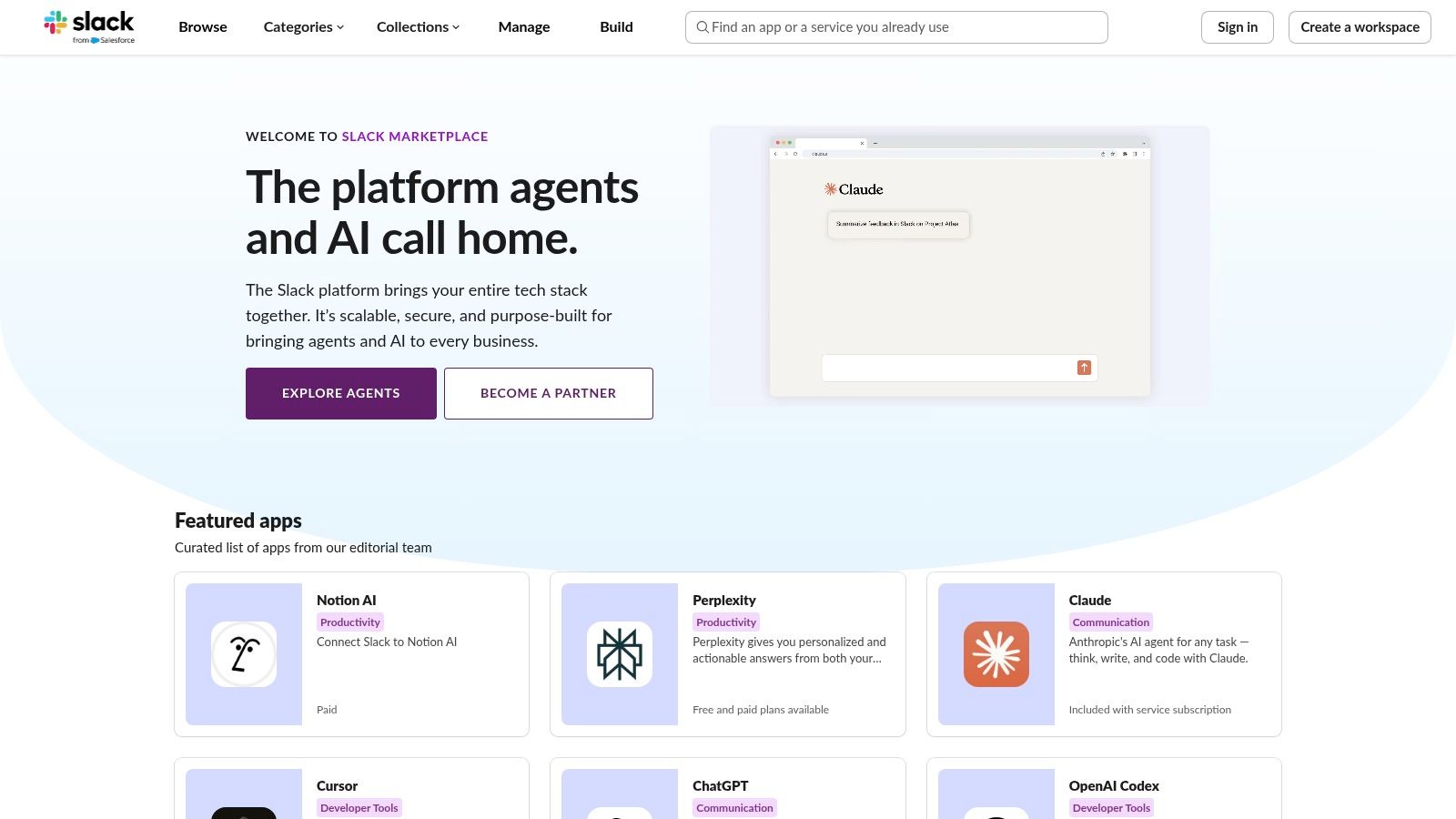
Alt text: The Slack App Directory homepage showing featured apps and different categories, including AI.
What sets this approach apart is the ability to embed best-in-class AI right where work happens. Instead of being locked into one provider’s ecosystem, you can add a dedicated AI for sales, another for engineering, and a general assistant for all-hands channels. Administrators have granular control over approvals and deployment, making it a secure and flexible choice.
Practical Example: Streamlining Customer Support in a Channel
Here’s how a support team can use an AI app in their dedicated #support-triage channel to handle issues more efficiently.
- Install a Summarization App: Add an AI app like Slack AI or Anthropic’s Claude to the channel from the App Directory.
- Summarize Urgent Threads: When a complex customer issue creates a long, fast-moving thread, a support lead can use a slash command or mention the bot:
@AI summarize this thread for an escalation report. - Draft a Customer Response: The AI provides a concise summary of the problem, steps taken, and current status. The lead then prompts it further right in the thread:
Using this summary, draft a polite follow-up message for the customer in the #customer-updates channel, confirming we are working on a solution.
Pricing, Pros & Cons
| Aspect | Details |
|---|---|
| Pricing | Varies by app. Many AI apps in the directory require a separate paid subscription with the third-party vendor. |
| Pros | Workflow Integration: Brings AI directly into team conversations. Flexibility: Choose from a wide variety of specialized AI tools. |
| Cons | Separate Subscriptions: Many apps require their own paid plans, adding complexity. Admin Approval: Installation often requires IT approval. |
Actionable Takeaways
- Add a polling app with AI features to your team channel to make decision-making faster.
- Use Slack’s built-in AI to summarize a channel you’ve been away from for a few days.
- Explore the AI category in the App Directory and install one app in a personal or test channel to try it out.
Tools & Further Reading
- Tool: https://slack.com/apps
- References: Start by identifying specific bottlenecks in your communication workflows and find a targeted AI app to solve them. Test in a single channel before a wider rollout.
12. Setapp — AI App Collection for Mac and iOS
For Mac and iOS users, Setapp offers a unique approach. Instead of a single application, it’s a subscription service that bundles over 260 curated apps, many of which are AI-enhanced. This model positions Setapp as a cost-effective alternative to purchasing dozens of individual software licenses, providing a comprehensive toolkit for tasks ranging from writing and coding to design and system maintenance.
Alt text: A screenshot of the Setapp website showing a collection of AI-powered Mac apps available through the subscription.
What makes Setapp stand out is its value proposition and curation. It simplifies software management with a single monthly bill. The platform even includes an AI assistant that recommends the best app from its catalog for a specific task, helping users discover powerful tools they might have otherwise overlooked.
Practical Example: Enhancing a Writing Workflow on Mac
Here’s a step-by-step process for a content creator using Setapp to research, write, and edit an article.
- Find the Right Tool: Open the Setapp AI assistant and ask, “Which app is best for focused, distraction-free writing with AI editing?” It might recommend Ulysses.
- Draft Your Content: In Ulysses, use its built-in features to write your article. When you need to rephrase a sentence, use an integrated AI tool like Elephas (also on Setapp) via a system-wide shortcut, without leaving your document.
- Generate Images and Proofread: Use another Setapp app like Glue to generate blog post images with an AI prompt. Finally, run the text through a tool like Grammarly (accessible via its own app) for a final polish before publishing.
Pricing, Pros & Cons
| Aspect | Details |
|---|---|
| Pricing | Plans start at $9.99/month for Mac only. AI+ plans with credits for integrated AI features are available as an add-on. Offers a 7-day free trial. |
| Pros | Cost-Effective: Access 260+ premium apps for a low monthly fee. Centralized Management: One subscription for installs, updates, and billing. |
| Cons | Platform-Locked: Only valuable for macOS and iOS users. Credit System: Some advanced AI features require purchasing an additional AI+ credit pack. |
Actionable Takeaways
- Use the Setapp free trial to replace one of your paid app subscriptions and see if it meets your needs.
- Ask the Setapp AI assistant to recommend a tool for a task you’ve been struggling with.
- Explore the “AI Apps” collection in Setapp to discover new tools included in your subscription.
Tools & Further Reading
- Tool: https://setapp.com/ai
- References: Setapp is ideal for Apple ecosystem power users who value variety. Instead of committing to one tool, you gain access to an evolving library.
Top 12 AI Productivity Tools Comparison
| Product | Core capabilities | UX / Quality ★ | Value & Pricing 💰 | Target 👥 | Unique selling points ✨ |
|---|---|---|---|---|---|
| RichlyAI 🏆 | Text, images, audio, video, code, chatbots, realtime voice, social automation + AI Tools Hub (11k) | ★★★★☆ — prompt-driven, real-time responses | 💰 Free plan + affordable upgrades; enterprise via sales | 👥 Creators, marketers, developers, SMBs | ✨ Multi-modal creation + discovery marketplace; seamless editing & scheduling |
| Microsoft 365 with Copilot | Copilot in Word/Excel/PowerPoint/Outlook/Teams; app integrations | ★★★★ — familiar enterprise UI | 💰 Subscription tiers (per-user); enterprise bundles | 👥 IT-managed enterprises, office teams | ✨ Deep in-app AI + centralized admin & governance |
| Google Workspace with Gemini | AI in Gmail, Docs, Sheets, Meet; summaries & drafting | ★★★★ — seamless Google experience | 💰 Workspace tiers; org rollout pricing | 👥 Organizations using Google apps | ✨ In-app summarization & meeting notes across Workspace |
| OpenAI ChatGPT (App Store) | Multimodal chat, custom GPTs, app marketplace, files & voice | ★★★★☆ — rapid feature cadence | 💰 Free + Plus/Pro/Business/Enterprise plans | 👥 Individuals, developers, teams, enterprises | ✨ Custom GPTs + extensible app store; advanced reasoning models |
| Notion (with Notion AI) | Docs, databases, tasks + integrated AI writing, notes | ★★★★ — unified workspace experience | 💰 Tiered plans; best AI on Business/Enterprise | 👥 Teams, knowledge managers, PMs | ✨ Consolidated knowledge + AI where work lives |
| GitHub Copilot | AI pair programmer in IDEs; completions, chat, agents | ★★★★ — IDE-native, contextual suggestions | 💰 Individual & team subscriptions | 👥 Developers, engineering teams | ✨ Deep IDE/GitHub integration; coding agents & reviews |
| Zapier | No-code automations, webhooks, conditional paths, AI steps | ★★★★ — easy for non-devs, visual flows | 💰 Usage/task-based pricing (scales with volume) | 👥 Ops, marketers, automation builders | ✨ Massive integrations + conditional multi-step Zaps |
| Product Hunt — AI Topic | Launches, trending tools, community discussions | ★★★ — community-driven discovery | 💰 Free to browse; vendor promotion options | 👥 Early adopters, founders, makers | ✨ Fast visibility & community feedback for new tools |
| G2 — Generative AI Category | Verified user reviews, rankings, comparison grids | ★★★★ — research-focused insights | 💰 Free browsing; paid vendor features | 👥 Buyers, procurement, vendor shortlists | ✨ Large review volume + satisfaction vs market presence |
| Chrome Web Store — AI Collection | Curated AI extensions for writing, focus, notes | ★★★ — 1-click install & browser tools | 💰 Mostly free/freemium extensions | 👥 Browser users, researchers, students | ✨ Quick trials, easy install/rollback via browser |
| Slack App Directory — AI Apps | AI assistants in Slack, security & admin controls | ★★★★ — integrates into daily team chat | 💰 App subscriptions often separate | 👥 Teams using Slack, communicative orgs | ✨ AI inside conversations with admin approvals |
| Setapp — AI App Collection | Bundled Mac/iOS apps + AI toolkit, optional AI+ credits | ★★★★ — curated installs & updates | 💰 Flat subscription vs buying apps individually | 👥 Mac/iOS users, freelancers, small teams | ✨ Cost-effective curated bundle + centralized updates |
Your Next Steps to AI-Powered Productivity
We’ve covered a comprehensive landscape of AI tools, from integrated giants like Microsoft 365 Copilot to specialized powerhouses like GitHub Copilot. The central theme is clear: the future of work isn’t about human versus machine. It’s about human with machine. The biggest productivity gains will be unlocked by those who learn to effectively partner with these intelligent systems.
The goal is not to adopt every shiny new tool. Instead, it’s about strategic augmentation. The right AI tool acts as a lever, multiplying your effort and allowing you to focus on high-value, creative, and strategic tasks. It’s the difference between manually transcribing meeting notes and having a summary with action items automatically generated before the call even ends.
This transition requires a shift in mindset. Think of AI as a highly skilled assistant. Your role is to become a master delegator, learning to craft precise instructions (prompts) and critically evaluate the output. By doing so, you transform these platforms from novelties into indispensable components of your daily workflow.
From Exploration to Implementation: A Practical Roadmap
Moving from reading about AI tools to actually benefiting from them requires a deliberate approach. To cut through the noise, focus on solving one specific, recurring pain point at a time.
Here is a simple, actionable framework to guide your selection and implementation process:
- Identify Your Biggest Time Sink: Pinpoint a task that consumes a disproportionate amount of your time each week. Is it drafting emails? Summarizing research? Writing boilerplate code? Be specific.
- Match the Problem to a Tool Category: Refer back to the categories in this article. If your problem is managing a chaotic inbox, look at email assistants. If it’s coding, explore tools like GitHub Copilot.
- Start with a “Low-Friction” Trial: Select one promising tool and commit to using its free trial or freemium version for one week. Your goal is deep integration, not surface-level familiarity.
- Create a Test Workflow: Define a simple, repeatable task to test the tool. For example, if you’re testing a writing assistant, use it to draft three specific emails you need to send anyway. This provides a direct, real-world comparison.
- Evaluate and Decide: After the trial, ask yourself: Did this save me time? Did it improve the quality of my output? Does it fit naturally into my existing workflow? If the answer is yes, it’s a strong candidate for adoption.
Your Actionable Takeaways
- Audit Your Week: Take 15 minutes to list your top five most repetitive or time-consuming tasks.
- Pick One “Pain Point” Tool: Choose just one tool from this list that directly addresses your biggest bottleneck and sign up for its free trial today.
- Bookmark a Discovery Hub: Add a tool discovery platform like Product Hunt or the RichlyAI Hub to your bookmarks for ongoing exploration.
- Build One Automation: Use a tool like Zapier to create a single, simple automation, such as saving email attachments to a specific cloud folder.
The era of AI-enhanced productivity is here. By starting small, focusing on tangible problems, and methodically integrating the right solutions, you can reclaim your time, amplify your impact, and redefine what it means to be productive.
Ready to find the perfect AI solution without endless searching? RichlyAI offers a curated and constantly updated directory of the best AI tools, categorized for specific needs just like the ones we’ve discussed. Stop guessing and start discovering the tools that will transform your workflow today at RichlyAI.
