
Keeping your email password updated on your iPhone is a simple but vital step for your online safety. This guide will walk you through the exact steps, which you’ll handle right inside the Settings app by navigating to Mail and then Accounts. It’s a small action that goes a long way in protecting your digital life.
Why and When You Should Update Your iPhone Email Password
Before we jump into the “how-to,” let’s cover the “why.” Changing your email password isn’t just digital housekeeping; it’s a fundamental security measure. Your email is the key to almost everything you do online—from banking and social media to personal documents. If someone gets that password, you’ve handed them a master key to your digital world.
Using the same password for different services is like having one key for your house, car, and office. Once a thief has that key, everything is vulnerable. This isn’t a hypothetical problem; data breaches happen constantly.
Key Moments to Change Your Password
There are specific times when you must change your password immediately. If any of these happen, make it your priority:
- You Hear About a Data Breach: If a service you use (like LinkedIn, Adobe, etc.) announces a hack, change your password for that service right away. If you reused that password anywhere else, change it there, too.
- You Spot Suspicious Activity: Getting login alerts from strange locations? Seeing emails in your “sent” folder that you didn’t write? These are huge red flags.
- Your iPhone is Lost or Stolen: If your device is gone, one of your first moves should be to change the passwords for all your important accounts. Alongside locking the device, this helps secure your information. For extra security, you might also want to look into how to hide apps on your iPhone in settings (opens in a new tab).
- It’s Been a While: Even if nothing seems wrong, it’s a good security habit to update your main passwords every 3-6 months. Think of it as a routine check-up.
Recent cybersecurity reports show staggering numbers of leaked credentials. One breach alone exposed over 16 billion records worldwide. The risk is real, and the best defense is proactive password management.
Getting Your New Email Password into Your iPhone Settings
Right, let’s get down to business. A common point of confusion is the difference between changing your password and updating it on your iPhone. You must first change the password at the source—on Gmail’s website, for instance. Only then can you tell your iPhone what the new password is. This guide walks you through that second, crucial step.
The good news is that this all happens right inside your iPhone’s Settings app. Whether you’re on Gmail, Outlook, Yahoo, or another account, the process is very similar.
Step-by-Step: Finding and Updating Your Account
Here is the exact process to update the password on your iPhone after you’ve already changed it with your email provider.
- Open the Settings app on your iPhone.
- Scroll down and tap on Mail.
- Tap on Accounts. You will now see a list of every email account connected to your iPhone.
- Tap on the specific account you need to update (e.g., “Gmail”).
- What you see next depends on the provider:
- For major providers (Gmail, Outlook): You will likely see a button that says “Re-enter Password.” Tap it. A pop-up window from Google or Microsoft will appear. Enter your new password here and follow the prompts.
- For other accounts (IMAP/POP): You will see fields for “Incoming Mail Server” and “Outgoing Mail Server.” You must manually enter your new password in the Password field under both sections. If you only update one, you may be able to receive emails but not send them (or vice versa).
This is exactly where you’ll land in the Settings app to see your list of connected accounts.
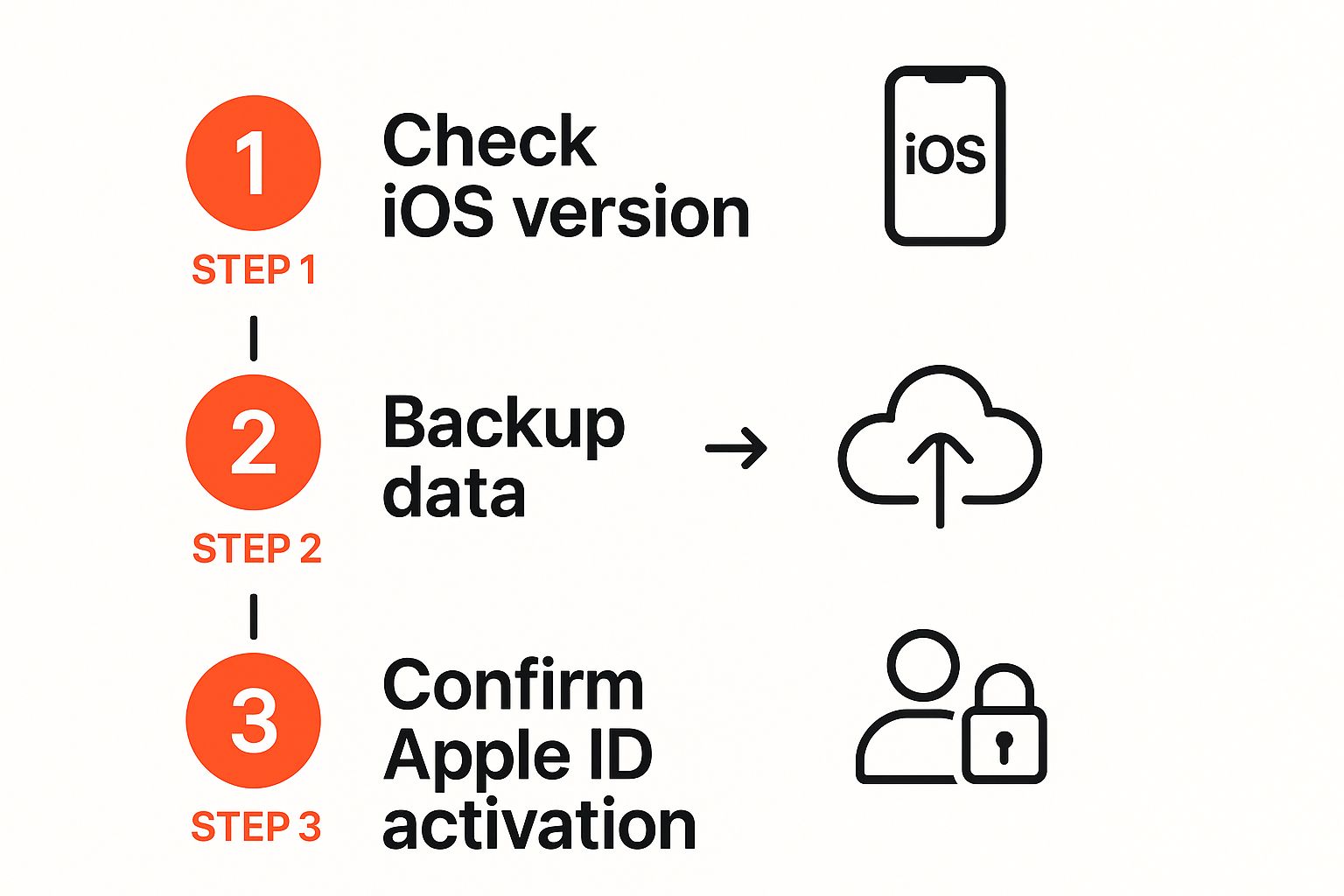
Alt text: Screenshot of the ‘Accounts’ screen within the iPhone Mail settings, showing a list of configured email accounts like iCloud and Gmail.
From this screen, you just need to pick the account you want to work on. If you get stuck with technical details like server names or ports, especially for iCloud, this detailed guide on IMAP settings for iCloud is a great resource.
Quick Guide to Updating Passwords for Major Email Providers
| Email Provider | Path in iPhone Settings | Key Action |
|---|---|---|
| Gmail | Settings > Mail > Accounts > Gmail | Tap “Re-enter Password” to open the Google sign-in prompt. |
| Outlook/Hotmail | Settings > Mail > Accounts > Outlook | Tap “Re-enter Password” for the Microsoft login screen. |
| Yahoo | Settings > Mail > Accounts > Yahoo! | Tap “Re-enter Password” to authenticate via Yahoo. |
| iCloud | Settings > [Your Name] > iCloud > iCloud Mail | Your iCloud account password is your Apple ID password. |
| IMAP/POP (Other) | Settings > Mail > Accounts > [Account Name] | Manually update the password field under both Incoming and Outgoing Mail Server. |
This table should get you to the right screen in seconds, cutting down on any guesswork.
A Pro Tip From Experience: If the Mail app gets stuck in a frustrating loop, constantly demanding your password even though you know you’ve entered the new one correctly, don’t pull your hair out. The most reliable fix is to simply delete the account from your iPhone and add it back from scratch. It feels drastic, but it forces a completely fresh, clean connection with the server and almost always solves the problem.
Use Your iPhone’s Built-in Tools for Stronger Passwords
It’s about more than just changing one password. Your iPhone has powerful, often-overlooked tools baked right in, designed to strengthen your overall security. Instead of just reacting to a problem, you can use these features to stay ahead of the game.
Alt text: An illustration showing a shield icon, symbolizing the security features available on an iPhone.
Think of it as upgrading your security posture, not just fixing a single password.
Turn On Security Recommendations
Your first stop should be the Security Recommendations feature. This is like having a security analyst in your phone, constantly checking your saved passwords for vulnerabilities.
Here’s how to find it:
- Go to Settings.
- Tap Passwords.
- Tap Security Recommendations.
Here, your iPhone will flag any passwords that are reused across multiple services, are easily guessed, or have appeared in known data breaches. If you see an alert, take it seriously—it’s a clear sign to change that password immediately. Apple’s system automatically cross-references passwords stored in your iCloud Keychain against lists of compromised credentials, providing a critical first line of defense.
Let Your iPhone Generate Strong Passwords
When it’s time to create a new password, don’t fall back on old habits like using your pet’s name. Your iPhone has a built-in generator that creates complex and unique passwords.
Practical Example:
When you’re on a website’s “Create New Password” page, tap into the password field. A “Strong Password” suggestion will pop up above your keyboard.
- Tap Use Strong Password.
- iOS will generate a password like
J8$p!zT-q2nK-rS7and fill it in for you. - It then automatically saves this new password to your iCloud Keychain.
This means it’s instantly and securely available on your Mac, iPad, and other Apple devices. This all ties back to your Apple ID, so keeping that main account secure is vital. If you need a refresher, we have a guide on how to change my Apple ID password.
Hitting a Snag? How to Troubleshoot Password Update Problems
So you’ve updated your password, but your iPhone is still giving you grief. It’s a surprisingly common frustration, but the fix is usually simple. Let’s walk through the most common hiccups.
You might be staring at a stubborn ‘Password Incorrect’ error, even though you know you just typed in the new one correctly. More often than not, the Mail app is just clinging to an old, cached password. Before you pull your hair out, try the oldest trick in the book: restart your iPhone. A quick reboot forces everything to re-authenticate and can often clear the glitch.
Stuck in the Endless Password Prompt Loop
Another classic headache is the never-ending password prompt. You enter the new password, the box vanishes, and a second later, it pops right back up.
This loop usually points to a deeper sync problem. Here’s what to do:
- Check Both Server Settings (for IMAP/POP): Go back to
Settings > Mail > Accounts > [Your Account]. Double-check that you updated the password under both the Incoming and Outgoing Mail Server sections. A mismatch is a guaranteed way to cause this issue. - Restart Your iPhone: A simple restart can often clear cached data and resolve the loop.
- Delete and Re-add the Account: If the first two steps fail, this is the most reliable fix. Go to
Settings > Mail > Accounts, tap the misbehaving account, and hit ‘Delete Account’. Then, add it again from scratch. This creates a fresh connection and solves these stubborn authentication problems about 90% of the time.
When Two-Factor Authentication (2FA) Is the Real Culprit
Sometimes, the problem isn’t your main password at all. The real issue can be a conflict with Two-Factor Authentication (2FA). Many providers, including Gmail and Yahoo, require a special “app password” when you connect your account to third-party apps like Apple Mail.
This isn’t your normal password. It’s a unique, one-time code you generate from your email provider’s security settings on their website. You then paste this special app password into the password field on your iPhone instead of your regular one.
On a related note, if the email in question is your iCloud account, the problem might be with your Apple ID password itself. For a deeper dive on that, you can learn more about what to do if you can’t remember your Apple ID password.
Beyond Password Changes: Proactive Email Security Habits
Real security isn’t a one-and-done deal. Knowing how to change your email password on your iPhone is a great start, but it’s the day-to-day habits that truly shield your digital life. It’s about shifting from reacting to a problem to actively preventing one.
Alt text: A user interacting with their iPhone, highlighting the importance of proactive security habits.
One of the biggest threats on mobile is phishing—sneaky emails or texts that look legitimate, trying to bait you into handing over login details. Always double-check sender addresses and be suspicious of any message demanding you “verify your account” urgently.
Actionable Takeaways
Here are 3-6 short bullets with next actions you can implement immediately:
- Enable 2FA Now: Go to the security settings for your primary email (Gmail, Outlook) and turn on two-factor authentication. This is the single most effective security measure you can take.
- Review iPhone’s Security Recommendations: Go to
Settings > Passwords > Security Recommendations. Address any high-priority warnings today. - Set a Calendar Reminder: Create a recurring event every 3-6 months to review and update your most important passwords.
- Stop Reusing Passwords: Use your iPhone’s built-in password generator for any new account you create. Let iCloud Keychain do the remembering for you.
- Beware Public Wi-Fi: Avoid logging into sensitive accounts like email or banking on unsecured networks at cafes or airports. Use a VPN if you must connect.
Your best defence is consistent security practice. Speaking of keeping things tidy, it’s a good habit to manage the data stored on your device. For a deep dive, check out our guide on on how to delete app data on iPhone.
Tools and Resources
- Password Managers: While iCloud Keychain is excellent, dedicated apps like 1Password or Bitwarden offer cross-platform support beyond the Apple ecosystem.
- Have I Been Pwned: Check if your email address has been compromised in a data breach at
haveibeenpwned.com.
Further Reading
- How to change my Apple ID password – A guide for your core Apple account.
- How to delete app data on iPhone – Learn how to keep your device clean and secure.
- Google Safety Center – Resources directly from Google on how to secure your account.
Frequently Asked Questions
Alt text: A question mark icon, representing frequently asked questions about changing email passwords on an iPhone.
Let’s tackle some of the most common questions that pop up when you’re managing email passwords on your iPhone.
If I Change My Email Password on My iPhone, Does It Update Everywhere?
This is a common point of confusion, but the answer is no. Changing the password in your iPhone’s Mail settings only changes the key your phone is using; it doesn’t change the lock on the door itself.
You must always change the password directly with your email provider first—by logging into the Gmail, Outlook, or Yahoo website. Only after you’ve done that should you update the password on your iPhone and any other devices.
Why Does My iPhone Keep Saying “Cannot Get Mail” After a Password Change?
This classic error almost always means your Mail app is stuck trying to use the old, saved password. Your email server is correctly rejecting it, but your phone hasn’t gotten the message.
The fix is usually straightforward.
- Go to Settings > Mail > Accounts.
- Select the account that’s causing trouble.
- Tap “Re-enter Password” or manually update the password fields.
- If that doesn’t work, restart your iPhone.
- As a last resort, delete the account from your phone and add it again. This forces a completely fresh connection.
What Is an App Password and Why Would I Need One?
If you’ve enabled two-factor authentication (2FA) on your email—which you absolutely should—you might run into the term “app password.” Providers like Google and others often require this for third-party apps like Apple Mail.
An app password is a disposable, 16-digit code you generate from your email provider’s security settings on their website. You then use this one-time code instead of your regular password in your iPhone’s Mail settings. It’s a way to give a specific app access to your account without exposing your main password to it. For other visual guides, you might find our article on how to turn on screen recording on an iPhone (opens in a new tab) useful.
Ready to create stunning content without the hassle? RichlyAI offers a suite of AI-powered tools to generate text, images, code, and more, helping you streamline your workflow and boost creativity. Sign up for a free plan today at RichlyAI and see what you can create.
