
Knowing how to change your Apple ID password is one thing, but knowing when and why is what truly keeps your digital life secure. It’s a straightforward process, whether you’re on an iPhone, Mac, or even a web browser. Usually, all you need is your current password or your device’s passcode to prove it’s really you.
Think of your Apple ID password as the master key to your personal universe. It doesn’t just unlock your phone; it grants access to your photos, messages, contacts, and even your payment information. Changing it regularly isn’t just something to do when you suspect a problem—it’s essential digital housekeeping. Please read this to know how to clear data from app on iPhone.
Top Reasons to Change Your Apple ID Password
Sometimes, a password change is just good practice. Other times, it’s an urgent necessity. Recognising these critical moments can be the difference between a safe account and a major headache.
Here’s a quick rundown of the most common triggers that should have you updating your password immediately.
| Trigger | Why It’s Important | Recommended Action |
|---|---|---|
| Suspicious Account Activity | Unfamiliar purchases or messages are red flags. Your account may already be compromised. | Change your password instantly and review all connected devices and payment methods. |
| Using a Public or Shared Computer | Keyloggers or saved login details on public devices can expose your credentials to others. | Always change your password after logging in on a device that isn’t your own. |
| After a Data Breach Notification | If a service where you used a similar password gets breached, criminals may try that password on your Apple ID. | Update your Apple ID password and any other accounts that used the compromised password. |
| Losing Your Apple Device | If your iPhone or Mac is lost or stolen and isn’t protected by a strong passcode, your account is at risk. | Remotely lock your device using Find My, and change your password as a precaution. |
| Regular Security Maintenance | Proactively changing your password every few months prevents old, potentially exposed passwords from being a threat. | Set a reminder to update your password every 3-6 months to maintain strong security. |
Staying on top of these situations is a simple yet powerful way to protect the vast amount of personal data tied to your Apple account.
A prime example is if you spot strange activity. This isn’t just a minor glitch; it’s a blaring alarm. Look out for things like:
- Practical Example: You receive an email receipt from the App Store for a £49.99 game you never bought.
- Devices you don’t recognise showing up in your iCloud account, such as an “Unknown Mac” logged in from a different city.
- Messages being sent from your iMessage or FaceTime that you didn’t write.
These are clear signs that someone else might have access to your account. Don’t hesitate. Changing your password right away is the fastest way to lock them out and regain control.
This vigilance is crucial everywhere, especially as device usage grows. Acting swiftly is your best defense. You can learn more by exploring our approach to user safety and privacy.
How to Change Your Apple ID Password on an iPhone or iPad
Let’s be honest, most of us live on our iPhones or iPads. So, when it comes to account security, being able to change your Apple ID password directly from the device you use every day is incredibly handy. It’s the quickest way to lock things down if you ever feel your account might be at risk. You won’t need to jump over to a web browser or hunt for a specific website; Apple has built this entire process right into the familiar Settings app.
Step-by-Step Guide for iPhone/iPad
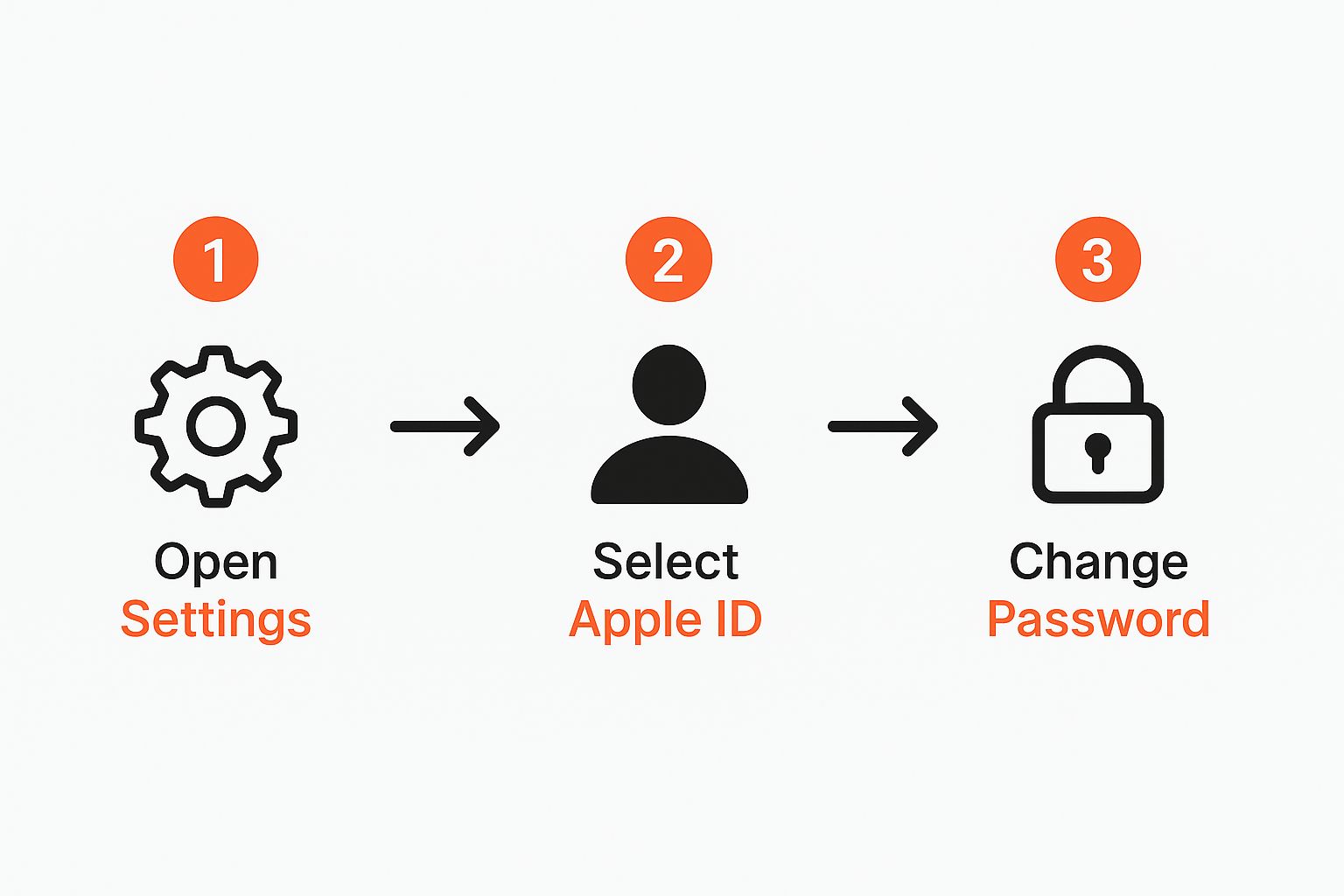
Here’s exactly what to do, step by step:
- Open Settings: On your Home Screen, find and tap the grey gear icon for the Settings app.
- Tap Your Name: At the very top of the Settings screen, tap on your name and profile picture. This takes you to your Apple ID management screen.
- Select Password & Security: On the next screen, find and tap on the Password & Security option.
- Tap Change Password: Near the top of the Password & Security screen, you’ll see Change Password. Tap it.
- Enter Your Device Passcode: You’ll now be prompted to enter the passcode you use to unlock your iPhone or iPad. This is a security feature that verifies your identity without needing your old password.
- Create a New Password: On the “Change Password” screen, type your new password in the “New” field, then type it again in the “Verify” field to confirm. Remember, Apple requires at least eight characters, one number, one uppercase letter, and one lowercase letter.
- Choose to Sign Out Other Devices: A pop-up will ask if you want to sign out of other devices. Actionable Insight: Always choose “Sign Out of Other Devices.” This is a critical step that logs out any unauthorised users and secures your account across your entire ecosystem.
After you’ve typed and verified your new password, you’re all set. For those juggling multiple accounts across different services, keeping track of credentials is key; you can find more on managing your digital accounts after you log in to RichlyAI.
Updating Your Password From a Mac
Many of us live on our Macs, so it’s often the most convenient place to manage account security. If you’re wondering how to change your Apple ID password right from your desktop or laptop, you’ll be happy to know the process is built directly into macOS. It’s a much smoother experience than using a web browser, as all the tools you need are right where they should be in System Settings.
Step-by-Step Guide for Mac
Here is the exact step-by-step process for changing your password on a Mac:
- Open System Settings: Click the Apple menu () in the top-left corner of your screen and select System Settings (or “System Preferences” on older macOS versions).
- Click Your Name: In the System Settings window, click on your name and profile picture at the top of the sidebar.
- Select Password & Security: From the list of options, click on Password & Security.
- Click Change Password: You’ll see a prominent Change Password button. Click it.
- Enter Your Mac Password: You’ll be prompted to enter the password you use to log into your Mac. This is a security check to confirm it’s you.
- Set Your New Password: A dialog box will appear. Enter your new Apple ID password, then enter it again to verify.
- Confirm Sign Out: You will be prompted with an option to sign out of other devices and websites. Actionable Insight: It’s highly recommended you select this. This immediately kicks out anyone who might have gained unauthorised access on another device, securing your entire Apple ecosystem in one go.
This simple process ensures your account is updated and secured without ever leaving your desktop. For more tips on managing your digital life, check out what’s available when you register for RichlyAI.
What to Do If You’ve Forgotten Your Apple ID Password
It happens to the best of us. That moment of panic when you realise your Apple ID password has vanished from your memory. But don’t worry, getting back into your account is a straightforward process Apple has designed to be both secure and user-friendly.
Your first port of call should always be Apple’s dedicated recovery page: iforgot.apple.com. You can get to it from any browser. The journey back into your account starts with simply typing in your Apple ID, which is usually your email address.
The Recovery Process Step by Step
Once you’ve entered your Apple ID on iforgot.apple.com, Apple needs to verify it’s really you.
- Enter your Apple ID: Go to iforgot.apple.com and type in the email address associated with your Apple account.
- Confirm Your Trusted Phone Number: You will be asked to enter the full phone number that you trust with your account. This is a critical first step of verification.
- Choose a Reset Method: Apple will then present you with options.
- Reset from a trusted device: A notification will be sent to your other Apple devices (like an iPad or Mac). You can approve the password reset directly on its screen.
- Use your trusted phone number: You can opt to receive a verification code via text or an automated phone call to your trusted number.
Expert Tip: If you have another one of your Apple devices handy, always choose that option. It’s almost always the fastest way back in, as it uses the device’s built-in security to verify who you are, cutting out extra steps.
Looking at data from Nigerian Apple users, a common pattern emerges. While most people know they can change their password, over 30% go through the recovery process at least once a year because they’ve forgotten it. What’s more, about 15% of first attempts to reset fail because of issues with verification codes, which really highlights how vital it is to have your correct recovery details saved.
What if you can’t get to a trusted device or your trusted phone number? In that case, Apple will start what’s called account recovery. Think of it as a security lockdown. It’s an automated, more in-depth process designed to get you back in while keeping anyone else out. It can take a few days to complete, so it’s best used as a last resort. If you’re struggling with forgotten passwords on other accounts too, our guide on what to do when you forgot your password for various services might be a lifesaver.
Strengthening Your Apple ID Security
Knowing how to change your Apple ID password is a great first step, but it’s just one piece of the puzzle. Real account security goes much deeper. Think of your password as the main lock on your digital front door; it’s crucial, but you still want an alarm system for when someone tries to pick it. For your Apple ID, that alarm system is Two-Factor Authentication (2FA).
Actionable Security Tip: Enable Two-Factor Authentication (2FA)
2FA adds a powerful second layer of defence. It requires a unique six-digit code sent directly to one of your trusted Apple devices whenever a new login is attempted. This means even if a criminal steals your password, they are still locked out without physical access to your iPhone, iPad, or Mac.
How to set it up:
- Go to Settings > [Your Name] > Password & Security.
- If it’s not already on, tap Turn On Two-Factor Authentication.
- Follow the simple on-screen instructions to verify your trusted phone number. That’s it; you’re protected.
Practical Example: You get a notification that someone is trying to log into your Apple ID from a Mac in another city. With 2FA active, a map and a prompt appear on your iPhone. You simply tap “Don’t Allow” and the login attempt is instantly blocked. The attacker has your password, but without that second code, they’re stopped in their tracks.
A strong password combined with 2FA creates a formidable barrier. It turns your account from a house with a locked door into a digital fortress.
Beyond 2FA, stay vigilant about phishing scams. These are emails or texts disguised to look like they’re from Apple, designed to trick you into giving away your password. A classic tactic is a fake email claiming “Your account has been locked,” which directs you to a fraudulent website. Always be sceptical. Ignore the message and go directly to Apple’s official website yourself. We take your privacy very seriously, and you can see how we handle data by reviewing our privacy policy.
Finally, make it a habit to periodically check which devices are signed into your account under Settings > [Your Name]. If you spot one you don’t recognise, remove it immediately. This simple audit is a quick way to ensure only your trusted hardware has access.
Got Questions? We’ve Got Answers
When you’re dealing with something as central as your Apple ID, it’s natural to have a few questions pop up. Getting those sorted quickly is the best way to feel secure and in control of your digital life. Here are some of the most common things people ask when it comes to changing their Apple ID password.
What Happens On My Other Devices When I Change My Password?
For your own protection, Apple will immediately sign you out everywhere else. That means all your other devices and any web browsers where you’re logged in will be disconnected from your account. It’s a fantastic security feature that instantly cuts off any unwanted access.
You’ll simply need to sign back in with your new password on your Mac, iPad, Apple Watch, and any other device to get back into iCloud, the App Store, and other services.
Think of it as a security checkpoint. It forces a reset, ensuring that only the devices you have in front of you can regain access with the new password. It’s a small inconvenience for a huge peace of mind.
How Often Should I Really Change My Apple ID Password?
There isn’t a hard and fast rule, but aiming for a change once or twice a year is a good baseline. The most critical time to change it, however, is if you ever suspect someone else might know it, have spotted any weird activity on your account, or recently used a public computer.
Honestly, though, having a truly strong, unique password combined with Two-Factor Authentication (2FA) is far more important for day-to-day security than just changing your password frequently.
Why Am I Not Getting My Password Reset Verification Code?
First off, take a breath. Delays can happen. Check your trusted devices again for a pop-up notification or your phone for a text message. If nothing’s there, make sure your device has a solid Wi-Fi or mobile signal.
If a few minutes pass and you still have nothing, it’s time to double-check that your trusted phone number is up-to-date in your Apple ID settings. If it’s an old number, you might have to go through Apple’s account recovery process, which is designed to be secure but can take several days.
Can I Change My Apple ID Password Without a Trusted Device?
Yes, absolutely. You can always head over to iforgot.apple.com from any web browser to get the ball rolling. You’ll start by entering your Apple ID (which is usually your email address) and just follow the prompts from there.
Apple will still need to verify it’s really you, of course. This will typically involve sending a code to your trusted phone number or recovery email, so you’ll need to have access to at least one of those to finish the job.
Ready to create compelling content, stunning visuals, and efficient chatbots with the power of AI? Discover how RichlyAI can transform your workflow and boost your productivity. Visit RichlyAI Hub to explore our full suite of tools and start creating for free.
