
Let’s get straight to the point: you can’t view your current Gmail password within your Google Account settings. Google deliberately encrypts and hides it to keep your account secure. When people search for “how to check your password on gmail,” they’re usually trying to do one of two things: find a password saved in their browser or reset a forgotten one.
This guide provides actionable, step-by-step instructions for both scenarios.
Why Google Hides Your Password
Google’s security is built on a fundamental principle: your password should be a secret, even from them. This is a crucial design choice. It means that if Google ever had a data breach, your actual password wouldn’t be exposed.
When you log in, your device sends a heavily encrypted version of your password (a “hash”) to Google’s servers. They compare that hash to the one they have on file. If they match, you’re in.
This security measure means there’s no “view my password” button in your Gmail settings. Instead, you have two clear paths forward:
- Reveal a saved password: If you’ve told your web browser—like Chrome, Firefox, or Edge—to remember your login details, you can find it in its password manager.
- Recover your account: If your password isn’t saved anywhere you can access, your only option is to go through Google’s account recovery process and set a new one.
Understanding this changes your goal from “viewing” your password to either “finding” it where it’s stored or “resetting” it for a fresh start. For more on this, learning about the role of cybersecurity awareness in office technology offers great insight into why these protective measures are so important.
Now, let’s walk through exactly how to tackle both methods.
Find Your Saved Gmail Password in Your Browser
This is the fastest method if you’ve previously saved your password. Your web browser’s built-in password manager acts like a digital key-keeper, and it’s the quickest route to finding your login details.
Finding Passwords in Google Chrome (Step-by-Step)
Since Chrome is Google’s own browser, finding your credentials here is incredibly straightforward.
Numbered Steps:
- Click the three-dot menu in the top-right corner of your Chrome browser.
- Select Settings from the dropdown menu.
- On the left-hand menu, click Autofill and passwords, then select Google Password Manager.
- In the search bar at the top, type
google.comto filter the list. - Click the entry for your Google Account. For security, you will be prompted to enter your computer’s password (the one you use to log in to your device) or use a biometric scan (like a fingerprint).
- Once verified, click the eye icon (👁️) next to the hidden password to reveal it.
Alt Text: A screenshot of the Google Password Manager interface, showing a search bar and a list of saved passwords for various websites.
From this dashboard, you can view, edit, or delete any saved login details.
Checking Passwords in Microsoft Edge and Firefox
Don’t use Chrome? No problem. The process is nearly identical in other popular browsers.
For Microsoft Edge:
- Go to Settings > Profiles > Passwords.
- Use the search bar to find your Google Account (
google.com). - Authenticate using your device password to reveal your saved Gmail password.
- Our guide on AI tools in Microsoft Edge covers how its password manager fits into your daily browsing.
For Mozilla Firefox:
- Click the three-line menu (hamburger icon) and go to Settings.
- Select Privacy & Security from the left menu.
- Scroll to the Logins and Passwords section and click Saved Logins….
- Search for
google.com, select your account, and click Show Passwords to view your information.
Use Google Password Checkup to Find Your Security Blind Spots
Knowing your password is one thing; knowing if it’s secure is another. Google’s Password Checkup tool scans your saved credentials for known risks. It’s an essential step for maintaining account health.
The tool checks for three major red flags:
- Compromised passwords: Your password has appeared in a known data breach.
- Reused passwords: You’re using the same password for multiple accounts, which is a major security risk.
- Weak passwords: The password is easy to guess (e.g.,
Password123!).
How to Run the Checkup (Step-by-Step)
Running this scan gives you a clear, actionable list of accounts to fix.
Numbered Steps:
- Navigate to your Google Account by clicking your profile picture in any Google service (like Gmail) and selecting Manage your Google Account.
- Select the Security tab from the left-hand menu.
- Scroll down to the “Your saved passwords” section and click Password Manager.
- Inside the Password Manager, click the Go to Password Checkup button.
- Google will scan your saved passwords and provide a report detailing any compromised, reused, or weak credentials that require your attention.
Practical Example: Imagine the checkup finds your Gmail password was “reused” on a shopping website that recently had a data breach. This is an immediate red flag. The actionable insight is clear: you must change your password on both Gmail and the shopping site, ensuring the new passwords are unique and strong. This prevents criminals from using the leaked password to access your email.
For those managing security on a larger scale, our guide on Microsoft Security Copilot explores more advanced tools for protecting your digital assets.
What to Do When Your Gmail Password Is Truly Lost
If your browser’s password manager comes up empty, your next step is Google’s account recovery process. This is a security checkpoint where Google verifies you’re the real owner before letting you reset your password.
The process typically involves sending a verification code to a recovery phone number or a secondary email address you’ve previously set up.
Giving Yourself the Best Chance of Success
To make the recovery process smoother, help Google’s security systems recognize you as the legitimate owner.
Actionable Steps:
- Use a familiar device: Attempt the recovery from the laptop, tablet, or phone you most frequently use for Gmail.
- Connect from a known location: Use your home or office Wi-Fi network. A familiar IP address is a strong trust signal.
- Answer questions accurately: Be prepared to answer security questions or provide the month and year you created the account, if prompted.
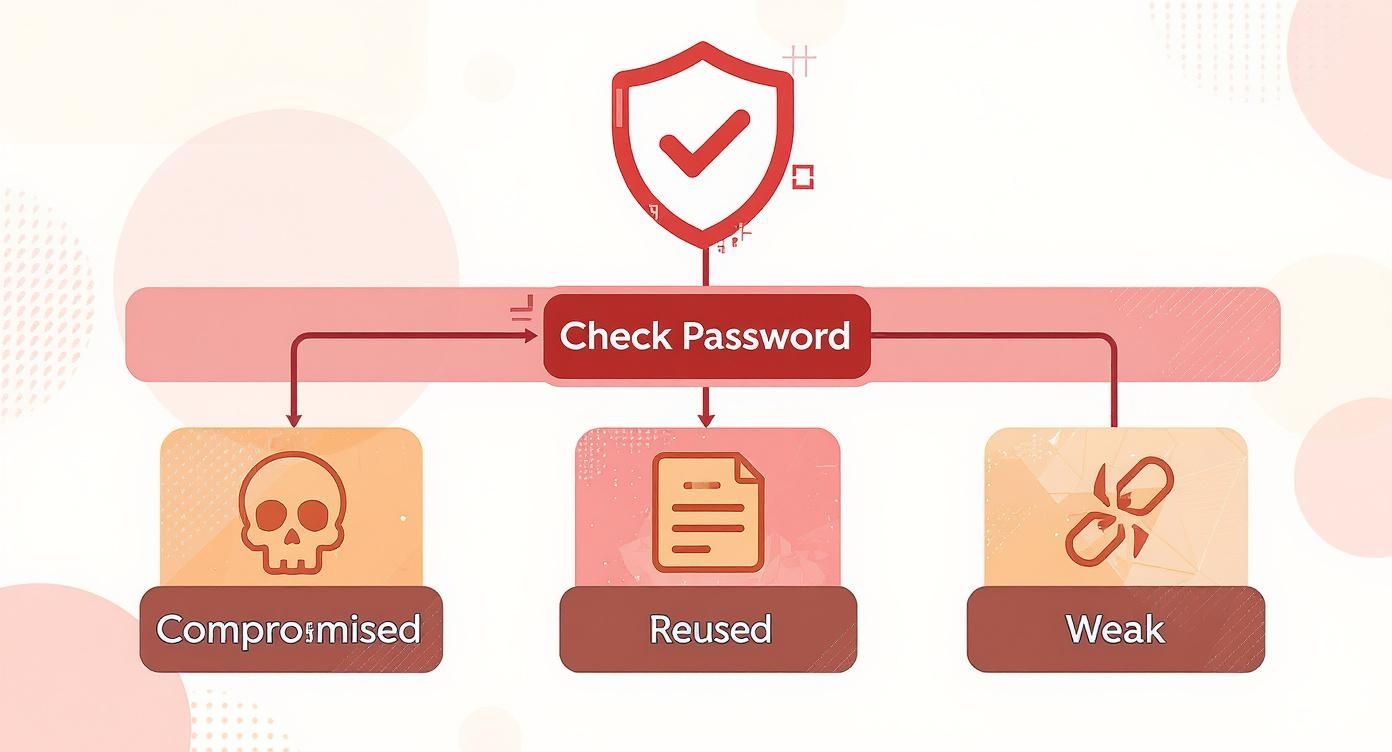
Alt Text: An infographic decision tree showing password risks like compromised, reused, or weak credentials.
As the graphic shows, a single weak password can create a domino effect. This is why Google’s recovery process is intentionally strict. This security challenge isn’t unique to Google; our guide on how to get your Apple ID password walks through similar steps for the Apple ecosystem.
Once you regain access, immediately set a new, strong password and ensure your recovery phone number and email are up to date.
Shore Up Your Gmail Account’s Defences
Getting back into your Gmail is a relief, but now the real work begins: making sure it never gets compromised again. It’s time to shift from reacting to a problem to proactively defending your account.
Alt Text: A secure padlock icon overlaid on a digital shield, representing robust account security.
The single most powerful action you can take is to enable Two-Factor Authentication (2FA). Think of it as adding a deadbolt to your digital front door. Even if a criminal steals your password, they can’t log in without access to your phone for the second verification step.
Rethink Your Entire Password Strategy
A strong password should never include common words, family names, or predictable number sequences.
While browser password managers are convenient, a dedicated password manager like Bitwarden or 1Password offers superior security. These tools generate and store highly complex, unique passwords for every website in an encrypted vault. You only need to remember one master password to access them all.
Remember that threats are always evolving. For example, password-stealing malware attacks can snatch credentials directly from your device, bypassing even a strong, unique password if your system is infected. This makes practices like enabling 2FA and using security software even more critical.
Your Top Gmail Password Questions Answered
Here are answers to the most common questions about managing your Gmail password and account security.
Can I Just Ask Google Support for My Password?
No. This is a critical security feature. Google support staff have zero access to your password because it’s encrypted. The only way to regain access to a locked account is through the official, automated account recovery process. This design prevents anyone, including employees, from looking up your credentials.
Should I Really Be Saving My Gmail Password in My Browser?
It’s convenient, but it comes with a trade-off. Anyone with physical access to your unlocked computer could potentially view passwords saved in your browser.
For better security, use a dedicated password manager. These applications are built with robust encryption and are designed specifically to keep your digital credentials safe.
What if I Think Someone Else Has My Password?
If you suspect your account is compromised, act immediately.
Step-by-Step Action Plan:
- Change your password instantly. Make it strong, complex, and unique—something you’ve never used before.
- Perform a Google Security Checkup. Go to your Google Account settings and run the checkup. It will show you which devices are logged in, review recent security events, and list third-party apps with account access. Revoke access for anything you don’t recognize.
- Enable Two-Factor Authentication (2FA). This is the most important step. With 2FA enabled, a thief who has your password still can’t get in without the second verification code from your phone.
Actionable Takeaways
- Check Your Browser First: Before attempting a password reset, use the step-by-step guides above to check for your saved Gmail password in Chrome, Edge, or Firefox.
- Run a Password Checkup: Go to the Google Password Manager and run the “Password Checkup” tool to identify and fix any weak, reused, or compromised passwords.
- Enable 2FA Now: The single best thing you can do to secure your account is to enable Two-Factor Authentication in your Google Account’s security settings.
- Update Recovery Information: Ensure your recovery phone number and email address are current to make any future account recovery process painless.
- Consider a Password Manager: For top-tier security, switch from a browser-based manager to a dedicated tool like Bitwarden or 1Password.
Tools & Resources
- Google Password Manager: passwords.google.com – Direct link to manage and check your saved passwords.
- Google Security Checkup: myaccount.google.com/security-checkup – A guided check of your account’s security settings.
- Bitwarden: bitwarden.com – A popular, open-source password manager.
- 1Password: 1password.com – A user-friendly and highly-rated password manager.
Further Reading
- The role of cybersecurity awareness in office technology
- How to get your Apple ID password
- What is Two-Factor Authentication?
Ready to create compelling content and automate your workflow? RichlyAI offers a powerful suite of AI tools to generate high-quality text, images, and code in seconds. Sign up for a free plan today and see how easy it can be at RichlyAI Hub.
