
In 2026, the distinction between human-shot and AI-generated video is practically gone. With major advancements, like Google’s upgraded Veo tool, now delivering hyper-realistic motion and mobile-optimized outputs, the creative playing field has been completely leveled. The era of clunky, uncanny-valley clips is over. Today’s AI video tools can transform a simple text prompt into a cinematic scene, animate an avatar for a corporate training video, or automatically edit hours of raw footage into a polished social media highlight in minutes.
This shift isn’t just about impressive tech demos; it’s about practical applications that save significant time, drastically reduce production costs, and unlock unprecedented creative possibilities. Whether you’re a marketer, an indie filmmaker, or a small business owner, these platforms offer powerful solutions to real-world problems. For example, instead of hiring a full production crew for a product ad, you can now generate a high-quality video concept from a single line of text with a tool like Runway or Pika, moving from idea to shareable asset in under an hour.
This practical guide cuts through the hype to spotlight AI video tools that creators are actually using in 2026. Rather than speculative demos, we focus on platforms that deliver real production value—covering script-to-video automation, generative avatars, cinematic text-to-video, and intelligent editing.
Each tool is reviewed with clear strengths, limitations, and best-fit use cases, helping you choose confidently based on your workflow, budget, and creative goals.
1. Adobe Creative Cloud
Adobe Creative Cloud remains the undisputed heavyweight for professional video production, and by 2026, its suite has become an indispensable ecosystem for high-end creators integrating AI. Rather than being a standalone generator, Adobe’s strategy is to embed powerful AI directly into the industry-standard workflows of Premiere Pro and After Effects. This makes it one of the top AI video tools to try in 2026 for professionals who need AI to augment, not replace, their creative process.
What sets Adobe apart in 2026 is not raw generation speed but editorial control. Firefly’s AI features are deeply constrained by professional standards—color science, frame consistency, licensing safety—which makes Adobe the preferred choice for brands and agencies operating under strict quality or compliance requirements.
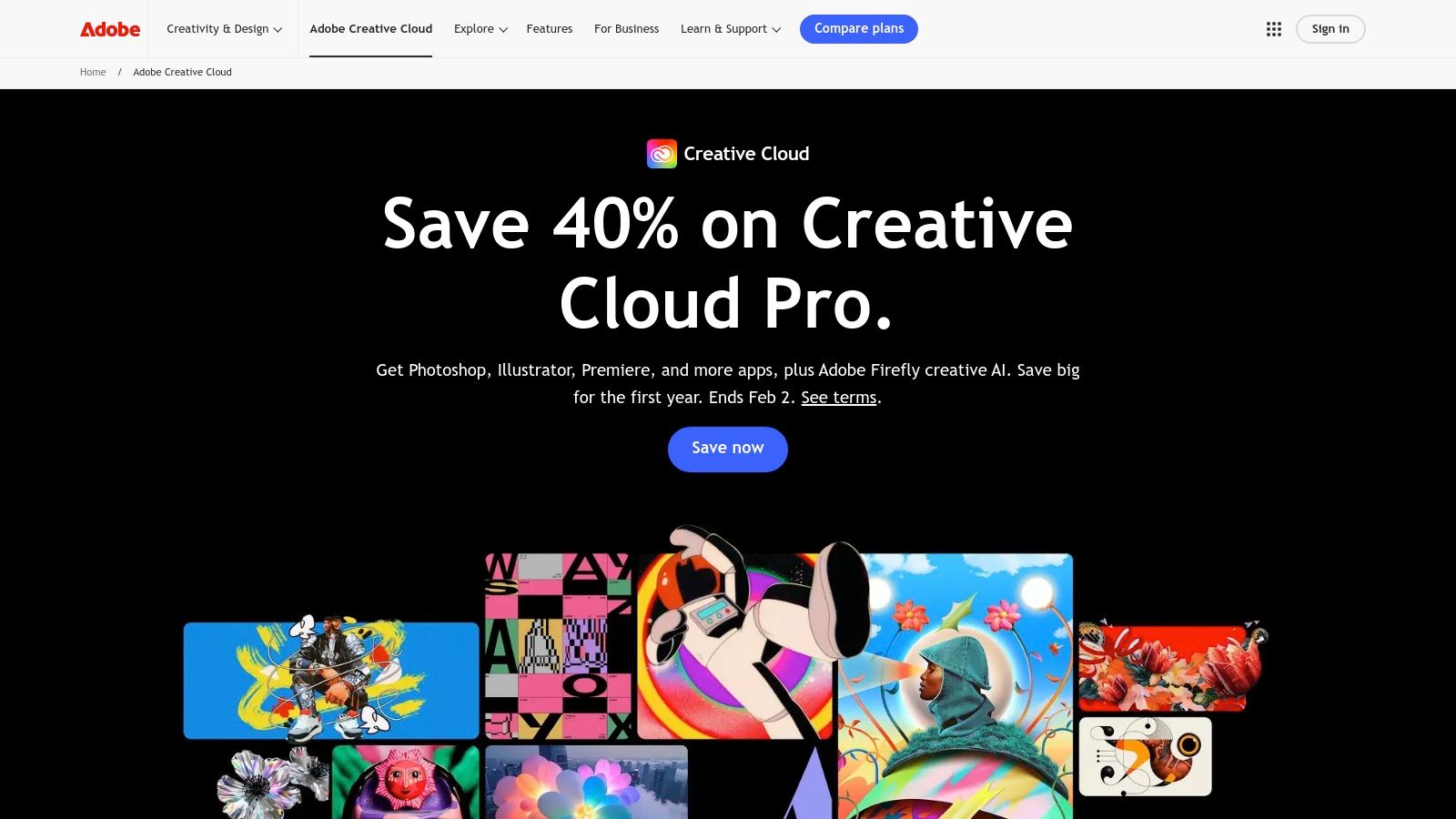
{: alt=”Adobe Creative Cloud’s suite of applications, including Premiere Pro and After Effects, showcasing its professional video editing interface.” }
The integration of Adobe Firefly allows editors to generate B-roll, create animated storyboards, and extend backgrounds directly on their timeline. The real power lies in the seamless workflow. For example, a team can review a rough cut in Premiere Pro, leave time-stamped notes using the integrated Frame.io panel, and have an editor use Firefly to generate a missing shot or replace an object without ever leaving the application. This end-to-end control is unmatched.
Actionable Takeaways & Features
- Best For: Professional video editors, marketing teams, and creative agencies needing an all-in-one, enterprise-grade production stack.
- Pricing: Subscription-based. The “All Apps” plan, which includes Premiere Pro and After Effects, starts at around $59.99/month for individuals, with separate pricing for teams and enterprises.
- How to Use It:
- Generate In-Timeline: In Premiere Pro, select an empty spot on your timeline and use a text prompt with the Firefly integration to generate B-roll footage that matches your sequence settings.
- Collaborate Seamlessly: Use the built-in Frame.io panel to share a rough cut for review. Stakeholders can leave frame-accurate comments, which appear directly on your timeline as markers.
- Extend Shots: If a shot is too short, use the Generative Extend feature in After Effects to seamlessly lengthen the background without visible loops or artifacts.
- Pros: Industry-standard tools with a huge talent pool; robust collaboration features; ethically trained AI models.
- Cons: Steep learning curve; subscription costs are high for individuals and small teams.
Try Adobe Creative Cloud https://www.adobe.com/creativecloud.html
2. RichlyAI
RichlyAI is developed by the RichlyAI team. This review is based on internal product knowledge and real-world usage. To maintain transparency, we evaluate RichlyAI using the same criteria applied to third-party platforms.
RichlyAI stands out as one of the top AI video tools to try in 2026 by offering a uniquely integrated, all-in-one ecosystem. Unlike single-function platforms, it combines multimodal content creation (text, image, audio, and video) with a massive AI tool discovery engine, making it an indispensable hub for creators, marketers, and developers. The platform’s core strength is the RichlyAI Hub, a unified workspace where users can seamlessly transition from brainstorming a script to generating accompanying visuals and voiceovers, all within one interface.
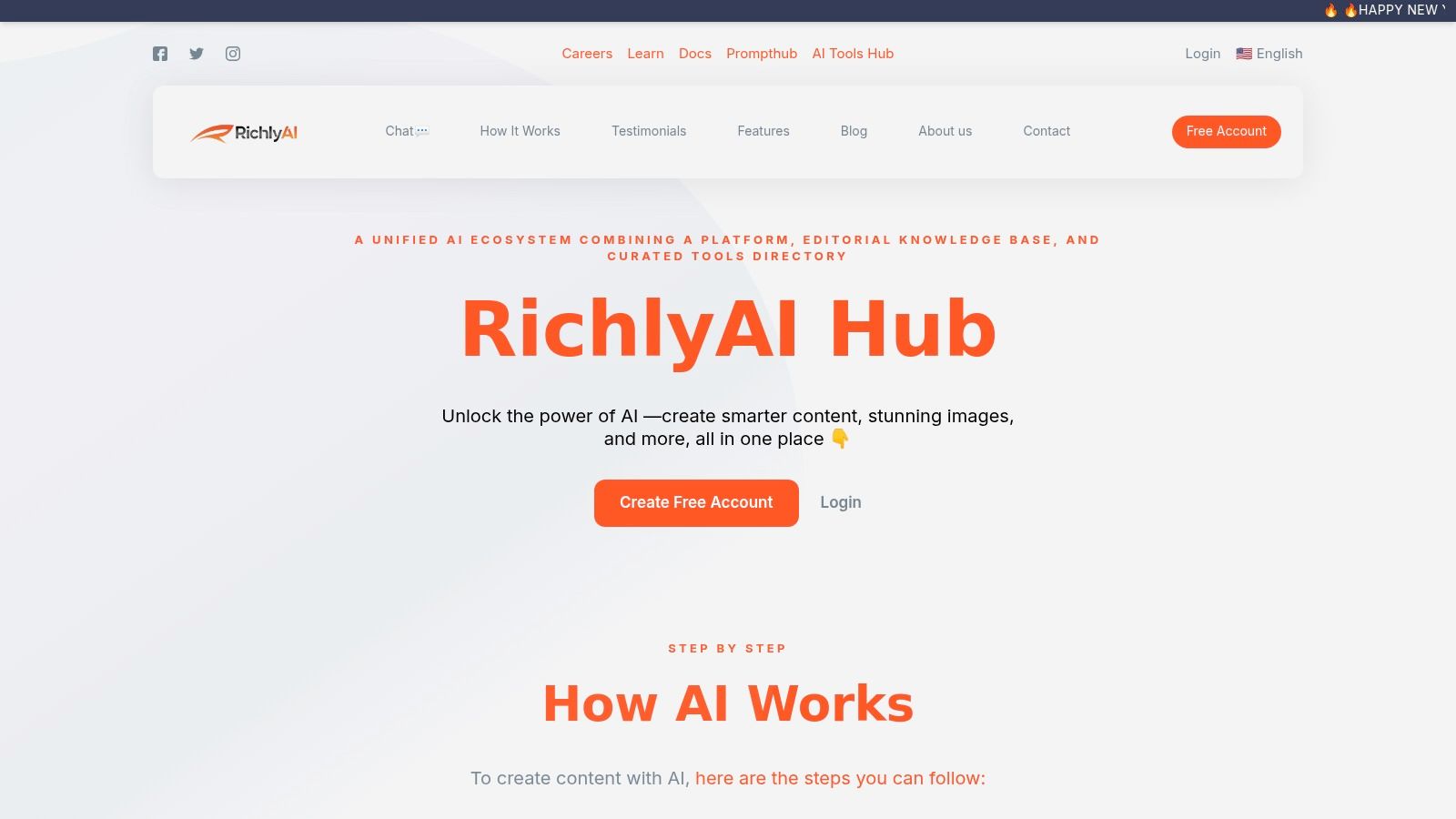
{: alt=”A screenshot of the RichlyAI platform interface, showcasing its multimodal capabilities for creating text, images, and other AI-generated content.” }
This consolidation of tools empowers users to streamline complex creative workflows that would otherwise require multiple subscriptions and platforms. RichlyAI’s standout feature is pairing its creation suite with the AI Tools Hub, a directory of over 11,000 tools. This dual functionality means you can produce content while simultaneously researching the latest specialized AI solutions, helping you stay ahead of emerging AI trends and predictions.
Key Features & Actionable Insights
- True All-in-One Platform: Generate text, images, audio, video, and even code in a single, intuitive workspace. Use the real-time voice chat feature for natural, conversational prompting to brainstorm ideas faster.
- Discovery & Research Hub: Access a curated directory of over 11,000 AI tools to compare solutions, identify emerging platforms, and research complementary services without leaving your workspace.
- Productivity-First Design: Leverage features like social media automation for X, LinkedIn, and Instagram, plus editable real-time outputs, to significantly cut down time for content teams and solopreneurs.
- Accessible Pricing Model: Start with RichlyAI’s robust free account with powerful models (including a promotion for unlimited text generation) and a straightforward one-time premium upgrade for vendors listing on the hub.
Practical Use Case: Social Media Campaign
A social media manager can use RichlyAI to draft a video script, generate a series of on-brand images for a carousel post, create a short animated video for a story, and then use the built-in automation to schedule all the content across X and LinkedIn. This entire process is completed without ever leaving the platform.
Best for: Creators and teams seeking an all-in-one AI workspace that combines video creation, discovery, and distribution.
Pros
- Unified Workspace: Combines creation, discovery, and distribution in one place.
- Powerful Free Tier: Offers significant value without an initial financial commitment.
- Productivity Tools: Social media automation and real-time editing accelerate content cycles.
Cons
- Vague Enterprise Details: Public site lacks specific pricing, SLAs, or compliance documentation.
- Output Variability: AI-generated quality can be inconsistent and depends heavily on prompt quality.
- Limited Advanced Integrations: Beyond core social platforms, deeper integrations may require custom work.
For teams and individuals seeking a powerful, cost-effective command center for AI-driven content creation and market intelligence, RichlyAI is an unparalleled choice.
3. Runway
Runway has cemented its position as the go-to browser-based platform for creatives focused on rapid AI video ideation and generation. By 2026, its suite of generative models has become a powerhouse for artists, filmmakers, and marketers who need to move from concept to motion in seconds. Unlike comprehensive editing suites, Runway excels at pure generation, making it one of the top AI video tools to try in 2026 for anyone prioritizing speed and creative exploration without the need for a high-end local machine.
{: alt=”Runway’s web-based interface showing AI-generated video clips and editing tools, highlighting its focus on creative generation.” }
The platform’s strength lies in its multiple generative models, allowing users to balance speed and fidelity. For instance, a user can quickly prototype dozens of ideas using the lightning-fast Gen-3 Turbo model, then switch to a higher-fidelity model like Gen-4.5 to render and upscale the final selects. This tiered approach, managed through a simple credit-based system, gives creators granular control over their workflow and budget, enabling fast iteration without sacrificing final quality.
Actionable Takeaways & Features
- Best For: Independent creators, VFX artists, and marketing teams needing a fast, web-based tool for text-to-video and image-to-video generation.
- Pricing: Credit-based. Plans start with a free tier offering limited credits, with paid plans like Standard (around $15/month) and Pro (around $35/month) providing more credits and features. Team plans are also available.
- How to Use It:
- Rapid Prototyping: Use the Gen-3 Turbo model to generate dozens of short video concepts from text prompts in minutes. Don’t worry about perfection; focus on exploring visual ideas.
- Upscale the Best: Once you have a concept you like, use the in-session upscaling feature to re-render it at a higher resolution using a more powerful model like Gen-4.5. This saves credits by only using the expensive model for final renders.
- Image-to-Motion: Upload a still image and use the Image to Video feature to animate it, adding subtle motion to static assets for social media posts.
- Pros: Extremely fast for rapid prototyping; no local GPU is required; team workspaces facilitate collaboration.
- Cons: Costs can escalate quickly for high-resolution projects due to the credit system; initial generations are often standard-definition.
Try Runway: https://runwayml.com/
4. Luma AI
Luma AI has rapidly emerged as a powerful contender in the text-to-video space, offering creators its impressive “Dream Machine” model. By 2026, its platform is recognized for producing high-fidelity, cinematic video clips with remarkable motion consistency directly from text prompts or still images. Luma AI stands out by focusing on quality and accessibility, making it one of the top AI video tools to try in 2026 for artists and creators who prioritize visual excellence and transparent resource management.
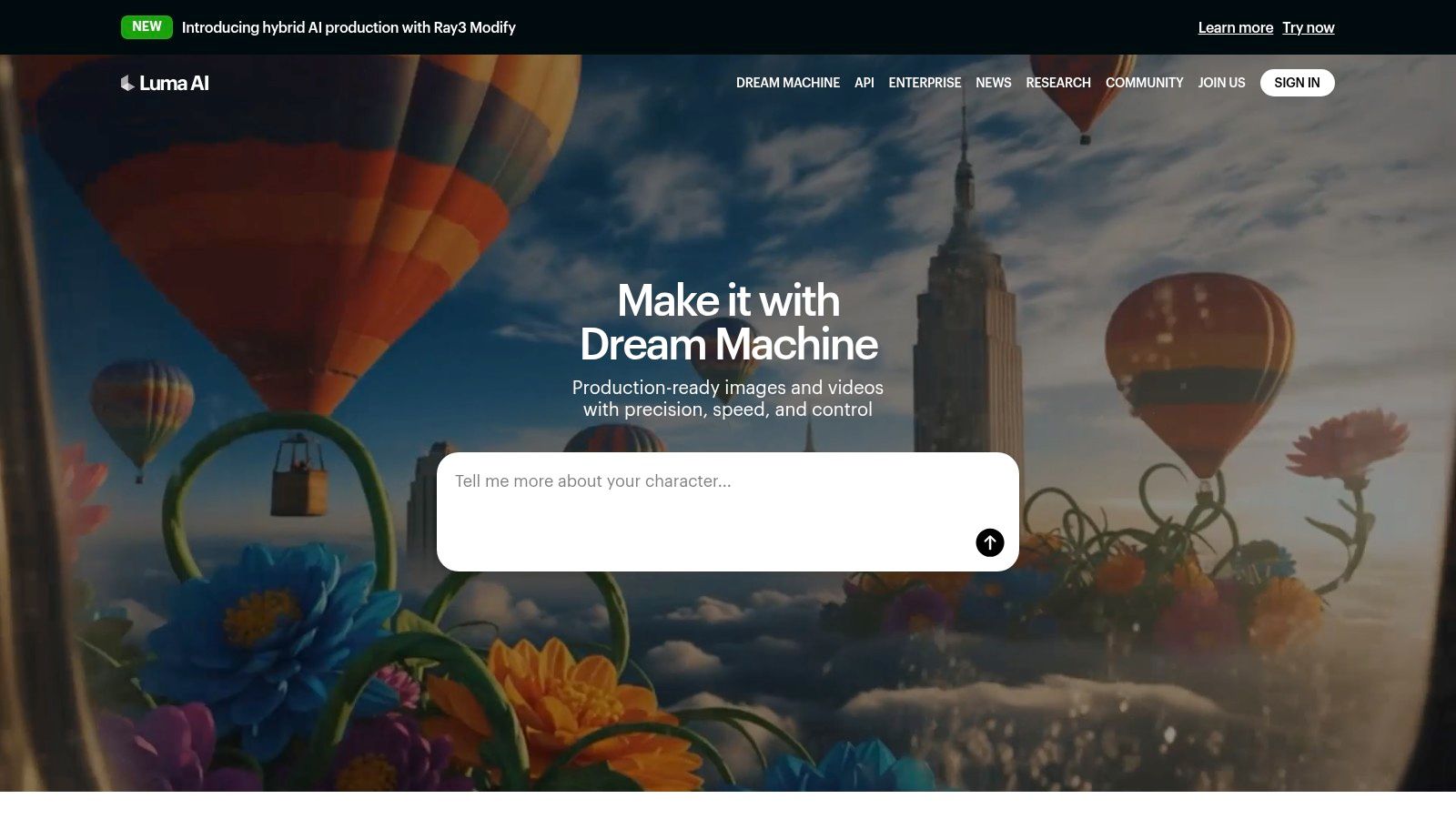
{: alt=”The Luma AI Dream Machine interface, showing a prompt bar and generated video examples, highlighting its clean design.” }
The platform’s strength lies in its advanced rendering pipeline, including its Ray series models capable of producing video with High Dynamic Range (HDR) and in professional EXR formats. This gives creators the flexibility to generate content that can be seamlessly integrated into professional post-production workflows. For example, a VFX artist can generate a short, fantastical creature animation in an EXR format, then import it directly into a composition in After Effects or Nuke for further color grading and integration, a process previously reserved for high-budget CGI teams.
Actionable Takeaways & Features
- Best For: Independent creators, VFX artists, and marketing teams needing high-quality, short-form video clips with professional-grade output options.
- Pricing: Credit-based system with a free tier. Paid plans like Standard ($29.99/month) and Pro ($99.99/month) offer more credits, priority generation, and commercial usage rights.
- How to Use It:
- Generate for Post-Production: When you need a clip for a professional project, generate it with the EXR output option. This format preserves the maximum color and light data for advanced color grading.
- Control Your Budget: Before generating, check the transparent credit table to see exactly how much your desired resolution and duration will cost. Adjust settings to stay within your budget.
- Enhance with Upscaling: Start with a standard-resolution generation to test your prompt. If the motion and concept are right, use the upscaling feature to create a final 4K version.
- Pros: Transparent and predictable pricing with a clear credit breakdown; commercial use options without watermarks on paid tiers; strong upscaling and HDR processing quality.
- Cons: Free and lower-tier plans are limited to draft resolutions; heavy usage requires careful credit management to avoid unexpected costs.
Try Luma AI: https://lumalabs.ai/
5. Synthesia
Synthesia has firmly established itself as the go-to platform for enterprise-grade AI avatar videos, making it a critical tool for corporate training, internal communications, and scalable marketing content. By 2026, its platform has matured into a powerful engine for creating consistent, professional presenter-led videos without the need for cameras or microphones. This focus on scalable, polished “talking-head” style content makes it one of the top AI video tools to try in 2026 for businesses aiming to localize and standardize their video messaging.

{: alt=”Synthesia’s user interface showing an AI avatar, script input box, and video preview, highlighting its ease of use for creating corporate videos.” }
The platform’s strength lies in its ability to produce high volumes of video content with minimal friction. A global HR team, for example, can create a single onboarding video and then, with one click, translate and dub it into dozens of languages using different avatars, ensuring a localized experience for every new hire. The availability of an API also allows for automated video generation, integrating directly into business workflows, such as creating personalized sales outreach videos at scale. For businesses serious about leveraging video, Synthesia provides a controlled, secure, and highly efficient solution, distinguishing it from more creatively-focused generators.
Actionable Takeaways & Features
- Best For: Corporate L&D teams, enterprise marketing departments, and businesses needing to create professional training and explainer videos at scale.
- Pricing: Subscription-based, with plans starting around $22/month for individuals (“Creator”) and custom pricing for enterprise teams that includes more advanced features.
- How to Use It (Step-by-Step):
- Choose an Avatar: Select one of the 200+ stock avatars or upload a custom one.
- Paste Your Script: Type or paste your video script into the text box.
- Select a Language & Voice: Choose from over 140 languages to instantly translate and generate voiceover for your script.
- Add Visuals: Upload your own background images, videos, or use the built-in stock media library.
- Generate Video: Click “Generate” to create the final video, which can be downloaded or shared via a link.
- Pros: Highly consistent and professional output; enterprise-level security and governance; excellent for scaling training and communication efforts globally. It’s one of the most mature AI tools for marketing in the avatar space.
- Cons: Primarily suited for presenter-style videos, not for cinematic or VFX-heavy content; the credits-based system requires careful planning to manage usage.
Try Synthesia: https://www.synthesia.io/
6. Descript
Descript has carved out a unique niche by transforming video and audio editing into a process as simple as editing a text document. By 2026, its AI-powered features have made it an essential tool for podcasters, content creators, and marketing teams who prioritize speed and efficiency. Its standout feature is text-based editing, where you can cut, trim, and rearrange your video by simply deleting or moving text in the auto-generated transcript. This makes it one of the top AI video tools to try in 2026 for anyone overwhelmed by traditional timeline-based editors.
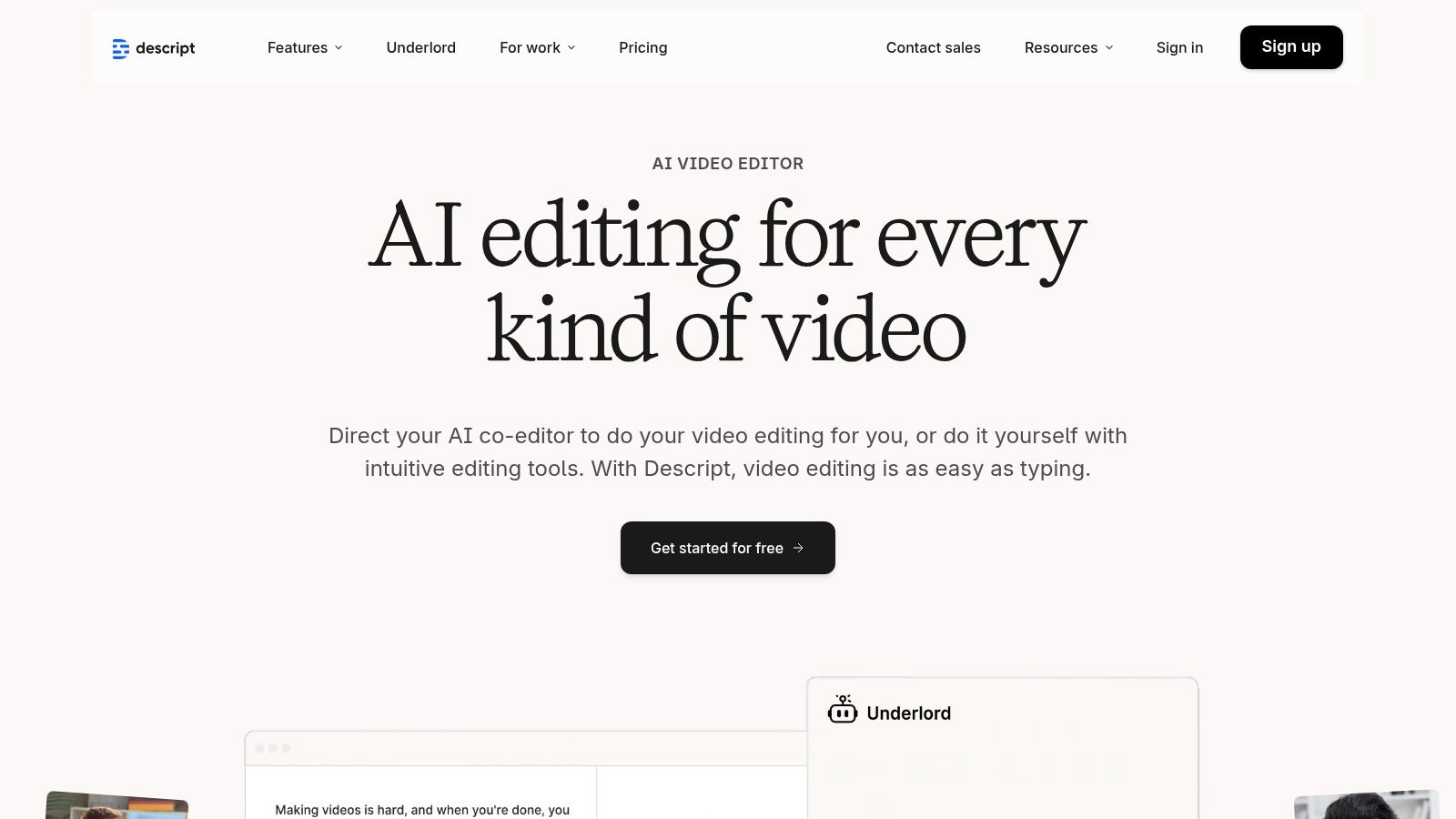
{: alt=”Descript’s text-based video editing interface, showing how users can edit video by editing the transcript.” }
The platform’s AI co-editor, Underlord, streamlines the creation process by suggesting edits, summarizing long recordings, and generating social media clips from a single piece of content. For example, you can upload a one-hour webinar recording, and Underlord can identify the key moments, remove filler words like “ums” and “ahs” with a single click, and then create a series of engaging, shareable video clips for different platforms. This workflow dramatically reduces the time from recording to publishing. More insights on similar tools can be found among other resources for AI-powered video editing.
Actionable Takeaways & Features
- Best For: Podcasters, YouTubers, course creators, and marketing teams focused on dialogue-heavy content and quick turnarounds.
- Pricing: Offers a free tier with limited features. Paid plans start around $12/month (billed annually) for the Creator tier, with Pro and Enterprise plans offering more transcription hours and advanced features.
- How to Use It:
- Edit Like a Doc: Upload your video. Once the transcript is generated, highlight a section of text and press delete—the corresponding video and audio are instantly removed.
- Remove Filler Words: Use the “Remove filler words” feature to automatically detect and delete all instances of “um,” “uh,” and other crutches in a single click.
- Correct Mistakes with Overdub: If you misspoke a word, highlight the incorrect word in the transcript, type the correct one, and Overdub will generate the audio in your cloned voice.
- Pros: Very intuitive with a fast learning curve; powerful transcription and automated editing workflows; excellent for collaboration.
- Cons: Limits on AI features and media hours require careful monitoring; watermark-free and high-resolution exports are locked behind paid tiers.
Try Descript: https://www.descript.com/
7. Kapwing
Kapwing solidifies its position as a go-to browser-based AI video suite, especially for marketing and social media teams that prioritize speed and collaboration over complex desktop software. Its genius lies in simplifying traditionally tedious tasks, like subtitling and repurposing content, into a few clicks. By 2026, its transcript-based editor has become a standard for creators who think in terms of narrative rather than timelines, making it one of the top AI video tools to try in 2026 for agile content creation.
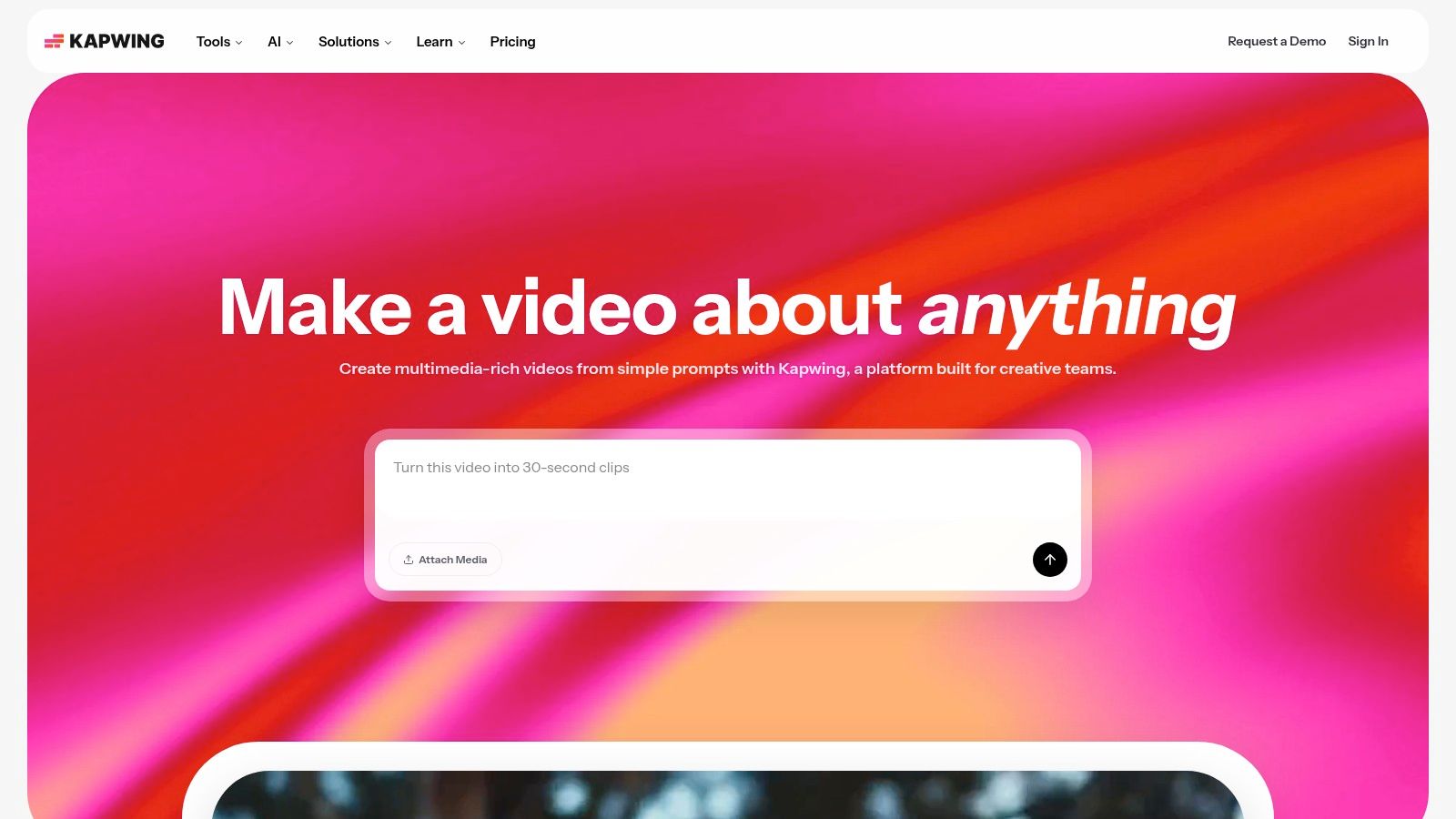
{: alt=”Kapwing’s browser-based AI video editing interface, showing transcript-based editing and collaborative tools.” }
The platform excels at taking a single piece of long-form content, like a webinar, and automatically generating clips, adding dynamic subtitles, and even dubbing it for international audiences without ever leaving the browser. For example, a marketing manager can upload a customer testimonial, have Kapwing’s AI find the most impactful quotes, and instantly create a dozen short-form videos perfectly formatted for TikTok, Reels, and Shorts. This workflow dramatically reduces production time.
Actionable Takeaways & Features
- Best For: Social media managers, content marketers, and corporate training teams who need to create and repurpose video content quickly and collaboratively.
- Pricing: Offers a free tier with a watermark. Paid plans like the Pro plan start at around $16/month (billed annually) and unlock features like 4K export and increased AI credits.
- How to Use It:
- Repurpose Content Fast: Upload a long video (like a podcast) and use the AI clipper to automatically identify interesting segments and create short, shareable clips.
- Go Global with One Click: Use the AI Dubbing feature to translate your video’s audio into another language, automatically generating a new voice track.
- Collaborate in Real-Time: Share a project link with a team member. They can jump in and leave comments or make edits directly, just like a Google Doc.
- Pros: Extremely intuitive and requires no software installation; pricing is friendly for small teams and individuals; clear credit system for AI features.
- Cons: Heavy AI usage will require higher-tier plans with more credits; the free tier includes a watermark on exports.
Try Kapwing: https://www.kapwing.com/
8. Canva
Long celebrated for its accessible design tools, Canva has evolved into a formidable video creation platform, making it one of the top AI video tools to try in 2026 for social media managers, educators, and small businesses. Its strength lies in integrating powerful, user-friendly AI features directly into a familiar, template-rich environment. This approach removes technical barriers, allowing anyone to produce high-quality video content quickly.
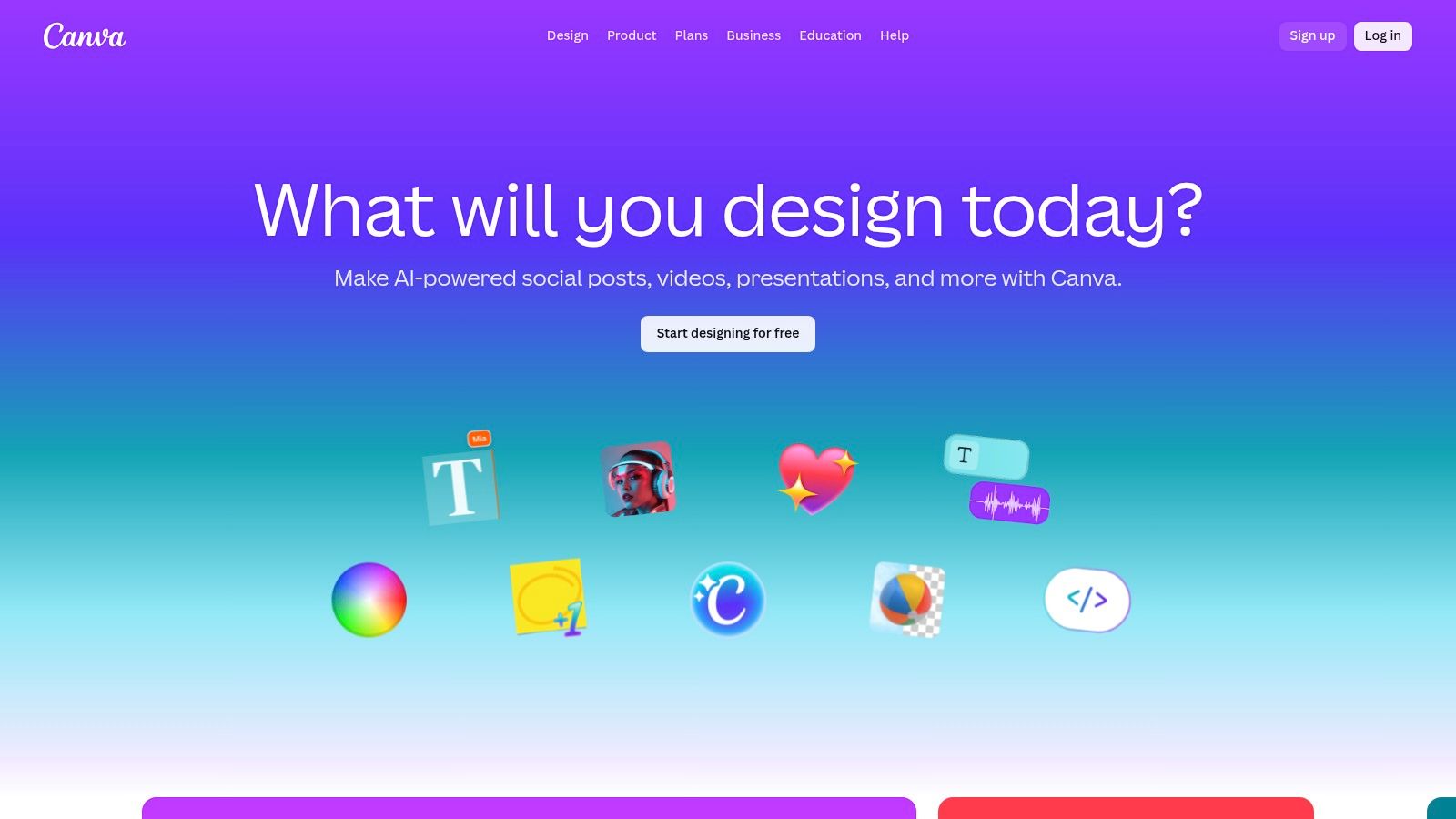
{: alt=”Canva’s video editing interface, showcasing its timeline and vast library of templates and design elements.” }
The integration of Google’s upgraded Veo tool for “Create a Video Clip” is a game-changer. Users can now generate short, high-fidelity video clips with sound from a simple text prompt directly within the Canva editor. For example, a marketer can type “a vibrant, slow-motion clip of a latte being poured,” and instantly get a custom B-roll shot to add to their promotional video. This generative capability, combined with existing tools like Magic Animate and Beat Sync, streamlines the entire creative process from concept to final cut. This makes it an essential part of the modern creator’s toolkit, complementing other AI content creation tools seamlessly.
Actionable Takeaways & Features
- Best For: Marketers, educators, and small business owners who need an all-in-one, easy-to-use platform for creating social media and promotional videos.
- Pricing: Offers a robust free plan. Canva Pro starts around $14.99/month, with Canva for Teams and Enterprise plans offering higher AI generation limits and collaboration features.
- How to Use It:
- Generate Custom B-Roll: Inside the video editor, use the “Create a Video Clip” feature to generate unique footage from a text prompt. This is perfect for when stock video doesn’t fit your vision.
- Sync to Music Automatically: Drop a music track onto your timeline, then use the “Beat Sync” feature to automatically trim and align your video clips to the rhythm of the music.
- Animate with One Click: After designing a static slide or graphic, use “Magic Animate” to instantly apply smooth, professional-looking animations to all elements on the page.
- Pros: Extremely intuitive interface with a gentle learning curve; vast library of stock assets and templates; excellent team collaboration features.
- Cons: AI video generation has usage limits even on paid plans; less granular control compared to professional video editing software.
Try Canva: https://www.canva.com/
9. Microsoft Clipchamp
For households, educators, and small businesses already embedded in the Microsoft 365 ecosystem, Clipchamp has become an incredibly convenient and accessible AI-powered video editor. Rather than competing with professional-grade suites, Clipchamp’s strength is its simplicity and seamless integration with products like OneDrive. By 2026, it has solidified its place as a go-to tool for creating polished social media content, tutorials, and internal communications without a steep learning curve.
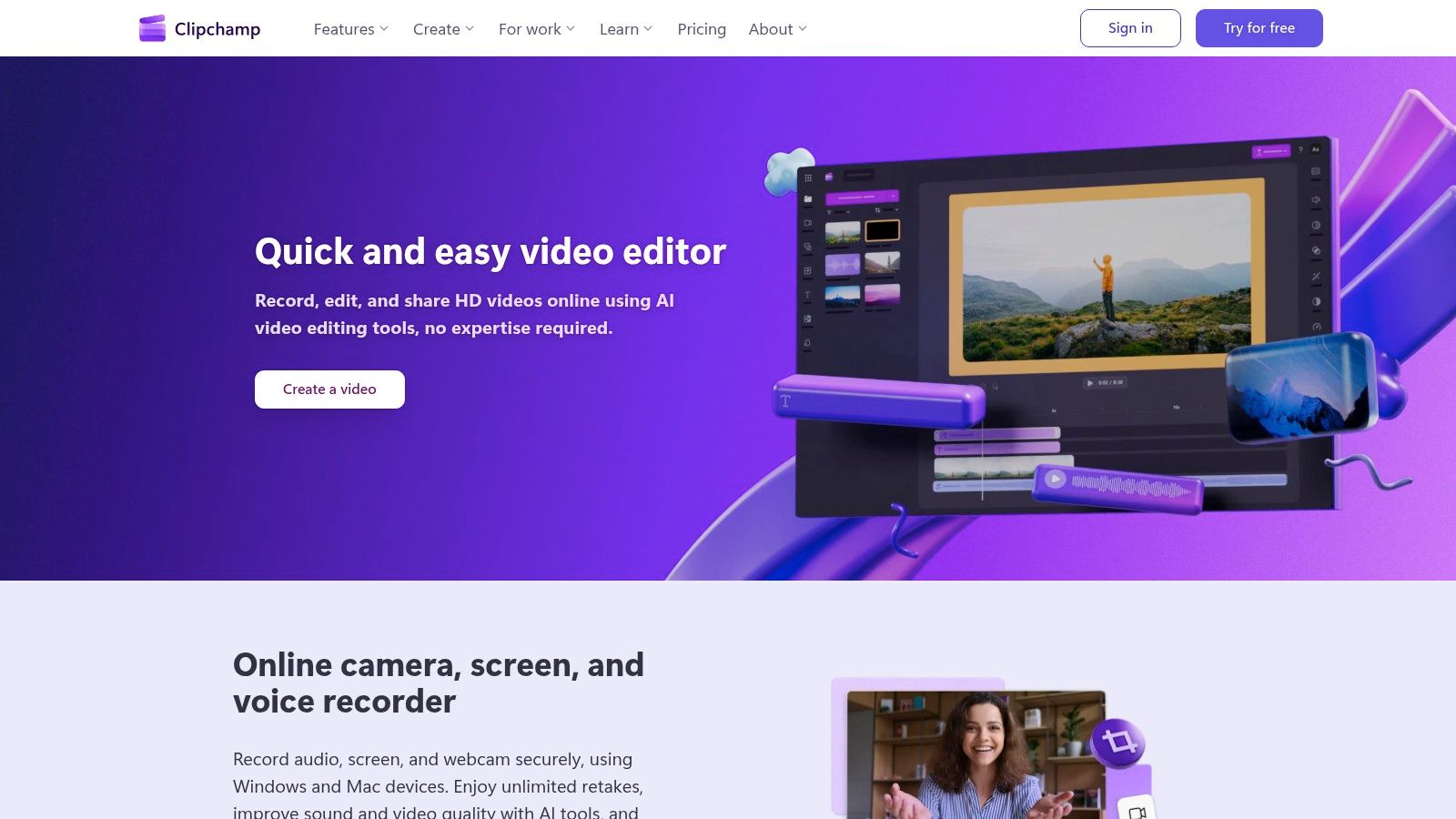
{: alt=”Microsoft Clipchamp’s user-friendly video editing interface, showing the timeline and media assets.” }
The platform’s AI features are designed for speed and ease. For example, its auto-compose tool can take a collection of photos and video clips, analyze them, and automatically create a short, shareable video complete with music and transitions. While its AI generation capabilities are not as advanced as specialized tools, its practicality makes it one of the top AI video tools to try in 2026 for everyday users who need good results quickly. The direct integration with OneDrive for cloud backups is a key workflow benefit.
Actionable Takeaways & Features
- Best For: Individuals, families, and small businesses who already subscribe to Microsoft 365 and need a straightforward video editor for marketing and personal projects.
- Pricing: A free plan is available. The premium version, which unlocks 4K exports and premium assets, is bundled with Microsoft 365 Personal and Family plans (starting around $6.99/month).
- How to Use It:
- Create a Video Instantly: Use the “Auto-compose” feature by selecting a folder of your media. Clipchamp will analyze the content and generate a complete video draft for you to refine.
- Leverage M365: If you’re a Microsoft 365 subscriber, save your projects directly to OneDrive for automatic backup and easy access across devices.
- Add Professional Touches: Use the included premium stock library to find royalty-free music and video clips to enhance your project without leaving the editor.
- Pros: Extremely easy to learn and use; excellent value if you already have a Microsoft 365 subscription; great for quick, simple edits.
- Cons: Lacks the advanced AI generation and deep editing controls of professional software; primarily suited for short-form content.
Try Microsoft Clipchamp: https://clipchamp.com/
10. VEED.IO
VEED.IO has evolved from a simple online video editor into a comprehensive AI-powered creation suite, making it a go-to platform for marketing teams and social media managers. Instead of building a single proprietary model, VEED acts as an intelligent aggregator, providing access to a wide array of third-party AI tools within one unified interface. This “AI Playground” approach makes it one of the top AI video tools to try in 2026 for teams that need versatility and speed without a steep learning curve.
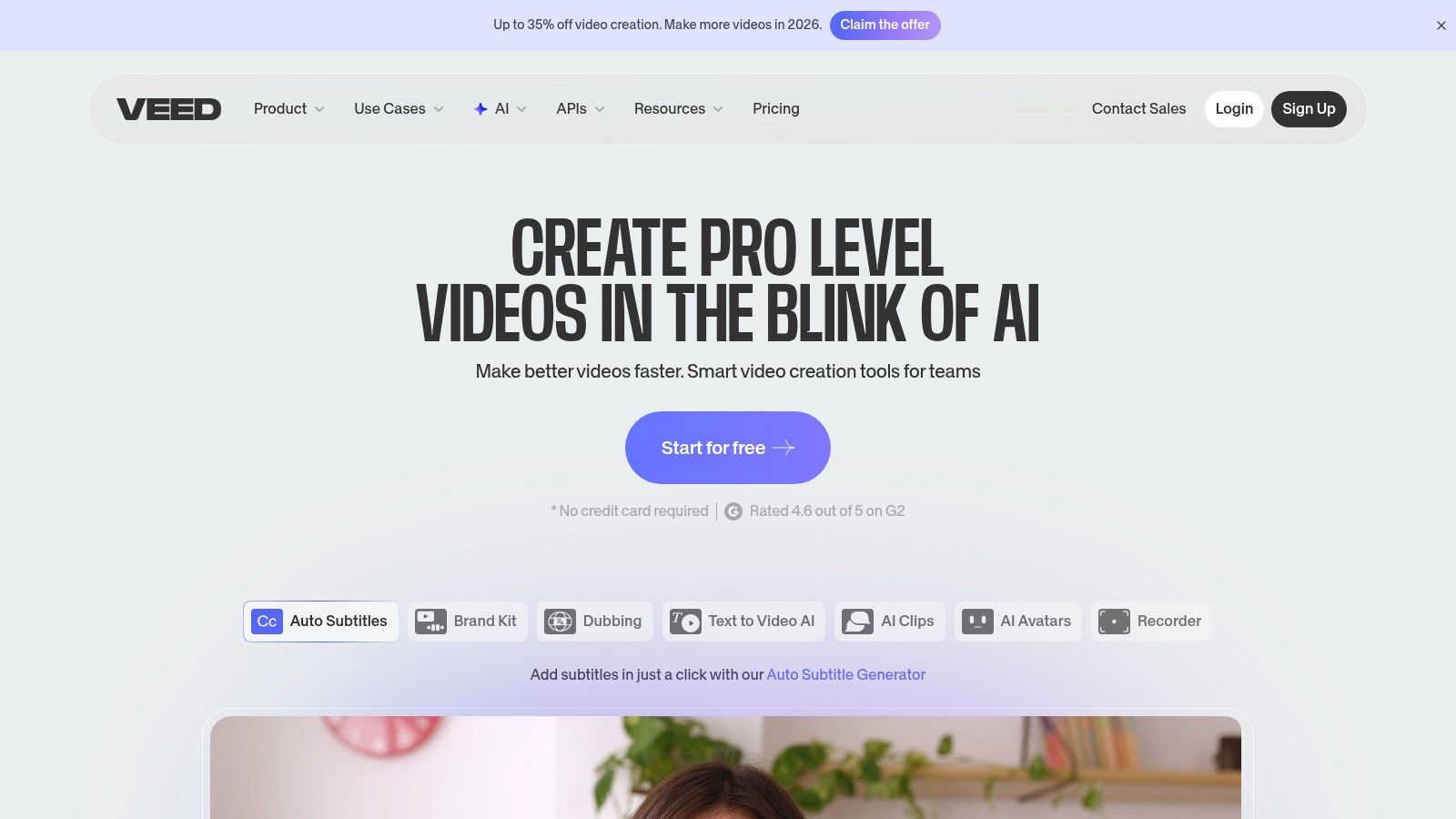
{: alt=”The user interface of VEED.IO’s AI Playground, showing options for AI avatars and text-to-video generation.” }
The platform shines in its ability to centralize common AI-driven video tasks. A marketing manager can generate a short promotional clip using a text-to-video model, automatically add subtitles, correct the presenter’s eye contact for a more engaging feel, and then use the AI dubbing feature to create versions for different international markets. For developers, VEED’s API access for features like lip-sync and background removal offers powerful automation capabilities for programmatic video creation workflows.
Actionable Takeaways & Features
- Best For: Social media managers, marketing teams, and developers looking for a versatile, all-in-one AI video toolkit with API access.
- Pricing: Offers a free tier with watermarked exports. Paid plans typically start around $25/month per user, with business and enterprise tiers offering more features and API access.
- How to Use It:
- Correct Eye Contact: Upload a video where the speaker is looking at their notes. Use the Eye Contact Correction tool to redirect their gaze to the camera, creating a more engaging connection with the viewer.
- Automate with APIs: For developers, integrate the Background Removal API to automatically process user-generated videos for a branded campaign.
- Experiment in the Playground: Use the AI Playground to test the same prompt across different text-to-video models to see which one best captures your desired style.
- Pros: A wide range of AI tools consolidated in one platform; strong API options for integration and automation; rapid and continuous product updates.
- Cons: The credit-based pricing system can be confusing; access to certain advanced AI models may require separate add-ons or verification.
Try VEED.IO: https://www.veed.io/
11. CapCut
CapCut has solidified its position as the go-to editor for the creator economy, evolving from a simple mobile app to a powerful, cross-platform video tool by 2026. Its strength lies in making trend-driven, social-first video creation incredibly fast and accessible. For creators focused on TikTok, Instagram Reels, and YouTube Shorts, CapCut integrates AI not as a complex feature but as a one-click magic wand for effects, captions, and templates, making it one of the top AI video tools to try in 2026 for rapid content production.
{: alt=”The CapCut interface showing its user-friendly timeline and a variety of AI-powered effects and templates for social media video creation.” }
The platform’s massive template library is its killer feature, allowing users to drop their clips into pre-made, trending formats complete with music and effects. For example, a user can film a simple product clip, find a popular “unboxing” template, and have the AI automatically sync their footage to the music and apply viral transitions in seconds. This community-driven ecosystem, combined with seamless cloud sync between mobile and desktop, creates a frictionless workflow for producing high-volume, engaging short-form content.
Actionable Takeaways & Features
- Best For: Social media managers, content creators, and small businesses needing to quickly produce trendy, short-form video content.
- Pricing: Offers a robust free version. CapCut Pro subscription unlocks all features and assets, typically starting around $7.99/month, with team plans available.
- How to Use It:
- Jump on Trends: Browse the “Templates” tab to find a viral format. Select it, add your own video clips, and CapCut automatically edits them into the trend’s structure.
- Create Engaging Captions: Use the “Auto Captions” feature to instantly generate animated, word-by-word subtitles that are popular on TikTok and Reels.
- Edit Across Devices: Start a project on your phone to capture footage, then open the same project on your desktop via cloud sync to do more detailed editing on a larger screen.
- Pros: Very fast for producing trending short-form formats; large community template ecosystem accelerates ideation; excellent cross-device editing workflow.
- Cons: Pro features and some assets are behind a subscription; higher-tier collaboration features require paid team plans.
Try CapCut: https://www.capcut.com/
12. Pika
Pika has established itself as the go-to platform for creative experimentation and rapid, stylized video generation. By 2026, its Pika 2.5 model has become a favorite among artists and social media creators for its ability to quickly translate imaginative prompts into compelling visual clips. Its development philosophy emphasizes constant iteration, making it one of the top AI video tools to try in 2026 for anyone focused on artistic expression and storytelling over photorealism.
{: alt=”An artistic, AI-generated video clip created with Pika, showcasing vibrant colors and fluid motion.” }
The platform’s strength lies in its effects stack and frequent model updates, which keep the creative possibilities fresh. Users can choose between Turbo and Pro models for speed or quality, while unique tools like Pikaswaps (face swapping) and Pikascenes (scene transitions) empower dynamic storytelling. This rapid-fire creative process allows for a level of experimentation that is difficult to replicate on more resource-intensive platforms, and you can explore more about this category by reading about other text-to-video AI tools.
Actionable Takeaways & Features
- Best For: Digital artists, social media content creators, and indie storytellers who prioritize stylistic variety and fast iteration.
- Pricing: Credit-based system with a free daily allowance. Pro and Enterprise plans offer more credits and API access, though official pricing pages are sparse and often best viewed in-app.
- How to Use It:
- Iterate on Style: Generate a clip with a simple prompt. Use the “Modify Region” tool to select part of the video (like a character’s clothing) and change its appearance with a new prompt.
- Choose Your Speed: For quick visual brainstorming, use the Turbo model. Once you’ve refined your prompt, switch to the Pro model (like Pika 2.5) for a higher-quality final render.
- Create Dynamic Edits: Use Pikascenes to generate seamless transitions between two different generated clips, creating a more cohesive narrative sequence.
- Pros: Very fast creative iteration; strong community buzz and active feature development; offers a wide stylistic range.
- Cons: Credit usage can be complex and requires careful budgeting; public pricing information is not always transparent.
Try Pika: https://pika.art/
Top 12 AI Video Tools: Quick Comparison
| Product | Core features ✨ | Unique selling points ✨ | Quality (UX) ★ | Price & Audience 💰👥 |
|---|---|---|---|---|
| Adobe Creative Cloud 🏆 | Premiere Pro, After Effects, Firefly, Frame.io, Stock
|
Industry-standard toolchain; deep plugin & training ecosystem ✨ | ★★★★★ —
pro-grade, steep learning |
💰Subscription (can add up); 👥 Studios, pro editors, agencies
|
| RichlyAI | Multimodal Hub: text, images, video, audio, code, chatbots, real-time voice | AI Tools Hub (11k+ tools); free “Unlimited Text”; social automation ✨ | ★★★★★ — fast UI, editable real-time outputs | 💰 Free tier + paid upgrades; 👥 Creators, teams, devs, marketers |
| Runway | Browser text/image→video, multiple gen models, upscaling | Fast iteration (Turbo models); no local GPU; team workspaces ✨ | ★★★★ — speedy, model-dependent | 💰 Credit-based exports; 👥 Creators, agencies, prototypers |
| Luma AI | Text→video, Ray models, HDR & 4K upscaling | Transparent credit tables; strong HDR/upscaling pipeline ✨ | ★★★★ — high-fidelity outputs | 💰 Credit tiers; 👥 Filmmakers, studios, pros |
| Synthesia | AI avatars, 140+ languages, API, brand/SSO/SCORM | Scalable talking-head videos; enterprise governance ✨ | ★★★★ — consistent presenter outputs | 💰 Enterprise/credits; 👥 L&D, marketing, enterprises |
| Descript | Text-based video/audio editor, Overdub, Studio Sound | Transcript-first editing; fast podcast & social workflows ✨ | ★★★★ — intuitive, collaborative | 💰 Freemium + paid tiers; 👥 Podcasters, creators, teams |
| Kapwing | AI subtitling/dubbing, transcript edit, stock integrations | Browser-based, affordable for small teams; clear credit limits ✨ | ★★★ — easy for social repurposing | 💰 Pro credits; 👥 Marketers, social teams, educators |
| Canva | Templates, AI video clips, Beat Sync, Magic Animate | Massive template library; easy collaboration & cross-format publish ✨ | ★★★★ — very accessible | 💰 Freemium; Business for higher AI limits; 👥 Marketers, educators, teams |
| Microsoft Clipchamp | Simple web editor, AI tools, OneDrive integration | Bundled with M365; easy onboarding and cloud sync ✨ | ★★★ — basic, user-friendly | 💰 Low incremental cost with M365; 👥 Casual users, small businesses |
| VEED.IO | AI Playground (3rd-party models), text→video, APIs | Aggregates multiple models; API automation for teams ✨ | ★★★ — broad, evolving toolset | 💰 Tiered credits; 👥 Social teams, non-technical teams |
| CapCut | Template-driven editor, AI effects, auto-captions, cross-device | Social-first templates & viral formats; fast output ✨ | ★★★ — optimized for short-form | 💰 Freemium (some region locks); 👥 Short-form creators, influencers |
| Pika | Creative text→video (2.x/2.5), effects stack, API | Rapid creative iteration; frequent model updates & stylistic tools ✨ | ★★★★ — experimental, stylistic | 💰 In-app credit/API pricing; 👥 Experimental creators, storytellers |
How to Choose the Right AI Video Tool in 2026
When selecting an AI video platform, start with your primary goal:
– Speed & experimentation: Tools like Runway excel at rapid concept generation.
– Professional production: Adobe Creative Cloud offers unmatched editorial control.
– All-in-one workflows: Platforms like RichlyAI reduce tool sprawl for content teams.
Also consider **output licensing, collaboration needs, learning curve, and pricing transparency**—especially if videos will be used commercially.
Final Thoughts & Actionable Takeaways
The landscape of AI-powered video creation has shifted dramatically, moving from a novel curiosity to an essential component of the modern digital toolkit. As we’ve explored the top AI video tools to try in 2026, one clear trend emerges: the democratization of high-quality video production. What once required extensive training, expensive equipment, and significant time investment is now accessible to creators, marketers, and businesses of all sizes through intuitive, intelligent platforms.
From the cinematic potential of Runway and Luma AI to the polished, enterprise-ready avatars of Synthesia, the tools available today cater to an incredibly diverse set of needs. The recent upgrades to models like Google’s Veo, which now boasts enhanced realism and motion consistency, signal a future where the line between AI-generated and traditionally shot video continues to blur. This isn’t just about creating content faster; it’s about unlocking entirely new creative possibilities that were previously unimaginable.
Actionable Takeaways
- Start with a Low-Stakes Project: Don’t try to replace your entire video workflow at once. Pick one task, like creating B-roll for a social post with Canva or transcribing an interview with Descript, to learn the tool’s strengths and limitations.
- Master Prompting: Your output is only as good as your input. Spend time learning how to write detailed, descriptive prompts. Specify camera angles, lighting, style, and motion to get closer to your desired result on the first try.
- Use AI as an Assistant, Not a Director: Let AI handle the tedious work—generating clips, removing filler words, adding subtitles. This frees you up to focus on the high-level creative direction, storytelling, and final polish that still requires a human touch.
- Combine Tools for the Best Workflow: A professional workflow might involve generating a background plate in Runway, creating an avatar in Synthesia, and compositing them together in Adobe After Effects. Don’t be afraid to mix and match platforms to leverage their unique strengths.
Tools & Resources
- Google Veo Source: Google updates Veo tool to create more realistic AI-generated videos
- AI Tool Hub: RichlyAI (features a directory of over 11,000 AI tools).
- Prompting Guides: Many tools like Runway and Pika have active Discord communities where users share successful prompts and techniques.
Further Reading
In 2026, AI video tools are no longer experimental shortcuts—they are core creative infrastructure, reshaping how stories are imagined, produced, and distributed at scale.
Ready to unify your creative workflow with an AI-powered hub designed for ambitious teams? RichlyAI integrates powerful content generation, project management, and collaborative tools into a single platform, helping you move from idea to final video faster than ever. Explore how our suite can streamline your production process and elevate your content strategy by visiting RichlyAI today.

Enjoyed “Top AI Video Tools for Creators in 2026: From Prompts to Production.” Always after simpler clip pipelines. I kept coming back to this line: “In 2026, the distinction between human-shot and AI-generated video is practically gone.” I’ve been prototyping short clips with Seedance Mini—Seedance prompts (plus frames/refs) to a playable video without a full editor.