
Stuck in Safe Mode? The quickest way to get your Android phone back to normal is almost always the easiest: just restart it. Press and hold the power button, tap the “Restart” option on your screen, and let your device do its thing. More often than not, it will boot back up into its regular operating mode, with Safe Mode disabled.
The Simple Restart: Your Go-To Fix
Seeing that “Safe Mode” text in the corner of your screen can be a bit alarming, but don’t worry. Your phone has entered a diagnostic state, which means it has loaded only the essential system software to help you troubleshoot a problem. While it’s a helpful feature, getting stuck there is a real pain.
The good news? A clean reboot is your most reliable first step.
This is more than just the classic “turn it off and on again” advice. When you restart your phone properly, you’re forcing the Android operating system to run a completely fresh startup sequence. This reloads everything from scratch, usually clearing whatever glitch or temporary error pushed it into Safe Mode in the first place.
Why a Reboot Works So Well
In Nigeria, where Android phones are everywhere—making up over 80% of the mobile market—getting stuck in Safe Mode is a common complaint. In fact, local tech experts have found that a simple restart resolves a whopping 65% of Safe Mode cases on its own, usually in just a few minutes. If you want to dive deeper, you can read more about these local tech insights into Android troubleshooting.
Expert Tip: Before you start uninstalling apps or digging into settings, always try a proper restart. It’s the safest and most effective first move, forcing the system to exit the diagnostic state and attempt a normal boot. In most scenarios, that’s all you’ll need.
It’s quick, doesn’t risk your data, and resets the software environment. So, before you try anything else, give your phone a fresh start.
Common Safe Mode Triggers and Your First Fix
It helps to know why your phone might have landed in Safe Mode. This can help you figure out what to do next if a restart doesn’t work, or even prevent it from happening again.
Here’s a quick rundown of the usual suspects and a reminder of what you should always try first.
| Common Cause | What It Means for Your Phone | Your First Action |
|---|---|---|
| Faulty App | An app you recently installed or updated is causing crashes or instability. | Restart the Phone |
| System Glitch | A temporary software hiccup happened during normal use or startup. | Restart the Phone |
| Accidental Button Press | You accidentally held down a volume button while the phone was turning on. | Restart the Phone |
As you can see, no matter the cause, the first response is always the same. It’s the simplest step, and most of the time, it’s the only one you’ll need.
Understanding Why Your Phone Is Stuck in Safe Mode
Ever wondered why your phone suddenly boots up in Safe Mode? It’s not a random glitch. Think of it as your phone’s built-in defence mechanism kicking in when something’s not right. The most common culprit is usually a third-party app that’s causing trouble.
Practical example: Imagine you just downloaded a new battery-saving app. After installing it, your phone reboots and suddenly you’re in Safe Mode. This is a strong clue that the new app isn’t compatible with your phone’s software, forcing Android to start in this basic mode to prevent further issues.
This mode temporarily disables all the apps you’ve installed, giving you a clean slate to find and uninstall the problematic one.
Pinpointing the Common Causes
While a dodgy app is often to blame, it’s not the only reason. Sometimes the problem is bigger, like a software conflict. A recent Android update, for example, could have a bug that doesn’t play nicely with your older apps, triggering Safe Mode.
Other times, it’s just a simple accident. You might have held the volume down button while your phone was turning on without even realising it—a common shortcut for manually entering this mode.
It’s a surprisingly common issue. In fact, research shows that around 40% of Android users in Nigeria have had their device unexpectedly enter Safe Mode. For many, this happens right after installing apps from less official sources, with 27% of these cases being traced back to incompatible or poorly built applications. You can explore detailed reports on Android performance issues to get a better sense of these trends.
Key Takeaway: Safe Mode is a symptom, not the core problem. It’s triggered by software conflicts, faulty apps, or even a stuck button. Finding the root cause is the key to fixing it for good, not just for now.
Knowing what triggers Safe Mode makes troubleshooting a whole lot easier. If this started right after you installed a new app, that’s your first suspect. If it began after a system update, then a software glitch is the likely cause. Even the most complex tech issues can have simple roots, much like the careful planning required when figuring out how to launch an AI startup in 2025. A quick mental check of recent changes to your phone will help you narrow down the cause and get things back to normal.
Taking Action: Getting Out of Safe Mode for Good
So, a simple restart didn’t do the trick. That’s a classic sign that something more specific is going on, and nine times out of ten, it’s a troublesome app forcing your phone to stay in this diagnostic state. The good news is, you can usually sort this out yourself directly from Safe Mode.
The whole point of Safe Mode is to disable all the third-party apps you’ve installed, which gives you a clean slate to work from. This is your chance to play detective. Think about what you installed right before this problem started. A new game? A quirky photo editor? That’s almost certainly where you need to start looking.
Finding and Removing the Problem App
Your mission is to find the app that’s causing the conflict and show it the door. Even though your downloaded apps won’t run in Safe Mode, you can still access your app list and uninstall anything you need to.
Here’s a step-by-step guide to do it:
- Open Settings: From your home screen or notification shade, tap the gear icon to go to your phone’s Settings menu.
- Find Your Apps: Navigate to your app list. This is usually labelled “Apps,” “Apps & notifications,” or “Manage apps” depending on your phone’s brand (e.g., Samsung, Google Pixel, Xiaomi).
- Identify the Suspect: Look through the list for apps you installed or updated recently. If your phone got stuck in Safe Mode yesterday, look for apps installed around that time.
- Uninstall: Tap on the suspicious app. On the next screen, you’ll see an “Uninstall” button. Tap it and confirm.
- Restart: After the app is gone, restart your phone normally. With any luck, the conflict will be resolved, and your phone will boot up just like it should.
After you’ve uninstalled a suspicious app, the next step is always a standard restart, as illustrated below.
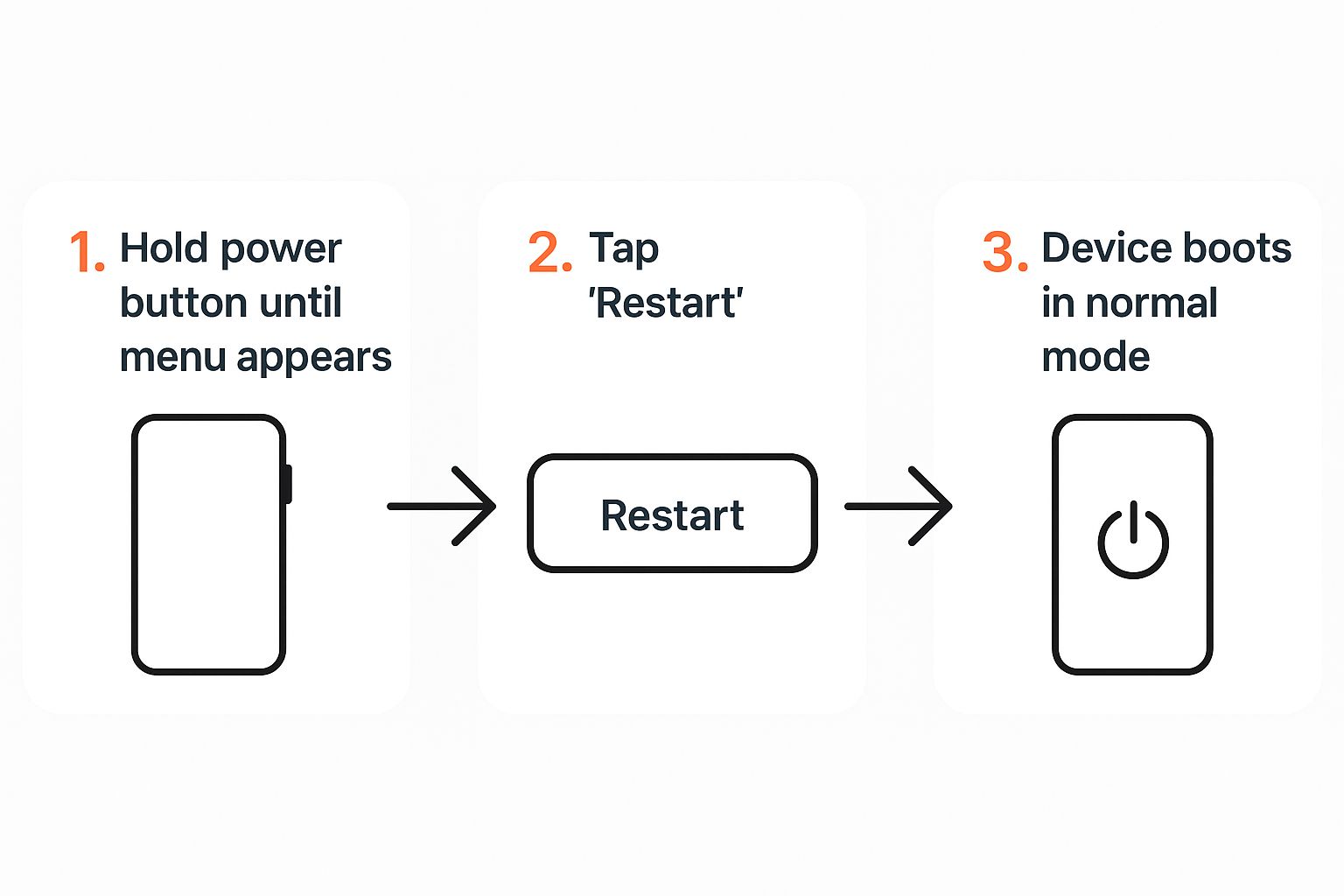
This visual is a quick reminder of the first and most important step to take after you’ve tried to fix the problem by removing an app.
A Less Drastic Step: Clearing the App Cache
What if you’re not quite ready to delete an app? Maybe it’s one you use all the time, and you think it’s just a temporary glitch rather than a serious problem. In that case, clearing its cache is a fantastic alternative.
The cache is just a storage spot for temporary files that help the app load faster. Sometimes, these files get corrupted and cause all sorts of weird issues, including trapping your phone in Safe Mode.
The best part? Clearing the cache will not delete your personal data. Your logins, game progress, and settings will all stay right where they are.
Actionable Insight: Let’s say a recent update to your banking app seems to be the trigger. Instead of uninstalling it, follow these steps:
- Navigate to Settings > Apps.
- Find and tap on the banking app.
- Tap on “Storage” or “Storage & cache”.
- Select “Clear Cache”.
- Restart your phone and see if that solved the problem.
This simple trick often fixes minor glitches without the hassle of reinstalling and setting up an app from scratch. This methodical troubleshooting is key to resolving software conflicts, a principle that applies in many technical fields, as detailed in our guide on how to transition into an AI ethics consultant role. Following these steps can help you systematically work your way back to a fully functioning phone.
When Your Phone’s Buttons Are The Real Problem

So you’ve tried all the software fixes and you’re still stuck in safe mode? It’s time to stop looking at the screen and start looking at the phone itself. More often than you’d think, the culprit is a stuck or faulty volume button, tricking your phone into booting into its diagnostic mode every single time.
This happens because holding a volume button down during start-up is one of the classic ways to manually enter Safe Mode. If that button is even slightly jammed, your phone assumes you’re doing it on purpose. Take a moment to inspect your volume buttons. Do they feel sticky? Mushy? Or do they just not give you that satisfying “click” when you press them?
Inspecting And Cleaning Your Buttons
Before you start thinking about repair shops, you can do a quick check right at home. Look closely around the edges of the buttons. Can you see any dirt, lint from your pocket, or even some sticky residue from a spilt drink? Sometimes, that’s all it takes to cause a jam.
Here are a couple of actionable steps you can try to see if a gentle clean helps:
- The Press Test: Press each volume button several times. Does it pop back up immediately? A slow or “mushy” response is a red flag.
- The Soft Brush Trick: Grab a clean, soft-bristled toothbrush you no longer use. Gently brush around the seams of the button to try and dislodge any trapped gunk.
- A Bit of Compressed Air: If you have a can of compressed air handy, a short, sharp blast from a safe distance can often blow out any stubborn dust hiding in the mechanism.
A malfunctioning physical button can be incredibly deceptive, often masquerading as a complex software glitch. Always check for that tactile, responsive click. If a button feels off, it’s very likely the source of your Safe Mode headache.
Taking a hardware-first approach can save you from hours of frustrating and pointless software troubleshooting. In fact, local repair shop surveys in Nigeria show that about 12% of Androids brought in for Safe Mode issues are ultimately diagnosed with a hardware button fault. You can learn more about how physical wear affects Android devices in these findings.
Knowing when to distinguish a physical problem from a digital one is a core troubleshooting skill. This same principle applies in much larger systems, where understanding the fundamentals is crucial, a concept explored in discussions about the ethical use of an AI in the workplace. If a good clean doesn’t do the trick, it’s probably time to let a professional take a look.
Using a Factory Reset as Your Last Resort
Alright, if you’ve worked through every other trick in the book and your Android is still stubbornly stuck in safe mode, it’s time to consider the nuclear option: a factory reset. This is your absolute last resort, a clean slate for your phone’s software.
Think of it as restoring your device to its out-of-the-box condition. The catch? It wipes everything – your apps, photos, contacts, text messages, all of it. Gone. So, before you even consider this, backing up your data isn’t just a good idea; it’s essential.
How to Back Up Your Data Safely
Let’s make sure you don’t lose anything important in the process. Here’s a step-by-step guide to securing your data:
- Check Google Sync: Go to Settings > Google > Backup. Ensure that “Back up to Google Drive” is toggled on. This typically covers app data, call history, contacts, and SMS messages.
- Verify Photos & Videos: Open the Google Photos app. Tap your profile icon in the top right corner and check the “Backup” status. If it’s not complete, connect to Wi-Fi and let it finish syncing.
- Manual File Transfer (Optional): For extra safety, connect your phone to a computer via USB. Open your phone’s storage and manually drag and drop important folders like “DCIM” (for photos) and “Downloads” to your computer.
A factory reset is the point of no return. Seriously, double-check that your backup has finished, either to Google Drive or an external device. This one step is the difference between a smooth recovery and losing years of memories.
With your data securely backed up, you can proceed. You’ll typically find the option under Settings > System > Reset options > Erase all data (factory reset). Taking these careful steps to prepare is crucial, much like how you would future-proof your career in a changing world.
Got Questions About Android Safe Mode?
Still have a few things you’re wondering about Safe Mode on your Android phone? Let’s tackle some of the most common questions I hear, which should help you get a better handle on this feature and avoid any future panic.
Will I Lose My Data When I Get Out of Safe Mode?
Relax, the answer is no. Just turning Safe Mode off by restarting your phone is completely harmless. It will not delete any of your personal data.
When your phone boots back up normally, all your photos, contacts, apps, and messages will be right where you left them.
The only scenario where you might lose data is if the problem is so severe you have to resort to a factory reset, but that’s a worst-case option we try to avoid.
Why Does My Phone Keep Starting in Safe Mode?
If your phone seems to have a mind of its own and keeps booting into Safe Mode, it’s basically waving a red flag, telling you something deeper is wrong. From my experience, it usually boils down to one of these culprits:
- A Dodgy App: More often than not, a recently installed app is causing chaos, either because it’s buggy or it doesn’t play well with your phone’s software.
- A Stuck Button: It sounds simple, but a jammed volume button is a classic cause. Your phone thinks you’re holding it down during startup, which is a shortcut for diagnostic modes on many devices.
- A System Hiccup: Sometimes, the Android operating system itself can have a minor wobble or a bit of corrupted data causing the issue.
Getting to grips with how your phone’s software works is key to fixing problems yourself. This idea of understanding the fundamentals is just as true for more advanced tech, a concept we explore when understanding generative AI and its creative potential.
A good habit is to give your volume buttons a quick check to make sure they’re not stuck and think about what apps you’ve installed just before the problem started.
Ready to take your content creation to the next level? Discover how RichlyAI can help you generate high-quality text, images, and code in seconds. Start creating for free today
