
Hiding your caller ID on an Android phone is surprisingly simple. You can usually do it by dialling a quick prefix like #31# before the number, or by tweaking a setting buried in your phone’s call options. This simple action stops your name and number from popping up on the other person’s screen, displaying “Private Number” or “Unknown Caller” instead.
Why and When to Make Your Number Private
Alt text: A person holding an Android phone and looking at the screen with a thoughtful expression.
Before we get into the “how,” let’s talk about the “why.” Hiding your number isn’t just a tech trick; it’s a practical way to manage your privacy in everyday life. Think of it as a digital curtain you can pull across whenever you need a bit of anonymity.
For example, maybe you’re ringing a company for a quick price quote. By masking your number, you can prevent them from adding you to a sales list for endless follow-up calls. It’s also a smart safety move when you’re contacting a seller you found on an online marketplace and don’t want to share your personal details just yet.
Common Scenarios for Hiding Your Number
This feature is perfect for those one-off calls where you have no intention of starting an ongoing conversation. Here are a few times it really comes in handy:
- Contacting Businesses: You can get the information you need without unintentionally becoming a sales lead.
- Online Transactions: It allows you to safely interact with strangers from classified ads or online marketplaces without giving away your personal number.
- Professional Calls: If you ever have to use your personal phone for a quick work-related call, you can do so without revealing your private number. While we’re focused on privacy, many companies go the other way, looking into business-oriented caller ID solutions to make sure their calls are recognised.
The need for this kind of privacy is huge, especially here in Nigeria. With over 210 million active mobile lines and a market dominated by Android phones, hiding your caller ID has become a go-to move for many. It’s a simple way to sidestep some of the 10 million+ complaints about spam and fraudulent calls that the Nigerian Communications Commission (NCC) fields every year.
Using Android’s Built-In Settings for All Calls
If you’d rather make all your outgoing calls private by default, the most straightforward way is to use the feature built right into your Android phone. This is a real “set it and forget it” solution. Once you enable it, your number is hidden every time you dial, so you don’t have to fuss with special codes for each call. It’s the ideal choice if you consistently prioritise your privacy.
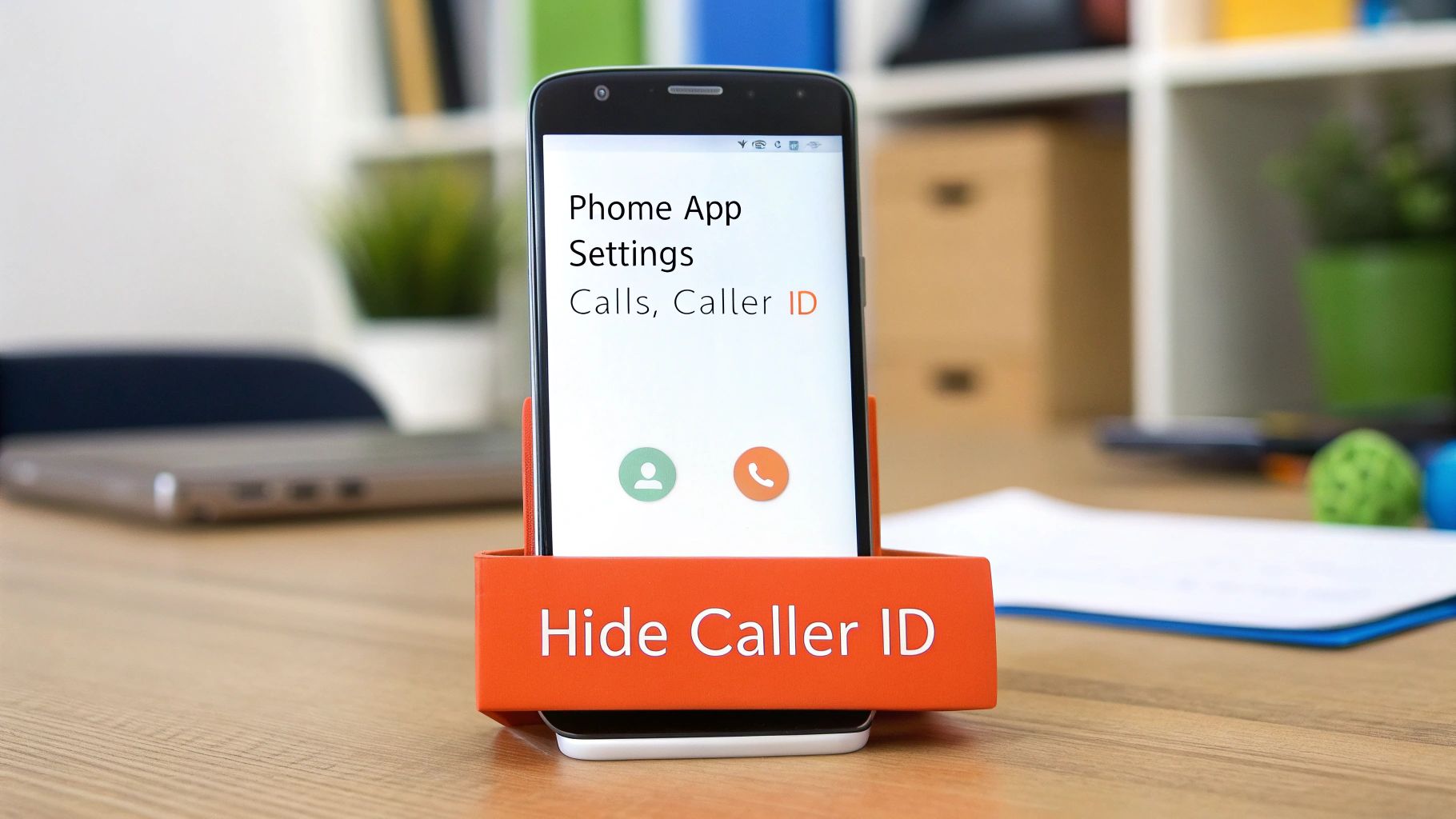
Alt text: A smartphone displaying the call settings menu with an option for Caller ID highlighted.
The only tricky part? Finding the setting. Because Android is so flexible, phone makers like Samsung, Google, and TECNO often place this option in slightly different menus. But don’t worry—once you know the general path, it’s quite simple to locate.
Navigating to the Caller ID Setting: A Step-by-Step Guide
Your journey will almost always start in the same place: your phone’s default dialer or Phone app. That’s the app you use to make calls every day.
From there, the general steps look something like this:
- Open your Phone app.
- Find the three-dot menu icon (⋮), which is usually in the top-right corner, and tap Settings.
- Look for a menu item named Calling accounts, Calls, or sometimes Supplementary services.
- Inside that menu, you’ll likely find Additional settings or something similar.
- Tap Caller ID and select Hide number.
After you’ve selected “Hide number,” every call you make will show up as “Private,” “Withheld,” or “Unknown” on the other person’s screen.
To make things even easier, I’ve put together a quick guide to help you find this setting on some of the most popular phones in Nigeria.
Finding Caller ID Settings on Popular Android Phones
Use this quick reference guide to locate the Caller ID setting on different Android interfaces.
| Android Phone Brand/UI | Typical Navigation Path |
|---|---|
| Stock Android (e.g., Google Pixel) | Phone app > Settings > Calls > Additional settings > Caller ID |
| Samsung (One UI) | Phone app > Settings > Supplementary services > Show my caller ID |
| Xiaomi (MIUI) | Phone app > Settings > Calling accounts > Call settings > Additional settings > Caller ID |
| TECNO/Infinix (HiOS/XOS) | Phone app > Settings icon (⚙️) > SIM card settings > Carrier features > Additional settings > Caller ID |
As you can see, the names and paths vary a bit, but the destination is always the same.
Understanding Your Caller ID Options
Once you’ve found the right menu, you’ll usually see three choices. It helps to know exactly what each one does.
- Network default: This hands control over to your mobile carrier (like MTN, Glo, or Airtel). It’s the standard setting and almost always shows your number.
- Show number: This option forces your number to be displayed on every call, overriding any other settings.
- Hide number: This is the one you’re looking for. It tells your phone to block your caller ID for all outgoing calls.
A Quick Tip from Experience: If you find that the “Hide number” option is greyed out and you can’t select it, your mobile carrier is probably blocking it. A quick call to their customer support is often all it takes to get them to enable the feature for your account.
Toggling this one setting is a powerful and permanent way to control your privacy. Just remember that it’s active so you don’t accidentally make a private call when you intend for your number to be seen.
Hiding Your Number for a Single Call with a Prefix Code
Sometimes you don’t need to hide your number for every single call. Maybe you’re just calling back a number you don’t recognise, or you need to make a quick enquiry with a business without getting added to their marketing list. For these one-off situations, prefix codes are your best friend.
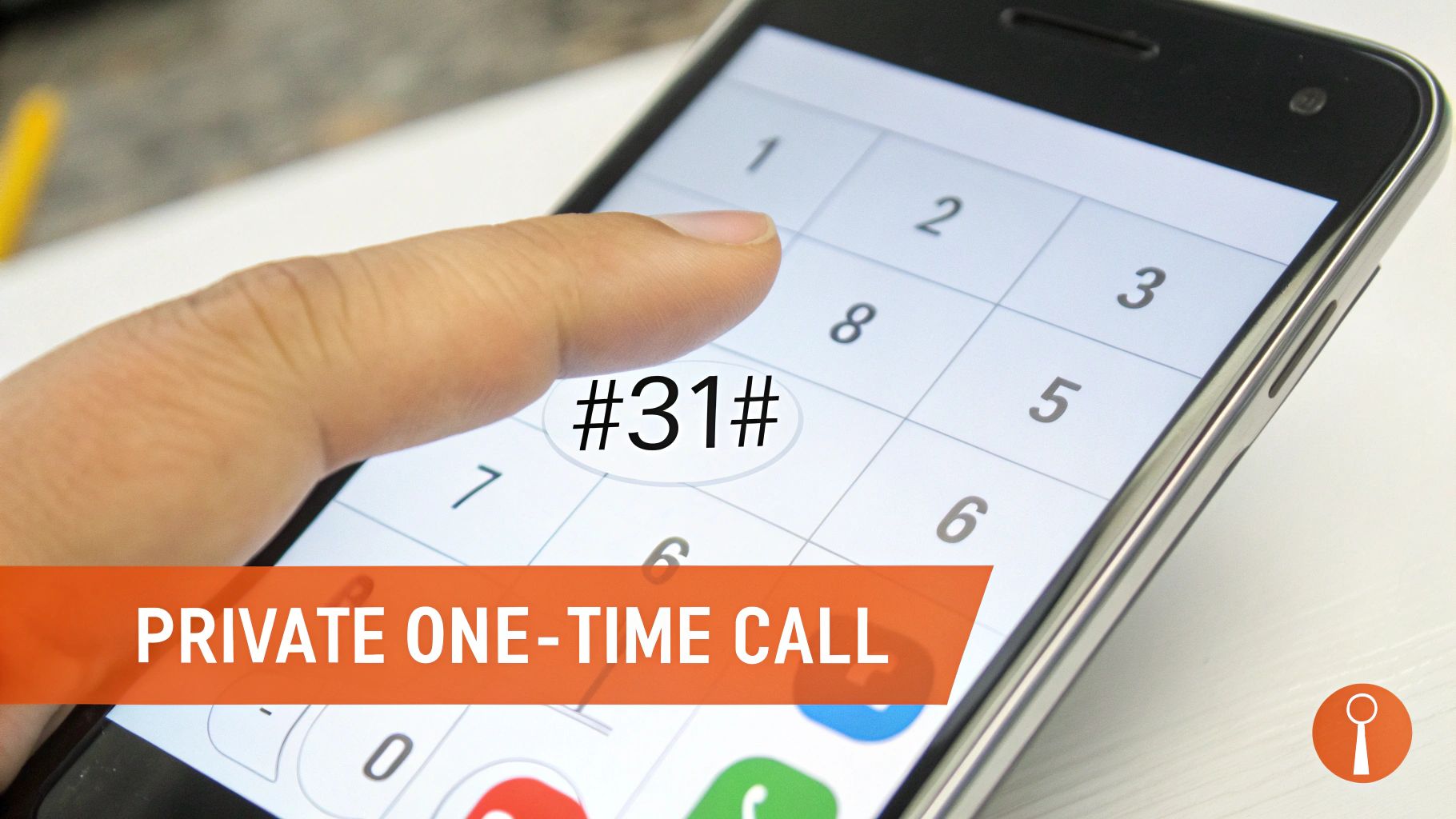
Alt text: An Android phone’s dial pad showing the prefix #31# being dialled before a phone number.
Using a prefix is easily the fastest way to block your caller ID for a specific call. It gives you instant privacy without digging into your phone’s settings.
How It Works in Nigeria: A Practical Example
The idea is brilliantly simple. You just punch in a short code right before the number you’re dialling. For most networks in Nigeria—like MTN, Glo, and Airtel—the universal code to withhold your number is #31#.
Let’s walk through a real-world example. Imagine you need to privately call the number 08012345678.
Here’s what you do, step-by-step:
- Open your phone’s dialler, just like you normally would.
- On the keypad, first type in the prefix: #31#
- Right after the code, with no space, enter the full phone number: 08012345678
- The final string on your screen should look like this: #31#08012345678
- Now, just hit the call button.
And that’s it! The person on the other end will see “Private Number” or “Unknown Caller” instead of your details. As soon as you hang up, everything goes back to normal. Your next call will show your number as usual unless you use the prefix again.
When Is This the Best Method to Use?
This per-call approach is perfect when you need temporary privacy and maximum convenience. It’s the ideal tool for moments like these:
- Calling Back Missed Calls: If you get a call from a number you don’t know, using #31# lets you ring them back without giving away your personal number.
- Making Quick Enquiries: Contacting a shop or a service provider for information without them saving your number for future promotions.
- Calls for Online Listings: When you need to get in touch with a buyer or seller on a platform like Jiji, but you’re not ready to share your personal contact info.
The real beauty of this method is the control it gives you on a call-by-call basis. You never have to worry about forgetting to switch a permanent setting back on, which could lead to you accidentally making a private call to a friend or family member who might not answer.
While #31# is the standard in Nigeria, remember that these codes can vary by country. For instance, people in the US and Canada use *67. For this to work reliably, always make sure you’re using the code supported by your local network provider.
Using Third-Party Apps for More Control
Diving into your phone’s settings every time you want to hide your number can get old, fast. If you find yourself needing to switch your caller ID on and off regularly, a third-party app from the Google Play Store is a far more elegant solution.
Think of it this way: you might want your number visible when calling family, but hidden when responding to a classified ad. An app simplifies this, often giving you a simple one-tap widget right on your home screen. It turns managing your call privacy from a chore into an instant action.
Choosing the Right Privacy App
While the convenience is a huge plus, you have to be careful about which app you install. Not all of them are built with your security in mind, and some can be downright risky.
Before you download anything, here’s what you should be looking at:
- Permissions: Always check what the app wants to access. A caller ID app shouldn’t need your photos, location, or full contact list. If it’s asking for more than it logically needs, that’s a major red flag.
- User Reviews: Don’t just look at the star rating. Read recent reviews to see what people are actually saying. Are there complaints about constant bugs, invasive ads, or shady behaviour? Real user feedback is gold.
- Developer Reputation: Go with apps from developers who have a solid track record. A quick search can tell you if they’re known for creating secure, well-supported software or if they have a history of questionable apps.
The bottom line is to be extremely cautious with any app that handles your call data. Your call history and contacts are private information, so handing them over to an unknown developer is a risk you shouldn’t take lightly.
Popularity and Security in Nigeria
In Nigeria, there’s a real demand for these kinds of privacy tools. Just look at the download numbers for apps like ‘Hide My Number’—thousands of people are looking for a quick and easy way to manage their caller ID. With Android dominating the market and over 85% of Nigerian internet users downloading from the Google Play Store, it’s clear that a massive number of people are actively seeking these solutions. You can review the app’s performance data and user feedback to see this trend for yourself.
This is driven largely by growing concerns over phone scams. People want to protect their own numbers from falling into the wrong hands, which makes them wary of anonymous calls in general. For those interested in other calling methods that might have different privacy features, you can explore various WiFi calling apps.
Ultimately, the right app can make managing your caller ID a breeze. Just make sure you do your homework and choose one that puts your digital safety first.
Which Method Should You Choose?
So, you’ve got a few ways to hide your caller ID on Android, but which one is right for you? It really boils down to a simple question: how often do you need to go private, and why?
Each approach we’ve walked through is designed for a different scenario. For a quick, one-off private call, nothing beats a prefix code. If you want a more permanent privacy shield, diving into your Android settings is the way to go. And for those who need to switch between public and private on the fly, a dedicated app gives you that granular control.
Comparing Caller ID Hiding Methods
To help you decide, here’s a quick breakdown of the pros and cons of each method. Think about what fits your needs best—convenience, flexibility, or a simple “set it and forget it” solution.
| Method | Best For | Convenience | Flexibility |
|---|---|---|---|
| Android Settings | Consistent, long-term privacy where every call is anonymous. | Set and forget. Takes a minute to set up, then works automatically. | Low. It’s either all on or all off; no per-call choice. |
| Prefix Codes (#31#) | Quick, one-off anonymous calls without changing settings. | Excellent. The fastest option for a single call. | High. You decide to be private on a call-by-call basis. |
| Third-Party Apps | Frequent switching between public and private calls. | Good. Often provides a one-tap widget for easy access. | Very High. The most control, but requires a trusted app. |
This little chart should clear things up, but let’s put it into some real-world situations to make the choice even more obvious.
Recommendations Based on Real-World Scenarios
Still on the fence? Let’s match these methods to your daily life.
- Practical Example 1: The Freelancer. You use your personal phone for work and need to call clients without them having your personal mobile number. The built-in Android setting is your best friend here. Set it once to “Hide number,” and you never have to think about it again when making business calls.
- Practical Example 2: The Online Shopper. You’re calling a company you found online to check their stock. You don’t want them adding your number to a sales list for endless follow-up calls and texts. Just use the #31# prefix code before dialling. It’s perfect—quick, easy, and protects your number for that one specific call.
- Practical Example 3: The Cautious Caller. You frequently call back unknown numbers but need your family to see it’s you. This is where a third-party app really shines. You can get a widget for your home screen that lets you toggle your caller ID on or off with a single tap, giving you the best of both worlds without digging through menus each time.
At the end of the day, the right method is the one that slots neatly into your life. There isn’t a single “best” option, only the one that makes the most sense for you.
Troubleshooting Common Caller ID Issues
Even after you’ve followed all the steps, you might find that hiding your caller ID doesn’t always go to plan. It can be frustrating, but don’t worry—most of these hiccups are easy to sort out. More often than not, the issue lies with your mobile carrier’s settings, not a fault with your Android phone.
Why Is the “Hide Number” Option Greyed Out?
This is probably the most common snag people hit. You navigate to your phone’s call settings, ready to switch to private, only to find the “Hide number” option is greyed out and you can’t tap it.
This almost always means your network provider has locked the feature on your account. The good news is that it’s usually a quick fix. Just give their customer service line a ring and ask them to enable caller ID blocking for you.
Why Your “Hidden” Number Still Shows Up Sometimes
So, you’ve successfully hidden your number, but you make a call and the person on the other end still sees it. This isn’t a glitch; it’s actually an intentional feature for certain calls.
- Emergency Services: For obvious safety reasons, your number will always be displayed when you call the emergency services.
- Toll-Free Numbers: Many businesses and organisations that use toll-free numbers have systems that can identify your number, overriding your settings.
Deciding which method to use really depends on your goal. Are you after long-term privacy or just want to make a single anonymous call? This decision tree can help you visualise the best approach.
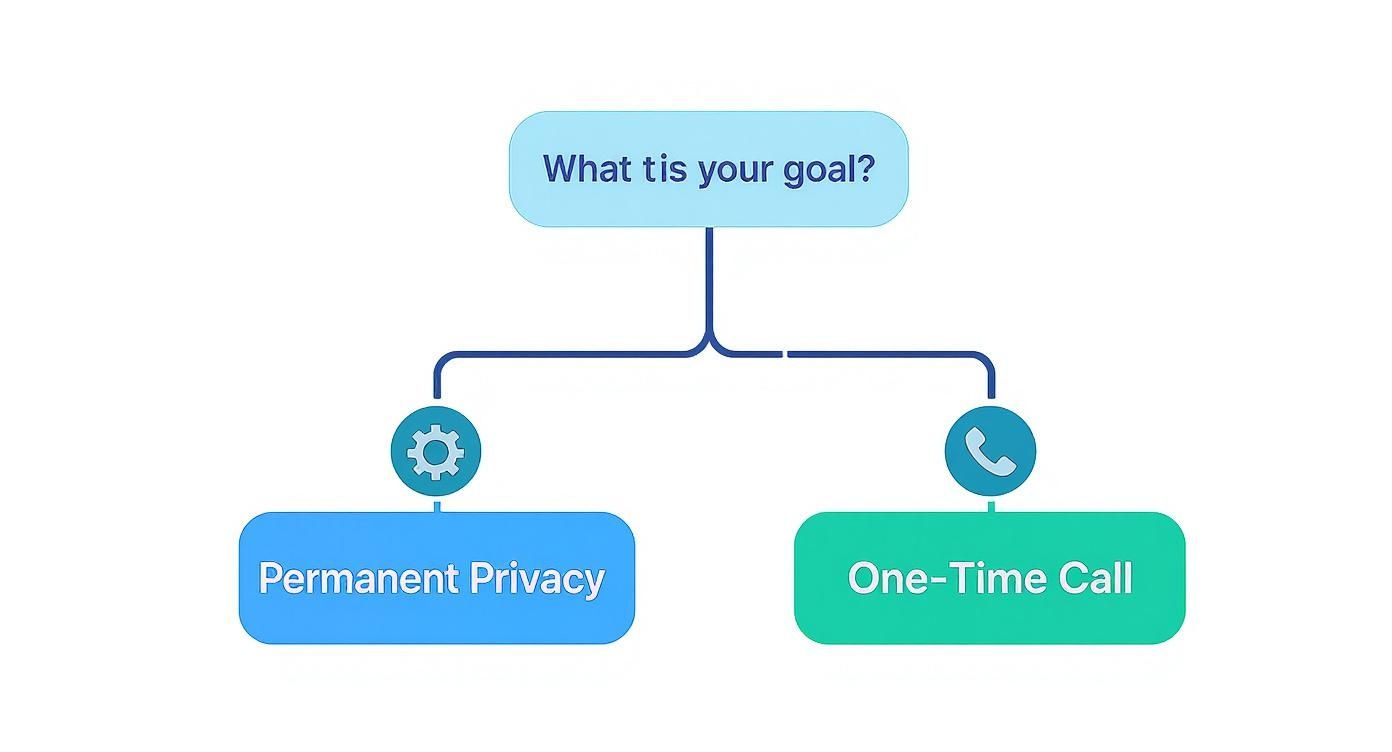
Alt text: Infographic decision tree on how to hide caller id on android, asking if the goal is permanent privacy or a one-time call.
The takeaway here is simple: your intention determines the right tool. Use the built-in Android settings for consistent, everyday privacy, but stick with the prefix codes when you only need it for a specific call.
When Your Calls Still Show Your Number
If your number is showing up when it shouldn’t be, it’s worth checking for any underlying system issues that might be overriding your preferences. For example, a phone stuck in a diagnostic mode can behave erratically. If you think that might be the case, learning how to remove safe mode on Android can help get your device back to its normal operating state.
It’s crucial to remember that hiding your caller ID is a privacy tool, not a get-out-of-jail-free card for illegal or harassing activities. Mobile carriers log every call and can trace a private number if law enforcement gets involved. Always use this feature responsibly.
Got Questions? We’ve Got Answers
You’re not the first person to wonder about the finer points of hiding your number. Let’s tackle some of the most common questions that pop up.
If I Hide My Number, Can It Still Be Traced?
Absolutely, yes. Think of hiding your caller ID as a privacy screen for the person you’re calling, not an invisibility cloak. Your mobile network (MTN, Glo, etc.) always knows where a call is coming from.
In any serious situation, law enforcement can get a court order and work with your provider to pinpoint the origin of a private call. It’s a great tool for everyday privacy, but it doesn’t offer complete anonymity.
Does This Trick Work for Text Messages?
That’s a definite no. Hiding your caller ID only works for voice calls. When you send an SMS or an MMS, your number will show up as usual.
It’s also worth remembering that this setting has zero effect on apps like WhatsApp, Signal, or Telegram. Those services identify you through your user profile, not your network’s caller ID.
Key Takeaway: Hiding your caller ID is strictly for phone calls. It does nothing to conceal your number when you’re sending SMS, MMS, or using third-party messaging apps.
Will My Network Provider Charge Me Extra for This?
For almost everyone in Nigeria, hiding your number using the #31# prefix or diving into your phone’s settings is completely free. It’s a standard feature that’s baked into your plan.
That said, it never hurts to be sure. While it’s highly unlikely with major carriers like MTN, Glo, or Airtel, it’s always smart to confirm. Some smaller carriers or specific business plans in other parts of the world might have different rules.
Actionable Takeaways
- For a single private call, dial #31# before the phone number. It’s the fastest method.
- For permanent privacy, go to your Phone app’s Settings > Calling accounts > Additional settings > Caller ID and select “Hide number.”
- If the “Hide number” option is disabled, call your mobile carrier’s customer support and ask them to enable it for your account.
- Remember this only works for calls, not for SMS, MMS, or messaging apps like WhatsApp.
- Be cautious with third-party apps. Always check permissions and user reviews before installing an app to manage your caller ID.
Tools & Resources
- Google Play Store: To find and vet third-party caller ID apps. Always review the app’s performance data and user feedback before installing.
- WiFi Calling Apps: For alternative calling methods with different privacy features, you can explore various WiFi calling apps.
Further Reading
- Learn about how AI on your phone can boost productivity in our guide on how Microsoft Copilot for Android can assist you.
- Explore privacy-focused AI tools with our overview of PrivateLLM and similar AI tools.
- If your phone isn’t behaving correctly, our guide on how to remove safe mode on Android might help.
Ready to create more than just private calls? RichlyAI offers a suite of AI tools that can generate high-quality text, images, code, and more, helping you streamline your creative and professional projects. Discover what you can build by exploring the platform at RichlyAI Hub.
