

Creating compelling video, once a resource-intensive endeavor, has been fundamentally transformed. The rise of sophisticated text to video AI tools now empowers anyone to generate high-quality video clips from a simple text prompt. This shift solves the bottleneck of traditional video production: time, cost, and complexity. Instead of coordinating shoots or mastering editing software, you can now articulate your vision in words and see it rendered into motion within minutes.
This guide provides a hands-on analysis of the top platforms. For each tool, you’ll find core features, pricing, and honest pros and cons. We pinpoint the ideal use case for each platform, whether you’re creating cinematic B-roll, generating avatar videos for corporate training, or producing engaging social media content. Our goal is to give you the actionable insights needed to select the right tool for your specific project and budget.
To gain a comprehensive understanding of the landscape of text-to-video AI, dive into this ultimate guide to AI video generators from text.
1. Kling
Kling emerges as a formidable contender in the text-to-video AI tools landscape, setting a new benchmark for cinematic quality and physical realism. Developed by Kuaishou, this model excels at transforming simple text prompts into high-fidelity 1080p video clips that can extend up to a remarkable two minutes in length. This capability alone positions it as a powerful asset for creators focused on short-form storytelling and advertising.
What truly distinguishes Kling is its sophisticated understanding of physics. The model generates scenes where objects and characters interact with their environment in a convincingly realistic manner, avoiding the weightless quality that can plague other AI video generators. This makes it exceptionally useful for product visualizations and narrative pre-visualization.
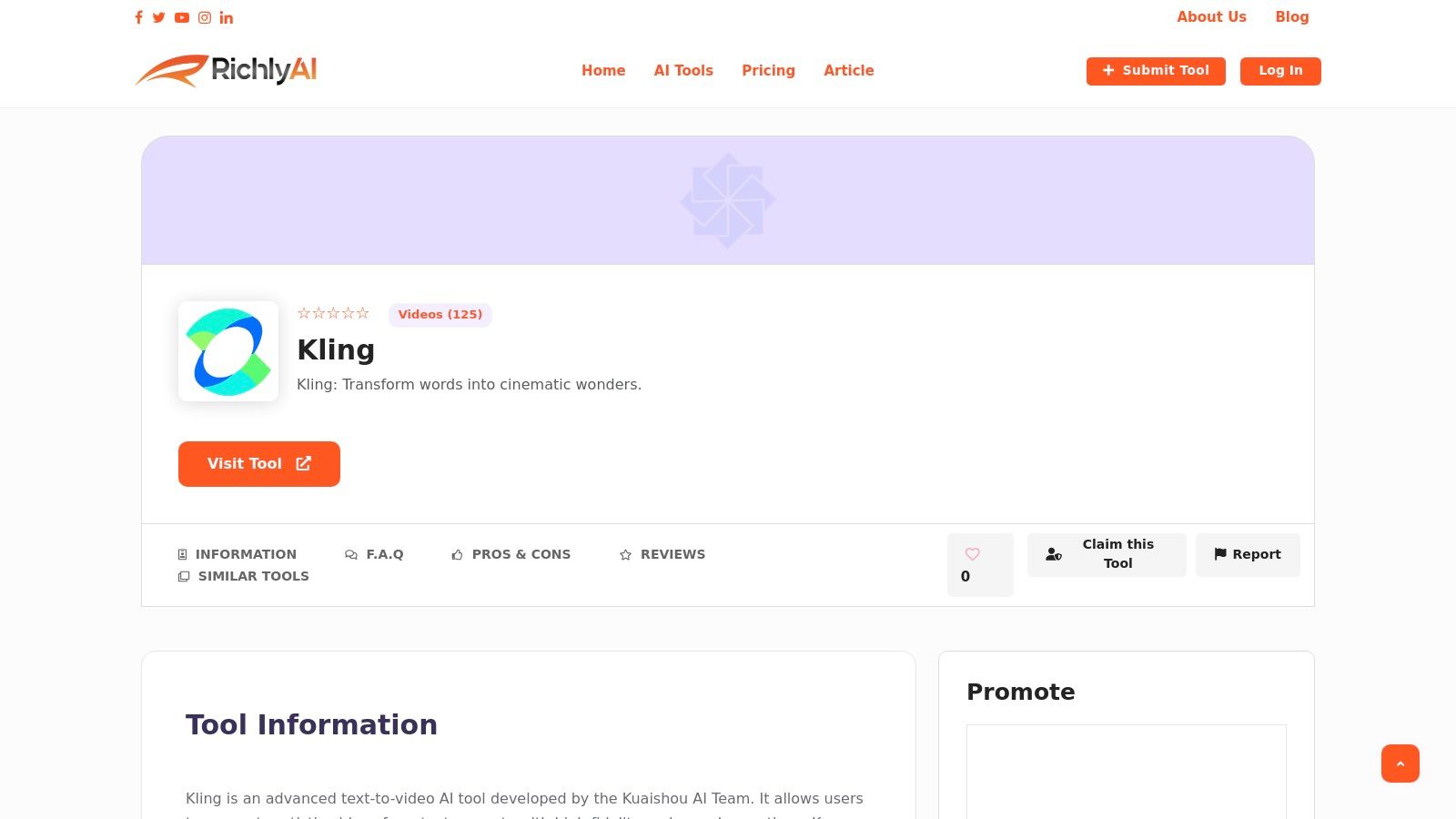
Alt text: A cinematic, AI-generated video still of a person in a futuristic setting, created by the Kling text-to-video AI tool.
Core Features & Practical Applications
Kling’s feature set is designed for versatility and direct application, streamlining content creation.
- Extended Runtimes: The ability to generate up to two minutes of continuous 1080p video makes it viable for producing complete social media clips or ad spots without stitching together multiple shorter generations.
- Physics-Aware Generation: Its core strength lies in simulating complex movements. This is ideal for creating dynamic scenes, such as a car realistically navigating a wet road or a character convincingly tossing a ball.
- Multi-Format Support: Specify formats like 9:16 for TikTok/Reels or 16:9 for YouTube to ensure content is natively optimized for its destination platform.
- Image & Video Animation: Beyond text-to-video, it can animate still images or extend existing video clips, allowing creators to bring static assets to life.
Step-by-Step Example: Creating a Product Ad Clip
Let’s create a dynamic clip for a new brand of running shoes.
- Write a Detailed Prompt: Instead of “running shoes,” be specific:
A close-up shot of a futuristic running shoe splashing through a puddle on a city street at night, neon lights reflecting on the water, slow motion, cinematic 16:9. - Set the Aspect Ratio: Select the 16:9 format for a standard widescreen look suitable for YouTube or a website banner.
- Generate and Iterate: Run the prompt. If the first result isn’t perfect, modify the prompt. For instance, add
hyper-detailedor change the lighting cue todusk lightingto refine the output. - Export the Final Clip: Once you have a visually compelling clip, export the 1080p video file to use as a primary shot in your advertisement.
| Feature Comparison | Kling | Sora (Competitor) | Runway (Competitor) |
|---|---|---|---|
| Max Resolution | 1080p | 1080p | 1080p / 4K Upscale |
| Max Length | 2 minutes | 1 minute | 16 seconds (extendable) |
| Key Differentiator | Physics-aware motion | High-fidelity realism | Creative tooling & controls |
| Current Access | Waitlist (China) | Waitlist (Limited) | Publicly Available |
Website: https://richlyai.com/ai-tools/kling/
2. Runway
Runway positions itself as a professional-grade creative suite for AI video generation, moving beyond simple prompts to offer a comprehensive editing environment. It’s designed for creators and filmmakers who demand fine-grained control. The platform’s standout feature is its powerful Gen-3 model, which produces highly coherent and high-quality motion. This focus on cinematic quality makes it a top choice for projects requiring a polished, professional look.
Runway’s user experience is built around an integrated editor, allowing you to generate, upscale, and stitch clips together without leaving the platform. This workflow-centric approach is a significant advantage over competitors that only offer clip generation.
Alt text: Runway’s text-to-video interface showing a prompt and generated video options.
Key Features and Pricing
Runway’s power lies in its combination of high-quality models and robust editing tools. It provides an end-to-end solution for video creation.
- Generation Models: Access to state-of-the-art models including Gen-3 Alpha for text-to-video and image-to-video.
- Editing Workflow: A full-featured video editor with keyframing, motion control, and upscaling up to 4K resolution.
- API Access: For developers, Runway offers a metered API with per-second pricing, enabling integration into custom applications.
- Pricing: A free plan offers limited credits. Paid plans start at $12/user/month (Standard) and go up to $28/user/month (Pro), offering more credits and advanced features. Enterprise and educational discounts are also available.
Step-by-Step Example: Creating a Dynamic B-Roll Sequence
Here’s how to create a stylized B-roll sequence for a product video.
- Generate Base Clips: Use the
Text to Videotool with a prompt like"slow-motion shot of water droplets hitting a dark surface, cinematic lighting."Generate several 4-second variations. - Stitch and Refine: Drag your favorite clips into the Runway editor timeline. Use the editor to trim and arrange them into a coherent sequence.
- Apply Motion Control: Use Motion Brush to add subtle camera pans or zooms, creating a more dynamic feel than a static AI generation. For example, select the product and draw an arrow to define a slow zoom path.
- Upscale and Export: Once the sequence is complete, use the AI upscaler to enhance the resolution to 4K before exporting the final video.
This platform excels where creative control and final output quality are paramount.
3. Pika
Pika establishes itself as a highly accessible and rapid text-to-video AI tool, prioritizing speed and creative experimentation. It’s designed for social media creators and artists who want to generate clips quickly and apply stylistic effects without a steep learning curve. The platform’s main draw is its variety of one-click effects, which allow users to instantly alter aesthetics, characters, and scenes. This focus on ease of use makes it a go-to for quick content creation and ideation.
The user experience is straightforward and centered on a simple prompt bar, with advanced options for effects and model selection easily accessible. This approach significantly lowers the barrier to entry compared to more complex editors.
Alt text: Pika’s user interface showcasing its text-to-video prompt bar and generated video previews.
Key Features and Pricing
Pika’s strength is its blend of fast generation speeds with a suite of creative, easy-to-use enhancement tools.
- Multiple Models & Effects: Access to various models (Turbo, Pro) and effects like
Pixel ArtorGlitchto modify style and characters. - Flexible Generation: Creates text-to-video and image-to-video clips up to 1080p, with paid plans allowing for no watermarks and commercial use.
- Credit-Based System: A flexible pricing model where credits are consumed based on the model, resolution, and duration of the video generated.
- Pricing: A free plan provides initial credits to start. The Standard plan is $8/month (billed annually) for more credits, while the Pro plan at $28/month (billed annually) offers the most credits and features.
Step-by-Step Example: Creating a Stylized Animated GIF
Here’s how to create a unique, eye-catching animated GIF for an Instagram post.
- Generate a Base Clip: Use the
Text to Videotool with a prompt like"a cute robot waving at the camera, vaporwave style, cinematic." - Experiment with Models: Generate the clip using both the Turbo and Pro models to see which one produces a better aesthetic for your vision.
- Apply an Effect: Select the best generation and click the
Modify regionbutton. Highlight the robot and enter a new prompt like"wearing a tiny hat"to add a detail. - Extend and Export: Use the “Extend” feature to increase the clip’s length slightly for a smoother loop. Download the final video as an MP4, ready to be converted into a GIF.
Pika excels for users who value speed and creative exploration over the granular control offered by professional editing suites.
4. Luma AI – Dream Machine
Luma AI’s Dream Machine focuses on high-quality, physics-aware video generation with excellent temporal consistency. It is engineered for users who prioritize realistic motion and character coherence in short clips, making it one of the more impressive new text to video AI tools for creating lifelike scenes. The platform’s core strength is its ability to understand and replicate natural movement, resulting in videos that feel fluid and believable.
The user experience is streamlined and accessible, centered around a simple prompt interface. While it lacks an integrated editor, its emphasis on pure generation quality makes it a powerful tool for creating standalone clips that can be edited in external software.
Alt text: A user interface for Luma AI Dream Machine showing a prompt entry field and generated video results.
Key Features and Pricing
Dream Machine excels at producing clips with strong motion realism, making it ideal for projects where believable physics and character movement are key.
- High-Quality Motion: Generates video with strong temporal consistency and realistic physics, minimizing the flickering or morphing common in other models.
- Flexible Generation: Supports text-to-video and image-to-video, allowing users to animate static images with dynamic motion.
- Transparent Credit System: A clear per-video cost structure based on model choice, resolution, and duration. The free tier offers a generous number of initial credits.
- Pricing: A free plan provides 30 monthly generations with watermarks. Paid plans start at $29.99/month (Standard) for 120 generations and go up to $499.99/month (Premier) for 2,000 generations.
Step-by-Step Example: Creating a Character-Driven Animation
Here’s how to create a short, expressive animation of a character for a social media post.
- Start with an Image: Upload a character illustration using the
Image to Videofeature. This provides a strong, consistent starting point for the animation. - Add a Motion Prompt: In the prompt field, describe the desired action with a focus on movement, such as
"a woman with glasses smiles warmly and looks up, soft cinematic lighting." - Generate and Refine: Generate the video. Dream Machine will animate the character based on the prompt while maintaining the original art style. If the movement is too fast, add a negative prompt like
-fast motionand regenerate. - Export for Use: Download the resulting 5-second clip and incorporate it into your social media video, confident that the character’s movement will appear smooth and natural.
Dream Machine is a top contender for anyone who values motion quality and character consistency above all else. Explore similar generative video tools on richlyai.com to compare different platforms.
5. Synthesia
Synthesia carves out a niche in the enterprise space, focusing on creating professional, AI-driven avatar videos for corporate communications. It transforms scripts into polished presentations led by a digital human, making it ideal for training materials and sales explainers. Unlike creatively-focused text to video AI tools, Synthesia’s strength lies in its consistency, scalability, and robust feature set designed for business workflows.
Its core value is enabling rapid, scalable video production for corporate needs. The interface is straightforward, designed for users without video editing experience to quickly generate content.
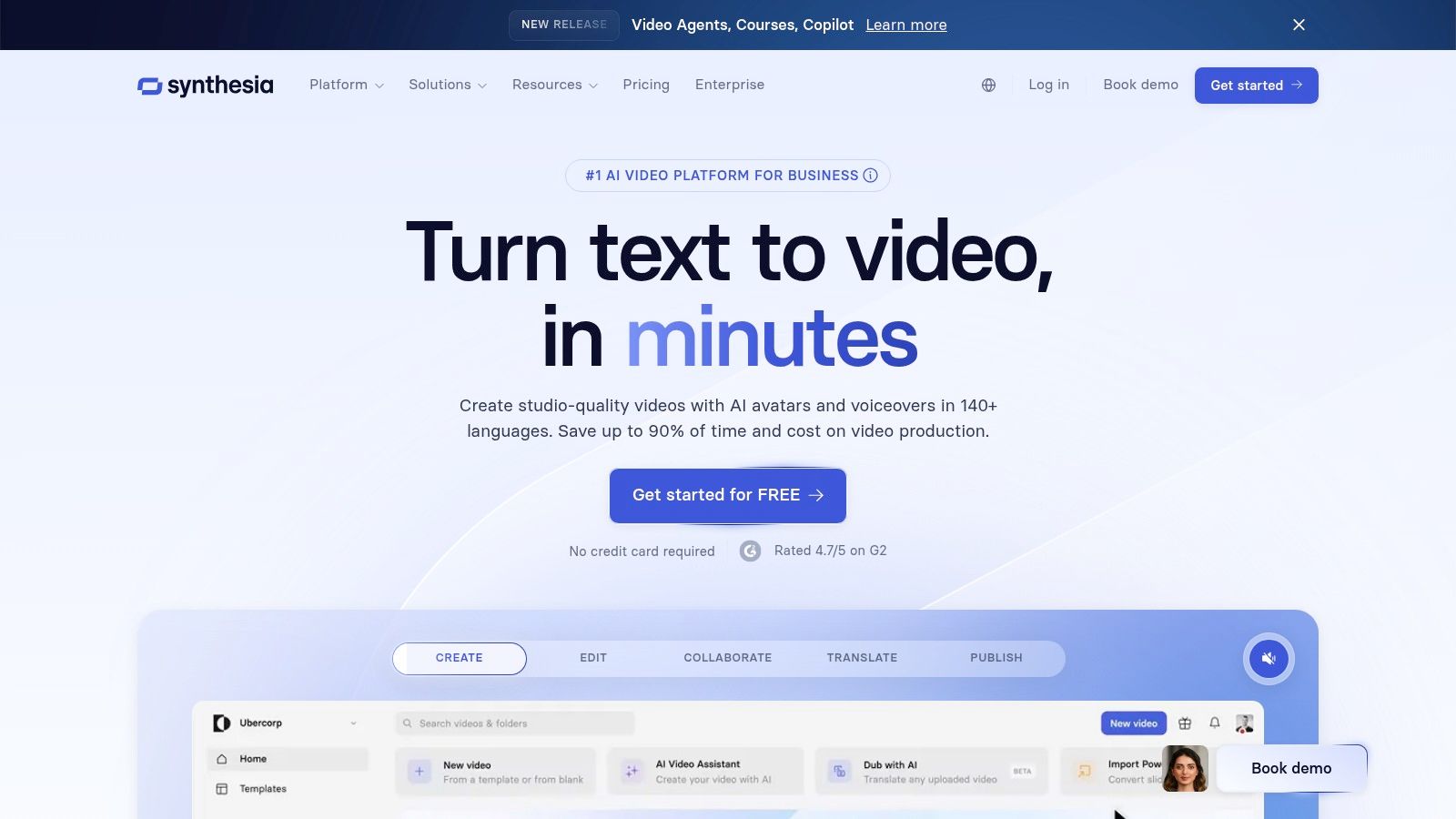
Alt text: The Synthesia interface showing an AI avatar, a script box, and video timeline.
Key Features and Pricing
Synthesia is built around a secure, collaborative environment with features tailored for organizational use.
- AI Avatars and Voices: Access over 160 stock AI avatars and voices in more than 130 languages for global content creation.
- Enterprise-Grade Security: The platform offers SOC 2 Type II and GDPR compliance, along with SSO for secure team access.
- Collaboration Workflow: Features like brand kits, shared templates, and commenting streamline team-based video production.
- Pricing: A free demo video is available. The Starter plan is $22/month (billed annually) for 1 user and 10 minutes of video per month. The Creator plan is $67/month for 30 minutes. Enterprise plans offer custom pricing.
Step-by-Step Example: Creating a Multilingual Onboarding Video
Here’s how an HR team can create a standardized policy video for new hires across global offices.
- Select an Avatar and Template: Choose a professional-looking AI avatar and a branded company template within the Synthesia studio.
- Input the Script: Paste the script explaining the company’s code of conduct into the script box. Add on-screen text and screen recordings to support key points.
- Localize the Content: Duplicate the project. In the new version, select “Spanish” from the voice menu. The platform automatically generates the voice-over in the chosen language with accurate lip-syncing.
- Export for LMS: For learning management systems, use the SCORM export option to create a trackable training module that integrates directly with your existing software.
For teams needing scalable, secure, and easily localized corporate video, Synthesia.io provides a powerful and efficient solution.
6. HeyGen
HeyGen specializes in creating professional, avatar-based videos from scripts, making it a go-to tool for marketing and corporate training. It excels at transforming text into engaging presentations led by AI-driven avatars, complete with voice cloning and extensive language support. Instead of focusing on cinematic B-roll, HeyGen provides a streamlined solution for businesses needing to produce consistent, high-quality informational videos without the overhead of filming.
The platform is designed for efficiency, allowing users to quickly generate videos for sales outreach, e-learning modules, or product explainers.
Alt text: HeyGen’s interface showing avatar and background selection for video creation.
Key Features and Pricing
HeyGen’s core strength lies in its comprehensive avatar and voice synthesis features.
- AI Avatars: Access to over 500 stock avatars, with options for custom and interactive avatars on higher-tier plans.
- Voice Cloning & Localization: Supports voice cloning and offers over 175 languages and dialects for global content strategies.
- Brand & Team Features: Includes brand kits for visual consistency and collaboration tools for team workflows.
- Pricing: A free plan provides a limited number of videos per month. Paid plans start at $24/month (Creator) and scale up to a Business plan at $72/month, offering more credits and higher resolution exports (up to 4K).
Step-by-Step Example: Creating a Multilingual Training Module
Here’s how to create a short HR training video and distribute it to a global team.
- Select an Avatar and Template: Choose a professional stock avatar and a simple presentation template in the HeyGen editor.
- Input the Script: Paste your training script into the text field. Use the built-in tools to adjust pacing and emphasis for clarity.
- Clone or Choose a Voice: For a personalized touch, use the Voice Cloning feature to record a 2-minute sample of your own voice. Alternatively, select a high-quality stock voice.
- Localize and Generate: Duplicate the project and use the translation feature to convert the script into Spanish and German. The AI automatically generates the video with a localized voiceover and accurate lip-syncing for each language before you export the final files.
For teams focused on avatar-driven content, HeyGen offers one of the most accessible and effective text to video AI tools available.
7. Colossyan
Colossyan specializes in AI-driven video for workplace learning, transforming text into engaging training content with realistic AI presenters. It’s built for organizations that need to create instructional videos at scale, offering a robust suite of tools tailored for corporate training and e-learning. The platform’s key differentiator is its focus on localization and interactivity, allowing creators to translate content and add engaging elements like quizzes directly within the video.
This focus makes Colossyan one of the best text to video AI tools for scalable educational content, shifting the emphasis from creative generation to practical communication.
Alt text: Colossyan’s interface showing an AI avatar and a script editor for creating training videos.
Key Features and Pricing
Colossyan’s feature set is optimized for creating and distributing corporate training materials efficiently.
- AI Avatars & Localization: Choose from over 70 realistic avatars and automatically translate video scripts into over 70 languages with a single click.
- Interactivity & LMS Export: Add interactive quizzes and branching scenarios to videos. Export content as a SCORM package for easy upload to any LMS.
- Team Collaboration: Enterprise-level features include brand kits, custom Studio avatars, and SSO for seamless team integration.
- Pricing: A free trial is available. The Starter plan begins at $19/month for 5 minutes of video. The Business plan offers “unlimited” minutes (subject to a fair use policy) starting at $63/month.
Step-by-Step Example: Creating an Interactive Compliance Module
Here’s how to roll out a new data privacy training video to a global team.
- Write the Script: Draft the training script and paste each section into Colossyan’s script editor.
- Choose an Avatar: Select a professional AI avatar that aligns with your company’s brand voice.
- Add Interactivity: After the section on “Phishing Scams,” insert an interactive quiz block. Add a multiple-choice question like, “Which of these emails is a likely phishing attempt?”
- Localize for Global Teams: Use the
Auto-translatefeature to create versions in Spanish, French, and German. The AI automatically handles the lip-sync for each language. - Export for LMS: Export the final module as a SCORM file and upload it directly into your company’s learning management system for distribution and tracking.
Colossyan is an ideal solution for teams that prioritize clarity and scalability in their corporate training. For a deeper look, check out Colossyan’s website.
8. InVideo AI
InVideo AI targets social media teams by combining text-to-video generation with a user-friendly, template-driven web editor. It excels at guiding users through the entire creation process, from script to final video, by integrating stock media and customizable templates. This approach is less about generating cinematic art and more about efficiently assembling professional-looking social content or explainer videos with AI assistance.
Its core strength is its structured workflow. Instead of a blank canvas, InVideo AI provides a clear, step-by-step path that simplifies video production for those without extensive editing experience.
Alt text: The InVideo AI editor interface showing a script-to-video workflow with scenes and media options.
Key Features and Pricing
InVideo AI’s feature set is built for speed and ease of use, focusing on asset assembly and template-based creation.
- Guided Workflow: A simple prompt-based system generates a script, selects relevant stock media, and creates a full video draft with scenes and voiceover.
- Integrated Asset Library: Access to extensive stock video, image, and music libraries to supplement AI-generated content.
- Web-Based Editor: A full-featured editor allows for easy customization of text, scenes, branding, and media within pre-designed templates.
- Pricing: A free plan is available with a weekly generation quota and watermarked exports. Paid plans start at $20/month, offering more exports, no watermarks, and access to premium stock media.
Step-by-Step Example: Creating a Social Media Explainer Video
Here’s how to create a short “how-to” video for your brand’s Instagram page.
- Enter the Initial Prompt: In the InVideo AI editor, provide a detailed prompt like
"Create a 60-second video explaining how to use our new skincare product, the 'Glow Serum,' for a youthful audience." - Review and Edit the Script: The AI will generate a script and break it into scenes. Review the text for accuracy and tone, making any necessary edits directly in the editor.
- Customize Visuals: The platform will automatically select stock footage for each scene. Swap any clips that don’t fit your brand’s aesthetic by searching the integrated stock library for
"serum application"or"glowing skin". Add your logo and brand colors. - Generate and Export: Once you are happy with the scenes and voiceover, render the final video and export it in a social media-friendly format.
The platform is ideal for users who prioritize a fast, guided experience for producing marketing and social content.
9. VEED.io
VEED.io positions itself as a comprehensive online video editor that seamlessly integrates AI generation into a traditional editing workflow. Unlike platforms focused solely on clip creation, VEED.io is designed for users who need to produce a complete video project from start to finish. Its standout quality is the convenience of having text-to-video generation, AI avatars, automated subtitling, and a full suite of editing tools all in one place.
This all-in-one approach streamlines the content creation process, allowing users to generate clips and immediately refine them within the same interface.
Alt text: VEED.io’s integrated video editor showing the AI text-to-video prompt interface.
Key Features and Pricing
VEED.io excels by combining AI generation with the practical tools needed for modern video content.
- Integrated AI Generation: Create video clips from text prompts directly inside the editor, with options to select from models like Veo 3 or PixVerse.
- Full Editing Suite: Access a complete set of tools including a timeline, transitions, text overlays, templates, and a brand kit.
- AI-Powered Tools: Features automated subtitling, translation, and AI avatars to enhance content.
- Pricing: A free plan is available for basic editing but lacks AI generation. Paid plans with AI credits start at $12/user/month (Basic) and go up to $24/user/month (Pro).
Step-by-Step Example: Creating a Subtitled Social Media Clip
Here’s how to create a short, engaging video for Instagram about a new product feature.
- Generate a Scene: Inside the VEED.io editor, use the
Text to Videotool with a prompt like"a sleek smartphone screen displaying a new app interface, minimalist background, 4K." - Add Brand Elements: Drag the generated clip to the timeline. Use the brand kit feature to apply your company logo and custom font for a text overlay describing the feature.
- Add Voiceover and Subtitles: Record a quick voiceover explaining the benefit. Use the
Auto Subtitletool to instantly generate and style captions, ensuring the video is accessible with the sound off. - Export for Socials: Choose the pre-set aspect ratio for Instagram Reels (9:16) and export the final, ready-to-post video.
For creators who value a unified workflow, VEED.io is an excellent choice among text to video AI tools, especially for producing content that requires both AI generation and traditional editing polish.
10. Kapwing
Kapwing’s AI Studio offers a practical, all-in-one solution for creators who need to move quickly from an idea to a finished social media post. Kapwing combines its text-to-video AI tool with a powerful, collaborative online editor. This makes it an excellent choice for social media managers and marketing teams who prioritize workflow efficiency and need a simple path from generation to final edit.
The platform’s strength lies in its integration. You can generate a video from a text prompt and then immediately jump into a familiar editing timeline to add text overlays, transitions, and branding elements without exporting to another application.
Alt text: Kapwing’s text-to-video interface showing an idea being turned into a script and video.
Key Features and Pricing
Kapwing’s features are built around a fast and accessible content creation workflow.
- Integrated Workflow: Combines text-to-video generation, script creation, and asset assembly within a full online editor.
- Collaboration and Branding: Supports real-time collaboration and brand kits, allowing teams to maintain consistency.
- Stock Libraries: Provides access to templates and stock footage to quickly enhance generated content.
- Pricing: A free plan is available with watermarks and export limits. The Pro plan is $16/user/month (billed annually), offering more credits and 4K export. A Business tier is available for larger teams.
Step-by-Step Example: Creating a Social Media Ad
Here’s how to create a short promotional video for a new coffee blend for Instagram Reels.
- Generate the Video: Use the
AI Video Generatorwith a prompt like"an upbeat 15-second ad for a new morning coffee blend, showing beans, a fresh pour, and someone enjoying a cup." - Edit and Enhance: The AI assembles a video using stock clips. In the editor, replace any generic clips with your own product shots. Use the text tools to add captions like “Meet Your New Morning Ritual.”
- Apply Branding: Use your Brand Kit to apply your company’s logo and specific font styles to the text overlays.
- Add Audio and Export: Select a trending audio track from the library, resize the video to the 9:16 aspect ratio for Reels, and export the final ad.
This platform is ideal for users who value speed and an integrated editing experience over pure generative quality.
11. Canva – Magic Media
Canva’s Magic Media integrates text-to-video generation directly into its widely-used design suite, making AI video accessible to millions of non-specialist users. Its standout feature produces cinematic clips complete with synchronized audio, ideal for users who need quick, high-quality video assets to drop into a broader design or branding project without leaving the familiar Canva workspace.
The platform excels by unifying the design and video creation process. Users can generate a clip and immediately incorporate it into a social media post, presentation, or advertisement using Canva’s vast library of templates and brand kit tools.
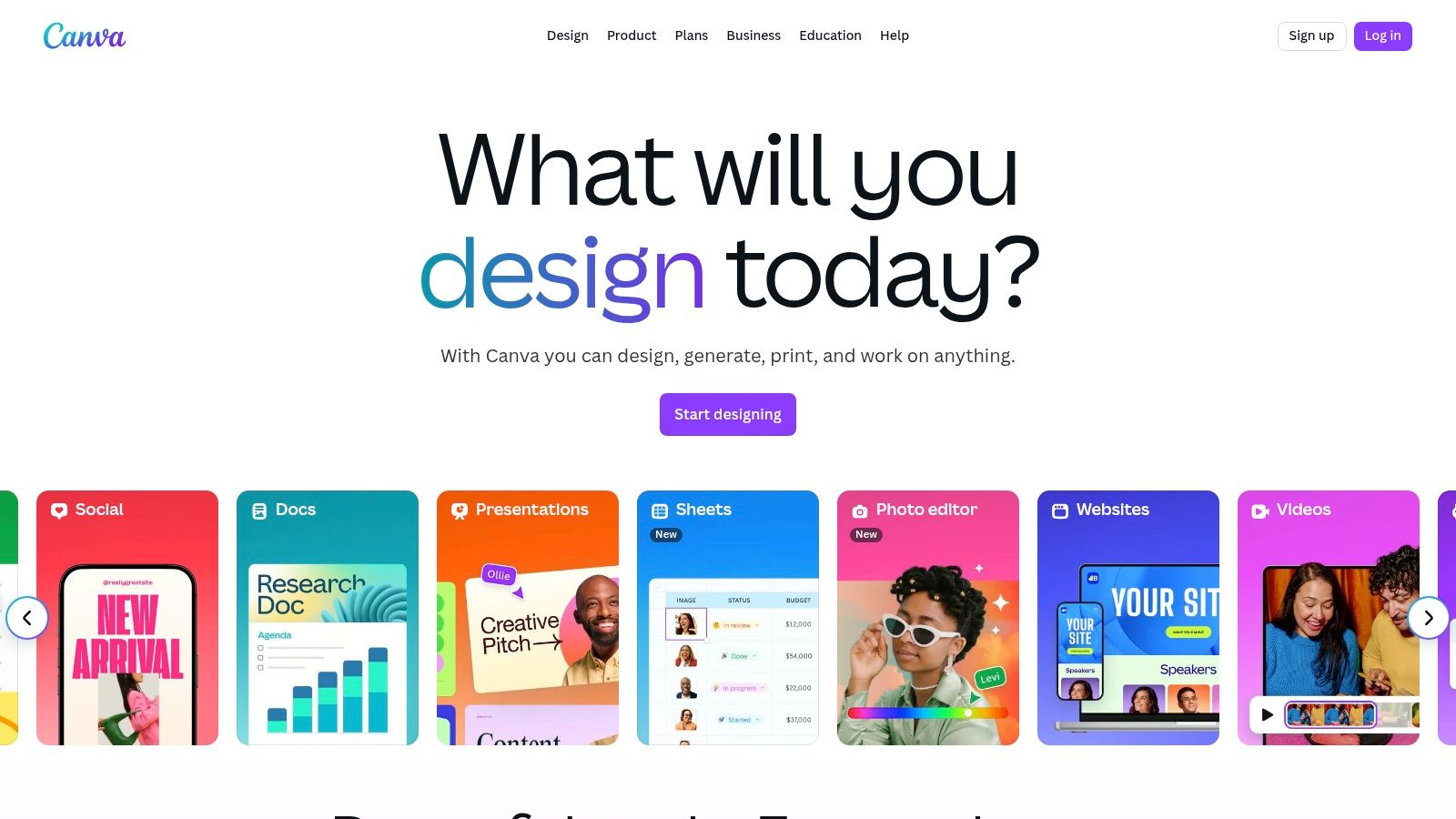
Alt text: Canva’s text-to-video interface showing a prompt for an 8-second cinematic clip.
Key Features and Pricing
Canva’s strength lies in its integration and ease of use, making it a powerful tool for marketers who value speed and brand consistency.
- Integrated Generation: Create videos from text prompts directly within the Canva editor, streamlining the content creation workflow.
- High-Quality Model: The generator leverages a high-end model for cinematic clips with impressive audio synchronization.
- Unified Workspace: Access all of Canva’s tools, including templates, brand kits, and collaboration features, in one place.
- Pricing: A free plan offers limited access to Magic Media. Full access requires a Canva Pro ($14.99/user/month) or Canva for Teams plan.
Step-by-Step Example: Creating a Branded Social Media Ad
Here’s how to create a quick, engaging video ad for an upcoming sale.
- Choose a Template: Start with a pre-designed Instagram Story or Reels template in Canva that matches your brand’s aesthetic.
- Generate a Clip: Navigate to
Magic Mediaand use the text-to-video feature with a prompt like"a sleek, modern product display with soft, glowing lights, energetic electronic music." - Integrate and Customize: Drag the generated clip into your template. Add your brand logo, sale information, and a call-to-action using Canva’s text and element tools.
- Publish Directly: Once complete, you can download the video or publish it directly to your connected social media accounts.
Canva is one of the most versatile AI tools for content creation, offering a unified solution that goes far beyond simple video generation.
12. Adobe Firefly (Generate Video)
Adobe Firefly’s “Generate Video” feature brings text-to-video AI capabilities directly into the Creative Cloud ecosystem. This tool is aimed at designers and video editors already invested in Adobe’s software, offering a seamless way to generate short, commercially safe video clips without leaving their familiar workflow. Its main strength is its deep integration, allowing users to create assets that can be immediately refined in applications like Premiere Pro and Adobe Express.
Firefly prioritizes enterprise-grade governance and outputs trained on Adobe Stock, ensuring the content is safe for commercial use. This focus makes it a reliable choice for professional projects where brand safety and copyright are major considerations.
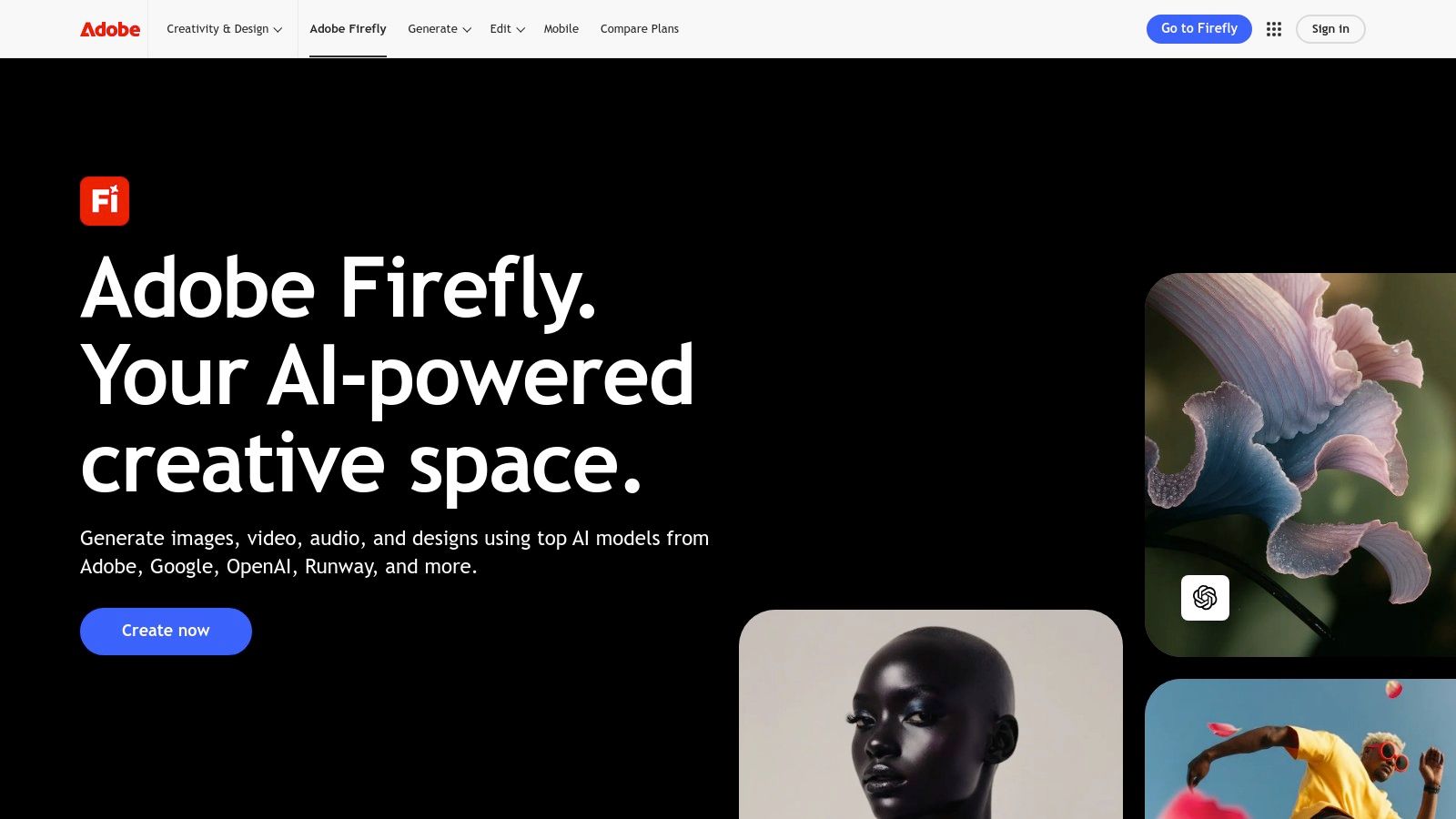
Alt text: Adobe Firefly’s “Generate Video” interface showing a text prompt and resulting video clip options.
Key Features and Pricing
Adobe’s approach integrates generative AI through a credit system, making it easy to manage usage across its powerful suite of creative applications.
- Creative Cloud Integration: Designed to work fluidly with Premiere Pro and Adobe Express, enabling a cohesive production pipeline.
- Commercially Safe Outputs: All video content is generated using licensed Adobe Stock data, making it safe for commercial projects.
- Generative Credit System: Operates on a credit-based model with transparent, per-second costs that vary by resolution.
- Pricing: A free plan includes a monthly allotment of credits. Paid plans, starting with the Firefly Premium plan at $4.99/month or included with most Creative Cloud subscriptions, offer more credits and remove watermarks.
Step-by-Step Example: Creating a Social Media Ad Clip
Here’s how to create a quick, eye-catching video for an Instagram Story ad.
- Generate a Base Clip: In Adobe Firefly, use the prompt
"vibrant aerial shot of a tropical beach with waves gently lapping the shore, bright sunny day."Generate a few 5-second variations. - Import to Adobe Express: Choose your favorite clip and send it directly to an Adobe Express project.
- Add Branding and Text: In Express, overlay your brand’s logo, a call-to-action like “Summer Sale Now On!”, and add background music from the integrated library.
- Export for Social Media: Export the final 10-15 second video in the vertical format required for Instagram Stories and publish it directly.
This workflow highlights how Firefly excels as a component within a larger creative process, rather than a standalone tool for final video production.
Top 12 Text-to-Video AI Tools Comparison
| Tool | Core features | ★ Quality | 💰 Value | 👥 Target | ✨ Unique |
|---|---|---|---|---|---|
| 🏆 Kling – AI Tools Hub | Cinematic 1080p T2V; up to 2min; animate/extend footage | ★★★★☆ | 💰 Mid — end-to-end prompt workflow | 👥 Social creators, marketers, previsualization | ✨ Physics-aware, lifelike motion |
| Runway | Gen‑3/Gen‑4 T2V; image→video; upscaling; API & editor | ★★★★☆ | 💰 Metered per‑second credits | 👥 Creators & developers, pros | ✨ 4K upscaling, keyframing, API |
| Pika | Fast T2V; multiple models/effects; 5–25s, up to 1080p | ★★★☆ | 💰 Affordable credit-based | 👥 Hobbyists & rapid creators | ✨ Multiple model variants & playful effects |
| Luma AI – Dream Machine | Ray models T2V (≤10s); HDR/EXR; strong upscaling | ★★★★☆ | 💰 Good per-clip value on Plus; free limits | 👥 Realism-focused creators | ✨ Strong temporal consistency & HDR output |
| Synthesia | Script→video avatars; 140+ languages; enterprise controls | ★★★★☆ | 💰 Enterprise‑priced; tiered credits | 👥 Enterprises, L&D teams | ✨ Studio avatars + compliance & SCORM |
| HeyGen | Avatars (500+); voice cloning; exports up to 4K | ★★★☆ | 💰 Competitive per‑seat plans | 👥 Marketing & training teams | ✨ Voice cloning + large avatar library |
| Colossyan | Realistic presenters; auto‑translate; interactive quizzes | ★★★★☆ | 💰 Business tier offers attractive minutes | 👥 Org training & e‑learning | ✨ SCORM export & branching quizzes |
| InVideo AI | Script gen, stock media, templates; web editor | ★★★☆ | 💰 Generous free quota (watermarked) | 👥 SMBs & social teams | ✨ Guided template-driven workflow |
| VEED.io | Editor + T2V model picker; subtitling & translation | ★★★☆ | 💰 Paid tiers with AI credits | 👥 End‑to‑end content creators | ✨ Integrated gen→edit pipeline |
| Kapwing | AI Studio T2V + collaboration; templates & stock | ★★★☆ | 💰 Reasonable Pro pricing; free limits | 👥 Creators & social teams | ✨ Collaborative online editor |
| Canva – Magic Media | T2V inside design suite; 8s Veo 3 clips; brand kits | ★★★☆ | 💰 Included with Pro/Teams | 👥 Non‑specialists & brand teams | ✨ Unified design + quick video clips |
| Adobe Firefly (Generate Video) | Short T2V clips; Creative Cloud integration; credits | ★★★★☆ | 💰 Higher credit costs; CC tiers | 👥 Adobe users & production pros | ✨ Deep Creative Cloud workflows & governance |
Actionable Takeaways & Next Steps
The “best” text-to-video AI tool depends entirely on your project, budget, and technical comfort level. Generative models like Luma AI offer creative freedom for unique B-roll, while avatar platforms like Synthesia provide speed and consistency for corporate training. Use this framework to make your choice.
Your Decision Framework
- What is my primary use case? Are you creating realistic avatars for corporate training (Synthesia), generating imaginative B-roll (Pika, Runway), or assembling a presentation from a script (InVideo AI)?
- What is my skill level? Beginners should start with user-friendly interfaces like Canva or InVideo AI. Experienced users needing granular control should explore Runway.
- What is my budget? Start with the free tiers offered by most tools. This allows you to test the workflow and quality without financial commitment.
- How important is realism? For projects demanding high-fidelity, fluid motion, and photorealistic output, tools like Luma AI’s Dream Machine and Kling are leading the pack.
Your Next Actions
- Pick two finalists: Based on your needs, choose two tools to test head-to-head (e.g., Pika vs. Runway for creative clips).
- Use a standard prompt: Test both tools with the exact same prompt, like
"a golden retriever chasing a red ball in a sunny park." - Compare the outputs: Evaluate the video quality, accuracy, motion, and any artifacts side-by-side.
- Check the Tools/Resources section for direct links to start experimenting immediately.
- Read the linked articles in the “Further Reading” section to deepen your understanding of specific platforms.
Tools & Resources
- Runway: runwayml.com
- Pika: pika.art
- Luma AI: lumalabs.ai/dream-machine
- Synthesia: Synthesia.io
- HeyGen: HeyGen.com
- Colossyan: Colossyan.com
- VEED: VEED.io
- Kling: https://richlyai.com/ai-tools/kling/
Further Reading & References