

Creating a compelling presentation from scratch is a time-consuming process. From structuring the narrative and writing the content to designing visually appealing slides, the manual effort can easily consume hours, if not days. This is where AI presentation tools come in, automating the most tedious parts of the process so you can focus on delivering your message with impact.
This guide provides a comprehensive breakdown of the best AI presentation tools available today. We move beyond marketing claims to offer an in-depth analysis of what each platform actually delivers. You’ll find detailed reviews that cover key AI features, practical use cases, and honest assessments of strengths and weaknesses.
Our goal is to help you find the right solution for your specific needs, whether you’re a startup founder pitching to investors, a marketer creating a webinar, or an educator developing course material. For each tool listed, we provide:
- A quick summary of what it does best.
- Analysis of its core AI capabilities, like text-to-deck generation and automated design.
- Clear pricing information to match your budget.
- Honest pros and cons based on real usage.
- Step-by-step examples to show you exactly how to use the tool to get results.
This article is your definitive resource for navigating the options and selecting the AI-powered software that will save you time and elevate your presentations. Let’s get started.
1. Beautiful.ai
Beautiful.ai is one of the best AI presentation tools for teams prioritizing brand consistency and speed over granular creative freedom. Its core strength lies in its “Smart Slides” templating system. Instead of manually pushing pixels and adjusting text boxes, you select a pre-designed layout (like a timeline, org chart, or feature comparison), and the AI automatically formats your content to look polished and professional.
alt text: A user interface within the Beautiful.ai platform showing a presentation slide being edited with a variety of slide templates and design options visible.
This approach acts as a “design guardian,” ensuring every slide adheres to aesthetic principles and your company’s brand guidelines. The AI’s generative text features can also draft slide content, speaker notes, and even entire presentations from a simple prompt. It’s an ideal solution for sales teams, marketing departments, and enterprises that need to produce high-quality, on-brand decks quickly without requiring deep design expertise from every team member.
Key AI Features & Pricing
The platform’s AI functionality is deeply integrated into the creation process. Beyond text generation, the auto-layout feature is its most powerful asset, intelligently adapting as you add or remove elements.
- AI Strengths: Smart Slides with auto-formatting, AI text and presentation generation, on-demand translation.
- Best For: Corporate teams needing to enforce brand standards and accelerate deck creation.
- Pricing: Offers a Pro plan at $12/month (billed annually) for individuals, a Team plan at $40/user/month (billed annually) with collaboration features, and custom Enterprise pricing. A 14-day free trial is available.
How to Create a QBR Deck in Minutes
Here’s a practical example of how a marketing team can create a quarterly business review (QBR) presentation:
- Set the Brand: The team lead sets up a branded theme with the company logo, colors, and fonts.
- Generate the Draft: Use the “DesignerBot” with a prompt like, “Generate a 10-slide QBR for Q2, including slides for performance overview, key wins, challenges, and Q3 goals.”
- Add Data with Smart Slides: Team members add data to their sections using pre-built Smart Slides for charts and timelines. When a last-minute data point is added, the AI automatically reflows the entire slide layout, saving hours of manual formatting.
- Collaborate: The team works on the shared deck, ensuring every slide remains consistent and on-brand without extra effort.
Website: https://www.beautiful.ai/
2. Gamma
Gamma positions itself as a fast and flexible alternative to traditional slides, excelling at rapidly generating polished first drafts of presentations, documents, and even simple web pages from a single prompt. Its key differentiator is a modern, card-based layout system that feels more like a dynamic webpage than a static PowerPoint. Instead of confining ideas to rigid slides, Gamma uses interactive “cards” that can be easily rearranged, nested, and reformatted, making it one of the best AI presentation tools for brainstorming and iterative content development.
alt text: The user interface of the Gamma platform showing a presentation being created, with various AI-powered editing and design tools available in a side panel.
This approach makes Gamma incredibly effective for users who need to move from an idea to a shareable asset in minutes. The AI handles the heavy lifting of design, layout, and image selection, producing a visually compelling and interactive deck almost instantly. Its generous export options, including PPTX and PDF, ensure that the modern output remains compatible with traditional presentation workflows, offering a great bridge between modern AI generation and corporate standards.
Key AI Features & Pricing
Gamma’s AI focuses on speed and content structuring, allowing users to generate a complete, well-designed deck from a text prompt or an existing document. The AI-powered “refine” feature lets you change the tone or layout of any card with a single click.
- AI Strengths: One-prompt presentation generation, AI-powered design and layout refinement, content import and reformatting.
- Best For: Founders creating pitch decks, consultants drafting proposals, and educators developing course materials quickly.
- Pricing: Offers a generous Free tier with 400 one-time AI credits. The Plus plan is $8/user/month (billed annually) for more credits and PDF exports, while the Pro plan at $15/user/month unlocks advanced features like PPTX exports and custom fonts.
How to Create a Pitch Deck in Under 30 Minutes
For a startup founder on a tight deadline, here’s the process:
- Start with a Prompt: Open Gamma and select “Generate.” Enter a single, clear prompt: “Create a 10-card pitch deck for a mobile app named ‘WanderAI’ that uses AI to create personalized travel itineraries.”
- Review the AI Draft: Within 60 seconds, Gamma generates a full deck with sections for the problem, solution, market size, business model, and team, complete with stock imagery.
- Refine with AI: Click on any card and use the “AI edit” feature. For example, select the “Solution” card and prompt it to “Rephrase this to be more punchy and add an emoji.”
- Export for the Meeting: Once satisfied, click “Export” and choose “PPTX.” The entire process, from idea to a ready-to-present file, is completed in less than half an hour.
Website: https://gamma.app/
3. Canva (Magic Studio for Presentations)
Canva has evolved from a simple graphic design tool into a comprehensive visual communication suite, and its Magic Studio brings powerful AI capabilities directly into the presentation workflow. Instead of being a dedicated presentation builder, Canva positions itself as an all-in-one design platform where presentations are just one part of a larger brand ecosystem. Its strength lies in using AI to generate an entire, on-brand presentation draft from a simple text prompt, which can then be seamlessly repurposed into other formats like social media posts or documents.
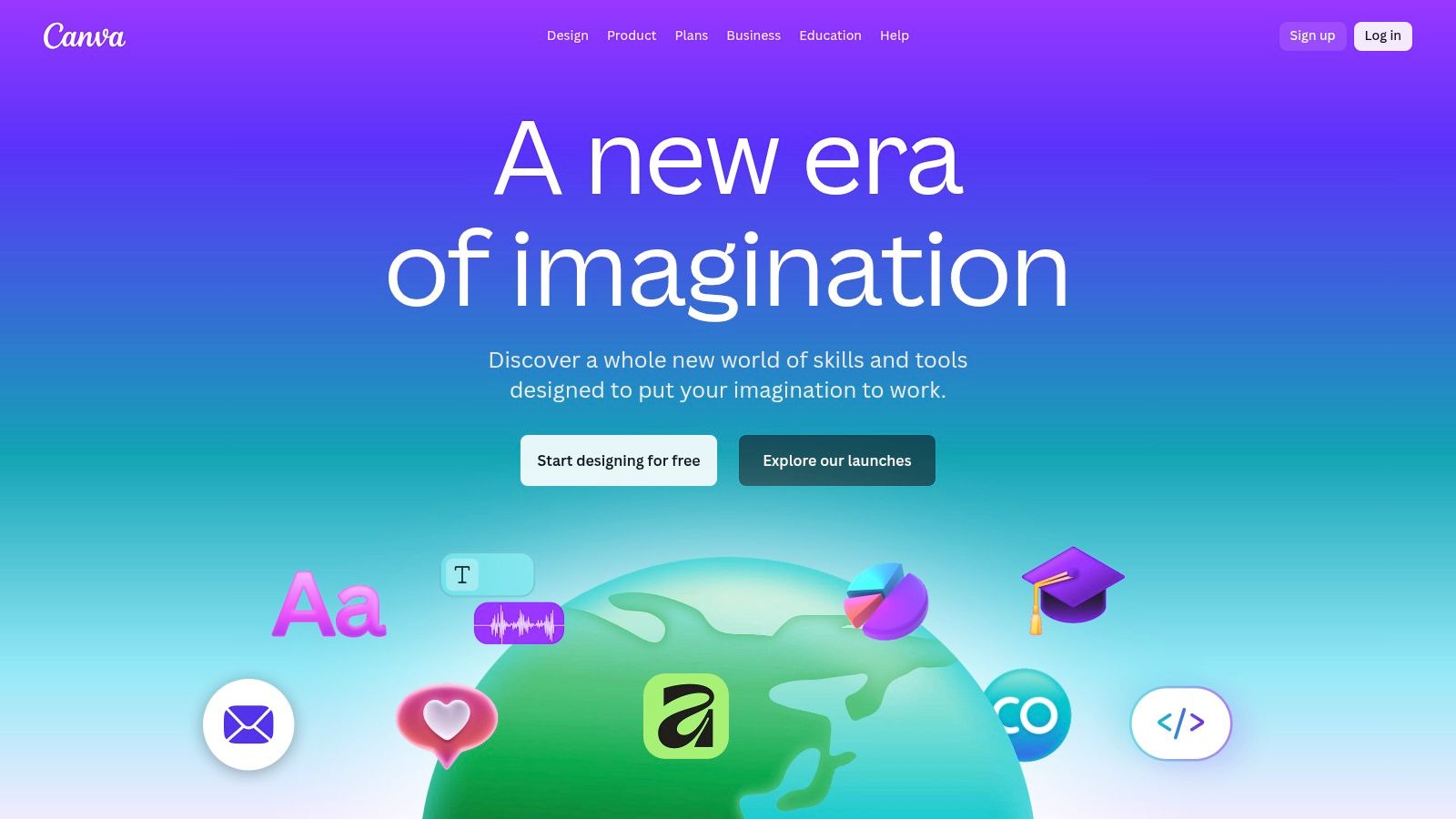
alt text: The user interface for Canva’s Magic Design for Presentations, where a user can input a prompt to generate a full presentation deck.
This makes Canva one of the best AI presentation tools for marketers, creators, and small businesses who need to maintain a consistent visual identity across all their communication channels. The AI features, like Magic Design and Magic Write, act as creative assistants, drafting initial concepts and copy, which users can then refine using Canva’s massive library of templates, photos, and elements. It excels at quickly producing visually appealing first drafts that are already aligned with your brand kit.
Key AI Features & Pricing
Canva’s AI is designed to accelerate the entire creative process, from initial idea to final design. Magic Studio integrates AI across text, design, and format conversion, making it a versatile assistant.
- AI Strengths: Magic Design for instant presentation generation, Magic Write for text and copy assistance, Magic Switch for one-click reformatting and translation.
- Best For: Marketers and small businesses needing an all-in-one design tool for multi-channel campaigns. For a deeper look at its capabilities, see this guide on AI tools for content creation.
- Pricing: Offers a robust Free plan with basic AI features. Canva Pro is $119.99/year for one person, and Canva for Teams is $300/year for the first 5 people, unlocking more advanced AI credits and collaboration tools.
How to Create and Repurpose a Campaign Deck
A social media manager can use this workflow for a new campaign:
- Generate the Deck: Go to Canva Presentations and use Magic Design. Type the prompt: “Create a presentation on a Q3 social media strategy for a sustainable fashion brand.”
- Apply Brand Kit: The AI generates an 8-slide deck. Click “Brand” and apply your company’s brand kit to instantly change fonts and colors across all slides.
- Refine Content: Use “Magic Write” on a text box to “expand on this point” or “summarize this paragraph” to quickly polish the copy.
- Repurpose with Magic Switch: After the presentation, use “Magic Switch” to instantly convert key slides into Instagram Stories and a one-page PDF summary for stakeholders, ensuring brand consistency and saving hours of manual redesign work.
Website: https://www.canva.com/
4. Microsoft PowerPoint with Copilot (Microsoft 365)
For organizations deeply embedded in the Microsoft ecosystem, PowerPoint with Copilot represents the most seamless path to AI-powered presentations. Instead of migrating to a new platform, Copilot integrates directly into the familiar PowerPoint interface, augmenting existing workflows. Its primary strength lies in its ability to leverage data from other Microsoft 365 apps, such as turning a Word document outline or Excel data into a fully-fledged presentation with a single prompt.
alt text: An interface of Microsoft PowerPoint with the Copilot AI assistant open, showing a prompt to create a presentation and design options.
This makes it one of the best AI presentation tools for users who value enterprise-grade security and productivity within a unified environment. Copilot can generate speaker notes, summarize long presentations, and suggest design improvements, all while adhering to corporate data security and compliance standards. This integration makes it a powerhouse for internal business communications where content often originates from various Microsoft Office documents.
Key AI Features & Pricing
Copilot’s AI is designed to be an assistant within your existing tools, focusing on generation and refinement based on your content and data across the Microsoft 365 suite.
- AI Strengths: Native integration with PowerPoint, document-to-deck generation, AI-powered design and content suggestions, enterprise-level security.
- Best For: Businesses and enterprises already invested in the Microsoft 365 ecosystem that need a secure, integrated AI solution.
- Pricing: Requires a Microsoft 365 Business Standard or Business Premium plan. The Copilot for Microsoft 365 add-on costs $30 per user/month (billed annually).
How to Create a Presentation from a Word Document
Here’s how a project manager creates a project kickoff deck:
- Open PowerPoint: Start a new presentation. The Copilot icon will appear on the Home ribbon.
- Prompt with a File Reference: Click the Copilot icon and type a prompt that references a file stored in OneDrive or SharePoint: “Create a 10-slide presentation from /ProjectBrief.docx.”
- Review the Generated Draft: Copilot analyzes the document and generates a draft with a title slide, agenda, key objectives, and timelines.
- Refine with Follow-up Commands: Continue the conversation with Copilot. Type “add speaker notes for the budget slide” and then “make the design more professional using our company’s branding.” The deck is polished without leaving the application.
Website: https://www.microsoft.com/en-us/microsoft-365/business/copilot-for-microsoft-365
5. Google Slides with Gemini (Google AI Pro/AI Premium)
For teams already embedded in the Google Workspace ecosystem, Gemini’s integration into Google Slides offers a powerful and familiar environment. Instead of a standalone app, the AI acts as a native assistant within the tool millions already use daily. Its primary advantage is leveraging the massive context of your other Workspace apps, like Docs and Sheets, to help create cohesive and data-informed presentations without ever leaving your workflow.
alt text: A user interface within Google Slides showing the Gemini AI assistant side panel where a user can input prompts to generate images or text for their presentation.
This makes it one of the best AI presentation tools for users who prioritize collaboration and convenience over highly stylized, unique designs. The AI can generate custom images from a text prompt, summarize long documents into key bullet points for a slide, and help draft content, all while retaining Google Slides’ world-class real-time collaboration and sharing features. It streamlines the creation process by bringing generative AI directly to where the work is already happening.
Key AI Features & Pricing
Gemini’s capabilities are accessible through a side panel, allowing you to generate content and visuals without disrupting your slide-editing flow. The functionality is tied to a Google One subscription.
- AI Strengths: Native Workspace integration, content summarization from Google Docs, custom image generation.
- Best For: Individuals and businesses heavily invested in Google Workspace seeking to enhance existing workflows.
- Pricing: AI features are available through the Google One AI Premium plan, which costs approximately $19.99/month and includes Gemini Advanced, 2TB of storage, and integration across Gmail, Docs, and Slides. A free trial is often available.
How to Create a Deck from a Google Doc
A project manager can build a kickoff presentation with this process:
- Open Google Slides: Create a new presentation. Click the Gemini icon (often a sparkle) to open the side panel.
- Summarize a Document: In the side panel, type a prompt like, “Summarize the key objectives, timeline, and stakeholder list from the Google Doc titled ‘Project Phoenix Brief’ into five slides.”
- Generate Custom Images: On a newly created slide, prompt Gemini to create a visual: “Generate an image of a blueprint of a new mobile app interface, in a minimalist style.”
- Collaborate Instantly: Share the Google Slides link with the team. They can see the AI-generated content and collaborate on edits in real-time.
Website: https://one.google.com/about/ai-premium/
6. Pitch
Pitch has carved out a niche as a modern, collaboration-first presentation platform, making it one of the best AI presentation tools for fast-moving teams. It merges the creative process with AI efficiency, allowing users to generate entire first drafts from a simple text prompt. The platform excels at creating visually consistent, on-brand decks quickly, positioning itself as a strong alternative to legacy software for startups and creative agencies.
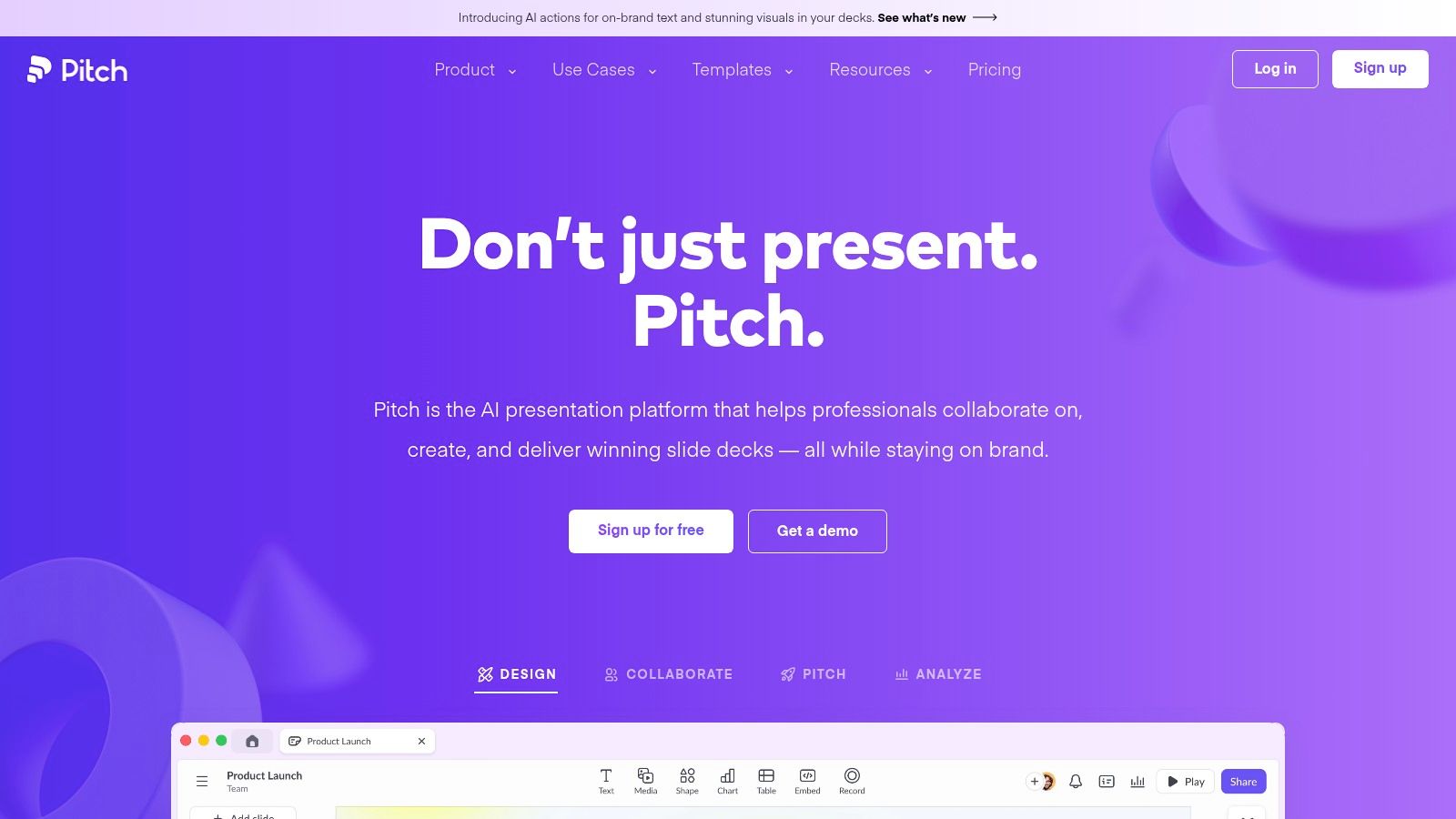
alt text: The user interface of Pitch, showing a presentation being created with the “Start with AI” feature highlighted.
Unlike tools that focus solely on generation, Pitch integrates its AI within a robust, real-time collaborative environment. Teams can work together on slides simultaneously, leave comments, and assign tasks directly within the presentation.
Its polished templates and intuitive editor ensure that even AI-generated content can be easily refined to meet specific brand standards, offering a balance between automated speed and manual control. This makes it a great choice for teams that value both rapid creation and collaborative refinement, a common need for a small business’s best AI tools.
Key AI Features & Pricing
The “Start with AI” feature is the centerpiece, transforming a simple prompt into a structured, multi-slide presentation that serves as a strong foundation for further editing.
- AI Strengths: AI draft generation from a text prompt, seamless real-time collaboration on generated content.
- Best For: Startups, marketing teams, and agencies needing a fast, collaborative tool for creating polished decks.
- Pricing: A Free plan is available for personal use. The Pro plan is $8/member/month (billed annually) with custom templates and video uploads, while the Business plan at $15/member/month (billed annually) adds analytics and advanced sharing.
How to Co-Create an Investor Deck
A startup founder can use this collaborative workflow:
- Generate the First Draft: In Pitch, click “Start with AI” and enter the prompt: “Create an investor pitch for a SaaS company named ‘ConnectSphere’ that uses AI to optimize team communication.”
- Review the AI Output: The AI generates a 10-slide deck with a title, problem, solution, market size, and team slides.
- Invite Collaborators: Share the presentation link with the co-founder and an advisor.
- Refine in Real-Time: All three collaborators open the deck simultaneously. One person refines the text on the “Solution” slide while another adds specific financial data to a chart, and the third embeds a product demo video. All changes are synced instantly.
Website: https://pitch.com/
7. Prezi (Prezi AI)
Prezi has long been known for its dynamic, non-linear presentation style, and its recent integration of Prezi AI enhances its unique offering. Instead of moving through static, sequential slides, Prezi lets you create a sprawling, zoomable canvas where you can pan and dive into topics, creating a more engaging and conversational flow. The AI layer now accelerates this process, allowing users to generate entire presentations, individual topics, or stunning images from a simple text prompt.
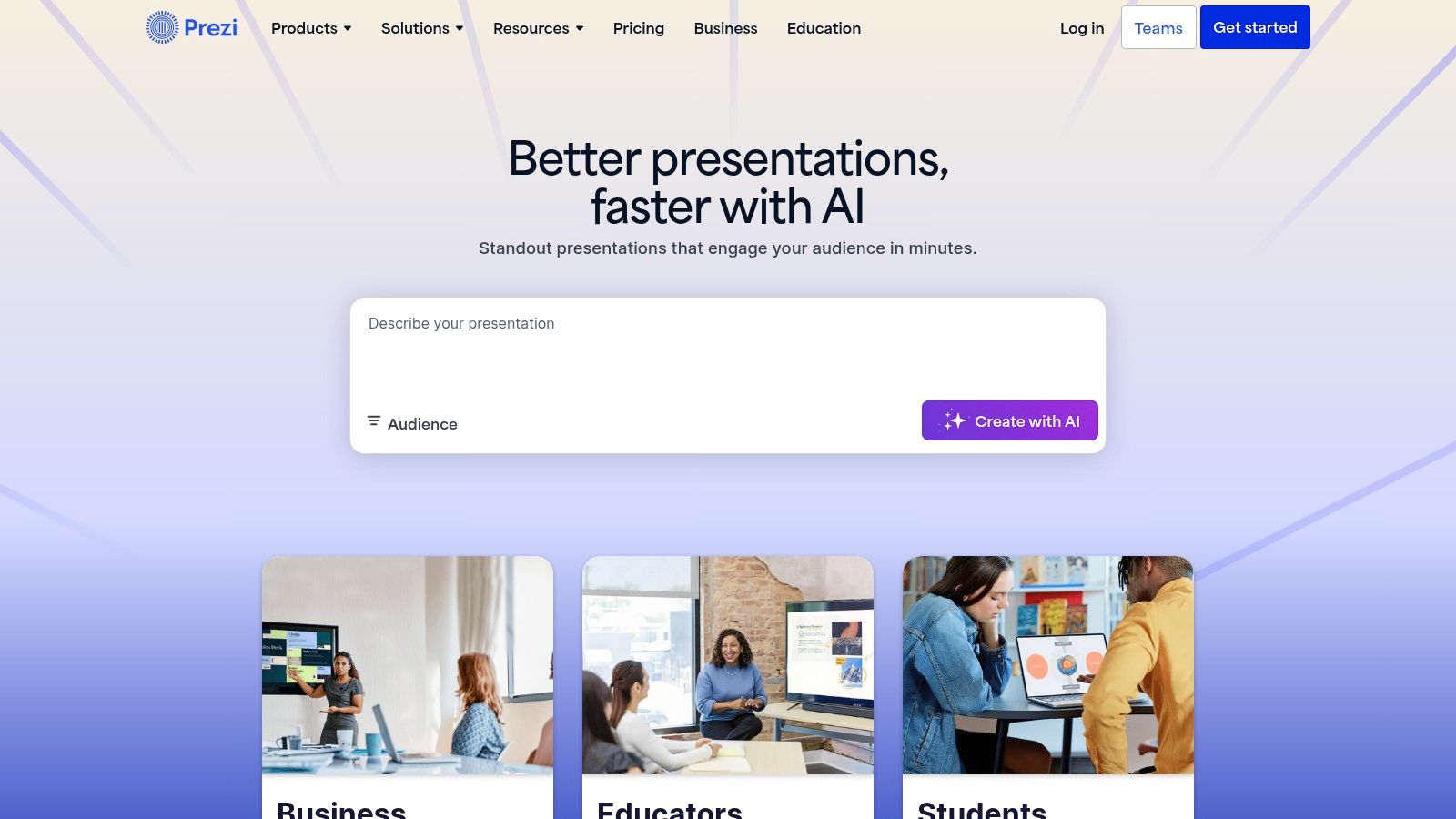
alt text: The Prezi AI interface showing a user generating a new presentation from a text prompt, with options for tone of voice and target audience.
This makes Prezi one of the best AI presentation tools for educators, speakers, and anyone aiming to break free from the traditional slideshow format. The AI assists in structuring your narrative on the canvas, suggesting layouts and generating content that fits the dynamic format. It helps transform complex ideas into visually connected stories, guiding the audience through a journey rather than a list of points. Privacy controls and import/export options add practical utility for professional use.
Key AI Features & Pricing
Prezi AI is built to complement its signature zoomable canvas, helping users brainstorm and build out their visual narratives quickly. The platform’s analytics are a key benefit for business users on higher-tier plans.
- AI Strengths: AI presentation and image generation, content refinement for a conversational flow, dynamic canvas layout suggestions.
- Best For: Educators, conference speakers, and sales teams who want to deliver memorable, non-linear presentations.
- Pricing: Offers a free Basic plan. Paid plans start with Standard at $5/month (billed annually), Plus at $15/month with advanced features, and Premium at $19/month with analytics. Teams plans are also available.
How to Create an Interactive Science Lesson
An educator preparing a lesson on the solar system can follow these steps:
- Generate the Canvas: Use Prezi AI with the prompt, “Create a presentation on the solar system, focusing on the unique characteristics of each planet.”
- Review the Structure: The AI generates a central topic (the sun) with surrounding sub-topics for each planet on the zoomable canvas.
- Add AI Visuals: Click into the “Mars” sub-topic and use the AI image generator with the prompt “a realistic photo of the surface of Mars with Olympus Mons in the background.”
- Present Dynamically: During the lesson, click on the “Earth” topic to zoom in and discuss its atmosphere, then seamlessly zoom out and pan over to “Jupiter” to compare its size, creating an interactive and visually connected learning experience.
Website: https://prezi.com/
8. Plus AI for Google Slides and PowerPoint
Plus AI is one of the best AI presentation tools for teams deeply embedded in the Google Workspace or Microsoft 365 ecosystems. Instead of forcing users to learn a new platform, it integrates directly as an add-on for Google Slides and PowerPoint. This approach allows organizations to leverage AI capabilities for generating and editing decks without disrupting established workflows or abandoning existing presentation templates and assets.
alt text: A user interface within Google Slides showing the Plus AI add-on panel where a user can generate a new presentation from a text prompt.
The tool excels at transforming documents into decks, creating new slides, and rewriting existing content directly within the familiar slide editor. Its strength is its convenience and low adoption barrier. For companies that value security and want to introduce AI features with minimal friction, Plus AI provides a practical solution that enhances current processes rather than replacing them, noting its SOC 2 Type II compliance as a key selling point for enterprise clients.
Key AI Features & Pricing
The add-on brings generative AI into your existing presentation software, focusing on creation, editing, and content transformation. It uses your prompts to build outlines and generate full slide decks that you can then edit using standard Google Slides or PowerPoint tools.
- AI Strengths: Native integration with Google Slides and PowerPoint, Doc-to-deck conversion, slide remixing and rewriting.
- Best For: Businesses and teams wanting to add AI features to their current presentation software without switching platforms.
- Pricing: Offers a free plan with limited features. Paid plans include Pro at $10/month (billed annually) with more AI credits and custom templates, and a Team plan at $25/user/month for centralized billing and branding. A 7-day free trial is available for paid plans.
How to Create a Deck with a Branded Template
A project manager can create a kickoff presentation while adhering to company brand guidelines:
- Install the Add-on: Add Plus AI to PowerPoint from the Microsoft AppSource.
- Open the Branded Template: Open the company’s official PowerPoint template file.
- Use Plus AI: Open the Plus AI sidebar and enter a prompt outlining the project goals, timeline, key stakeholders, and budget. Plus AI generates a 10-slide deck.
- Apply Formatting and Remix: The generated slides automatically adopt the styling of the master template. The manager then uses the “Remix” feature to rephrase a few slides for a different audience (e.g., changing from a technical to an executive tone), saving hours of manual work.
Website: https://plusai.com/
9. SlidesAI.io
SlidesAI.io positions itself as one of the best AI presentation tools by integrating directly into the environments users already know: Google Slides and PowerPoint. Instead of offering a standalone platform, it works as a powerful add-on that transforms existing text, documents, or even website URLs into a structured presentation in seconds. This approach removes the learning curve associated with a new interface, making it exceptionally fast for users who need to repurpose content.
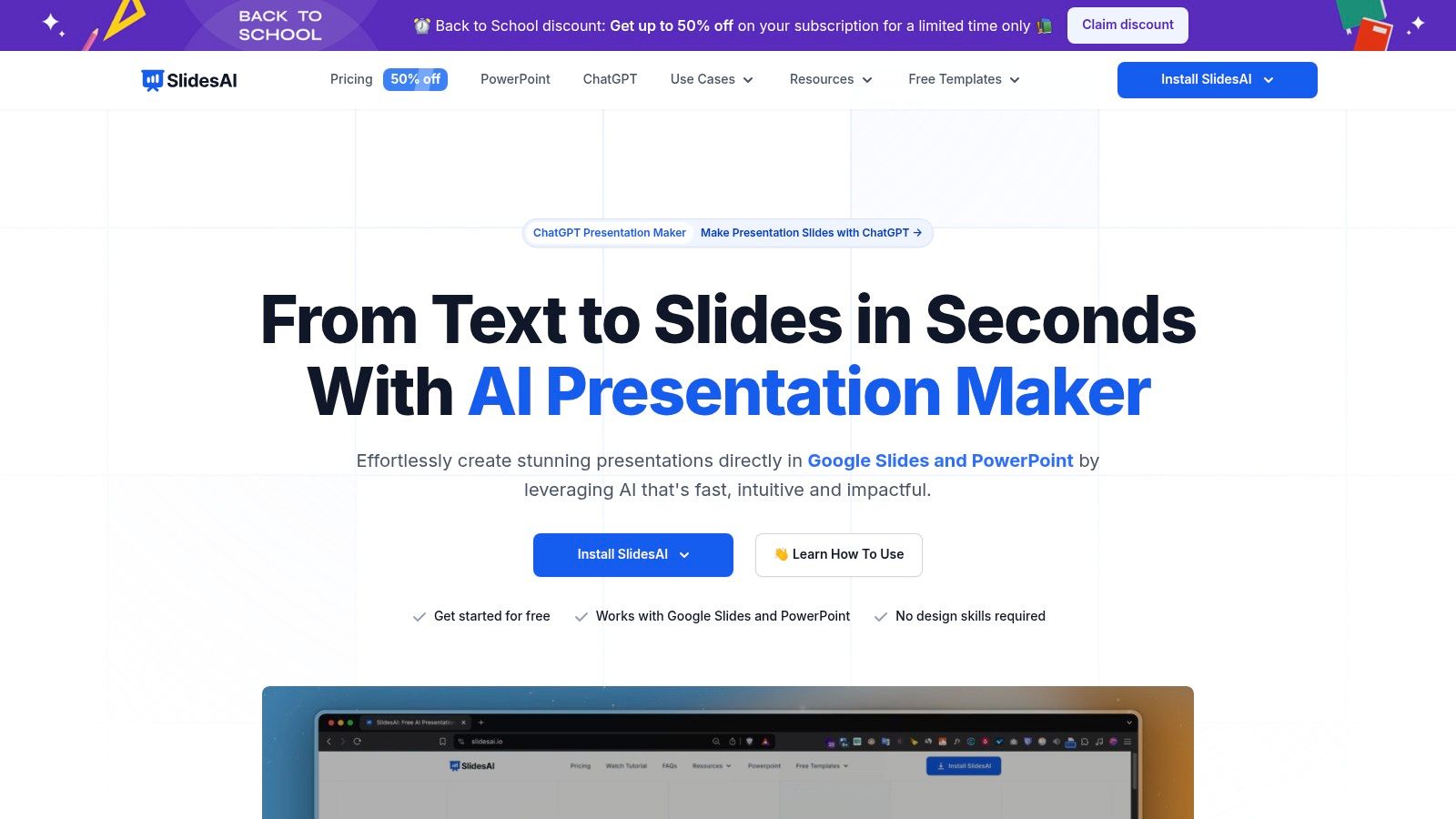
alt text: The user interface of SlidesAI.io showing the ‘Generate Slides’ feature within Google Slides, where a user can input text to create a presentation.
This tool is not about reinventing the presentation software itself but augmenting it with AI-driven efficiency. It excels at creating a solid first draft, handling the tedious work of structuring content, summarizing key points, and applying a basic theme. This makes it a go-to choice for students, educators, and professionals looking to quickly convert reports, articles, or notes into a shareable deck without ever leaving their preferred application.
Key AI Features & Pricing
The core AI functionality revolves around text-to-slide conversion, which is governed by a credit-based system. Each presentation generation consumes credits, which vary depending on the length and complexity.
- AI Strengths: Direct integration with Google Slides and PowerPoint, fast text/document/URL-to-presentation conversion, automatic content summarization.
- Best For: Students, educators, and professionals who need to quickly create presentation drafts from existing documents.
- Pricing: A Basic plan is free for 3 presentations/month. The Pro plan is $10/month (billed annually) for 10 presentations/month and document uploads. The Premium plan at $20/month (billed annually) offers 25 presentations/month and more customization.
How to Turn an Article into a Presentation
An MBA student can quickly create a case study presentation with this method:
- Install the Add-on: Add SlidesAI.io to Google Slides from the Workspace Marketplace.
- Start Generation: Open the add-on, select “Generate Slides,” and choose the “From URL” option.
- Input and Configure: Paste the URL of a lengthy Harvard Business Review article, specify the desired number of slides (e.g., 8), and choose a visual theme.
- Refine and Analyze: The tool automatically creates a title slide, introduction, body slides with summarized key findings, and a conclusion. The student can now spend their time refining the content and adding their own analysis rather than building the structure from scratch.
Website: https://www.slidesai.io/
10. Decktopus AI
Decktopus AI positions itself as a versatile presentation generator that strikes a careful balance between powerful AI automation and essential manual control. It’s designed for users who want to quickly generate a structured presentation from a simple prompt but also need the flexibility to fine-tune every slide. The platform extends beyond basic deck creation, incorporating features like presentation analytics, lead generation forms, and custom branding, making it a strong contender for business professionals and educators.
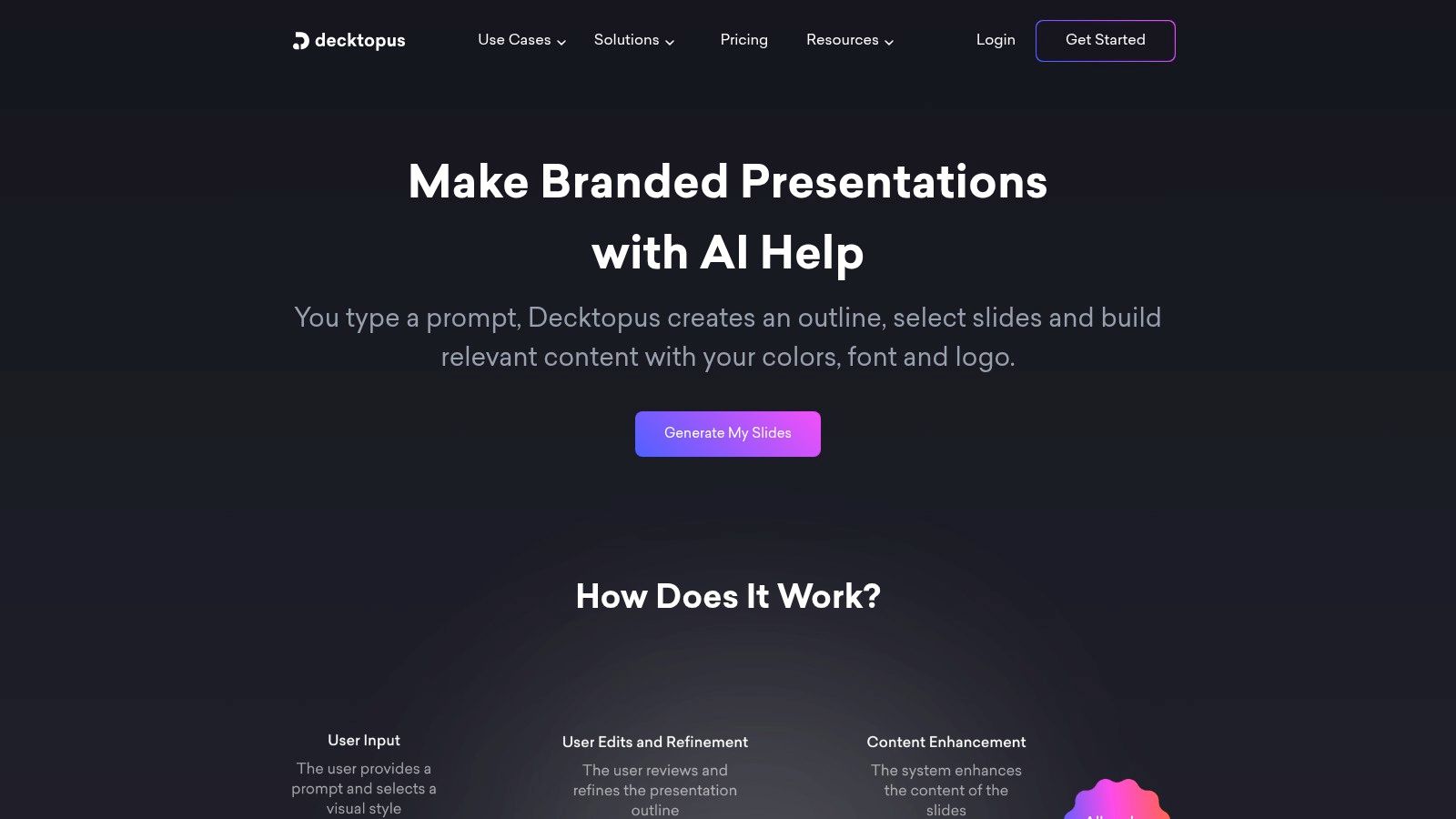
alt text: The Decktopus AI user interface showing a presentation with options for editing slides, adding elements, and viewing analytics, highlighting its business-focused features.
Its credit-based system is a unique approach, allowing users to pay for AI generation as they go, which can be cost-effective for infrequent users. Unlike some tools that heavily restrict design choices, Decktopus provides a more traditional editing experience post-generation. This makes it one of the best AI presentation tools for those who want AI to do the heavy lifting upfront but refuse to give up final creative say.
Key AI Features & Pricing
The platform’s AI generates not just slide content but also relevant images and detailed speaker notes, providing a comprehensive first draft. Its business-oriented features like analytics and custom domains set it apart.
- AI Strengths: AI-powered deck and content generation, AI image creation, automated speaker notes.
- Best For: Entrepreneurs, sales professionals, and educators who need a fast draft with robust editing and business features.
- Pricing: Offers a Pro AI plan at $9.99/month (billed annually) with a set number of AI credits. The Business AI plan at $36/user/month (billed annually) adds team features, analytics, and CNAME integration. Student discounts are available.
How to Create a Sales Pitch with a Lead Form
An independent consultant can create a customized sales pitch using these steps:
- Generate the Draft: In Decktopus AI, enter a prompt like “Create a 10-slide presentation on social media marketing strategy for a local coffee shop.”
- Review the Content: The AI generates a complete deck, including a title slide, problem-solution slides, a proposed strategy, a call-to-action, and speaker notes for each point.
- Personalize Manually: Manually edit the text to include the client’s name and adjust the AI-generated images to better match the client’s brand aesthetic.
- Embed a Lead Form: Navigate to the final slide and use the “Forms” element to drag and drop a lead capture form. Configure it to ask for a name, email, and best time for a follow-up call. The presentation is now a lead-generation tool.
Website: https://www.decktopus.com/
11. Storydoc
Storydoc moves beyond traditional static slides, positioning itself as one of the best AI presentation tools for creating interactive, web-based business documents. It excels in environments where presentations are sent, not just presented, like sales proposals, pitch decks, and business reviews. Its AI-native approach focuses on generating engaging, scrollable experiences that feel more like a webpage than a PowerPoint, complete with embedded videos, forms, and calendars.
alt text: A user interface within the Storydoc platform showing an interactive, web-based presentation with analytics and design options.
The platform’s core strength is its deep integration with sales and marketing workflows. It connects directly to your CRM, allowing for dynamic personalization at scale. Instead of creating one-off decks, you build templates that the AI can automatically populate with client-specific data. This focus on automation and rich analytics makes it a powerful tool for revenue-generating teams who need to track engagement and drive action directly from their presentations.
Key AI Features & Pricing
Storydoc’s AI is engineered for sales and marketing efficiency, focusing on generation, personalization, and performance tracking. Its standout feature is the ability to create entire interactive decks from a prompt, complete with relevant business storytelling and design.
- AI Strengths: AI deck generation, CRM-driven personalization, advanced engagement analytics, interactive element integration.
- Best For: Sales teams, marketers, and founders who need trackable, interactive, and personalized leave-behind collateral.
- Pricing: A Free plan is available for basic use. The Starter plan is $30/user/month (billed annually), the Pro plan is $45/user/month, and custom Team and Enterprise plans offer advanced features.
How to Create Personalized Sales Proposals at Scale
A B2B sales representative can automate proposal creation with this process:
- Create a Master Template: Use Storydoc’s AI to generate one master proposal template.
- Integrate the CRM: Connect their CRM (like HubSpot or Salesforce) to Storydoc and map fields like
{{company_name}},{{contact_name}}, and{{pain_point}}. - Send Personalized Links: When sending the proposal, the Storydoc link dynamically pulls data from the CRM for each lead. Lead A sees “Proposal for ACME Corp,” while Lead B sees “Proposal for Zenith Inc.”
- Track Engagement: The representative receives instant notifications and detailed analytics showing that the lead from ACME Corp spent 3 minutes on the pricing page, enabling a highly informed follow-up call. Learn more about how Storydoc fits into a suite of AI business tools.
Website: https://www.storydoc.com/
12. AppSumo (Marketplace) — AI Presentation Tools
For the budget-conscious innovator or solo entrepreneur, AppSumo isn’t a single tool but a dynamic marketplace offering lifetime deals on emerging software. It stands out as a unique destination to discover and acquire some of the best AI presentation tools for a one-time fee, bypassing the recurring subscription model that dominates the market. Here, you can find niche, up-and-coming platforms that haven’t hit the mainstream yet.
alt text: The homepage of the AppSumo website showing various lifetime software deals available for purchase, highlighting its marketplace nature.
The value proposition is simple: pay once and own the software forever. This approach is especially beneficial for users who want to experiment with different AI capabilities without committing to multiple monthly payments. While the selection is constantly changing, it’s a treasure trove for finding powerful, cost-effective solutions if you’re willing to do a little digging and act on deals before they expire.
Key AI Features & Pricing
The features you get depend entirely on the specific AI presentation tool on offer at any given time. However, the platform itself provides a consistent framework for evaluating these deals through user reviews and Q&A sections.
- AI Strengths: Varies by deal; often includes AI-powered slide generation, content summarization, and unique design assistants from new market entrants.
- Best For: Freelancers, startups, and small businesses looking for high-value lifetime deals to build their software stack without recurring costs.
- Pricing: Deals are typically one-time payments ranging from $39 to $99 for lifetime access. All purchases usually include a 60-day money-back guarantee.
How to Find a High-Value AI Tool on a Budget
A freelance consultant wary of another monthly subscription can use this strategy:
- Browse and Filter: Go to AppSumo.com and search for “AI presentation” or “slides.” Filter the results by “Lifetime Deals.”
- Vet the Deal: Find a promising tool like “Presenti AI” for a single payment of $59. Read the user reviews and Q&A section to check for quality and limitations.
- Purchase and Test: Buy the deal, taking advantage of the 60-day money-back guarantee.
- Implement: Use the tool to instantly generate tailored sales pitches for different clients by inputting their details and objectives. This saves hours each week and provides a competitive edge without impacting monthly overhead.
Website: https://appsumo.com/
Top 12 AI Presentation Tools: Feature & Pricing Comparison
| Tool | Core features & ✨ | UX / Quality ★ | Value & Pricing 💰 | Best for 👥 |
|---|---|---|---|---|
| Beautiful.ai | ✨ AI slide/content gen, 300+ Smart Slides, brand guardrails, team libs | ★★★★ 🏆 | 💰 14‑day trial; team/enterprise paid | 👥 Teams needing consistent, polished decks |
| Gamma | ✨ Fast AI + card-based layouts, PPTX/PDF export, quick drafts | ★★★★ | 💰 Free tier (one‑time 400 credits); Plus/Pro paid | 👥 Rapid drafters & modern-layout users |
| Canva (Magic Studio) | ✨ Magic Design/Write/Switch, huge templates & assets, integrations | ★★★★★ 🏆 | 💰 Free tier; Teams/Pro paid | 👥 Marketers, cross‑format campaigns |
| Microsoft PowerPoint + Copilot | ✨ Copilot in M365, outline→deck, speaker notes, enterprise security | ★★★★ | 💰 Requires Microsoft 365; Copilot may need credits | 👥 Enterprises & existing PowerPoint users |
| Google Slides + Gemini | ✨ Gemini in Workspace, native sharing, paid AI Pro tiers | ★★★★ | 💰 Built‑in Slides; AI Pro/Ultra paid tiers | 👥 Collaborative Workspace teams |
| Pitch | ✨ “Start with AI” generator, real‑time collaboration, analytics | ★★★★ | 💰 Free / Pro / Business tiers | 👥 Teams seeking modern collaborative tool |
| Prezi (Prezi AI) | ✨ Zoomable non‑linear canvas, AI slide/image gen, privacy controls | ★★★ | 💰 Free / Premium / Teams | 👥 Educators & presenters wanting dynamic visuals |
| Plus AI (Slides/PowerPoint) | ✨ In‑app AI for Slides & PPT, templates, Docs→deck, SOC2 note | ★★★ | 💰 7‑day trial; paid tiers for full features | 👥 Organizations keeping existing workflows |
| SlidesAI.io | ✨ Text/URL/document→slides, deep Google Slides add‑on | ★★★ | 💰 Credits‑based tiers; free/basic plans | 👥 Students, educators, quick converters |
| Decktopus AI | ✨ AI deck gen, speaker notes, AI images, analytics, custom domains | ★★★ | 💰 Annual credit model; student discounts | 👥 Users balancing automation + manual control |
| Storydoc | ✨ Interactive docs (CTAs/forms), CRM integrations, personalization, analytics | ★★★★ 🏆 | 💰 Pro/Team paid plans; scales for sales | 👥 Sales teams & externally‑shared interactive decks |
| AppSumo (Marketplace) — AI Presentation Tools | ✨ Lifetime deals, discovery hub, reviews & categories | ★★★ | 💰 One‑time deals (varied); due diligence advised | 👥 Budget‑conscious buyers & tool discoverers |
Final Thoughts
Navigating the landscape of the best ai presentation tools reveals a clear and exciting paradigm shift. The days of painstakingly adjusting text boxes and endlessly searching for the perfect stock photo are fading. In their place, we have a new class of intelligent assistants capable of transforming a simple prompt into a visually compelling narrative, saving creators invaluable time and energy.
We’ve explored a diverse range of options, from the design-centric automation of Beautiful.ai and the web-native storytelling of Gamma to the integration of powerful AI features into familiar giants like PowerPoint with Copilot and Google Slides with Gemini. Each tool offers a unique approach, proving there is no single “best” solution, only the best fit for your specific needs.
How to Choose Your AI Presentation Partner
Selecting the right tool is less about finding the most features and more about aligning capabilities with your workflow. To make the best choice, consider these critical factors:
- Integration vs. Standalone: Do you live and breathe in the Microsoft 365 or Google Workspace ecosystem? If so, tools like Copilot or Plus AI offer a seamless, low-friction experience. However, if you’re seeking a completely fresh, web-first approach to presentation design, standalone platforms like Gamma or Decktopus AI might be more liberating.
- Creative Control vs. Speed: How much do you want to be in the driver’s seat? Tools like Beautiful.ai and Decktopus AI enforce design rules to guarantee a polished outcome, which is perfect for speed and consistency. In contrast, Canva’s Magic Studio or Pitch provide a more flexible canvas, giving you robust AI suggestions without taking away granular control.
- Primary Use Case: What is the end goal of your presentations? For interactive, data-driven sales decks, Storydoc excels with its analytics and engagement features. For internal team updates or quick reports, the speed of SlidesAI.io is hard to beat. For academic or complex business presentations, the research and structuring power of Copilot is a significant advantage.
Actionable Takeaways
- Start with a Detailed Prompt: Don’t just ask for “a marketing presentation.” Provide context, audience, key data points, and desired length. A better prompt leads to a better first draft.
- Use AI for Iteration: Treat the first draft as a starting point. Use AI editing features to rewrite, shorten, or change the tone of specific sections.
- Choose Integration for Efficiency: If your team already uses Google Workspace or Microsoft 365, prioritize integrated tools like Gemini, Copilot, or Plus AI to minimize workflow disruption.
- Focus on the Narrative: Let the AI handle the design, but you own the story. Review the generated slides to ensure they create a logical and compelling narrative.
- Explore Lifetime Deals: If you’re on a budget, check marketplaces like AppSumo for one-time deals on emerging AI presentation tools to avoid recurring subscriptions.
The true power of the best ai presentation tools lies not in replacing human creativity but in augmenting it. They handle the repetitive, time-consuming tasks of design and formatting, freeing you to focus on what truly matters: crafting a powerful message, telling a compelling story, and connecting with your audience.
Further Reading
- How to Create Effective Presentation Slides
- How to Improve Your Presentation Skills
- The Best AI Tools for Small Business
Ready to discover even more AI-powered solutions to enhance your productivity? Explore the AI Tools Hub, a comprehensive directory of cutting-edge tools for marketing, content creation, business, and more. Find your next favorite AI tool today by visiting the AI Tools Hub.