

The video editing landscape has fundamentally shifted. Manual, time-consuming tasks like transcription, color correction, object removal, and audio cleanup are no longer unavoidable chores. The integration of artificial intelligence has transformed post-production, automating tedious processes and unlocking creative possibilities that were once complex and costly. This guide is designed to help you navigate this new terrain by providing a comprehensive directory of the best AI tools for video editing available today.
We will move beyond generic feature lists and marketing claims. Instead, this resource focuses on practical application, offering a detailed analysis of each tool’s strengths, weaknesses, and ideal use cases. You will find specific, actionable insights to help you determine which platform aligns with your unique workflow, whether you’re a YouTube creator needing automated captions, a marketer producing social media content at scale, or a filmmaker seeking advanced visual effects.
Each entry includes:
- A concise summary of what the tool does best.
- Key AI-powered features and how to implement them.
- Realistic use-case scenarios with step-by-step instructions to illustrate practical benefits.
- Transparent pricing information to match your budget.
- Screenshots and direct links so you can explore further.
This listicle cuts through the noise, providing a clear, scannable comparison of leading software like Adobe Premiere Pro, DaVinci Resolve, Runway, and Descript. We’ll examine how their AI capabilities solve specific problems, from text-based video editing to generating b-roll from a simple prompt. Our goal is to equip you with the knowledge to select the right AI tool, streamline your workflow, and elevate your final product. Let’s get started.
1. Adobe Premiere Pro
Adobe Premiere Pro is an industry-leading non-linear editor (NLE) that deeply integrates AI through its Adobe Sensei framework. Rather than being a standalone AI tool, it infuses powerful AI capabilities directly into a professional editing workflow, making it a top choice for serious content creators, filmmakers, and marketing teams who need robust, all-in-one software. Its key distinction is how AI enhances, rather than replaces, the traditional editing process.
Alt text: A screenshot of Adobe Premiere Pro’s Text-Based Editing feature, showing a transcribed audio clip next to the video timeline. The text “find soundbites” is highlighted in the transcript.
The platform’s standout AI feature is Text-Based Editing. Instead of scrubbing through video footage to find soundbites, you can work from an auto-generated transcript. Simply highlight the text you want, and Premiere Pro automatically creates a rough cut on the timeline. This dramatically accelerates the initial editing phase, especially for interview-heavy content like documentaries or YouTube videos.
How to Edit a Podcast Interview Using AI
Imagine you’ve recorded a 60-minute video podcast. Here’s a step-by-step process to edit it in record time:
- Import Footage: Drag your video file into a new Premiere Pro project.
- Generate Transcript: Open the “Text” panel, select the clip, and click “Transcribe.” The AI-powered Speech to Text feature will create a full transcript.
- Remove Filler Words: In the transcript panel, click the “…” menu and select “Re-transcribe.” In the options, check the box for “filler word detection” to automatically identify and highlight all instances of “um” and “uh.” You can then delete them individually or all at once.
- Create a Rough Cut: Read through the transcript and highlight the sentences or paragraphs you want to keep. Drag these selections to the timeline to build your story.
- Reorder the Narrative: Copy and paste sentences directly within the transcript to change the order of the conversation. The corresponding video clips on the timeline will rearrange automatically.
Pricing and Access
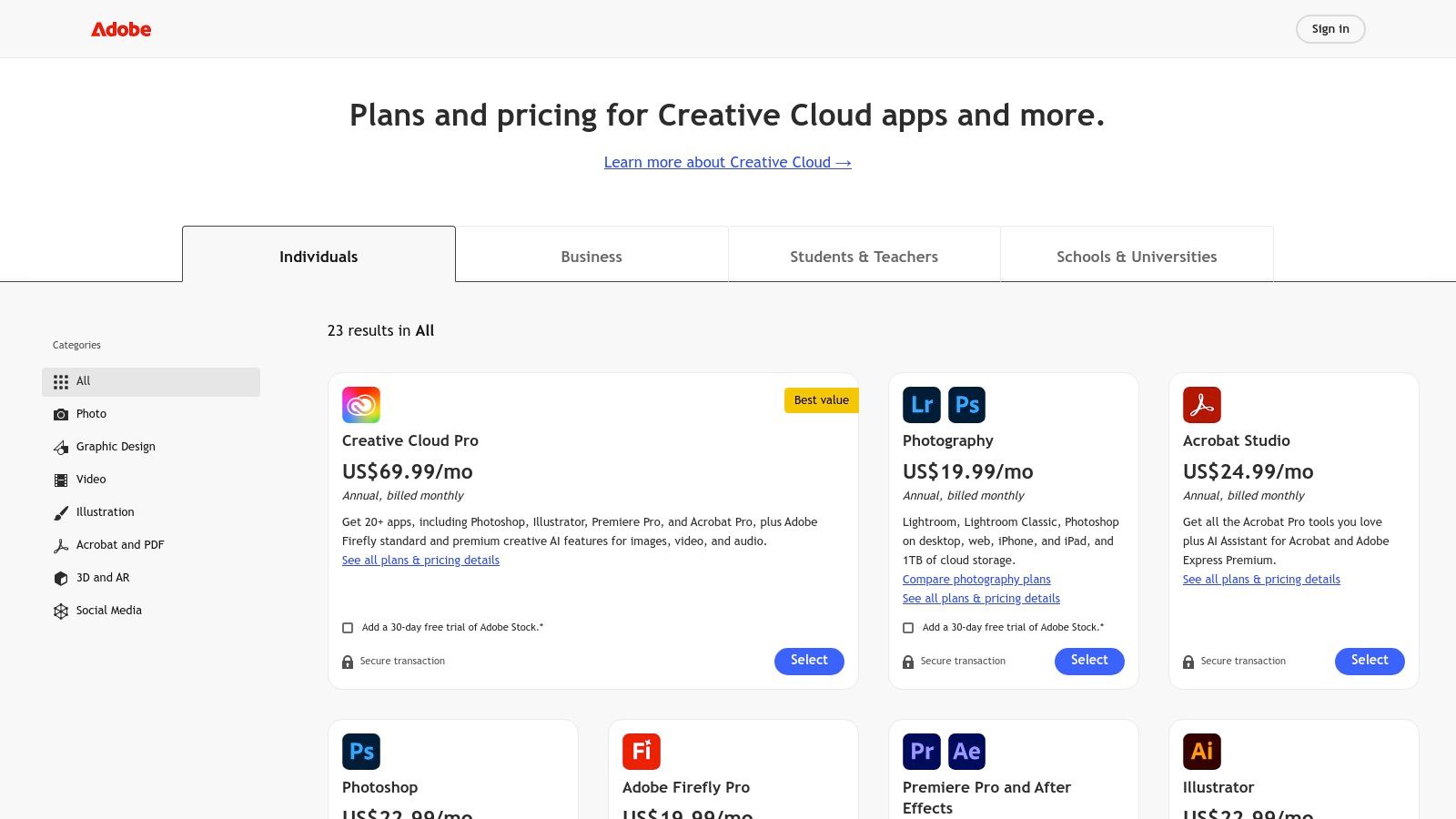
Premiere Pro is available through an Adobe Creative Cloud subscription. Access is not free; pricing starts at $22.99/month for the individual app or as part of the full Creative Cloud suite for $59.99/month. These plans include frequent updates with new AI features, though some advanced AI functions may consume “generative credits.”
Key Considerations
- Pros: Deep integration with the Adobe ecosystem (After Effects, Photoshop), industry-standard tool, and powerful, workflow-integrated AI features.
- Cons: Subscription-only model, a steeper learning curve than simpler tools, and the generative credit system can be limiting for heavy AI users.
Website: https://www.adobe.com/creativecloud/plans.html
2. Final Cut Pro
Final Cut Pro is Apple’s professional non-linear editor, renowned for its exceptional performance on macOS, especially with Apple silicon. While not marketed as an “AI editor,” it incorporates powerful machine learning-driven features that significantly accelerate post-production workflows. Its primary distinction is its deep hardware integration, offering Mac users a highly optimized and stable editing environment with a one-time purchase model, making it a strong competitor among AI tools for video editing.
Alt text: A screenshot of Final Cut Pro’s user interface displaying its magnetic timeline and object tracking feature being used on a video of a person skateboarding.
A key AI-assisted feature is Voice Isolation. This tool uses machine learning to analyze audio clips and intelligently separate spoken dialogue from background noise. With a single click, it can dramatically improve audio quality, saving editors hours of manual cleanup that would otherwise require dedicated audio software or complex plugins. Another standout is its automated Object Tracker, which uses AI to analyze and follow the movement of faces or objects in a video, making it simple to attach text, graphics, or effects.
How to Clean Up Dialogue from a Field Shoot
Imagine you’ve filmed an interview outdoors, and the audio is contaminated with wind, traffic, and other ambient sounds. Here’s the process to fix it:
- Import Footage: Add your video clips to the Final Cut Pro timeline.
- Select the Audio Clip: Click on the specific audio clip you need to clean up.
- Enable Voice Isolation: Go to the Audio Inspector (the speaker icon in the top-right corner). Under “Audio Enhancements,” simply check the box for Voice Isolation.
- Adjust the Intensity: Use the “Amount” slider to control the effect’s strength. Increase it until the dialogue is clear and the background noise is minimized or eliminated.
Pricing and Access
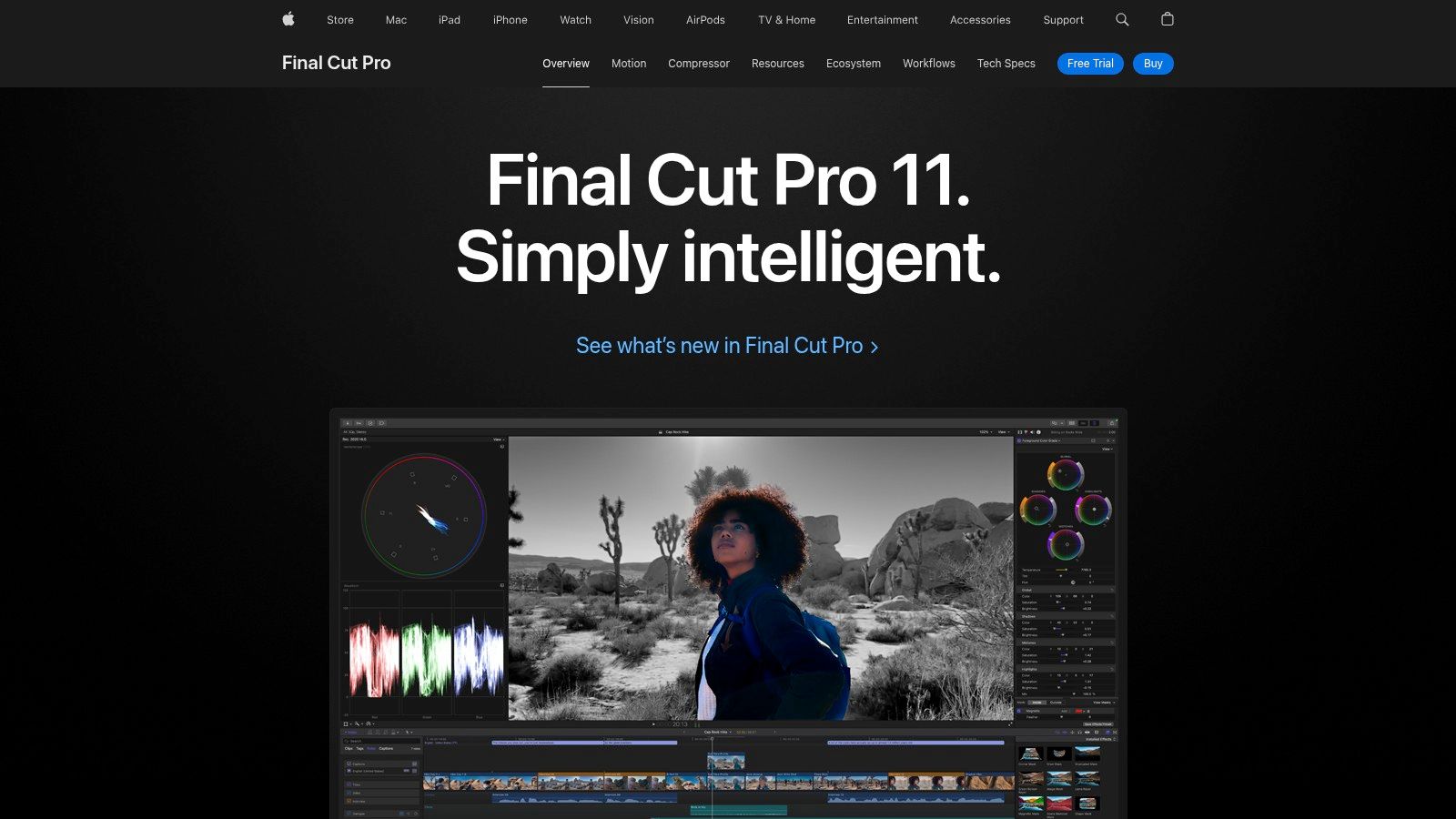
Final Cut Pro sets itself apart with a one-time purchase model. It is available exclusively on the Mac App Store for a flat fee of $299.99, which includes all future updates. Apple also offers a generous 90-day free trial, giving users ample time to evaluate the software before committing. There are no subscriptions or credit systems to worry about.
Key Considerations
- Pros: Excellent performance optimized for Apple hardware, no recurring subscription fee, and a very user-friendly interface for a professional NLE.
- Cons: Exclusive to macOS, limiting cross-platform workflows, and some of the most advanced AI features perform best on newer Apple silicon Macs.
Website: https://www.apple.com/final-cut-pro/
3. DaVinci Resolve Studio
DaVinci Resolve Studio is a comprehensive post-production suite that has evolved far beyond its legendary color grading origins. It integrates editing, color correction, visual effects (Fusion), and audio post-production (Fairlight) into a single application. Its AI power comes from the DaVinci Neural Engine, which accelerates complex tasks and introduces intelligent features that streamline professional workflows, making it a formidable competitor among AI tools for video editing.
Alt text: A screenshot of DaVinci Resolve’s Magic Mask feature isolating a person from their background, highlighting them for specific color adjustments.
The platform’s most acclaimed AI feature is the Magic Mask. Using the DaVinci Neural Engine, it allows you to create detailed rotoscoped masks around people or objects with a simple brush stroke. The AI automatically tracks the selection through the clip, saving hours of painstaking manual masking. This is a game-changer for colorists and VFX artists who need to isolate elements for targeted adjustments, like changing a shirt’s color or brightening a person’s face without affecting the background.
How to Re-grade a Specific Object in a Scene
Imagine you need to change the color of a car in a moving shot. Instead of manually keyframing a mask frame-by-frame, follow these steps:
- Navigate to the Color Page: Open your project in DaVinci Resolve Studio and go to the “Color” page.
- Select the Magic Mask Tool: Find the “Magic Mask” palette in the toolbar (it looks like a person’s silhouette).
- Draw a Selection: With the tool active, draw a single, simple line on the car to select it. The AI will intelligently define the object’s boundaries.
- Track the Object: In the Magic Mask panel, click the “Track Forward and Backward” button. The Neural Engine will automatically follow the car’s movement throughout the shot.
- Make Adjustments: With the mask active, you can now use the color wheels to adjust the car’s color, saturation, or brightness independently from the rest of the scene.
Pricing and Access
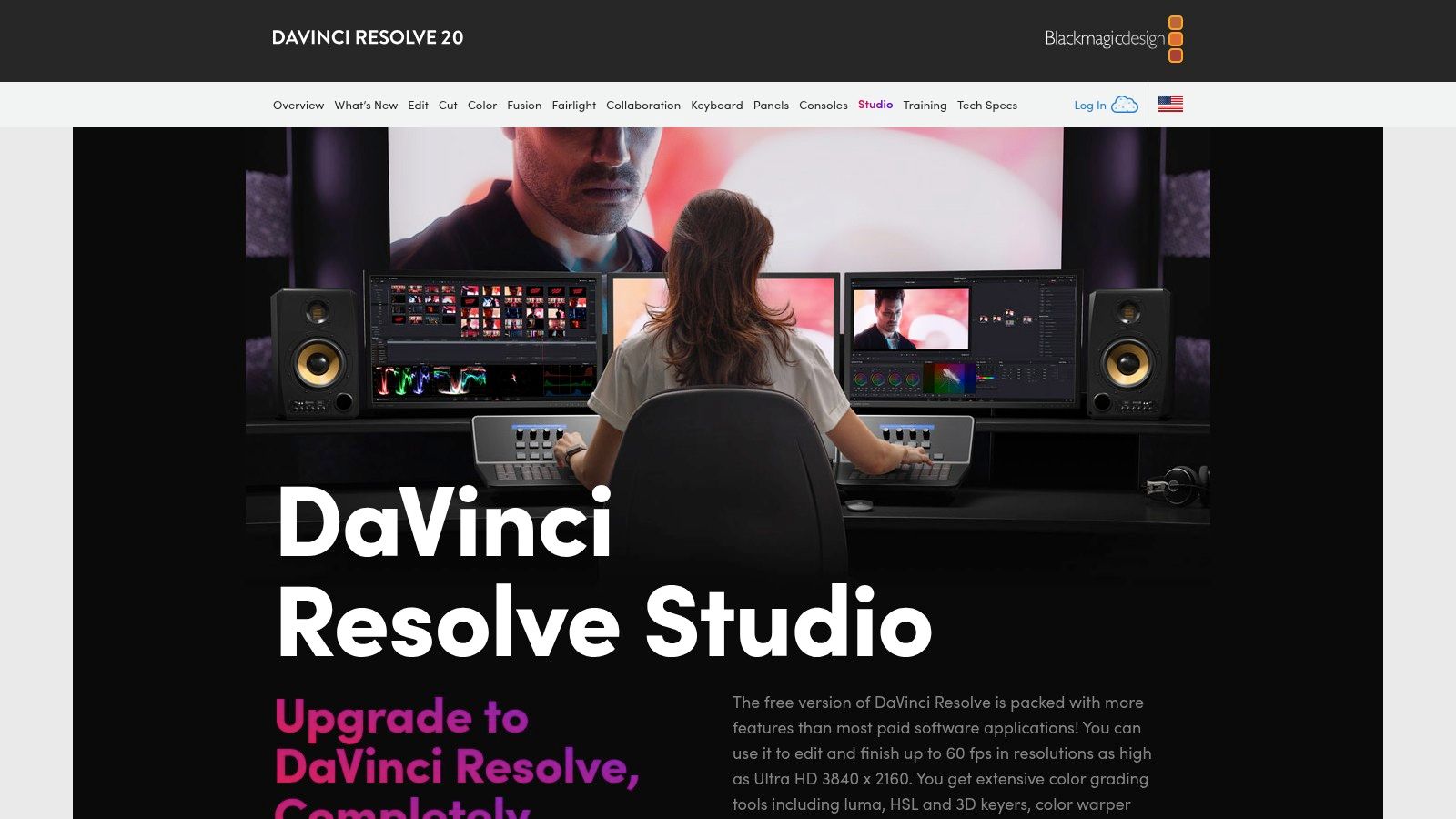
DaVinci Resolve has a famously generous model. A highly capable version is available for free, with no watermarks. For advanced AI features, HDR grading, and higher resolutions, you need DaVinci Resolve Studio, which is available for a one-time purchase of $295. This license includes all future updates and can be used on two machines simultaneously, offering exceptional long-term value.
Key Considerations
- Pros: Incredible value with a powerful free version and a one-time purchase for the Studio version, industry-leading color grading tools, and a seamlessly integrated all-in-one workflow.
- Cons: Some of the most powerful AI features are locked behind the paid Studio version, and the all-in-one interface can be intimidating for beginners accustomed to separate applications.
Website: https://www.blackmagicdesign.com/products/davinciresolve/studio
4. CapCut
CapCut has rapidly become the go-to editor for social media content, leveraging AI to make viral-style video creation fast and accessible. Available across mobile, desktop, and web, its key advantage is a seamless, template-driven workflow packed with AI features. Unlike professional NLEs, CapCut is designed for speed, helping creators on TikTok, Instagram Reels, and YouTube Shorts produce high-quality, engaging videos with minimal effort.
Alt text: The user interface of the CapCut mobile app, displaying a video being edited with tools for background removal and auto-captions visible.
The platform’s most popular AI functions are its Auto Captions and one-click background removal. With a single tap, CapCut transcribes audio into animated, stylized captions that are perfect for social feeds where many users watch with the sound off. Its AI background and subject removal tools are equally impressive, allowing for quick green-screen effects without needing an actual green screen. This makes it one of the most powerful AI tools for video editing on the go.
How to Create a Viral-Style Short Video
Imagine you want to create a short, engaging video for Instagram Reels. Here’s a quick, actionable workflow:
- Upload Your Clip: Open the CapCut app and upload a short video of yourself talking.
- Remove the Background: Select the clip in the timeline, find the Remove Background tool in the bottom menu, and tap it. The AI will instantly cut you out. You can then add a more interesting video or image layer behind you.
- Generate Auto Captions: Go back to the main menu and tap Text > Auto Captions. The app will generate animated, word-by-word subtitles that match your speech. You can then customize the font and animation style.
- Add Trending Audio and Effects: Browse CapCut’s extensive library of trending sounds and AI-generated effects to add a final layer of polish before exporting directly to social media.
Pricing and Access
CapCut offers a very generous free tier that includes access to most of its core AI features, templates, and effects, though some content may have a watermark. The CapCut Pro subscription, which unlocks premium effects, templates, and cloud storage, is available for around $7.99/month. Pricing details can vary significantly based on your region and whether you subscribe via mobile app stores or the desktop version.
Key Considerations
- Pros: Excellent free version, incredibly fast workflow for social media, and powerful one-click AI features like auto-captions and background removal. Its cross-platform availability is a major plus.
- Cons: Less suitable for long-form content, some advanced features are locked behind a subscription, and pricing plans can be inconsistent across different platforms and regions.
Website: https://www.capcut.com/
5. Descript
Descript is a revolutionary AI-first editor designed specifically for spoken-word content like podcasts, interviews, and tutorials. It blurs the line between a word processor and a video editor, allowing you to edit media by simply editing a text document. Its key distinction is this transcript-driven workflow, which makes it one of the fastest AI tools for video editing for anyone working with dialogue-heavy footage.
Alt text: A screenshot of the Descript interface, where a video’s transcript is shown on the left and the corresponding video timeline is on the bottom, demonstrating text-based editing.
The platform’s core is its Text-Based Editing. After automatically transcribing your video, you can cut, copy, paste, and delete words or sentences in the transcript, and Descript mirrors those edits on the video timeline. This is enhanced by AI features like Studio Sound, which removes background noise and echo with a single click, and Overdub, which lets you clone your voice to correct misspoken words without re-recording.
How to Refine a Screen Recording Tutorial
Imagine you’ve just recorded a 15-minute software tutorial, complete with mistakes and long pauses. Here is a step-by-step guide to polish it quickly:
- Upload and Transcribe: Drag your screen recording into Descript. It will automatically generate an AI transcript.
- Remove Filler Words: In the “Actions” menu (or by clicking the star icon), select Remove filler words. Descript will find every “um,” “ah,” and “you know,” allowing you to delete them all in one go.
- Correct Mistakes with Overdub: Find a sentence where you misspoke a key term. Highlight the incorrect word, type the correct one, and use Overdub (your pre-trained AI voice clone) to generate the corrected audio seamlessly.
- Apply Studio Sound: Select the audio track, go to the right-hand properties panel, and toggle on Studio Sound. This will eliminate keyboard clicks and room echo, making the audio crystal-clear.
- Export: Export the final, polished tutorial directly from the platform.
Pricing and Access
Descript offers a free plan with limited transcription and features. Paid plans start with the Creator tier at $12/month, which offers more transcription hours and access to key AI features. The Pro plan at $24/month unlocks unlimited Overdub and more advanced tools. Many of the AI functions, like Studio Sound and filler word removal, are tied to your monthly transcription-hour limits.
Key Considerations
- Pros: Extremely intuitive and fast workflow for dialogue-based content, powerful one-click audio enhancement, and innovative AI voice cloning for corrections.
- Cons: Less suited for cinematic or action-heavy editing, and heavy AI usage can be limited by credit/quota systems on lower-tier plans.
Website: https://www.descript.com/video-editing
6. Runway
Runway is a pioneering browser-based video editing suite that has evolved into a powerful, all-in-one creative platform driven by AI. It’s best known for its generative AI models, like Gen-2, which allow creators to generate video clips from simple text or image prompts. Its key distinction is providing access to cutting-edge generative video and magic tools without requiring any local hardware, making it one of the most accessible yet advanced AI tools for video editing and experimentation.
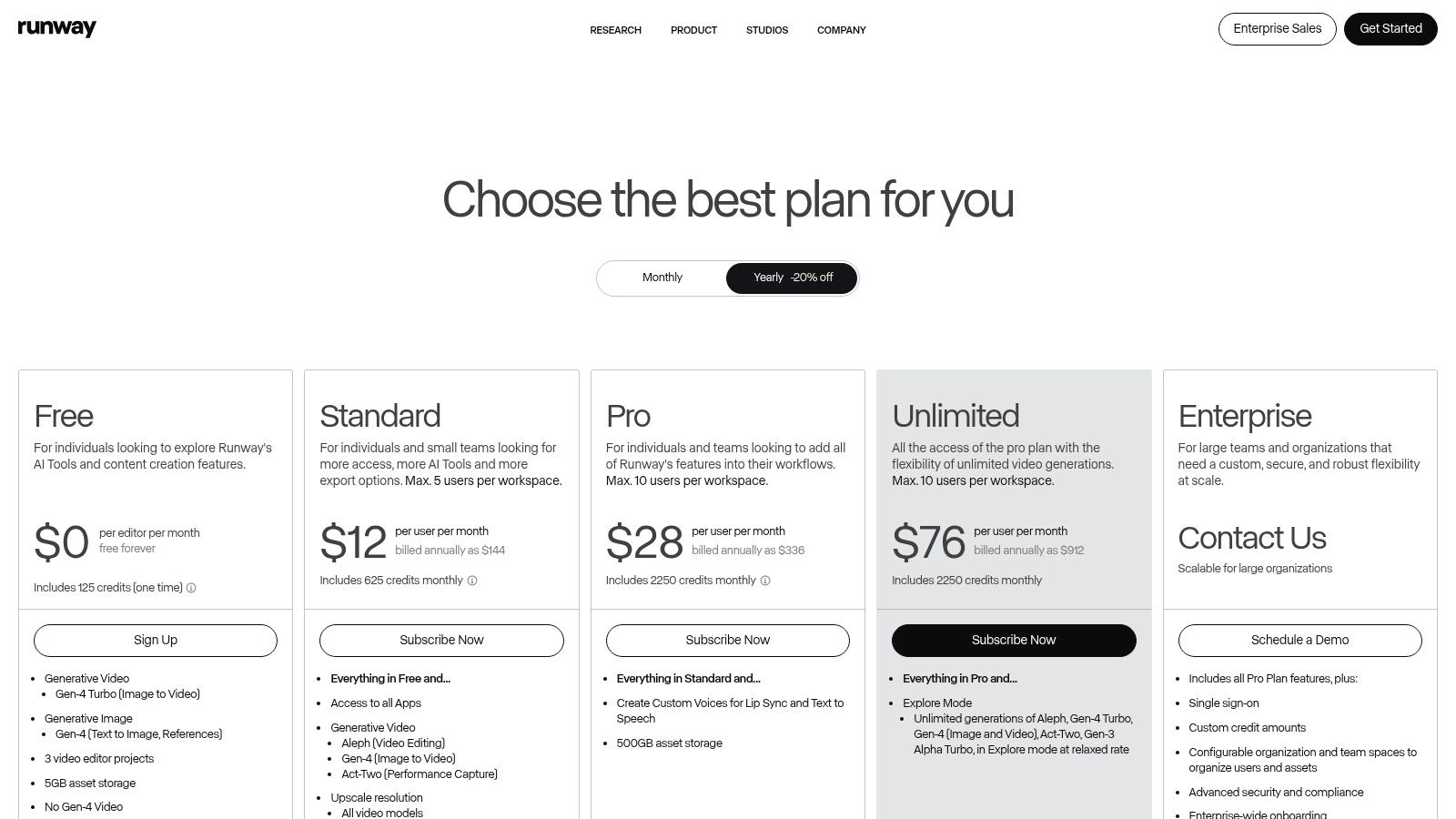
Alt text: The user interface of Runway’s browser-based video editor, showcasing a timeline with clips and a panel of AI tools like “Remove Background” and “Motion Tracking.”
The platform’s standout feature is its Text to Video generation. Users can type a descriptive prompt, like “a drone shot flying through a futuristic neon city at night,” and Runway’s AI will create a short video clip matching the description. This tool is invaluable for generating unique b-roll, creating animated storyboards, or producing entire short films without a camera. Beyond generation, Runway includes a full suite of “AI Magic Tools,” such as AI-powered rotoscoping, background removal, and motion tracking.
How to Create Abstract B-Roll for a Marketing Video
Imagine you need a unique, eye-catching visual for a tech product video, but stock footage feels too generic. Here’s how to create one:
- Navigate to Gen-2: Log into Runway and open the Gen-2 (Text to Video) tool.
- Enter a Prompt: In the prompt box, type a descriptive request, such as “An abstract, slow-motion shot of colorful liquid data flowing through crystal circuits, cinematic lighting.”
- Generate and Refine: Generate several variations until you find one that fits the brand’s aesthetic. You can use an image as a reference for style.
- Edit and Enhance: Take the generated clip into the Runway timeline editor. Use the Super-Slow Motion tool to extend its length or the Color Grade presets to match the clip with the rest of your video’s color palette.
Pricing and Access
Runway operates on a freemium model with a credit system. A free plan offers a starting balance of credits to experiment with. Paid plans start at $12/user/month (Standard), which provides more credits and unlocks advanced features like 4K exports and custom AI model training. The Pro plan at $28/user/month offers even more credits and unlimited access to AI Magic Tools.
Key Considerations
- Pros: Entirely browser-based with no powerful hardware required, a fast-expanding suite of cutting-edge AI tools, and a simple user interface for quick experimentation.
- Cons: The credit system can become expensive for large-scale projects, and generated video quality may still have artifacts compared to traditional footage.
Website: https://runwayml.com/pricing
7. Wondershare Filmora
Wondershare Filmora bridges the gap between basic video editors and complex professional software by integrating a user-friendly interface with a growing suite of powerful AI tools. It is an excellent choice for content creators, hobbyists, and marketers who want advanced capabilities without a steep learning curve. Filmora’s main advantage is its accessibility, combining AI-driven features like text-to-video and object removal into a package that is both affordable and easy to master.
Alt text: A screenshot of the Wondershare Filmora interface, highlighting its AI Copilot feature and a timeline with text-based editing capabilities.
One of its most practical AI features is the AI Smart Cutout, which allows you to easily remove backgrounds or specific objects from a video without needing a green screen. This tool uses AI to precisely track and mask subjects, saving hours of manual rotoscoping. Another highlight is Text-Based Editing, which, similar to more advanced NLEs, lets you edit video by manipulating an automatically generated transcript.
How to Create a Quick Social Media Ad
Imagine you need to create a short promotional video for a new product using existing footage. Here’s a simple workflow:
- Isolate the Product: Import your product clips into Filmora. Select a clip, go to “AI Tools,” and choose AI Smart Cutout. Use the brush to paint over your product, and the AI will isolate it from its original background.
- Add a New Background: Drag a more dynamic or on-brand background video or image from Filmora’s stock library onto the timeline track below your product clip.
- Generate a Sequence: Leverage the AI Text-to-Video feature by inputting your ad copy. Filmora will generate a sequence with relevant stock footage and text overlays that you can add to your project.
- Reframe for Social Media: Once your edit is complete, use the Auto Reframe tool to instantly create versions optimized for different platforms like TikTok (9:16) and Instagram (1:1).
Pricing and Access
Filmora offers flexible pricing, including a subscription and a one-time perpetual license. The subscription plan starts at $29.99 quarterly or $49.99 annually. The Perpetual Plan is available for a one-time fee of $79.99. While many features are included, some AI functions operate on a credit system, with plans including a monthly allowance of credits.
Key Considerations
- Pros: Very easy-to-learn interface, affordable with a perpetual license option, and a strong set of AI tools for common editing tasks.
- Cons: AI features are metered by a credit system, and it lacks the depth and advanced controls of professional NLEs like Premiere Pro or DaVinci Resolve.
Website: https://filmora.wondershare.com/
8. Topaz Video (Topaz Labs)
Topaz Video AI is not a traditional video editor but a specialized enhancement suite designed to improve the visual quality of existing footage. It works best as a companion tool alongside a primary NLE like Premiere Pro or DaVinci Resolve. Its core strength lies in using sophisticated AI models to upscale, de-noise, de-blur, and stabilize video, making it an essential tool for restoration projects, enhancing low-resolution clips, or adding a final layer of professional polish to your projects.
Alt text: The user interface of Topaz Video AI, with sliders and settings for video upscaling, de-noising, and frame interpolation displayed next to a preview window.
The platform’s standout features are its powerful AI upscaling and enhancement models. It can intelligently increase video resolution from SD to 4K or even 8K while preserving and often recreating fine details. Another key feature is frame interpolation, which generates new frames to create ultra-smooth slow-motion effects or increase a video’s frame rate without the typical stutter or ghosting artifacts. This makes it one of the best AI tools for video editing focused purely on quality enhancement.
How to Restore Old Family Footage
Imagine you have digitized old, grainy 480p home video from a VHS tape that you want to include in a modern 1080p documentary. Here’s how to do it:
- Import the Clip: Open Topaz Video AI and import the low-resolution 480p clip.
- Select AI Models: In the control panel, select an AI model for upscaling, such as “Proteus,” and set the output resolution to 1080p.
- Apply Enhancements: Enable additional models like “Denoise” to clean up visual noise and “Stabilization” to fix shaky camera work.
- Increase Frame Rate: If the footage is choppy, use the “Frame Interpolation” feature to convert the original 24fps or 30fps footage to a smoother 60fps.
- Export and Edit: Export the enhanced clip. The resulting high-quality file can now be imported into your main editing software and will seamlessly integrate with your modern HD footage.
Pricing and Access
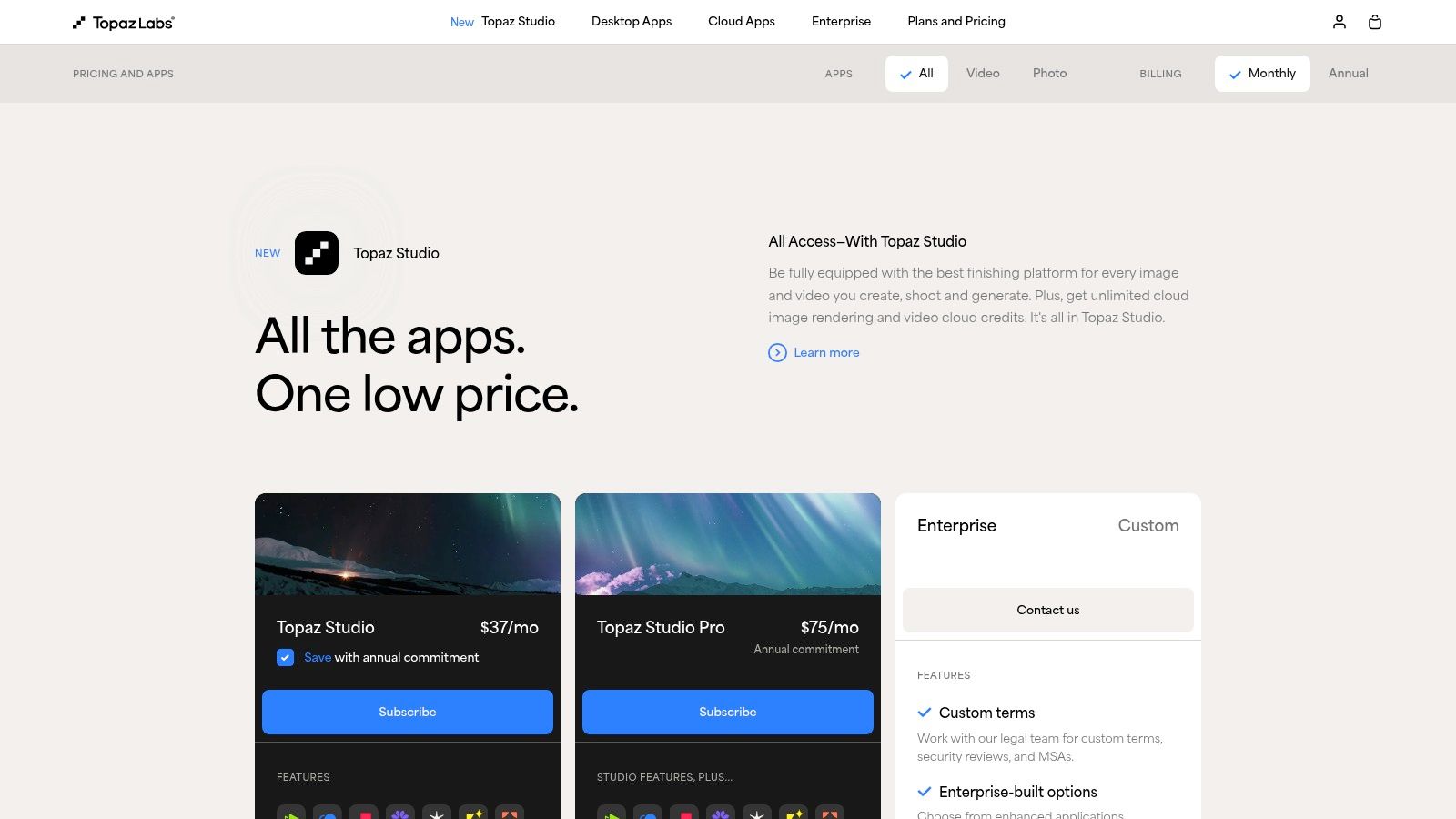
Topaz Video AI has shifted to a new pricing model. It costs $299 for the first year, which includes the app and one year of updates. After the first year, you can continue using the software you have, or you can pay $149/year to receive ongoing updates with new AI models and features. There are no cloud credits or subscription mandates to use the core software.
Key Considerations
- Pros: Best-in-class AI-powered upscaling and restoration quality, works as a powerful enhancement tool alongside professional NLEs, and offers a perpetual license option after the first year.
- Cons: Not a standalone editor, resource-intensive processing can be slow without a powerful GPU, and the pricing structure can be confusing for those familiar with its previous perpetual-only model.
Website: https://www.topazlabs.com/pricing
9. Canva (Video with Magic Studio)
Canva has evolved from a graphic design tool into a comprehensive content creation suite, with its Magic Studio bringing powerful AI tools for video editing to the forefront. It excels in a template-driven workflow, making it ideal for marketers, social media managers, and small businesses needing to produce professional-looking, brand-consistent videos quickly without a steep learning curve. Its key distinction is its accessibility and speed, leveraging AI to simplify tasks that would otherwise require specialized software.
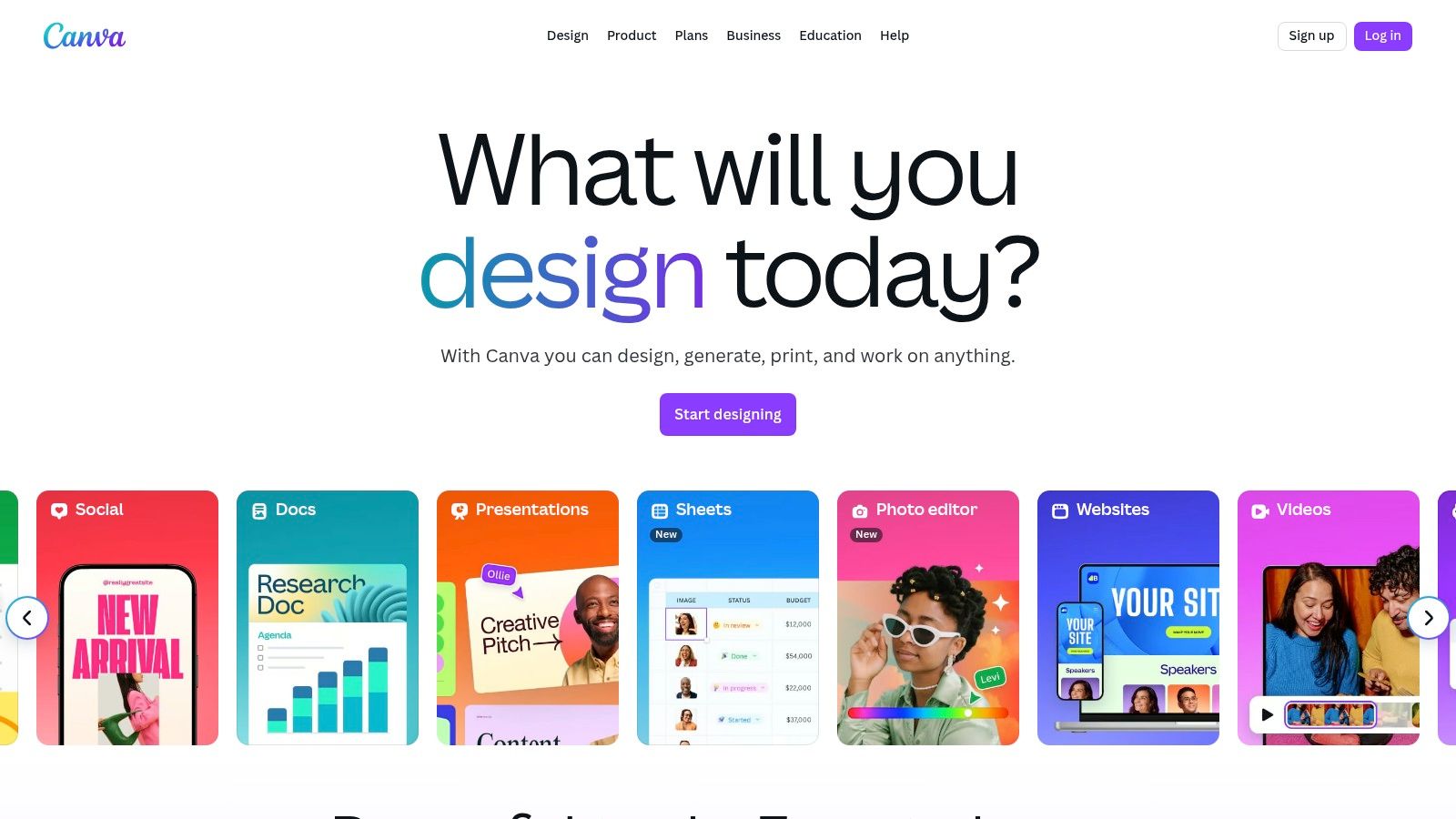
Alt text: The Canva Magic Studio interface for video editing, showing a timeline editor and AI-powered media generation tools for creating content from text prompts.
The platform’s standout AI features are integrated into its Magic Media tool, which allows you to generate videos or images from a simple text prompt directly within your project. Another powerful function is Magic Resize, which instantly reformats your video for different platforms like TikTok, Instagram Reels, or YouTube Shorts, saving hours of manual adjustments. The system also offers AI-powered background removal and automatic caption generation to enhance accessibility and engagement.
How to Create a Social Media Ad from Scratch
Imagine you need to create a short video ad for a new product with no existing footage. Follow these steps:
- Start with a Template: In Canva, select a video ad template that matches your brand’s style.
- Generate Custom Media: Go to the “Elements” tab and find Magic Media. Use the text-to-video feature to generate a short, unique clip by typing a prompt like “a slow-motion video of a water droplet landing on a leaf.” Add it to your template.
- Add Branding: Use Canva’s simple drag-and-drop editor to add your logo, product images, and text overlays.
- Resize for All Platforms: Once the design is final, click Magic Resize and select all the formats you need (e.g., Instagram Story, TikTok, Square Post). Canva will instantly create perfectly formatted versions of the ad.
- Generate a Voiceover: Use the AI voiceover tool to generate narration for your ad, then publish it directly to your social channels.
Pricing and Access
Canva offers a robust free plan with limited access to AI features and templates. The Canva Pro plan, starting at $14.99/month for one person, unlocks the full Magic Studio suite and provides more generative credits. The Canva for Teams plan offers collaborative features and brand management tools, with pricing scaling based on the number of users.
Key Considerations
- Pros: Extremely user-friendly with a massive library of templates and assets, excellent for creating social media content and marketing videos quickly, and strong collaborative features.
- Cons: Not a professional non-linear editor (lacks advanced timeline control), generative AI outputs can be inconsistent and may need refinement, and team pricing can become costly for larger groups.
Website: https://www.canva.com/
10. InVideo AI
InVideo AI excels as a script-to-video generation platform designed for speed, making it a powerful tool for marketers, educators, and content creators who need to produce explainer or promotional videos quickly. It streamlines the entire creation process by converting a simple text prompt or a detailed script into a fully-fledged video, complete with stock footage, voiceovers, and background music. Its key advantage is its ability to create a polished first draft in minutes, bypassing the complexities of traditional video editing.
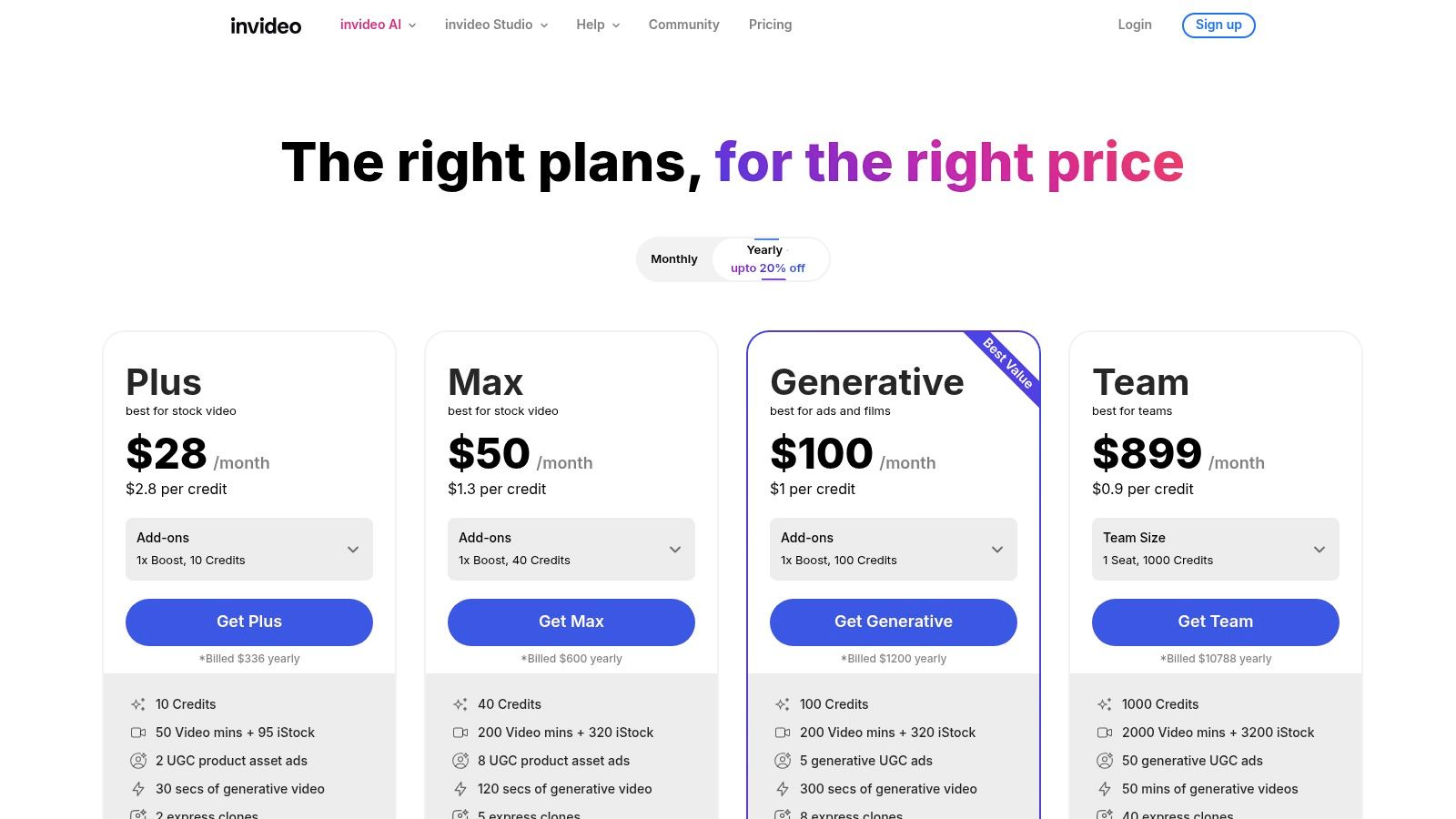
Alt text: The user interface of InVideo AI, showcasing its script-to-video feature where a text script is being converted into a video with stock footage and a timeline editor.
The platform’s core strength lies in its AI-powered workflow. You can provide a topic, and InVideo AI will generate a script, find relevant clips from its extensive stock media library, create a voiceover, and assemble everything into a cohesive video. This makes it one of the most effective AI tools for video editing when the goal is rapid production rather than granular creative control. Users can then use the built-in editor to make adjustments, swap clips, or change the voiceover.
How to Create a Social Media Ad with AI
Imagine you need to create a 30-second video ad for a new productivity app. Instead of hiring a team or spending hours in complex software, follow these steps:
- Enter Your Prompt: Log in to InVideo AI and in the prompt box, describe your video. For example: “Create a 30-second ad for ‘FocusFlow,’ an app that blocks distractions. Use an upbeat, professional tone and a female voiceover.”
- Generate the Video: The AI will generate a script, select stock footage of people working productively, and add the voiceover and music.
- Review and Edit: Review the generated video. You can give the AI further commands like, “Change the music to be more cinematic,” or, “Replace the second clip with a shot of someone checking off a to-do list.”
- Finalize and Export: Once you are happy with the result, export the final video in the correct aspect ratio for Instagram or TikTok.
Pricing and Access
InVideo AI offers a free plan that provides 10 minutes of AI generation per week, making it accessible for testing. Paid plans start at $20/month (billed annually) for the “Plus” plan, which increases limits on AI generation minutes, stock media usage, and exports. Higher-tier plans are available for teams and heavier users needing more resources.
Key Considerations
- Pros: Extremely fast script-to-video generation, user-friendly interface for non-editors, and transparent pricing with clear usage quotas.
- Cons: The AI-generated videos often require manual refinement for a truly professional finish, and credit/minute limits on lower-tier plans can be restrictive for high-volume creators.
Website: https://invideo.io/pricing
11. Kapwing
Kapwing is an in-browser video editor designed for speed and collaboration, making it a go-to for social media managers and marketing teams. Its strength lies in its collection of practical AI tools that streamline common, time-consuming tasks without requiring any software installation. Instead of a complex, timeline-heavy interface, Kapwing focuses on a simple, accessible workflow for creating social-ready content quickly.
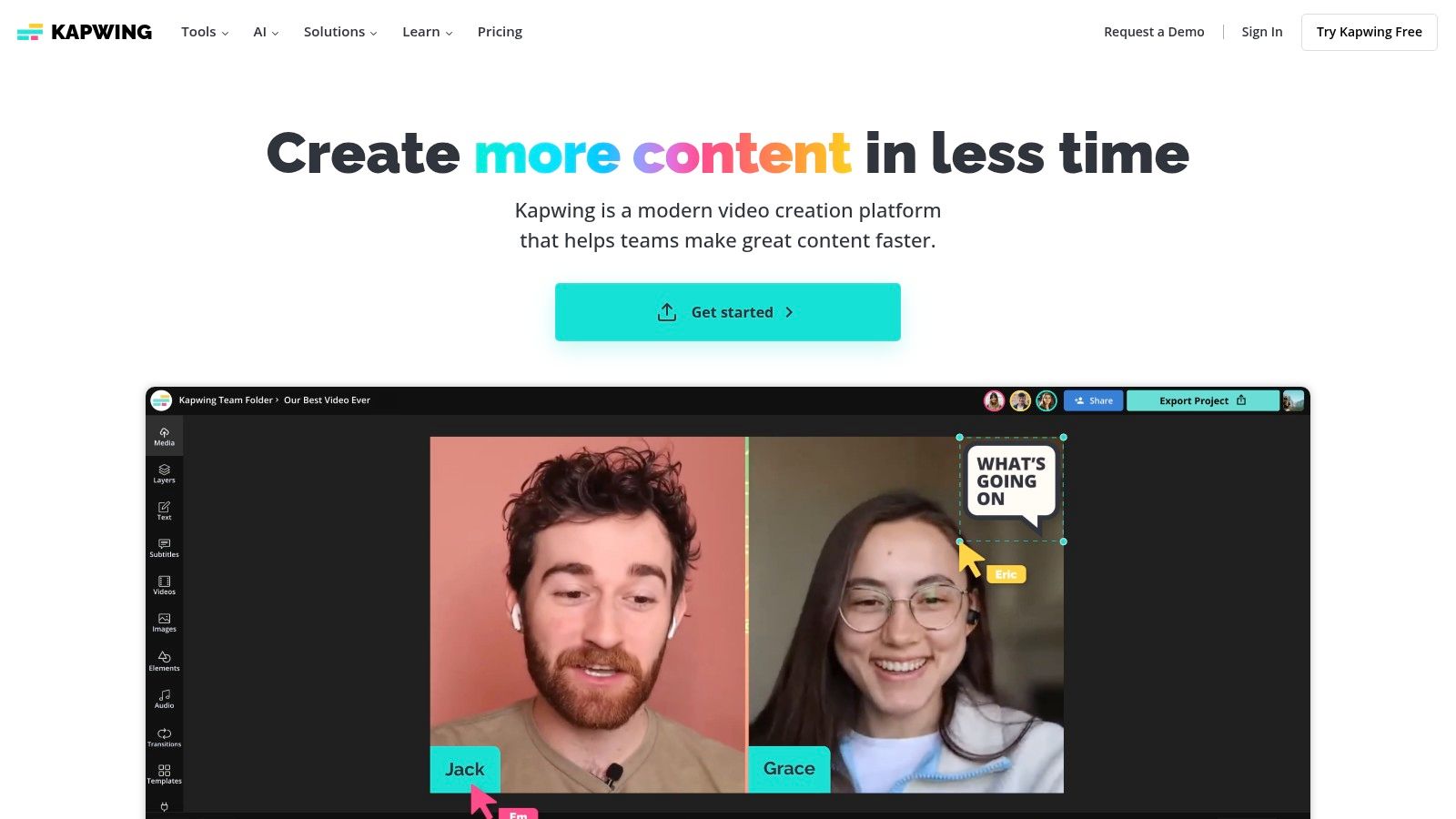
Alt text: The browser-based interface of Kapwing’s video editor, highlighting its automatic subtitling feature and other smart tools in the sidebar.
The platform’s standout AI features are centered on accessibility and transcription. Its auto-subtitling tool generates accurate captions in seconds, with options to customize fonts and animations. Kapwing also offers AI-powered translation and text-to-speech, allowing creators to repurpose a single video for multiple international audiences directly within their browser. Other AI tools include a video clip generator and automatic lip-syncing for dubbing.
How to Create a Multilingual Marketing Clip
Imagine you need to adapt a short promotional video for Spanish-speaking and German-speaking audiences on Instagram. Here’s the step-by-step process with Kapwing:
- Upload and Subtitle: Upload your finished English video to the Kapwing editor. Use the Auto Subtitles tool to generate English captions.
- Translate Subtitles: Select the subtitle track in the editor. In the right-hand panel, find the Translate feature and instantly create Spanish and German versions of the captions.
- Create a Dubbed Audio Track: Optionally, use the Text-to-Speech feature with a Spanish or German voice to create a new audio track from the translated script.
- Sync the Audio: Use the AI Lip Sync tool to analyze the original speaker’s mouth movements and adjust the new dubbed audio to match them more closely.
- Export and Post: Export each version directly, ready for posting to international social media accounts.
Pricing and Access
Kapwing offers a tiered pricing model. A Free plan is available, which includes watermarks and has limitations on export length and AI feature usage. The Pro plan starts at $16/month (billed annually) and removes watermarks while increasing limits. Heavy AI users may need the Business plan for more extensive access to generative features and team collaboration tools.
Key Considerations
- Pros: Entirely browser-based with no installs, excellent for team collaboration and sharing, and offers a transparent and user-friendly interface.
- Cons: The free plan is quite restrictive with watermarks and limits, and significant AI usage requires upgrading to more expensive plans.
Website: https://www.kapwing.com/
12. CyberLink PowerDirector 365
CyberLink PowerDirector 365 is a versatile video editor that bridges the gap between consumer-friendly tools and professional-grade software. It stands out by offering an extensive and growing suite of AI and generative AI tools packaged with aggressive subscription pricing, making it a powerful choice for YouTubers, marketers, and event videographers who need advanced features without the steep learning curve of an industry NLE. Its broad feature coverage makes it one of the most comprehensive AI tools for video editing in its price range.
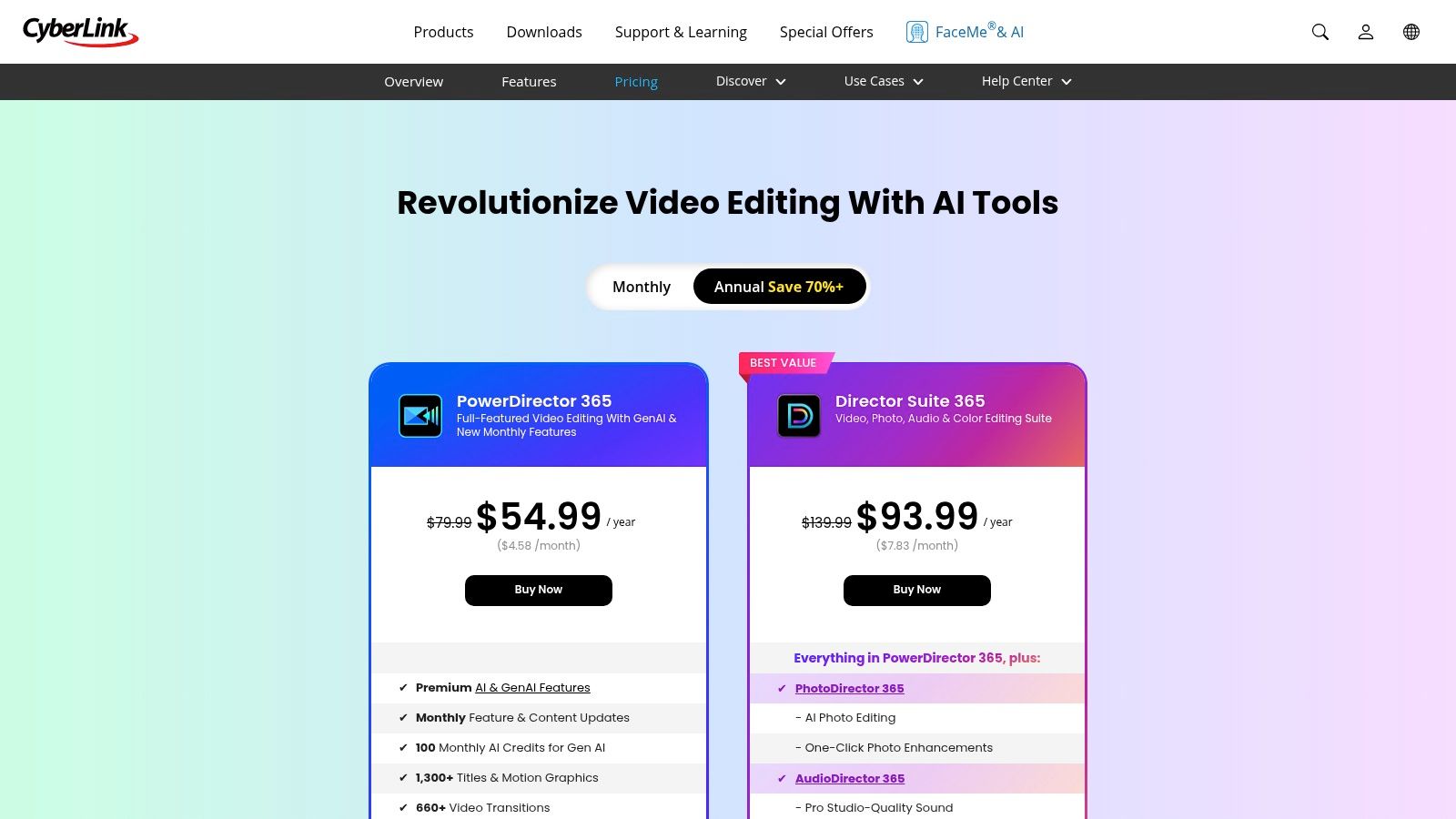
Alt text: The interface of CyberLink PowerDirector 365, showcasing AI-powered features like a talking avatar generator and a text-based editing panel.
The platform’s generative AI capabilities are a key highlight, including AI Text-Based Editing, an AI Talking Avatar generator, and AI-powered voice and music tools. These features allow creators to automate complex tasks and generate novel content directly within the editor. For example, the talking avatar can create explainer videos from a simple script, saving hours of filming and voiceover work.
How to Create a Quick Marketing Video with AI Avatars
Imagine you need to produce a short promotional video for social media with a tight deadline. Instead of sourcing a spokesperson and a voice actor, follow this process:
- Open the Avatar Generator: In PowerDirector, navigate to the AI Talking Avatar generator.
- Select an Avatar and Voice: Choose a pre-made avatar or generate a new one from a text prompt. Then, type or paste your marketing script into the text field and select a voice style.
- Generate the Clip: Generate the video clip of the avatar speaking your script and add it to the timeline.
- Create Backgrounds and Music: Use the AI Image Generator to create unique background visuals for your video. Then, use the AI Music Generator to produce a royalty-free soundtrack that matches the video’s mood.
- Assemble and Export: Combine the avatar, background, and music on the timeline, add text overlays, and export the final video.
Pricing and Access
PowerDirector 365 is available through a subscription or a perpetual license. The PowerDirector 365 subscription is competitively priced, starting at $5.83/month, and includes access to all features and regular updates. Generative AI features operate on a monthly credit system. Optional add-ons for stock content are also available.
Key Considerations
- Pros: Aggressive subscription pricing, a wide range of AI features, and a user-friendly interface suitable for both beginners and experienced editors.
- Cons: Generative AI features are metered by credits, and the most valuable stock and template add-ons require an additional subscription.
Website: https://www.cyberlink.com/products/powerdirector-video-editing-software/pricing_en_US.html
12 AI Video Editing Tools — Feature Comparison
| Tool | Key features | AI / Unique features ✨ | Quality / UX ★ | Price / Value 💰 | Target / USP 👥 🏆 |
|---|---|---|---|---|---|
| Adobe Premiere Pro | Professional NLE, timeline, CC integrations | Text-based editing, Auto Color, speech-to-text, filler removal ✨ | ★★★★★ Pro-grade; steeper learning curve | 💰 Subscription (Creative Cloud), AI credits tied | 👥 Pro editors & studios 🏆 Deep Creative Cloud ecosystem |
| Final Cut Pro | macOS-optimized NLE, Metal acceleration | Voice Isolation, scene-detection, color conform ✨ | ★★★★★ High performance on Apple silicon | 💰 One-time purchase + 90‑day trial | 👥 Mac users & pros 🏆 Performance + one-time buy |
| DaVinci Resolve Studio | Full post suite (Edit/Fusion/Color/Fairlight) | Neural Engine: magic mask, scene-cut detection ✨ | ★★★★★ Industry-grade color & finishing | 💰 Free tier; Studio one-time (~$295) | 👥 Colorists/post houses 🏆 Best-in-class color tools |
| CapCut | Cross-platform social editor, templates | Auto-captions, bg/subject removal, motion tracking ✨ | ★★★★ Fast, mobile-first workflows | 💰 Generous free tier; platform-dependent plans | 👥 Social creators/mobile users 🏆 Rapid template-driven output |
| Descript | Transcript-driven editor, overdub, screen record | Text-based editing, Overdub voice cloning, Studio Sound ✨ | ★★★★ Extremely fast for talking-heads | 💰 Freemium + quota/credited AI features | 👥 Podcasters/tutorial creators 🏆 Transcript-first speed |
| Runway | Browser-based editor + timeline & workspaces | Gen-4 text→video, rotoscoping, upscaling, TTS ✨ | ★★★★ Quick experimentation without GPU | 💰 Credit-based AI; subscription tiers | 👥 Teams/creatives without GPUs 🏆 Browser Gen-4 video |
| Wondershare Filmora | Consumer-friendly editor, templates, stock | Text-to-video, AI object remover, TTS/STT ✨ | ★★★★ Easy learning curve for newcomers | 💰 Lower-priced; perpetual & subscription options | 👥 Beginners & cost-conscious creators 🏆 Value + ease |
| Topaz Video (Topaz Labs) | Specialized enhancement: upscaling, denoise | AI upscaling, frame interpolation, motion smoothing ✨ | ★★★★ Best-in-class restoration/enhancement | 💰 Subscription/credits (formerly perpetual) | 👥 Restoration & finishing pros 🏆 Superior upscaling quality |
| Canva (Video w/ Magic Studio) | Template-driven design, brand kits, teams | Magic Media, text-to-video/image, auto-resize ✨ | ★★★★ Extremely fast for marketing/social | 💰 Freemium; paid Teams plans (pricing changed) | 👥 Marketers & teams 🏆 Templates + collaboration |
| InVideo AI | Script-to-video + editor, stock & avatars | Script-based generation, AI avatars/voice, quotas ✨ | ★★★ Quick explainer drafts; needs refinement | 💰 Credit/minute quotas; tiered plans | 👥 SMB marketers & creators 🏆 Fast script→video drafts |
| Kapwing | Browser editor: subtitles, translate, TTS | Auto-subtitle, translation, TTS, lip-sync ✨ | ★★★★ No-install, collaborative & simple | 💰 Freemium; free plan watermarks/limits | 👥 Social teams & educators 🏆 Easy collaboration & web access |
| CyberLink PowerDirector 365 | Prosumer NLE: transitions, multicam, stock | Generative AI, text-based editing, talking avatar ✨ | ★★★★ Broad feature set; approachable UI | 💰 Subscription or perpetual; AI credits for GenAI | 👥 YouTubers/marketers 🏆 Aggressive pricing + feature coverage |
Final Thoughts
The landscape of video editing is undergoing a seismic shift, and the catalyst is artificial intelligence. As we’ve explored, the integration of AI tools for video editing is no longer a futuristic concept but a present-day reality, fundamentally altering workflows for everyone from Hollywood colorists to solo YouTube creators. The era of spending countless hours on tedious, repetitive tasks like transcribing audio, rotoscoping subjects, or manually color-correcting every clip is rapidly coming to a close.
The tools we’ve covered, from industry titans like Adobe Premiere Pro and DaVinci Resolve Studio to innovative, browser-based platforms like Runway and Descript, showcase the incredible breadth of this revolution. Traditional NLEs are embedding AI to augment familiar workflows, while AI-native tools are reimagining the very definition of video creation, turning simple text prompts into compelling visual narratives. This isn’t about replacing creative professionals; it’s about empowering them. AI handles the grunt work, freeing up invaluable time and mental energy to focus on what truly matters: storytelling, creativity, and emotional impact.
Actionable Takeaways
- Automate Tedious Tasks First: Use AI tools like Descript’s filler word removal or Premiere Pro’s Text-Based Editing to eliminate the most time-consuming parts of your current workflow.
- Leverage AI for Audio Quality: Instantly improve production value with one-click tools like Final Cut Pro’s Voice Isolation or Descript’s Studio Sound to remove background noise and echo.
- Generate Unique B-Roll: When stock footage feels generic, use a generative tool like Runway or Canva’s Magic Media to create custom visuals from a simple text prompt.
- Repurpose Content Effortlessly: Use AI-powered features like CapCut’s Auto Captions or Canva’s Magic Resize to quickly adapt one video for multiple social media platforms and formats.
- Start with a Free Trial: Pick one tool from this list that solves your biggest pain point and commit to using its free trial on a small, real-world project to see the impact.
How to Choose Your AI Video Editing Companion
Navigating this expansive ecosystem of AI-powered software can feel overwhelming. The “best” tool is rarely a one-size-fits-all solution. Your ideal choice hinges entirely on your specific needs, technical comfort level, and project goals. To make a confident decision, start by evaluating your workflow through this lens:
- For the Professional Filmmaker or Editor: If you are already embedded in a professional ecosystem, your best bet is to leverage the AI features within the software you already use. DaVinci Resolve Studio’s Neural Engine offers unparalleled performance in color grading and upscaling, while Adobe Premiere Pro’s Sensei AI excels at speech-to-text and auto-reframing. These tools integrate seamlessly into established, high-fidelity pipelines.
- For the Social Media Manager or Marketer: Speed and efficiency are your primary metrics. You need to create high volumes of engaging content quickly. Tools like CapCut, InVideo AI, and Kapwing are designed for this exact purpose. Their template-driven, AI-assisted workflows for generating subtitles, finding B-roll, and repurposing content across different aspect ratios are game-changers.
- For the Solo Creator or YouTuber: Your workflow is a hybrid of creative storytelling and efficient production. Descript offers a revolutionary text-based editing approach that can drastically cut down editing time for interview-style or narrative content. For those looking to automate more of the process, a tool like Wondershare Filmora provides a fantastic balance of user-friendly design and powerful AI features like silence detection and AI Portrait.
- For the Creative Technologist or Artist: If you are pushing the boundaries of what’s possible, a platform like Runway is your digital playground. Its focus on generative AI, from text-to-video to infinite image expansion, opens up entirely new avenues for experimental filmmaking and visual effects that were previously inaccessible without a massive budget and team.
Ultimately, the most effective AI tools for video editing will be those that feel less like a complex piece of software and more like a talented, tireless creative assistant. They are here to augment your skills, accelerate your workflow, and unlock creative possibilities you haven’t yet imagined. The future of video creation is not about letting machines take over; it’s about collaborating with them to tell better stories, faster.
Further Reading & Resources
- Tools Mentioned: Adobe Premiere Pro, DaVinci Resolve, Runway, Descript, CapCut.
- Related Articles:
- For Developers: Learn how to automate your final step by mastering the YouTube Upload API.
Ready to discover even more cutting-edge AI software? The AI Tools Hub is a comprehensive, expertly curated directory of the best AI tools across every category, including video, audio, marketing, and productivity. Explore our listings to find your next favorite tool and stay ahead of the curve. Visit the AI Tools Hub today.
One Reply to “12 Best AI Tools for Video Editing in 2026 (Ranked)”
This article does a great job curating 2026’s top-ranked AI video editing tools with clear rankings and practicality in mind, and you can also explore more other creative AI helpers in this free online tool collection.
free online tool mytoolhub