

The AI External Bots allows you to create a specially trained Chatbot and embed it on other (external) websites.
How to set up AI External Bots?
-
Locate the AI External Bots on the menu and click on it.

-
On the AI Bots page, you can create new chatbots, view chat history and manage your existing chatbots.

Adding a new chatbot
-
Click on the Add New Chatbot button.

-
-
-
-
-
-
-
-
-
Configuring Chatbot
 1. Chatbot Title: Name of your chatbot.
 - Bubble Message: The text shown in a bubble when the chat window is closed.
- Welcome message: The first message your chatbot will send to the user when a new chat window opens.
- Chatbot Instructions: Specify how your chatbot should behave. Example: You are an AI support assistant for RichlyAI. Act professionally. Add “If there is anything else I can help with, feel free to let me know!” at the end of your answers.
- Do Not Go Beyond Instructions: Enable this if you want the AI to follow your instructions strictly, not flexibly.
- Language: Select your chatbot’s language.
-
-
-
-
-
-
-
-
-
-
Customizing Chatbot
 In this step, you can customize your chatbot as you wish. You can see your changes in the live preview on the right.
 -
Training Chatbot
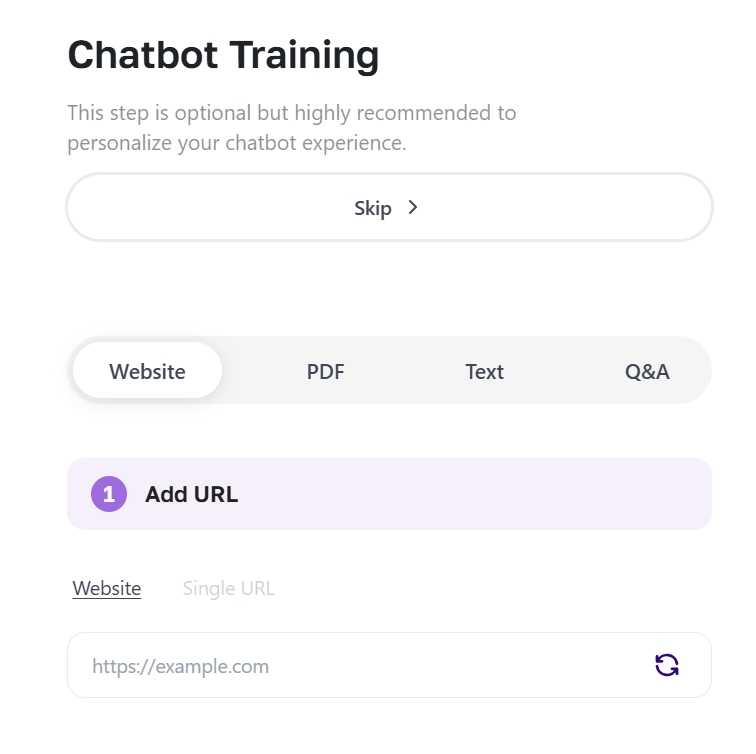 In this step you can train your chatbot. You can use a website, file or text as a source.
 -
Embedding chatbot code in your site
Copy the code from the page and add it before the closing </body> tag of your site. Refresh the site. That’s all, your chatbot is ready to go!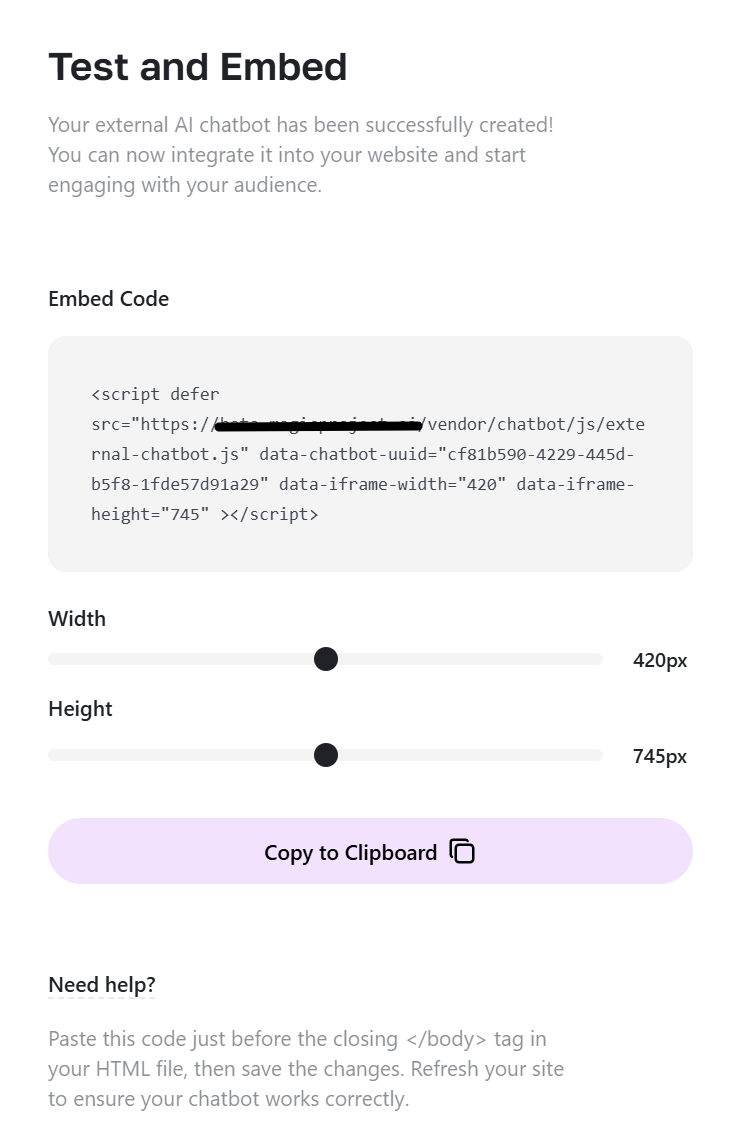

-